

Operator tab
Every TerraformFX operator has this tab to manage its intensity and how the overall effects are blended with other operators on the terrain.
In addition, the Gain and Offset parameters can give you a global control over the amplitude and position of the results.
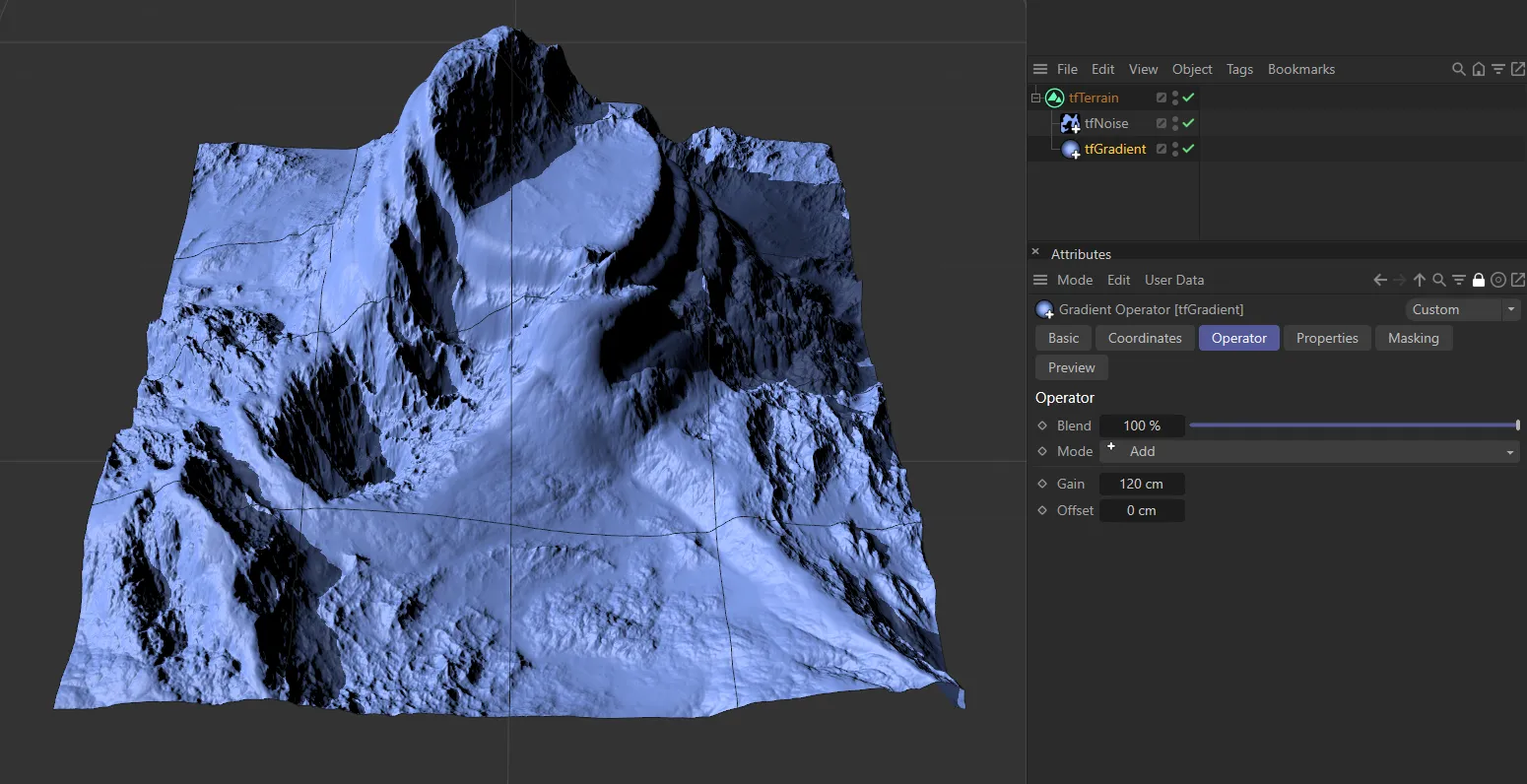
The Operator tab for the tfGradient operator.
This attribute is shared across all operator types.
The slider controls the intensity of the operator, blending the effects of the operator with the effects of any other operators that you have in the scene.
Setting it to 0 (zero) % will eliminate any effect the operator might have.
Setting it to 100% will show the full effect.
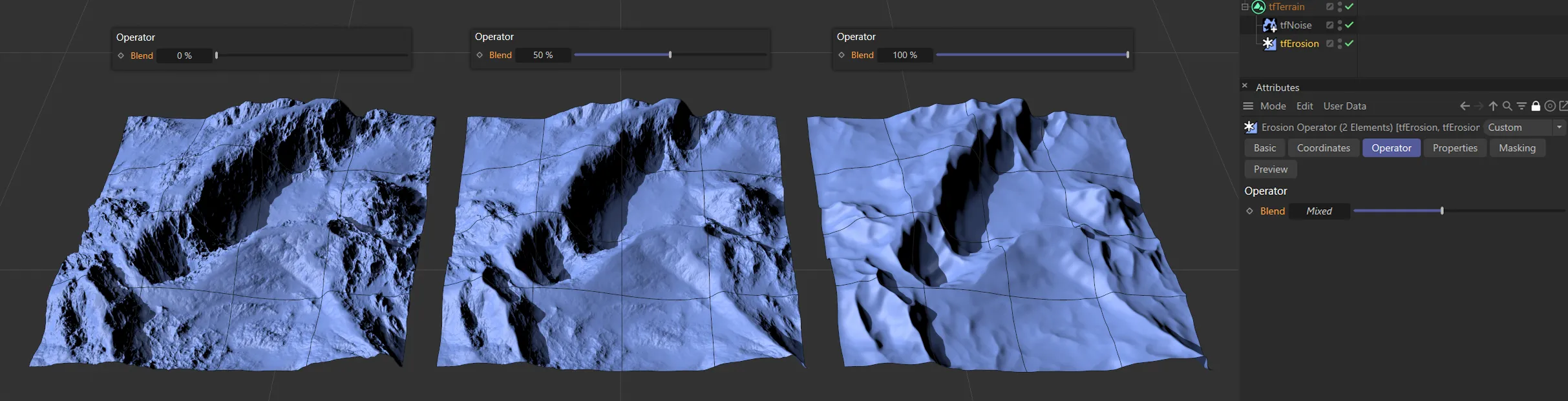
These three terrains have tfNoise and tfErosion operators applied, with different Blend values in the tfErosion Operator tab. The one on the left has 0 (zero) %, in the center there is 50% and, on the right, there is 100% Blend value.
Blend modes are only available for generators and are used to combine multiple generators for interesting effects.
The Mode is set at + Add, by default, but there is a range of different modes available.
Some of these are operator-position specific; this is explained in more detail below but, essentially, it can be important where they are placed in the Objects Manager hierarchy.
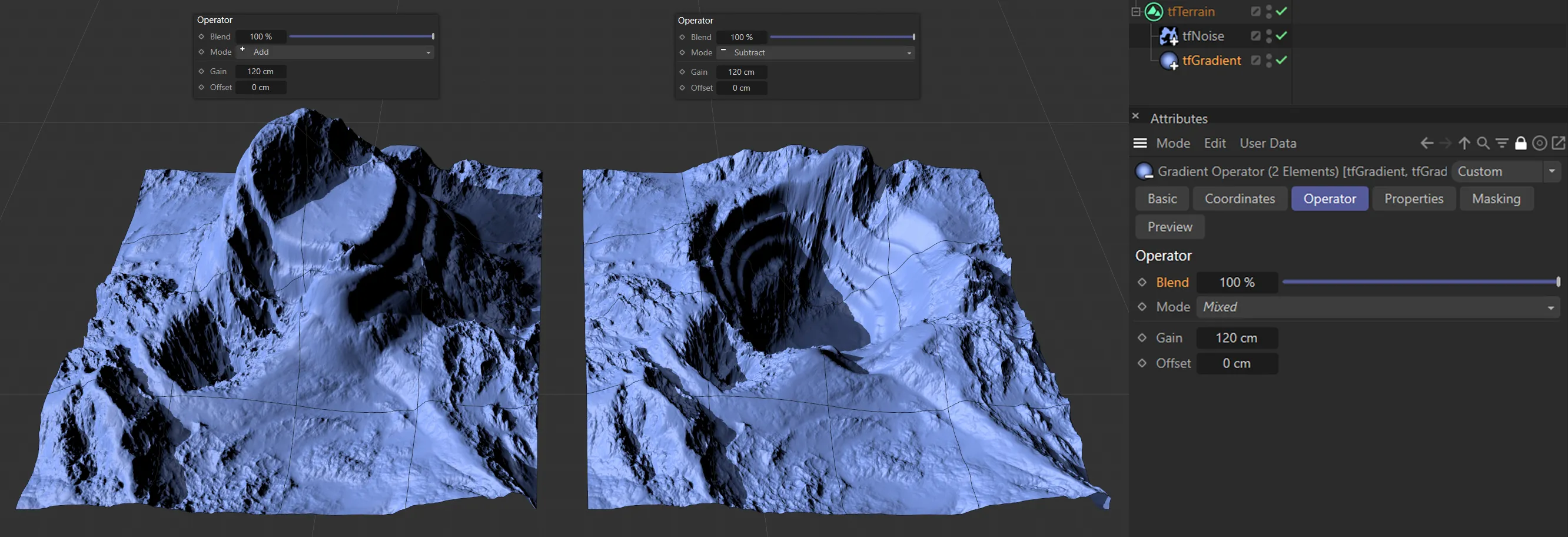
In the tfGradient Operator tab, the Mode is set to Add on the left and Subtract on the right-hand terrain, with clear effects.
Each item in the top half of this menu has a Gain parameter, which can be set in (both positive and negative) cm.
The remainder, in the bottom half, use multiplication to blend and have a default Gain setting of 1.
Normal mode
Section titled “Normal mode”In Normal mode, there is no blending happening.
The hierarchy in the Objects Manager determines which generator is being enabled, with the last generator in ‘the tree’ overriding the generators above it.
Decreasing the level on the Blend slider will lower the strength of the generator here, allowing any other generator in the scene to be apparent.
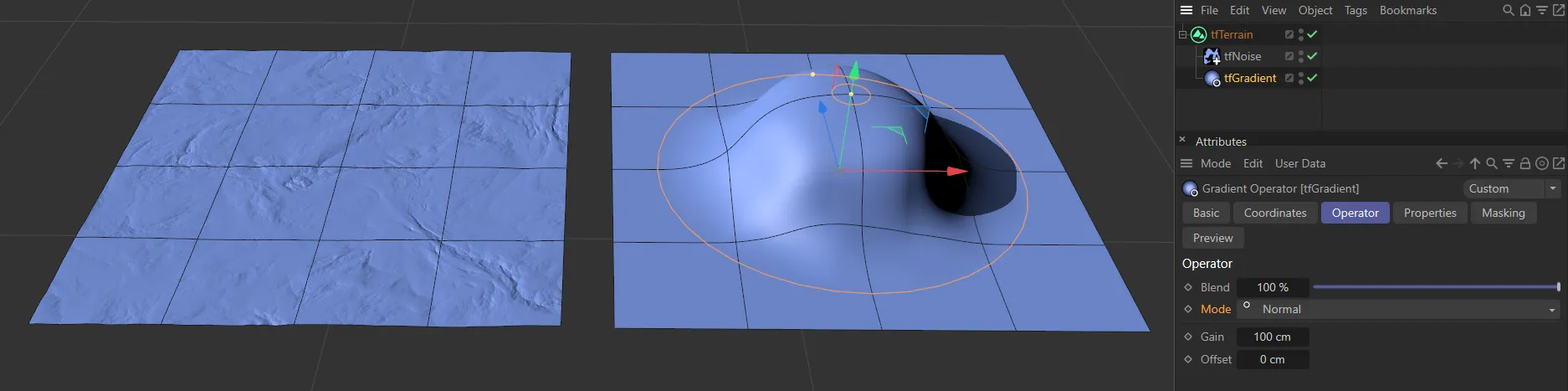
Here we are in the tfGradient operator and the Mode is set to Normal on the right, with no noise deformation visible.
+Add mode
Section titled “+Add mode”This mode takes the values from a generator and adds them to the values of other generators in the scene to give the result you can see in the terrain.
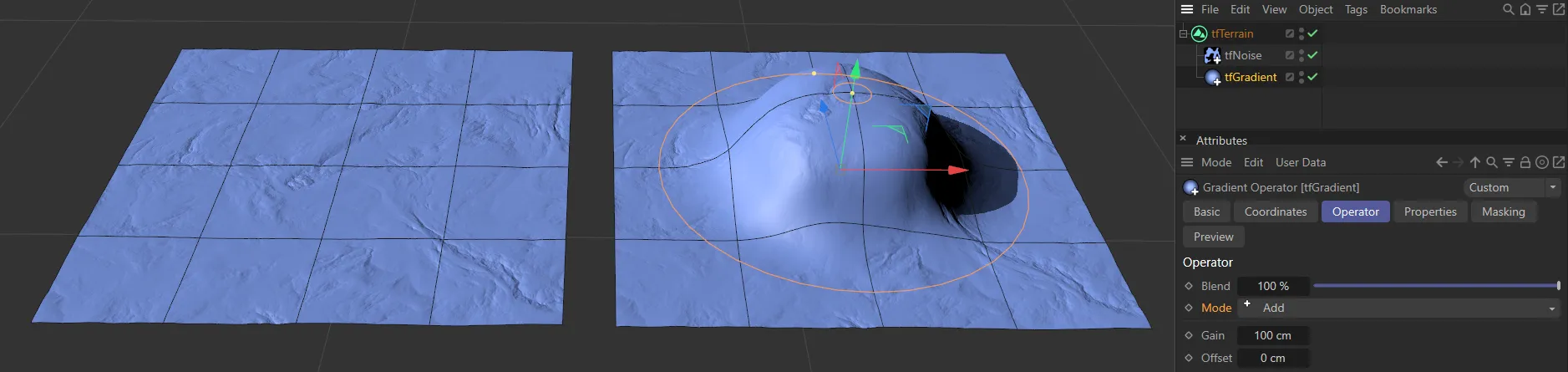
Here, you can see the effects on the right, when +Add mode is used, making the terrain higher.
-Subtract mode
Section titled “-Subtract mode”In this mode, the value of the generator is subtracted from the value of the generator above it.
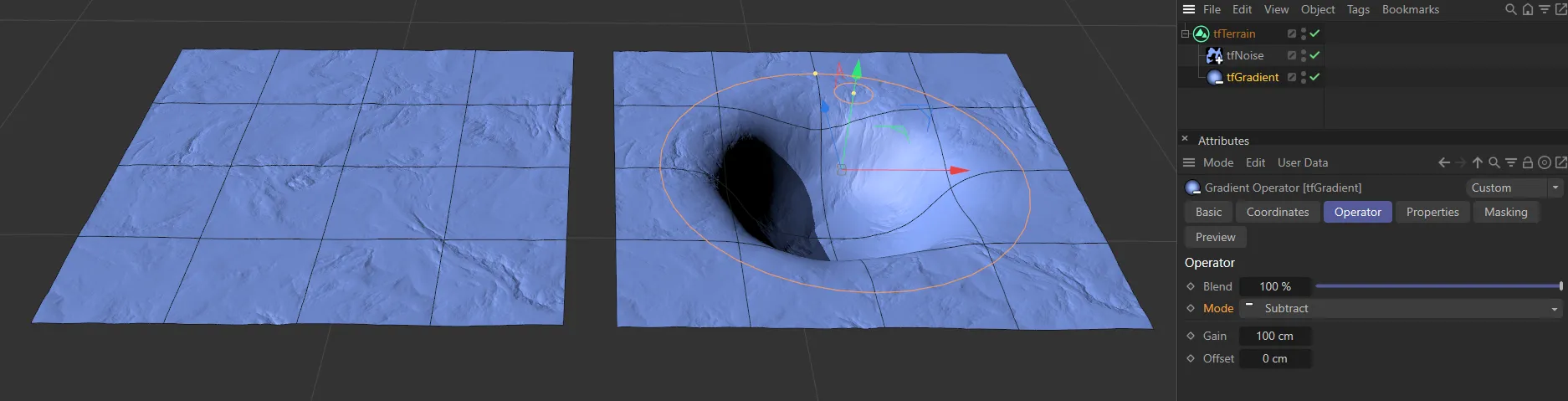
In this image, tfGradient is below tfNoise in the Objects Manager, in -Subtract mode, giving a very different look, as the value of tfGradient is subtracted from the value of tfNoise.
Difference mode
Section titled “Difference mode”Compares the heightmap to calculate the difference (based on the Gain values), which it then uses to deform the plane, giving a mixture of the two.
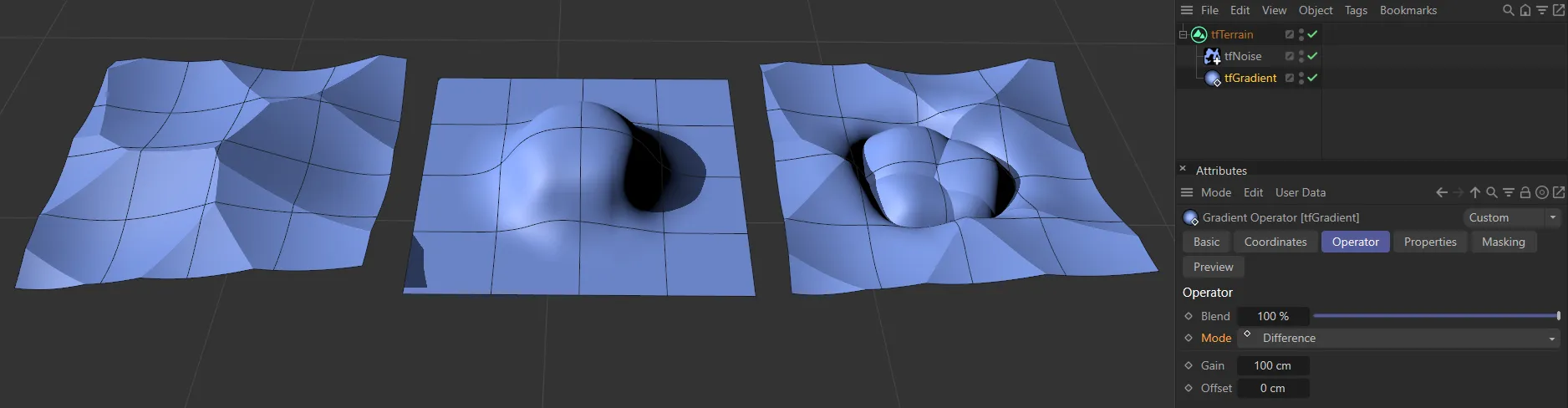
Here, the left-hand terrain has a tfNoise operator with a Voronoi noise. In the center is a tfGradient operator. And, on the right, both operators are applied, with tfGradient’s blending Mode set to Difference.
Exclusion mode
Section titled “Exclusion mode”Exclusion mode blends operators by taking the height values for each terrain point, adding them together and then subtracted from this total amount is double of the product of the two values.
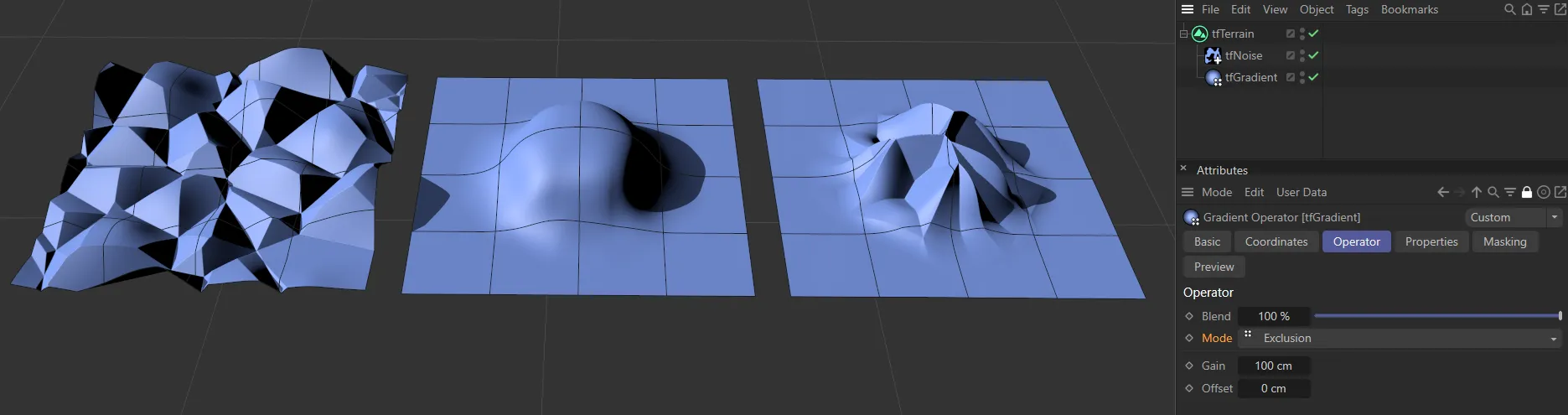
In this image, the terrain on the left has a tfNoise operator with a Voronoi noise. There is a tfGradient operator in the center and on the right, both operators are being applied, with the blending Mode set to Exclusion.
Phoenix Low / Phoenix High modes
Section titled “Phoenix Low / Phoenix High modes”These modes work in a very similar way to the Lowest and Highest modes, below, analyzing height maps to give a mixture of the generators.
Here they retain some of the detail from each generator, which makes the terrain more organic.
You will also get different results depending on the position of your generators in the hierarchy, unlike (again) the Lowest and Highest modes, below, which are not dependent on the order of the generators.
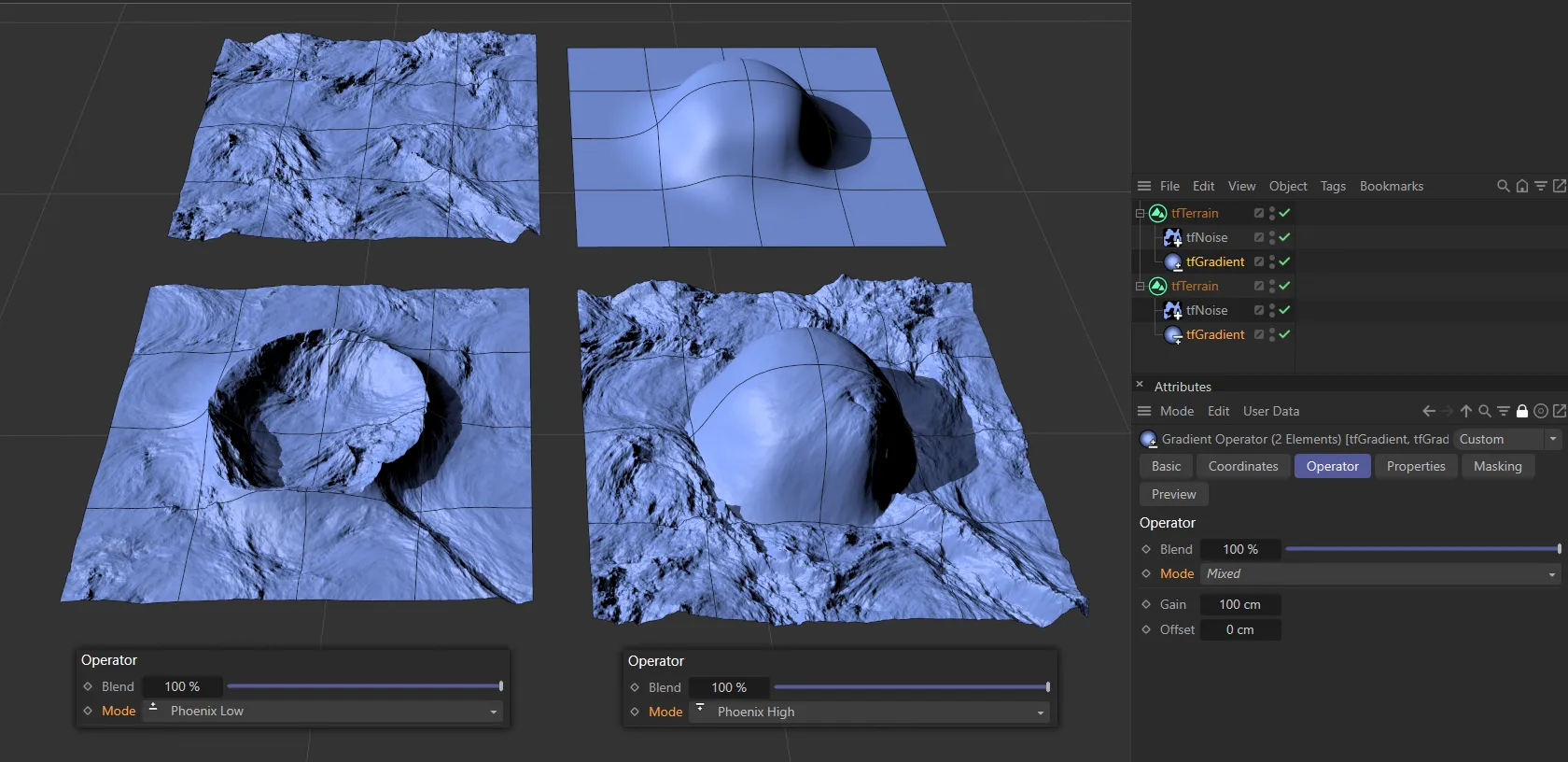
In this image, there are four terrains: the base tfNoise operator is in the top left and the tfGradient operator in the top right. The blend Mode of Phoenix Low has been applied on the bottom left and Phoenix High on the bottom right.
Lowest mode
Section titled “Lowest mode”Analyzes the heightmaps and uses the lowest value for each point to give a mixture of the generators.
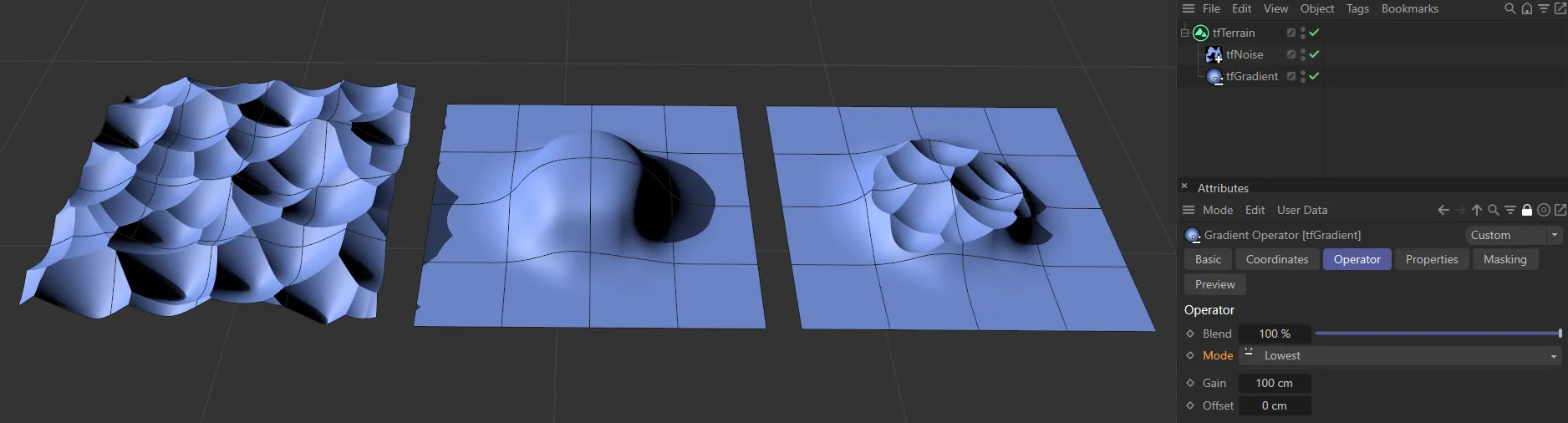
The bottom terrain is in Lowest mode, where the lowest points of the tfGradient are being used until a value which is higher than the tfNoise generator is reached, when the noise begins to be revealed.
Highest mode
Section titled “Highest mode”Analyzes the heightmaps and uses the highest value for each point to give a mixture of the generators.
Both Lowest and Highest modes are independent of the order (hierarchy) of the generators.
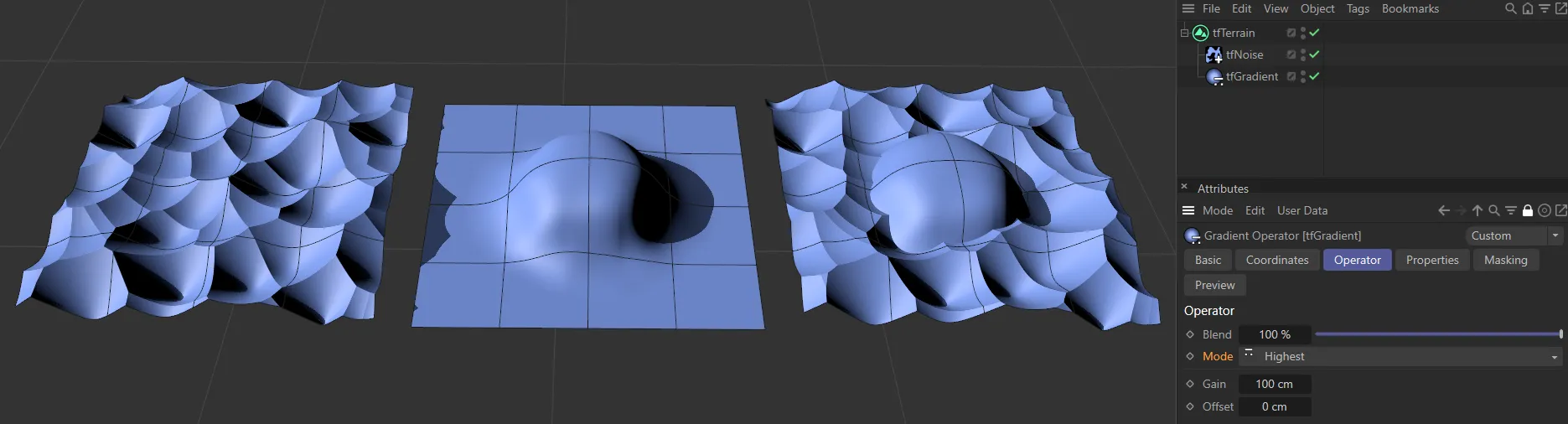
The terrain at the bottom is set to Highest mode, using the higher point of the tfGradient, until it reaches a level where the tfNoise values are higher and it takes over.
Multiply mode
Section titled “Multiply mode”Here, the generators’ values are multiplied and the results give the deformation, which is always a reduction in height, as both values are between 0 (zero) and 1.
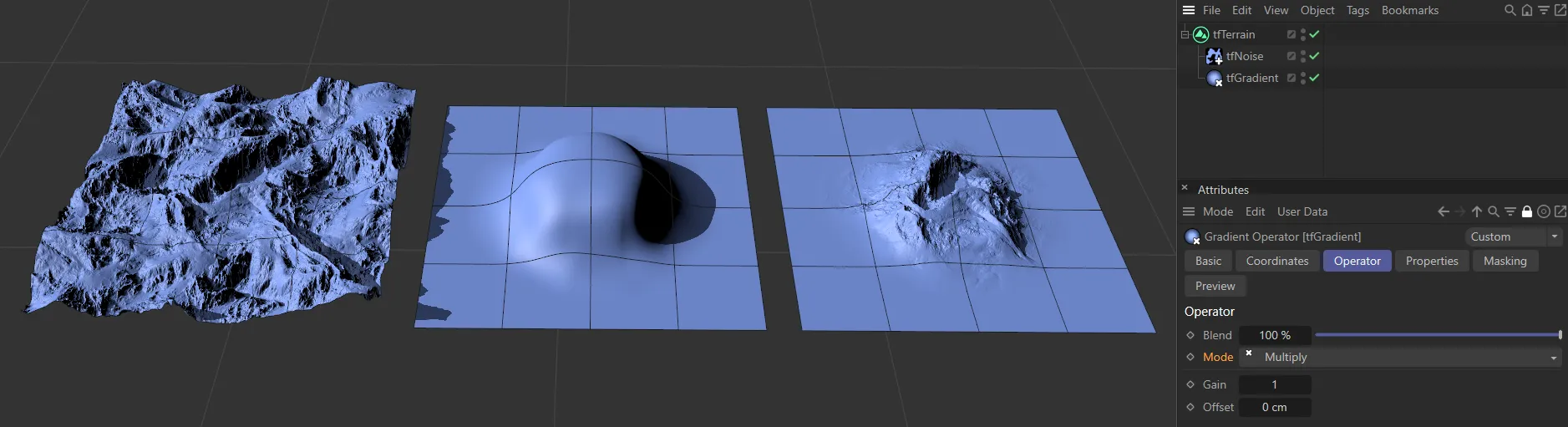
In this image, the left-hand terrain has a tfNoise operator, with a Wavy Turbulence noise. In the center is the tfGradient operator and the right-hand terrain has both applied, with a blend Mode setting of Multiply.
Because multiplication is commutative, the order of the generators does not matter, as it does in the remainder of the modes.
Instead of the Gain being in cm, it is set to 1, by default.
Overlay mode
Section titled “Overlay mode”This mode is a mixture between Multiply and Screen modes, making the darker areas darker and the lighter areas lighter, acting like a contrast.
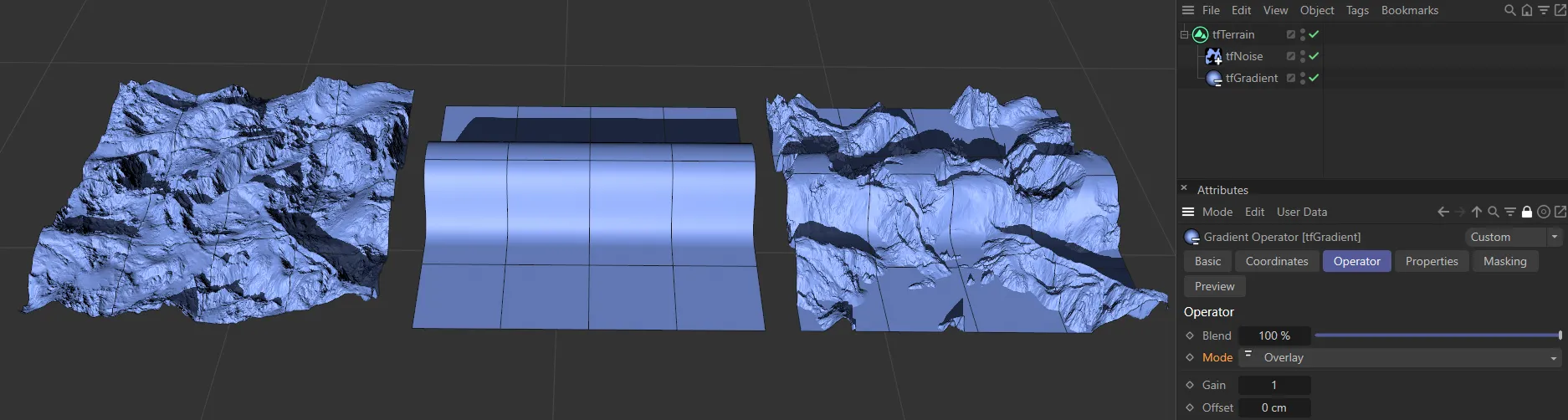
Here, there is the same tfNoise operator on the left, tfGradient in the center and both applied to the right-hand image, with the blend Mode of Overlay.
Negation mode
Section titled “Negation mode”The Negation mode mirrors the height field, folding the upper 50% of the altitude values.
The Negation mode negates the top 50% of the altitude range, folding it in the opposite direction.
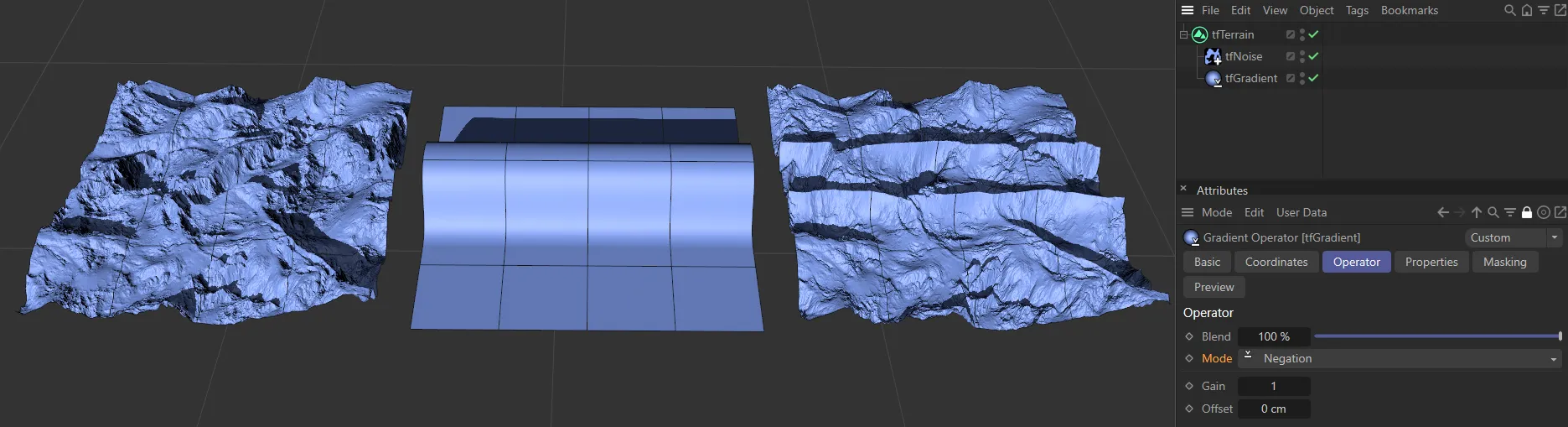
Again, we have the same Wavy Turbulence noise on the left, with the tfGradient in the center. The right-hand terrain has a combination, with a blend Mode of Negation.
Screen mode
Section titled “Screen mode”This mode does the opposite of the Multiply mode, in that it makes the lighter parts of the map lighter, without going above the value 1, by clipping it.
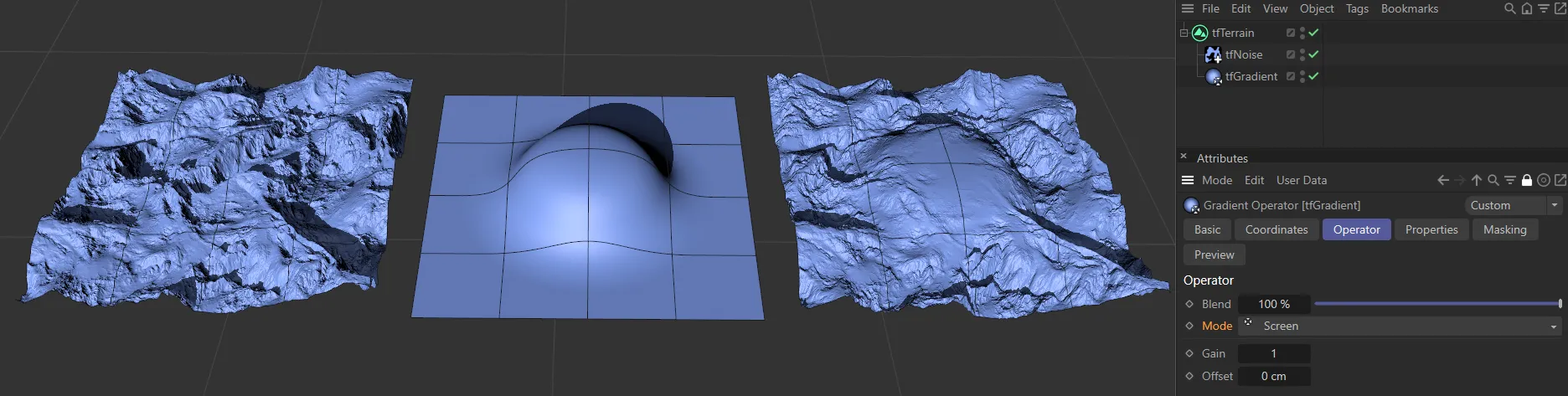
The same Wavy Turbulence noise is evident here, with tfGradient in the center and, on the right, both are applied, with the blend Mode of Screen.
Soft Light mode
Section titled “Soft Light mode”This offers a similar look to the Overlay mode, only not as harsh in the contrast.
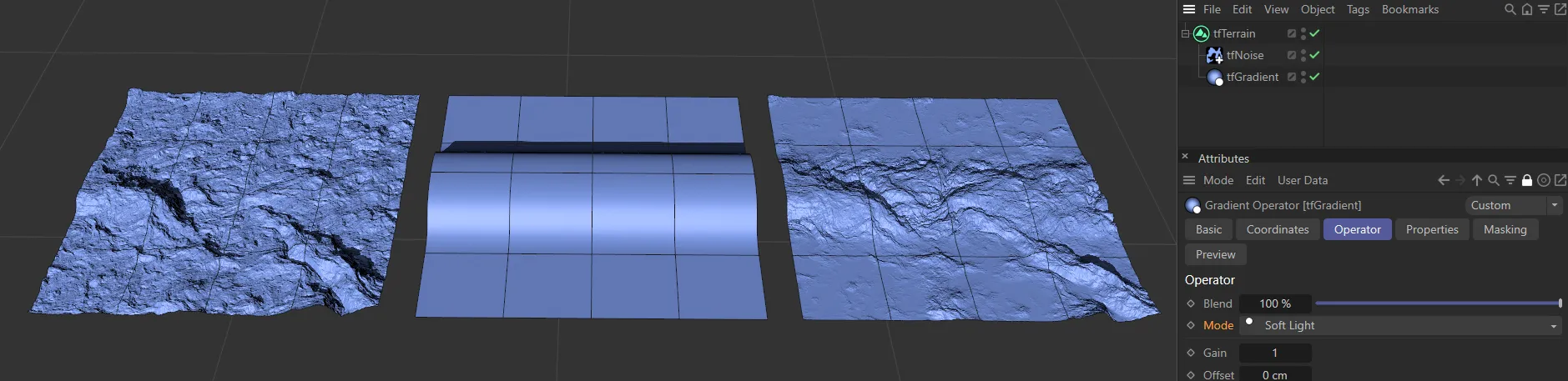
The tfNoise operator on the left has a Nutuos noise applied. In the center is tfGradient and the terrain on the right has a combination of both, with a blend Mode of Soft Light.
Hard Light mode
Section titled “Hard Light mode”Again, this is a blend between Multiply and Screen modes, but taking into account the altitude of the second operator, making them prominent in the deformation.
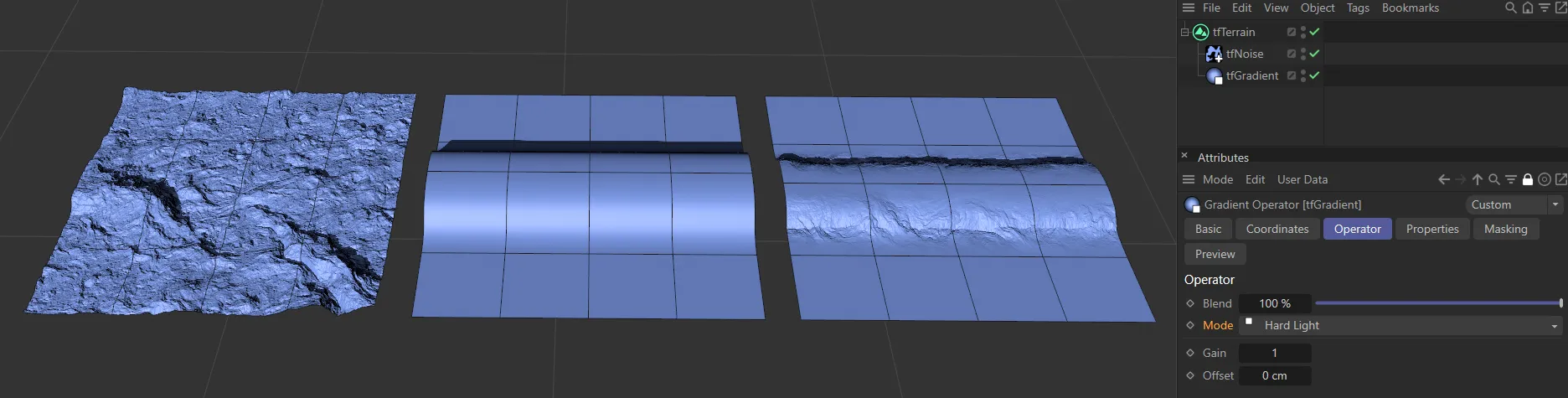
Here is the same tfNoise, as above. In the center, again, we have a tfGradient operator and both are applied on the right, with a blend Mode of Hard Light.
This attribute only exists in the generator types.
It acts like a multiplier, controlling the amplitude of the operator’s results, thereby increasing, or decreasing the effects of the generator(s) in the scene.
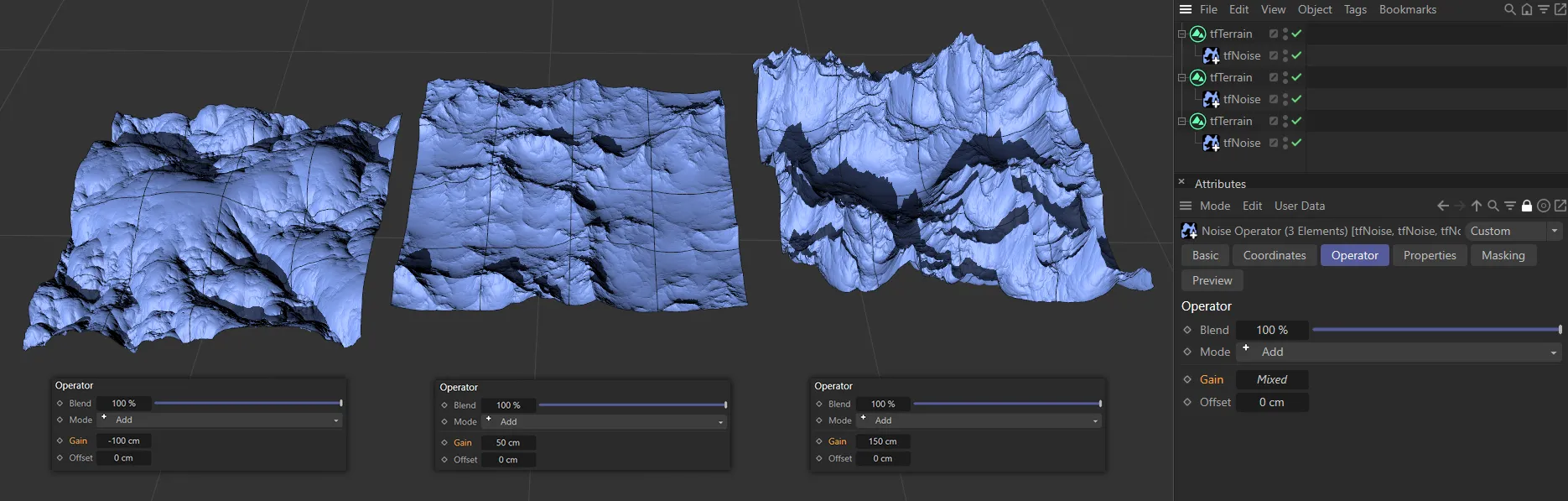
The left-hand terrain has a Gain setting of -100cm. In the center this has been raised to 50cm and then to a height of 150cm on the right.
Offset
Section titled “Offset”This control moves the entire terrain up, or down, on the Y-axis.
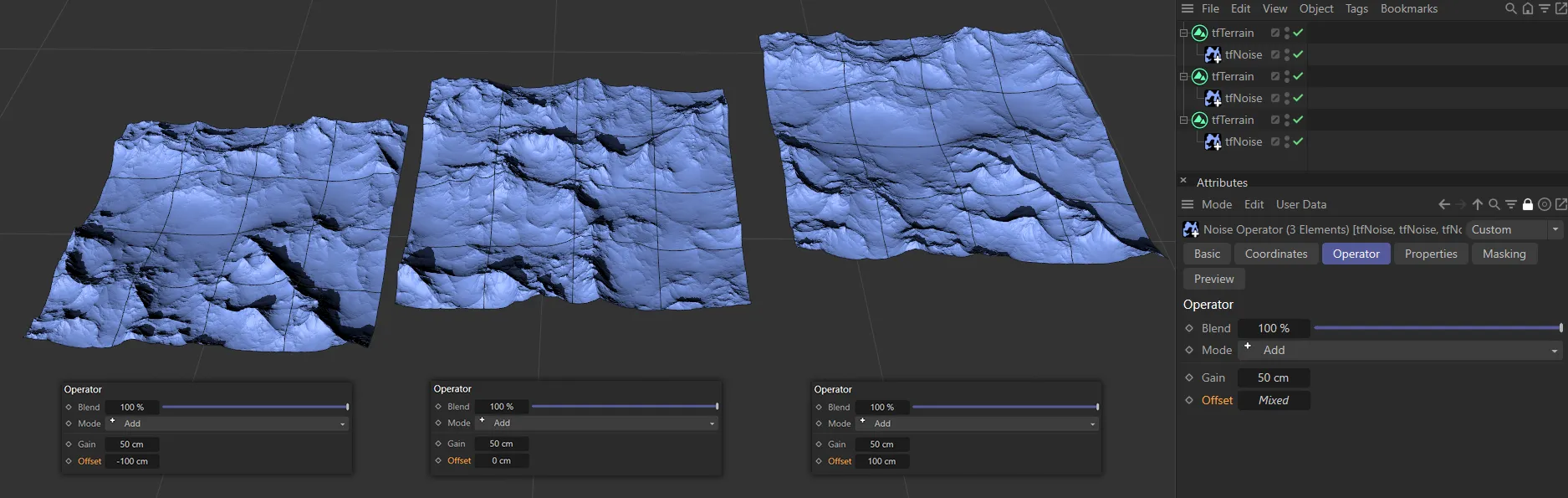
In this image, the Offset value is -100cm on the left. In the center the Offset is 0 (zero) cm and on the right-hand terrain it is 100cm.
Copyright © 2026 INSYDIUM LTD. All rights reserved.