

xpSticky
xpSticky will stick particles to an object and move them with the object if it moves or rotates.
General tab
Section titled “General tab”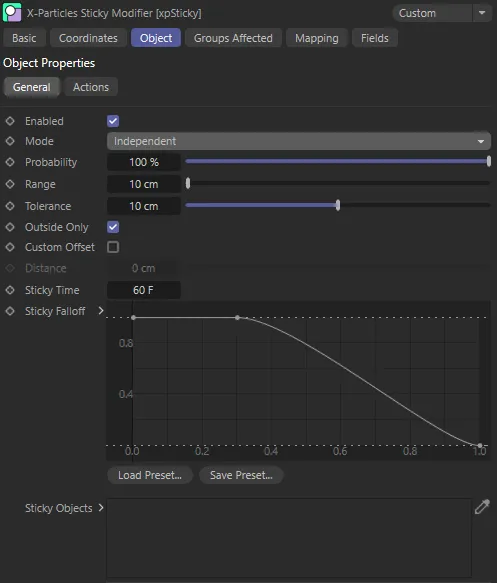
General tab menu settings.
Enabled
Section titled “Enabled”Clicking this box activates xpSticky.
Set at Independent, by default.
You can change this to Action-Controlled.
Independent Mode
Section titled “Independent Mode”In this mode, particles will be affected if they come into the field of effect of the modifier.
Action-Controlled Mode
Section titled “Action-Controlled Mode”When in the Action-Controlled Mode setting, the modifier will only act on a particle when told to do so by an action.
Probability
Section titled “Probability”This is the probability that a particle will stick to an object if it comes within range.
If it is set to 100% the particle will always stick; if it is 0 (zero) %, it never will.
Animation to demonstrate the effect of Probability set at 100%.
By comparison, Probability is lowered to 5%, in this animation, with less chance of particles sticking to the scene object.
This setting determines how far away a particle must be from an object to stick to it.
Its purpose is to screen out all particles which are too far away to potentially stick to the object.
If this is set too high, the number of particles which must calculate a sticking point on the object will increase and may slow down the system.
As a general rule, the default value is a good compromise.
If the particles and/or objects are moving very slowly, you can reduce this value but, if they are moving very fast, you may need to increase it, since then there is the possibility that a particle may pass by an object without coming into range.
Tolerance
Section titled “Tolerance”This is the actual distance a particle must be from the object in order to stick to it.
You should keep this as low as possible since, if it is too high, particles at some distance from the object may be ‘dragged in’ to it, which can look unrealistic.
If it is too low, particles which could stick to the object may be missed.
Outside Only
Section titled “Outside Only”If this is enabled, particles will only stick to the outside of the object.
In some cases this may cause some particles to be missed and not stick to the object.
If this happens, try increasing the range and/or tolerance values, but keep the increases to a minimum; if you increase them too much, you may stick particles which are further away from the object than you would like.
Custom Offset
Section titled “Custom Offset”Check this box to offset the sticking point of the particles from the object surface.
The amount of offset can be set in the Distance parameter.
Distance
Section titled “Distance”Only available if Custom Offset is enabled.
It controls the offset distance from the surface.
Sticky Time
Section titled “Sticky Time”This is the maximum time for which particles will remain stuck to the surface.
At some point after being stuck, they will start to become unstuck again.
When that happens depends on the Sticky Falloff spline setting.
If you don’t want the particles to unstick at all, set this time to a very high value or change the Sticky Falloff to a flat spline.
In this animation, the Sticky Time is set at 15 frames, then the Sticky Falloff curve means particles only stick for a short duration before they fall off.
Sticky Falloff
Section titled “Sticky Falloff”This spline controls when particles may start to become unstuck from the object.
The X axis represents the time and the Y axis, the strength of the stickiness.
Sticky Objects
Section titled “Sticky Objects”Drag the objects you want to stick the particles into this list.
They can be polygon objects or parametric objects which would be polygonal if made editable.
Actions tab
Section titled “Actions tab”When a particle sticks to an object, this will trigger an action.
In this scene, two actions have been dropped into the Actions on Sticking list. Particles change their appearance to blue pyramids, directed by the Editor Display, and additionally, following the Control Spawning Action, they spawn more particles.
Actions on Sticking
Section titled “Actions on Sticking”Drag the actions you want to be carried out into this list.
Add Action
Section titled “Add Action”Click this button to create a new action and add it to the list.
Groups Affected tab
Section titled “Groups Affected tab”Groups
Section titled “Groups”To specify the group, drag and drop the desired Group object into this field.
This setting is useful if you want to ensure that the spawned particles are, or are not, affected by xpSticky.
Mapping tab
Section titled “Mapping tab”The modifier’s settings can be mapped to particle data.
Use the dedicated manual page, below, for instructions on how this works.
Fields tab
Section titled “Fields tab”You can use the Fields options to control where xpSticky operates.
Copyright © 2026 INSYDIUM LTD. All rights reserved.