

nxScale
Overview Video
Section titled “Overview Video”You can use the nxScale modifier to change the scale, the radius or the mass value of particles.
nxScale uses a layer-based system, allowing multiple scale operations to be stacked and blended together. Each layer targets geometry scale, radius or mass independently, and has its own blend mode and falloff.
Object Properties
Section titled “Object Properties”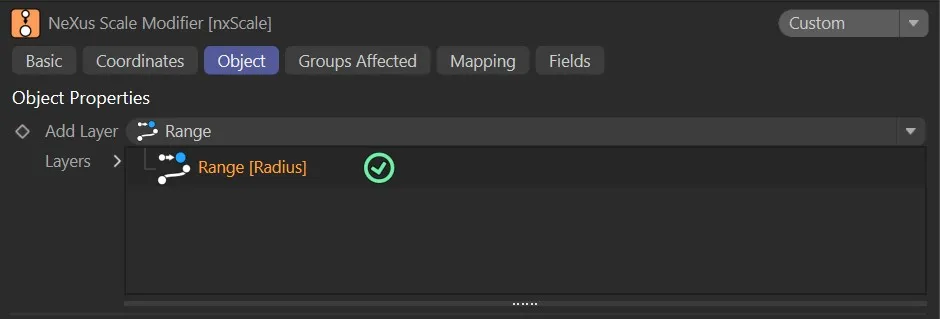
nxScale Object tab.
Add Layer
Section titled “Add Layer”Adds a new scale layer to the stack.
Each layer can be set to a different target and operation, and blended with the layers below it.
Layers
Section titled “Layers”The layer stack.
Layers can be enabled or disabled using the toggle on the left of each entry.
Layers are processed from bottom to top.
Layer Settings
Section titled “Layer Settings”When a layer is selected in the Layers tree, its settings are shown below.
Each layer has a General tab and a Falloff tab.
General tab
Section titled “General tab”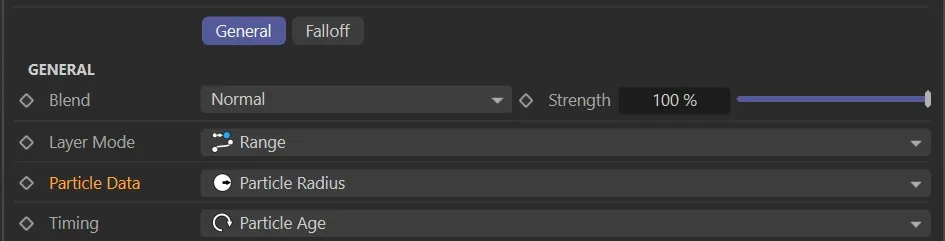
Particle Data
Section titled “Particle Data”Set at Particle Radius, by default.
The other options are: Particle Scale and Particle Mass.
Sets how this layer is blended with the result of the layers below it.
The available blend modes are Normal, Add, Subtract, Multiply, Difference, Screen, Overlay, Min and Max.
Strength
Section titled “Strength”The blend strength of this layer.
Falloff tab
Section titled “Falloff tab”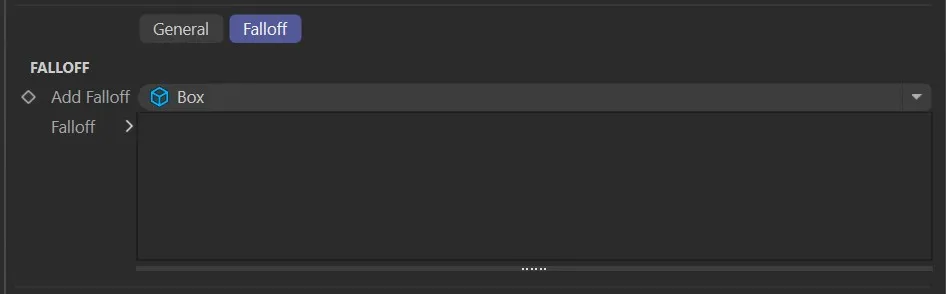
Each scale layer has a Falloff tab to restrict where the layer’s effect applies in space.
Add Falloff
Section titled “Add Falloff”Adds a falloff to this layer.
A quick-select button allows choosing a built-in falloff shape (Box, Linear, Sphere or Noise) directly on the layer, without needing a separate nxFalloff object.
For more complex or reusable falloffs, an nxFalloff object can be dragged from the scene into the layer’s falloff tree.
Falloff
Section titled “Falloff”The falloff stack for this layer.
Multiple falloffs can be added and combined.
Layer parameters
Section titled “Layer parameters”The following parameters are set per layer in the General tab.
Particle Radius
Section titled “Particle Radius”In this setting, the modifier will affect the radius (not the scale) of the particles emitted.
Animation demonstrating Particle Data set to Particle Radius.
Particle Scale
Section titled “Particle Scale”The modifier will affect the particle scale value and will open up additional parameters.
In this animation, Particle Data is set to Particle Scale, only scaling the Y-Axis scale of each particle.
Particle Mass
Section titled “Particle Mass”The modifier will increase or decrease the particle mass.
Again, changing to this setting will change the parameters available.
Here the animation shows Particle Data set to Particle Mass, increasing mass value by 2 each frame, within the animated nxScale falloff. The particles are falling as their mass increases, due to the drag modifier, with heavier objects being less affected by drag force.
Layer Mode
Section titled “Layer Mode”The default setting is Range.
The other options are: Change Value Over Time (Absolute), Change Value Over Time (Relative), Set Value, Set by Falloff, Noise, Scale by Speed, Scale by Acceleration and Scale by Map.
Depending on the option selected, different parameters will be available.
Change Value Over Time (Absolute)
Section titled “Change Value Over Time (Absolute)”Depending on which Particle Data setting you have selected, this option will change each particle by the selected parameter each frame (by a value given in the Scale Change/Radius Change/Mass Change setting).
In this animation, Layer Mode is set to Change Value Over Time (Absolute), with a particle radius change of 0.3cm per frame, with a variation of 100%.
Change Value Over Time (Relative)
Section titled “Change Value Over Time (Relative)”If you select this mode, it will also change each particle by the selected Particle Data setting, but this time relative to its own radius/mass/scale.
You will now have the Radius Percentage/Mass Percentage/Scale Percentage parameter open.
Animation demonstrating Layer Mode set to Change Value Over Time (Relative), where the radius of each particle is increasing by 0.5% each frame.
Set Value
Section titled “Set Value”In this mode, the particles will not be changed (by scale, mass or radius) over time, but will simply be set at the value you select in the Mass Value/Scale Value/Radius Value parameter.
Here, with Layer Mode as Set Value, animating the particle radius value is affecting each available particle.
Set by Falloff
Section titled “Set by Falloff”Here, the particles’ radius (or scale, or mass) will be scaled up or down by the modifier’s falloff.
In this animation, with Layer Mode as Set by Falloff, the default box falloff reduces the particle radius.
Another animation showing Layer Mode as Set by Falloff, where inverted falloff allows particles to grow inside the box.
Scale by Speed
Section titled “Scale by Speed”In this mode, the particle speed is used as a multiplier of the scale change.
Effectively, the faster the particle, the greater the change in scale, radius or mass.
In this animation, Layer Mode is set to Scale by Speed, with a key-framed Radius Change value showing that faster particles receive a greater change in radius.
Scale by Acceleration
Section titled “Scale by Acceleration”Similar to the above, except that particle acceleration (i.e. the change in speed over successive frames) is used as a multiplier of the scale change.
Effectively, the more the particle speeds up or slows down, the greater the change in scale, radius or mass.
Animation showing Layer Mode set to Scale by Acceleration, scaling particles accelerated by nxGravity.
Range operation settings
Section titled “Range operation settings”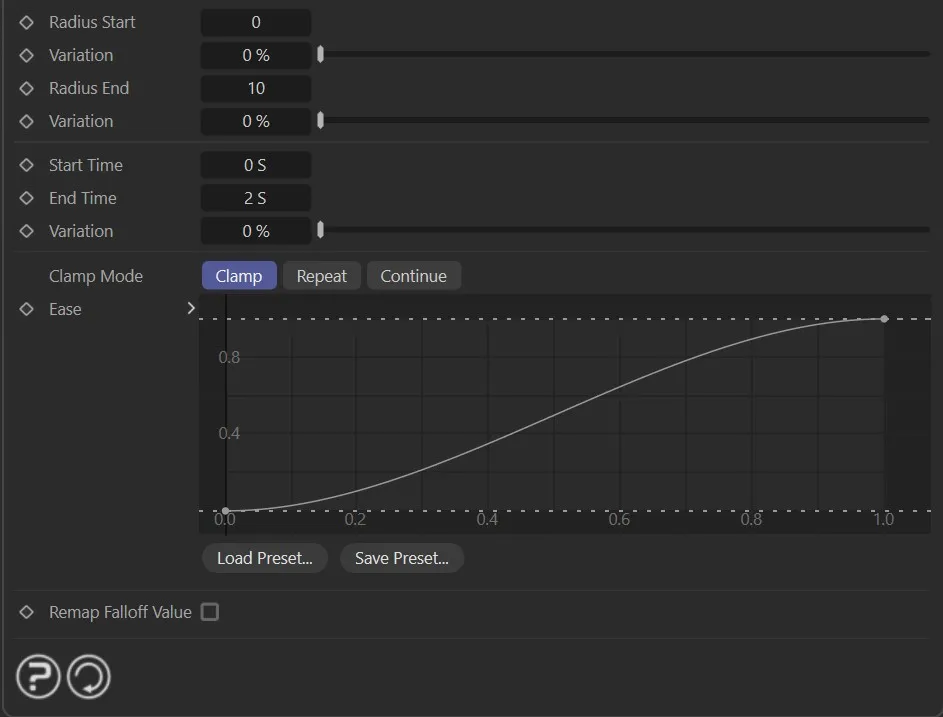
Range transitions a particle’s scale, radius, or mass from a start value to an end value over a defined time window. Range is available separately for Geometry Scale, Radius and Mass.
Scale Start / Scale End, Radius Start / Radius End, Mass Start / Mass End
Section titled “Scale Start / Scale End, Radius Start / Radius End, Mass Start / Mass End”The values to transition between, labeled per target.
For Geometry Scale, each axis (X, Y, Z) can be set independently.
Variation
Section titled “Variation”Adds a random variation to the start and end values.
Start Time / End Time
Section titled “Start Time / End Time”The window over which the transition happens.
Time Variation
Section titled “Time Variation”Randomizes when each particle begins and ends its transition.
Timing
Section titled “Timing”Set as On Birth, by default.
The alternatives are Particle Age, Frame Time and Falloff.
- On Birth: the transition is measured from the particle’s birth time
- Particle Age: the transition is measured by particle age
- Frame Time: the transition is measured in scene frames
- Falloff: the transition is driven by the layer’s falloff value
A curve (with Clamp, Repeat or Continue options) for easing the interpolation between the start and end values.
Noise operation settings
Section titled “Noise operation settings”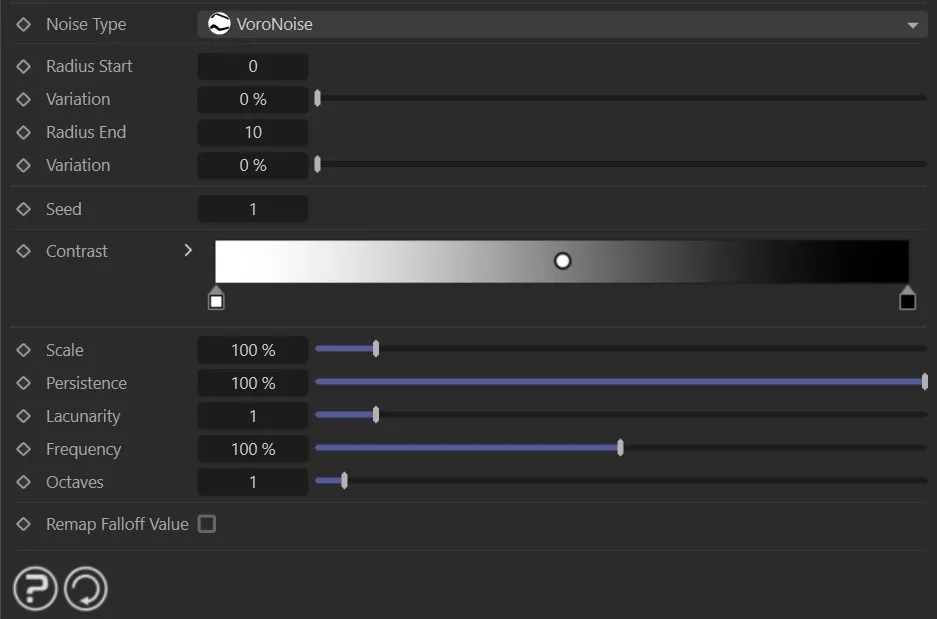
The Noise operation drives scale, radius or mass from a procedural noise field.
Noise Type
Section titled “Noise Type”The type of noise algorithm used.
The options are: Simplex, Curl, Turbulence, Wavy Turbulence, VoroNoise, FBM and Cubic.
Scale Start / Scale End, Radius Start / Radius End, Mass Start / Mass End
Section titled “Scale Start / Scale End, Radius Start / Radius End, Mass Start / Mass End”The output range that the noise field maps to, labeled per target.
Variation
Section titled “Variation”Adds a random variation to the start and end values.
Start Time / End Time
Section titled “Start Time / End Time”The time window over which the noise is active.
Timing
Section titled “Timing”Set as On Birth, by default.
The alternatives are Particle Age, Frame Time and Falloff.
- On Birth: the noise value is sampled at the particle’s birth time
- Particle Age: the noise value is sampled continuously based on particle age
- Frame Time: the noise value is sampled based on the current scene frame
- Falloff: the noise value is sampled based on the layer’s falloff value
Each target (Geometry Scale, Radius and Mass) has its own Seed parameter, producing a different noise pattern per target while sharing all other settings.
Contrast
Section titled “Contrast”Adjusts the contrast of the noise output.
The spatial scale of the noise field.
Persistence
Section titled “Persistence”Controls how much each successive octave contributes to the final noise value.
Lacunarity
Section titled “Lacunarity”Controls the frequency multiplier between successive octaves.
Frequency
Section titled “Frequency”The base frequency of the noise.
Octaves
Section titled “Octaves”The number of noise layers stacked together.
A curve (with Clamp, Repeat or Continue options) for remapping the noise output.
Scale by Map operation settings
Section titled “Scale by Map operation settings”Scale by Map drives scale, radius or mass using a texture map, sampling the map at each particle’s position.
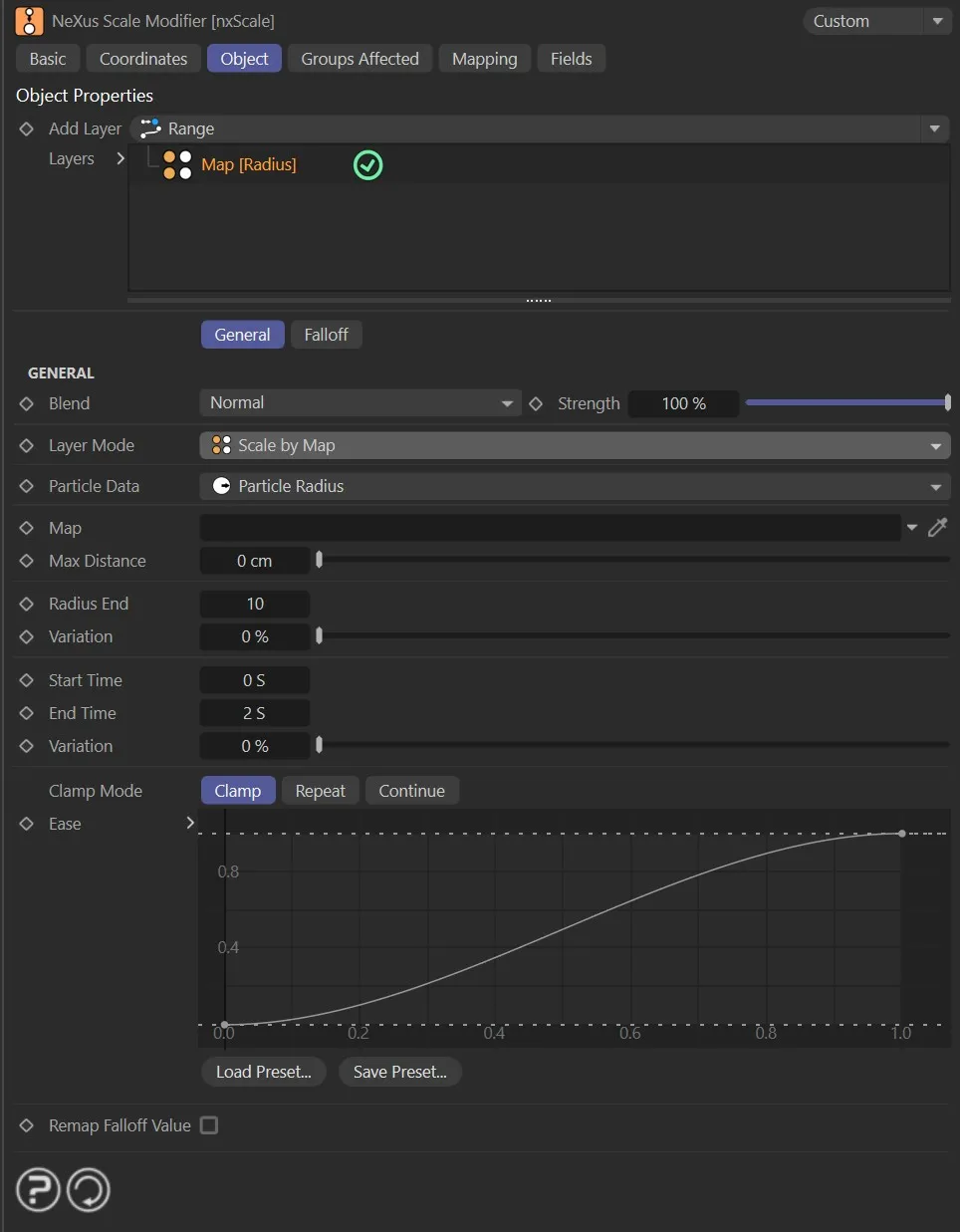
Scale by Map layer, using a vertex map to drive particle scale.
Link field for the texture map to sample.
Max Distance
Section titled “Max Distance”The maximum distance used when sampling the map.
Common parameters
Section titled “Common parameters”Scale/Radius/Mass Change
Section titled “Scale/Radius/Mass Change”This parameter is not available if Layer Mode is set to Set Value, Set by Falloff, Range or Noise.
This is the change to apply to the scale, radius or mass of the object whose associated particle passes into the modifier’s field of effect.
Negative values will cause the value to decrease, positive values will increase the value.
In this animation, we see that an animated Radius Change is possible with negative and positive values.
Variation
Section titled “Variation”A variation is applied to the scale, radius or mass change.
In this animation, Variation is set to 100% to assign a random Radius Change value to each particle.
Clamp to Scale/Radius/Mass Limit
Section titled “Clamp to Scale/Radius/Mass Limit”If enabled, the scale, radius or mass of the object will be clamped at the values given in the Lower Scale/Radius/Mass Limit and the Upper Scale/Radius/Mass Limit.
Lower Scale/Radius/Mass Limit, Upper Scale/Radius/Mass Limit
Section titled “Lower Scale/Radius/Mass Limit, Upper Scale/Radius/Mass Limit”The Clamp to Scale/Radius/Mass Limit parameter must be enabled to change these settings.
Sets the minimum and maximum possible values.
Scale/Radius/Mass Value
Section titled “Scale/Radius/Mass Value”Only available if Set Value is the mode selected in Layer Mode.
This is the scale, radius or mass value that will be set by the modifier.
Clamp Within Range
Section titled “Clamp Within Range”Not available if Layer Mode is set to Set Value, Set By Falloff, Range or Noise.
If this is enabled, instead of a scale, radius or mass value being clamped to the upper or lower limits given in the lower and upper limit parameters, it will be clamped to a randomly-selected value between those two settings.
This results in the particles having different final values, increasing or decreasing the scale, radius or mass of the particles until they reach the random limit.
This animation shows that disabling the Clamp Within Range option will allow smaller particles to continue growing until they reach the Upper Radius Limit of 5cm.
Remap Falloff Value
Section titled “Remap Falloff Value”Not available if Layer Mode is set to Set By Falloff, Range or Noise.
If enabled, the falloff value is remapped to a range of -1 to 1.
This results in interesting effects when the particle passes through the layer’s falloff region.
Animation illustrating that enabling Remap Falloff Value shrinks particles outside of the falloff range.
Groups Affected tab
Section titled “Groups Affected tab”Groups
Section titled “Groups”To specify the group, drag and drop the desired Group object into this field.
This setting is useful if you want to ensure that the spawned particles are, or are not, affected by nxScale.
Mapping tab
Section titled “Mapping tab”The modifier’s settings can be mapped to particle data.
Use the dedicated manual page, below, for instructions on how this works.
Fields tab
Section titled “Fields tab”You can use the Fields options to control where nxScale operates.
Copyright © 2026 INSYDIUM LTD. All Rights Reserved.