

tfShader
tfShader generates a height field based on any texture or Cinema 4D channel shader that works in UV space.
To activate tfShader you will need to go to the Properties tab and import a shader into the scene.
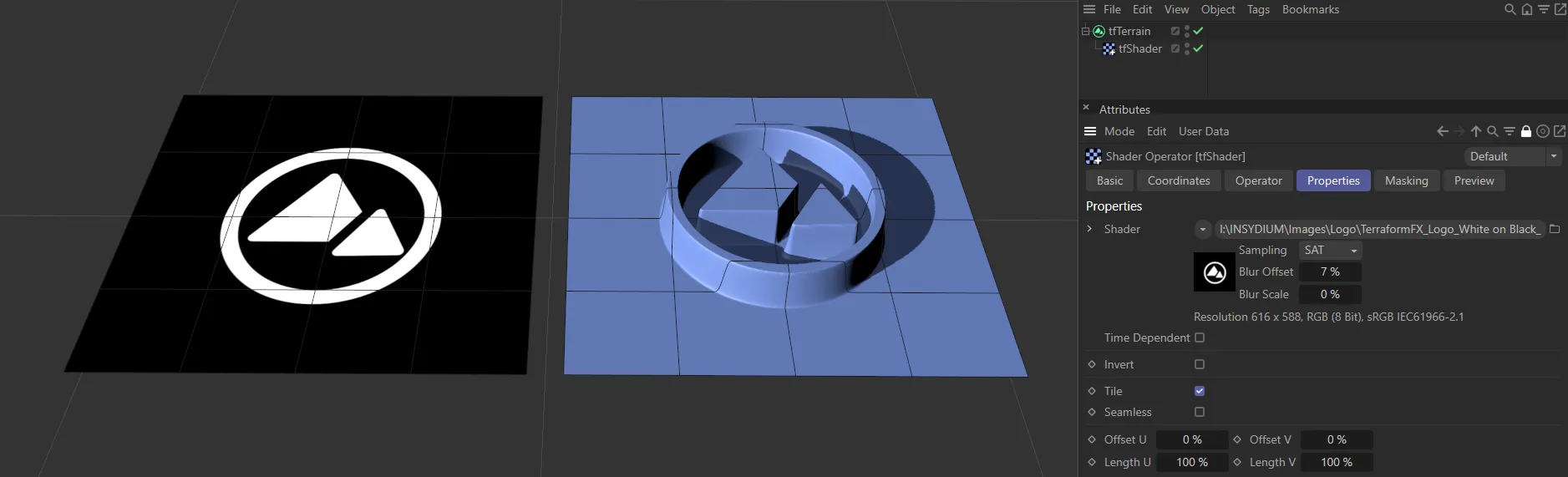
Height field generated by the TerraformFX logo image.
Properties tab
Section titled “Properties tab”You can import your shader into the scene by clicking on the Shader drop-down arrow.
Shader
Section titled “Shader”You can either import from the drop-down menu or you can bring a shader of your own in, by clicking the file icon to the right of the shader box.
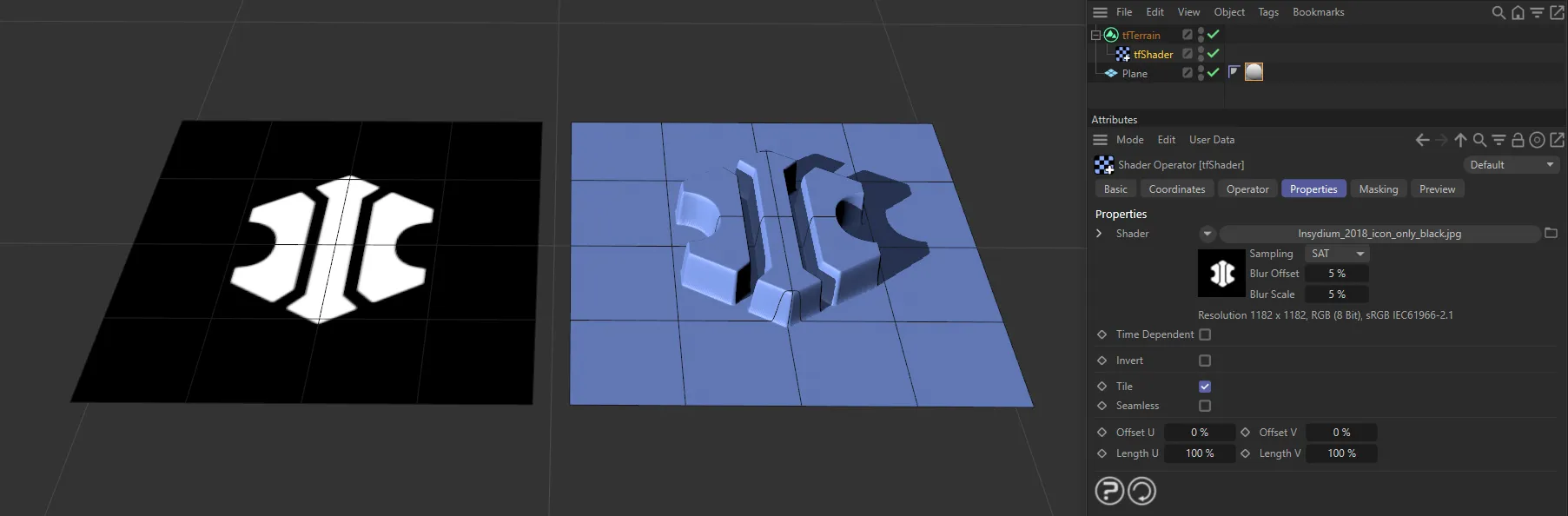
Here, a logo has been imported and you can see the shader deformation effect.
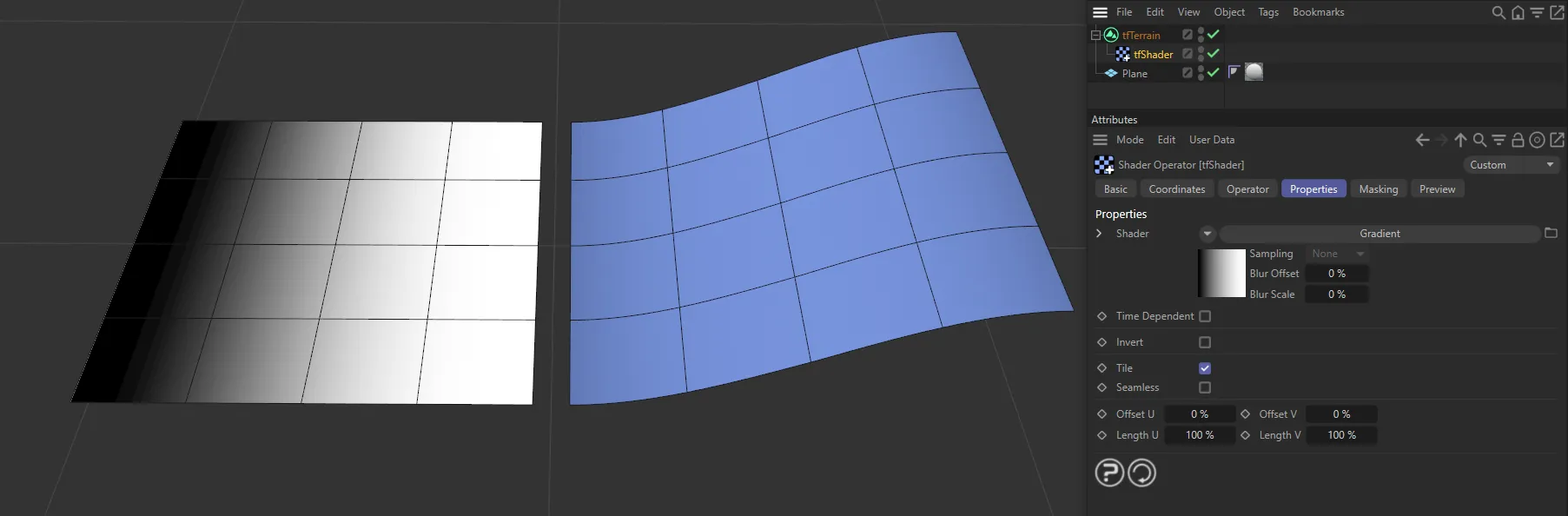
The terrain on the right is being driven by the Gradient shader.
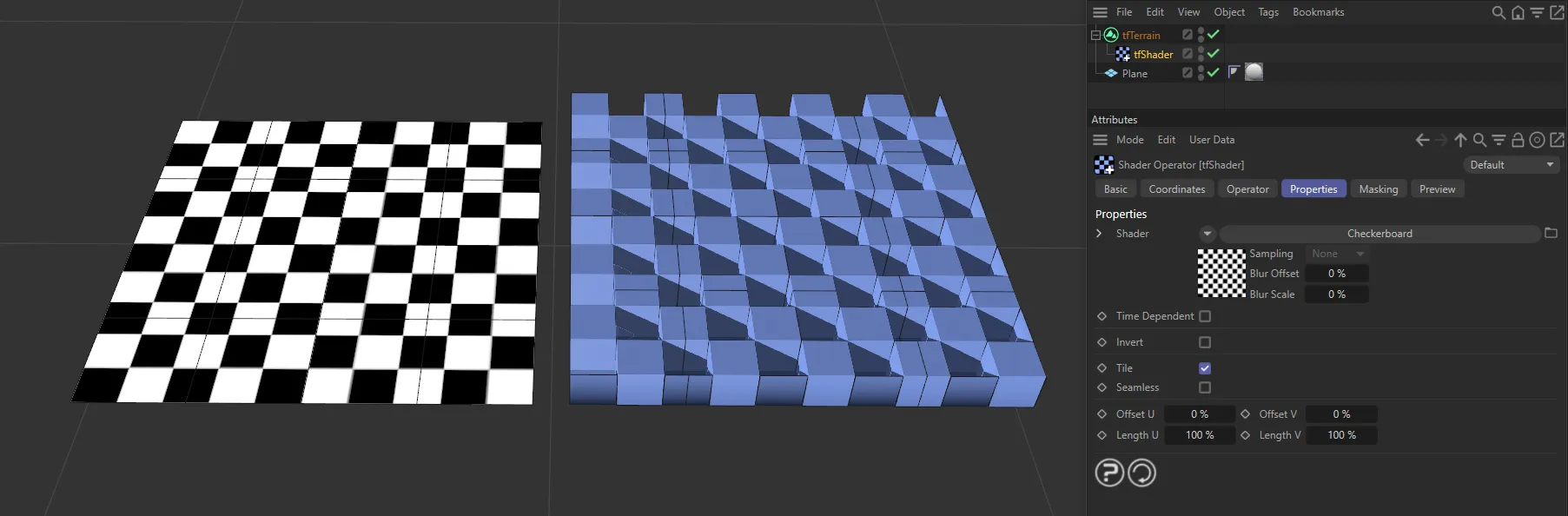
The terrain on the right is being driven by the Checkerboard shader.
Sampling
Section titled “Sampling”Set to MIP, by default.
The other available settings are: None, Circle, Square, Alias1, Alias2, Alias3 and SAT.
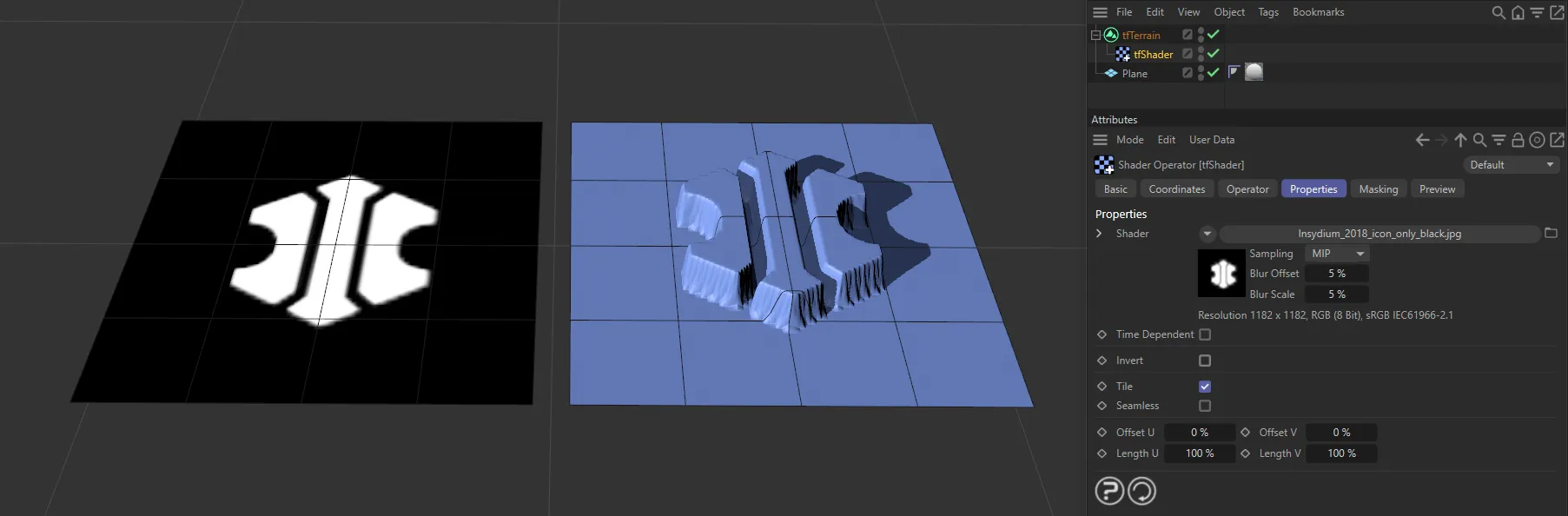
Sampling set to MIP.
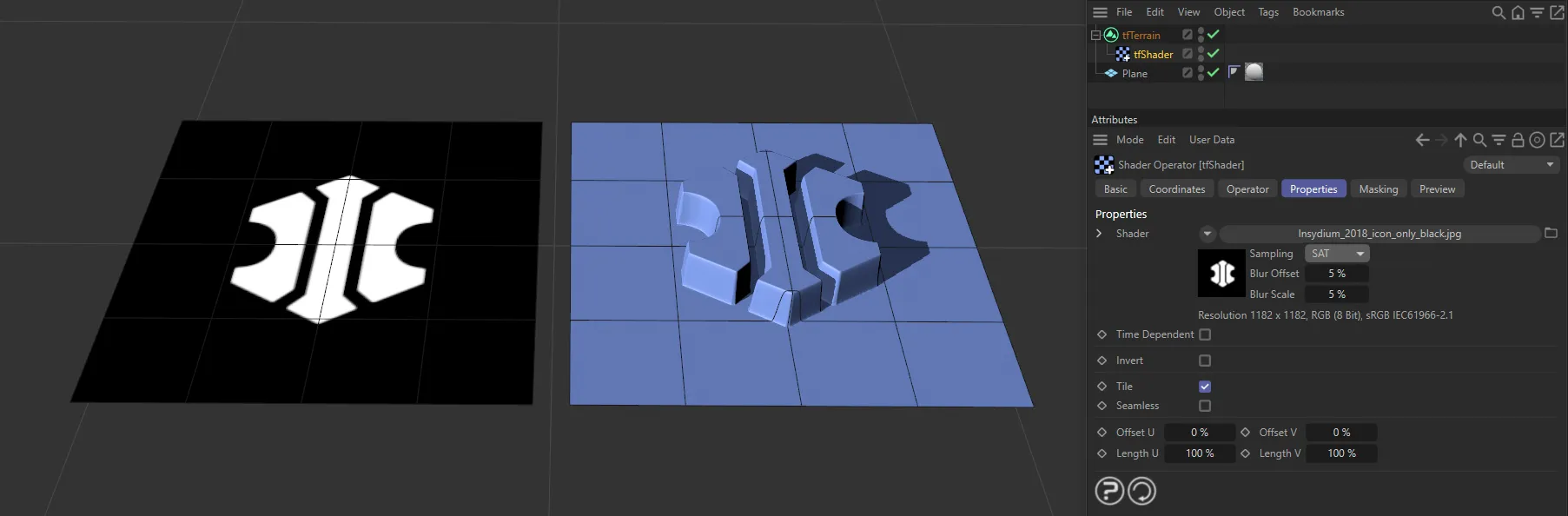
Sampling set to SAT.
Blur Offset
Section titled “Blur Offset”Increases smoothing on the edges of your terrain.
Blur Scale
Section titled “Blur Scale”Adjusts the scale of blurring.
Time Dependent
Section titled “Time Dependent”Should you be using a shader which is animating, enabling this will allow the operator to calculate any changes made during this animation in order to update the scene.
Invert
Section titled “Invert”Enable this to invert the height field of the shader operator.
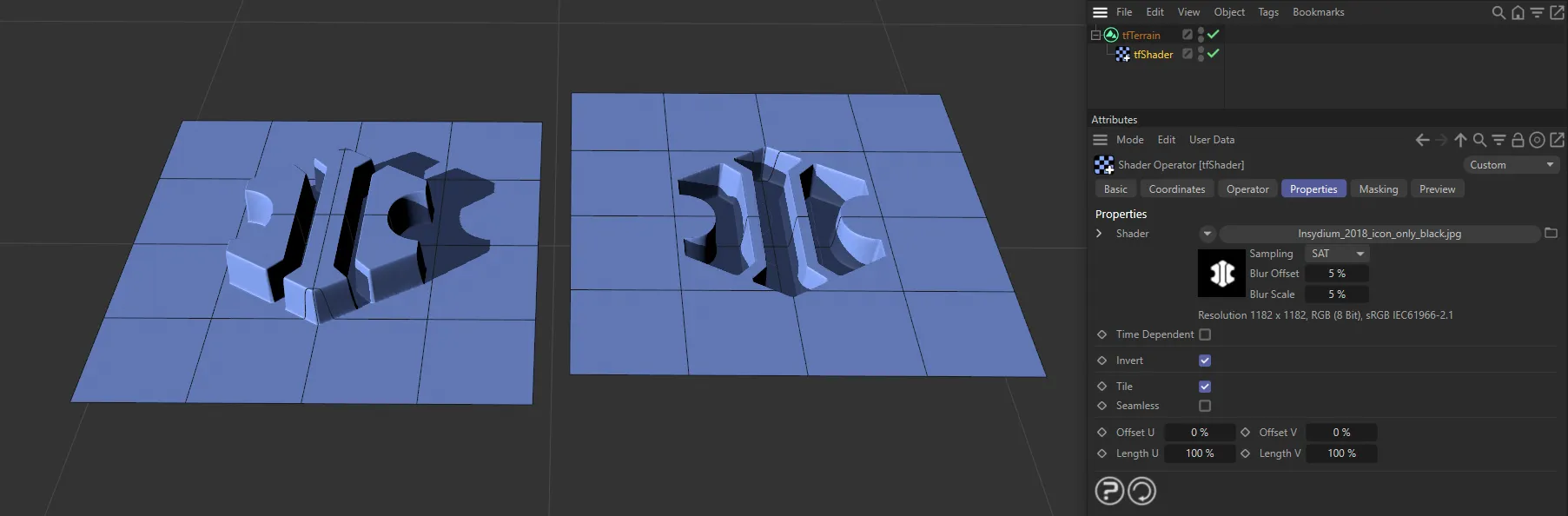
The terrain on the right has Invert enabled.
By default, the shader will not repeat.
Enabling the Tile option will have the shader repeat, as below, where there is a repeated tile pattern in the terrain.
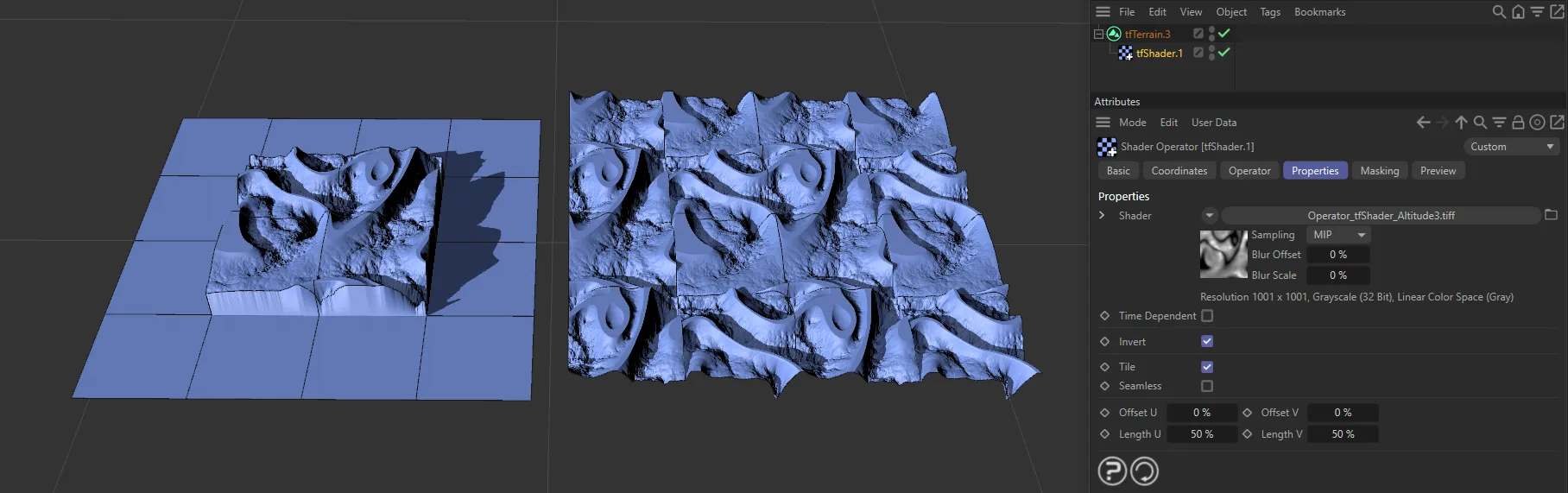
Tile enabled, repeating the tile pattern within the local terrain.
Seamless
Section titled “Seamless”If you have the Tile setting enabled, this option will mirror the tiles, so that they ‘fit’ together, as you can see below.
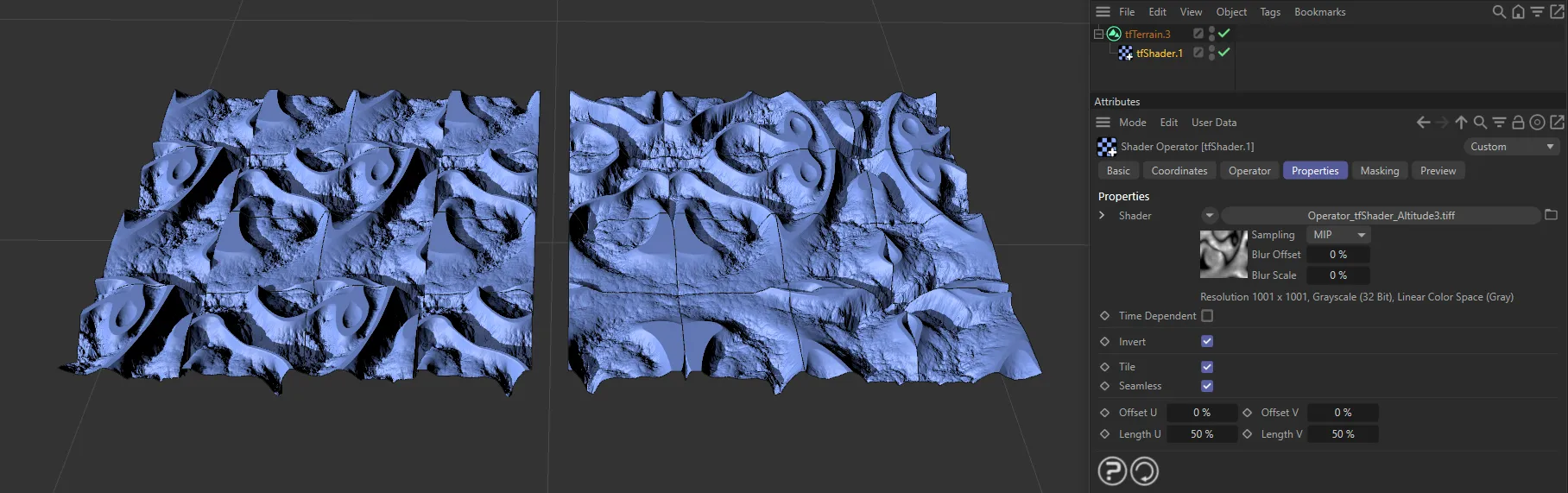
The left-hand terrain has Seamless unchecked, making it clear where the edges of the tiles join. The right-hand terrain has Seamless active; the result is mirrored tile boundaries, which are smooth.
Offset U/V
Section titled “Offset U/V”Offsets the shader along U and V
Length U/V
Section titled “Length U/V”Scales the shader along U and V.
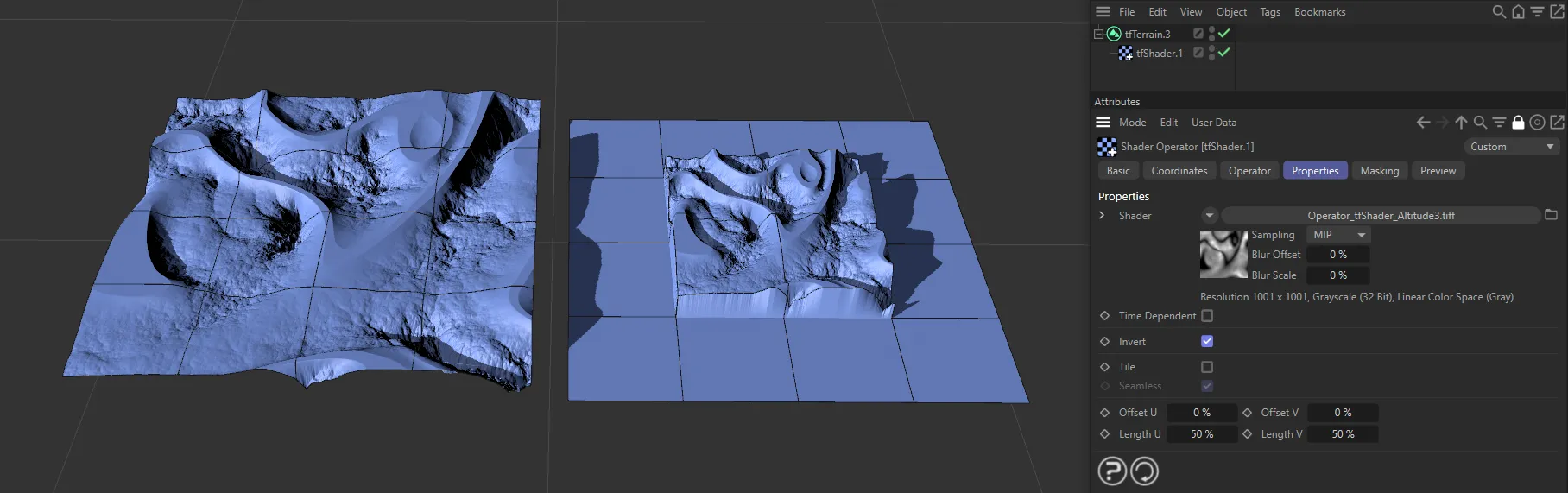
The right-hand image is scaled-down 50% along U and V, with the Tile option disabled.
Copyright © 2026 INSYDIUM LTD. All rights reserved.