

mtPolyFold
mtPolyFold uses a selection of polygons and unfolds them along a pathway, resulting in a curling effect.
The polygons to unfold will do so in sequence, along a defined path; polygons are never used twice.
Object Properties
Section titled “Object Properties”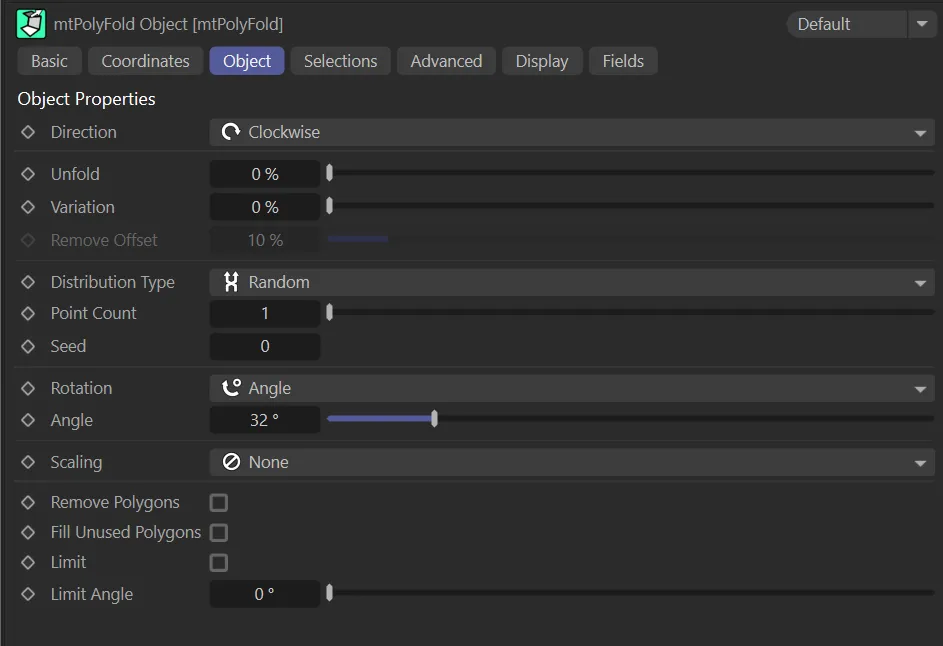
mtPolyFold, Object tab menu settings.
Direction
Section titled “Direction”When a pathway is defined, it searches out from a starting polygon to a single other polygon.
Set as Clockwise, by default, the Direction setting dictates the which polygon should be chosen next for the path.
The other options are: Anti-Clockwise, Random, Axis and Center.
Clockwise, Anti-Clockwise
Section titled “Clockwise, Anti-Clockwise”The search for the next polygon will start from the beginning/end of all polygons connected to the current one.
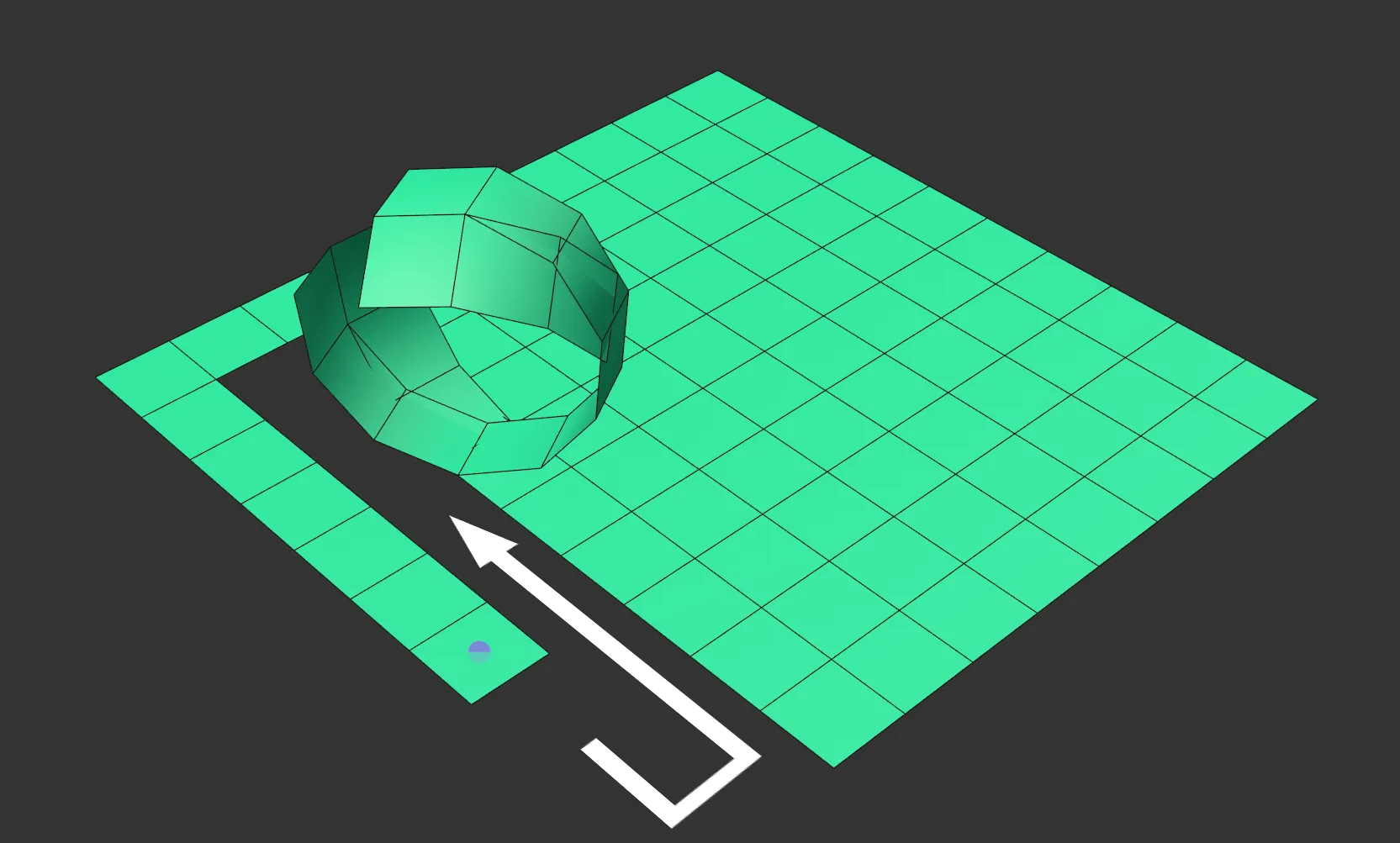
Direction set as Clockwise, unfolding with a single starting point.
Random
Section titled “Random”Any polygon connected to the current one will be used next.
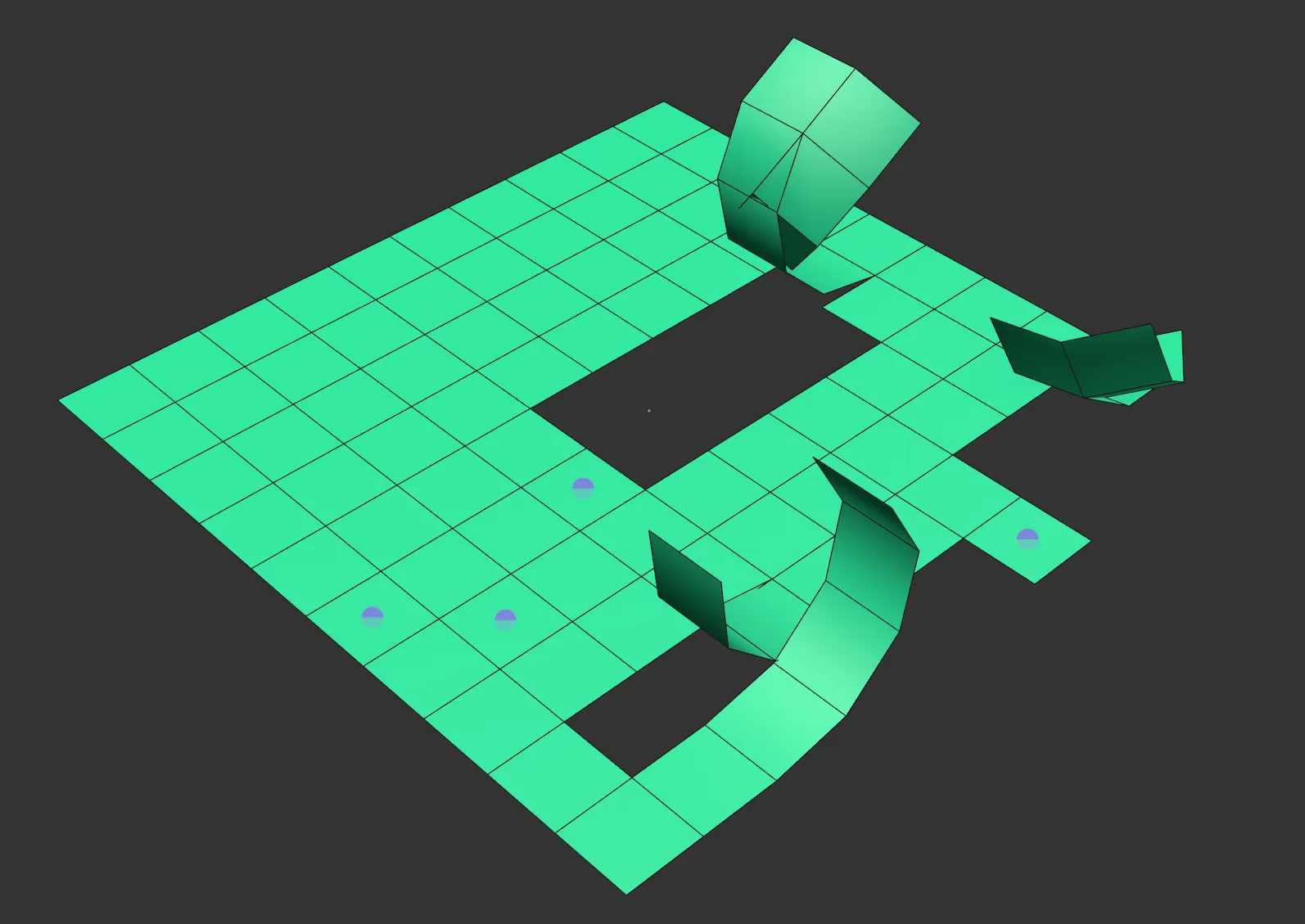
Direction set as Random, unfolding with four starting points.
There are six options of +/-XYZ.
From the current polygon, a connected polygon closest towards that axis direction is used.
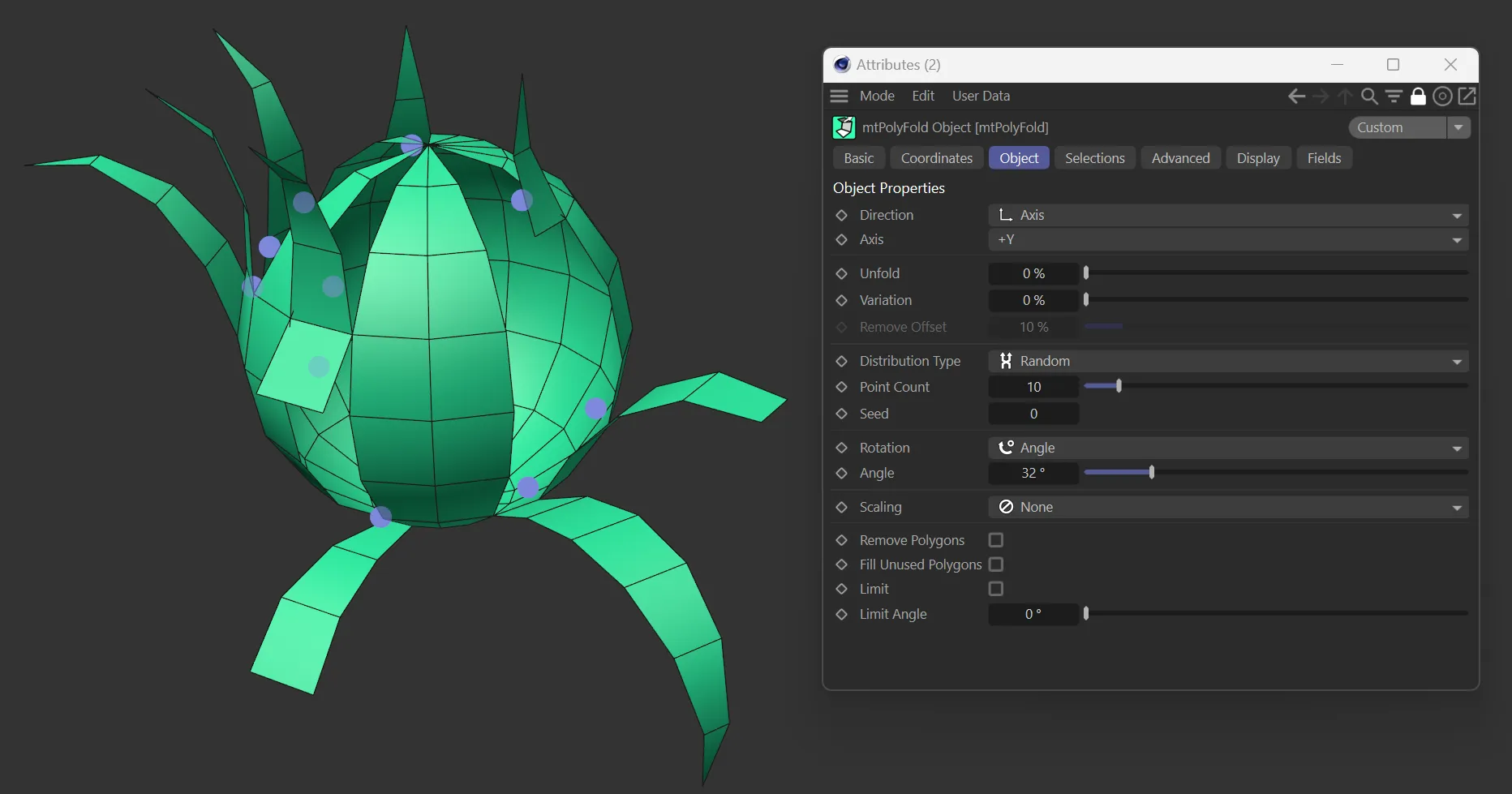
Here the Direction is set as Axis, with the Axis then set to +Y, unfolding in +Y with 10 starting points (set by the Point Count value).
Center
Section titled “Center”Next, polygons further away from the center will be chosen.
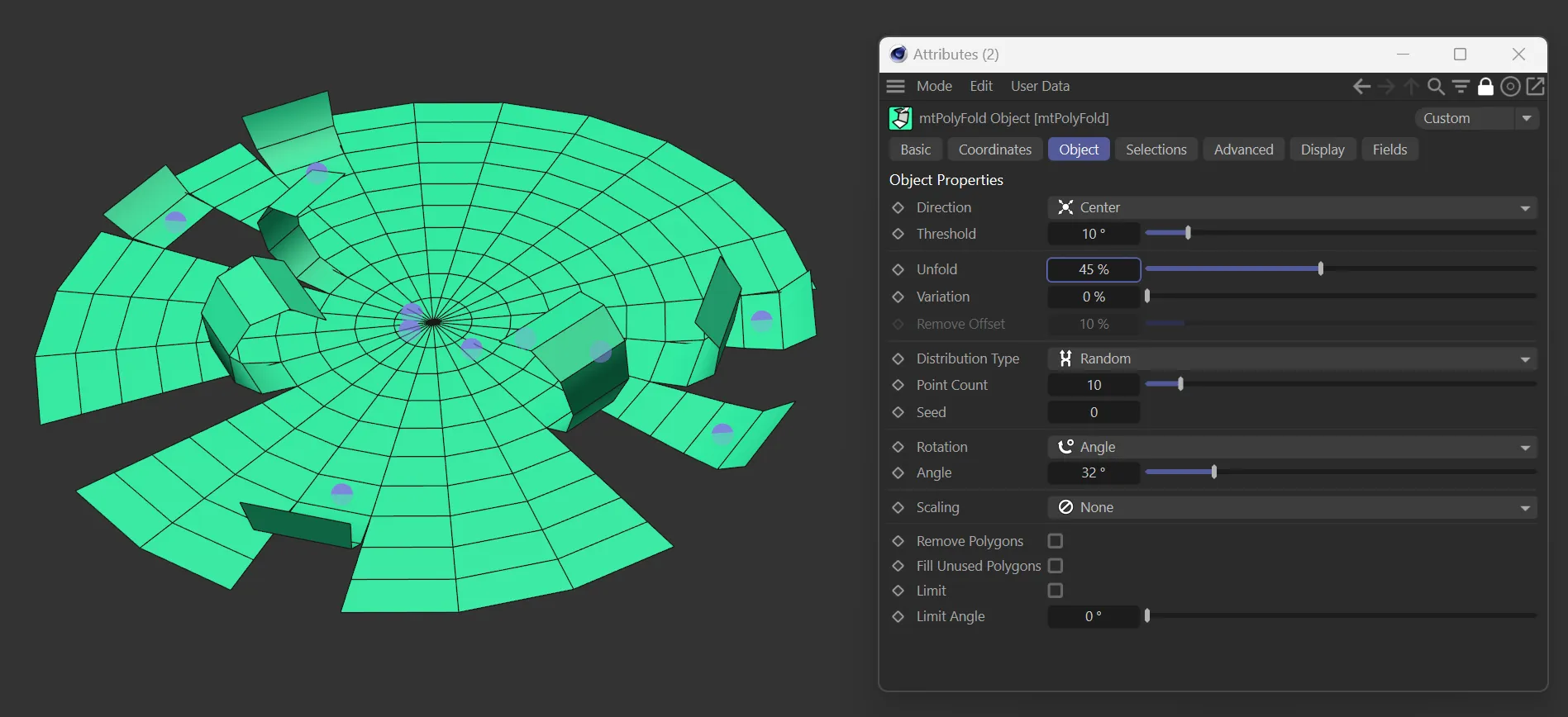
The Direction setting is Center, in this image, unfolding with 10 starting points.
Unfold, Variation
Section titled “Unfold, Variation”The percentage value a pathway will unfold to.
At 100%, the pathway will be flat, representing the original object shape.
At 0 (zero) %, all polygons in the pathway will have been rotated.
Remove Offset
Section titled “Remove Offset”A percentage value that is offset from the current unfold percentage (E.g. if the Unfold value is 30%, and Remove Offset is 10%, the output value is 40%).
Polygons in the pathway after this output value will be shrunk to appear as though they have been deleted.
Animation demonstrating the Remove Offset parameter, with the value decreasing from 100% to 0 (zero) %.
Distribution Type
Section titled “Distribution Type”Set as Random, by default, the starting polygons of each pathway are defined in three different ways.
The alternative settings are: Selection and Texture.
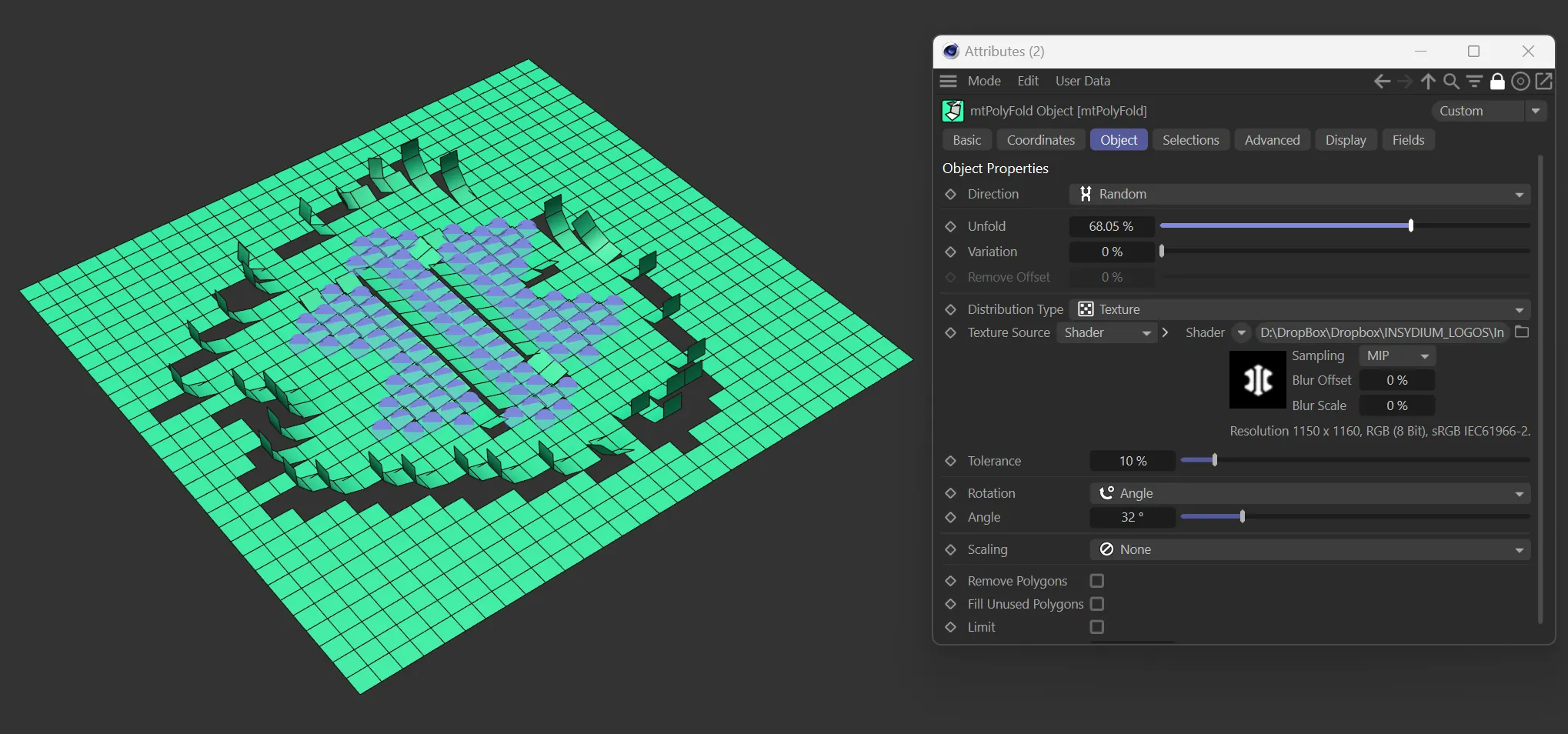
Distribution Type set as Texture, using the INSYDIUM logo.
Random mode
Section titled “Random mode”The number of points defined in Point Count are randomly selected from the mesh, with Seed altering the random selection.
Point Count
Section titled “Point Count”The number of points defined.
Gives a different ‘look’ to the selection.
Selection mode
Section titled “Selection mode”Selection mode options act similarly to all other mesh tools.
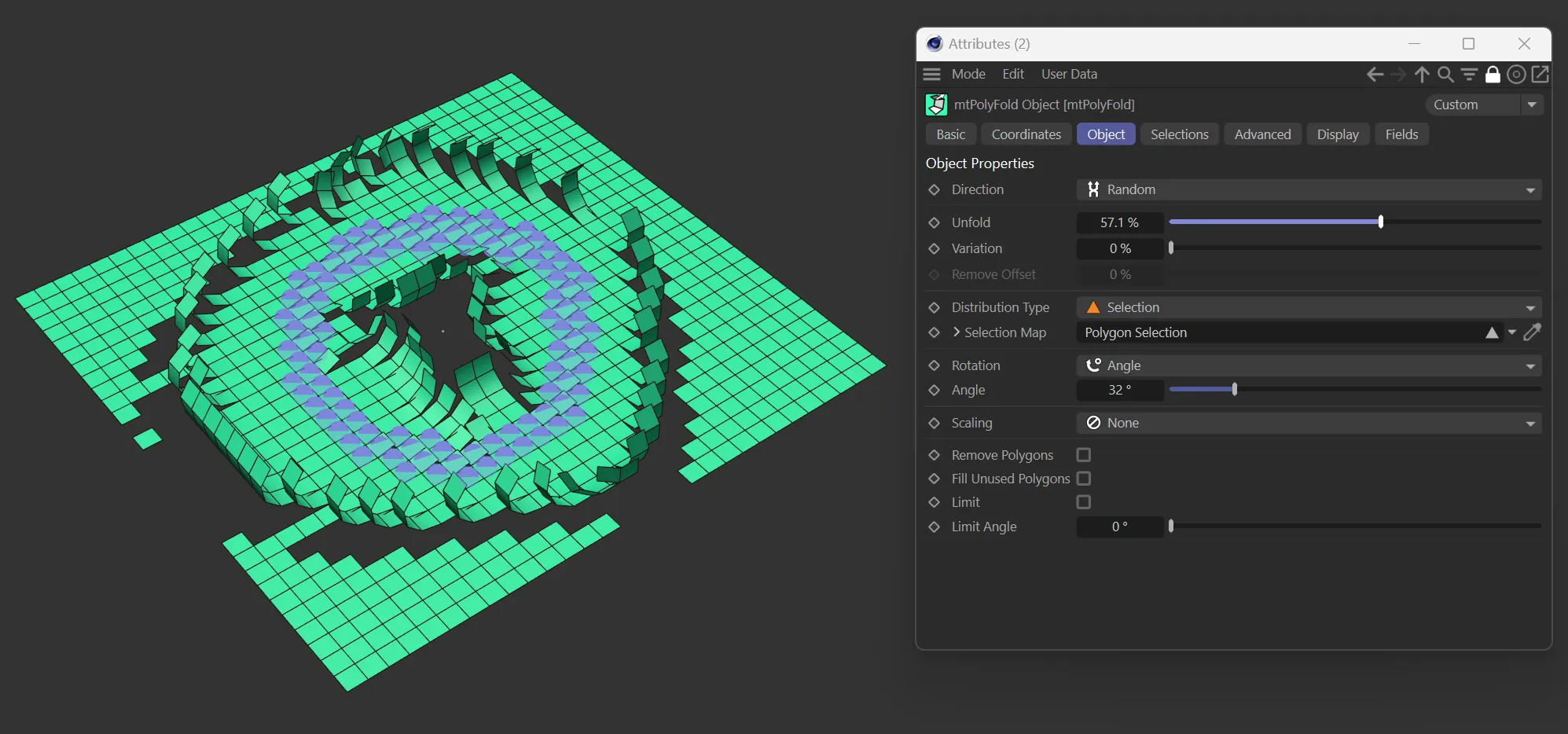
Distribution Type set as Selection brings up a slightly different UI, with the additional parameter option of Selection Map.
Selection Map
Section titled “Selection Map”An optional polygonal selection set of the child object, which defines the start polygons to use.
Texture mode
Section titled “Texture mode”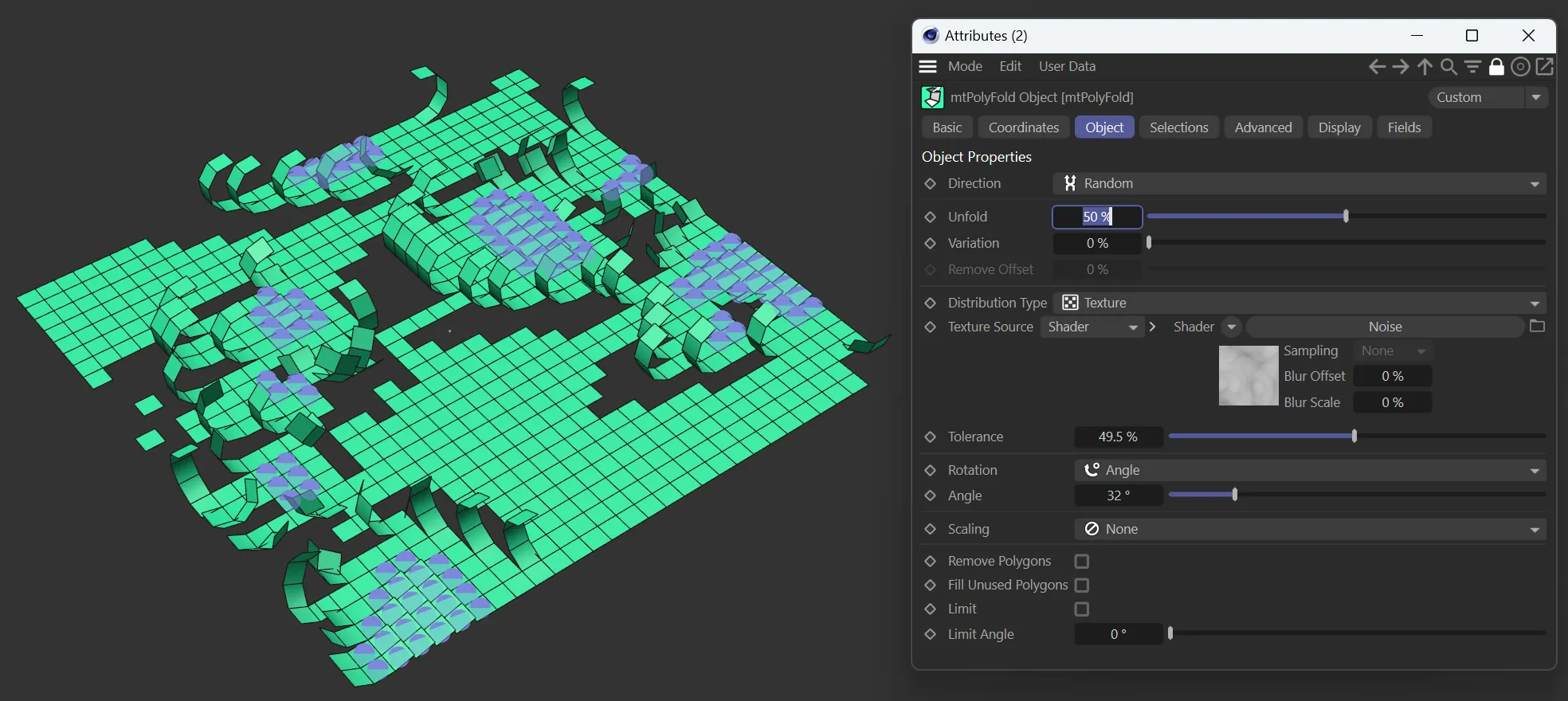
Distribution Type set as Texture again brings up a slightly different UI, with other parameter options.
Texture Source
Section titled “Texture Source”A choice of Shader or Texture Tag becomes available.
Texture Channel
Section titled “Texture Channel”The image channel to read the color value from.
Tolerance
Section titled “Tolerance”If the grayscale result of the chosen shader or texture at a particular point is below the threshold, then the tool doesn’t use that polygon.
Polygons will rotate around an axis defined by the previously connected polygon in the path, when the Unfold value reaches them.
Rotation
Section titled “Rotation”Set as Angle, by default, the alternative option is Percentage.
An absolute degree value.
The polygon will smoothly rotate to the Angle value, when “fully” folded.
Percentage
Section titled “Percentage”The angular difference between two connected polygons in their original shape is used to define the rotation value.
Each polygon will thus rotate to different angles and result in a flat fold when fully folded.
The degree rotated to, when Rotation is set to Angle.
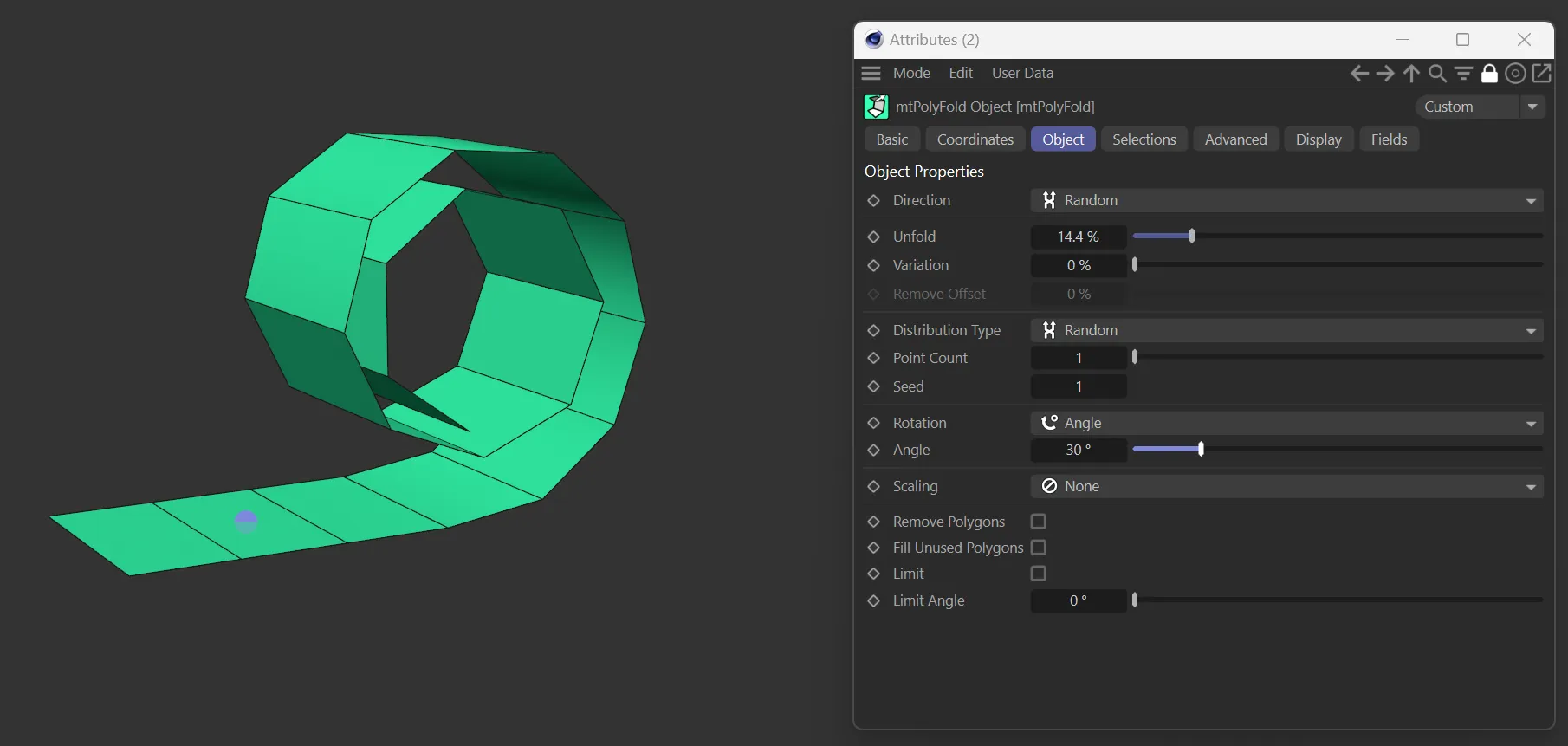
Here, Rotation is set to Angle with an Angle value of 30 degrees.
Angle Percent
Section titled “Angle Percent”The percentage of the angle rotated to, when Rotation is set to Percentage.
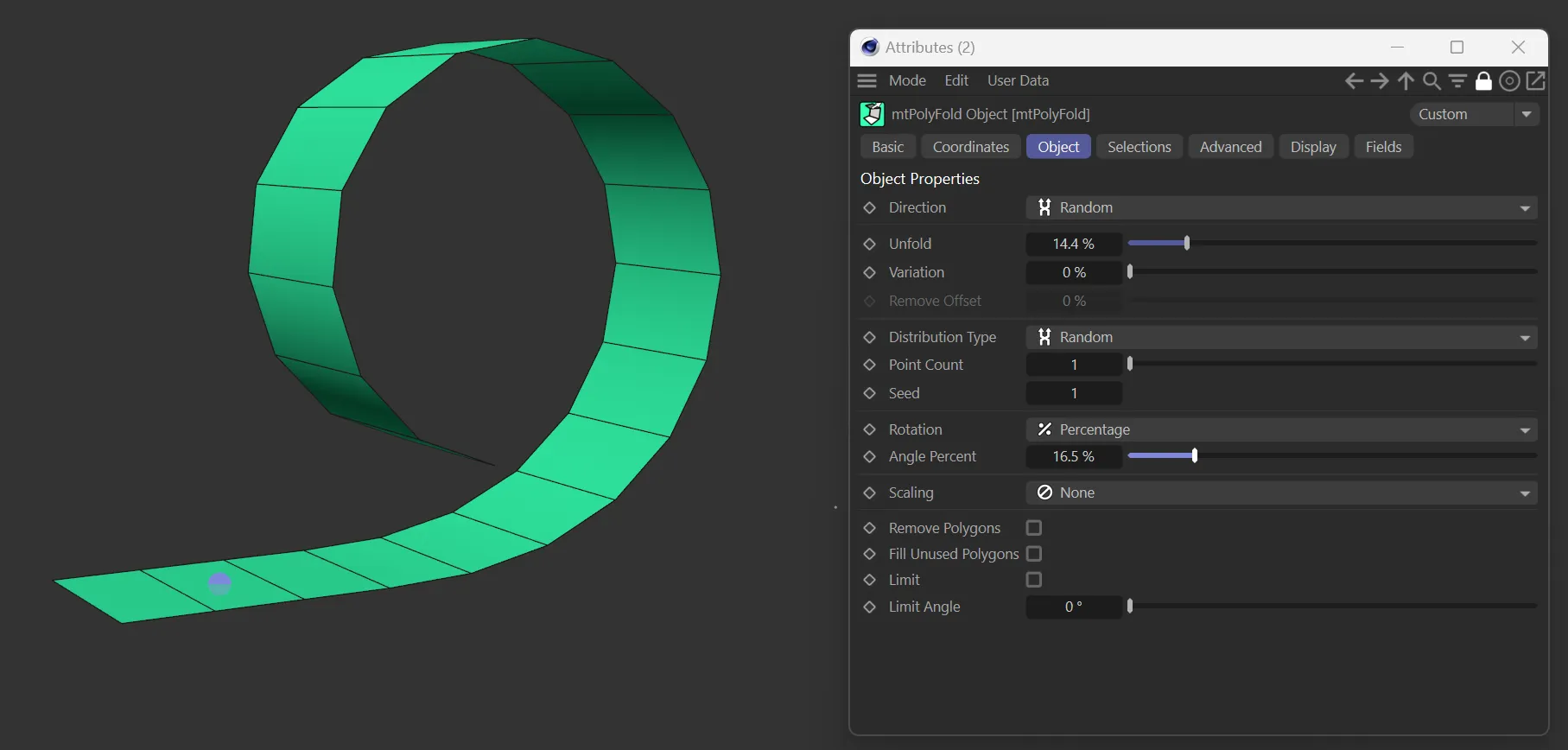
In this image, the Rotation is now set to Percentage, with an Angle Percent value of 16.5%.
Scaling
Section titled “Scaling”Set as None, by default, polygons along the pathway that aren’t fully loaded can be scaled in size.
The alternative setting is Spline.
Spline
Section titled “Spline”Provides a UI spline that scales the polygons based on the spline settings.
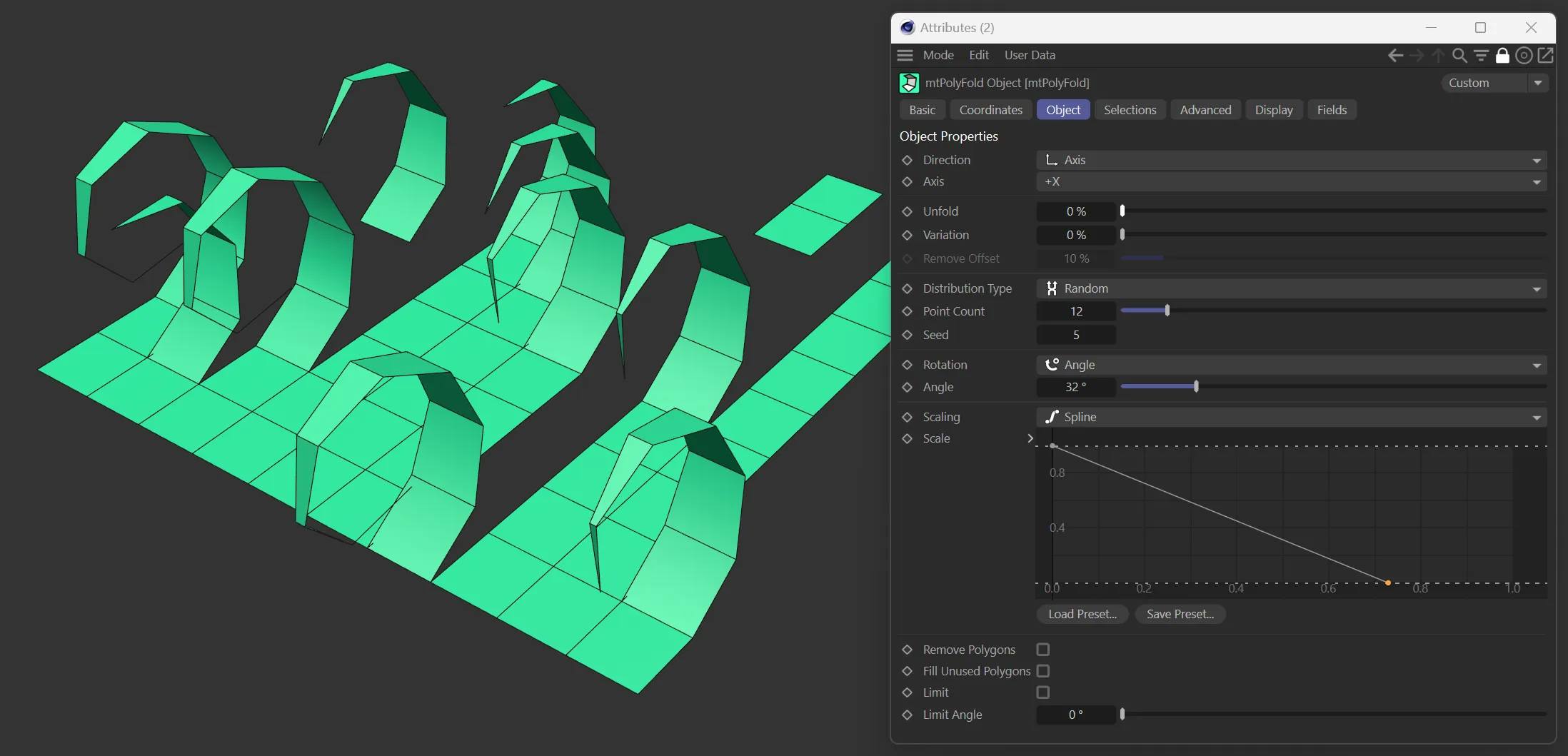
The Unfold value here is at 0 (zero) % and the paths are scaled based on the Scale spline.
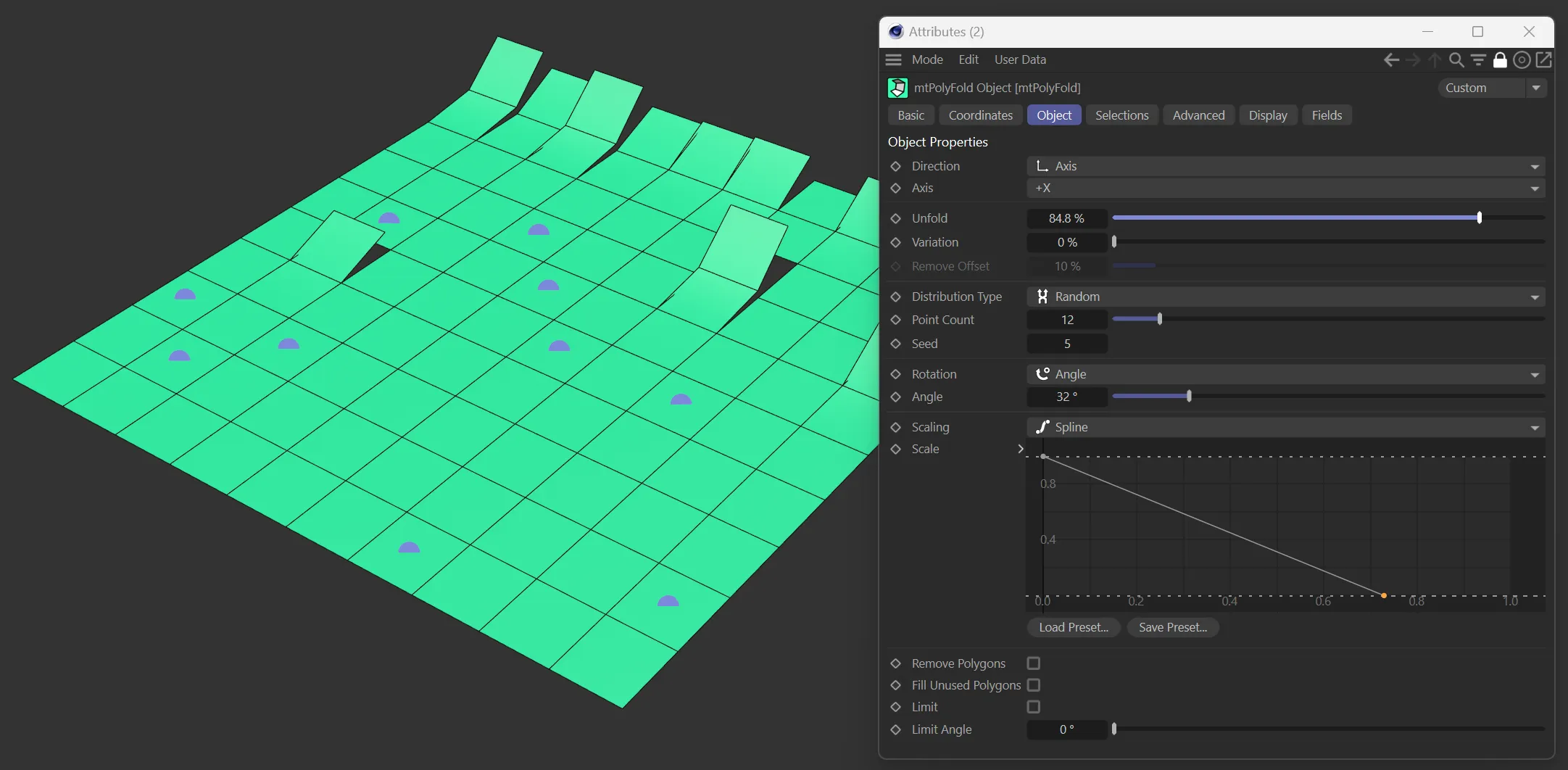
In this second image, with Unfold at 84.8%, the paths are scaling back to the original size.
Remove Polygons
Section titled “Remove Polygons”Toggles whether polygons should be deleted.
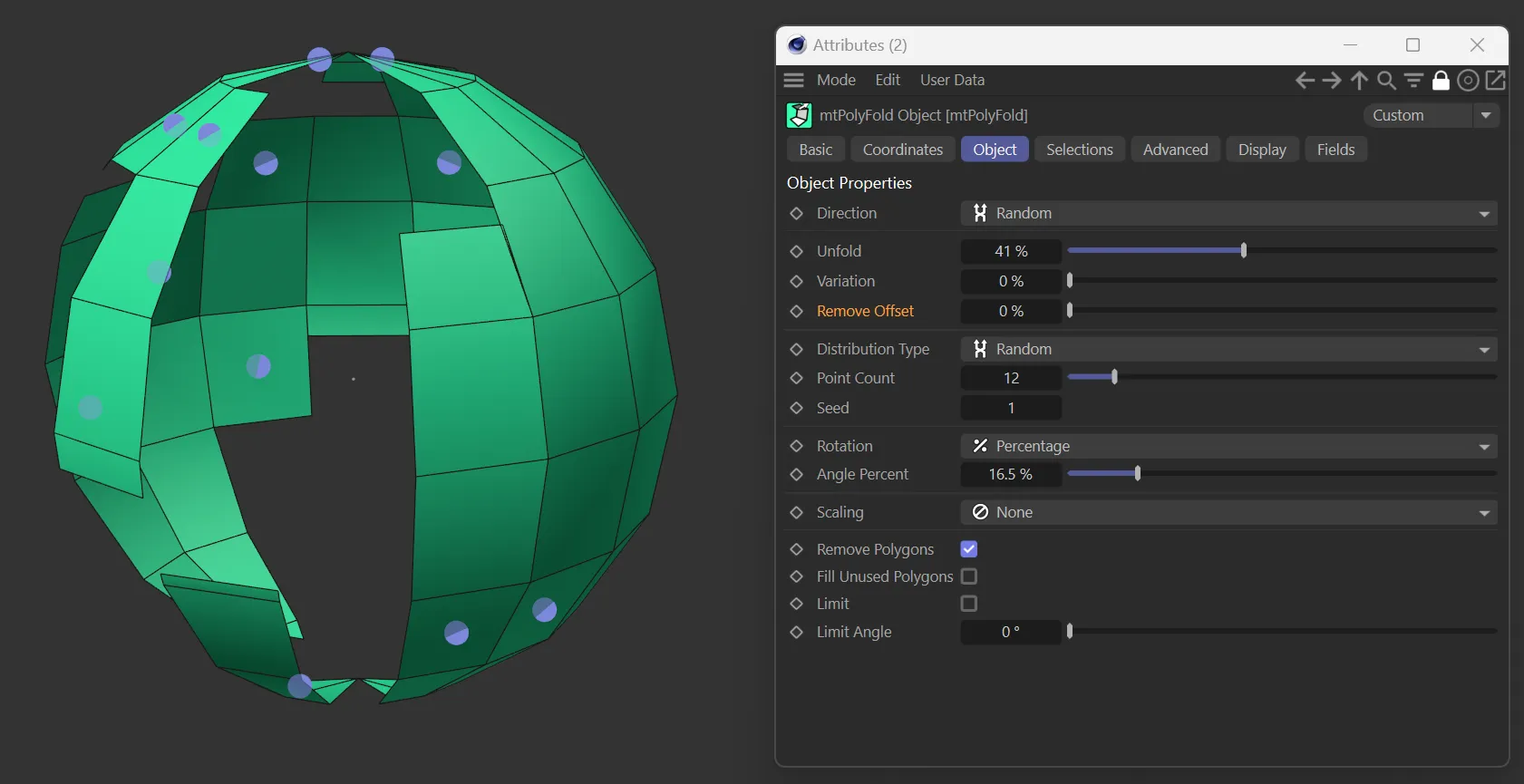
In this image, Remove Polygons is checked.
Fill Unused Polygons
Section titled “Fill Unused Polygons”Defining a pathway may not always result in every polygon being used.
Checking this box will then repeat the definition stage, until all polygons are in a pathway.
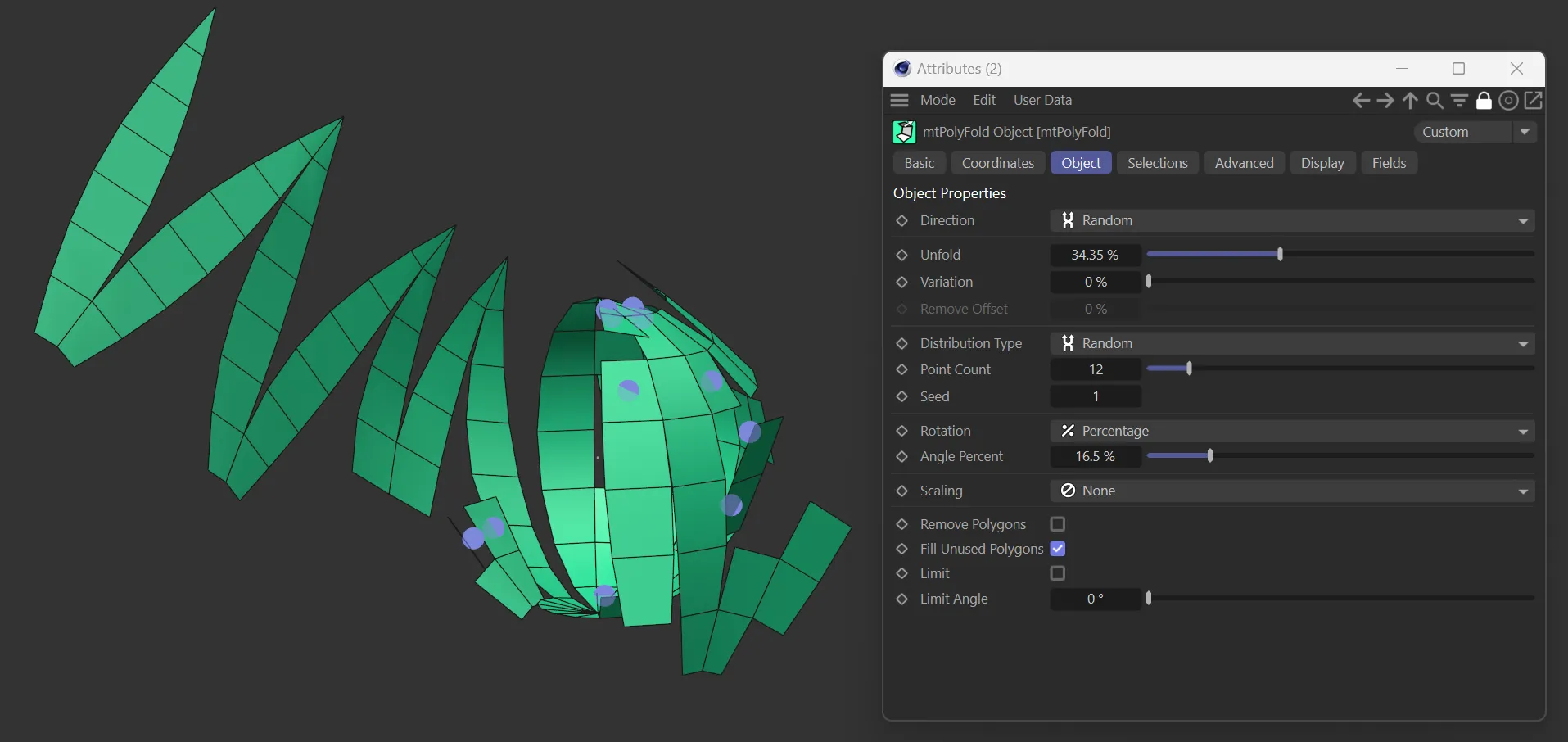
Here, Fill Unused Polygons is enabled.
Limit, Limit Angle
Section titled “Limit, Limit Angle”When a polygon is chosen to be the subsequent element in a path, the user can limit the choice by checking the angle between two polygons.
That is, if the normal direction of two polygons is larger than the Limit Angle, it will be skipped.
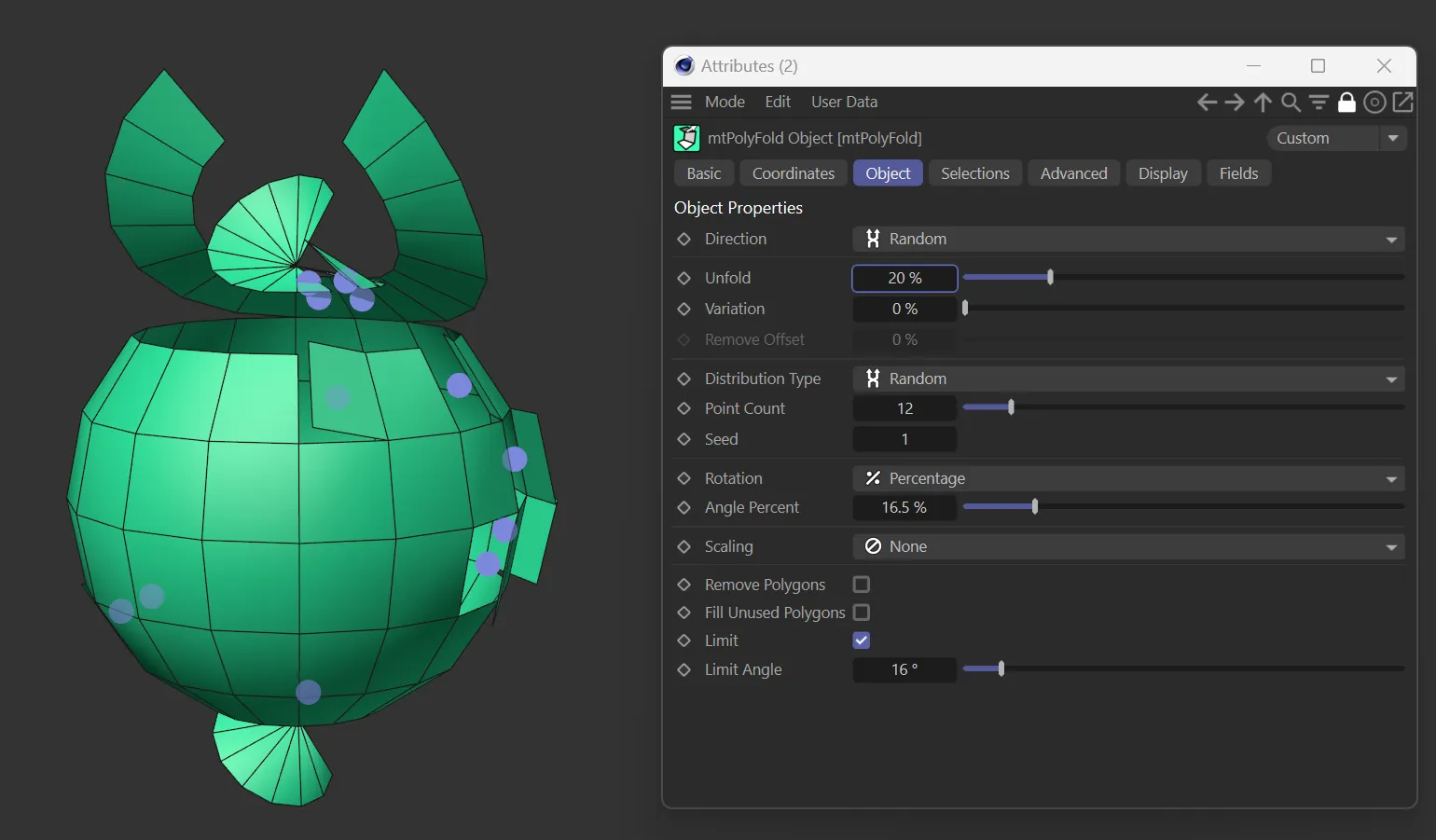
In this final image, Limit is checked and a Limit Angle of 16 degrees is set.
Fields tab
Section titled “Fields tab”You can use the Fields options to control where mtPolyFold operates.
Copyright © 2026 INSYDIUM LTD. All rights reserved.