

mtShortestPath
Overview Video
Section titled “Overview Video”mtShortestPath generates splines by finding the shortest path between two object points along the polygon edges.
Spline Growth settings enable organic animation effects.
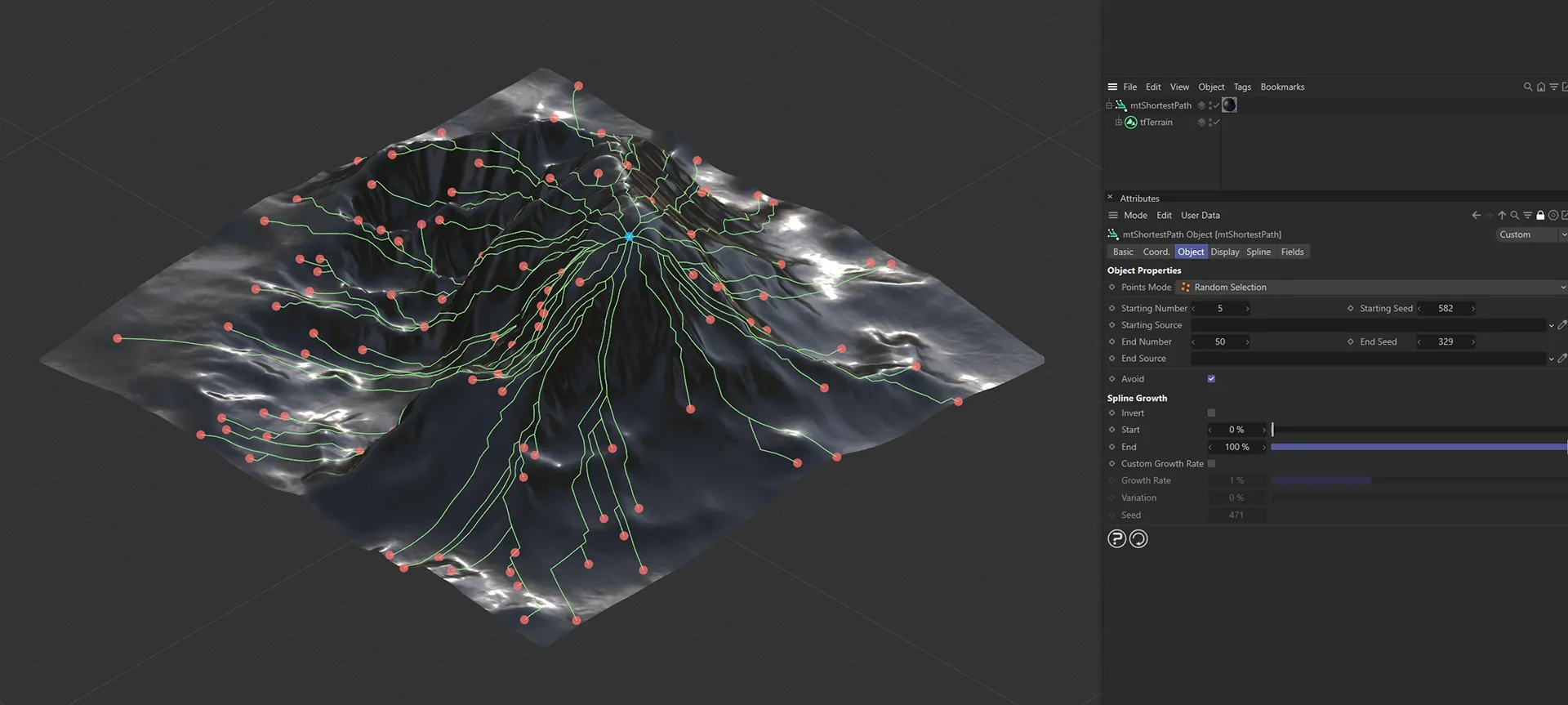
TerraformFX terrain as a child of mtShortestPath in the Points Mode setting of Random Selection.
Object tab
Section titled “Object tab”Points Mode
Section titled “Points Mode”There are two modes for defining which object vertices mtShortestPath will use as its start and end points: Random Selection (the default mode) and Fixed Selection.
Random Selection
Section titled “Random Selection”Random start and end points will be chosen from the object vertices.
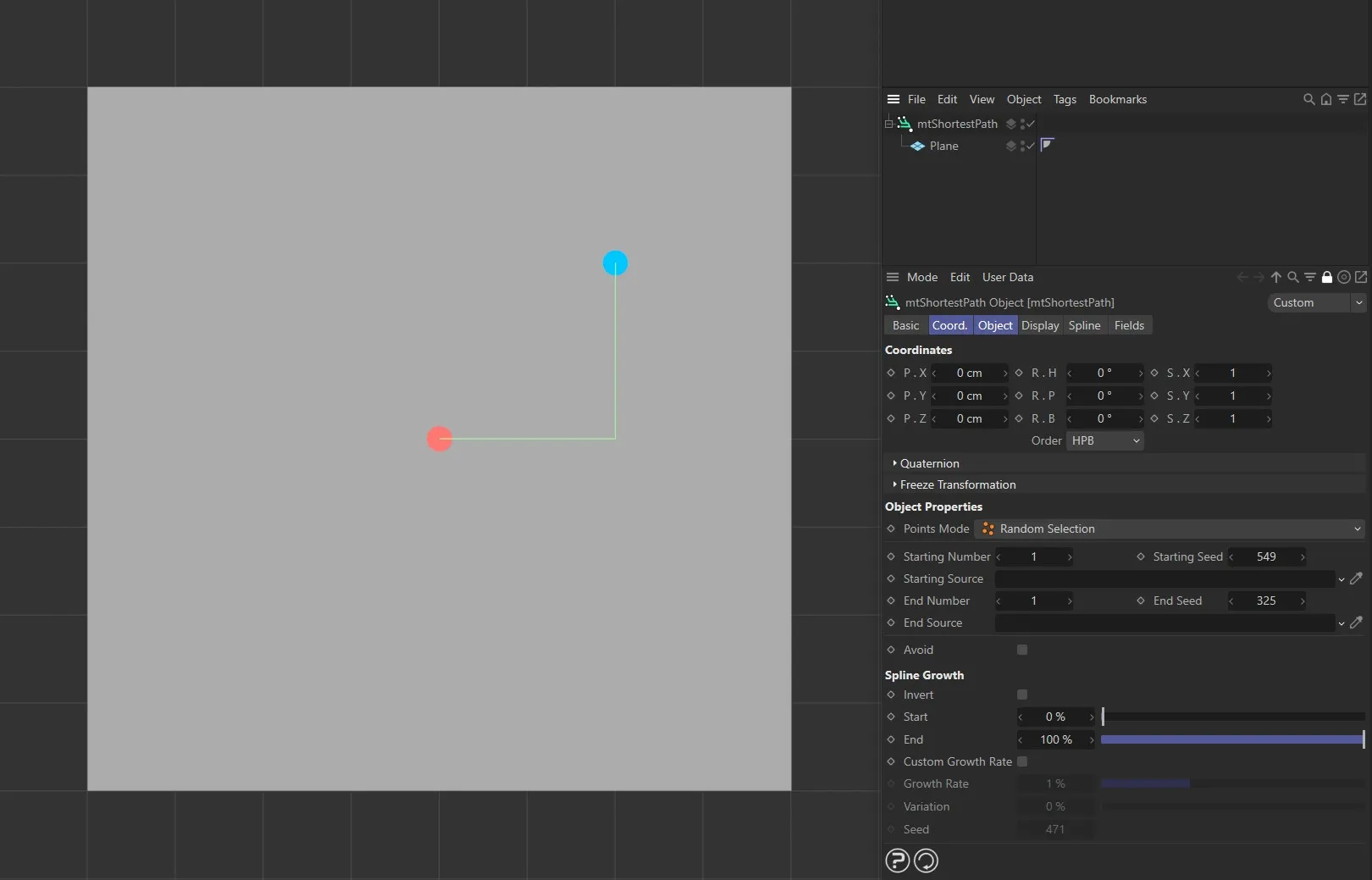
Start and end points, in Random Selection mode, with the shortest path generated between them.
Starting Number
Section titled “Starting Number”You can define how many starting points mtShortestPath will use.
Every start point will draw a path to every end point.
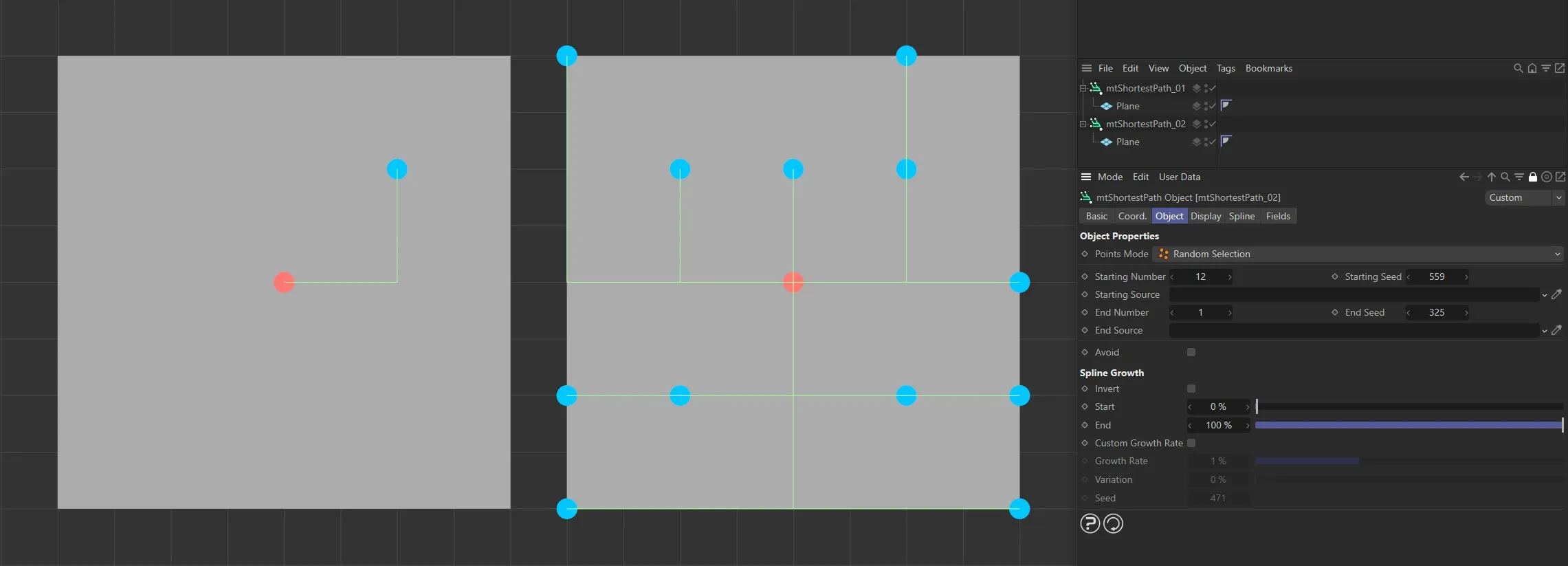
Random Selection mode, with Display tab options enabled. The Plane on the left has a Starting Number of 1 and the Plane on the right has a Starting Number of 12.
Starting Seed
Section titled “Starting Seed”Change this value to use different randomly-chosen start points.
Starting Source
Section titled “Starting Source”Instead of randomly selecting start points, you can use selection tags or a vertex map to define them.
Drag the tag from the Object Manager into the Starting Source link field.
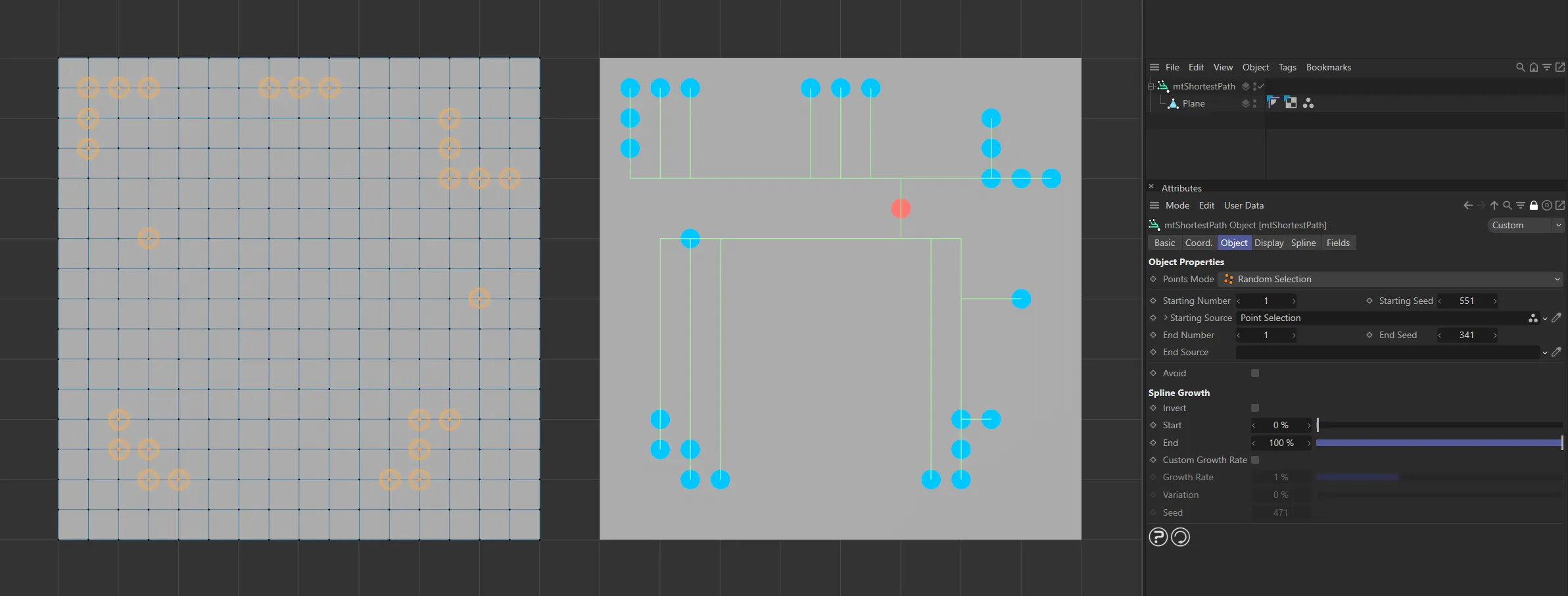
The Plane on the left has a polygon selection tag, which is displayed in the viewport. An identical Plane is on the right, as a child of a mtShortestPath, driving the start point positions.
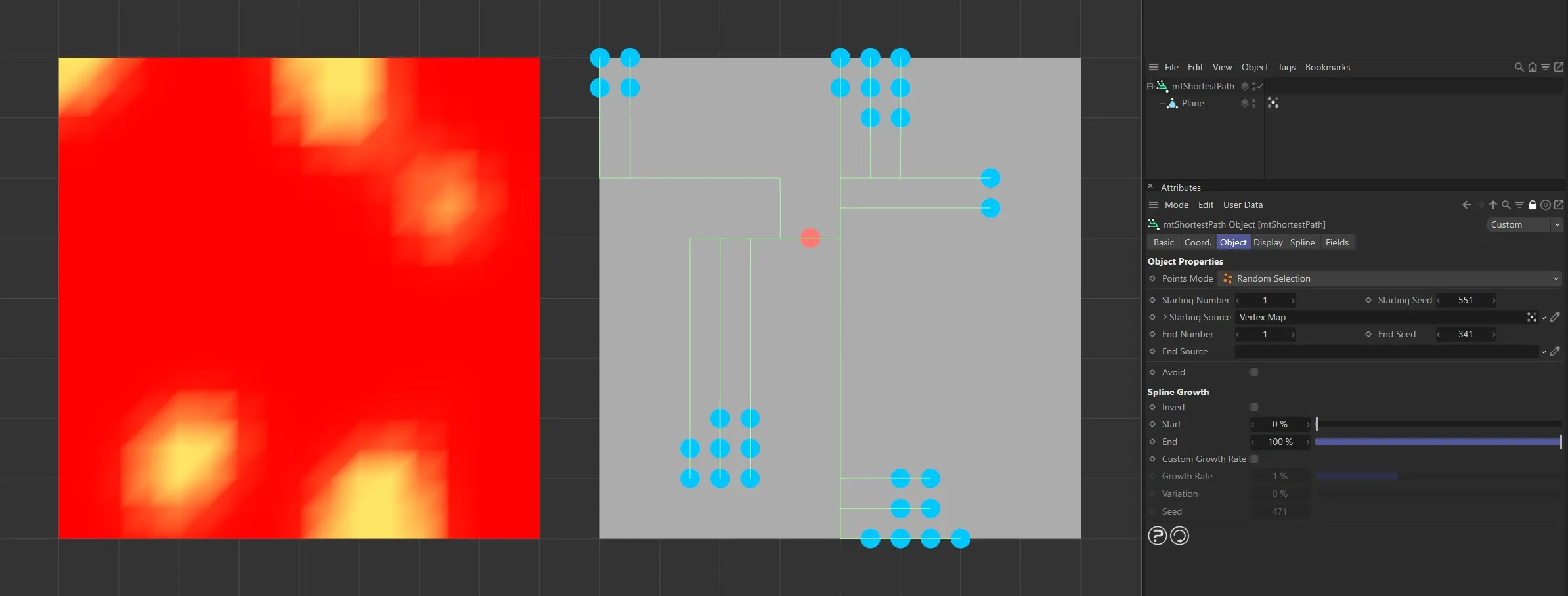
The Plane on the left has a vertex map, which is displayed in the viewport. An identical Plane is on the right, as a child of a mtShortestPath. The vertex weights are driving the start point positions.
End Number
Section titled “End Number”Defines how many end points mtShortestPath will use.
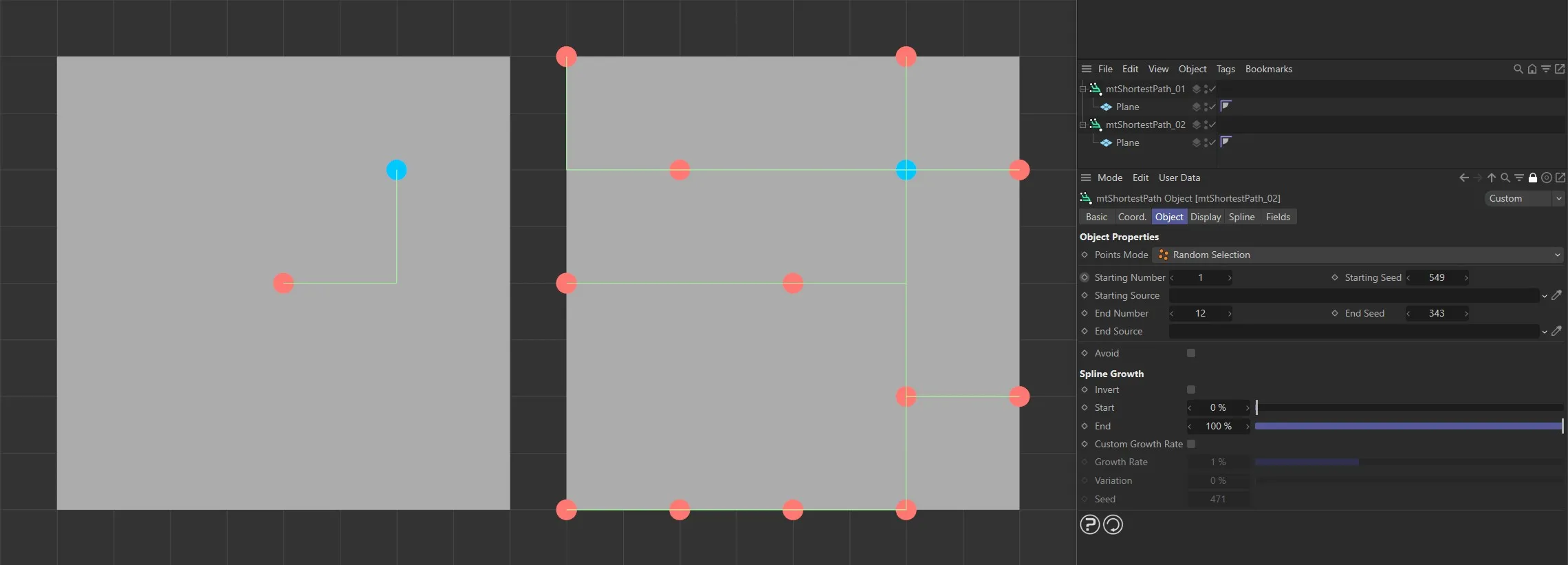
The Plane on the left has an End Number of 1 and the Plane on the right has an End Number of 12.
End Seed
Section titled “End Seed”Change this value to use different randomly chosen end points.
End Source
Section titled “End Source”You can also use vertex map or selection tags to define the end points.
Drag the tag from the Object Manager into the End Source link field.
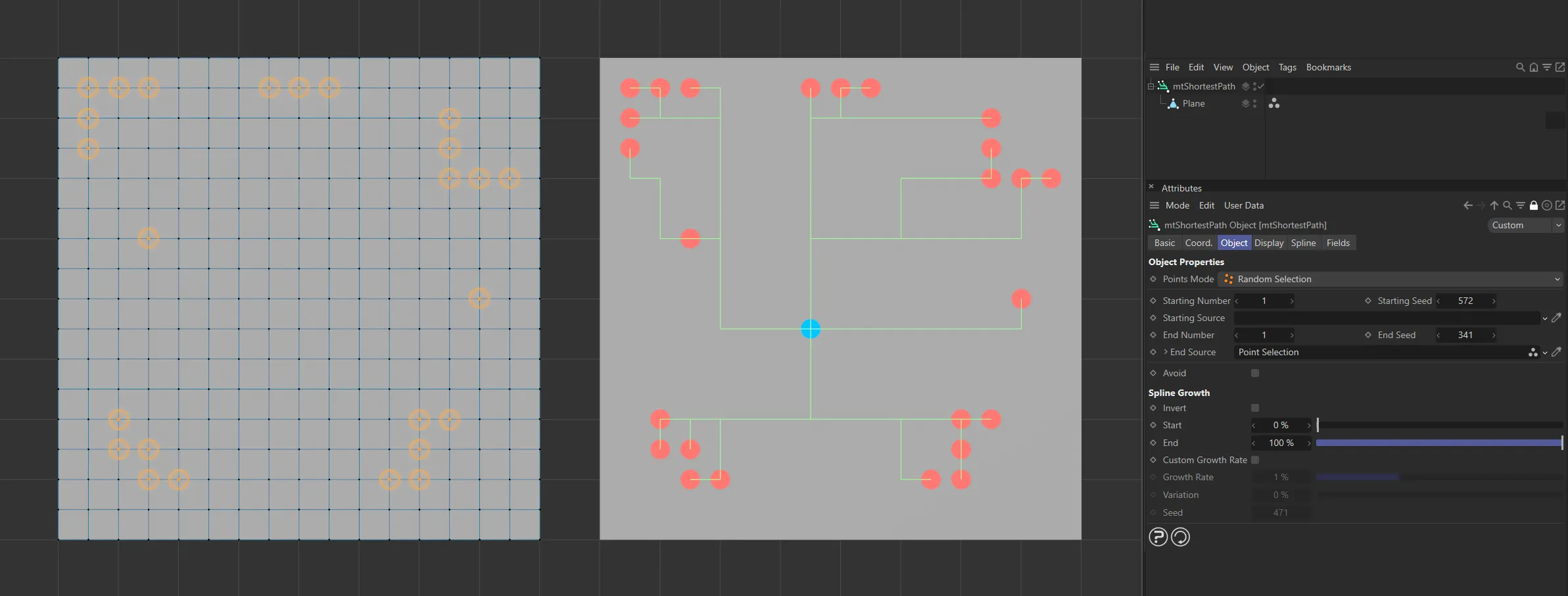
The Plane on the left has a polygon selection tag, which is displayed in the viewport. An identical Plane is on the right, as a child of a mtShortestPath, driving the end point positions.
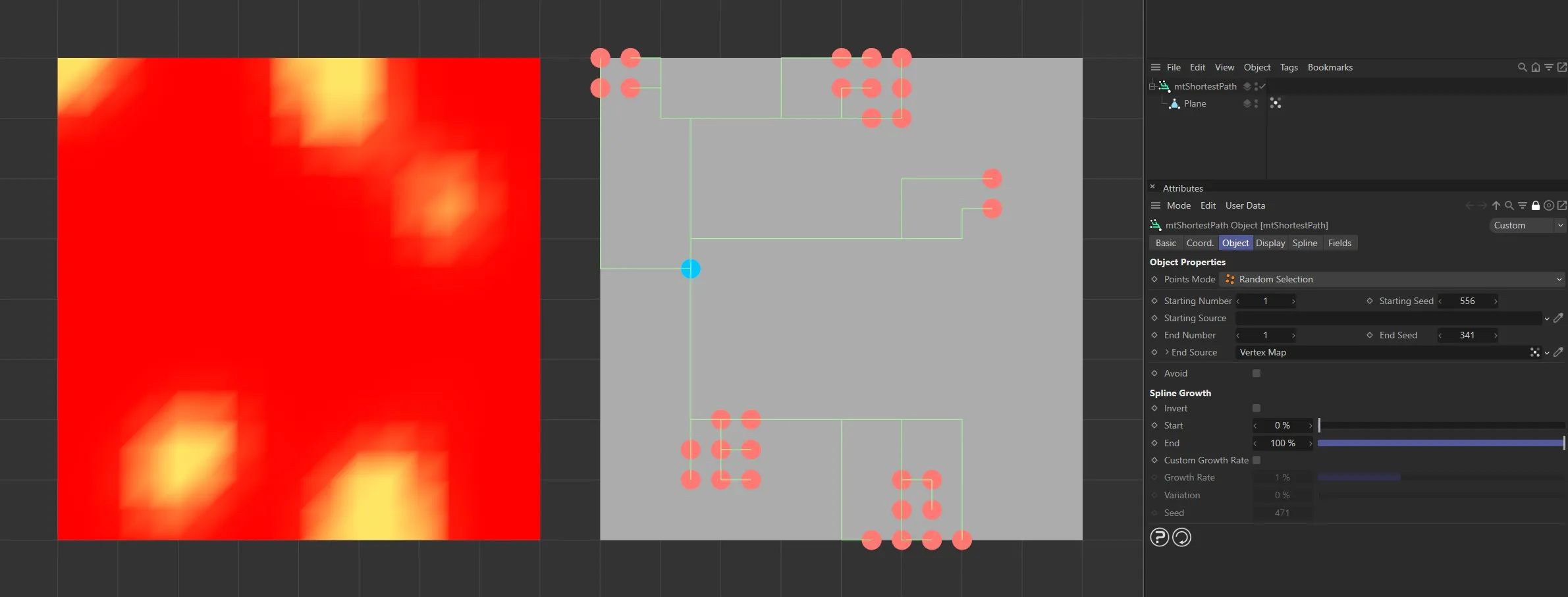
The Plane on the left has a vertex map, which is displayed in the viewport. An identical Plane is on the right, as a child of a mtShortestPath. The vertex weights are driving the end point positions.
Fixed Selection
Section titled “Fixed Selection”Fixed Selection only allows defined point selections, rather than randomly chosen points.
You can use vertex maps or selection tags to define the start and end points.
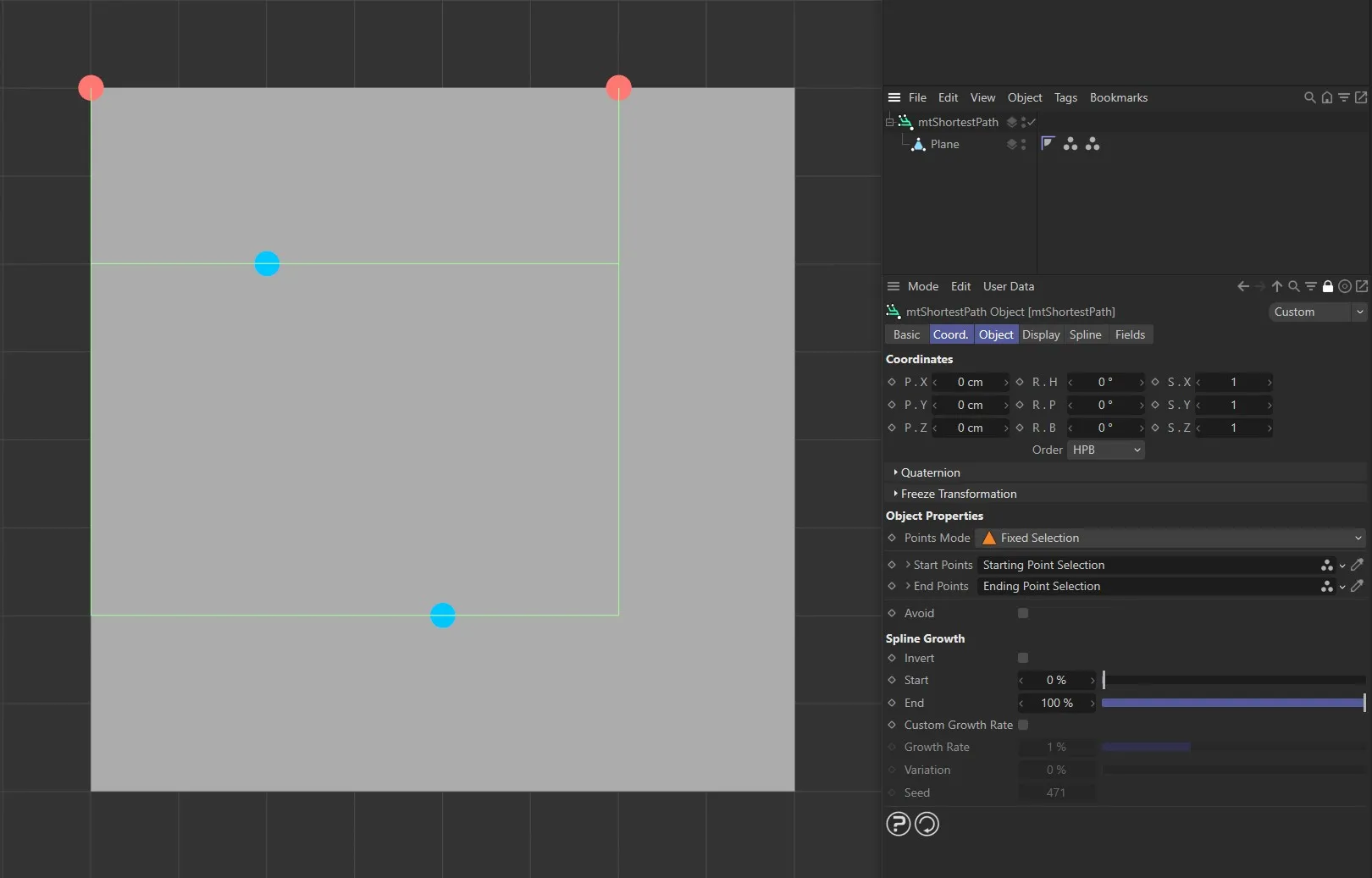
Defined start and end points in Fixed Selection mode, with the shortest path generated between them.
Start Points, End Points
Section titled “Start Points, End Points”Drag the vertex map, or selection tag, from the Object Manager into the Start Points, End Points link field.
Some paths from start to end points may intersect.
With Avoid enabled, intersecting paths will not be generated.
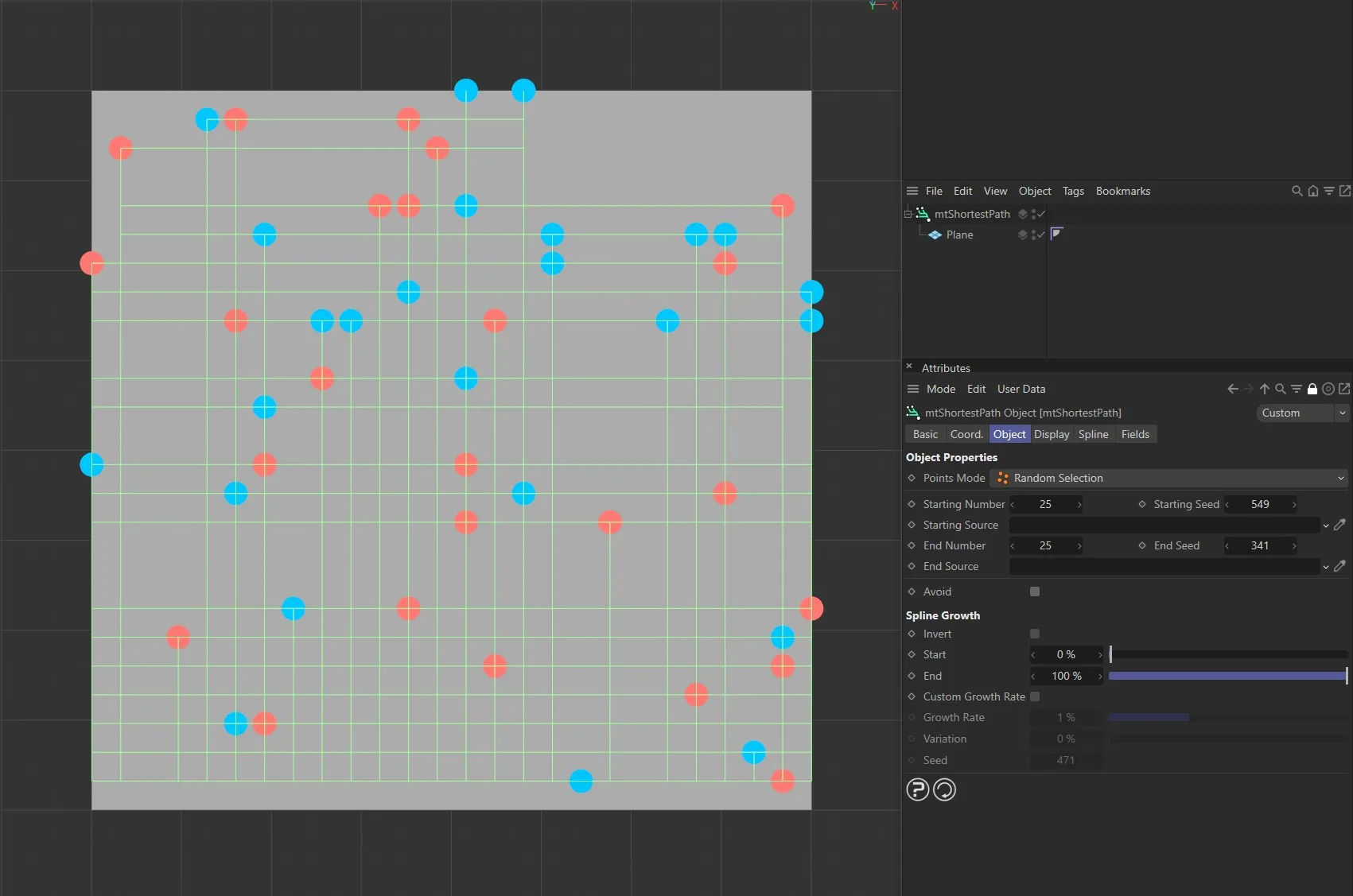
Avoid disabled.
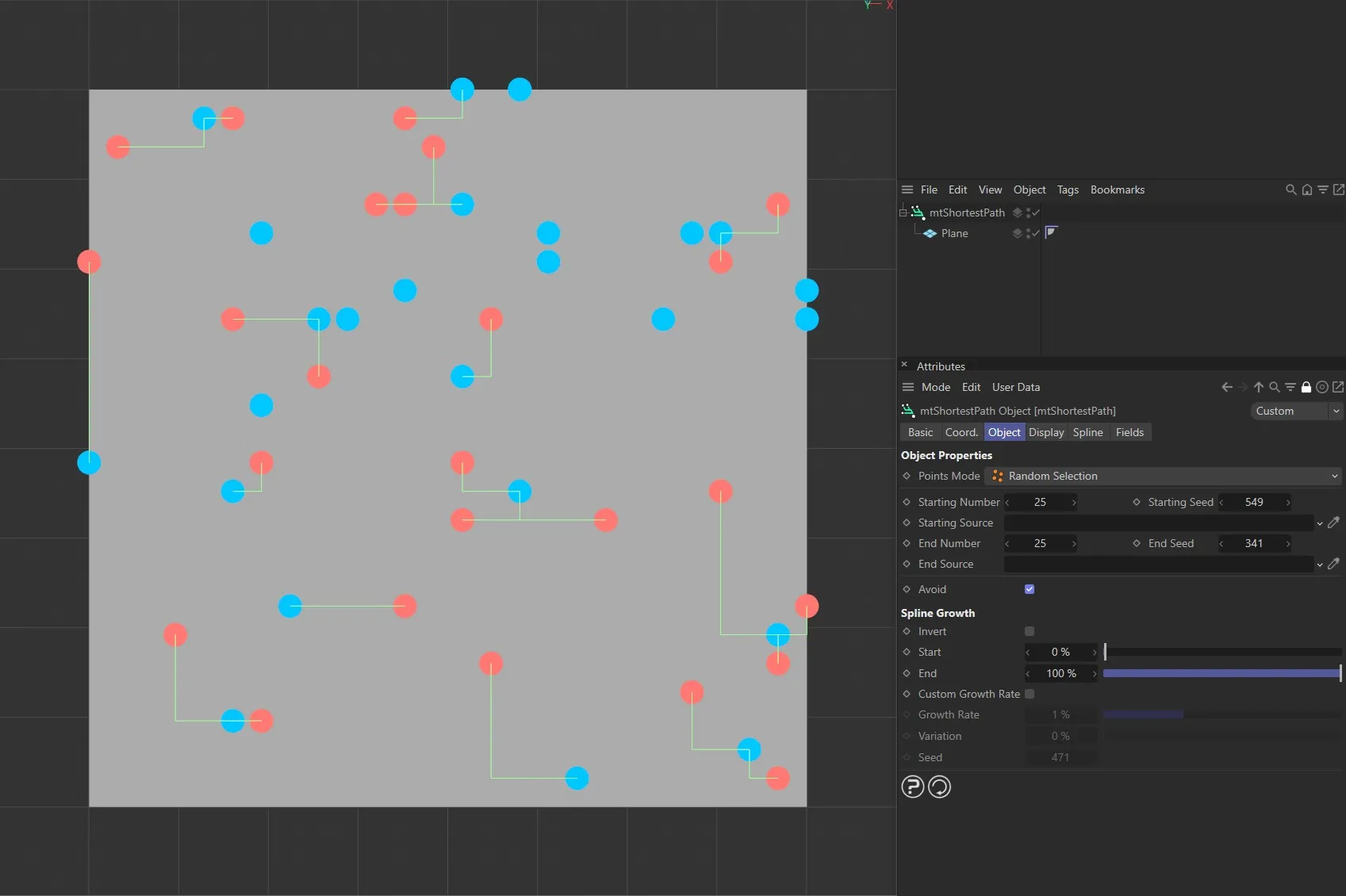
Avoid enabled.
Spline Growth
Section titled “Spline Growth”Use these settings to alter the length of the generated splines and animate growth effects.
An animated demonstration showing use of the Start and End sliders in the Spline Growth settings.
Invert
Section titled “Invert”You can invert the spline growth so that it begins at the end points and grows towards the start points.
You can adjust the length of the paths by changing its start point.
This can be animated for growth effects.
You can also adjust the length of the spline by changing its end point.
This too can be animated for growth effects.
Custom Growth Rate
Section titled “Custom Growth Rate”You can set the spline to automatically grow over time.
Enabling this will make the following four parameters available.
Video demonstrating activation of Custom Growth Rate and resulting animation, with and without the Variation option.
Growth Rate
Section titled “Growth Rate”This is the rate at which a path will grow per frame.
It is a percentage of its overall length.
Therefore, at 1%, it will take 100 frames to grow to full length.
Variation
Section titled “Variation”You can add variation to the Growth Rate setting to prevent paths from reaching their end points at the same time.
Time Offset
Section titled “Time Offset”When Custom Growth Rate is enabled, this is available to offset the time that the growth begins.
The value represents the frame setting.
Change this value for a different variation pattern.
Display tab
Section titled “Display tab”Show Start and End Points
Section titled “Show Start and End Points”Enable this to display the start and end points in the viewport.
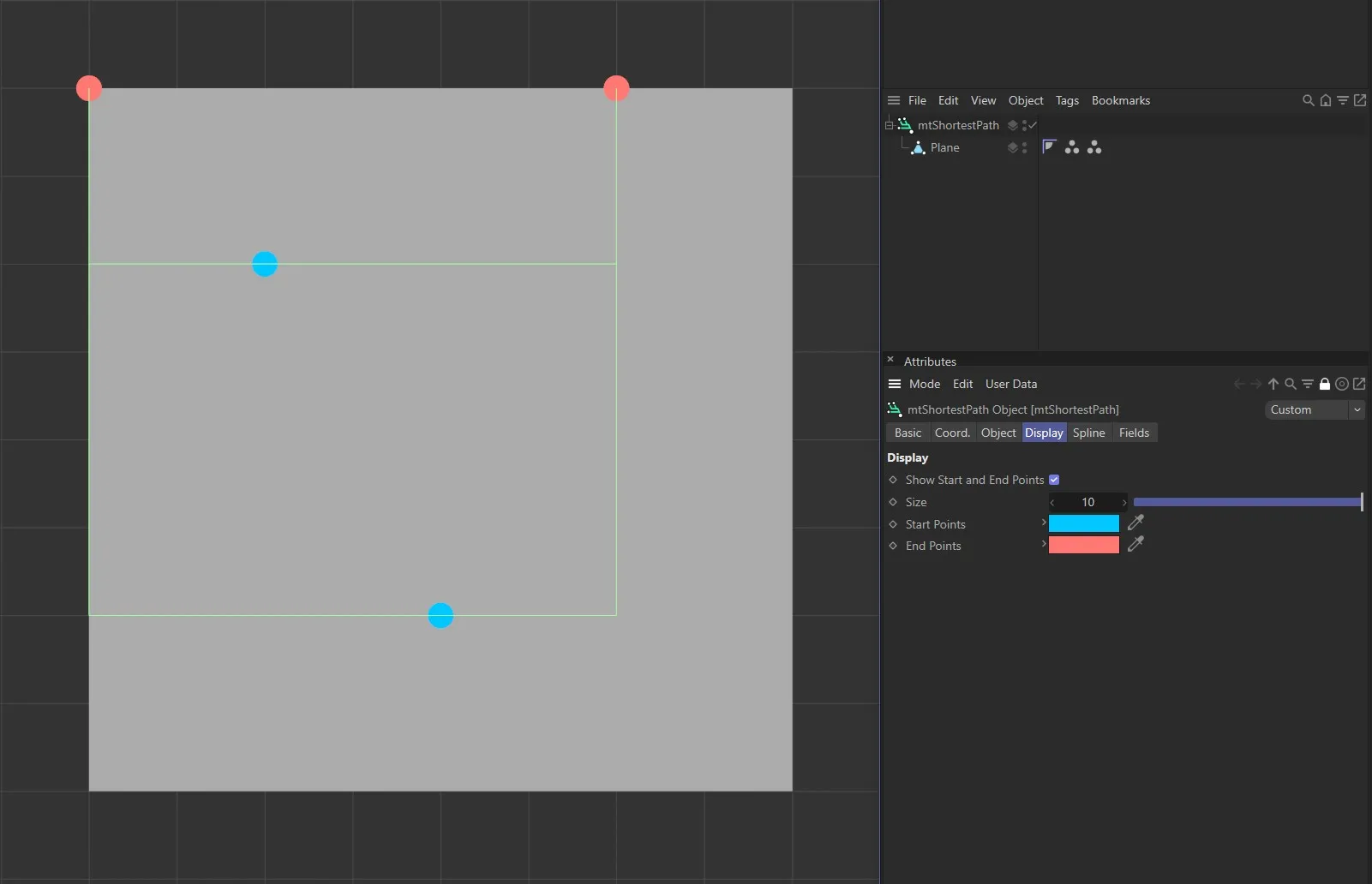
Display tab settings.
Start Points
Section titled “Start Points”Use the color picker to choose a custom color for the start points.
End Points
Section titled “End Points”Use the color picker to choose a custom color for the end points.
Adjusts the size of the displayed points.
Display Gradient
Section titled “Display Gradient”This parameter enables the gradient coloring on the splines in the scene.
Spline tab
Section titled “Spline tab”Choose from a Linear, Cubic, Akima, B-Spline or Bezier spline Type.
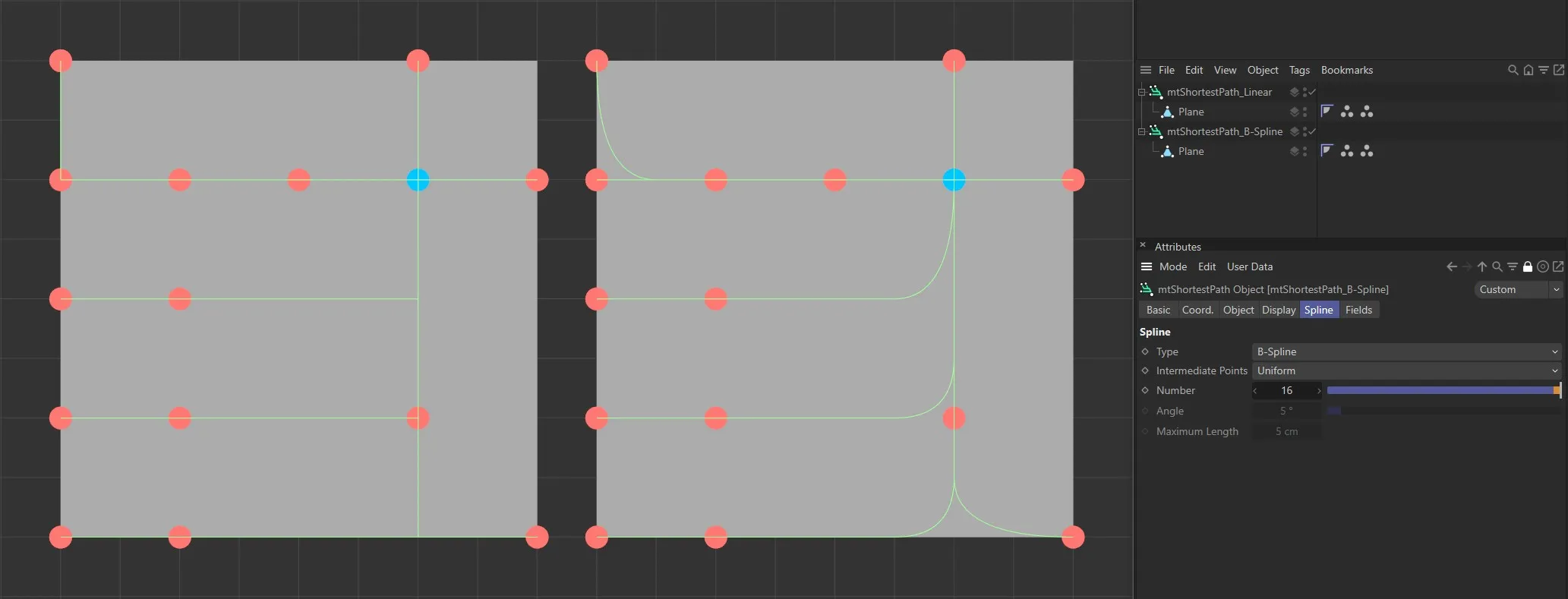
Different options for spline Type setting, with the left set at Linear and the right at B-Spline.
Intermediate Points
Section titled “Intermediate Points”You can choose how intermediate points are generated from the usual options.
Number
Section titled “Number”In Natural and Uniform modes, use this field to set the number of intermediate points.
In Adaptive and Subdivided modes, use this angle threshold to limit the generation of intermediate points on curved edges.
Maximum Length
Section titled “Maximum Length”In Subdivided mode, use this length threshold to limit the generation of intermediate points on straight edges.
Fields tab
Section titled “Fields tab”You can use the Fields options to control where mtShortestPath operates.
Animation demonstrating use of the Spherical Field.
Copyright © 2026 INSYDIUM LTD. All rights reserved.