

nxCover
nxCover allows particles to cover the surface of scene objects.
Object Properties
Section titled “Object Properties”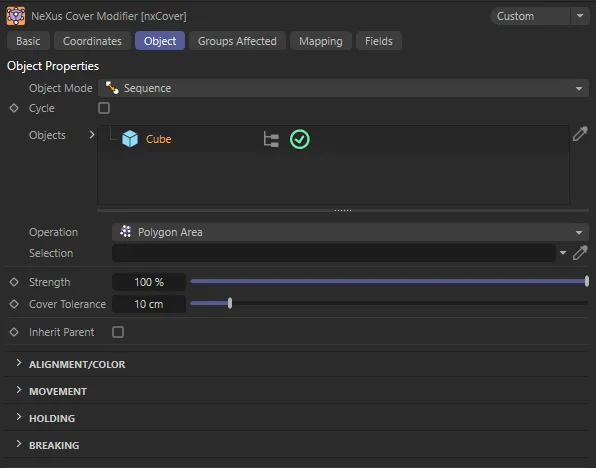
nxCover, Object tab menu settings.
Object Mode
Section titled “Object Mode”Set as Sequence, by default, this dropdown menu gives options for establishing how the particle will move onto the next object.
The other options are: Nearest Object, Furthest Object, Object Index and Random Object.
Sequence
Section titled “Sequence”Particles will move onto the next object in the node tree.
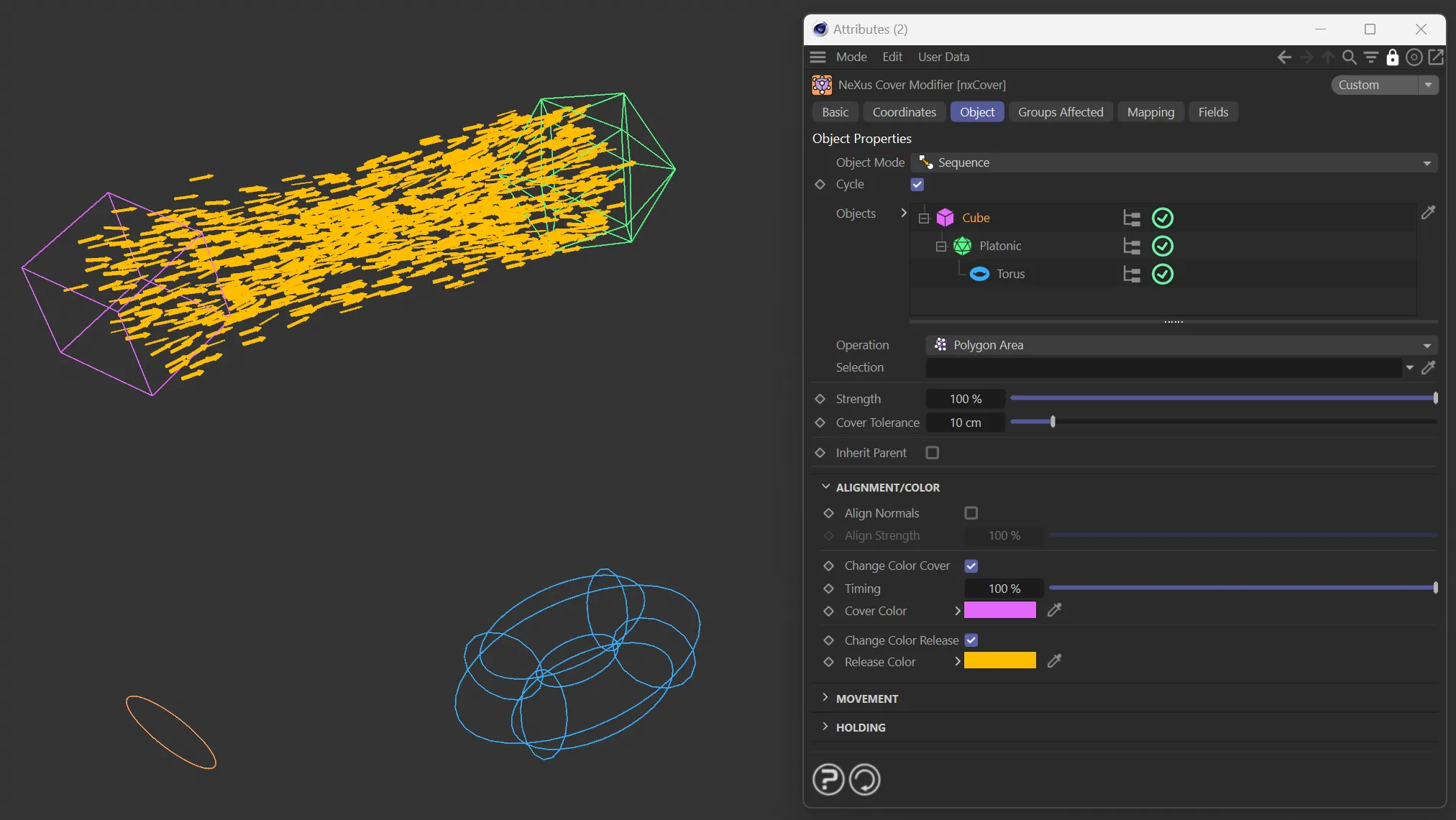
The Object Mode of Sequence, with the UI settings.
Nearest Object
Section titled “Nearest Object”Particles will move onto the nearest object in the scene.
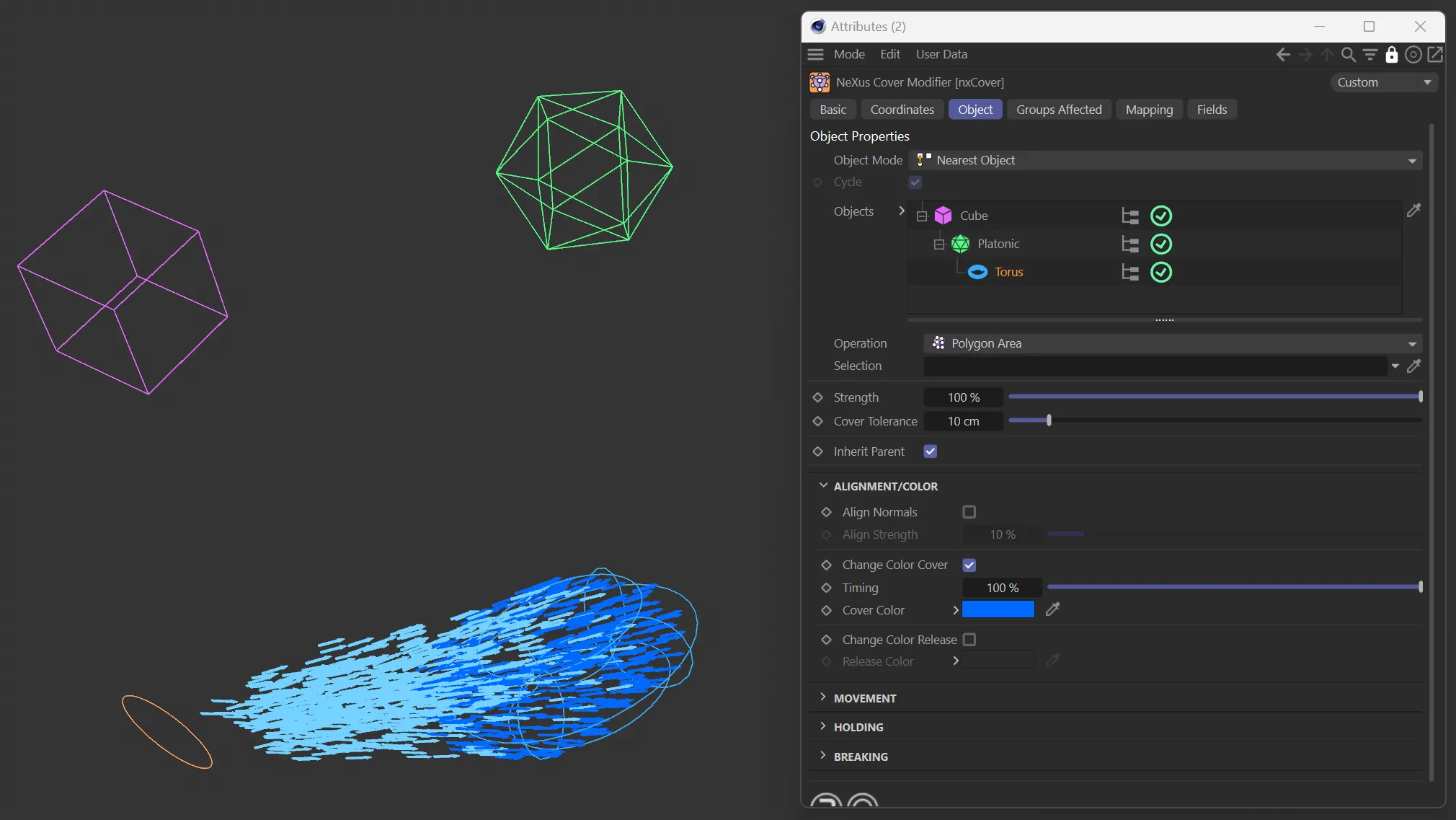
The Object Mode of Nearest Object, with the UI settings.
Furthest Object
Section titled “Furthest Object”Particles will move onto the furthest object in the scene.
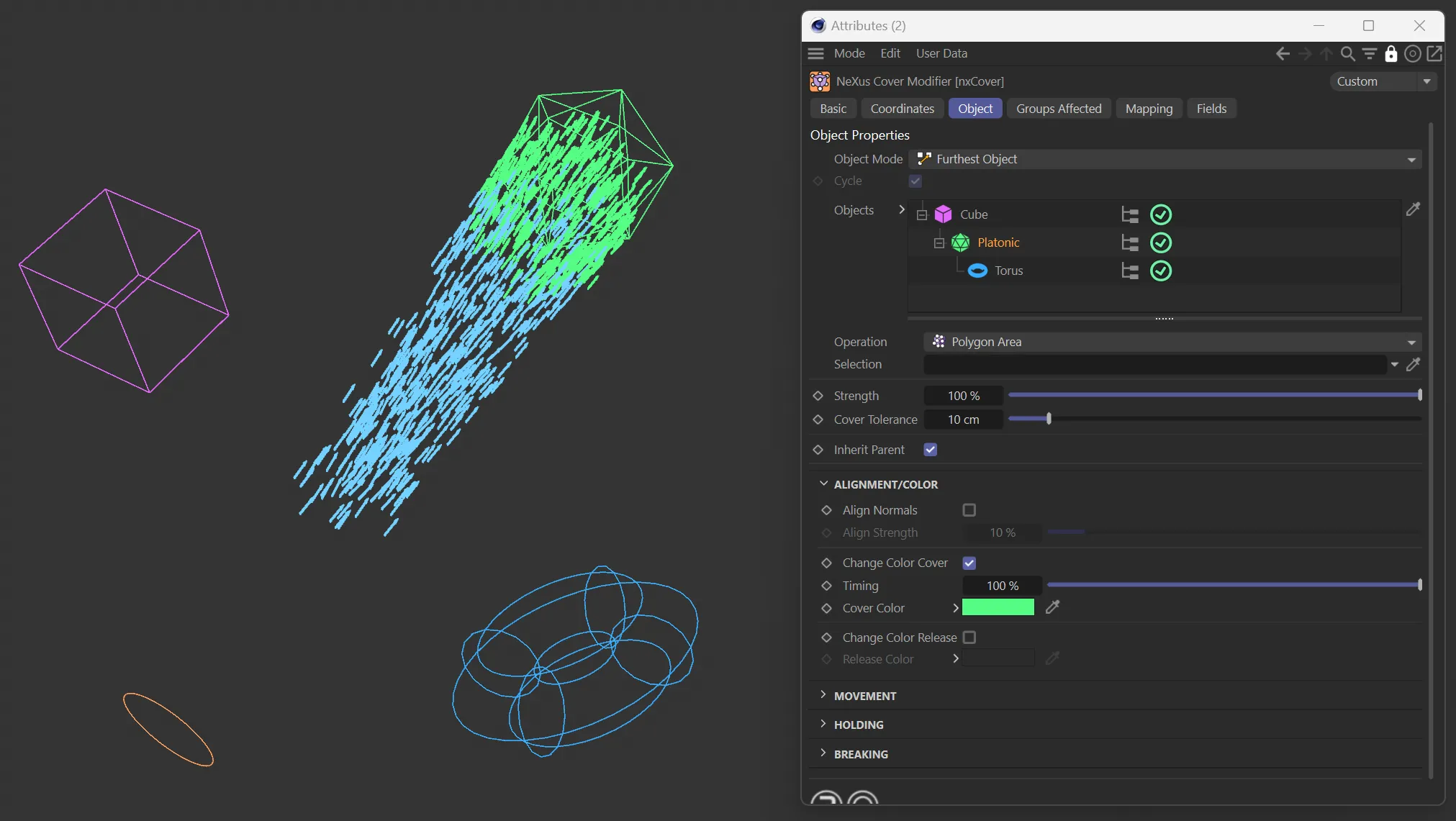
The Object Mode of Furthest Object, with the UI settings.
Object Index
Section titled “Object Index”Particles will move onto the object index (indexed from the node tree).
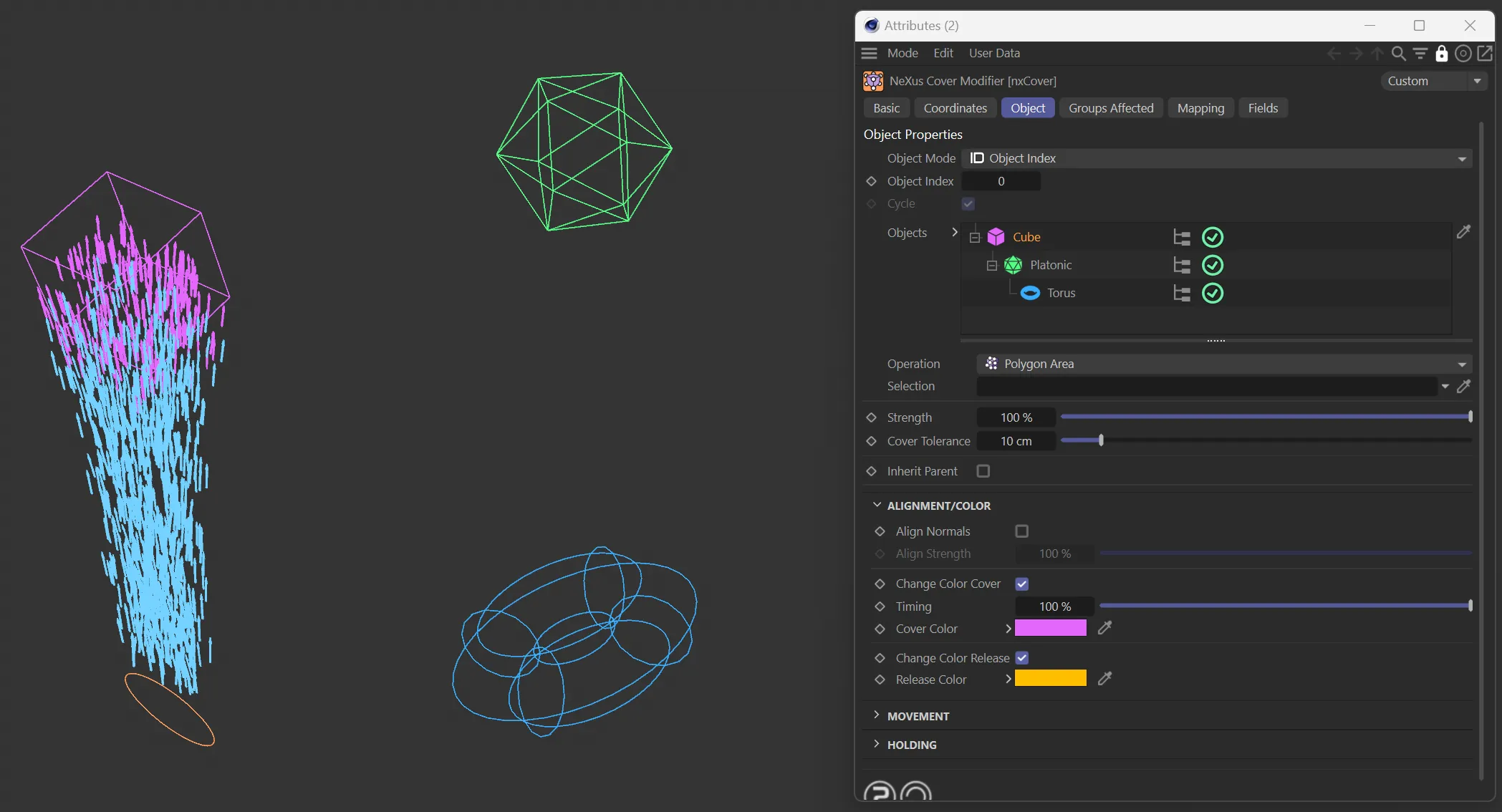
The Object Mode of Object Index, with the UI settings.
Random Object
Section titled “Random Object”Particles will move onto a random object in the node tree.
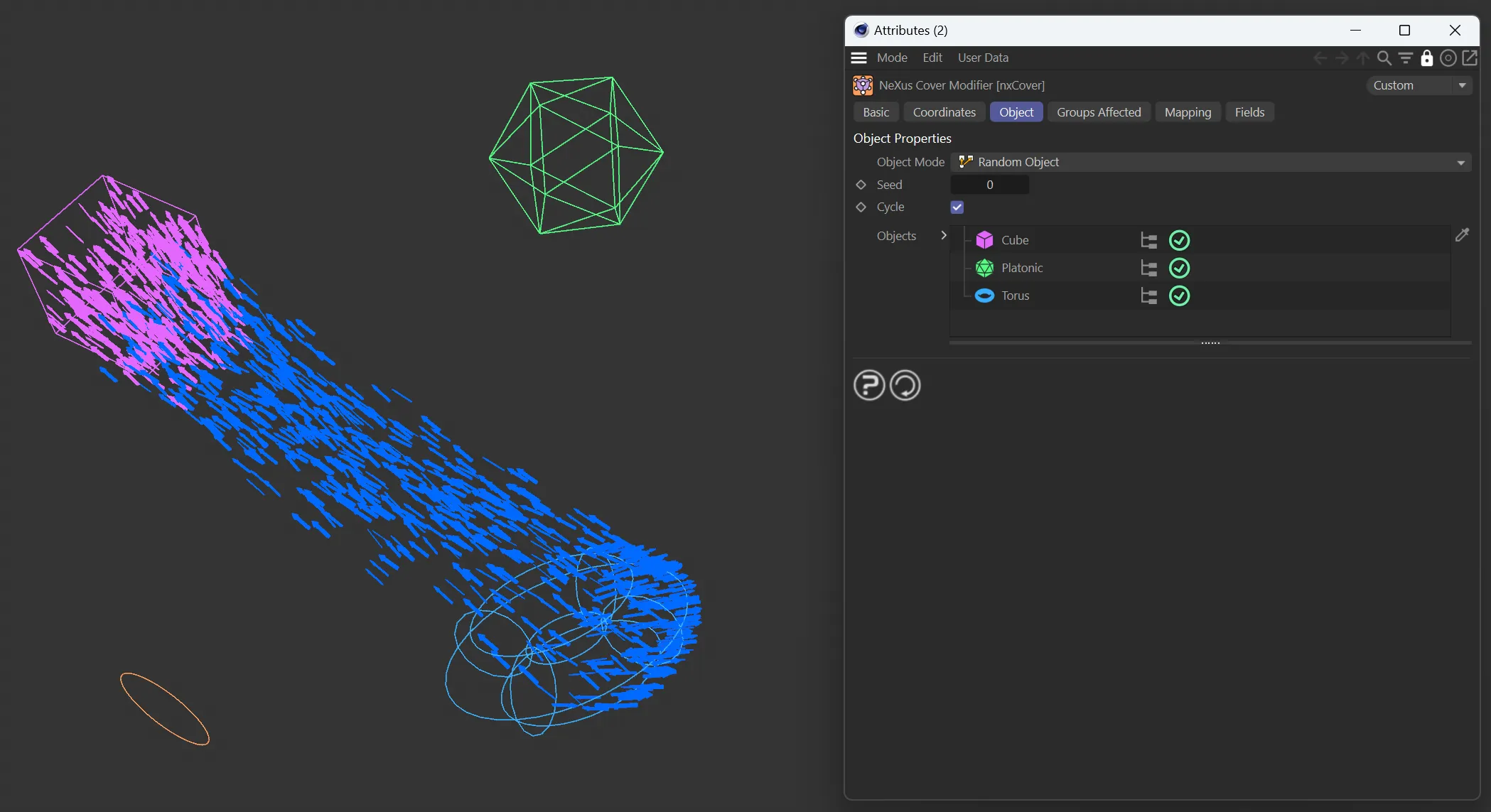
The Object Mode of Random Object, with the UI settings.
If Sequence is chosen as the Object Mode, this option allows the modifier to continue looping over the modifier’s object more than a single time.
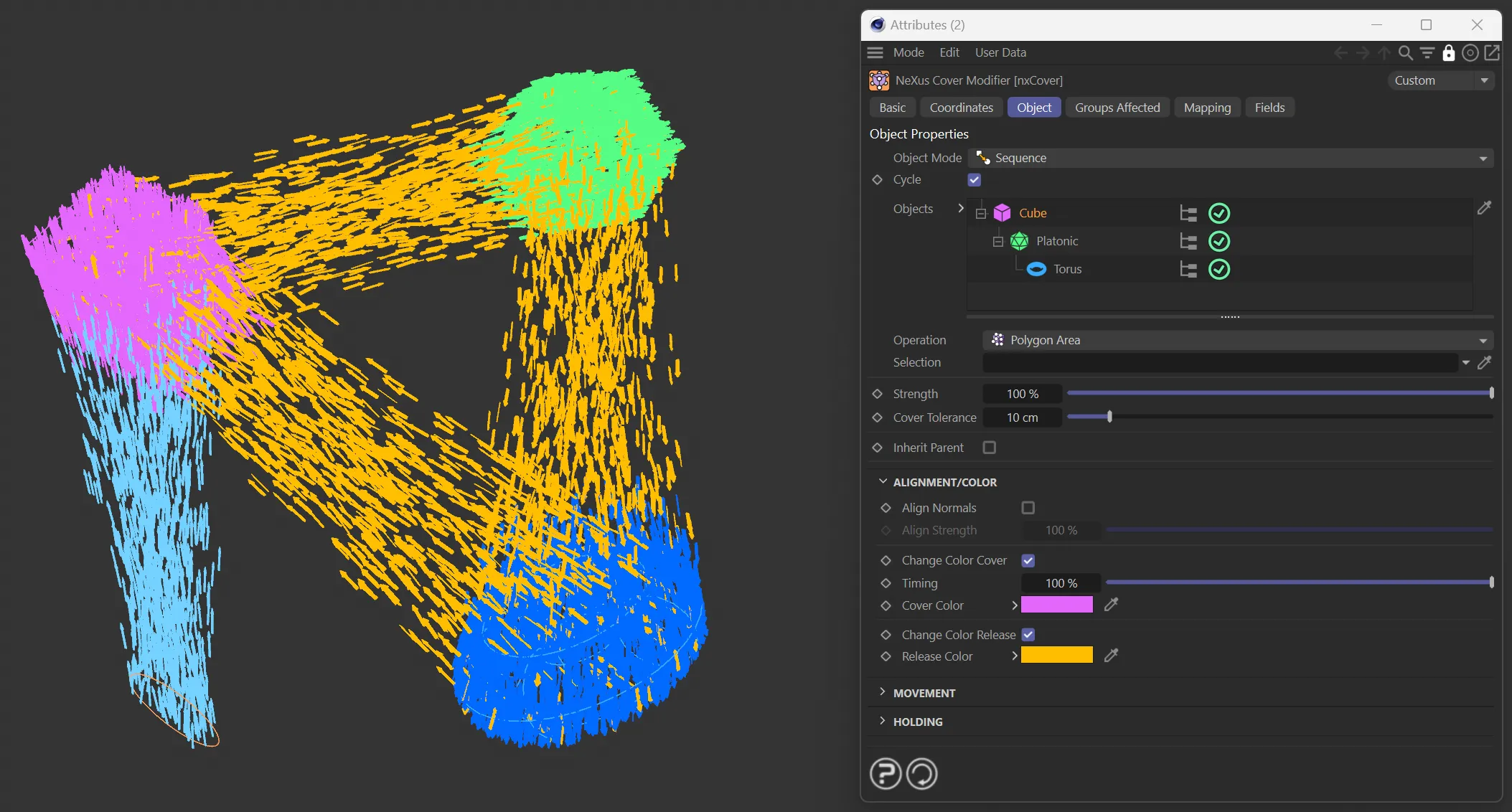
The Object Mode of Sequence, with Cycle enabled, allowing the modifier to continue looping.
Objects
Section titled “Objects”A list of objects dragged and dropped from the Objects Manager.
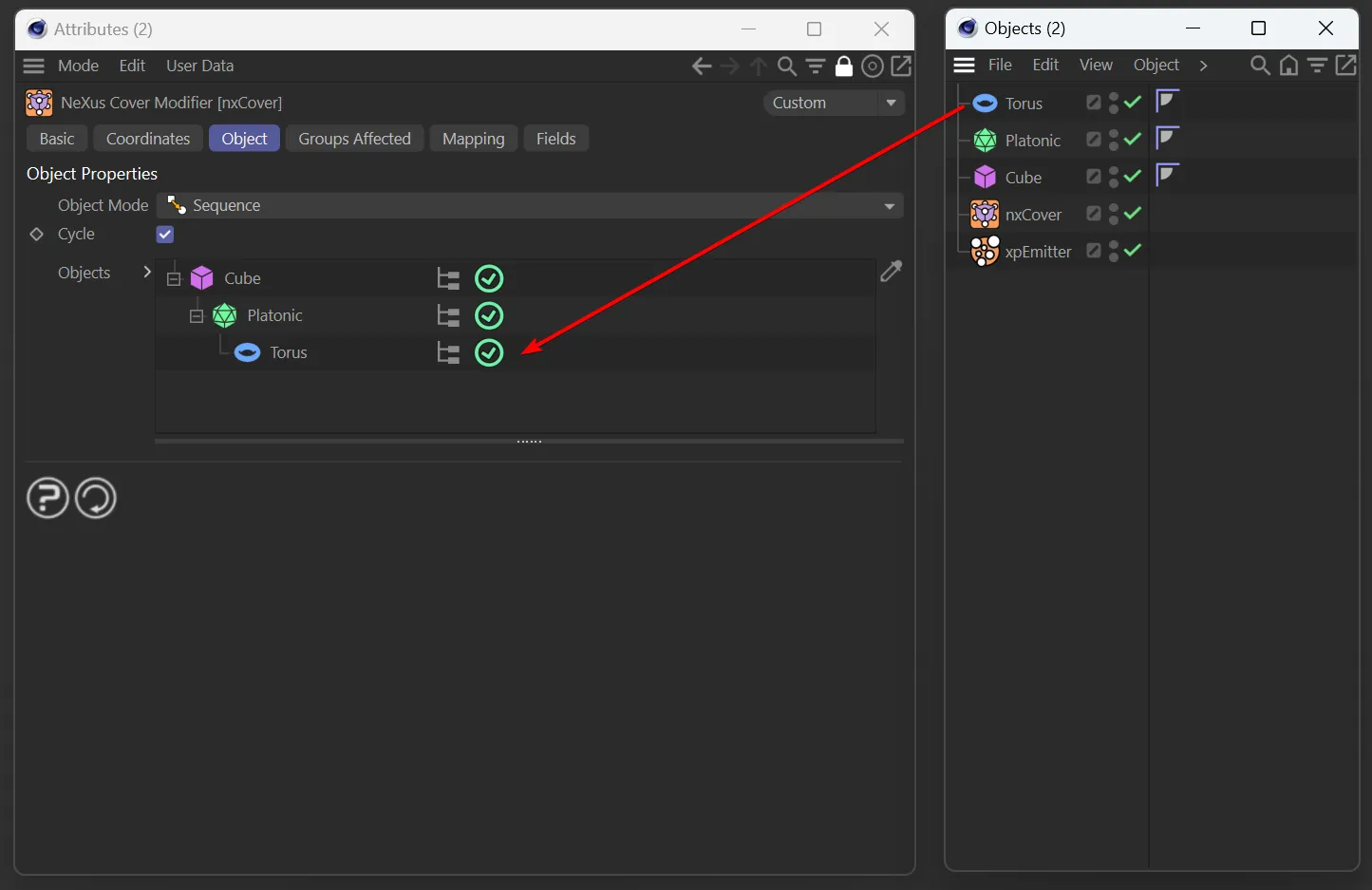
The Objects list and Objects Manager showing the items dragged and dropped into the list.
Operation
Section titled “Operation”Set as Polygon Area, by default, this dropdown menu gives choices for cover operation.
The alternative options are: Polygon Center, Points, Edges, Particle Ray, Object Volume and Texture.
Polygon Area
Section titled “Polygon Area”Surface of a polygon.
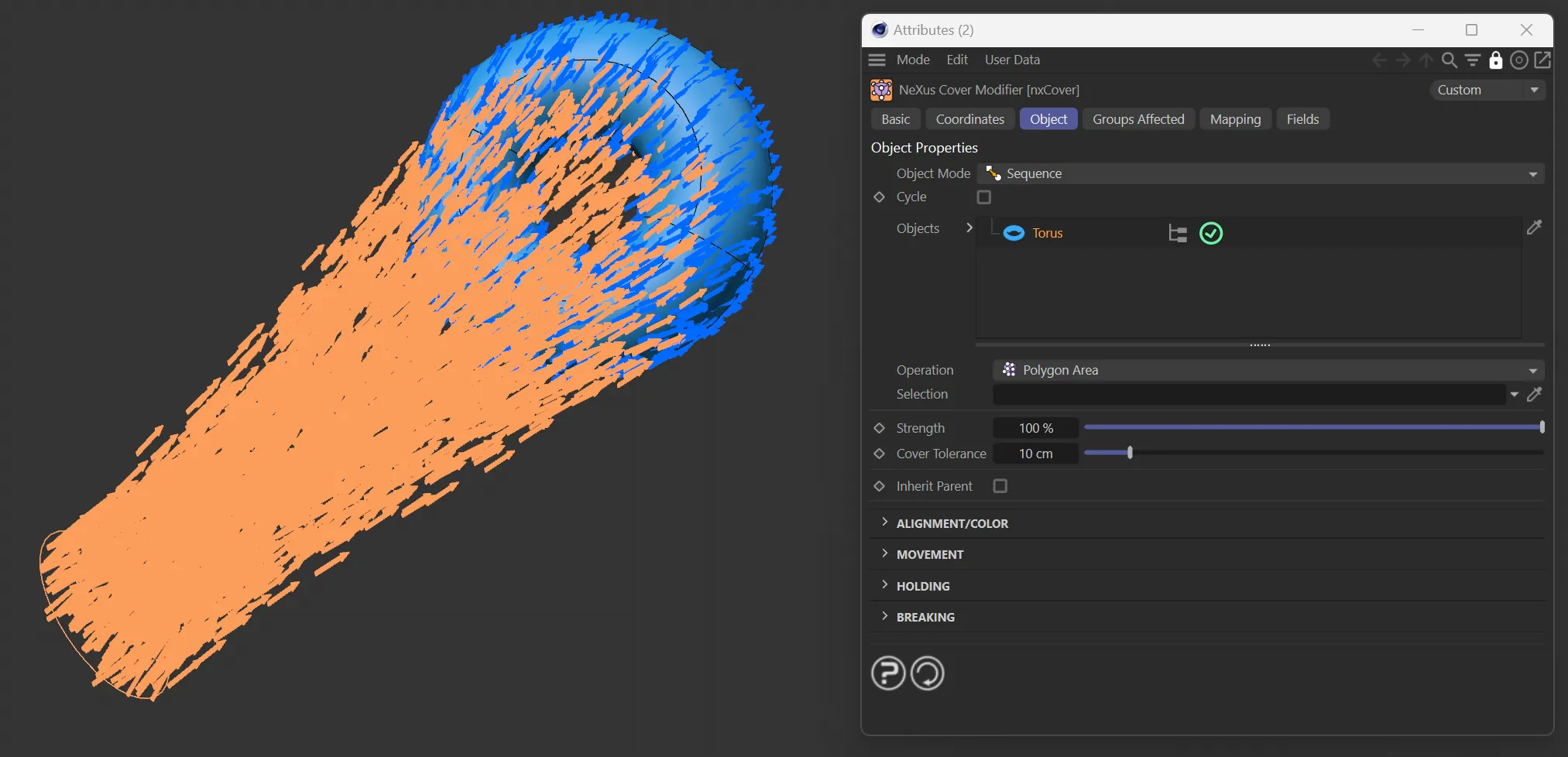
Operation set to Polygon Area, with particles covering the surface of the Torus.
Polygon Center
Section titled “Polygon Center”Center point of a polygon.
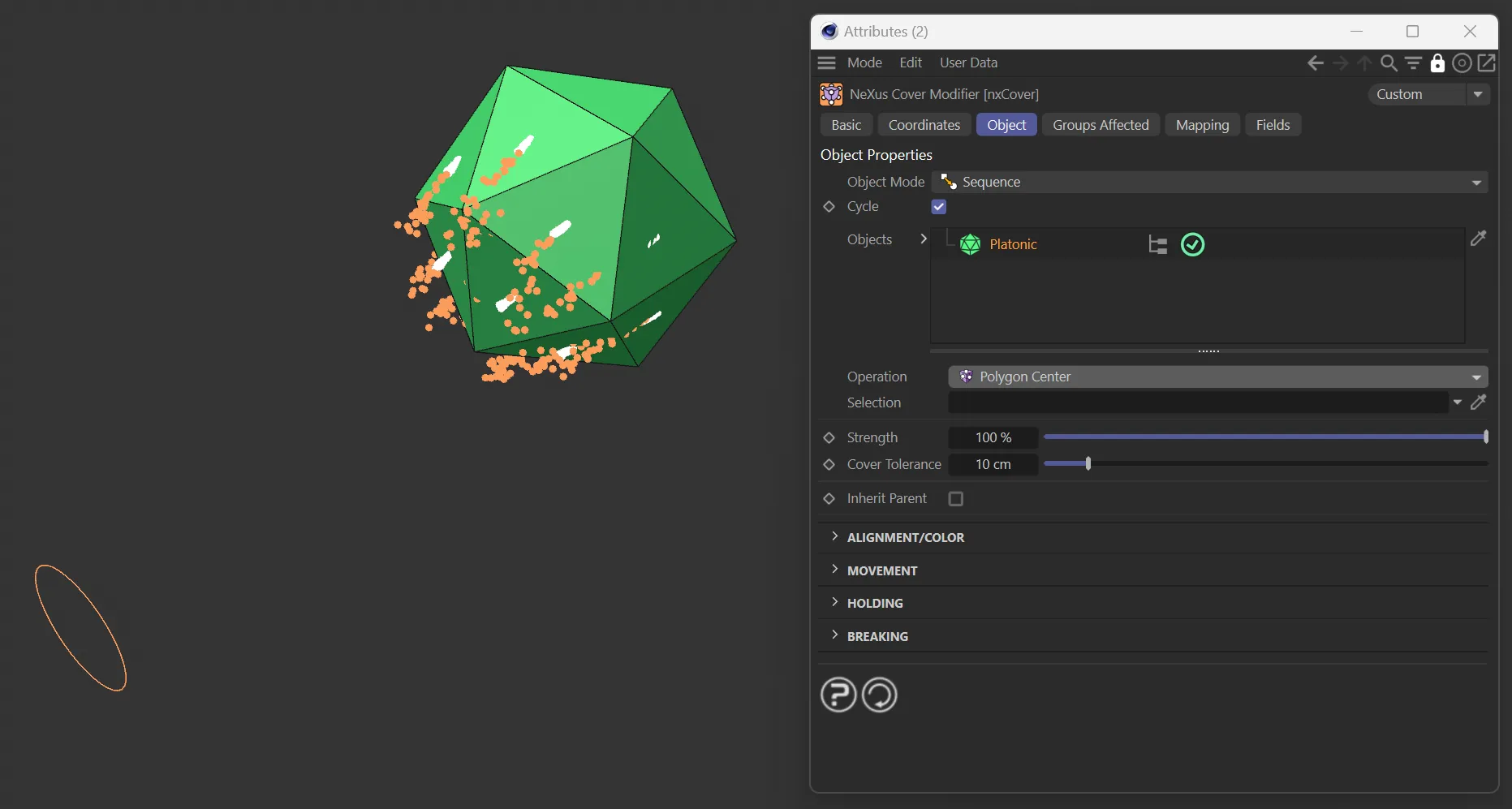
Operation set to Polygon Center, with particles covering the center of the Platonic faces.
Points
Section titled “Points”Points or vertices on a surface.
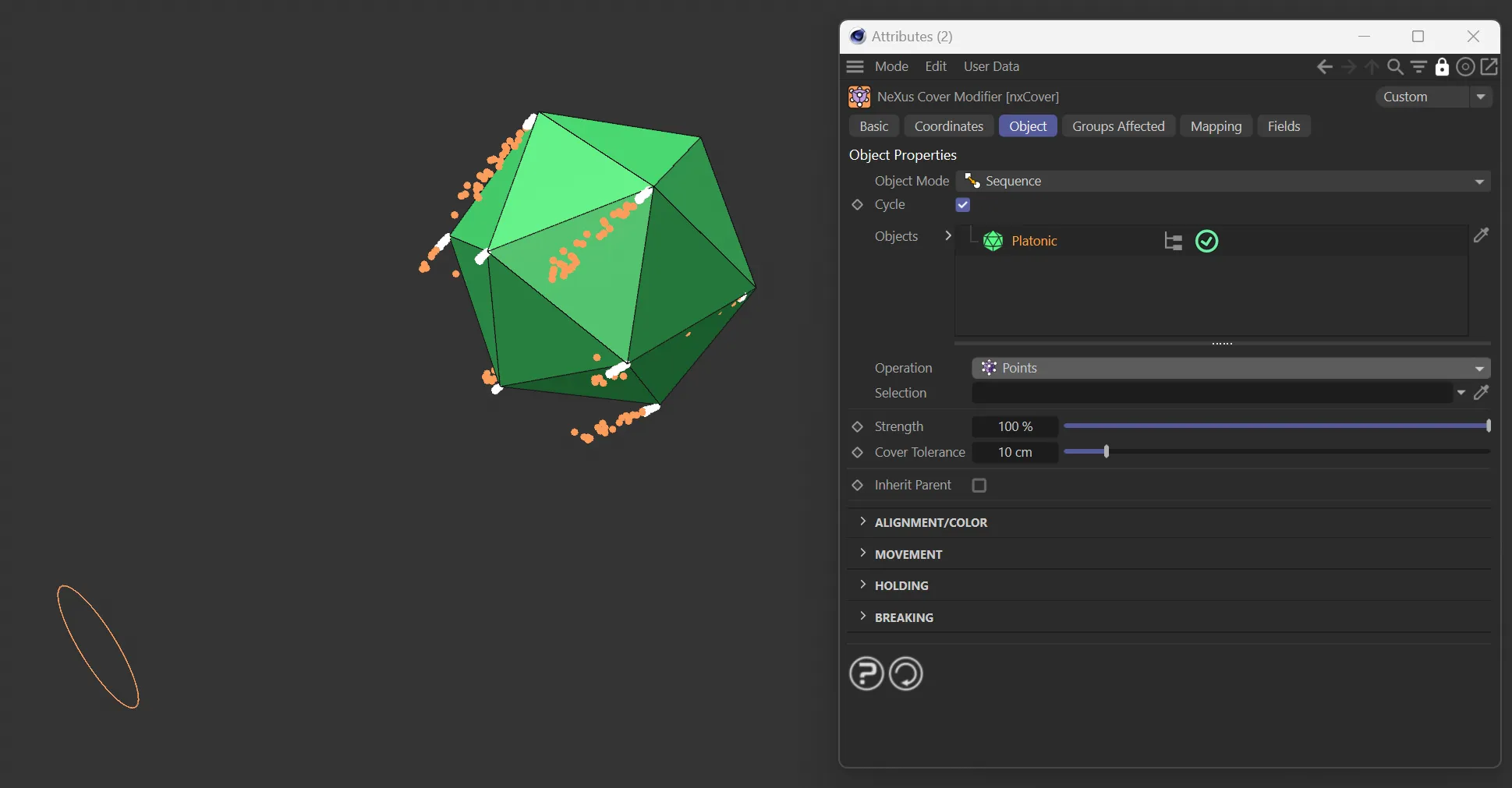
Operation set to Points, with particles covering the vertices of the Platonic.
Edges on a surface.
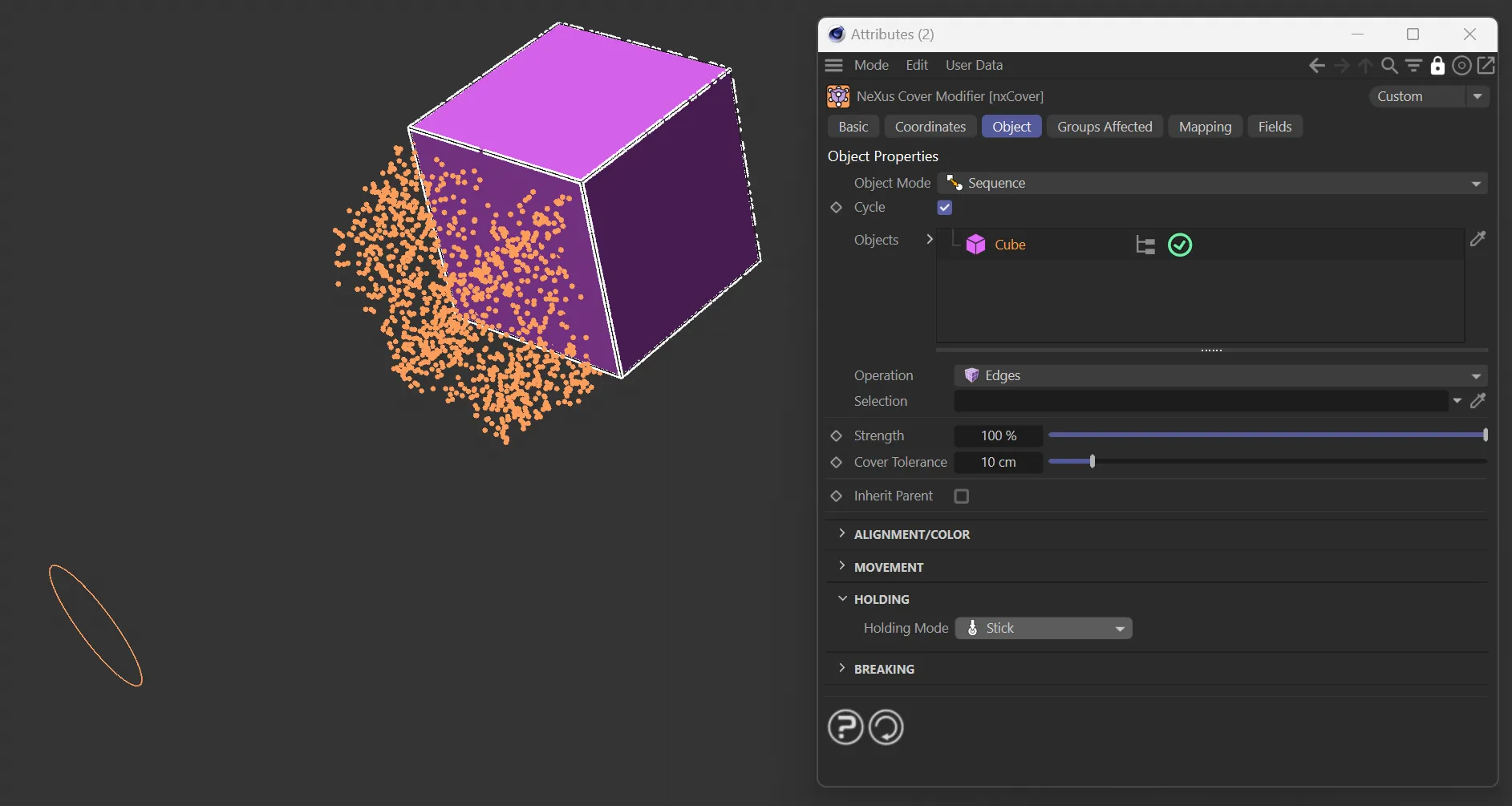
Operation set to Edges, with particles covering the edges of the Cube.
Particle Ray
Section titled “Particle Ray”Within the particle path.
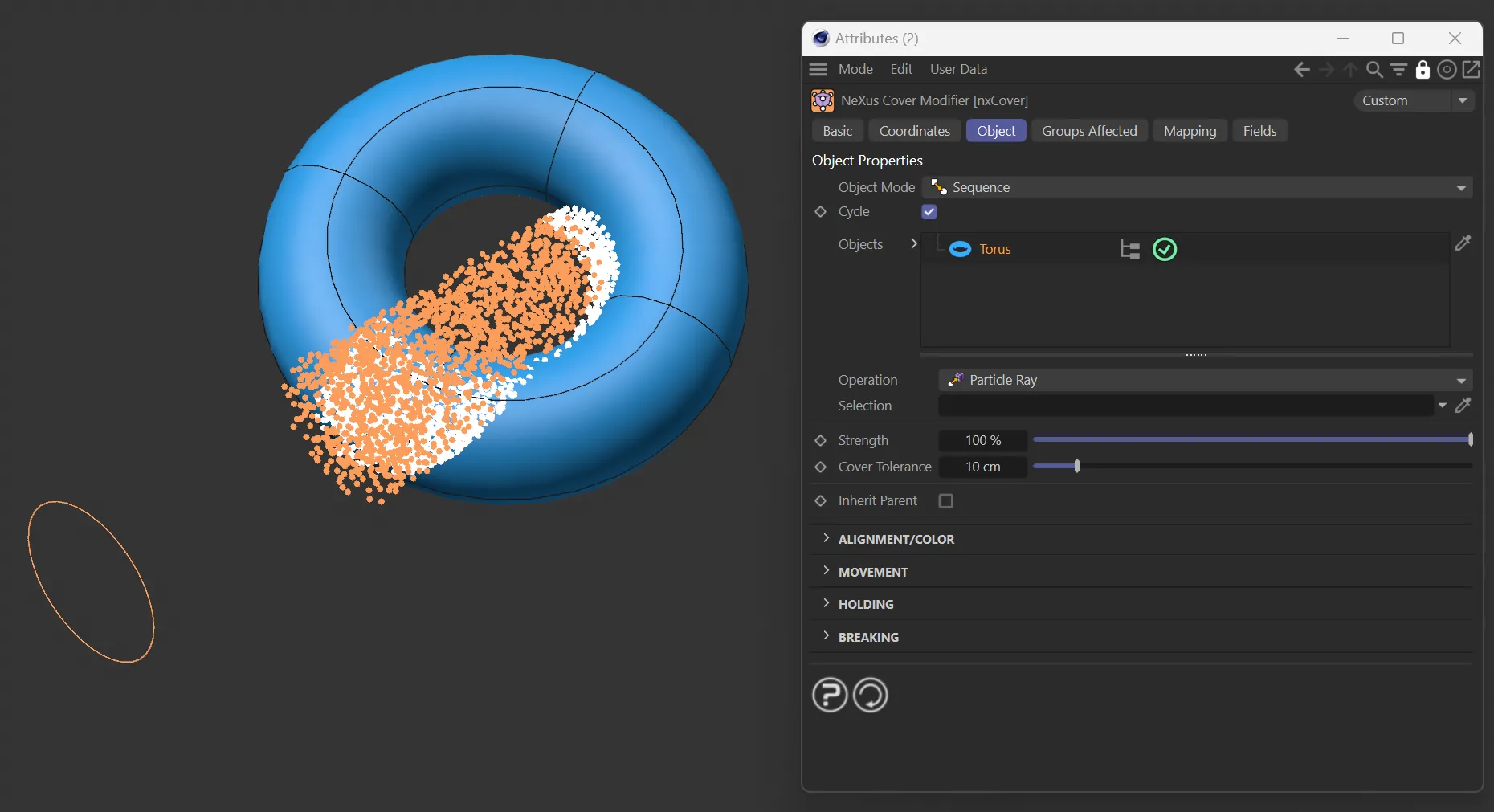
Operation set to Particle Ray, with particles covering when they hit the ray intersection of the Torus.
Object Volume
Section titled “Object Volume”Within an object’s volume.
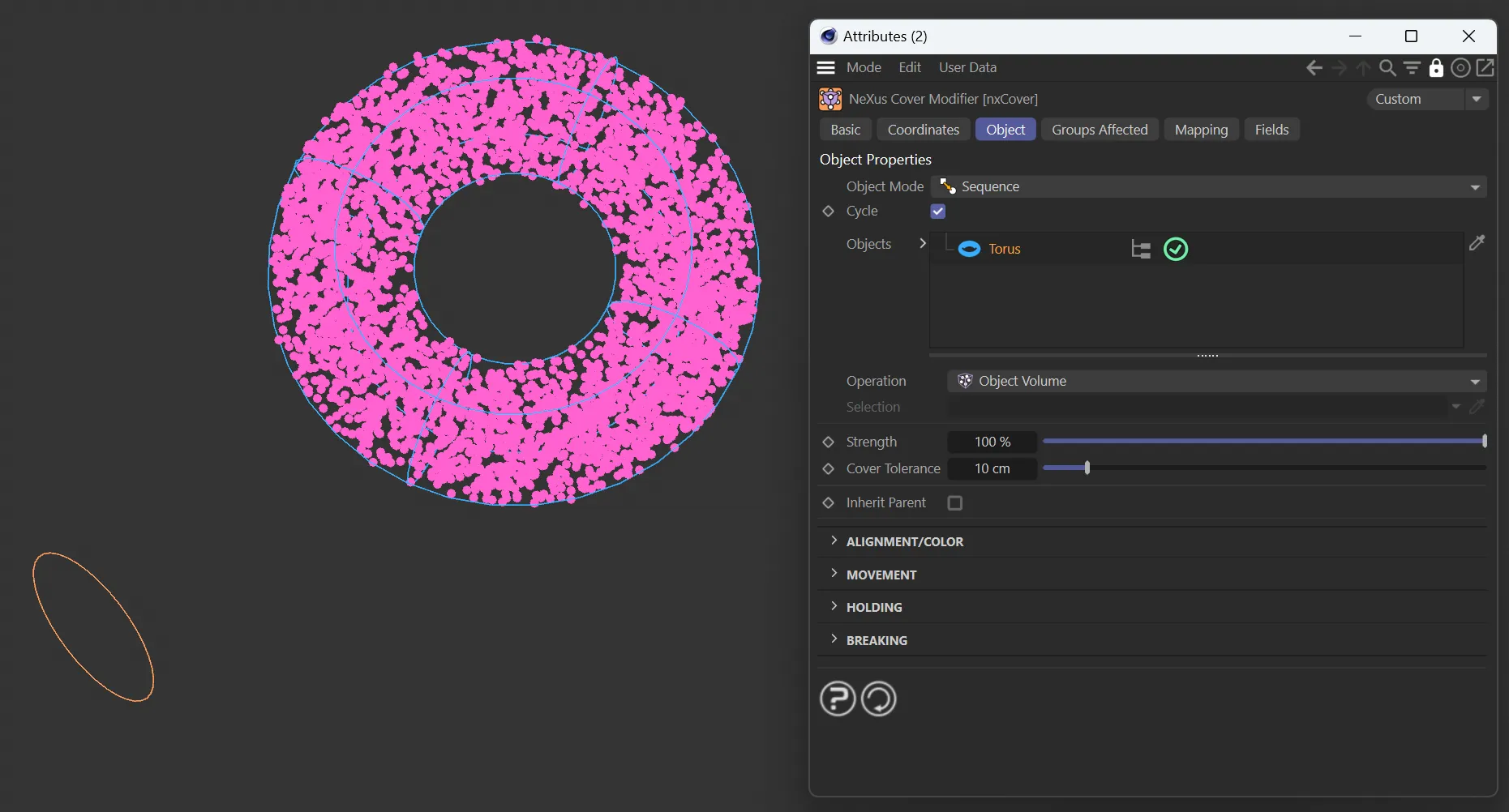
Operation set to Object Volume, resulting in particles within the volume of the Torus.
Texture
Section titled “Texture”Based on a texture above or below a certain threshold.
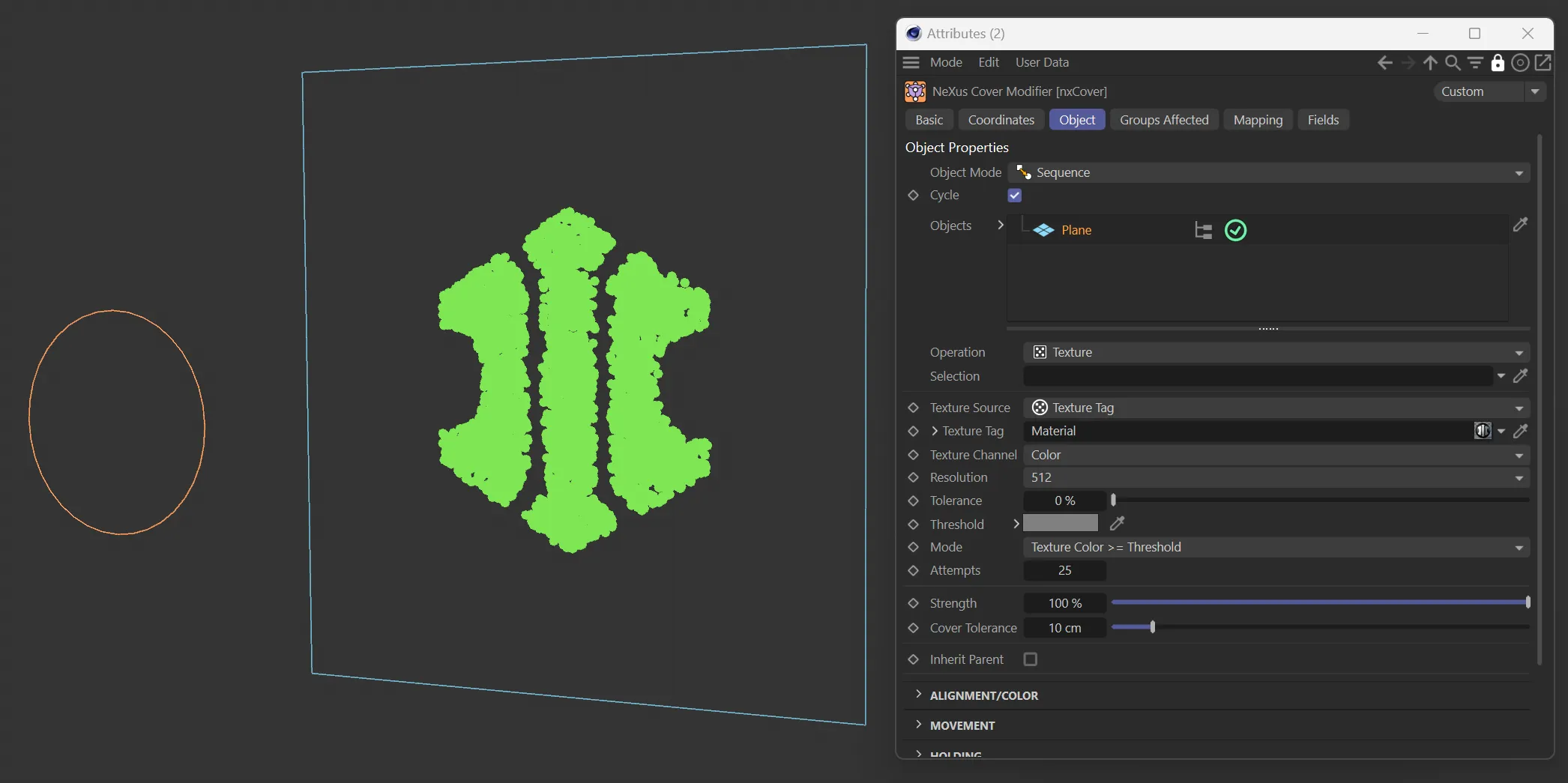
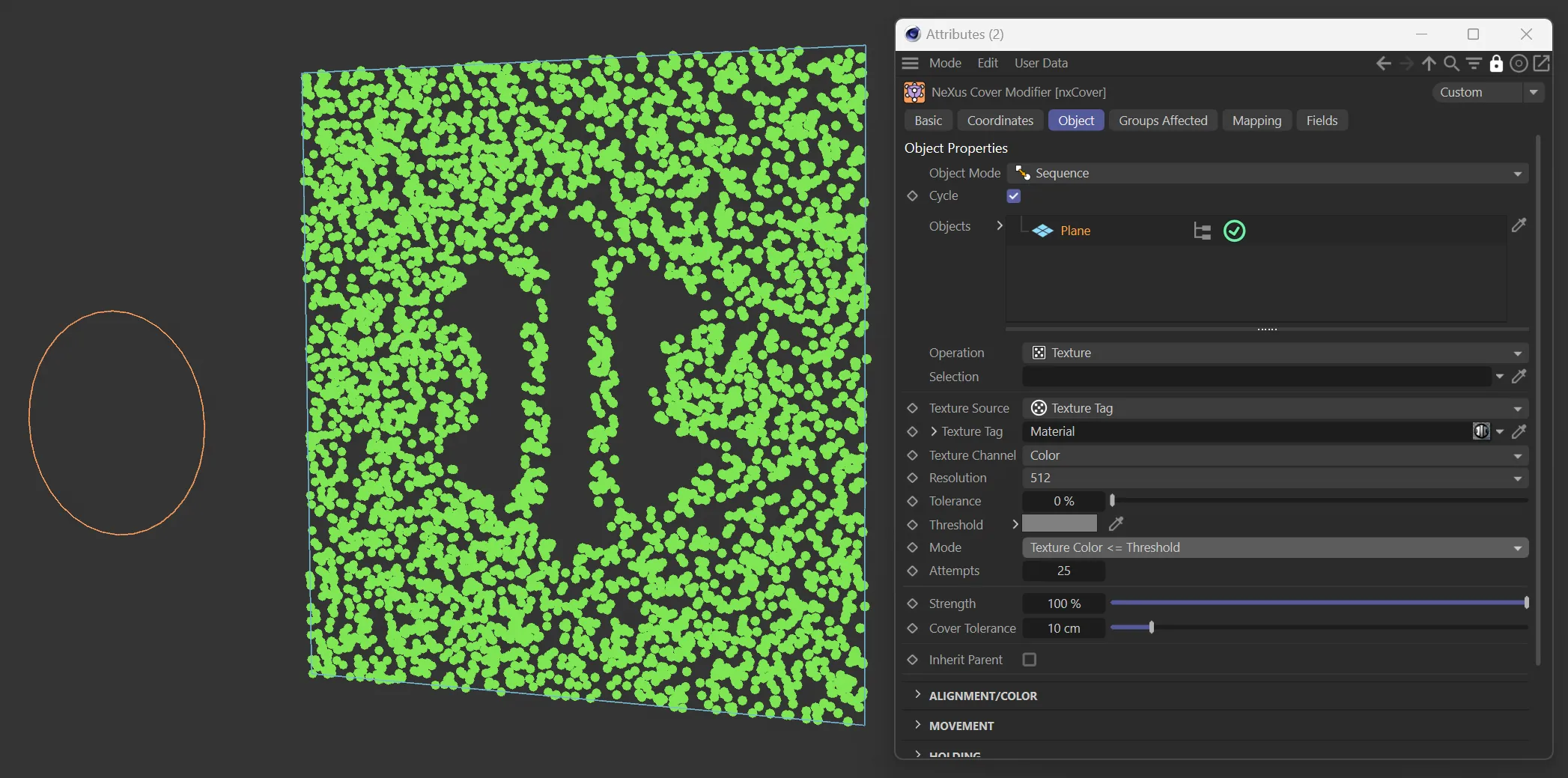
In the two images above, the Operation is set to Texture, with particles covering the jpeg from the Texture Tag.
Selection
Section titled “Selection”Selection map of the object (edges, points, polygons and vertex maps are supported).
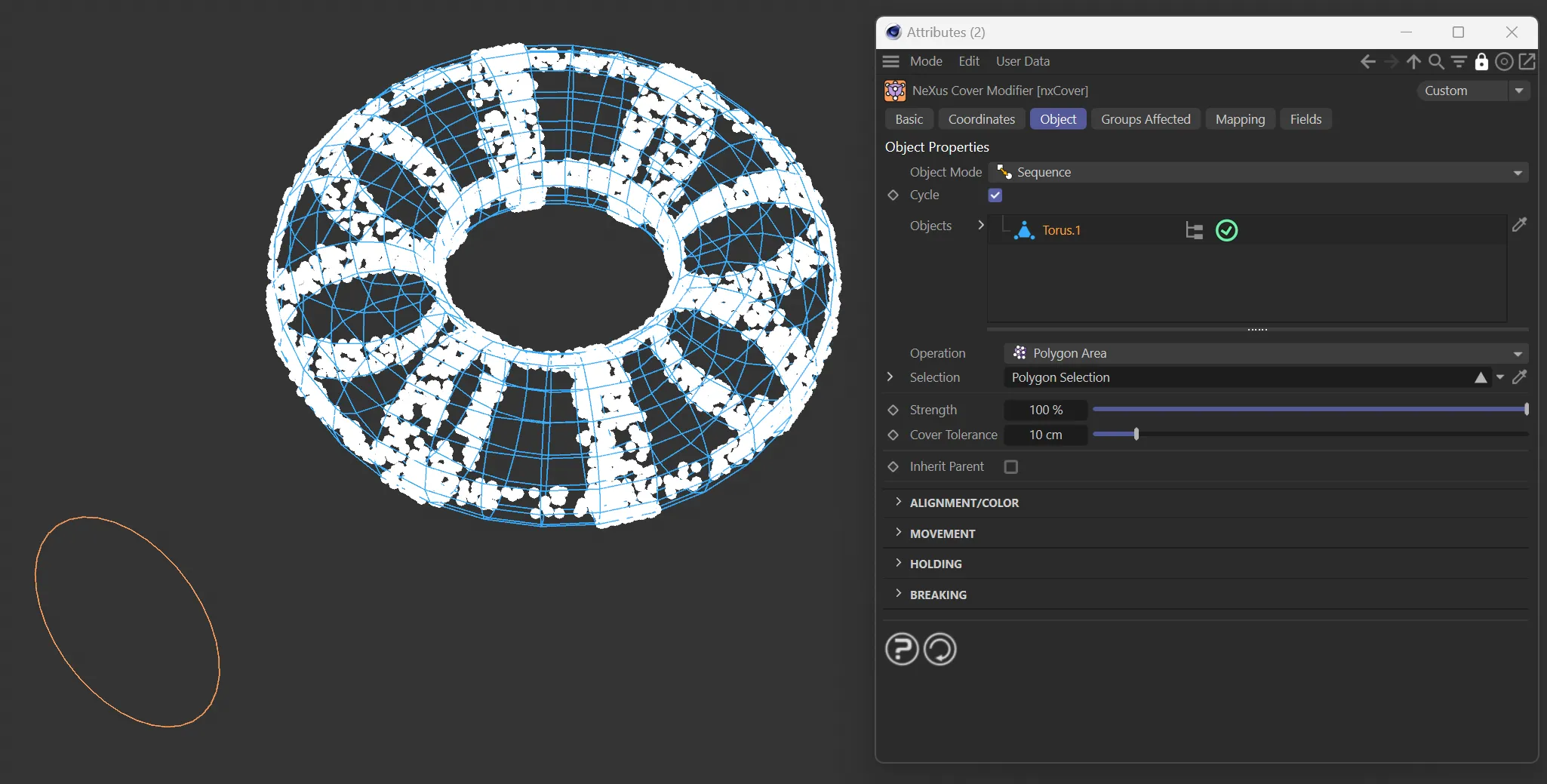
With the Operation set to Polygon Area, the particles are only covering the area specified by the Polygon Selection selection map in the Selection field.
Texture Source
Section titled “Texture Source”Choose either Shader or Texture Tag to reveal further parameter options.
Shader/Texture Tag
Section titled “Shader/Texture Tag”Link to the shader or texture, depending on the dropdown choice chosen in Texture Source.
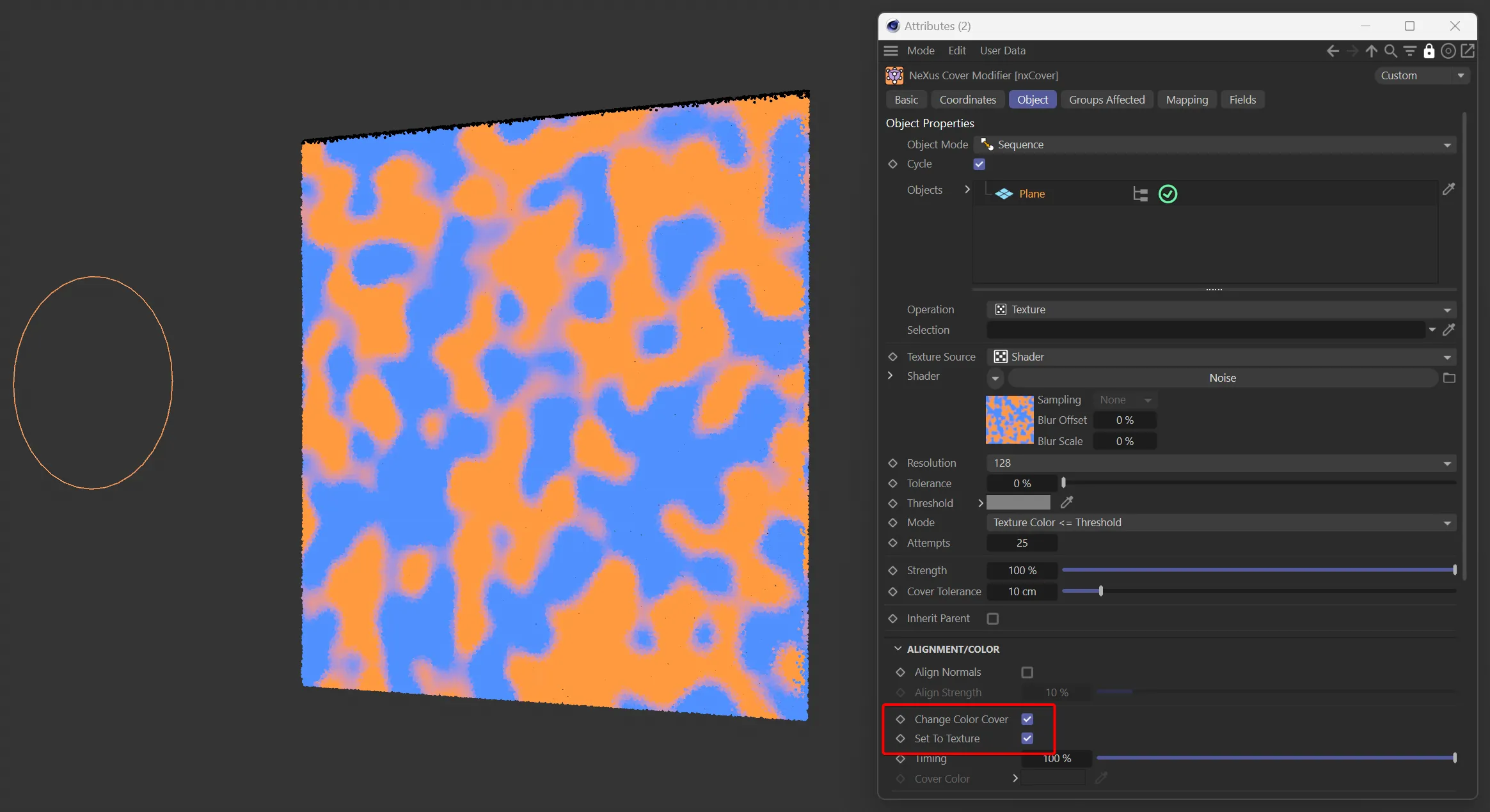
With the Operation set to Texture, the particles are only covering the area specified by the shader, Note to get color set the Change Color Cover and Set to Texture Options.
Texture Channel
Section titled “Texture Channel”Only available when Texture Source is set to Texture Tag,
Resolution
Section titled “Resolution”Set as 128, by default, this dropdown box changes the resolution of the sampling of the texture/shader.
The available presets are: 64, 128, 256, 512, 1024 and 2048.
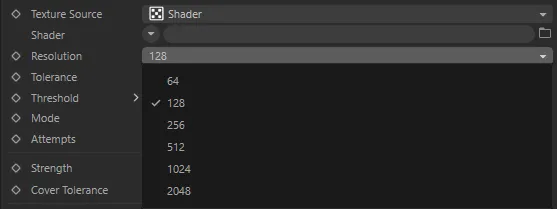
Resolution parameter options.
Tolerance
Section titled “Tolerance”The texture tolerance slider adjusts the minimum of the shader sampling.
Lower tolerance allows darker areas and higher tolerance would allow only lighter areas (no darker).
Threshold
Section titled “Threshold”Color to be used for the texture sampling threshold.
Dropdown option to choose sampling mode (either Texture Color >= Threshold or vice versa).
Attempts
Section titled “Attempts”Maximum number of attempts for the particle to sample the shader in random positions and find a suitable position.
Strength
Section titled “Strength”Slider for force used.
In this animation, Strength is at 100%.
Strength lowered to 1%.
Cover Tolerance
Section titled “Cover Tolerance”Distance from cover position at which the particle will start the holding.
Again, only if Speed Mode is set to Use Speed.
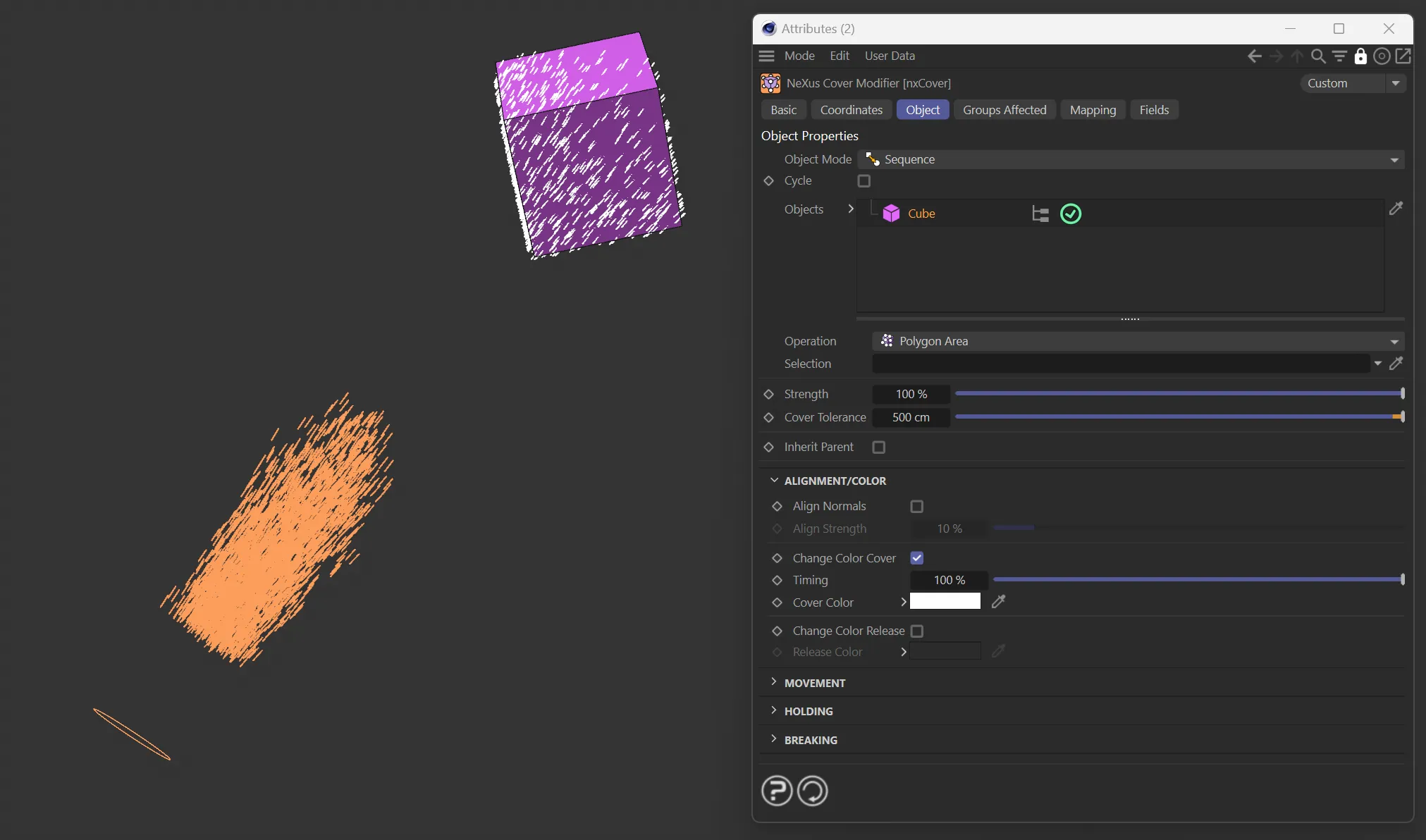
In this image, the Cover Tolerance is set to 500cm from the Cube.
Inherit Parent
Section titled “Inherit Parent”When enabled, all options below this will be inherited from the next up within the node tree which doesn’t have this checked.
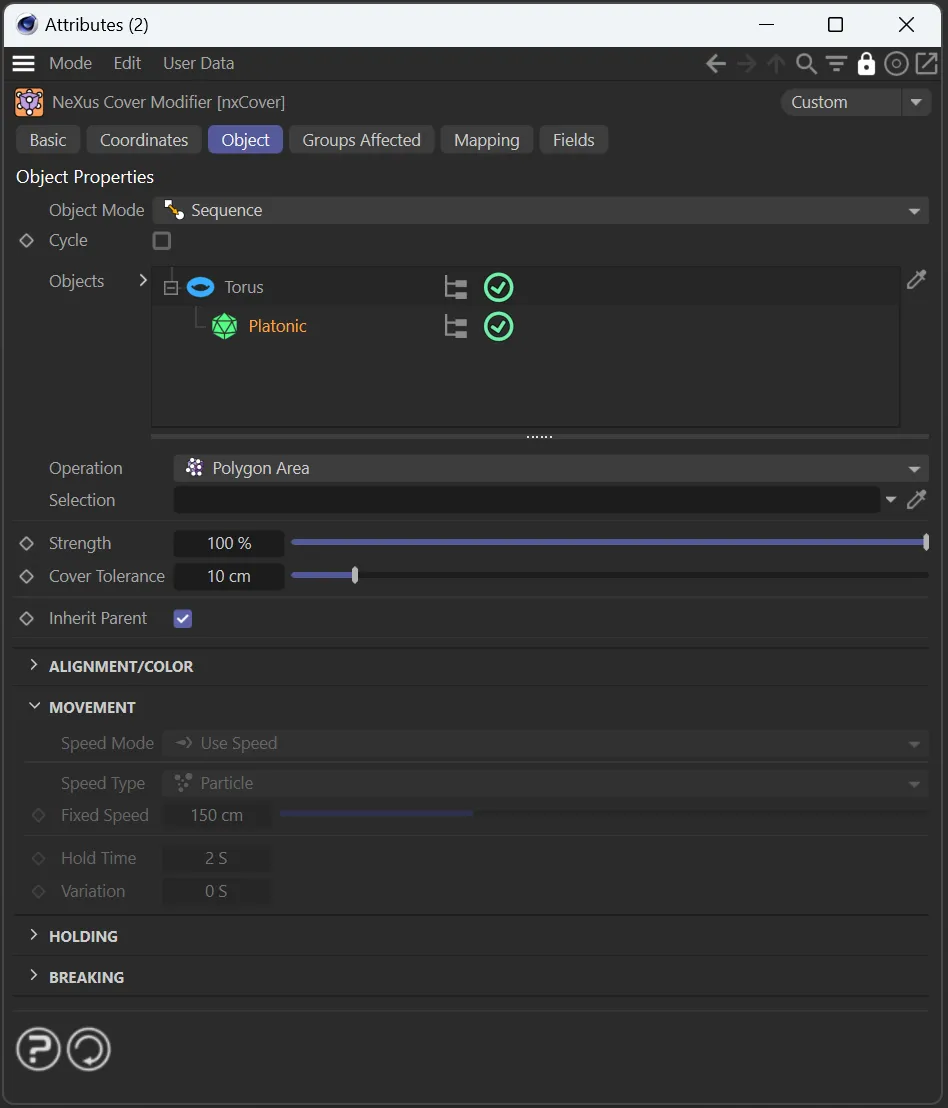
Image to demonstrate the Inherit Parent parameter (checked), in the red box.
Alignment/Color
Section titled “Alignment/Color”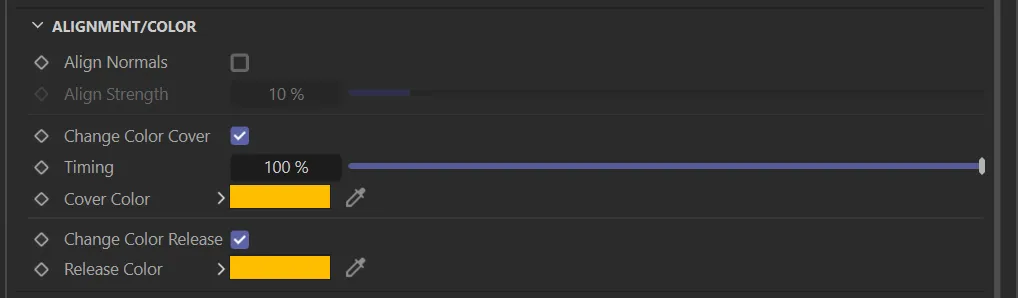
Alignment/Color parameter menu.
Align Normals
Section titled “Align Normals”Checkbox to allow the modifier to align the up vector of the particle to the normals of the surface.
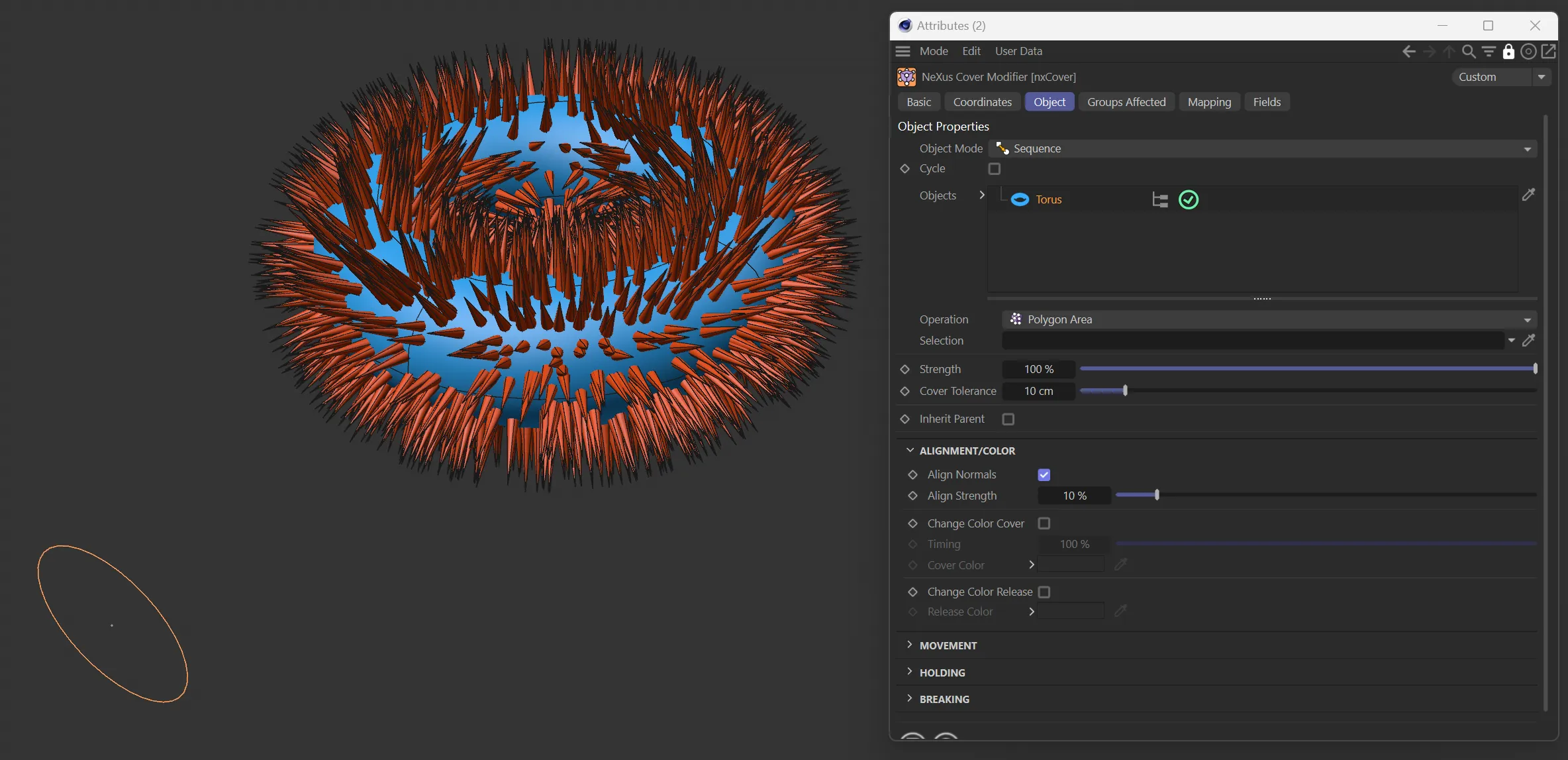
Image to demonstrate the Align Normals parameter (checked)
Align Strength
A strength slider which impacts how much change the normal alignment will have.
Rotate With Object
Section titled “Rotate With Object”When enabled, particles will rotate with the object they are covering as it moves.
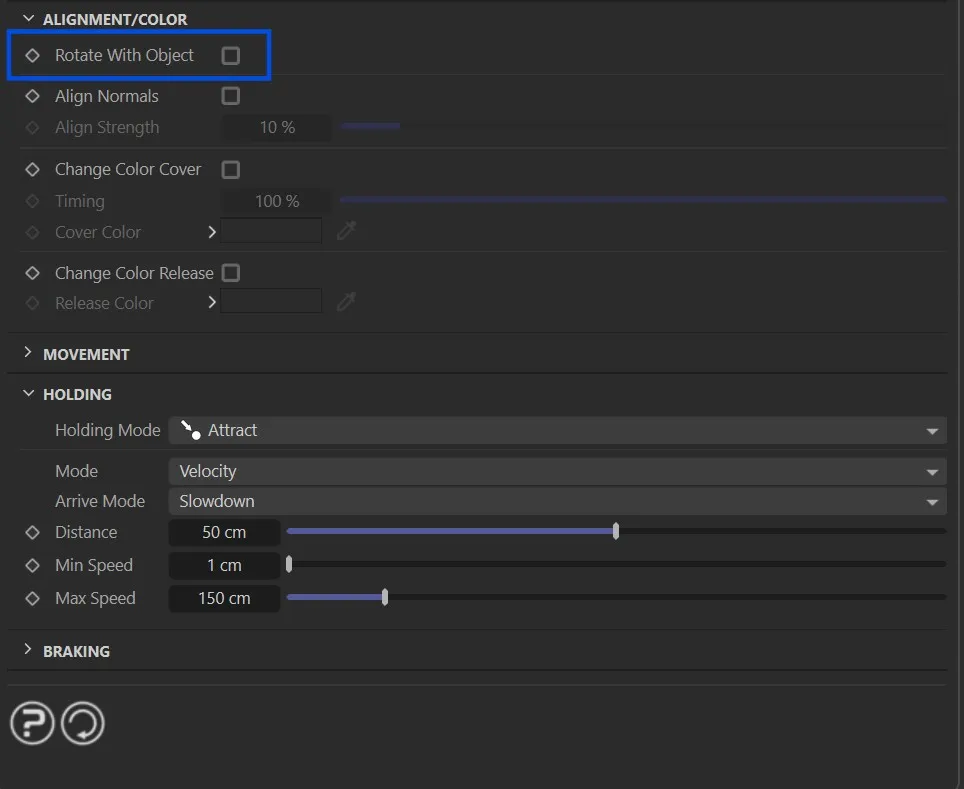
Rotate With Object setting in the Alignment/Color group.
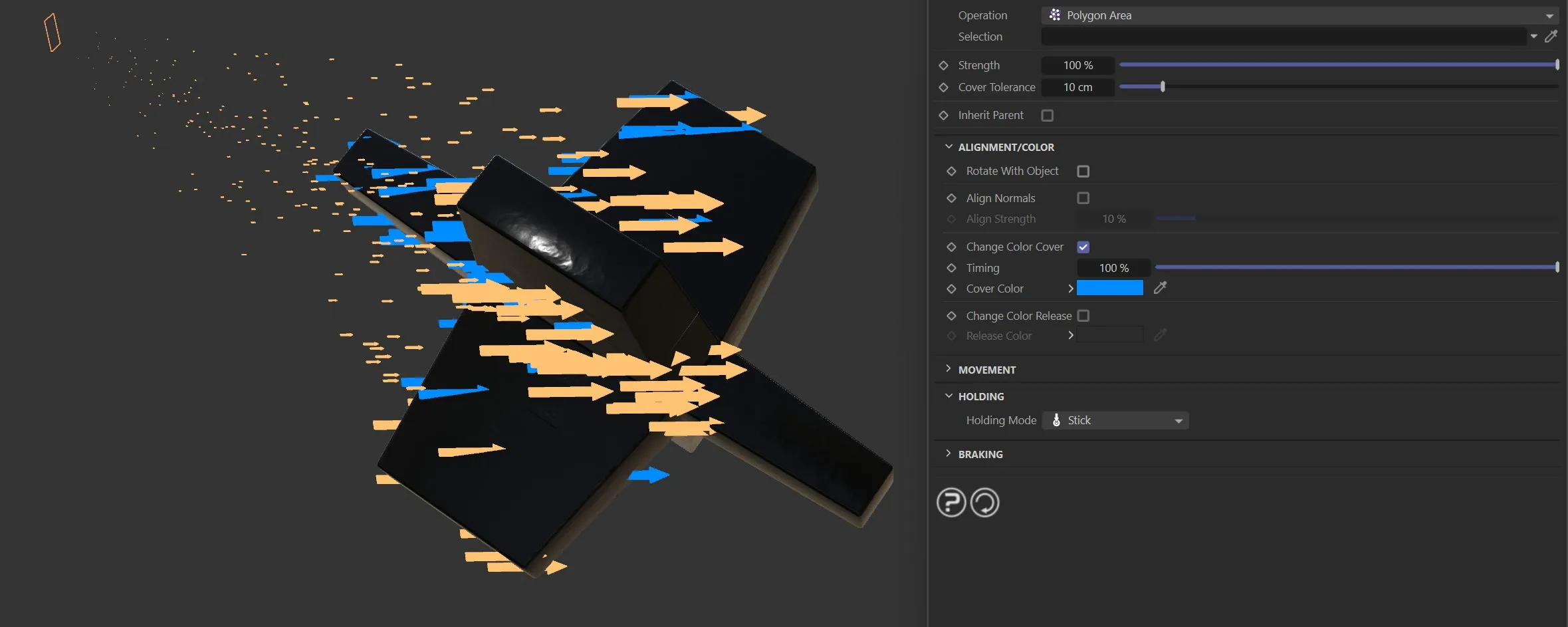
Rotate With Object disabled.
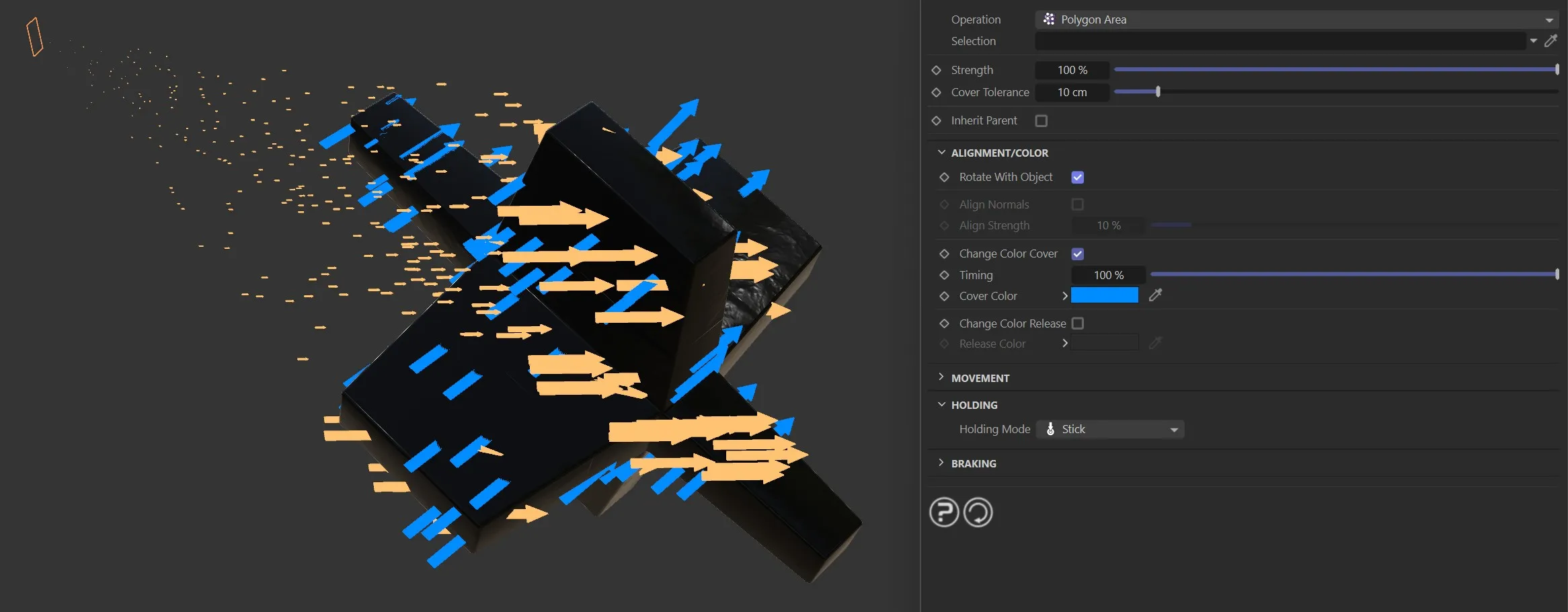
Rotate With Object enabled.
Change Color Cover
Section titled “Change Color Cover”Check this box to change the color on cover hold.
Set To Texture
Section titled “Set To Texture”A checkbox which is only available when Operation is set to Texture, which allows the user to set the color to the color of the texture on cover.
Timing
Section titled “Timing”Blend timing slider.
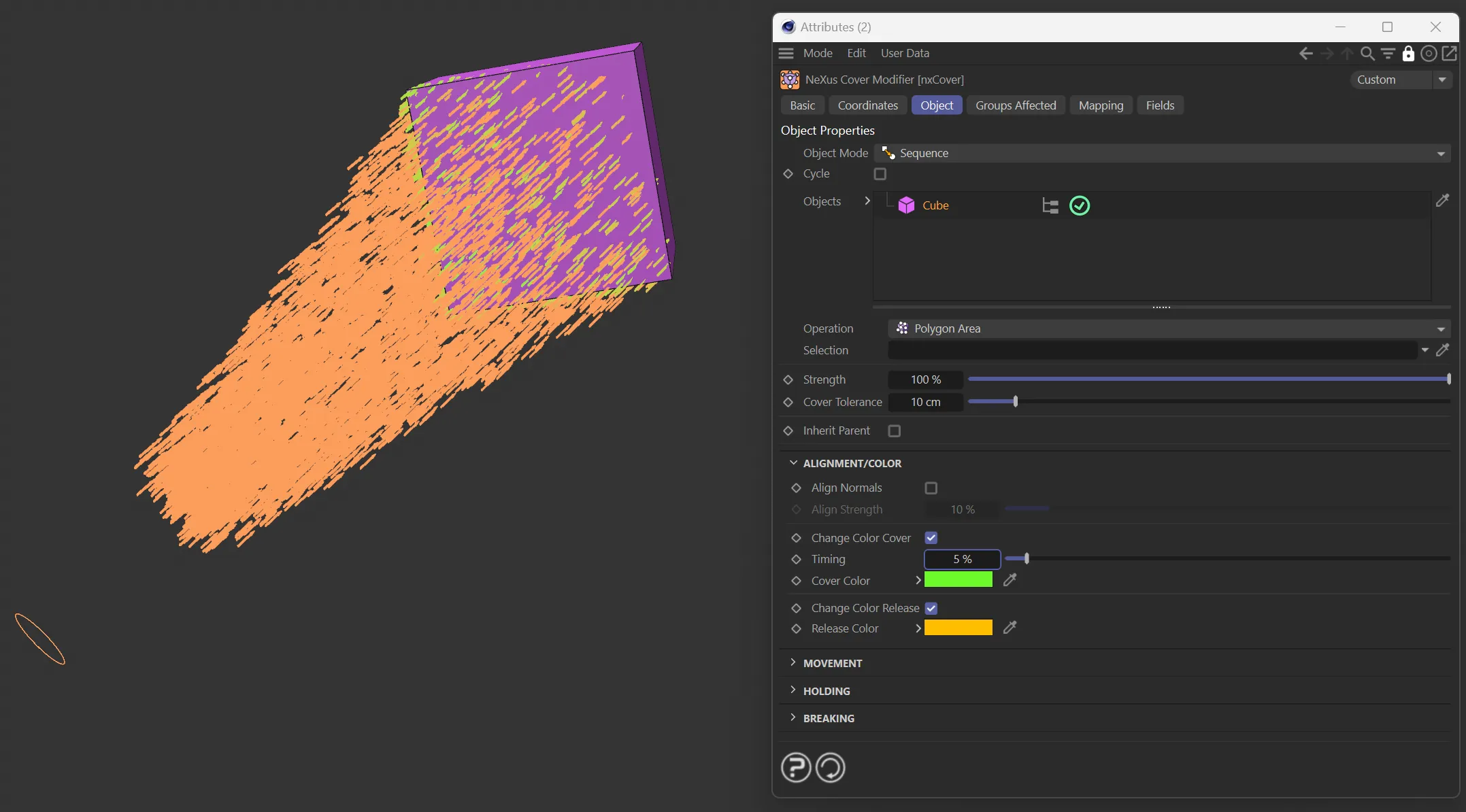
Timing set to 5%.
Cover Color
Section titled “Cover Color”Color selection for the color to change to.
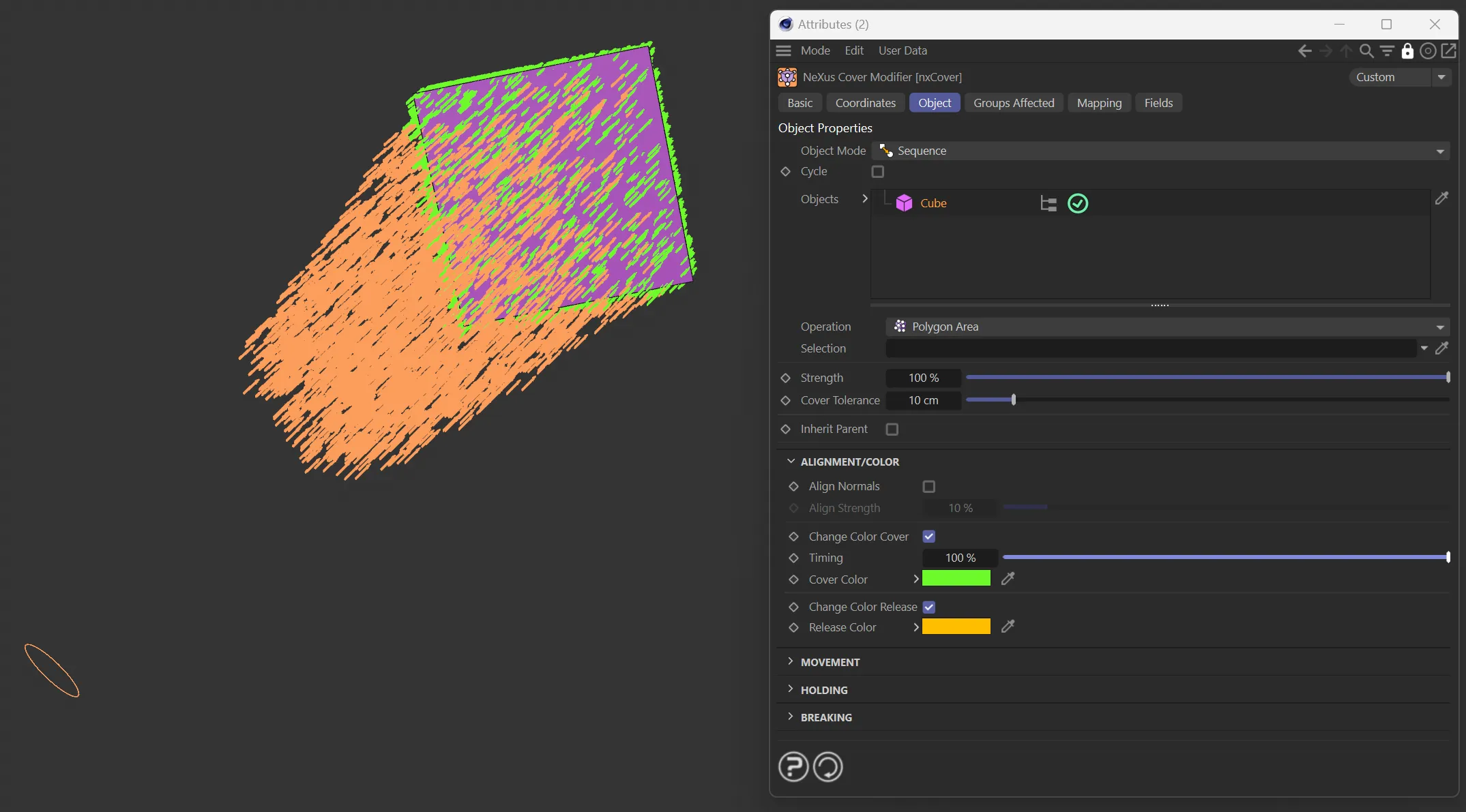
Here the Cover Color is green, evident on the Cube.
Change Color Release
Section titled “Change Color Release”A checkbox to enable the option to change the color on release.
Release Color
Section titled “Release Color”The color to be set on release.
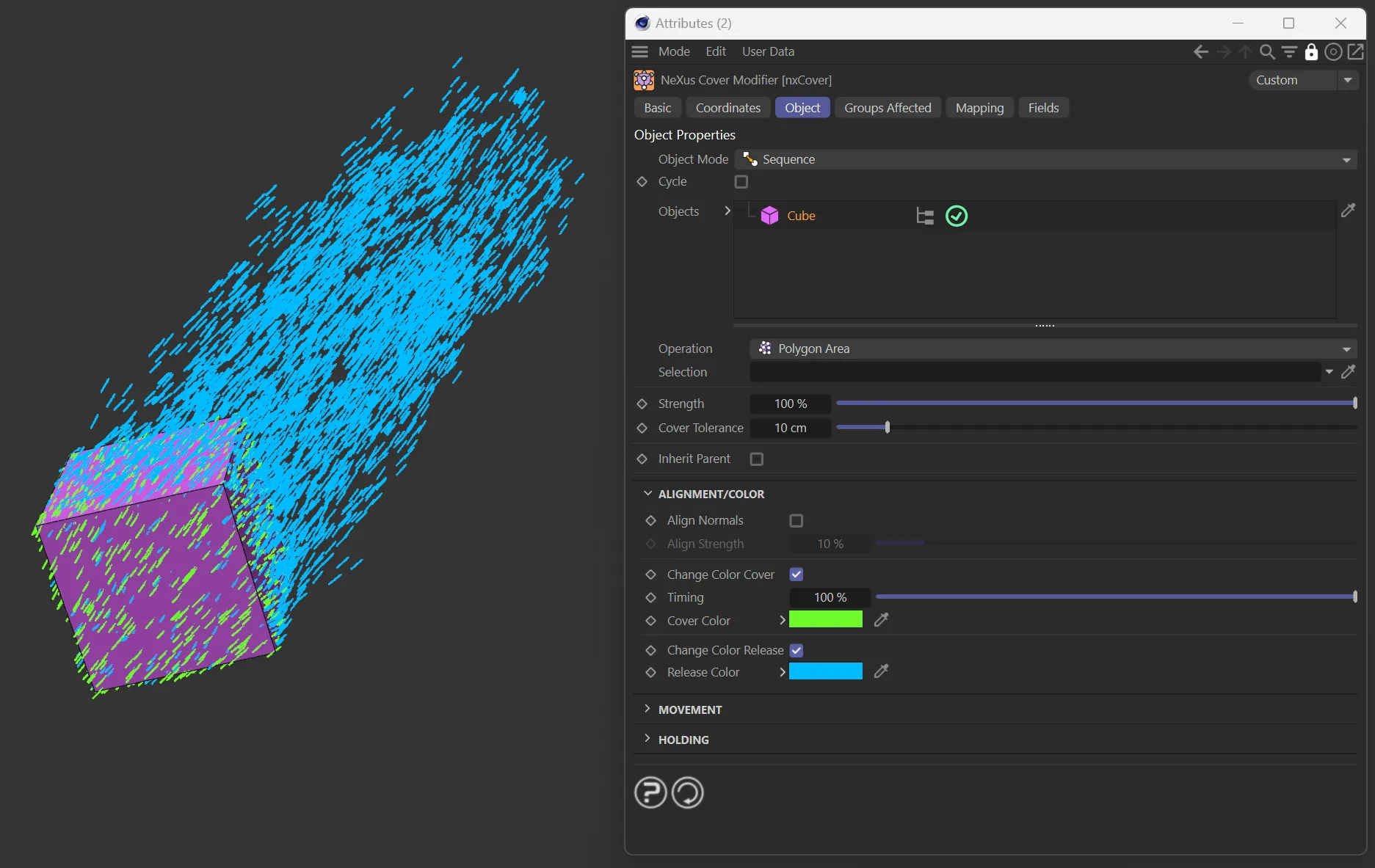
In this image, the Release Color is set to blue.
Movement
Section titled “Movement”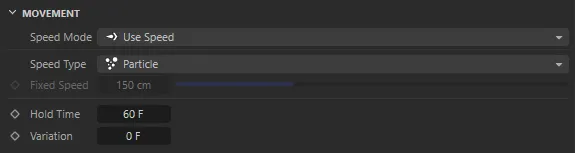
Movement parameter menu.
Speed Mode
Section titled “Speed Mode”Set as Use Speed, by default, these are modes for how the particle moves to its cover position.
The alternative is Time to Target.

Speed Mode drop-down menu.
Use Speed
Section titled “Use Speed”Uses a speed variable.
Time to Target
Section titled “Time to Target”A fixed time to move to the target.
Speed Type
Section titled “Speed Type”Set as Particle, by default, this is a dropdown menu for what speed to use.
The other options are: Fixed and Force.

Speed Type drop-down menu.
Particle
Section titled “Particle”Use the speed of the particle.
Use a fixed speed.
Use a force towards the cover position.
Fixed Speed
Section titled “Fixed Speed”If the Speed Type of Fixed is selected, use this slider to set the speed used for the particle to move.
Hold Time
Section titled “Hold Time”How long the particle will hold on that position, once arrived.
Variation
Section titled “Variation”Adds a variation to the Hold Time among particles.
Holding
Section titled “Holding”How the particle behaves while covering the object.
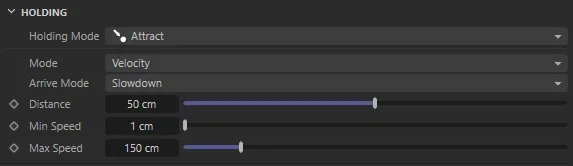
Holding menu options.
Holding Mode
Section titled “Holding Mode”Set as Attract, by default, these are modes for the particle’s behavior when holding.
The alternative settings are: Free, Spring and Stick.
Attract mode
Section titled “Attract mode”Attract force towards the cover position.
This mode enables five additional parameters (below).
Set as Velocity, by default, this is how the particle behaves when ‘holding’ on the point.
The alternative setting is Acceleration.
Velocity
Section titled “Velocity”New force is added to the existing velocity.
Acceleration
Section titled “Acceleration”New force is set as velocity.
Arrive Mode
Section titled “Arrive Mode”Set as Slowdown, by default, where the movement will get slower closer to the point.
The alternative setting is Attract, where movement will stay active and constantly be attracted to the point.
Distance
Section titled “Distance”The distance at which the attraction slowdown will start.
Min Speed, Max Speed
Section titled “Min Speed, Max Speed”The minimum and maximum speed of the particle for both Slowdown and Attract modes.
Free mode
Section titled “Free mode”Free movement after arriving at the cover position.
Spring mode
Section titled “Spring mode”Spring forces towards the cover position.
This mode enables three additional parameters (below).
Length
Section titled “Length”The length of the spring.
Stiffness
Section titled “Stiffness”The stiffness of the spring.
Damping
Section titled “Damping”Spring damping.
Stick mode
Section titled “Stick mode”Stick to cover position.
Braking
Section titled “Braking”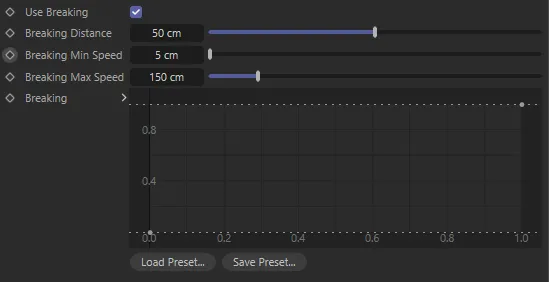
Braking menu settings.
Use Braking
Section titled “Use Braking”Check this box to enable the braking forces.
Braking Distance
Section titled “Braking Distance”Distance at which the braking force from the cover position begins.
Braking Min Speed, Braking Max Speed
Section titled “Braking Min Speed, Braking Max Speed”Minimum and maximum speeds during the braking.
Braking
Section titled “Braking”Use this spline to customize the speed during the braking force.
Groups Affected tab
Section titled “Groups Affected tab”Groups
Section titled “Groups”To specify the group, drag and drop the desired Group object into this field.
This setting is useful if you want to ensure that the spawned particles are, or are not, affected by nxCover.
Mapping tab
Section titled “Mapping tab”The modifier’s settings can be mapped to particle data.
Use the dedicated manual page, below, for instructions on how this works.
Fields tab
Section titled “Fields tab”You can use the Fields options to control where nxCover operates.
Copyright © 2026 INSYDIUM LTD. All Rights Reserved.