
xpSpriteShader
xpSpriteShader is designed to allow particle-dependent effects to be applied to X-Particles sprites.
It will also affect objects produced by the xpGenerator object but particle-dependent effects are not possible with such objects.
The shader only affects sprites at render time and its effects are not visible in the editor.
This shader gives you extensive control over the material applied to a sprite.
It does this by varying the color (or transparency, or whichever channel you choose) according to selected attributes of each particle.
For example, you can easily change the sprite color over the particle’s lifetime, or change its transparency over a specified age range, or its alpha channel when a particle exceeds a certain speed.
To use the shader, add it to any material channel which can take shaders.
You will find it in the X-Particles sub-menu in the material editor interface’s shader list.
You can also add it to a Cinema 4D Layer or Filter shader, or any other shader you like.
Because the shader depends on data from the particle emitter which is not available until the animation is played, the particles will appear white in the editor; the colors used will only appear when each frame is rendered.
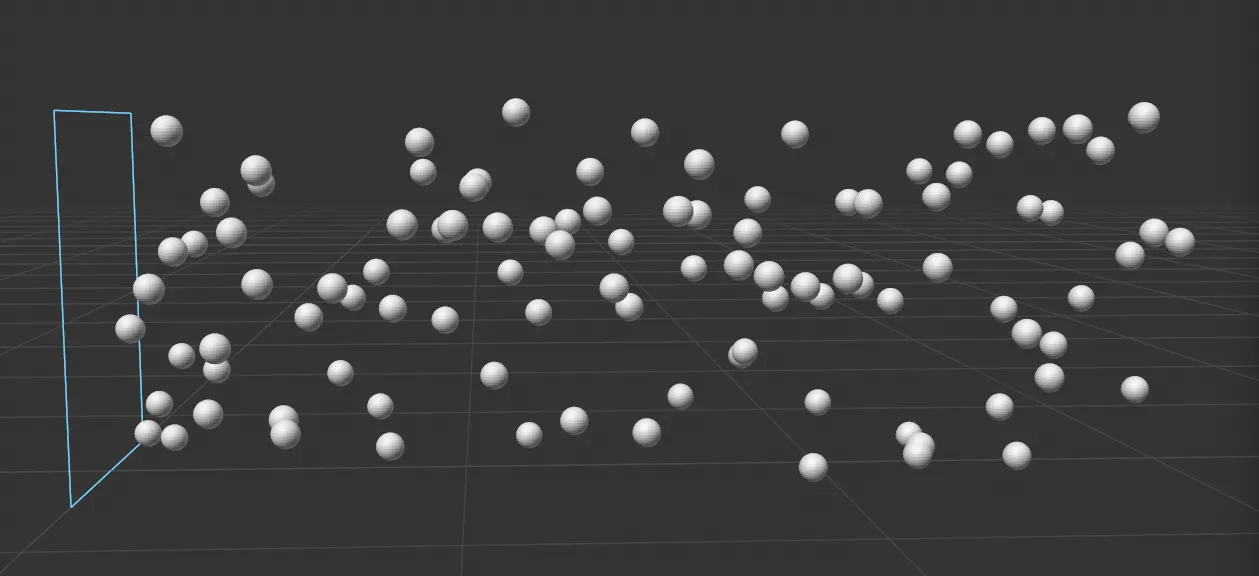
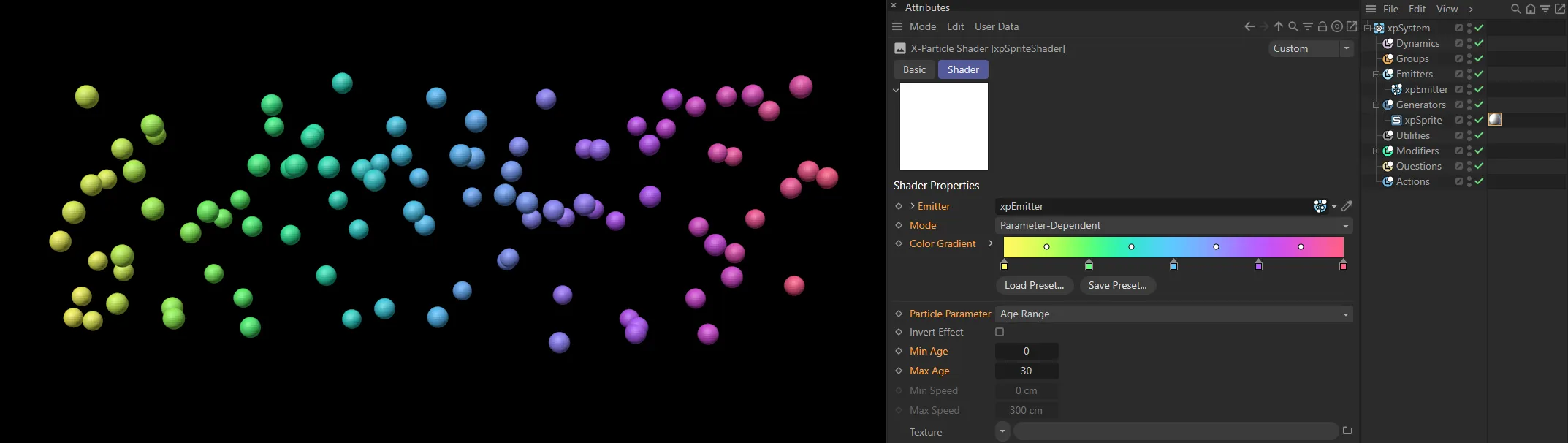
In the scene shown in these images, the xpSpriteShader is set to color sprites based on the Particle Parameter of Age Range. The Min Age is 0 (zero) frames and the Max Age is 30 frames.
Shader Properties
Section titled “Shader Properties”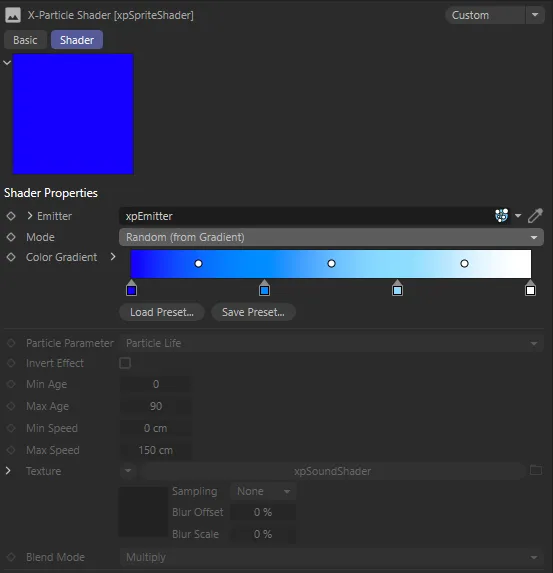
xpSpriteShader menu settings.
Emitter
Section titled “Emitter”This link field accepts an xpEmitter, which you drag in from the Objects Manager.
The shader obtains data on particle age, etc. from this emitter, so without it you cannot make any changes to the shader.
If placed in the color channel, the shader will render sprites white in the absence of an emitter.
Set as Random Color, by default.
The other options are: Use Particle Color, Random Color, Parameter-Dependent and Modifier Sets Value.
Use Particle Color
Section titled “Use Particle Color”The sprites will have the same color as the particle.
This is particularly useful if the particles were emitted from a texture and took their color from that texture.
Random Color
Section titled “Random Color”The sprites will each have a randomly-selected color.
This is only in the preview render and is not seen if you render the scene to the editor or picture viewer.
Random (From Gradient)
Section titled “Random (From Gradient)”This option will enable the Color Gradient and will randomly color the sprites using a color taken from the gradient.
Parameter-Dependent
Section titled “Parameter-Dependent”Sprites will be colored using colors taken from the Color Gradient, the color depending on the particle parameter selected.
Modifier Sets Value
Section titled “Modifier Sets Value”In this mode, the color values are set by the xpSpriteShaderControl modifier.
Using this mode can be a little confusing.
The xpSpriteShaderControl modifier changes the color value to use, but it needs to be set up correctly in order to work
If you have a scene with a sprite object, a material applied to it with an xpSpriteShader in the Color channel and the Mode set to Modifier Sets Value and also an xpSpriteShaderControl modifier in the scene, with the Color Mode is set to RGB, when you play and render the animation, the sprites will be plain white with no color change over time.
This is because the default color set by the xpSpriteShader is white.
The modifier will, by default, increment the color.
However (again by default), the color is clamped to white in the modifier.
Since the sprite color is already white, nothing happens.
In the modifier, set the Green and Blue rates of change to zero, and the Red to -2%.
Then set Clamp To to black.
When you render, you will see that the sprite color changes from white to cyan, as the red is reduced to zero, leaving only green and blue.
If you want to set the rates of change to a positive value, to have any effect, the color must start out less than white.
Change the Red rate of change to 2%, change the Clamp To color to white and, in the Sprite Shader add a Color shader to the Texture slot.
Set this color to black.
This will mean that the sprites start black and the red component increases so that the sprites turn bright red.
Color Gradient
Section titled “Color Gradient”The color is chosen from this gradient when Mode is set to Random (From Gradient) or Parameter-Dependent.
Particle Parameter
Section titled “Particle Parameter”Set as Particle Life, by default, this enables you to select the parameter used for determining the color from the Color Gradient.
The other settings are: Age, Age Range, Speed and Speed Range.
Particle Life
Section titled “Particle Life”This is the most commonly-used option.
It selects a gradient color, using the age of the particle compared to its lifespan.
Brand-new particles are colored with the color from the left of the gradient, while particles at the end of their life are colored with a color from the right of the gradient.
This is a simple cutoff setting, which changes the particle color when it reaches the age give in the Min Age setting.
As an example, if you had a blue-to-white gradient, and entered ‘40’ into the Min Age field, particles with an age of less than 40 would be colored blue, while those of age 40 or above would be colored white.
There is no transition, just a one-step change.
Age Range
Section titled “Age Range”This is similar to Particle Life but, instead of the color changing over the entire life of the particle, the color changes between the values in the Min Age and Max Age settings.
For example, with the blue-to-white gradient, if Min Age is set to 30 and Max Age to 60, all particles with age under 30 would be blue and all particles aged over 60 would be white.
Those particles from 30 to 60 would be colored from the gradient dependant on their age.
Similar to Age, but using particle speed instead.
Particles with a speed less than that in the Min Speed field are colored using the color at the left-hand edge of the gradient, those with a speed greater than this with the color from the right-hand edge of the gradient.
Again, there is no transition, just a one-step change.
Speed Range
Section titled “Speed Range”Similar to Age Range, but using speed instead.
The speed range is obtained from the Min Speed and Max Speed values.
Invert Effect
Section titled “Invert Effect”This button simply reverses the color selection from the gradient so that, if the color would normally be taken from the left of the gradient, when this button is checked the color from the right of the gradient is used instead, etc.
Min Age, Max Age
Section titled “Min Age, Max Age”Used for the Age and Age Range parameters.
Min Speed, Max Speed
Section titled “Min Speed, Max Speed”Used for the Speed and Speed Range parameters.
Texture
Section titled “Texture”This is only available when the Parameter-Dependent mode is selected.
You can put any other Cinema 4D channel shader, or a bitmap, in here.
The color returned from this shader or bitmap will blend with the Color Gradient color according to the Blend Mode setting.
A common way of using this setting is to set the Color Gradient color to a black-to-white gradient and the Blend Mode setting to multiply.
This will cause the color to get brighter as the particle ages (if you chose the Particle Life parameter, for example).
If you just want to use the color from the texture without blending with the gradient, set the gradient to be plain white and Blend Mode to multiply.
Blend Mode
Section titled “Blend Mode”Set as Multiply, by default, this setting selects how the Texture blends with the Color Gradient.
The other options are: Add and Subtract.
Multiply
Section titled “Multiply”The two colors are multiplied together.
The colors are added together.
The result will be clamped at white.
Subtract
Section titled “Subtract”The Color Gradient color is subtracted from the texture color.
The result will be clamped at black.
Copyright © 2026 INSYDIUM LTD. All rights reserved.