
xpSoundShader
The xpSoundShader is a shader which can be used in a Cinema 4D material to color an object by means of a sound file.
It does not require an X-Particles emitter or any other object to work, but materials with a sound shader can, of course, be applied to the xpGenerator, xpSprite, etc.
Using the shader is very simple; add it to the channel you want to use in a Cinema 4D material, then adjust the settings as required.
You will need a sound file in .wav format, but no other X-Particle components are required.
As with the xpSound modifier, the shader carries out a Fast Fourier Transform (FFT) on the sound file and the settings in the shader are applies after the FFT has taken place.
For more details please see the Frequency section below.
To play the sound, you must add a sound track to the timeline window; full details are contained in the Cinema 4D reference documentation.
Shader Properties
Section titled “Shader Properties”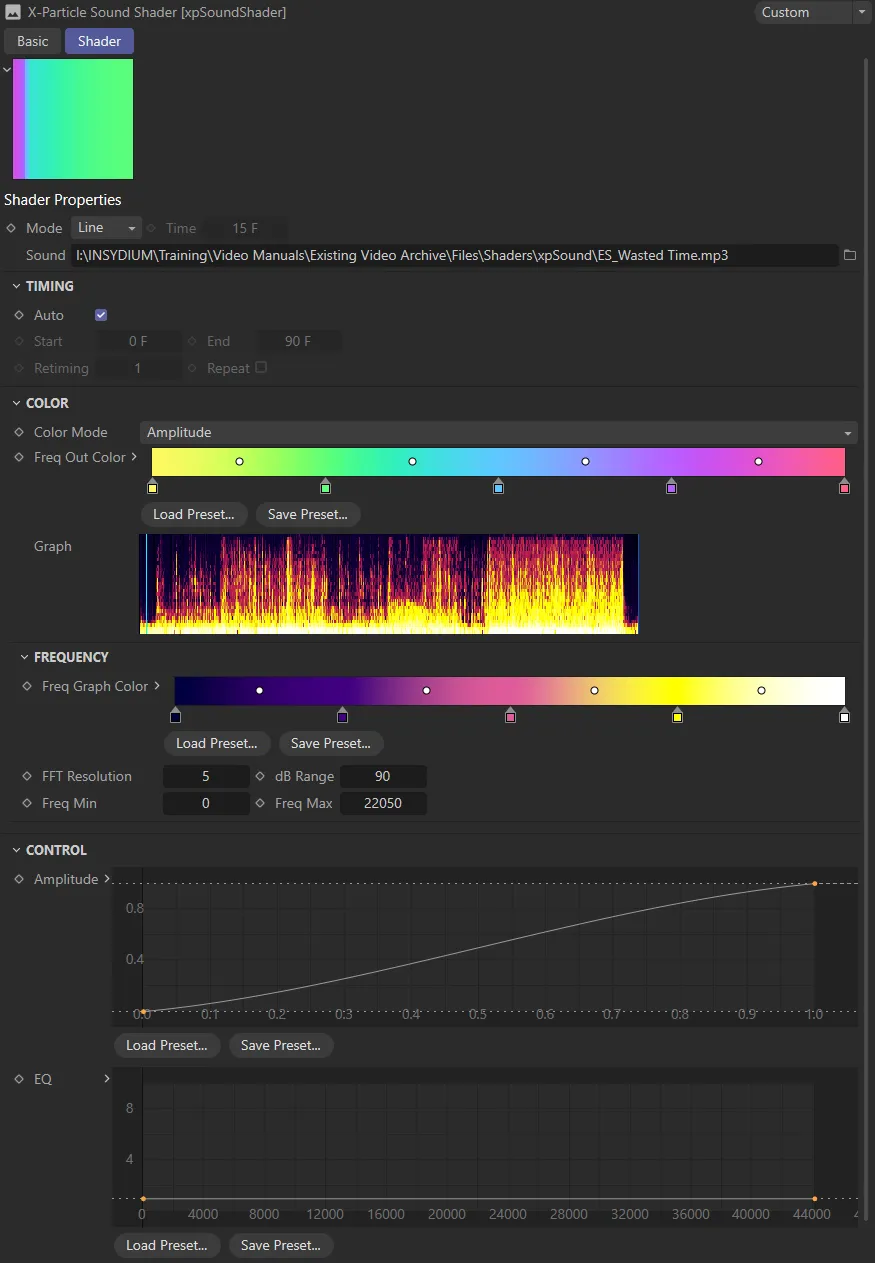
xpSoundShader menu settings.
Set as Single, by default; the other options are Line and Grid.
Single
Section titled “Single”The object is shaded with a single color.
This mode takes a single slice of the sound at the current time and shades the object in the U direction, according to the the frequencies in the sound file.
This is the same as Line but shades the object in the V direction over time.
The time can be specified in the Time setting.
The time to use when Mode is set to Time.
The sound file to use.
Click the button with three dots to load a sound file, which must be in .wav format.
Timing
Section titled “Timing”This section controls the mapping of the sound file time onto the particles.
Remember that this shader does not generate an audible sound; Cinema 4D controls this separately.
If you want the sound to loop in the same way as the shader, you will have to set this up manually.

Timing settings.
If this box is checked, the shader uses the sound in time with the scene timeline.
Auto must be unchecked for the following settings to become available.
Start, End
Section titled “Start, End”These are time values which control when, on the scene Timeline, the audio is mapped to the particles.
For example, if Start is zero and End is three seconds, the audio file will play for three seconds and then stop (this is influenced by the Retiming value).
Retiming
Section titled “Retiming”This enables the audio’s timing to be changed.
For example, if Start is zero and End is three seconds, with Retiming at the default value of 1, the audio file will play for three seconds and then stop.
If Retiming is increased to 2, the audio file will still only play for three seconds, but it will play twice as fast.
Repeat
Section titled “Repeat”Checking this box will loop the sound file.
If you have set the Start set to zero and the End to three seconds, the sound file will run for three seconds then loop back to the beginning.
Color Mode
Section titled “Color Mode”Set to Amplitude, by default, the shaded colors can be derived from either the sound amplitude or frequency in the sound file, after the FFT has been applied.
The alternative option is Frequency; the Graph display will change accordingly.
Freq Out Color
Section titled “Freq Out Color”This is the color gradient used for the output of the shader.
The color used depends on the intensity (amplitude) of each frequency, low amplitudes using the color on the left of the gradient and high amplitudes the colors to the right.
Changing these colors only affects the final output; the colors in the graph will not change (use the Freq Graph Color gradient for this).
The graph is a representation of the complete sound file.
It is a graph of amplitude or frequency intensity (on the vertical or Y axis) over time (on the horizontal or X axis).
The frequency ranges from the minimum frequency at the bottom (i.e. bass frequencies) to the maximum frequency at the top.
This range (minimum to maximum) can be changed by adjusting the Freq Min and Freq Max settings.
The cyan vertical line on the graph shows the current time in the sound file.
Frequency
Section titled “Frequency”This section controls how the frequencies in the sound are analysed.
It uses a process called Fast Fourier Transform (FFT) to do this; this is a complex subject but you do not need to know how it works to use this shader.
Much more detail can be found on the internet, for example see https://en.wikipedia.org/wiki/Fast_Fourier_transform
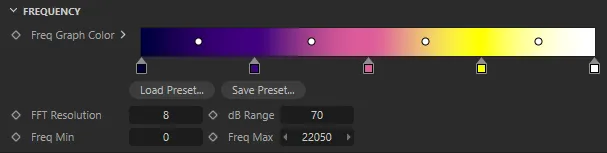
Frequency settings.
Freq Graph Color
Section titled “Freq Graph Color”These are the colors to use in the Graph display only.
The gradient does not affect the final output of the shader, which is controlled by the Freq Out Color gradient, so you can change this gradient to anything you like without affecting the output.
FFT Resolution
Section titled “FFT Resolution”This controls how many discrete chunks (FFT bins) the frequency range is split into.
Lower values give a coarser result.
If that happens, wait until the calculation finishes and reduce this value.
However, if you have a very narrow frequency range (as determined by the Freq Min and Freq Max settings), you will need to increase the FFT resolution, otherwise it will not have sufficient frequency resolution.
dB Range
Section titled “dB Range”The audio intensity is converted into decibels (dB).
Reducing this value will start to remove low-amplitude sound and you will see the colors in the graph move towards the left hand side of the gradient.
Lower it too much and the frequency graph may become almost black (with the default colors).
If you increase this value, more low amplitude sound is used and the effect is greater.
Freq Min, Freq Max
Section titled “Freq Min, Freq Max”These values control the frequency range used.
Increasing Freq Min will cut out lower frequencies, increasing Freq Max will bring in higher ones.
Whether you need to change these values will depend on the nature of the sound file.
Control
Section titled “Control”Amplitude
Section titled “Amplitude”This spline control enables you to map the amplitude values returned from the FFT.
You can think of it as acting like an audio filter.
This is the same as the Amplitude spline, but for frequencies rather than amplitude.
Copyright © 2026 INSYDIUM LTD. All rights reserved.