
xpProximityShader
The xpProximityShader is intended to shade a surface, depending on the closeness of the surface point to a particle.
At render time, for each point on the surface, the distance to each particle is measured.
If the distance falls within the range Min Distance to Max Distance, the shader will return a value from 1 to 0 (zero).
This is then multiplied by a value from the Falloff spline to give additional control over the value returned.
Finally, this value is returned as a greyscale color, ranging from white to black.
In many cases, the surface point will be within range of more than one particle.
You can use the Mix Mode to determine how multiple values are treated to return a color for that point.
Shader Properties
Section titled “Shader Properties”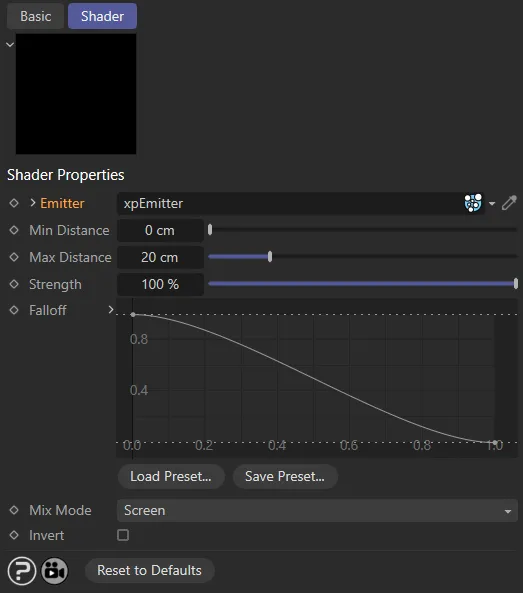
xpProximityShader menu settings.
Emitter
Section titled “Emitter”Drag the emitter generating the particles to shade the surface into this field.
Min Distance
Section titled “Min Distance”Particles closer to the surface point than this distance will return a value of 1.
The value from the falloff spline will be that from the left-hand end of the spline.
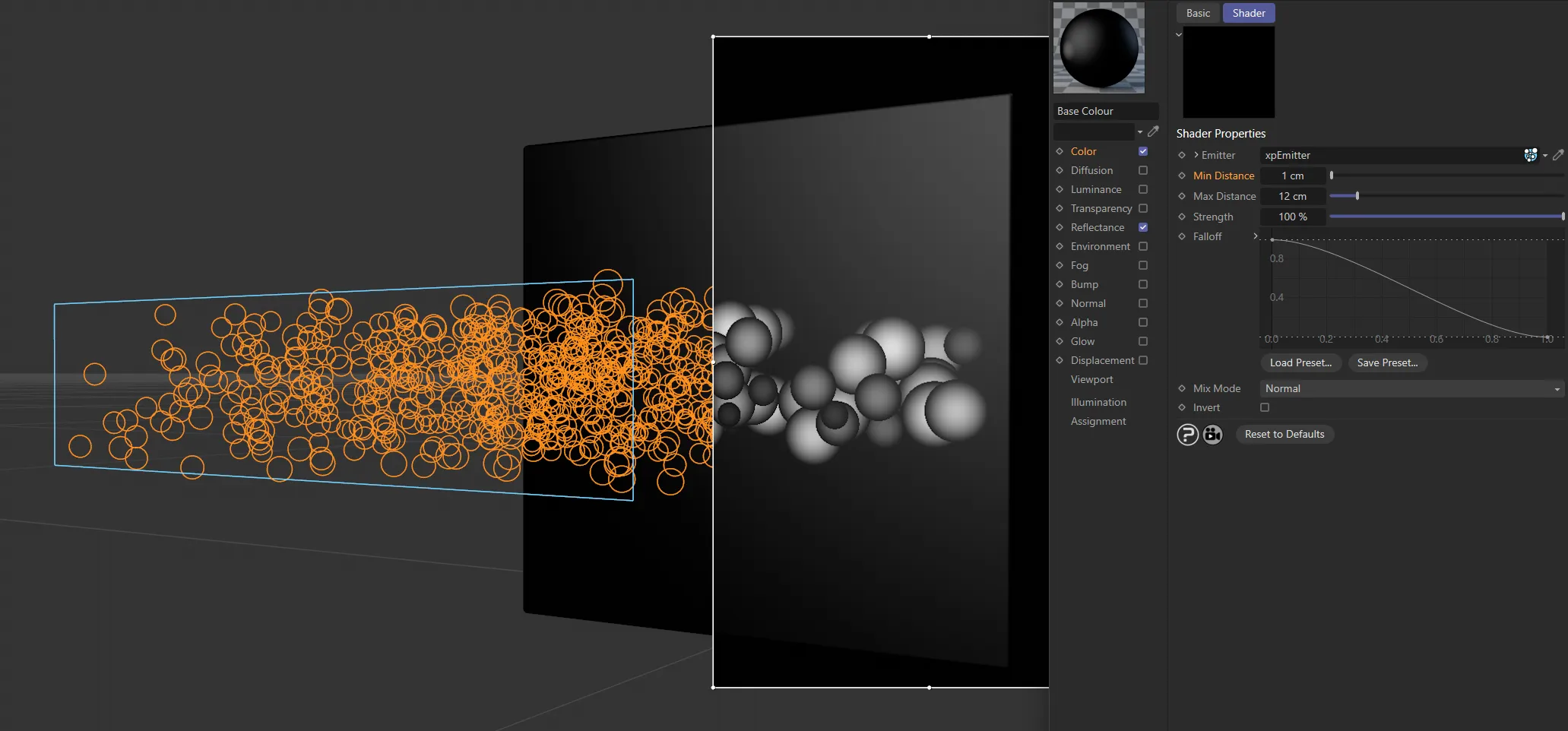
Min Distance set at 1cm.
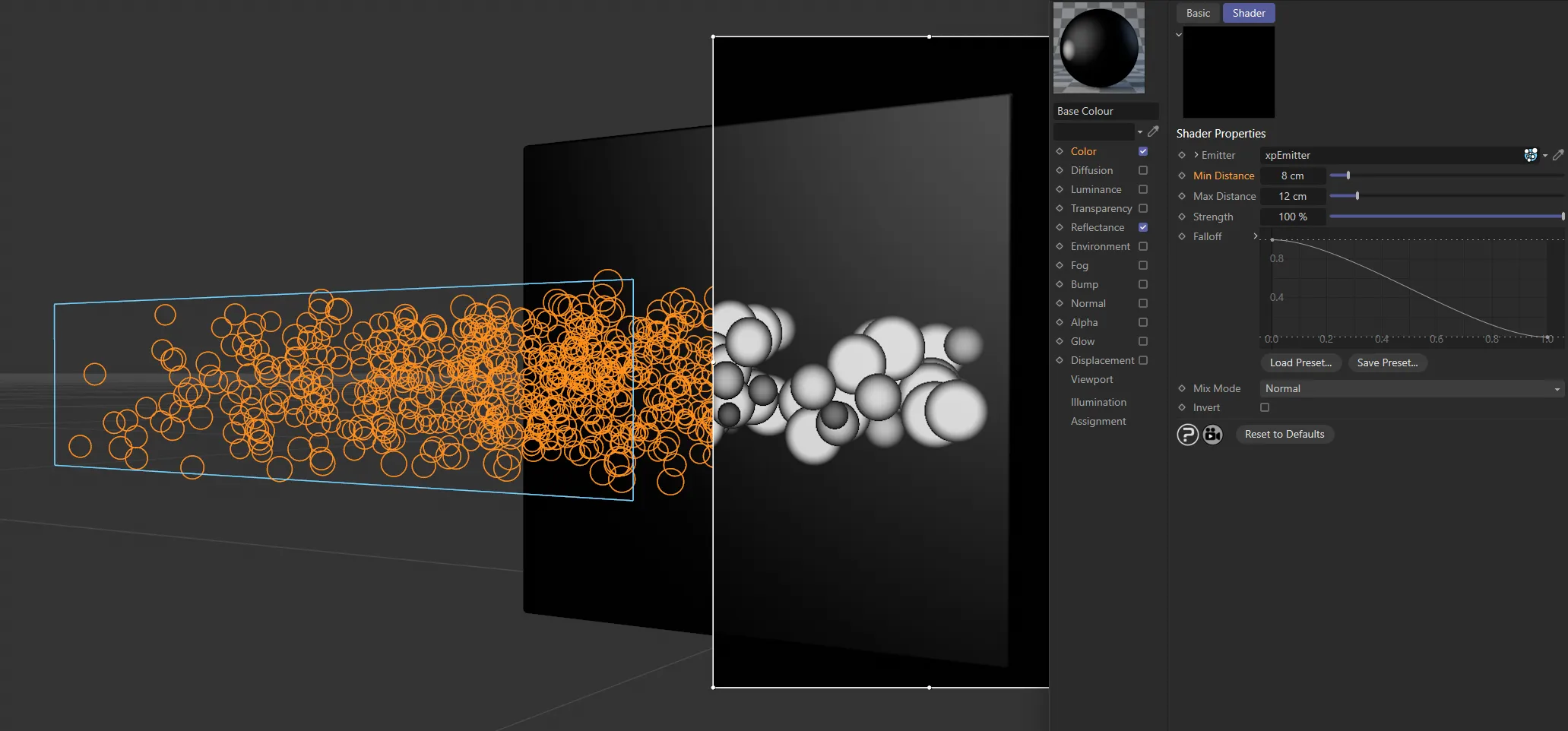
Min Distance raised to 8cm.
Max Distance
Section titled “Max Distance”Particles further away from the surface point than this distance will return a value of 0 (zero).
The value from the falloff spline will be that from the right-hand end of the spline.
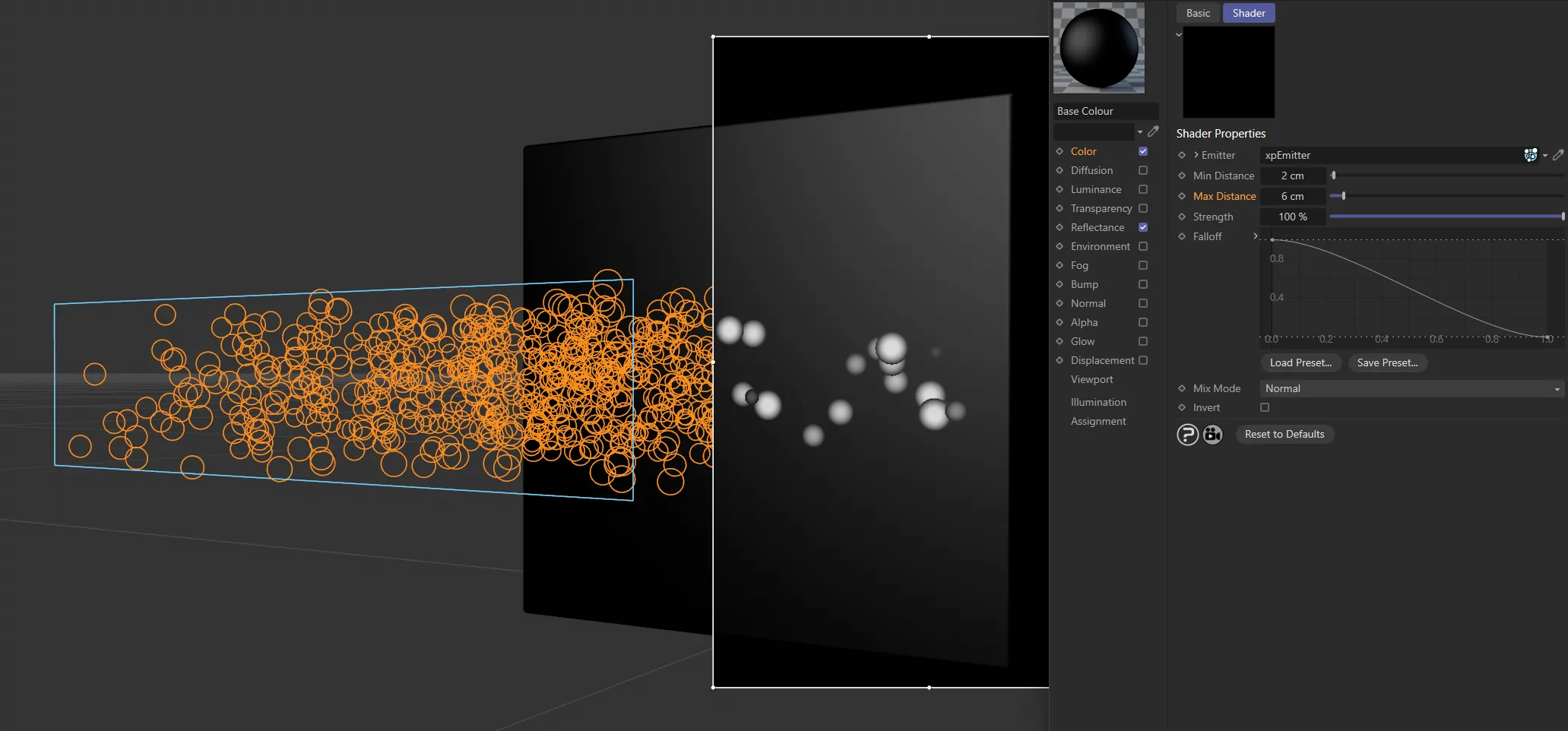
Max Distance at 6cm.
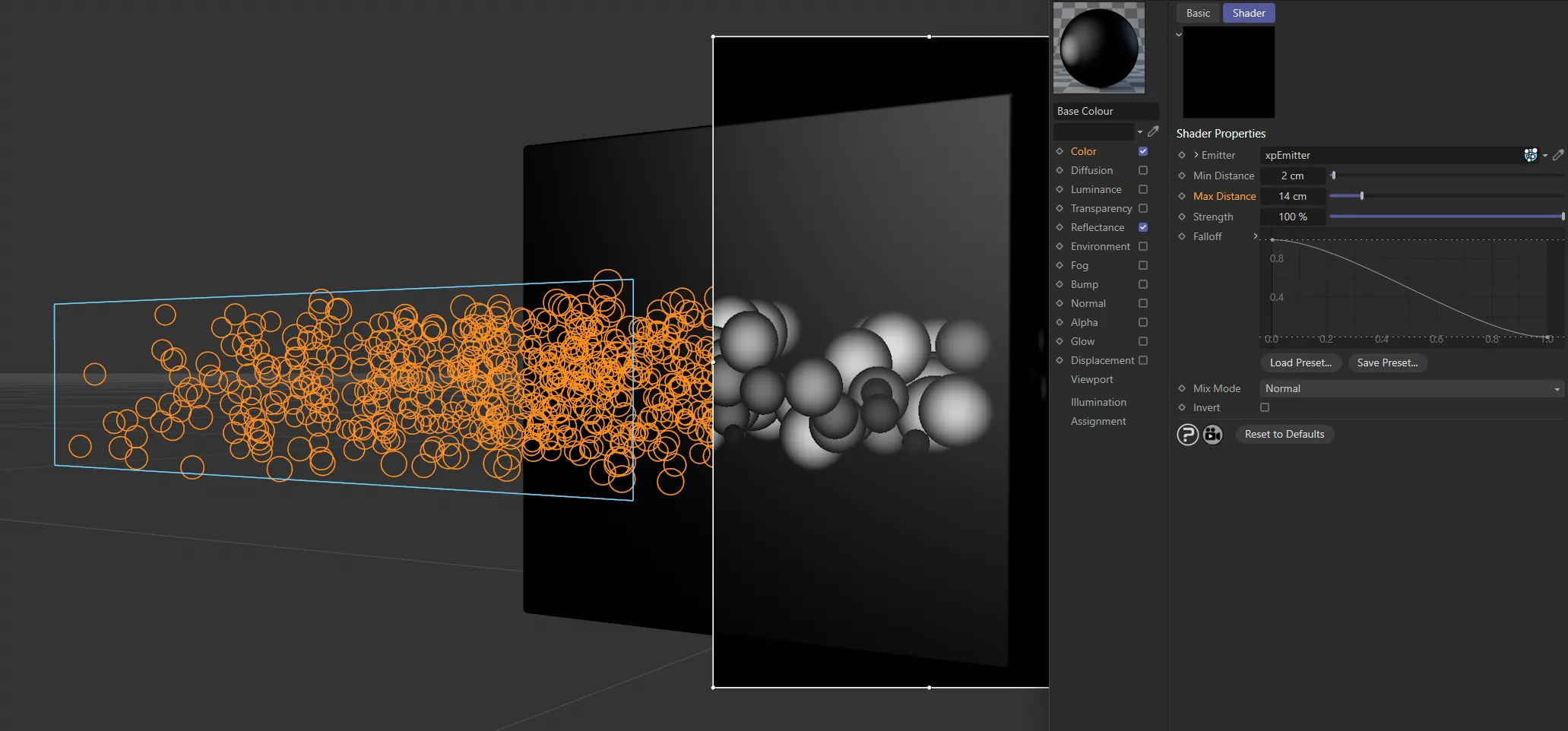
Max Distance increased to 14cm.
Strength
Section titled “Strength”The strength of the effect.
A value of zero will always return zero (black).
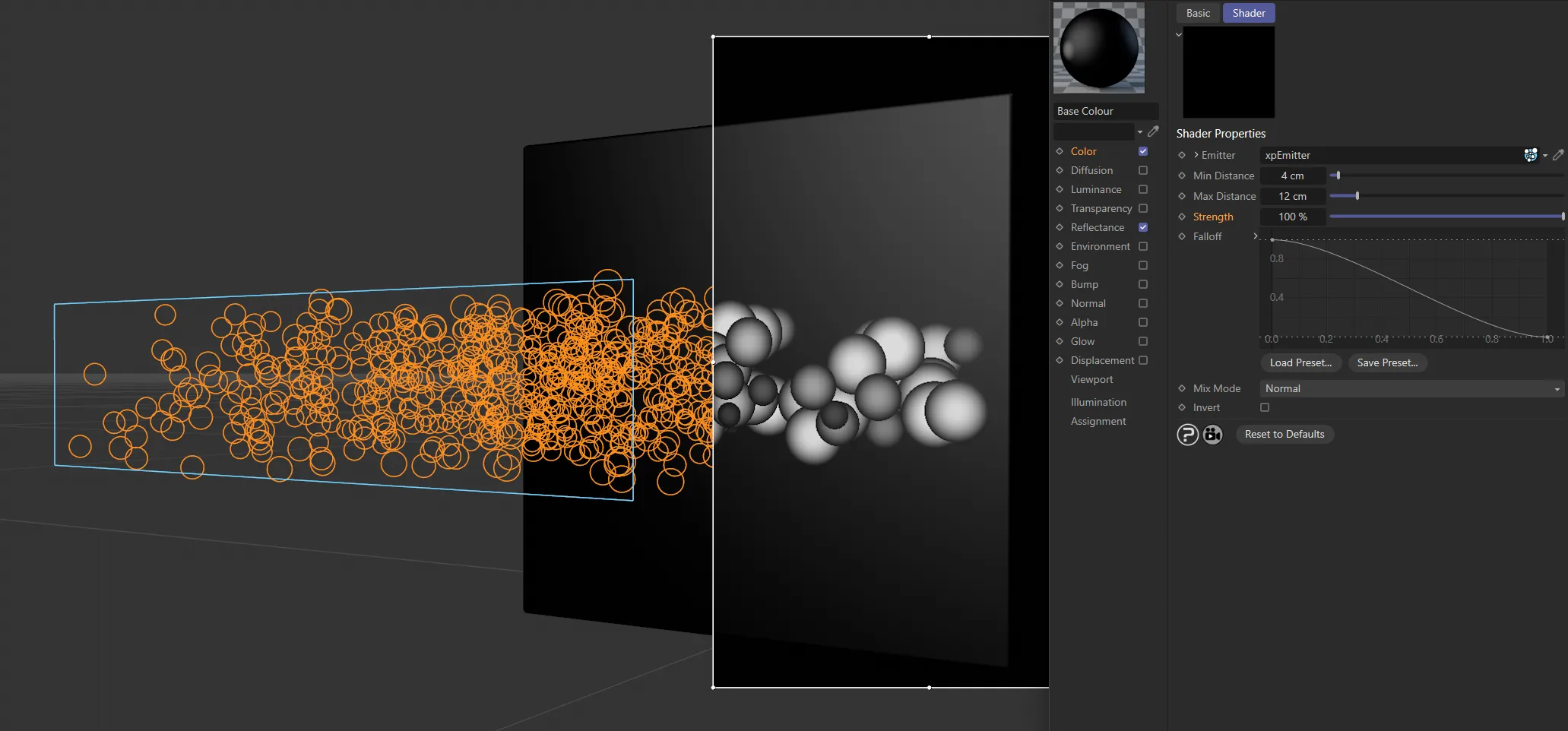
The Strength is set at 100%, in this image.
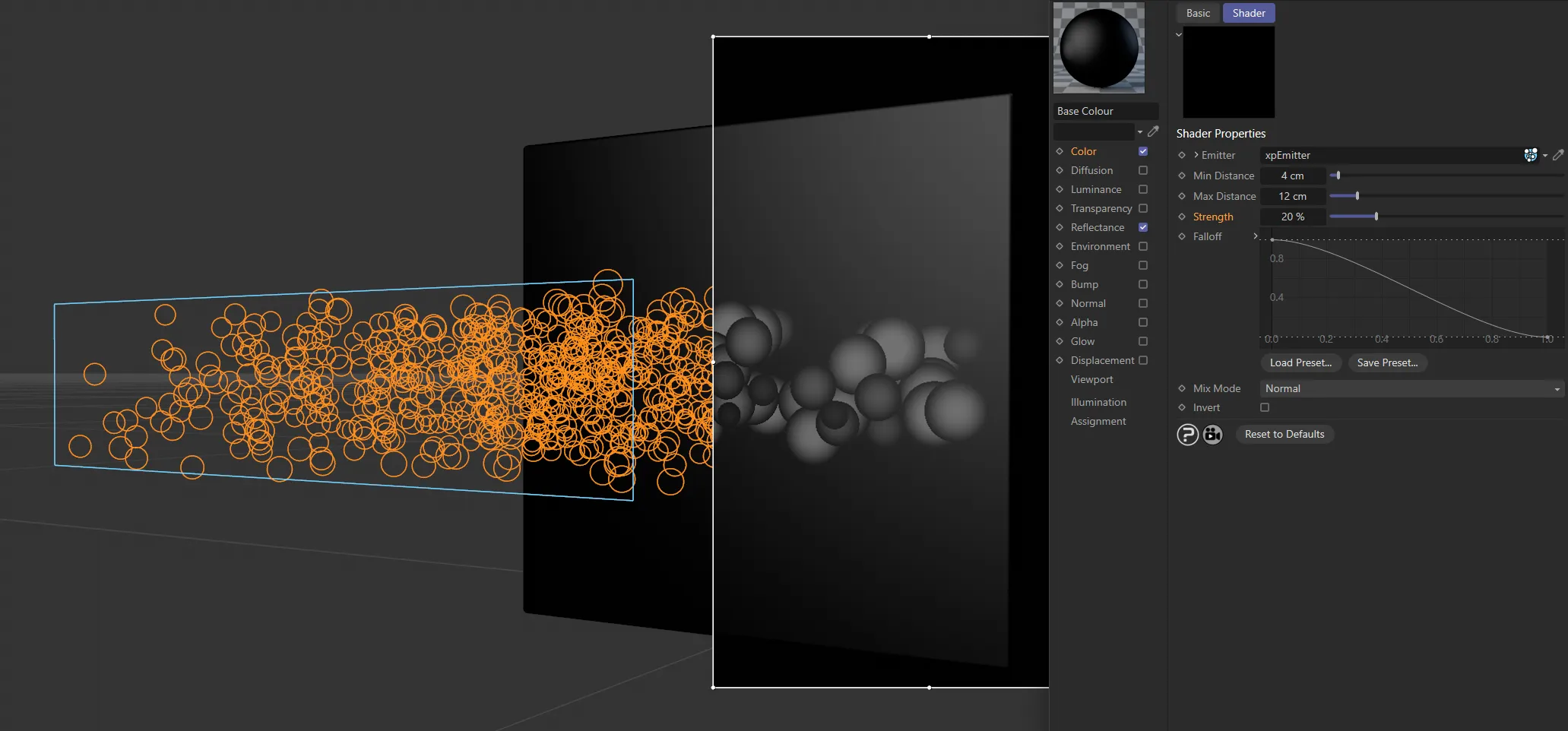
Strength lowered to 20%.
Falloff
Section titled “Falloff”A spline used to give additional control over the returned value.
You can use it, for example, to give softer edges to the circle around the particle.
The default spline shown above does that.
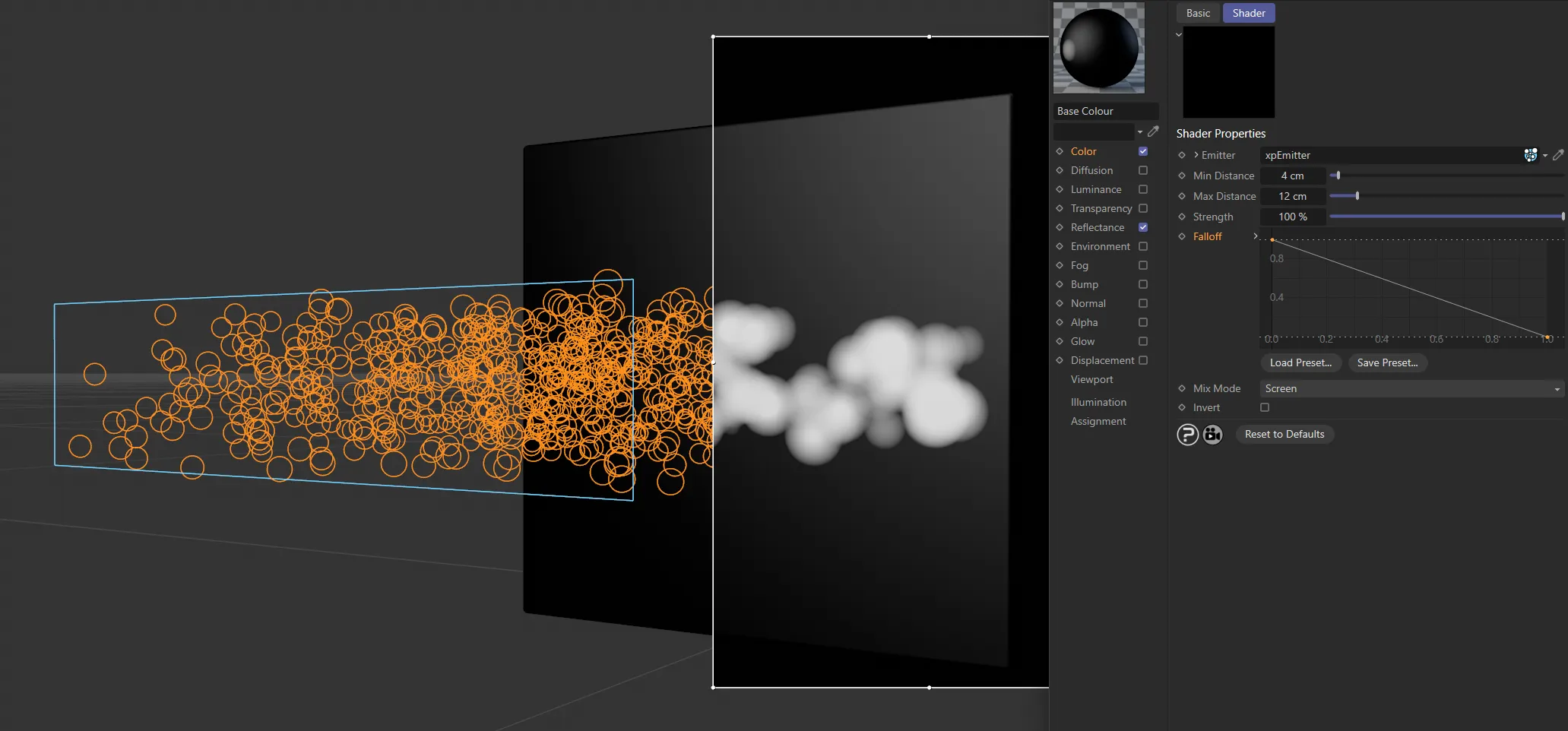
This linear Falloff is shown in the Mix Mode of Screen, where only bright values are rendered.
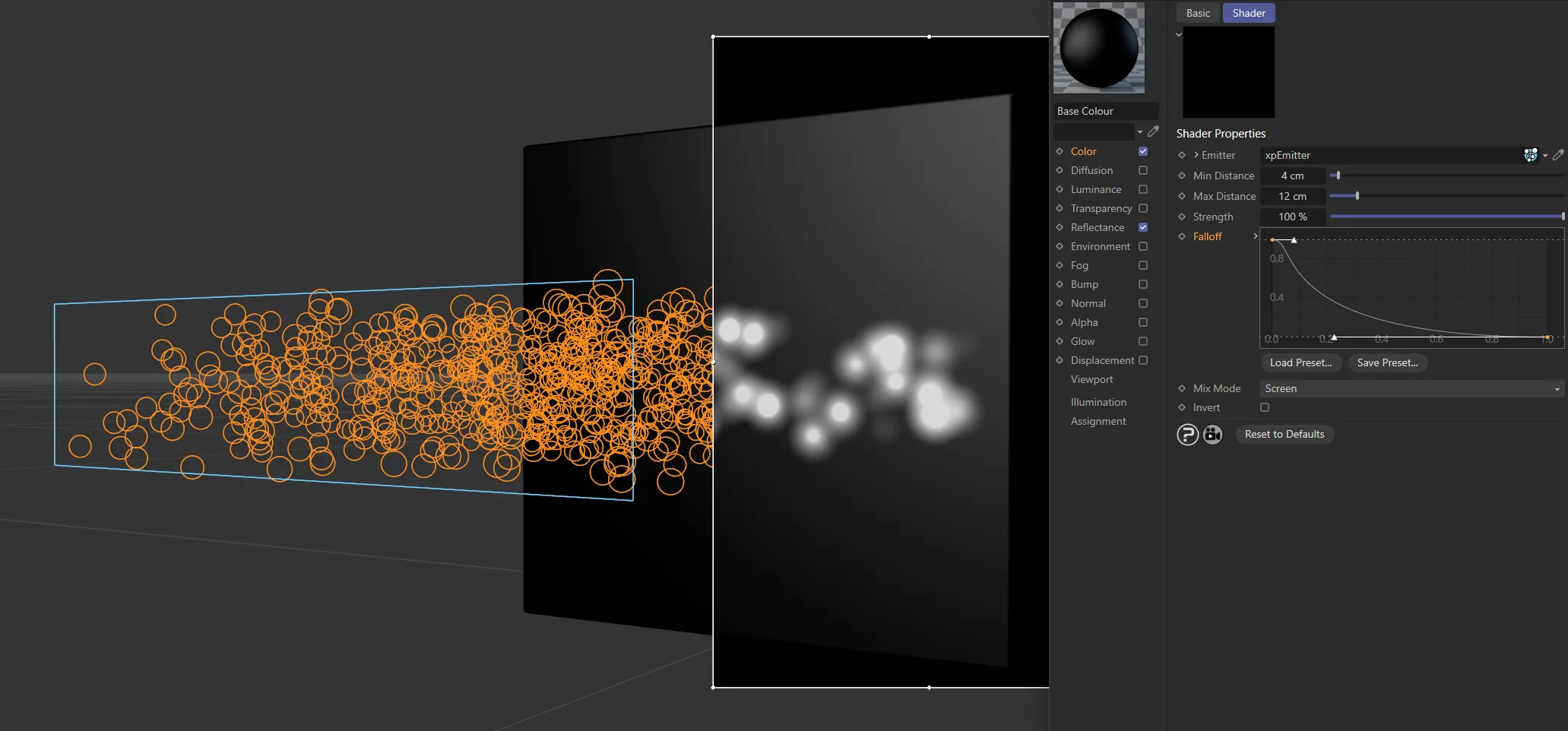
In the same Mix Mode setting, this custom Falloff is increasing softening towards the edges.
Mix Mode
Section titled “Mix Mode”Set as Screen, by default, if more than one particle falls within the specified range of the surface point, the values returned from each must be blended in some way to give a final result.
This drop-down menu controls how values are blended.
The blend modes are the same used in image editors, such as Photoshop, etc.
The other options are: Normal, Add, Lighten, Multiply, Subtract, Difference and Darken.
Invert
Section titled “Invert”If checked, the returned color is inverted (i.e. black becomes white and vice-versa).
Copyright © 2026 INSYDIUM LTD. All rights reserved.