
xpDistanceShader
The xpDistanceShader can be used in any material channel which has a shader link; it can be used on any polygon object or object primitive.
The xpDistanceShader affects the shading according to the distance of the point to be shaded from some other location.
Typically, this would be the active scene camera, but you can use any object or the 3D world center instead.
You can use it to change color with distance, or fade an object out (or in) depending on the distance from the chosen point.
Shader Properties
Section titled “Shader Properties”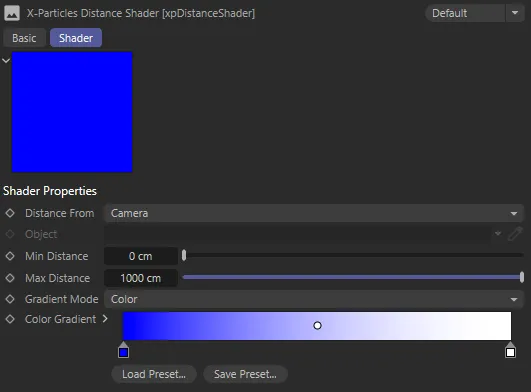
xpDistanceShader menu settings.
Distance From
Section titled “Distance From”This is the reference point from which the distance to the point to be rendered is calculated.
The drop-down menu has these options: Camera, Object, World Center, Stretch, Area and Aspect Ratio.
Camera
Section titled “Camera”The default setting, the distance is from the active scene camera.
Object
Section titled “Object”The distance is from any scene object.
The object to use must be dragged into the Object field.
World Center
Section titled “World Center”The distance is from the center of the 3D world.
Stretch
Section titled “Stretch”This mode uses the longest edge of the polygon being rendered. For each polygon, the longest edge is determined.
If the edge is shorter than Min Distance, the color at the left-hand end of the gradient is used; if greater than Max Distance, the color at the right-hand end of the gradient is used.
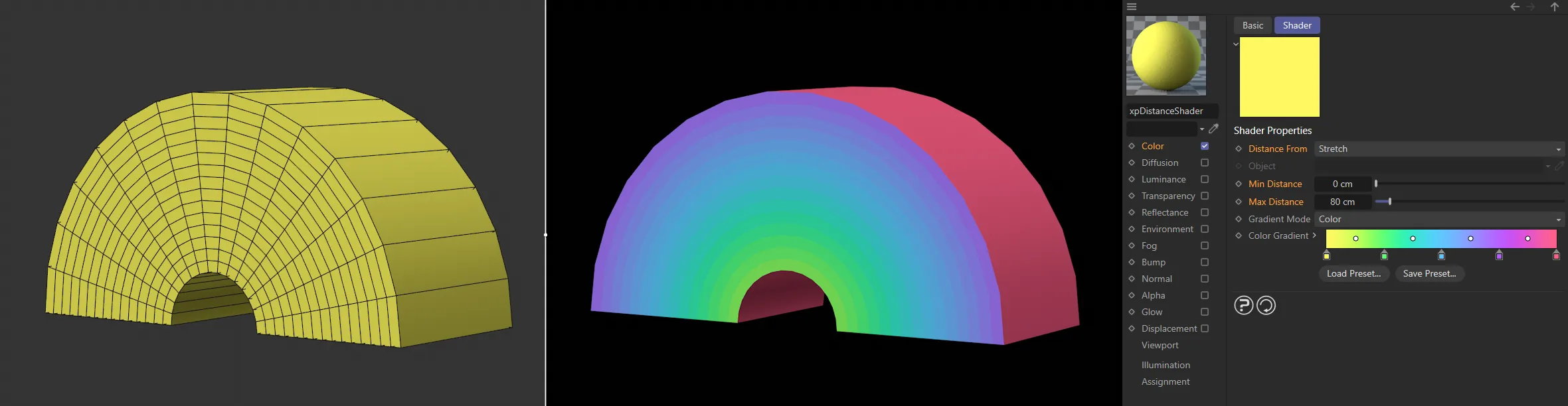
With Distance From set to Stretch, the depth of this arch is 200cm, so the long outer-polygons receive shading from the furthest knot on the color gradient. As the length of the polygon edges get smaller, they receive more shading from the left hand side of the gradient.
This works the same as Stretch mode but instead the polygon area is used.
This means that, unlike Stretch mode, polygons of different shapes but with the same area will receive the same color.
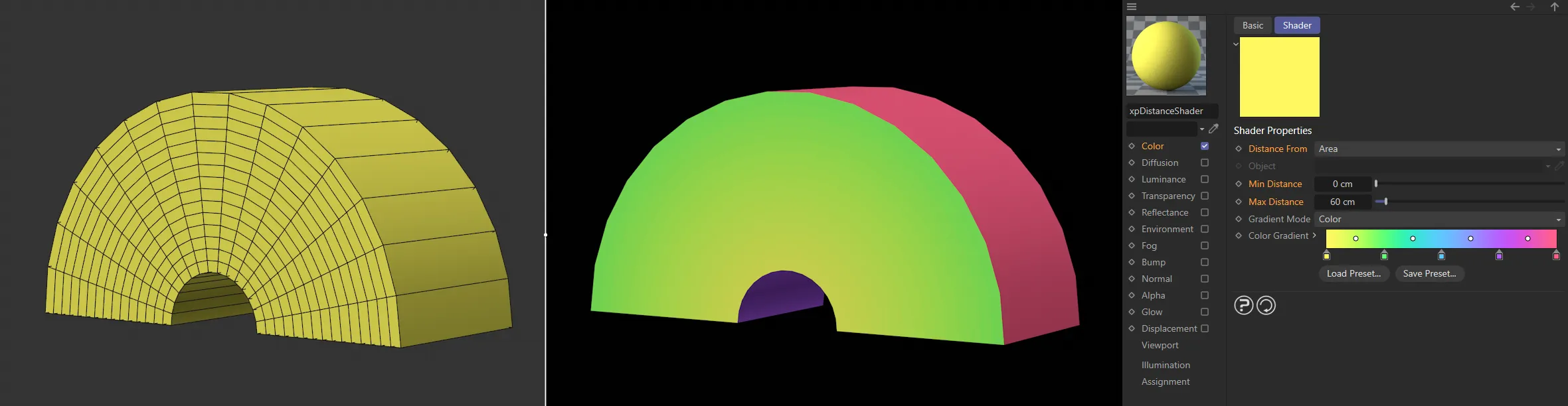
In this image, the Distance From is set to Area. The inside polygons are purple, rather than the red of the outside. This is because they have less height on their shorter edge lengths so their area is smaller than those polygons on the outside.
Aspect Ratio
Section titled “Aspect Ratio”In this mode the aspect ratio of the polygon is calculated by dividing the minimum edge length by the maximum edge length.
The actual size of the polygon is irrelevant, so the maximum and minimum distance variables are not used.
Polygons with equal-length edges will have an aspect ration of 1.0 and therefore receive the color from the right of the gradient.
Polygons with unequal edges will have an aspect ratio between 0.0 and 1.0 and will receive a color from somewhere along the gradient.
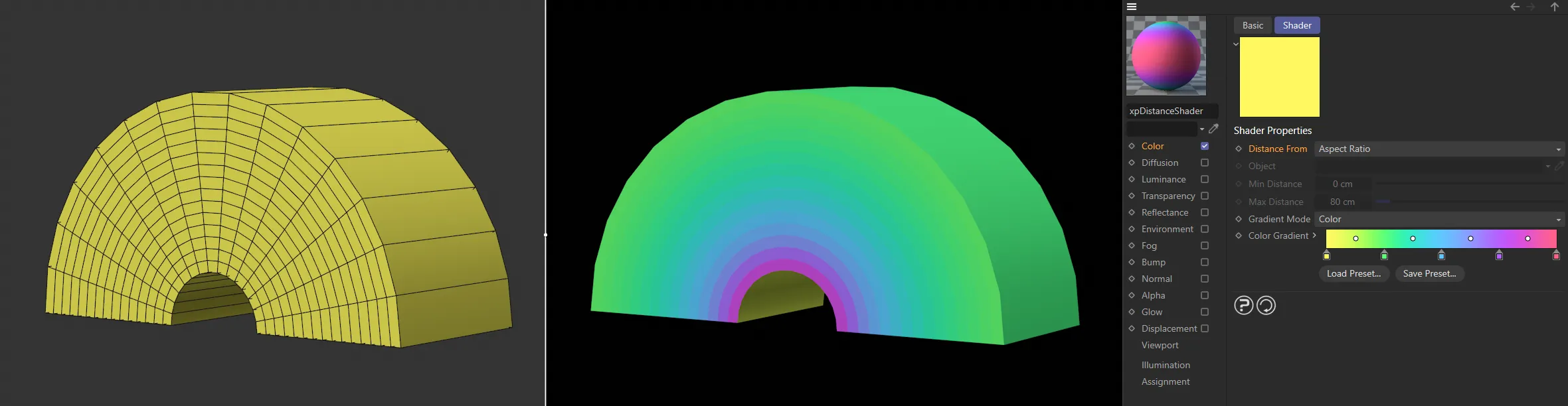
Distance From is now set to Aspect Ratio and the more elongated the polygon, the further towards the left of the Color Gradient is from where it takes its color. The more square, the further to the right side of the gradient is used. Therefore, the inside of the archway is colored yellow and the small square polygons on the outer face are colored purple/red.
Object
Section titled “Object”The object to use when Distance From is set to Object.
Min Distance, Max Distance
Section titled “Min Distance, Max Distance”Shaded points which are less than Min Distance from the reference point will use the color at the left hand end of the color or alpha gradient.
Points which are further than Max Distance from the reference point will use the color at the right hand end of the gradient.
Points in between these limits will use a color from somewhere along the gradient.
Gradient Mode
Section titled “Gradient Mode”Set as Color, by default; the alternative is Alpha.
You can use the color gradient in an alpha channel or the alpha gradient in a color channel, it doesn’t make any difference.
Typically though, you would use a color gradient in a material’s Color channel for example, and a black/white alpha gradient in the Alpha channel.
Select this option if you need a colored gradient.
Select this option for use in any channel where you need a monochrome gradient (e.g. the Alpha channel of a material).
Color Gradient, Alpha Gradient
Section titled “Color Gradient, Alpha Gradient”Either a colored gradient or an Alpha gradient is shown, depending on the Gradient Mode setting.
Copyright © 2026 INSYDIUM LTD. All rights reserved.