
Render Settings
These settings are added to the main Cinema 4D render settings dialog when you add an X-Particles material to the scene.
You can also add them manually by clicking on the ‘Effect…’ button in the render settings dialog and selecting X-Particles from the list.
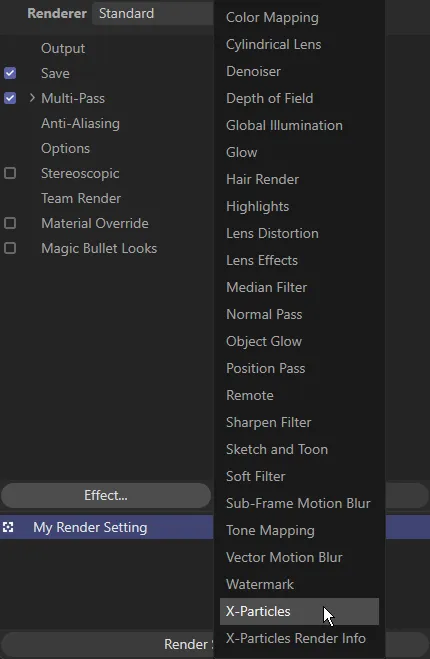
Render Settings access option.
Basic tab
Section titled “Basic tab”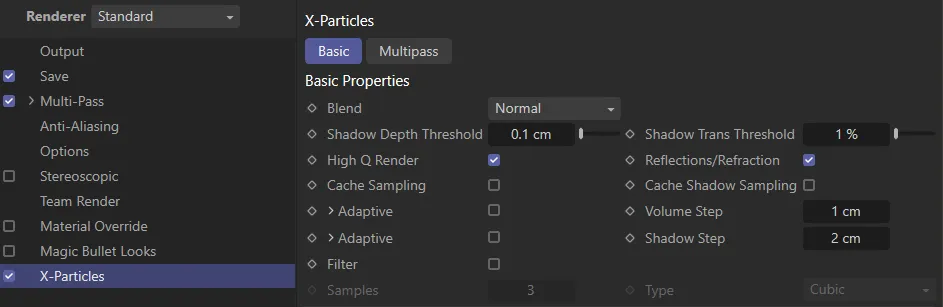
Render Settings, Basic tab.
The method used in blending the rendered particle color with the scene, either Normal or Add.
Shadow Depth Threshold, Shadow Trans Threshold
Section titled “Shadow Depth Threshold, Shadow Trans Threshold”When rendering the shadow maps used for the particles, these define the change in depth (distance from the light source) and transparency (shadow), after which another sample is stored in the shadow map.
Lowering these values increases the shadow accuracy at the cost of time and memory use.
High Q Render
Section titled “High Q Render”If checked, this accelerates the rendering speed of particles and increases the quality.
However, it will only work on direct camera rays and not on reflection/refraction rays or when rendering DOF (from Physical).
If you need to use DOF within Physical render then disable this option.
Reflections/Refraction
Section titled “Reflections/Refraction”If disabled, this will stop X-Particles from calculating data required for reflections/refractions of the particles; this will stop them being rendered in reflections/refraction.
If you do not need reflection/refraction of particles then disabling this will reduce the render prepare time and memory used; this mostly affects very high particle count scenes (millions of particles).
Cache Sampling, Cache Shadow Sampling
Section titled “Cache Sampling, Cache Shadow Sampling”When using Best AA, Cinema 4D will sample the same pixel many times with different rays (subpixels).
If your particle’s color/shading is fairly constant over each pixel (or less than a pixel in size) then, enabling this, will tell X-Particles to cache the particle color per pixel and reuse this, rather than sampling the particle color each subpixel.
This can speed up Best AA renders with particles.
Adaptive
Section titled “Adaptive”If checked, the Volume Step value is increased in size over the Z Min to Z Max distances from the camera, to a maximum of Max Step.
This reduces the volume sampling further away from the camera.
Volume Step
Section titled “Volume Step”This is the size of the steps through a volume done for volumetric and voxel rendering.
Increasing this can speed up the render but, if it is too large, (bigger than the smallest volume/voxel) then it will cause artifacts in the render.
Z Min, Z Max and Max Step
Section titled “Z Min, Z Max and Max Step”See Adaptive, above.
Adaptive
Section titled “Adaptive”If enabled, the Shadow Step is increased in size over the Z Min to Z Max distances from the light source, when sampling shadows, to a maximum of Max Step.
This reduces the shadow sampling further away from the light.
Shadow Step
Section titled “Shadow Step”As with Volume Step, but for the shadow maps.
Larger values speed up shadow map building.
It is usually possible to have this larger than the Volume Step without noticeable artifacts due to the blurring of sampling the shadow maps.
Z Min, Z Max and Max Step
Section titled “Z Min, Z Max and Max Step”See Adaptive, above.
Filter
Section titled “Filter”Applies a blur filter to each particle pixel rendering; blending it will surrounding particles.
Samples
Section titled “Samples”The width in pixels used for the blur filter.
The filter type, either Linear or Cubic.
Multipass tab
Section titled “Multipass tab”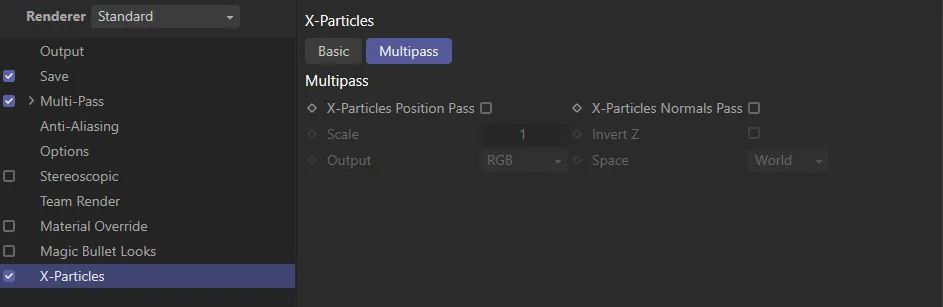
Render Settings, Multipass tab.
Z-Particles Position Pass, X-Particles Normals Pass
Section titled “Z-Particles Position Pass, X-Particles Normals Pass”Enable to create Normals/Position passes.
Defines the scale used when encoding the information into the pass.
Invert Z
Section titled “Invert Z”Flips the Z stored within the pass; some applications require the Z facing forwards (Cinema has Z facing away).
Output
Section titled “Output”The output order depends on the compositing application used; see your compositing software information for which you need.
The coordinates that should be encoded into the pass.
Copyright © 2026 INSYDIUM LTD. All rights reserved.