
xpSplineGrowth
The xpSplineGrowth deformer enables you to control the length of a spline, so you can grow or shrink a spline parametrically.
It can be used with the xpTrail object, to alter the trail length.
As with any deformer, the xpSplineGrowth object must be made a child object of the spline it is to control.
Object Properties
Section titled “Object Properties”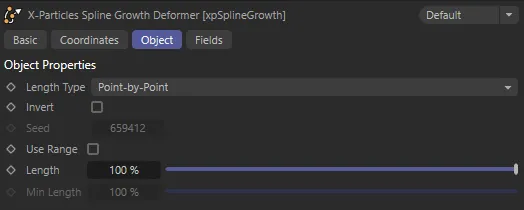
xpSplineGrowth menu settings.
Length Type
Section titled “Length Type”Set as Point-by-Point, by default, this menu has options to control how the length of the spline is managed.
The other options are: Whole Spline and Spline Section.
Point-by-Point
Section titled “Point-by-Point”In this mode, the spline length extends (or shrinks) by removing points whose position along the spline fall outside the Length parameter.
The operation takes place from the start of the spline (or from the end if the Invert box is checked).
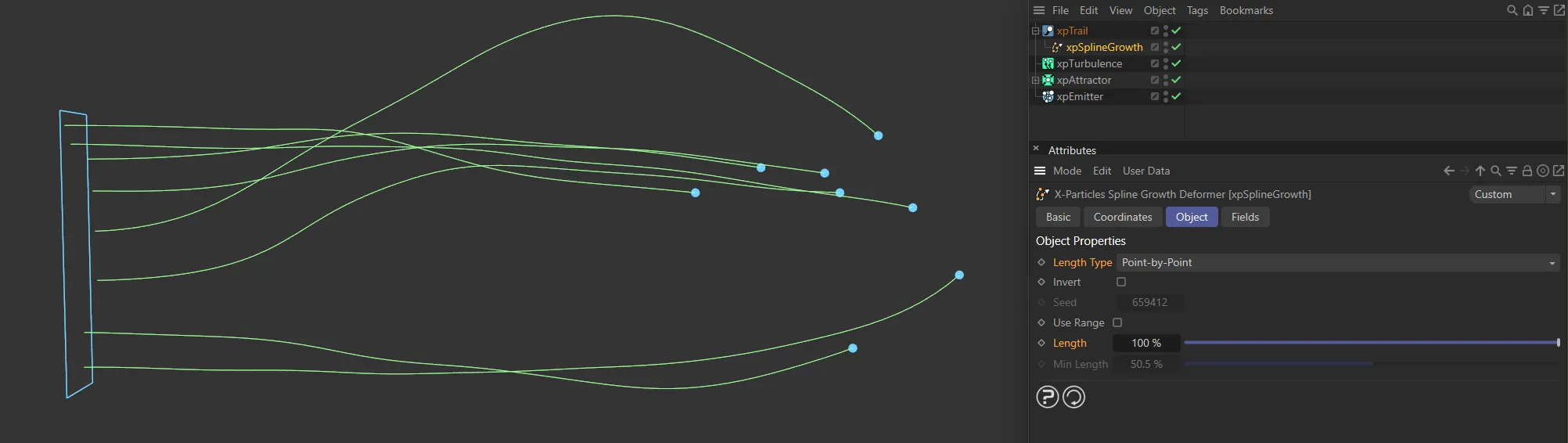
The Length value is 100%, displaying the full spline.
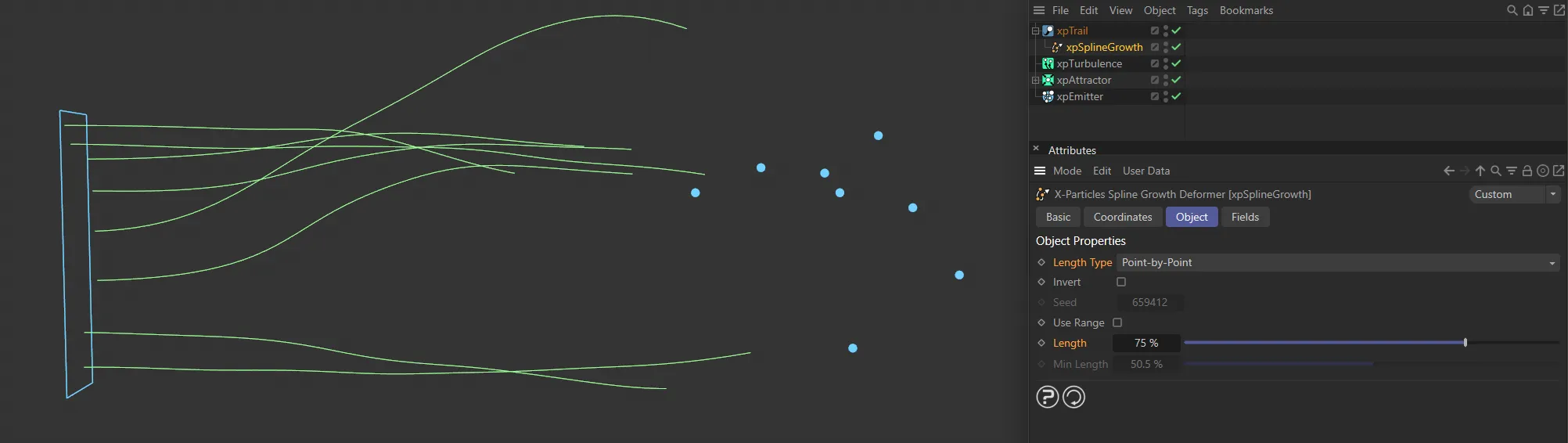
Here, the Length is reduced to 75%.
Whole Spline
Section titled “Whole Spline”This mode does the same as Point-by-Point mode, but interpolates between each point and the first point in the spline segment.
For many splines you won’t see any difference between these modes, but in splines with sharp angles between the points the effect is quite different.
Spline Section
Section titled “Spline Section”With this option, only a section of the spline is created.
The section is controlled by the Section Start and Section Length settings.
When this option is selected, additional parameters become available - details below.
Invert
Section titled “Invert”If this box is checked, the values are inverted and the spline will now grow from the end point backwards.
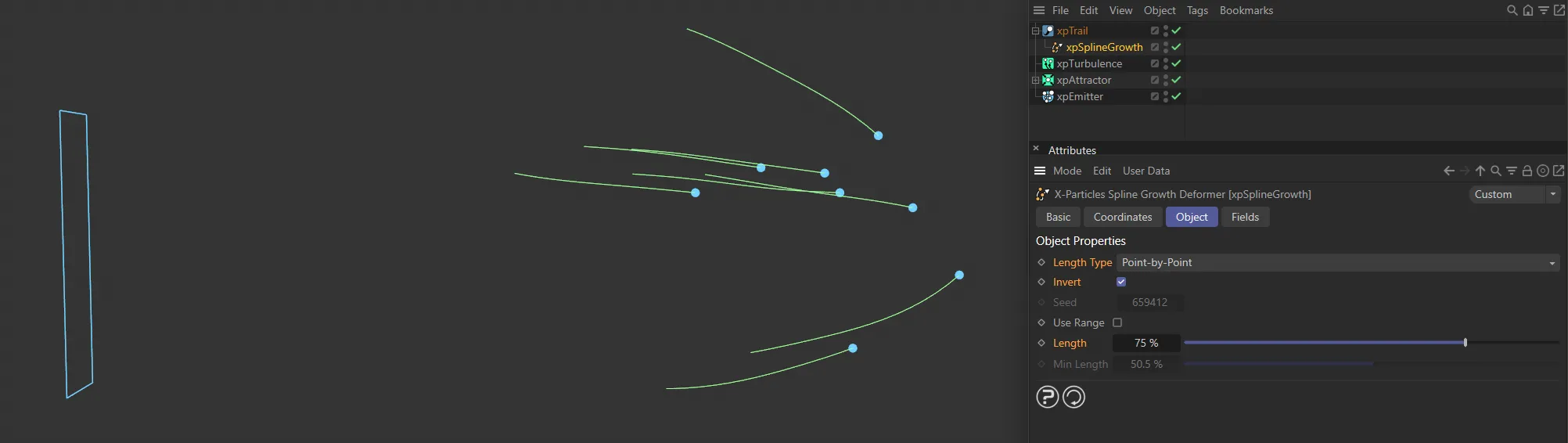
With Invert enabled, the part of the spline that was previously hidden is now visible.
Only used when Use Range is checked (see the Use Range setting, below, for details).
Use Range
Section titled “Use Range”If checked, this setting enables the Min Length setting.
The length of the spline shown will then fall between the Length and Min Length values.
The actual length of the spline is randomly set between these limits; this is controlled by the Seed value, so you can alter the seed to give different results.
Very importantly, this works on a per-segment basis, so the length of different segments will vary.
This can be seen with the xpTrail object, where it will give different lengths for each individual trail.
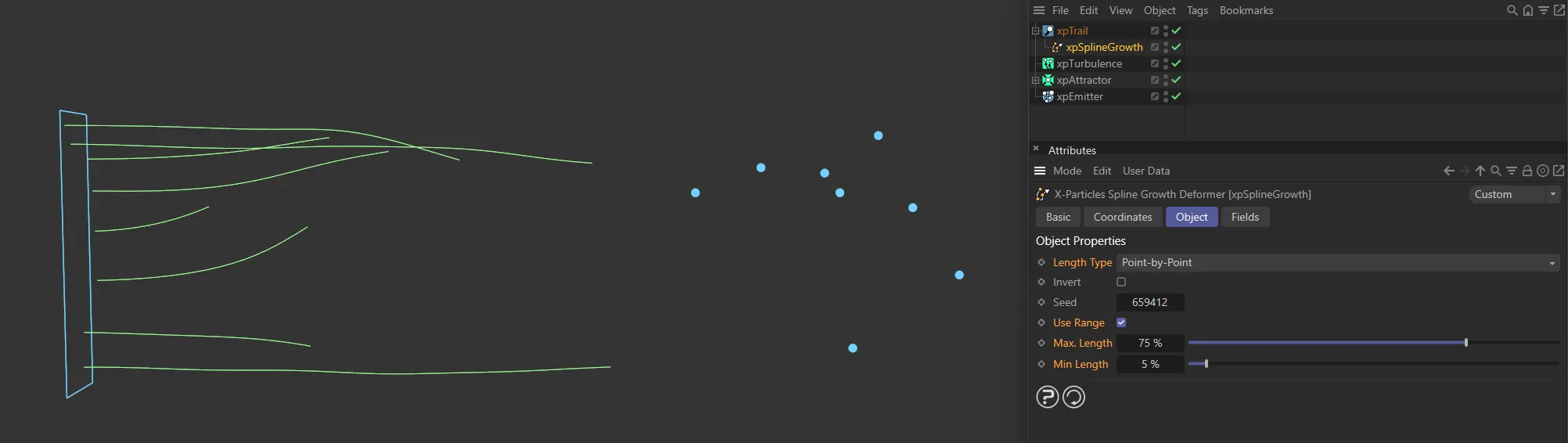
Use Range is enabled here, and Min Length is set at 5%. Spline lengths are now a variation of lengths between that 5% setting and the Max Length value of 75%.
Length
Section titled “Length”The length of the section of spline to show.
A value of 30% will show 30% of the spline’s length, from the starting point of the spline.
Min Length
Section titled “Min Length”Only available if Use Range is checked, it controls the minimum length of the spline section created.
It cannot exceed the value in the Length setting.
Spline Section additional parameters
Section titled “Spline Section additional parameters”Section Start
Section titled “Section Start”Controls where the section commences.
The section of the spline from the start point back towards the first point in the spline is shown.
The length which is shown is governed by the Section Length setting.
For example, if Section Start is 25% and Section Length is 5%, you will see 5% of the full spline starting at the 25% point back towards the start of the spline.
Since the spline cannot grow back past the first point, setting the Section Length greater than the Section Start will have no effect.
But, as you increase the Section Start value, the length shown will increase up to the Section Length value.
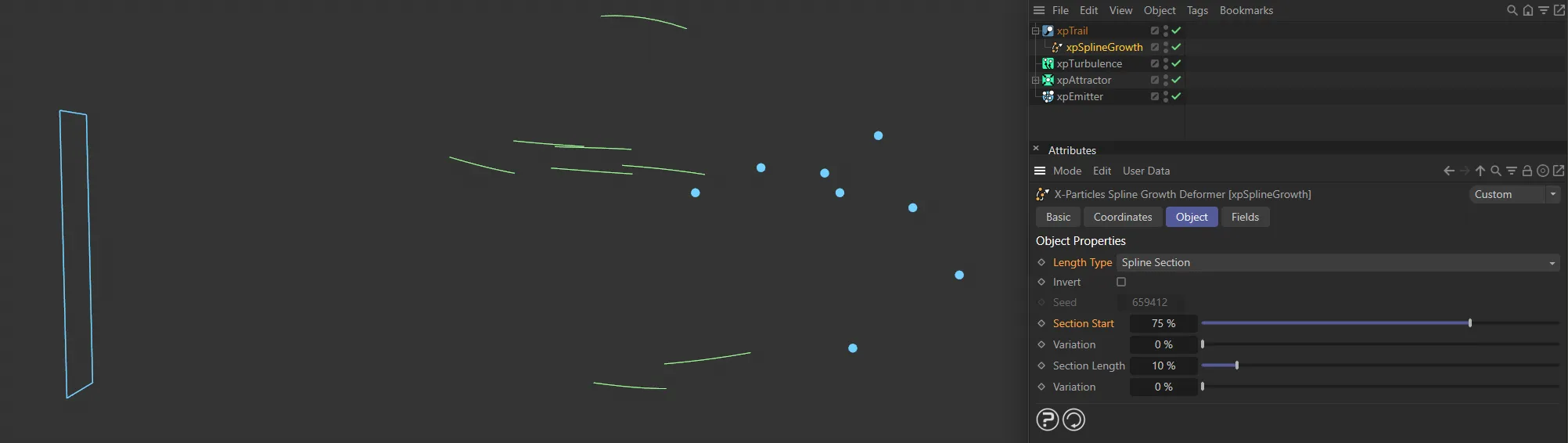
With the Length Type set to Spline Section and Section Start at 75%, the spline begins at the 75% point. The Section Length value of 10% determines the spline length from that point.
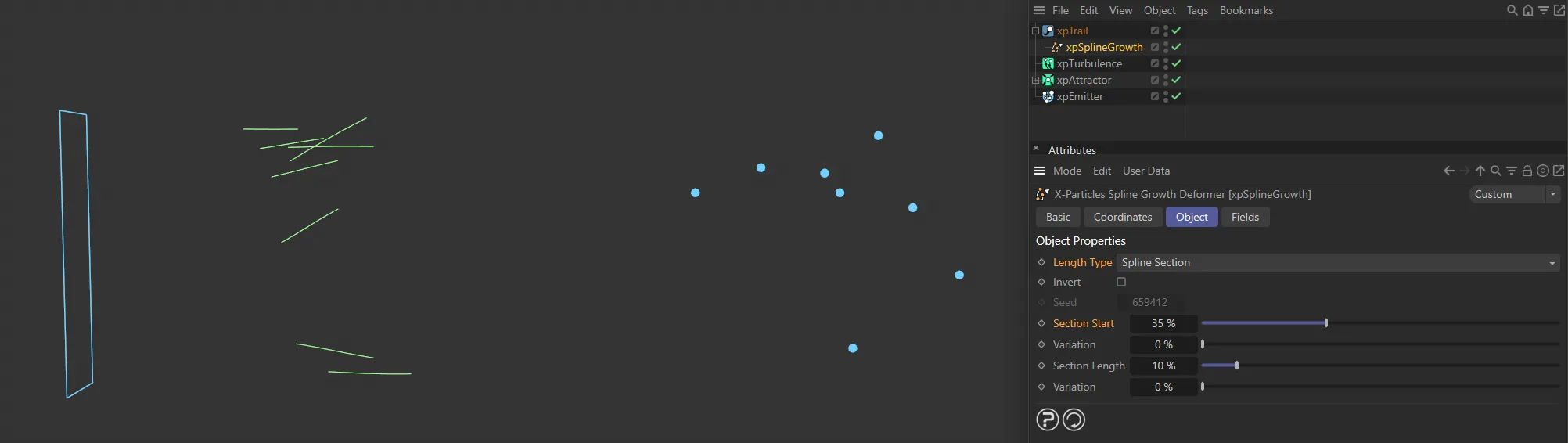
In this second image, all settings are identical except the Section Start is now set at 25%.
Variation
Section titled “Variation”Adds random variation to the section start value.
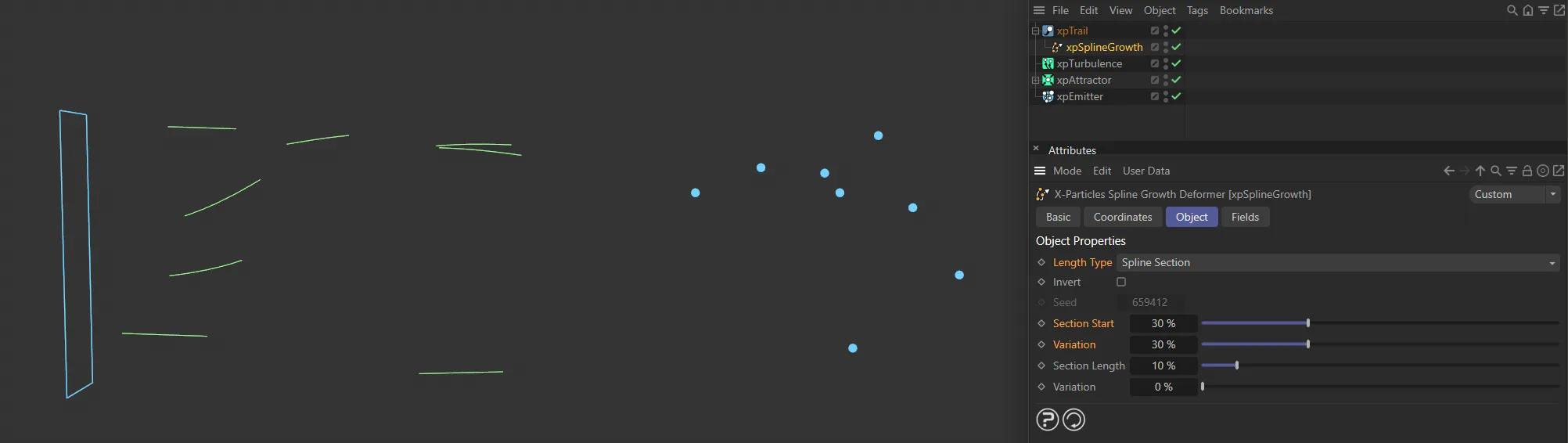
Now the Section Start is 30% but there is 30% Variation set on the start setting (the splines are each the same length).
Section Length
Section titled “Section Length”The length of the section to show (see Section Start, above, for more details).
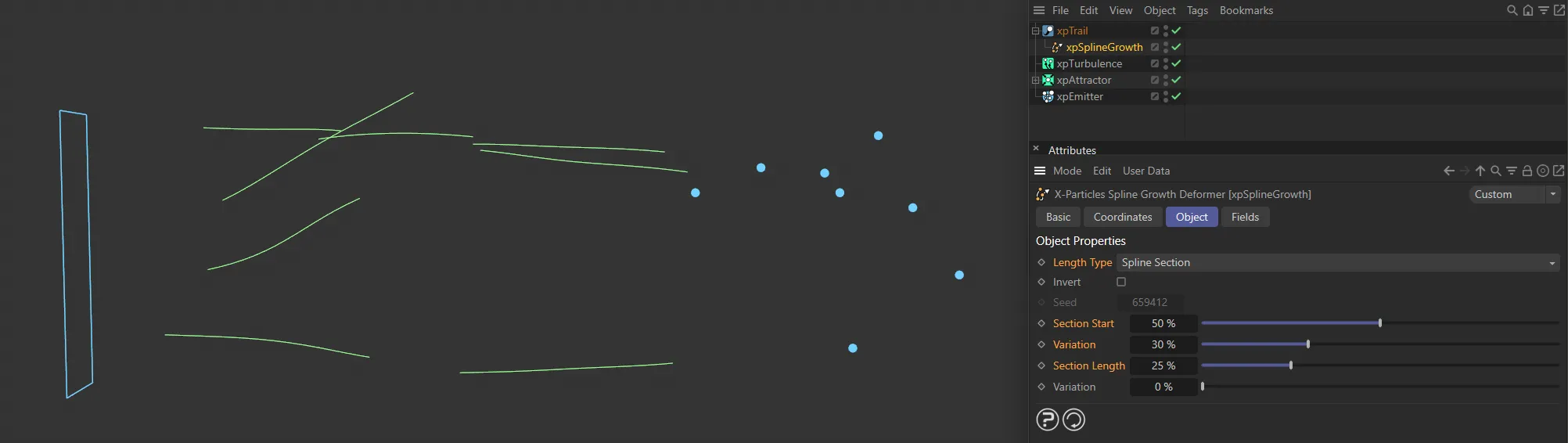
This image shows the same settings as above, except the Section Length has been increased to 25%, giving longer spline sections.
Variation
Section titled “Variation”Adds random variation to the section length value.
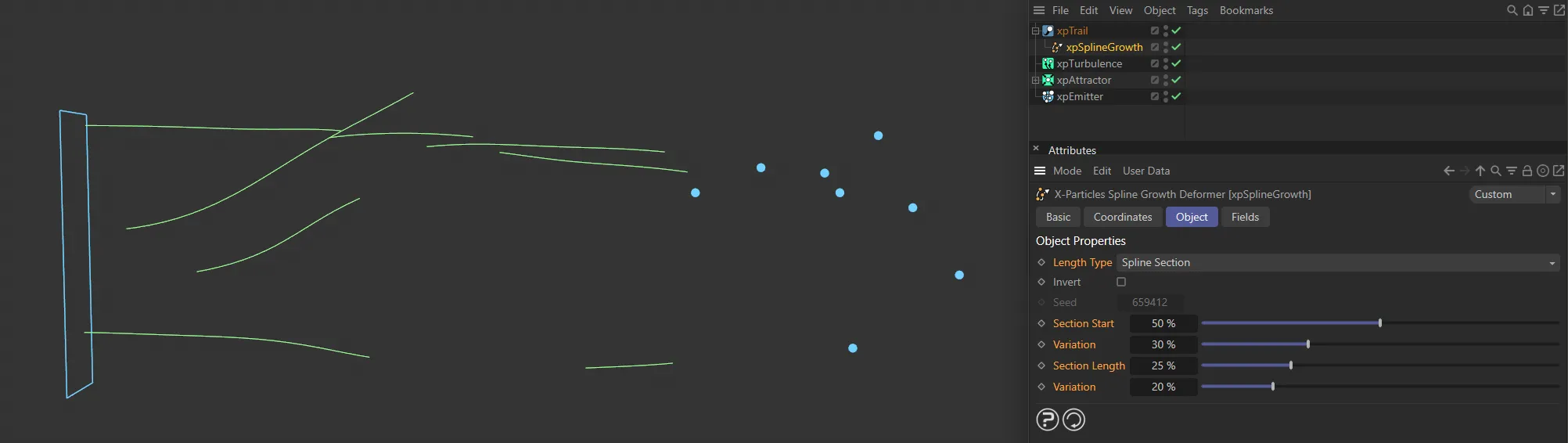
Finally, here there is 20% Variation set to the section lengths, varying them in size.
Copyright © 2026 INSYDIUM LTD. All rights reserved.