
xpDataImporter
xpDataImporter imports data from an external file in comma-separated value (CSV) format and uses it to create particles.
Very importantly, this is not a cache system.
Put simply, the xpDataImporter reads data from a source file and uses that data to create new particles.
To exchange data with other applications, the data needs to be in a common format understood by many different applications.
X-Particles imports and exports data in comma-separated value (CSV) format.
This is a simple text file in which individual items of data are separated by a comma or other delimiting character.
As such, it can be saved or loaded (and edited) by anything from simple text editors to spreadsheets, databases and a wide range of other applications such as After Effects.
Object Properties
Section titled “Object Properties”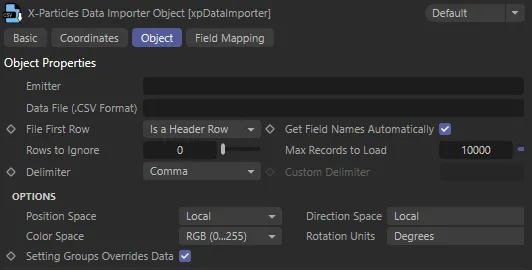
xpDataImporter, Object tab menu settings.
Emitter
Section titled “Emitter”Drag an emitter into this field.
This is the emitter which will be used to create the new particles.
The emitter will automatically be switched into Controlled Only mode.
It is recommended that you do not alter this.
In addition, the emitter speed will be set to zero.
This can be changed but, if you do, the new particles will be created and then the emitter will move them with the speed given in the emitter.
This will result in the position being offset slightly from that specified in the source data file.
Data File
Section titled “Data File”This is the data file which will provide the source data from which to create particles; it must be in CSV format.
File First Row
Section titled “File First Row”This is a very important setting; you may need to open the data file in a text editor or spreadsheet to check if there is a header row.
If there is a header row, it should be the first line in the file and will contain a list of field names rather than numeric values.
There are two options in this drop-down menu.
Is A Header Row
Section titled “Is A Header Row”The default setting; with this option, the first line in the file is assumed to be a header row.
Is a Data Row
Section titled “Is a Data Row”In this case it is assumed that the file has no header row and that the first line must be actual data.
Get Field Names Automatically
Section titled “Get Field Names Automatically”If this setting is checked, whenever the data file changes, the importer will scan the file and build a list of field names, using the settings in File First Row and Rows to Ignore.
This list will then be available to you as a drop-down list when adding field maps.
If the box is unchecked, no field list will be built and you will have to enter the field names manually.
Rows to Ignore
Section titled “Rows to Ignore”A correctly-formatted CSV file should only contain an optional header row plus the data rows themselves.
However, some files have one or more lines of text at the start, before the header/data rows.
In this case, you can either remove them with a text editor or use this setting.
If you specify a number greater than zero in this setting, the importer will ignore that many rows at the start of the file.
So if, for example, you set this to 2, the importer will ignore the first two lines and the first row (as far as the importer is concerned) is actually the third line in the file.
Max Records to Load
Section titled “Max Records to Load”Some data files can be huge.
If you only want to use a subset of the data, set this value to however many rows of data you want to use.
Delimiter
Section titled “Delimiter”Set as Comma, by default, this drop-down lets you indicate which character is used as a delimiter in the data file.
The most common is a comma, but tabs and semicolons are also popular.
Use the drop-down to specify the delimiter to use.
If you have a file which uses something else, you can select Other, then enter the character in the Custom Delimiter field.
Custom Delimiter
Section titled “Custom Delimiter”This is the field delimiter character to use if Other is selected in the Delimiter setting.
If you enter a string of two or more characters, the data importer will try to use that and it will work - as long as the data file uses a string rather than a single character.
If it doesn’t, the data import will fail.
Options
Section titled “Options”These are additional options that you can change, depending on the data file being used.
Position Space
Section titled “Position Space”When position data for the new particle is imported, it can be treated as either World or Local data.
This drop-down lets you select which one to use.
If you choose World, the data is treated as being in 3D world space, so no matter where the emitter is located the particle will be created at that point in 3D space.
If Local is selected (the default), the position is taken as relative to the emitter, so the actual position in the 3D world will vary, depending on the emitter position.
Direction Space
Section titled “Direction Space”Set as Local, by default, this is exactly the same as the Position Space setting except that the imported particle direction is either set to World or Local space.
Color Space
Section titled “Color Space”Color values in data files may take several different formats and this drop-down lets you choose which one to use.
You will almost certainly need to open the file in a text editor or spreadsheet to find out which format is used, unless the author of the file has provided that information.
The possible options are selected from the drop-down menu.
RGB (0…255)
Section titled “RGB (0…255)”This is probably the most common choice.
The color is expressed in three data fields, one for red, green, and blue respectively.
A value of 0 means there is none of that component in the final color, a value of 255 means that component is at its maximum amount.
RGD (0…1)
Section titled “RGD (0…1)”Exactly the same as RGB (0…255) except that the range is given from 0.0 to 1.0 (the format used internally by X-Particles).
RGB (0…100%)
Section titled “RGB (0…100%)”Exactly the same as RGB (0…1) except that the range is given from 0.0% to 100.0%.
The color is exported in Hue, Saturation and Value format.
The color is exported in Hue, Saturation and Luminance format.
Color Index
Section titled “Color Index”This is a special mode used by astronomers to represent star colors.
Unlike all the other options, this is a single value rather than three separate ones.
Rotation Units
Section titled “Rotation Units”If the data file contains rotation values, these can be expressed in either Degrees or Radians.
Select the method used from this drop-down.
Setting Groups Overrides Data
Section titled “Setting Groups Overrides Data”This setting is only relevant if you want the imported data to set the particle group.
If it is checked and you have mapped data in the data file to the group number, the parameters of that group (color, etc.) will override the corresponding imported data values.
Normally, you would probably want that to happen so this box is checked, by default.
Unchecking it will cause the group number to be set in the particle but no other changes will be made.
Field Mapping tab
Section titled “Field Mapping tab”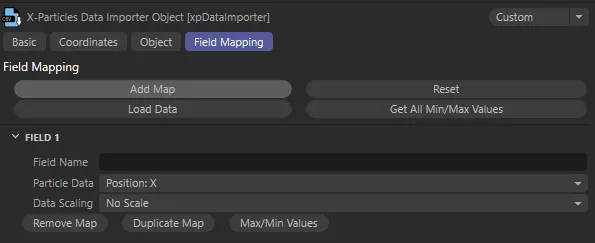
xpDataImporter, Field Mapping tab menu settings.
Changing certain options will automatically cause all the field maps to be reset (i.e. deleted).
This is because changing them will alter the data structure the importer expects and to ensure that you don’t get a mismatch between the maps and the file, all maps are removed.
The options which, if changed, will reset the maps are:
- the data file itself
- the file first row setting
- the setting to get the field names automatically
- the number of rows to ignore
- the delimiter, or the custom delimiter if Delimiter is set to Other.
Once the various options have been set, you can now map the fields in the data file to specific items of particle data.
In fact, in many cases you won’t be able to, because there is no equivalent item of particle data; you can safely ignore any fields you don’t want or can’t use.
Add Map
Section titled “Add Map”To add a map, click the Add Map button.
You will need one map for each field in the data you want to map (so position data, for example, will need three maps - one each for the X, Y, and Z coordinates).
You don’t need to add maps in the same order as the fields in the data file; any order is fine.
Clicking this button will delete all your field maps.
You will be asked to confirm this before the maps are deleted.
Load Data
Section titled “Load Data”Clicking the Load Data button will cause the data to be loaded and mapped.
Get All Min/Max Values
Section titled “Get All Min/Max Values”If you click this button, the importer will scan the loaded data and will calculate the minimum and maximum values for each data item, then insert these values into the Data Range Min and Data Range Max fields.
These are used when squashing (range mapping) the data; see below for more details.
Because this will alter all the ranges in one go, you are asked to confirm that you want to do this.
If you only need the minimum and maximum values to be calculated for one or two data items, you can use the Max/Min Values button in the individual maps.
Don’t forget to click Load Data again after using this button or the new ranges will not be used.
Map Parameters
Section titled “Map Parameters”Once you have added a map you can set the parameters.
There are only two you must enter: the field name and the data item it maps to; the rest are optional.
Field Name
Section titled “Field Name”Either select the required field from the drop-down list or type the name of the field to map in this box.
The name is the name of the field that comes from the header row in the CSV file (if it has one - if it didn’t have a header row, the fields are all named ‘Field1’, ‘Field2’, ‘Field3’, etc, in order across the row).
Particle Data
Section titled “Particle Data”From this drop-down menu you select the item of particle data to map this field to.
The possible data items to map to are listed below.
Position: X, Position: Y, Position: Z
Section titled “Position: X, Position: Y, Position: Z”The X, Y or Z coordinate of the particle position.
Direction: X, Direction: Y, Direction: Z
Section titled “Direction: X, Direction: Y, Direction: Z”The X, Y or Z coordinate of the particle direction vector (in the form of a normalised direction vector, not Euler angles).
The particle’s speed.
Radius
Section titled “Radius”The particle’s radius in scene units.
Group Number
Section titled “Group Number”An integer which corresponds to one of the particle groups in the scene.
The particle’s age in seconds.
Lifespan
Section titled “Lifespan”The particle’s lifespan in seconds.
Color: Red, Color: Blue, Color: Green
Section titled “Color: Red, Color: Blue, Color: Green”The red, blue or green component of the particle’s color.
In HSV mode, they will change to Hue, Saturation and Value instead; in HSL mode, they will read Hue, Saturation and Luminance.
If the mode is Color Index, the Color: Red field will become Color Index and the other two fields are ignored.
Rotation: H, Rotation: P, Rotation: B
Section titled “Rotation: H, Rotation: P, Rotation: B”The H, P or B component of the particle’s rotation.
Although rotations will be imported, to have any effect you must turn on rotations in the emitter, otherwise you will not see any rotation occurring even though the data is loaded.
The particle’s mass.
Temperature
Section titled “Temperature”The particle’s temperature.
The particle’s smoke value.
The particle’s fuel value.
The particle’s fire value.
Data Scaling
Section titled “Data Scaling”Set as Scale, by default, this drop-down controls how the imported data will be scaled to produce the correct results.
If you have a data file with a field named Size and you want to map this to the particle radius, the range of values is from 1 to 100.
This means that if you use the data without scaling it, you will have particles whose radius may be as small as 1 scene unit, and some with a radius of up to 100 scene units - which is huge (for particles).
This is what the scaling mode is for.
The simplest thing to do is to choose Scale mode, then select Scale Down and enter a value of (approx) 20.
Now the radius will range from 5 (100 / 20 = 5) down to 0.05 (1 / 20 = 0.05).
This may be fine but the problem now is that a radius of 0.05 may be too small to be seen when rendered.
Ideally, you would like that range of 1 to 100 to be something more reasonable - between 0.5 and 5.
This is what the Squash mode is for, squashing a large range into a smaller one.
Selecting the Scale and Squash modes will alter the User Interface (UI), offering different parameter options, explained below.
No Scale
Section titled “No Scale”The imported data will be used as is, and will not be scaled in any way.
The imported data will be scaled up or down by a simple numeric factor.
Select whether you want to scale up or down from the Scale setting and enter the scale factor in the Scale Value box.
Squash
Section titled “Squash”The imported data will be squashed into a different range.
Scale mode settings
Section titled “Scale mode settings”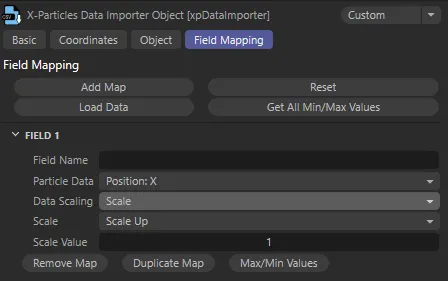
Settings with Data Scaling set to Scale.
Set as Scale Up, by default; the alternative is Scale Down.
Scale Up
Section titled “Scale Up”The data value will be scaled up by the value in Scale Value.
Scale Down
Section titled “Scale Down”The data value will be scaled down by the value in Scale Value.
Scale Value
Section titled “Scale Value”The scale factor to use in Scale mode.
Squash mode settings
Section titled “Squash mode settings”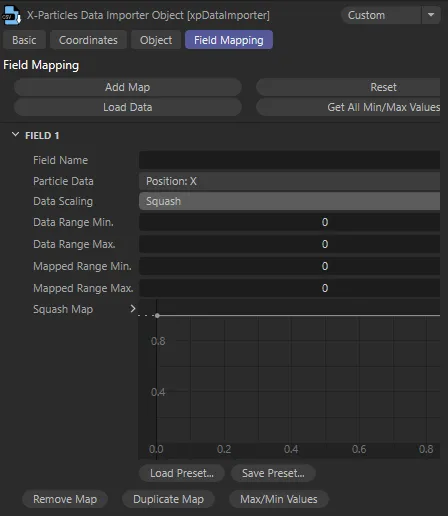
Settings with Data Scaling set to Squash.
Data Range Min, Data Range Max
Section titled “Data Range Min, Data Range Max”These are the limits of the data range to map in Squash mode.
They can be set to whatever you like but normally you would set Data Range Min to the lowest value in the data field and Data Range Max to the largest value.
You can change these ranges if you like.
For example, if the lowest value was 1 and the highest was 100, in most cases you would use these two values for the minimum and maximum.
But you could set them to 10 and 90 if you wished; then the data fields with values 1 to 10 would all have the same value and the data fields with values 90 to 100 would also have a common value.
Mapped Range Min, Mapped Range Max
Section titled “Mapped Range Min, Mapped Range Max”These are the upper and lower limits of the values the data fields will be mapped to in Squash mode.
They can be whatever you like; you can even set them to be outside the Data Range Min and Data Range Max values, if you wish, but this will cause the range of values to be stretched rather than squashed*.*
They can be the same value but if the minimum value is the larger of the two, the range will be set to zero.
Among other things, this means you cannot map a data range of 0 to 100 to a mapped range of 0 to -100.
You can, however, map a data range of 0 to 100 to a mapped range of -100 to 0.
Squash Map
Section titled “Squash Map”This spline is used to control the distribution of values, with a finer control over the result.
In many cases you can ignore this spline control, but it may be useful for some data.
Load Data will need to be clicked again, after changing the spline, or the new spline will not be used.
Remove Map
Section titled “Remove Map”Click this button to remove the map.
Duplicate Map
Section titled “Duplicate Map”If you click this button, the map is duplicated and added to the end of the list of maps.
This is often quicker than clicking Add Map and is particularly useful if you need to copy the Squash Map spline from another map.
Min/Max Values
Section titled “Min/Max Values”Clicking this button will cause the data importer to scan all the values for this particular data item (e.g. particle speed) and insert them into the Data Range Min and Data Range Max fields.
Remove Map
Section titled “Remove Map”Click this button to remove the map.
Duplicate Map
Section titled “Duplicate Map”If you click this button the map is duplicated and added to the end of the list of maps.
This is often quicker than clicking Add Map and is particularly useful if you need to copy the Squash Map spline from another map.
Min/Max Values
Section titled “Min/Max Values”Clicking this button will cause the data importer to scan all the values for this particular data item (e.g. particle speed) and insert them into the Data Range Min and Data Range Max fields.
This is a lot easier than scanning through tens of thousands of lines of data trying to work out the data range you need.
Copyright © 2026 INSYDIUM LTD. All rights reserved.