
xpLink
The xpLink tag, as its name implies, allows you to attach another object to the object being generated by a Generator object.
The tag will have no effect with any other setting.
Adding an xpLink tag to a Generator object will automatically set the correct setting in xpGenerator.
Tag Properties
Section titled “Tag Properties”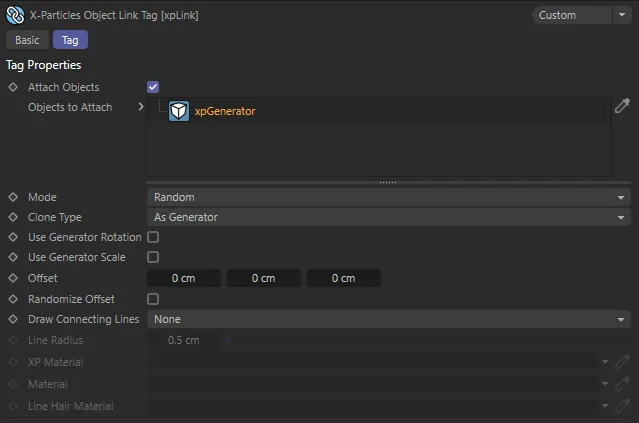
xpLink tag menu settings.
Attach Objects
Section titled “Attach Objects”If this box is unchecked, the objects to be attached will not be generated.
Objects to Attach
Section titled “Objects to Attach”Drag the object(s) you want to attach into this list.
Which object is generated depends on the Mode setting.
Generator objects such as the various Cinema 4D Generator objects, some primitives, cloners, etc. cannot be used.
Convert these to polygon objects first.
The originals of the objects to be attached will be visible in the scene.
You may need to move them well out of camera view to prevent them being rendered.
Alternatively, add the object to be attached as a child object of the xpGenerator.
Since the xpGenerator, when using this tag, must be set to generate the first child only, the original of the object to be attached will not be visible.
Set as Random, by default, the alternative is Sequential.
Random
Section titled “Random”An object to attach will be selected randomly from the list.
Sequential
Section titled “Sequential”The first object in the list will be generated first, then the second, and so on until all objects have been generated.
The sequence will then start again with the first object.
Clone Type
Section titled “Clone Type”Set as As Generator, by default, this drop-down lets you choose how the clones of the linked object are generated.
The other options are: Duplicate, Create Instances and Create Render Instances.
As Generator
Section titled “As Generator”Uses the same setting as in the Generator object to which the tag is attached.
Duplicate
Section titled “Duplicate”Generates full copies, as if you duplicated the object in the object manager.
Create Instances
Section titled “Create Instances”Generates Cinema 4D instances.
Render Instances
Section titled “Render Instances”Generates render instances.
Details of instances and render instances can be found in the Cinema 4D documentation.
This is due to internal workings of Cinema 4D; a simple workaround is to position the source object off screen in such a position that it will never appear in the rendered image.
Use Generator Rotation
Section titled “Use Generator Rotation”If checked, this will cause the attached object to be rotated according to the Rotation setting in xpGenerator.
Use Generator Scale
Section titled “Use Generator Scale”If checked, this will cause the attached object to be scaled according to the Scale setting in xpGenerator.
Offset
Section titled “Offset”By default the offset is set to zero, which will generate the attached object at the same position as the object from xpGenerator.
To offset the position, change the values in this field.
You can add an offset along any of the three axes.
Randomize Offset
Section titled “Randomize Offset”If this box is checked, the offset value are randomised.
The maximum offset will be the same as in the Offset field.
The minimum offset will be the Offset field value multiplied by -1 (i.e. if the X value in the Offset field is 50, when Randomise Offset is checked, the actual value can range from -50 to 50).
Draw Connecting Lines
Section titled “Draw Connecting Lines”Set as None, by default, the tag can draw connecting lines between the object from xpGenerator and the attached object.
The other options are: Use XP Material, Use Sweep Object, Use Hair Material and Use Sketch & Toon.
No connecting lines will be produced.
Use XP Material
Section titled “Use XP Material”The lines will be rendered using an XP Material.
Drop such a material into the XP Material link field.
Use Sweep Object
Section titled “Use Sweep Object”A Sweep object will be generated automatically.
You can set the radius of the line in the Line Radius setting.
Use Hair Material
Section titled “Use Hair Material”This will render the lines with the Hair renderer (if your version of Cinema 4D supports that).
To use it, you must also drag a hair material into the Line Hair Material field.
Use Sketch & Toon
Section titled “Use Sketch & Toon”If your version of Cinema 4D supports Sketch & Toon, you can render the lines using this option.
Line Radius
Section titled “Line Radius”Only used when Draw Connecting Lines is set to Use Sweep Object.
The radius of the resulting line can be set here.
XP Material
Section titled “XP Material”Only used when Draw Connecting Lines is set to Use XP Material.
Drag the material to be used by the line into this field.
Material
Section titled “Material”Only used when Draw Connecting Lines is set to Use Sweep Object.
Drag the material to be used by the line into this field.
Line Hair Material
Section titled “Line Hair Material”Only used when Draw Connecting Lines is set to Use Hair Material.
Drag the Hair material to be used by the line into this field.
Copyright © 2026 INSYDIUM LTD. All rights reserved.