
Forces tab
The Forces tab allows you to control exterior forces that influence the xpBullet dynamic objects.
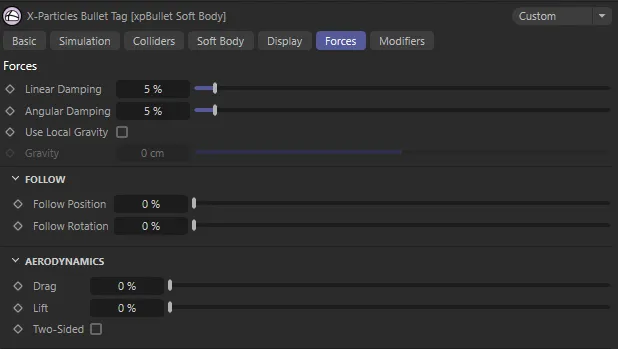
The Forces tab menu settings, which has identical parameters for all xpBullet tags.
Forces
Section titled “Forces”Linear Damping
Section titled “Linear Damping”Use this setting to soften and control the movement of dynamic objects in your scene.
Angular Damping
Section titled “Angular Damping”As with the above parameter, this will give less volatile rotational movement of dynamic objects in your scene.
Use Local Gravity
Section titled “Use Local Gravity”By default, scene objects with an xpBullet Rigid Body or Soft Body tag will be affected by the xpBullet global gravity setting; this can be found in the X-Particles Project Settings (Command+D).
Use Local Gravity overrides the global gravity setting, with a user-defined value; this makes it possible for bullet objects to fall at different rates.
To do this, set the project global gravity to 0 (zero) and and check Include Scene Modifiers in the Modifiers tab.
This method offers the highest level of control, enabling the use of Data Mapping and Fields.
In this scene, Use Local Gravity is disabled for both objects. This means the xpBullet world gravity, in the Project Settings, is controlling their gravitational forces (at the default of -981cm).
Use Local Gravity is enabled for the Cube only, in this animation, with the Gravity in the xpBullet tag set to 0 (zero) cm.
Here, Use Local Gravity is enabled for both the Sphere and the Cube. With Include Scene Modifiers enabled in the Modifiers tab of the xpBullet tag, the gravity of the xpBullet dynamic objects is governed by the xpGravity modifier. The strength of modifier is then controlled by a Linear field.
Follow
Section titled “Follow”Follow imparts the predetermined motion from different systems, such as Cinema 4D’s MoGraph system, to the xpBullet dynamic objects.
This scene has Cloner and two effectors (Random and Plain). The Random effector has a Shader field, using an animated noise to move the Cubes, with different strengths being illustrated by different colors (blue being high strength). At the start of the animation, there are no collisions, instead you can see intersections between the Cubes. An xpBullet RIgid Body tag is placed on the Cloner and Use Local Gravity is checked to ensure local gravity is enabled. This results in no movement, only color changes from the shader. Finally, Follow Position and Follow Rotation are both set to 100%, resulting in dynamic collisions and no further intersections.
Follow Position
Section titled “Follow Position”Depending on the value set, the object will follow any animation set with a degree of accuracy.
Follow Rotation
Section titled “Follow Rotation”Depending on the value set, the object will follow any rotation of the animation with a degree of accuracy.
Aerodynamics
Section titled “Aerodynamics”These settings change how objects interact with the air in the scene environment.
This animation illustrates the aerodynamic effects of the Lift and Drag parameters.
Sets a level of air resistance in your scene.
This setting offers you the option of setting a level of lift force working against your scene object.
Two-Sided
Section titled “Two-Sided”If you have an object that has two sides and you want both of them to interact with the aerodynamics in your scene, check this box.
Copyright © 2026 INSYDIUM LTD. All rights reserved.