
xpPlanarMesher
xpPlanarMesher takes a particle stream and adds polygons (triangles) between particles depending on the closeness of particles to one another.
It uses exactly the same algorithm as the xpTrail object Nearest by Distance connection mode so, if you wish, you can use the two objects together.
This is a simple mesher which generates geometry between three particles, using the Distance Mode settings, described below.
Since the algorithm is the same as the xpTrail object (in Nearest by Distance mode), you can generate and texture the geometry then render the splines from the xpTrail object to give an outline to the triangles.
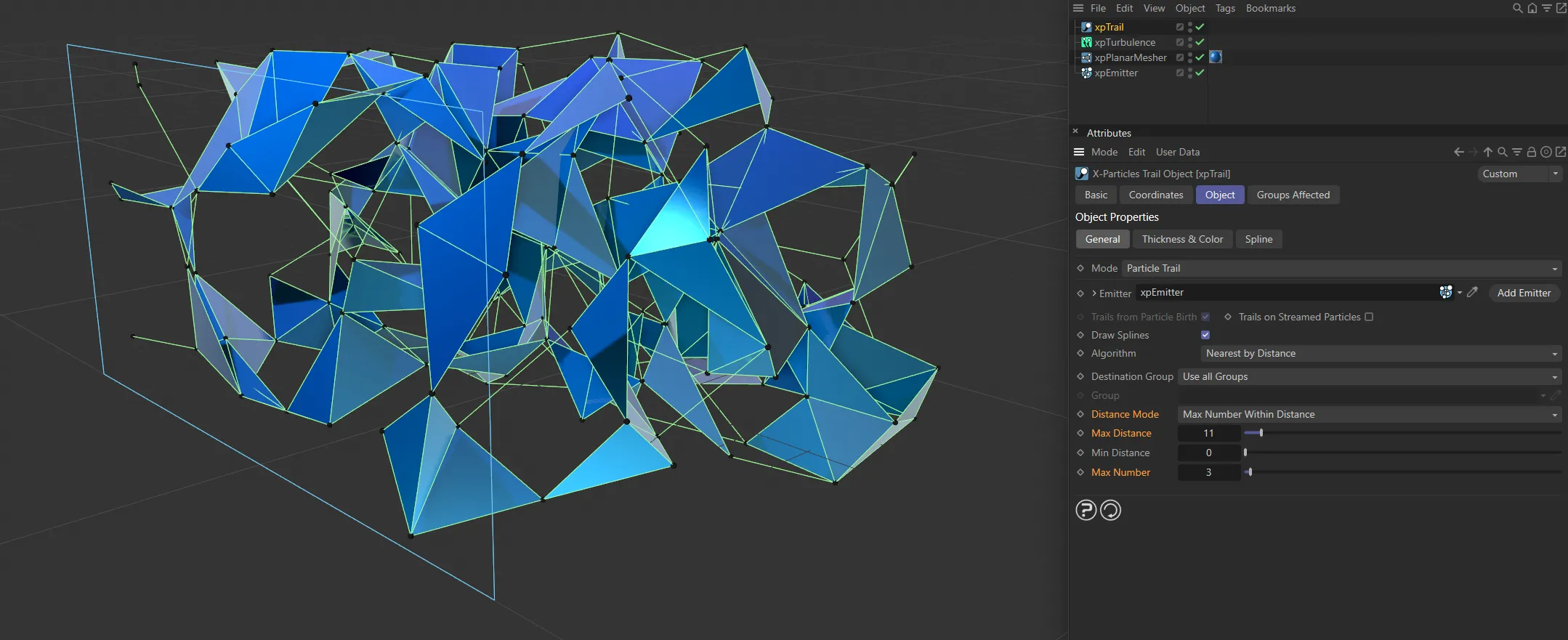
This image demonstrates the xpPlanarMesher in conjunction with an xpTrail object.
In that case, any spline triangle formed by connecting particles together in the xpTrail object will always be filled with a polygon.
However, if the Distance setting in xpTrail is greater than the Distance setting in xpPlaneMesher, you will see spline triangles which are not filled.
Of course, this may be what you want.
Conversely, if the Distance setting in xpTrail is smaller than the Distance setting in xpPlaneMesher, you will see polygons which don’t always have a spline on each edge.
The xpPlaneMesher object does not produce a closed mesh, nor does it produce a mesh with volume like xpOpenVDBMesher.
Object Properties
Section titled “Object Properties”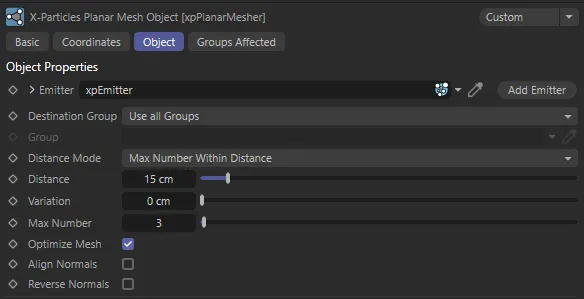
xpPlanarMesher Object tab settings.
Emitter
Section titled “Emitter”Drag the emitter the object will use as the particle source into this field.
Add Emitter
Section titled “Add Emitter”Click this button to create a new emitter and add it to the Emitter link field.
Destination Group
Section titled “Destination Group”Set as Use All Groups, by default, this lets you select which particle groups are used in making the connections.
The alternative settings are: Only Same Group, Only Different Groups, Specific Group and All Except Specific Group.
Use All Groups
Section titled “Use All Groups”Each particle will form connections to other particles regardless of which group they are in.
Only Same Group
Section titled “Only Same Group”Each particle will only form connections to particles in the same group as itself.
Only Different Groups
Section titled “Only Different Groups”Each particle will only form connections to particles in different groups to itself.
Specific Group
Section titled “Specific Group”Each particle will only form connections to particles in a specific group; specify which group to use by dragging the Group object into the Group link field.
All Except Specific Groups
Section titled “All Except Specific Groups”Each particle will only form connections to particles which are not in a specific group; specify which group to use by dragging the Group object into the Group link field.
This field contains the group to use when Destination Group is set to Specific Group or All Except Specific Group.
Distance Mode
Section titled “Distance Mode”Set as Max Number Within Distance, by default, this drop-down menu has two settings.
The alternative is All Within Distance.
All Within Distance
Section titled “All Within Distance”Each particle will connect to every other particle which is closer to it than the value given in the Distance setting.
Increasing that value will result in more connections because more particles will be within that distance.
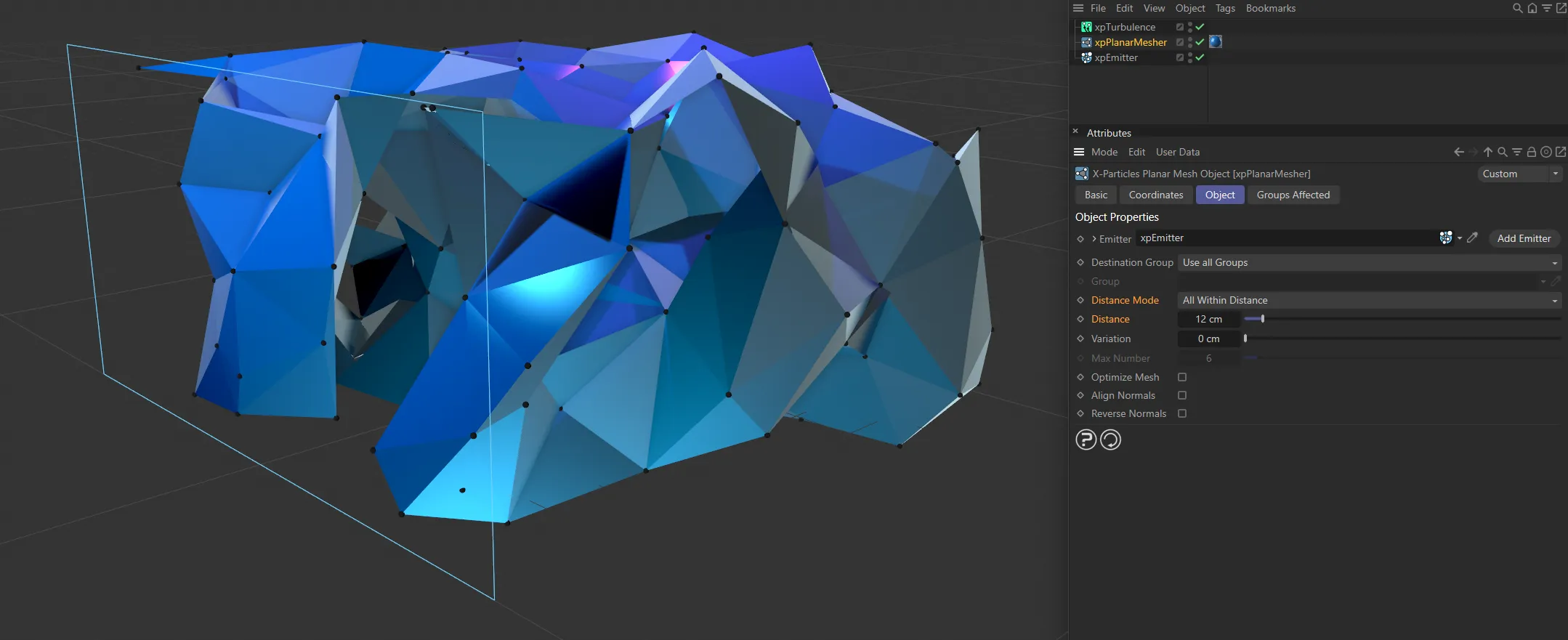
In this image, the Distance Mode is set to All Within Distance, with a Distance value of 12cm.
Max Number Within Distance
Section titled “Max Number Within Distance”This is the same as All Within Distance except that you can use the Max Number setting to limit the maximum number of connections.
For example, if this is set to 5, and there are 10 particles within the threshold distance, connections will only be made to the 5 closest particles.
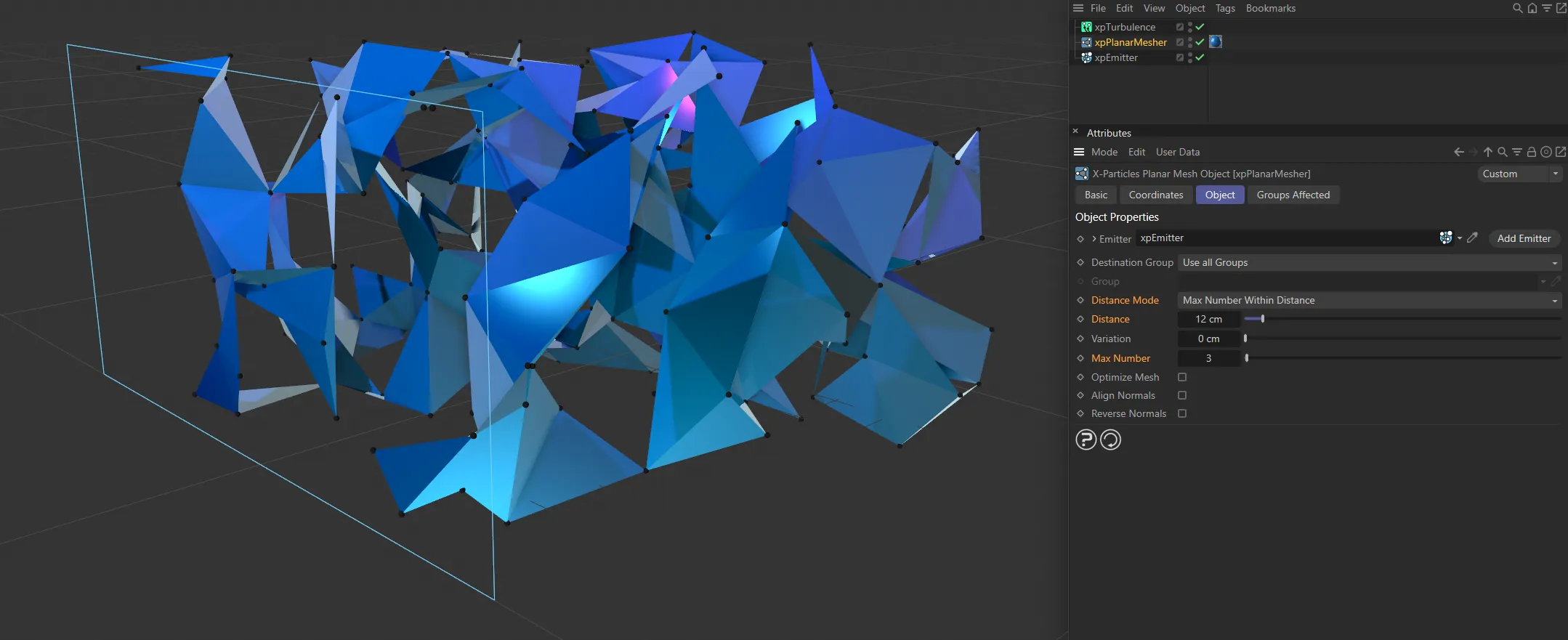
Distance Mode now set to Max Number Within Distance, with the same Distance value but a Max Number of 3 is giving fewer meshed planes.
Distance, Variation
Section titled “Distance, Variation”This is the maximum distance between two particles which will become one edge of a possible triangle.
The lower this distance, the fewer triangles will be generated, since there will be fewer pairs of particles which are that close together.
You can add some variation for different particles by using the Variation setting.
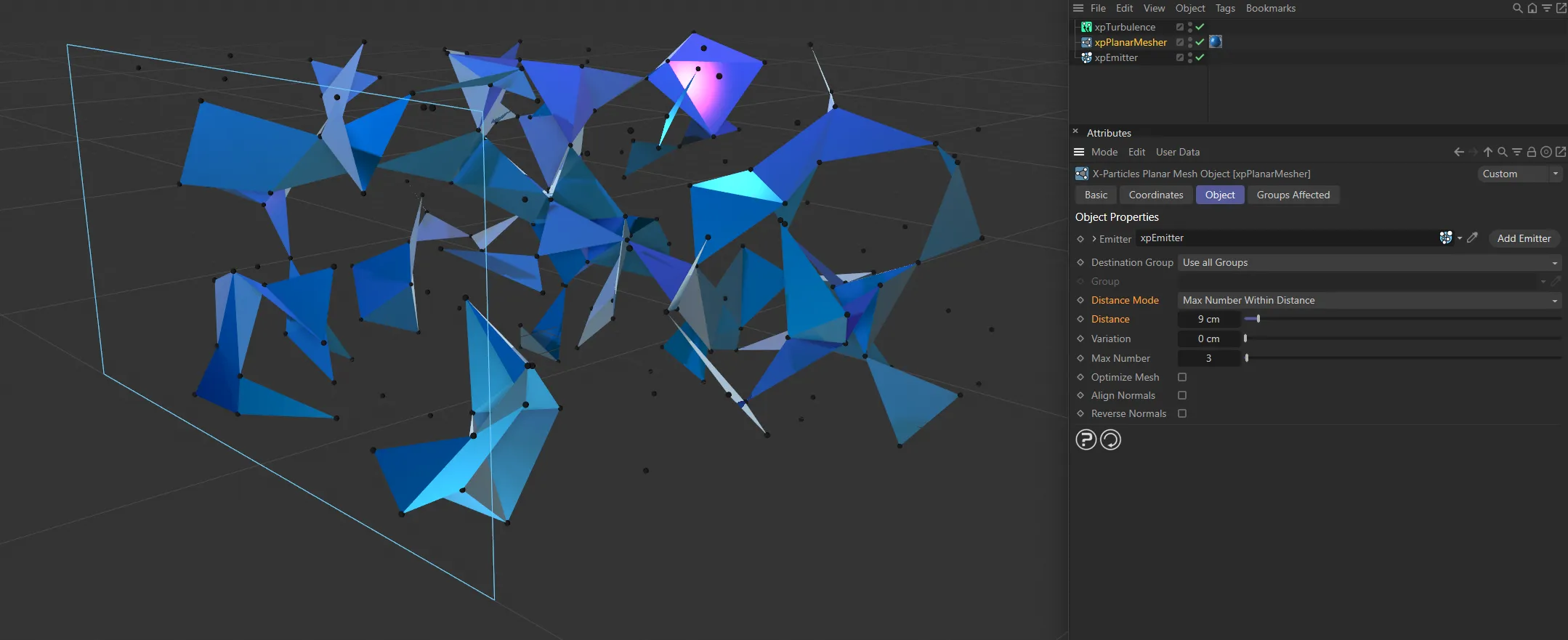
Distance set to 9cm.
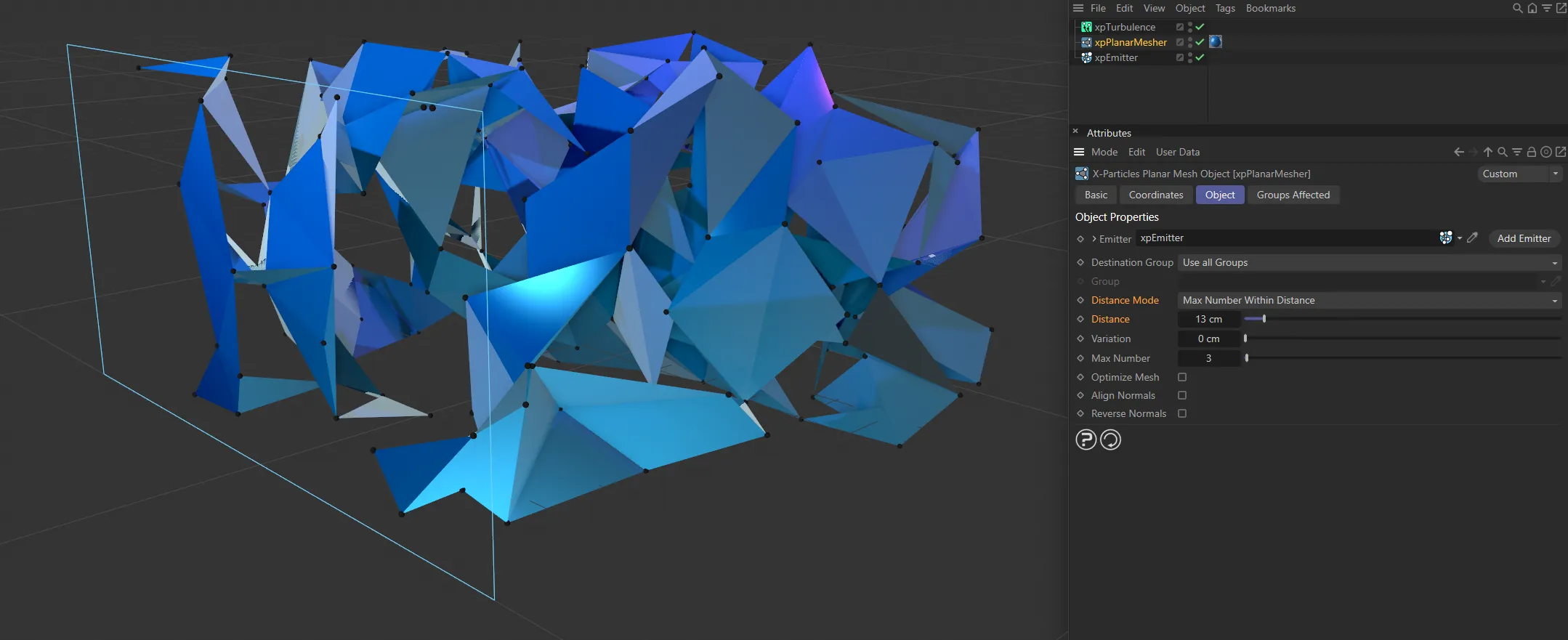
Distance raised to 13cm.
Max Number
Section titled “Max Number”This is the maximum number of connections to use when Distance Mode is set to Max Number Within Distance.
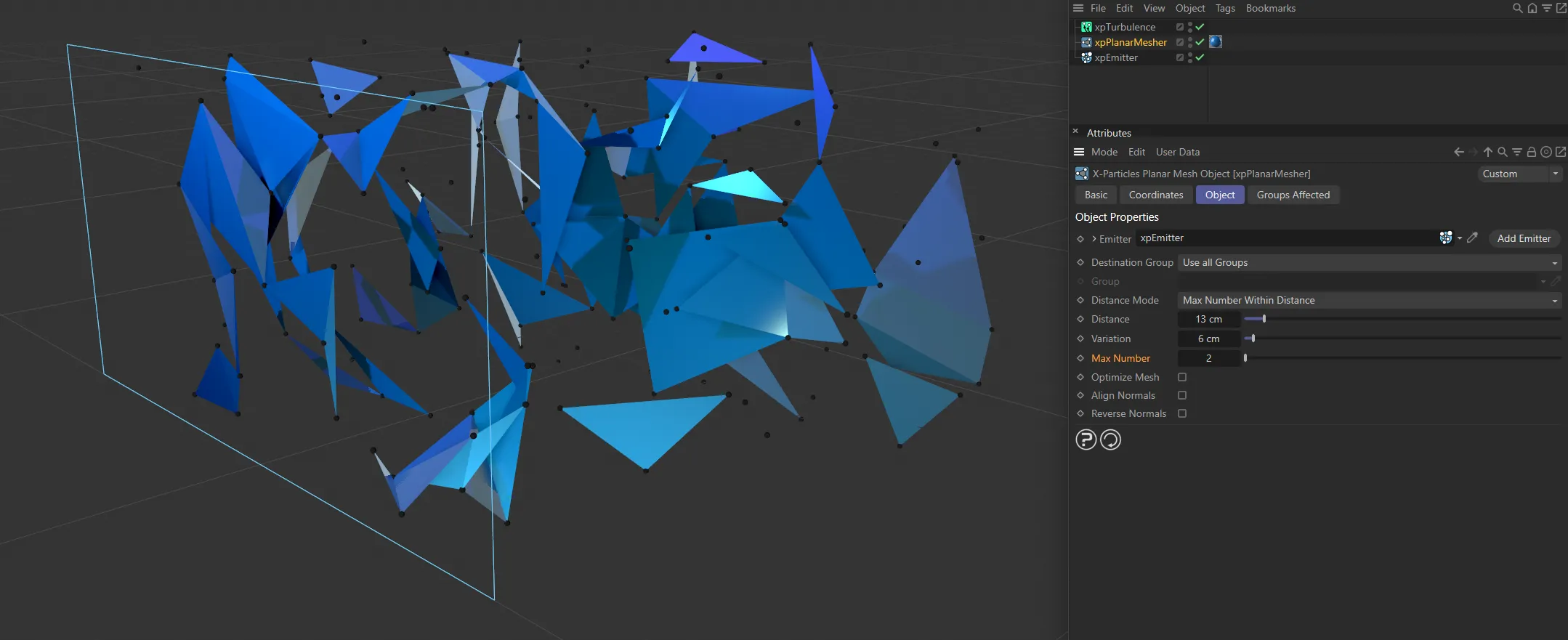
Max Number set to 2.
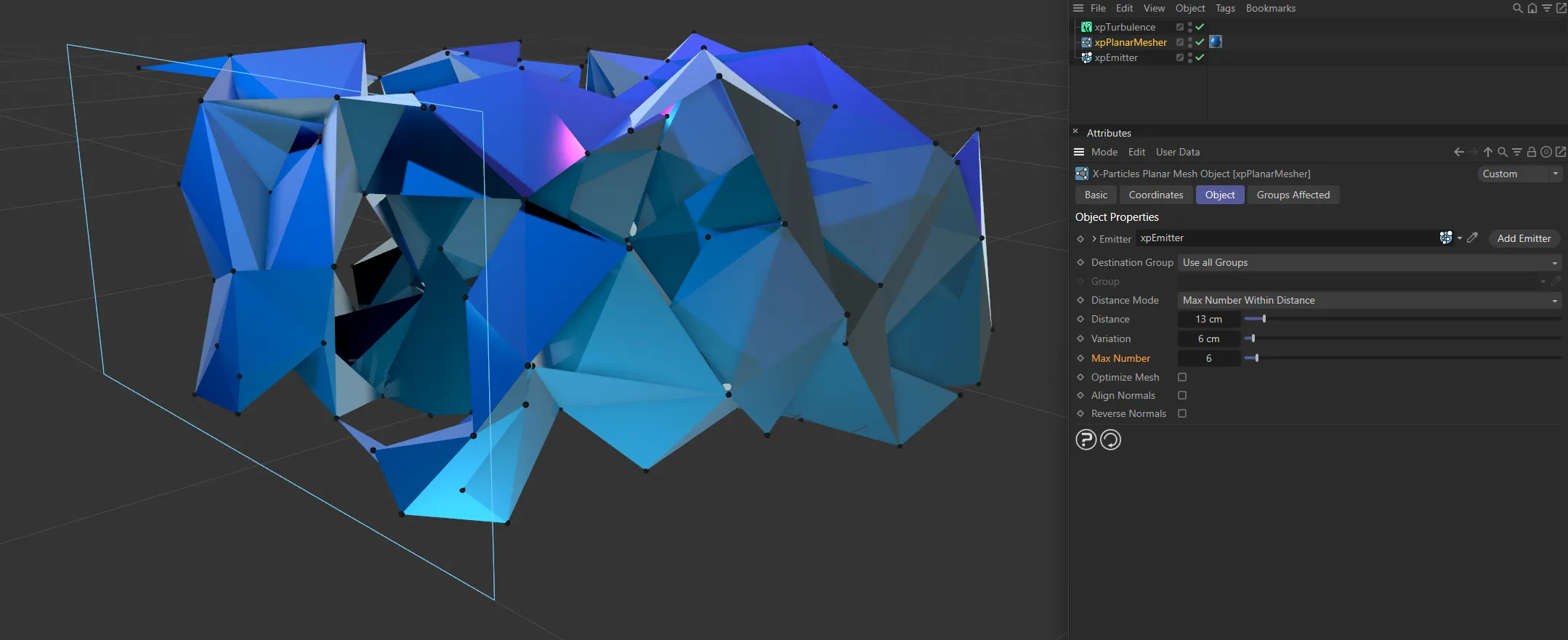
Max Number increased to 6.
Optimize Mesh
Section titled “Optimize Mesh”If this is enabled, the generated mesh will be optimized to remove unused points, duplicate points, etc.
This is the same as using Cinema 4D’s Optimize command with the default values.
Normally you should leave this enabled.
If you add thickness to the mesh using a Cloth object or some other method (this is not recommended, but the option is there), you may need to disable this.
Doing so will avoid jumps in the mesh size as the polygon count changes but will result in a poorer-quality mesh.
Align Normals
Section titled “Align Normals”If this is enabled, the normals of the resulting mesh will be aligned.
This is the same as the Align Normals command in Cinema 4D.
Reverse Normals
Section titled “Reverse Normals”If this is enabled, the normals of the resulting mesh will be reversed.
This is the same as the Reverse Normals command in Cinema 4D.
Groups Affected tab
Section titled “Groups Affected tab”Groups
Section titled “Groups”To specify the group, drag and drop the desired Group object into this field.
This setting is useful if you want to ensure that the spawned particles are, or are not, affected by xpPlanarMesher.
Copyright © 2026 INSYDIUM LTD. All rights reserved.