
xpGenerator
xpGenerator creates objects from the position of particles.
The xpEmitter object only generates and manipulates particle data.
If you want objects to be associated with those particles, you will need to add an xpGenerator object.
First, create the object then make it a child of the Generator object.
Ensure that Draw Mode is set to Geometry Only or Geometry and Particles.
Playing the animation will now generate multiple copies of the child object(s).
General tab
Section titled “General tab”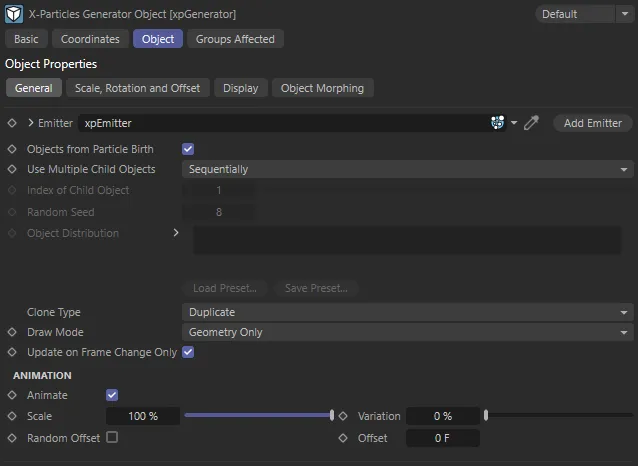
xpGenerator General tab menu.
Emitter
Section titled “Emitter”For objects to be generated from particles, you must tell the xpGenerator object which emitter it will work with.
Drag an emitter object into this field to do that.
Until you have done so, you will not be able to access any of the other settings in the xpGenerator menu.
Add Emitter
Section titled “Add Emitter”Click this button to create a new emitter and add it to the Emitter link field.
In this animation, an xpEmitter is added to the Emitter field and the Cone, Torus and Platonic primitives are activated as children of the xpGenerator, replacing the particles once play is pressed.
Objects from Particle Birth
Section titled “Objects from Particle Birth”If this is enabled, an object will be generated for each particle as soon as it is created.
If it is unchecked, no object will be generated for newly-created particles until this is checked again or until object generation for a particle is turned on by an Action object.
You should normally leave this enabled, unless you are sure you want to turn it off.
Use Multiple Child Objects
Section titled “Use Multiple Child Objects”Set as Sequentially, by default, this setting determines how the generator will deal with more than one child object.
The alternative options are: Randomly, First Child Only, Choose by Index, Assign by Group and Use Gradient.
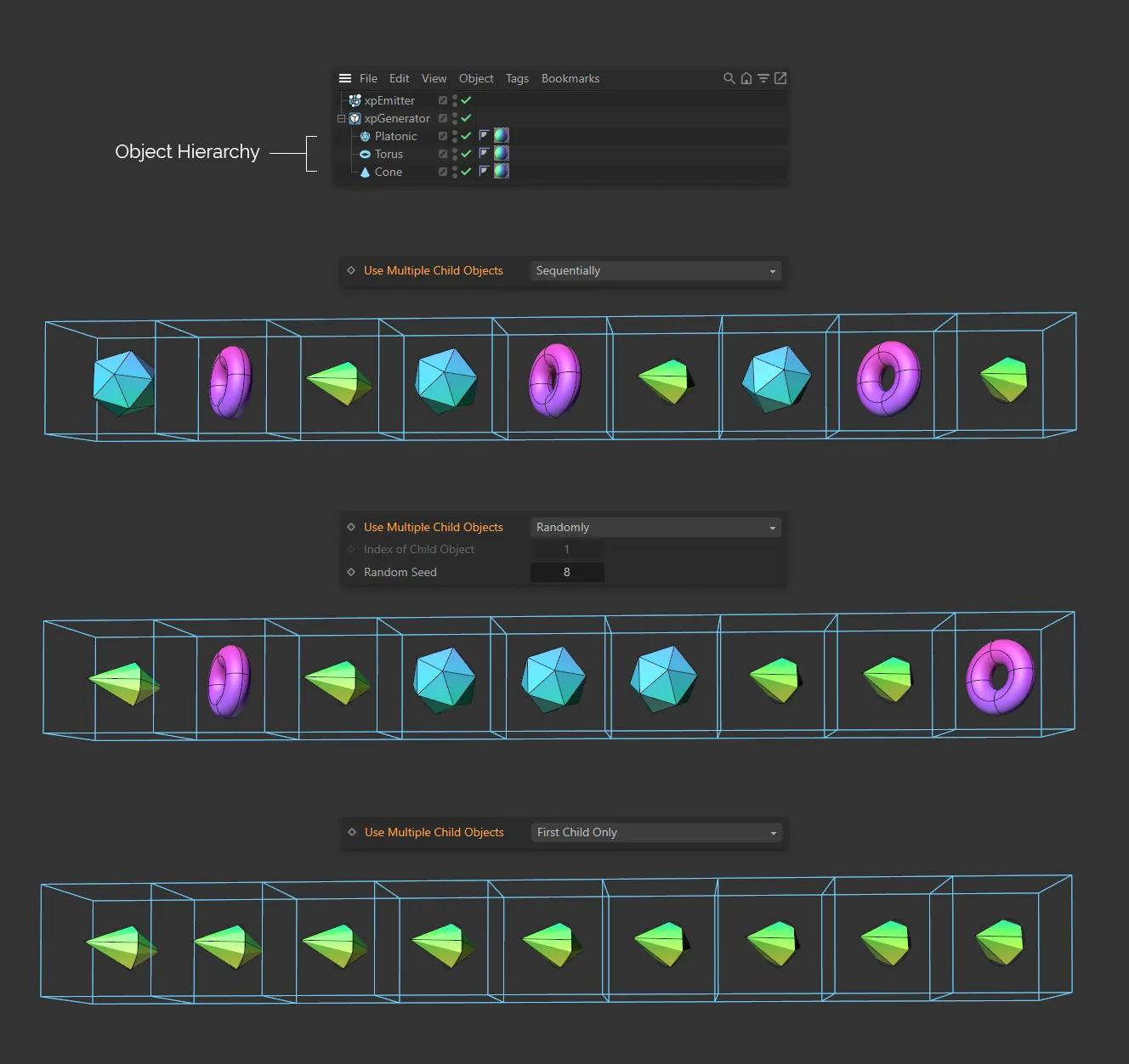
Image to demonstrate the three settings of Use Multiple Child Objects: Sequentially, then Randomly and, finally, First Child Only, with the subsequent order of generation.
Sequentially
Section titled “Sequentially”For each particle the xpGenerator will generate one of its child objects in turn.
For example, if you have an xpGenerator with three child objects - a Cube, a Sphere, and a Cone - the first particle will generate a Cube, the second a Sphere, the third a Cone, the fourth a Cube again, and so on.
Randomly
Section titled “Randomly”For each particle, xpGenerator will choose one of the child objects at random.
First Child Only
Section titled “First Child Only”The xpGenerator will ignore other child objects and just generate the first valid child.
Choose by Index
Section titled “Choose by Index”In this mode, you can choose which child object is to be generated.
The first valid child is given the index of 1, the second is 2, and so on.
The great advantage is that you can change the object generated with an action, so when a particle satisfies the required criteria it can be made to generate a different object.
Assign by Group
Section titled “Assign by Group”Child objects are assigned to each particle according to the particle’s group.
For example, group 1 particles are associated with the first child object of the generator, group 2 particles with the second child object, etc.
Use Gradient
Section titled “Use Gradient”With this option the Object Distribution gradient is available and you can use that to control the distribution of objects.
Index of Child Object to Generate
Section titled “Index of Child Object to Generate”Only available if you select Choose by index from the Use Multiple Child Objects options.
If xpGenerator only has two child objects and you enter a ‘3’ here, nothing will be generated.
Random Seed
Section titled “Random Seed”The seed value for the random selection of objects when you select Randomly from Use Multiple Child Objects.
Object Distribution
Section titled “Object Distribution”This is a gradient which becomes available if Use Multiple Child Objects is set to Use Gradient.
It has no effect if xpGenerator only has one child object.
To use this gradient, the colors are not used at all; it is the position of any knots that is important.
For example, if you have three child objects, to control the distribution you would need a gradient with two knots.
If the two knots are set at 10% and 90% along the gradient, the first and third child objects would each make up 10% of the total and the second child object would make up the remaining 80% (in the middle).
Clone Type
Section titled “Clone Type”Set as Duplicate, by default, this setting lets you choose how the clones of the child objects are generated.
The alternative settings are: Instances and Render Instances.
Duplicate
Section titled “Duplicate”Generates full copies, as if you duplicated the object in the object manager.
Instances
Section titled “Instances”Generates Cinema 4D instances.
Render Instances
Section titled “Render Instances”Generates render instances.
Multi Instances
Section titled “Multi Instances”Generates multi instances.
Draw Mode
Section titled “Draw Mode”Set as Geometry Only, by default, this determines what xpGenerator shows in the editor and at render time.
The alternative settings are: Particles Only, Geometry and Particles and Geometry on Render Only.
Geometry Only
Section titled “Geometry Only”This will turn off the editor display of the particles.
This is because it can be distracting to see the particles and objects in the editor at the same time, especially in wireframe views.
Particles Only
Section titled “Particles Only”Geometry will not be displayed and only the particles are shown.
This is very useful if you are caching a scene which generates a lot of geometry.
Because Cinema 4D is quite slow in drawing multiple objects on screen, caching a lot of particles with geometry is also slow, as the geometry is shown in the editor.
You can use this setting to generate the cache, then reset the drop-down menu to one that produces geometry before you render the cached scene.
Geometry and Particles
Section titled “Geometry and Particles”Both objects and particles are displayed.
Geometry on Render Only
Section titled “Geometry on Render Only”With this setting, geometry will not be generated in the editor (so speeding up the viewport) but will automatically be generated when rendering to the picture viewer.
This is a convenience setting so you don’t have to remember to switch object generation on and off when creating a scene or rendering it.
This is because the generator will be cached when it is not producing any geometry, so nothing will be rendered.
The solution to this is to not cache the generator (turn generators off in the cache object’s Inclusion tab, or drop the generator into the Exclude list).
Alternatively, use an option other than Geometry on Render Only.
Update on Frame Change Only
Section titled “Update on Frame Change Only”This setting was added to prevent xpGenerator from constantly refreshing the generated objects even when nothing in them had changed.
This is due to Cinema 4D asking for them to be refreshed for reasons which have nothing to do with X-Particles.
If this is enabled, xpGenerator will only rebuild the generated objects when the current frame changes.
Animation
Section titled “Animation”Animate
Section titled “Animate”To explain this, suppose you are generating a sphere whose radius is keyframed to increase from 0 (zero) to 100 over a number of frames.
If Animate is enabled, when a new sphere is generated, its initial radius will be 0 (zero) and will increase to 100 as the particle gets older.
If Animate is off, then for a new sphere generated at (for example) frame 30, it will have the radius of the original sphere at 30 frames.
Normally you would leave this enabled, but it can be disabled if desired.
Animate is enabled here, with a Scale value of 100%. The objects are animated to scale up over 60 frames.
Scale and Variation
Section titled “Scale and Variation”The Scale value determines how fast the object will be animated.
If you add some variation, the objects will be animated at different speeds.
Random Offset and Offset
Section titled “Random Offset and Offset”By default, all animated objects will be animated from the same point in the scene; all objects will appear to have the same animation.
You can adjust the starting point by altering the Offset value.
You may want the objects to be animated from different starting points from each other, giving a more natural effect.
To do this, enable the Random Offset setting.
Scale, Rotation and Offset tab
Section titled “Scale, Rotation and Offset tab”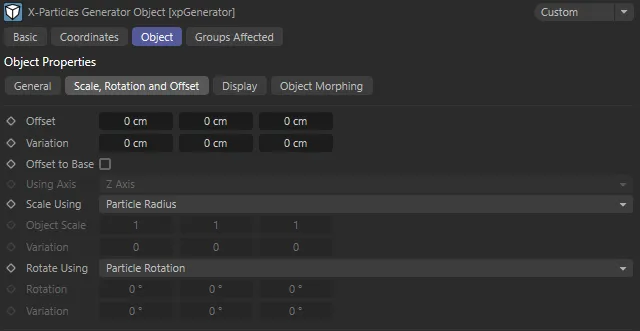
xpGenerator Scale, Rotation and Offset tab menu.
Offset and Variation
Section titled “Offset and Variation”By default, the generated object is given the same position as its source particle.
If desired, you can offset the object from the particle using these two parameters.
Animation to demonstrate the effect of the Offset parameters.
Offset to Base
Section titled “Offset to Base”This option is of most use when emitting from an object.
It will try to ensure that the base of the generated object is resting on the emission object, rather than being partly buried in it.
Using Axis
Section titled “Using Axis”Set as Z Axis, by default, this option lets you select which is the ‘base’ of the object.
The alternatives are the other axes: X Axis and Y Axis.
This setting is only available if Offset to Base is enabled.
Scale Using
Section titled “Scale Using”Set as Particle Radius, by default, the size of the generated objects can be set in one of four ways from this drop-down.
The three alternative settings are: Particle Scale, Source Object Scale and Set Scale.
Particle Scale
Section titled “Particle Scale”The scale of the particle will be used to scale the geometry.
By default, particles have a scale of 1, so with this option the generated object will have the same size as the source object, unless the particle scale is changed.
Particle Radius
Section titled “Particle Radius”This option will scale the object size up or down to match the particle radius.
If the bounding box has zero size, the scale will be set to zero.
Source Object Scale
Section titled “Source Object Scale”The generated object will have the same scale as the source object, regardless of the particle scale.
Set Scale
Section titled “Set Scale”With this option, you can set the generated object’s scale from the xpGenerator object.
Values are given in the Object Scale setting and variation can be added with the Variation setting.
Object Scale and Variation
Section titled “Object Scale and Variation”These are used when the Scale Using parameter is set to Set Scale.
Rotate Using
Section titled “Rotate Using”Set as Particle Rotation, by default, this setting determines how the generated object is rotated.
It has three other options: Set Rotation, Source Object Rotation and Offset Particle Rotation.
Particle Rotation
Section titled “Particle Rotation”The object rotation is set to the rotation of the particle.
Set Rotation
Section titled “Set Rotation”The object rotation can be set from the xpGenerator object using the Rotation and Variation fields.
Source Object Rotation
Section titled “Source Object Rotation”The generated object will have the same rotation as the source object, regardless of the particle rotation.
Offset Particle Rotation
Section titled “Offset Particle Rotation”With this setting, the object rotation is set to the rotation of the particle, plus an offset given in the Rotation and Variation fields.
This animation demonstrates the effect of the Rotation parameters.
Rotation and Variation
Section titled “Rotation and Variation”These fields are used when Rotate Using is set to Set Rotation or Offset Particle Rotation.
Display tab
Section titled “Display tab”This is a convenience tab, to set display modes for the generated objects.
It reproduces a subset of the the settings of the Cinema 4D Display tag.
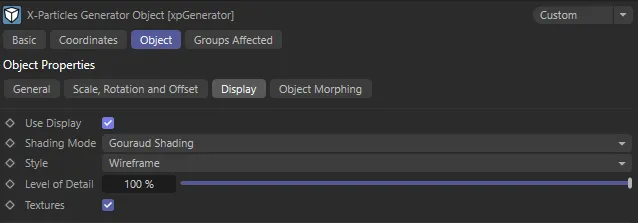
xpGenerator Display tab menu.
Use Display
Section titled “Use Display”If unchecked, no changes to the object display are made.
Shading Mode
Section titled “Shading Mode”The shading mode, as found in the Cinema 4D Display tag.
The style, as found in the Cinema 4D Display tag.
Level of Detail
Section titled “Level of Detail”The level of detail in the generated objects.
You can reduce this to reduce the displayed polygons in each object, to speed up the simulation.
Only the editor display is affected, not the rendered result.
Textures
Section titled “Textures”If this is unchecked, textures on the generated objects are not used in the viewport.
They are still used on rendering.
Object Morphing tab
Section titled “Object Morphing tab”The settings in this section are used to control object morphing, to change generated objects from one to another.
The complete settings of xpMorph will be explained in a standalone page in a future wave of the X-Particles manual.
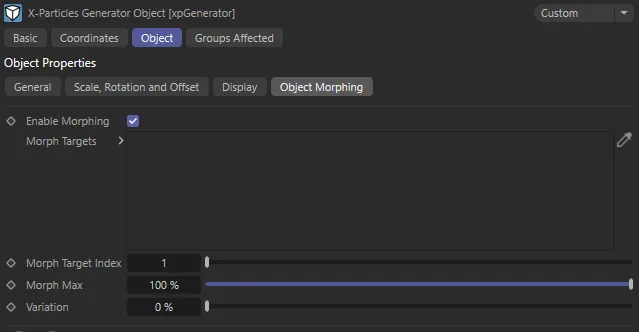
xpGenerator Object Morphing tab menu.
Enable Morphing
Section titled “Enable Morphing”Uncheck this, to disable morphing.
Morph Targets
Section titled “Morph Targets”Drag into this list any objects you wish to use as morph targets.
Each object must also be a child object of the xpGenerator object.
In this animation, there are two Platonic objects with the same vertex count; the first resembles a cube and the second has offset faces. The xpGenerator is set to generate the first object
only and the second object is set as the Morph Target. The result is this morphing from the cube-like object to the second object.
Morph Target Index
Section titled “Morph Target Index”The index of the object in the list you wish to morph to.
This starts at 1 (the first object in the list).
Morph Max
Section titled “Morph Max”This is the amount of morphing that will take place.
Normally this is set to 100%, a complete morph from the initial object to the morph target.
It can be reduced for an incomplete morph, if desired.
Variation
Section titled “Variation”This adds some random variation to the Morph Max setting so that the generated objects can show different amounts of morphing, if desired.
Groups Affected tab
Section titled “Groups Affected tab”Groups
Section titled “Groups”To specify the group, drag and drop the desired Group object into this field.
This setting is useful if you want to ensure that the spawned particles are, or are not, affected by xpGenerator.
Copyright © 2026 INSYDIUM LTD. All rights reserved.