
xpFragmenter
xpFragmenter performs two functions: it enables you to generate individual polygons from the faces of a polygon object used as an emitter source (which can give the appearance of a fragmenting object) or it can be used to move existing objects in the 3D world using the particle engine.
Object Properties
Section titled “Object Properties”The xpFragmenter has two modes with different parameters: Faces (Objects and Polys) mode and Objects mode.
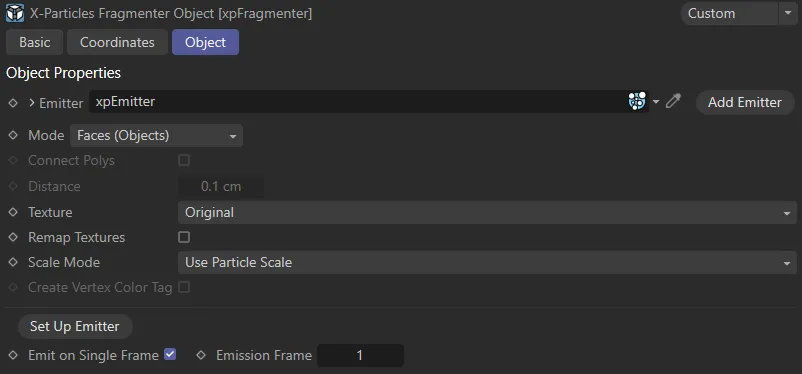
xpFragmenter Object tab, Faces (Objects) mode settings.
Emitter
Section titled “Emitter”In all modes, xpFragmenter requires an emitter to work with.
Drag an emitter into this field to make the other parameters available.
Set as Faces (Objects), by default.
The alternatives are: Faces (Polys) and Objects.
Faces (Objects) mode
Section titled “Faces (Objects) mode”A one-polygon object will be generated from each face of the source object used in the emitter from which a particle is generated.
This mode generates multiple objects and can slow down playback, but each object can be individually scaled and rotated if required.
In this animation, the Mode is Faces (Objects), with Texture set to Use Particle Color. Each polygon, being its own object, is being shaded by the particle color in the viewport.
Faces (Polys) mode
Section titled “Faces (Polys) mode”A single object is generated with each polygon corresponding to a face in the source object used in the emitter.
This is much faster to play back in the editor but the faces cannot be scaled or rotated individually.
The appearance of the generated faces is the same as in Faces (Objects) mode.
This scene has the Mode set as Faces (Polys); the xpFragment is connecting the polys to get smooth shading and is also using the base object’s texture.
Objects mode
Section titled “Objects mode”This is the other mode of xpFragmenter.
It does not generate any new objects but enables existing objects to be moved around the 3D world using the X-Particles particle engine, modifiers, etc.
With Mode set as Objects, this animation shows a geo reciprocating the X-Particle modifier influences (following xpWind and xpSpin), whilst remaining a solid object.
Faces (Objects) and Faces (Polys) mode settings
Section titled “Faces (Objects) and Faces (Polys) mode settings”You can, of course, resize the object manually or use the Coordinates Manager to resize it, but you should not alter the scale from the default in the Attributes Manager.
This is because doing so will change the object’s matrix, creating problems such as incorrect polygon placing and rotation.
Connect Polys
Section titled “Connect Polys”Only available in Faces (Polys) mode, this setting causes the polygons to be connected if they are within range of each other.
The range is given in the Distance setting.
Distance
Section titled “Distance”Polygons closer together than this value will be connected but only in Faces (Polys) mode, if Connect Polys is enabled.
Texture
Section titled “Texture”Set as Original, by default, the generated faces can be assigned a texture with this setting.
This setting is only available when Mode is set to Faces (Objects).
The alternative settings are: Random/Multishader and Use Particle Color.
Original
Section titled “Original”The generated faces will each receive a copy of the texture applied to xpFragmenter.
By default, each face will receive a complete copy of the bitmap or shader applied to xpFragmenter.
However, if Remap Textures is ticked, each face receives the same portion of the texture that was displayed by the corresponding face on the source object.
Random/Multishader
Section titled “Random/Multishader”If no texture is applied to the xpFragmenter object and this option is chosen, each face will receive a randomly-generated color.
If a texture containing a MoGraph multishader is applied to xpFragmenter, each face will receive one of the shaders in the multishader.
Use Particle Color
Section titled “Use Particle Color”If no texture is applied to the xpFragmenter object and this option is chosen, each face will receive the color of the particle which generated it.
For this mode to work successfully, no texture must be applied to xpFragmenter.
Remap Textures
Section titled “Remap Textures”This parameter is used when in Faces (Objects) or Faces (Polys) modes.
If enabled, each face receives the same portion of the texture that was displayed by the corresponding face on the source object (which must be a polygon object).
Scale Mode
Section titled “Scale Mode”Set as Use Particle Scale, by default, this drop-down enables you to select how the generated faces will be scaled.
It is not available if Mode is set to Objects.
The alternative setting is Use Particle Radius.
Use Particle Scale
Section titled “Use Particle Scale”The scale of the particle will be used to scale the geometry.
By default particles have a scale of 1 so, with this option, the generated polygons will have the same size as those of the source object, unless the particle scale is changed.
Use Particle Radius
Section titled “Use Particle Radius”This option will scale the polygon size up or down to match the particle radius.
You will probably need to set a fairly large radius to see the generated faces, if you select this mode.
Create Vertex Color Tag
Section titled “Create Vertex Color Tag”This parameter is only available in Faces (Polys) mode.
It will cause a vertex color tag to be added to the xpFragmenter object, taking the color from the particle associated with each polygon.
You can then use this tag in a vertex map shader to color the polygon faces.
This feature only works in Faces (Polys) mode but it will not work if the Connect Polys setting is ticked
To use this feature, check this box and, when you run the animation, the tag is automatically created and populated with the color data for each particle.
To shade the polygons, add a new material to the xpFragmenter object, then, in the material, add a vertex map shader to the desired channel and drop the vertex color tag into the shader.
If you emit more than one frame’s worth of particles, this will increase the particle and face count, causing the tag to be recreated.
Unfortunately, it is not possible to alter the amount of data stored by the tag without first deleting and rebuilding it.
Other actions may also cause the tag to be recreated.
For example, if you subdivide the source object, or you change the source object to another one, the tag is recreated and you will need to drop the new tag into the shader again.
If you need to delete the tag permanently, first disable this setting then delete the tag, otherwise, it will be created again automatically.
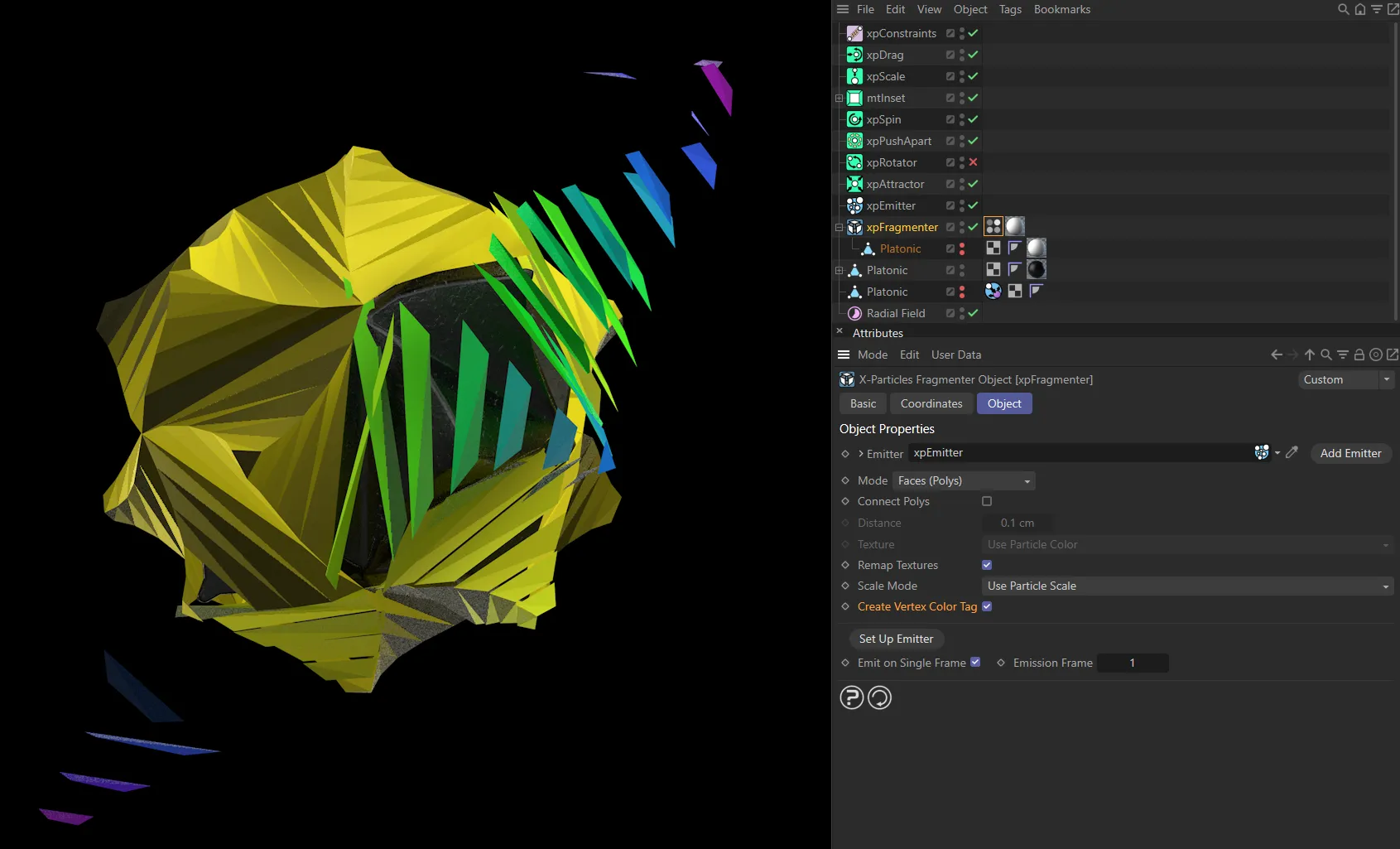
Here is a viewport render with a C4D material, which has a Vertex Map shader in the color channel, linked to the xpFragmenter’s Vertex Color Tag.
Set Up Emitter
Section titled “Set Up Emitter”To set up the emitter to work correctly with xpFragmenter, you need to make several changes to the emitter settings.
Set the emitter to emit from an object and drag the object to use into the Object field.
Set the emitter to emit from Polygon Center; no other mode will work.
Optionally, you can turn on One Particle per Source Element; this will generate one (and only one) particle for each polygon in the source object, each frame.
You can also set the emitter to emit on one frame only (if Emit on Single Frame is enabled).
In conjunction with One Particle per Source Element in the emitter, this will cause xpFragmenter to generate one new polygon for each face in the original object.
If you click the Set up Emitter button then, assuming you have dropped an emitter into the Emitter link field, xpFragmenter will automatically set up the above for you.
Emit on Single Frame
Section titled “Emit on Single Frame”If Emit on Single Frame is enabled, which it is by default, clicking the Set Up Emitter button will carry out the step mentioned above.
You can change this, if desired, but the change will only be made in the emitter if you click Set Up Emitter again.
Emission Frame
Section titled “Emission Frame”If Emit on Single Frame is enabled, then the frame to emit on will be defined in the Emission Frame field.
Objects mode settings
Section titled “Objects mode settings”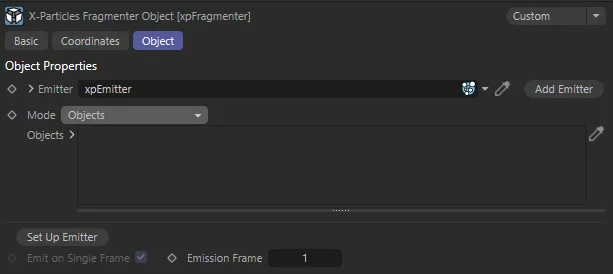
xpFragmenter Object tab, Objects mode settings.
Objects
Section titled “Objects”Drag any existing scene objects you want to control with the particle engine into this list.
The emitter will generate a particle for each object and xpFragmenter will move the objects to match the particle movement.
In Objects mode, xpFragmenter does not clone objects or generate new ones; it simply moves objects which already exist in the scene.
Therefore, it is not possible to emit particles on more than one frame, since that would not make sense.
For this reason, when you set up the emitter to use this mode, or use the Set Up Emitter button, the start and end frame emission parameters in the xpEmitter are disabled.
The actual frame on which to emit the particles is controlled entirely by the On Frame parameter in the emitter’s Object tab.
Set Up Emitter
Section titled “Set Up Emitter”In this mode, clicking Set Up Emitter will set the emitter into Defined Emission mode, using a Fragmenter List.
The Emit on Single Frame setting is ignored since, in this mode, the emitter will never emit more than one particle for each of the objects in the list.
The frame on which to emit those particles can be set in the Emission Frame parameter; this will be set in the emitter’s On Frame setting if Set up Emitter is clicked.
You can change the emission frame at any time if desired, but the change will only be made in the emitter if you click Set up Emitter again.
Alternatively, you can directly change the On Frame parameter in the Object tab of the xpEmitter.
Copyright © 2026 INSYDIUM LTD. All rights reserved.