
xpFluidPBD
The xpFluidPBD (Position Based Dynamics) particle fluid simulation solver can be used along with other modifiers and dynamics objects if you need small-scale, fast simulation.
The PBD Fluid object is similar to a particle modifier, so you need an xpEmitter to generate the particles.
This means that you can treat the object as you would any other modifier.
You can emit from ‘solid’ emitters such as the Sphere, Cylinder or Box emitters, if you need to.
You can use other modifiers in conjunction with this object, such as an xpGravity modifier, or other dynamics objects such as the xpConstraints object.
If you want the particles to collide with a an object, use a Collider tag in the usual way.
The PBD Fluid object simply governs the behavior of the particles, to make the particle flow seem more fluid-like.
Object Properties
Section titled “Object Properties”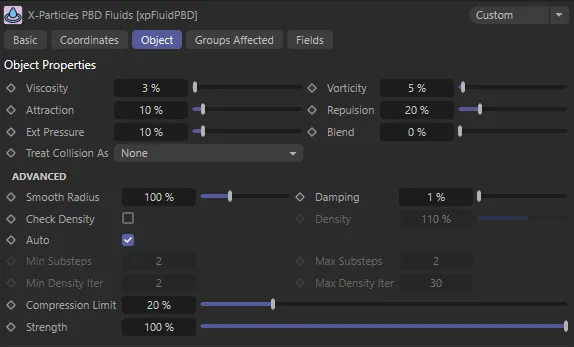
xpFluidPBD Object tab menu settings.
Viscosity
Section titled “Viscosity”This sets the fluid simulated viscosity by adding the velocity influence of the surrounding particles, which gives a more viscous motion.
To make a really viscous fluid it might help to add some particle-particle attraction.
You may need to increase this value quite markedly to see significant changes.
In this comparison animation, Viscosity is set at 1% on the left and 65% on the right.
Vorticity
Section titled “Vorticity”This increases the curl of the particles motion by adding back in any vorticity already present in the fluid.
This will gives a more swirling and turbulent motion.
If your fluid needs added vorticity then this can be added using Curl turbulence.
Animation demonstrating the Vorticity values of 0 (zero) %, on the left and 2000%, on the right, adding more small scale motion to the water.
Attraction
Section titled “Attraction”This causes this fluid particles to pull together giving an attraction much like surface tension.
You might think this leads to a smoother, more coherent particle stream but, in fact, it is attracting particles into clumps, causing the stream to break up.
Repulsion
Section titled “Repulsion”Causes the fluid particles to be pushed away from each other, to force them to spread out more.
This can be used to help to reduce particle clumping when only a few particles are close by.
Ext Pressure
Section titled “Ext Pressure”This is a factor applied to the particles to prevent them from breaking up into lots of tiny clumps.
The effect is to simulate an increase in surface tension, which pulls neighboring particles together.
If you have more than one emitter, representing two different fluid simulations, this setting will mix the particle color with that of its neighbors, to simulate the effect of liquids mixing.
Increase the value to increase the degree of mixing.
Treat Collision As
Section titled “Treat Collision As”Set as None, by default, this menu determines what will happen if collisions occur between particles.
It is added for use with the X-Particles dynamics engine and can be used to generate particle to particle collisions, which normally do not occur within fluids.
The alternative settings are: Different Emitter and Different Group.
No collisions are generated.
Different Emitter
Section titled “Different Emitter”Collisions occur between particles from different emitters.
Different Group
Section titled “Different Group”Collisions occur between particles from different particle groups.
Advanced
Section titled “Advanced”Smooth Radius
Section titled “Smooth Radius”The radius over which the properties of the fluid are smoothed (such as density).
When this is reduced, the smoothing effect is reduced and the result is more chaotic.
Damping
Section titled “Damping”Damping helps to reduce explosive forces.
If you simulate a fluid with a density that is very low then the forces trying to keep the density can become very large if the smoothing radius isn’t sufficiently large enough to smooth over enough particles.
Low density means the particles are spaced further apart and, if this is beyond the smoothing distance, it can become unstable.
Increasing this setting damps the forces but also reduces motion from the fluid.
The degree of damping required is small; by default it is set to 1%.
Check Density
Section titled “Check Density”Fluids are normally incompressible so have a constant density.
If this parameter is turned on, the density will be checked to ensure consistency in the particle stream.
If it is turned off (which it is, by default), no check will be applied.
Occasionally (for example, with slow-moving particles on emission), you may need to turn this on,
The value used in the density check is found in the Density setting.
Density
Section titled “Density”The value to use when Check Density is on.
The PBD fluids have substeps and density calculation iterations, which you can alter from the object itself.
If you leave this setting checked, the object will try to determine the optimal settings for substeps and density iterations.
But if you are not happy with the automatic settings, you can uncheck this setting and change the values manually.
Min Substeps, Max Substeps
Section titled “Min Substeps, Max Substeps”The minimum and maximum number of substeps used in the simulation.
These are only available if Auto has been unchecked.
The substeps help with general motion and make the simulation more accurate.
Min Density Iter, Max Density Iter
Section titled “Min Density Iter, Max Density Iter”The minimum and maximum number of iterations used in the density calculations.
These are only available if Auto has been unchecked.
The iterations ensure that the particle distribution enforces the fluid density, maintaining the fluid volume (as fluids should be incompressible).
Compression Limit
Section titled “Compression Limit”This is the maximum loss of fluid volume in percentage terms.
If you increase it, fewer iterations are required but the amount of bouncing and elasticity increases, which may not be desirable.
Smaller values require more iterations (so the simulation is slower) but reduces the bouncing/elasticity effect.
Strength
Section titled “Strength”Within a fluid solver, there are constraints between the fluid particles, controlling the degree to which particles can be moved by the solver.
This setting controls the strength of the constraint.
If you increase it, it may reduce the number of iterations required to complete the solve, which would speed up the solution, but could result in instability.
If it is decreased, it would result in more iterations, so reducing the strength can be useful if the fluids explode during the simulation, as it reduces the force acting on the particles.
Groups Affected tab
Section titled “Groups Affected tab”Groups
Section titled “Groups”To specify the group, drag and drop the desired Group object into this field.
This setting is useful if you want to ensure that the spawned particles are, or are not, affected by xpFluidPBD.
Fields tab
Section titled “Fields tab”You can use the Fields options to control where xpFluidPBD operates.
Copyright © 2026 INSYDIUM LTD. All rights reserved.