
xpFluidFLIP
xpFluidFLIP is a solver for fluid simulation.
Domain tab
Section titled “Domain tab”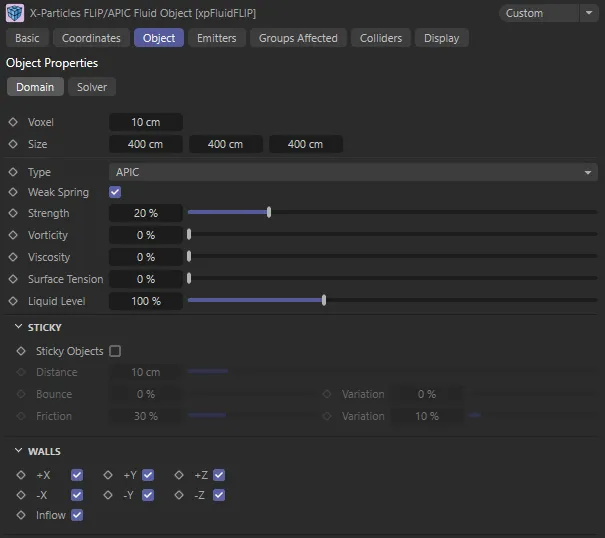
xpFluidFLIP Domain tab menu settings.
This is the voxel size within the boundaries of the solver.
The solver volume is divided into cubes of this size.
Smaller values result in more accurate simulations but are slower to playback and render.
Ideally the voxel size should be 3-4 times the particle radius.
Voxels are set at 24cm in this first animation.
In this second scene, Voxels have been lowered to 9cm.
The size of the solver, represented by a blue box in the editor.
Particles will not escape from this box but will collide with its walls.
Set as APIC, by default, you can select the solver type from this menu.
The alternative is FLIP.
In general, APIC produces a livelier, more detailed simulation, ideal for splashes.
FLIP produces a quieter, smoother result.
Weak Spring
Section titled “Weak Spring”This is a weak force between the particles, that pushes them apart to give better particle distributions during simulation.
FLIP can lose volume over time and enabling this setting helps to combat that.
Strength
Section titled “Strength”Only available if Weak Spring is enabled.
This value represents how strongly the particles are pushed apart by the weak springs.
Vorticity
Section titled “Vorticity”When solving simulations, energy and swirling motion can be lost due to inaccuracy and interpolation.
Vorticity calculates this swirling motion and boosts it, enabling you to put back or boost this motion.
This is especially useful for simulations that will have turbulent motion.
Adding an xpTurbulence modifier can also help to inject additional movement to have larger or smaller motion.
The vorticity in the Domain object is at the grid resolution.
In this animation, the Vorticity parameter is keyframed, starting at 0 (zero) % and increasing to 500%.
Viscosity
Section titled “Viscosity”This setting changes the viscosity of a fluid.
With higher values, the particles stick together more strongly, giving a thicker, more treacly fluid.
Again, you can enter values higher than 100%, if desired.
In the left-hand scene, there is no Viscosity set, while on the right the Viscosity is at 200%.
Surface Tension
Section titled “Surface Tension”Surface tension is the tendency of liquid surfaces to shrink into the minimum surface area possible.
Increasing this value will make the liquid particles form a more coherent body.
This animation demonstrates a comparison between Surface Tension settings of 0 (zero) % (on the left) and 1000% (on the right).
Liquid Level
Section titled “Liquid Level”This setting defines the liquid surface and can change the appearance of the liquid simulation to feel either small or large in scale.
Reducing this value will effectively force the virtual liquid ‘surface’ closer to the particles; the result is a thinner, more splashy liquid.
This is useful for small-scale simulations, such as glasses of fluid.
Increasing this value forces the liquid to cover more voxels, which is then more suitable for large-scale simulations, such as oceans.
Sticky
Section titled “Sticky”Sticky Objects
Section titled “Sticky Objects”When liquid collides with an object there is usually some degree of stickiness, in that the fluid does not run off with no reduction in speed.
If this setting is enabled, that effect can be reproduced in the solver.
In this animation, Sticky Objects is disabled on the left and enabled (the default setting) on the right.
Distance
Section titled “Distance”Particles must be within this distance of the surface in order to show stickiness.
If it is too low, particles may not appear to be sticking at all, but if it is too high, they may seem to stick some way away from the actual surface.
Bounce, Variation
Section titled “Bounce, Variation”This setting enables some bounce to occur when the particles stick.
Variation between particles can be added with the Variation setting.
Friction, Variation
Section titled “Friction, Variation”This is the amount of stickiness.
If you set it to zero, there is no stickiness at all but, if set to 100%, particles may remain permanently stuck.
Variation between particles can be added with the Variation setting.
By default the solver has 6 walls, along the 6 orthographic axes (X+, X-, etc.).
You can turn off any or all of these walls by unchecking the relevant box.
This is not just a cosmetic effect: particles will not rebound from disabled walls and will escape the solver.
Once outside the solver they will not take part in the simulation.
Inflow
Section titled “Inflow”If an emitter is outside the domain then, if this box is checked, particles can flow into the domain but, once inside, cannot flow out again.
Solver tab
Section titled “Solver tab”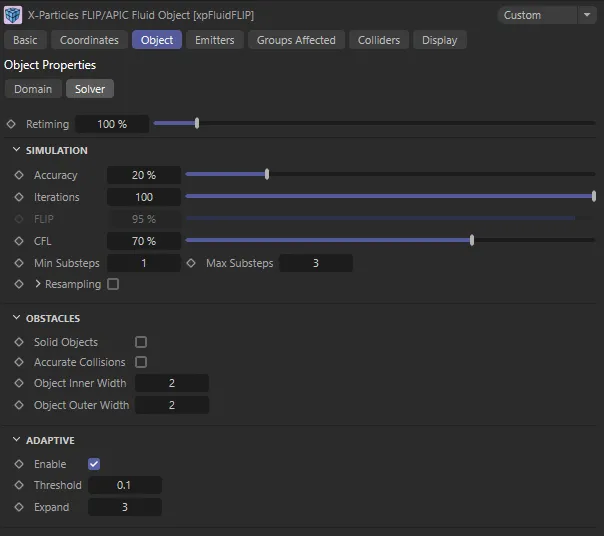
xpFluidFLIP Solver tab menu settings.
Retiming
Section titled “Retiming”As in the emitter, this value can be used to slowdown or speed up the simulation.
Simulation
Section titled “Simulation”Accuracy
Section titled “Accuracy”The FLIP/APIC domain is an iterative solver, refining the calculations each iteration.
More iterations result in a more accurate simulation but will take longer to complete.
The accuracy setting determines how close to ‘exact’ the solution is; the higher it is, the more likely it is to reach the maximum number of iterations.
Iterations
Section titled “Iterations”The maximum number of iterations allowed, for very fast velocity changes (explosions).
This may need to be higher if you notice artifacts (the Accuracy setting may also have to be increased).
Each iteration takes the particle velocities closer to being divergent free.
This is only available when Type is set to FLIP.
It is the ratio of the relative contributions of a direct voxel solution and particle flow to the final result.
Blending the two helps to keep down noise from pure particle advection whilst keeping the fluid motion lively.
The lower the value, the less is the contribution from particle flow and the slower and more viscous the liquid will appear.
The Courant-Friedrichs-Lewy (CFL) number is important in controlling the accuracy and stability of the simulation.
In this object the CFL value is a percentage of the voxel size.
If a simulation appears unstable (e.g. too lively or you see an exploding simulation). try reducing this value and/or increasing the Min Substeps or Max Substeps values.
Both measures will, however, take longer to solve.
At the start of each frame, the maximum speed of the particles and any colliders is used to calculate how small the substep time should be, so that the fastest moving particle doesn’t move more than a percentage of the size of one voxel; this percentage value is set by the CFL parameter.
This is fine provided that, during those substeps, the maximum speed doesn’t change much but, with moving colliders and pressure against them, it can jump the maximum speed significantly.
Ideally, you would then add more substeps to resolve this and keep the speed inside one voxel’s size.
This helps to damp down any rather over-excited voxels to keep stability but, as with any sort of damping, it comes with a price of losing a certain amount of motion.
Min Substeps, Max Substeps
Section titled “Min Substeps, Max Substeps”The solving will only be accurate if particles don’t move beyond a single voxel.
The motion is broken into small times (substeps).
These settings control the minimum and maximum number of time steps that will be used.
Higher values, meaning more substeps, will slow the simulation but make it more accurate.
For very fast moving fluids, they may need to be higher, if you notice incorrect simulations or artifacts.
Resampling
Section titled “Resampling”Checking this box will make the Min and Max parameters available.
If checked, the solver will examine voxels and either create new particles, if there are insufficient particles in the voxel, or delete particles where there are too many.
The upper and lower limits on particle numbers are given in the Min and Max settings.
In most cases this can be left unchecked as it will slow the simulation down.
Min, Max
Section titled “Min, Max”Click the little arrow next to Resampling to see these parameters.
These parameters represent the limits on particle numbers per voxel if Resampling is checked.
Obstacles
Section titled “Obstacles”Solid Objects
Section titled “Solid Objects”Checking this box will use the voxels inside a hollow collision object so, if you see particles entering a collision object, check this box.
If there are animated obstacles (collision objects) in the scene, you may sometimes see exploding simulations.
If this happens, check this box, which will correct the problem but result in longer simulation times.
Accurate Collisions
Section titled “Accurate Collisions”The simulation takes place in substeps (see CFL, above, for more details).
If this box is checked, collisions are updated per substep, which is much slower but results in more accurate collisions per frame.
Object Inner Width, Object Outer Width
Section titled “Object Inner Width, Object Outer Width”The inner and outer widths control how many voxels to fill inside and outside the volume, respectively.
If the band width is too small, liquids may enter collision objects, but smaller widths are quicker to calculate.
A larger band width helps to avoid this sort of leakage, but if it is too large it may slow the simulation very markedly.
Adaptive
Section titled “Adaptive”Enable
Section titled “Enable”The amount of memory required and time to calculate depends on the number of voxels used.
Enabling this option will limit the voxels calculated to be only around those that contain any liquid particles.
This helps to reduce memory use and speed up calculation when only a small part of the domain has any particles.
Threshold
Section titled “Threshold”This setting determines the level below which there is considered to be no (zero) information in a voxel.
Expand
Section titled “Expand”This setting expands the adaptive bounds, by the number of voxels input, to allow the smoke/velocity within to flow into more of the domain.
For fast moving simulations (such as explosions) this may need to be higher or adaptive not used, as the fluid may flow out of the bounded volume.
Emitters tab
Section titled “Emitters tab”Normally, any emitter within the bounds of the domain will be affected by the FLIP/APIC solver.
To exclude specific emitters, drag them into this list, where they will automatically be shown with a blue dash icon.
To re-enable the emitter to work with the solver, click the blue dash icon to turn it to a yellow check mark.
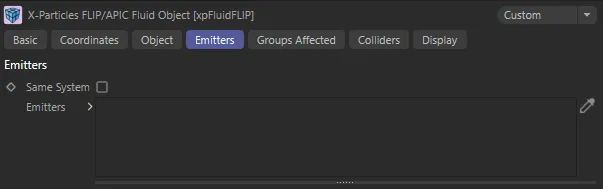
xpFluidFLIP Emitters tab menu settings.
Same System
Section titled “Same System”If this setting is checked, only emitters in the same System object hierarchy as the domain object will be affected by it.
If it is unchecked any emitters may be affected by the domain (if they are within its bounds, of course).
Emitters
Section titled “Emitters”The list of emitters.
Groups Affected tab
Section titled “Groups Affected tab”Groups
Section titled “Groups”To specify the group, drag and drop the desired Group object into this field.
This setting is useful if you want to ensure that the spawned particles are, or are not, affected by xpFluidFLIP.
Colliders tab
Section titled “Colliders tab”Any object inside the domain with a collider tag will act as a collider.
If you want to temporarily prevent an object being used as a collider, drag it into this list, where it will automatically be shown with a blue dash icon.
Other colliders will not be affected.
To re-enable the object, click the blue dash icon to turn it to a yellow check mark.
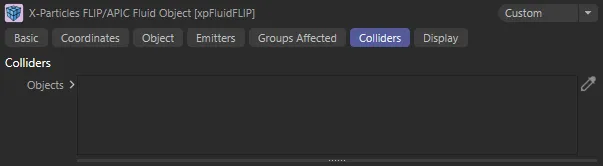
xpFluidFLIP Colliders tab menu settings.
Objects
Section titled “Objects”The list of objects you want to control.
Display tab
Section titled “Display tab”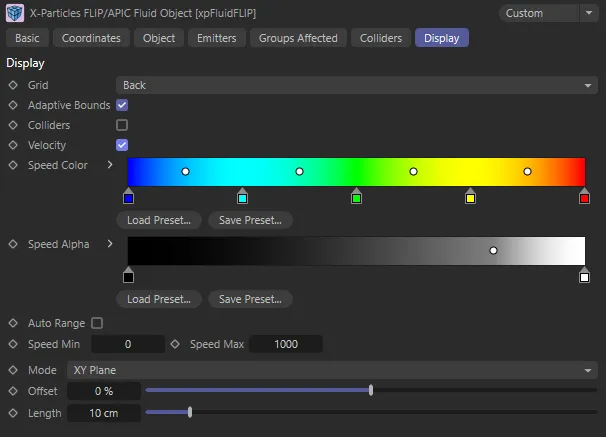
xpFluidFLIP Display tab menu settings.
Set as Back, by default, this the solver display itself.
The drop-down has three other options: None, Voxels and Base.
The solver is not displayed in the editor.
Voxels
Section titled “Voxels”A 3D grid is shown with each grid cell corresponding to one voxel.
A 2D grid displayed on whichever wall faces the camera (so it will change as the view is rotated).
A 2D grid which is always displayed on the base of the solver.
Adaptive Bounds
Section titled “Adaptive Bounds”If this box is checked, the domain object will display the interior bounds of the domain as they change during the simulation.
This can help to see what is calculating and to fine tune the Threshold and Expand settings so you can see if the adaptive bounds are far enough away from where your smoke/fire is located.
The reason for this is that the simulation may not look as good if the bounds are very close to the simulation.
Colliders
Section titled “Colliders”Collider objects (more properly ‘obstacles’ in the domain) will probably enclose many voxels completely, many not at all and some only partially.
Where the particles in a simulation hit the obstacle, you may see some leak through the obstacle geometry.
These can occur where voxels are only partially enclosed by the mesh.
When enabled, this setting will show solid red voxels (i.e. those enclosed by the collider object).
If you see leaking particles, it can help decide where leaks might be occurring.
Velocity
Section titled “Velocity”If checked, the velocity (speed and direction) of the simulation are shown as colored lines in the solver.
The colors are taken from the Speed color and alpha gradients.
Speed Color, Speed Alpha
Section titled “Speed Color, Speed Alpha”Gradients used to control the display when Velocity is checked.
Auto Range
Section titled “Auto Range”When this box is unchecked, the color and alpha gradients for the speed are mapped to the Speed Min and Speed Max values.
Depending on the simulation and the specification, you may see no (or very faint) velocities; if this happens, either adjust the speed range or check this box.
If it is checked, the domain will calculate the minimum and maximum speeds and use those to map the vectors, making them brighter in the viewport.
Speed Min, Speed Max
Section titled “Speed Min, Speed Max”These are the minimum and maximum speed values to use to map to the color and alpha gradients, if Auto Range is unchecked.
Set as XY Plane, by default, this setting (along with Offset and Length) only become available when Velocity is enabled.
In the default setting, the velocity vectors of the simulation will be displayed in the XY plane.
This can be altered to display in the YZ Plane and the ZX Plane, but there is also a setting called Voxels.
The Voxels setting will display the all of the velocity vectors as voxels in the solver.
Offset
Section titled “Offset”The plane can be offset (positively or negatively) using this parameter.
Length
Section titled “Length”Sets the length of the vectors.
Copyright © 2026 INSYDIUM LTD. All rights reserved.