
xpExplosiaFX
xpExplosiaFX is used for the simulation of smoke and fire.
To use xpExplosiaFX, you need a source object (something to burn), which must be located inside the solver boundary.
In addition, there must be an xpExplosiaFX Source tag on the source object.
Solver tab
Section titled “Solver tab”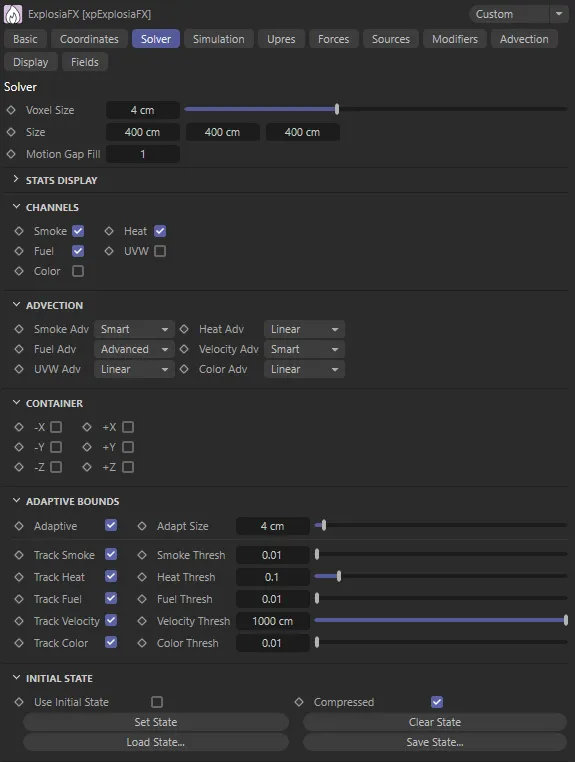
xpExplosiaFX Solver tab.
Voxel Size
Section titled “Voxel Size”This is the voxel size within the boundaries of the solver.
The solver volume is divided into cubes of this size.
Smaller values result in more accurate simulations but are slower to playback and render.
As the voxels get smaller, more particles are required to generate the smoke, etc.
Animation demonstrating Voxel Size settings of 3cm (on the left) and 1cm (on the right), within the solver.
The size of the outer boundary of the solver, shown as a pink box in the viewport.
The simulation always remains within the confines of this box.
Motion Gap Fill
Section titled “Motion Gap Fill”This setting causes extra steps to be added to fill in motion between frames.
If the source object is geometry, the value indicates the density of the infill, not an actual number.
The higher the value, the better the result, but higher values will slow the simulation.
If the source is an X-Particles emitter, the only relevant setting is either 0 or 1.
There is no difference with higher numbers when using particles.
Stats Display
Section titled “Stats Display”These are some statistics regarding memory use and processing time; they are updated as the simulation runs.
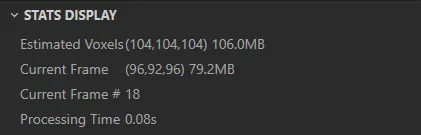
Estimated Voxels
Section titled “Estimated Voxels”The total number of voxels used and the overall memory requirement.
This will change if the voxel size and/or the solver size changes.
Current Frame
Section titled “Current Frame”The actual number of voxels used for this frame and the memory requirement.
Current Frame
Section titled “Current Frame”The current frame being simulated.
Processing Time
Section titled “Processing Time”The time in seconds to process this frame.
Channels
Section titled “Channels”These checkboxes indicate which channels are used in the simulation.
The default is for smoke, heat and fuel to be checked.
Smoke, Heat, Fuel
Section titled “Smoke, Heat, Fuel”In fire simulations, a fire requires fuel to burn and heat to ignite the fuel.
This may then generate smoke, or it may not, and you can turn smoke off if desired.
But if you turn off fuel, there is nothing to burn and you won’t see the fuel or smoke even though there is still heat.
Turn off heat and there’s nothing to ignite the fuel, so you will see nothing happening at all.
As an example, if you have the Display tab set to display fuel and smoke, then you uncheck Smoke in this tab, you will only see the fuel display, as no smoke will be generated.
If you look carefully though, and you have adaptive bounds enabled, you can see that something is happening because the adaptive bounds are visible.
You can see why this is if you change the display to temperature: this shows that you still have heat but no smoke or burning.
If you check this box, to add the color channel to the solver, you can specify a specific color to be used in the display.
To do this, you would also need to turn the Display setting in the Display tab to Color.
If this box is checked, UVW data is generated so that textures such as noise can be mapped to the simulation for extra detail.
Advection
Section titled “Advection”Advection is the process of the transport of some quantity - e.g. smoke or velocity - through a fluid or gas, by motion.
Smoke Adv, Heat Adv, Fuel Adv, Velocity Adv, UVW Adv, Color Adv
Section titled “Smoke Adv, Heat Adv, Fuel Adv, Velocity Adv, UVW Adv, Color Adv”xpExplosiaFX carries out advection for six different properties.
For each one there is a drop-down menu giving a choice of algorithm.
In each case the options are: Smart, Linear and Advanced.
The slowest algorithm and the most memory-intensive, this is the most detailed of the three and is therefore recommended for smoke advection, for which fine detail is important.
Linear
Section titled “Linear”The fastest algorithm and the best choice for heat advection.
It is also recommended for color and UVW.
Advanced
Section titled “Advanced”A slower algorithm, recommended for fuel advection.
Container
Section titled “Container”The simulation can only take place within the bounds of the solver.
-X, +X, -Y, +Y, -Z, +Z
Section titled “-X, +X, -Y, +Y, -Z, +Z”Checking these individual settings will add a ‘wall’ in the solver, to close that boundary.
Adaptive Bounds
Section titled “Adaptive Bounds”When solving the simulation, you could simply solve each voxel inside the bounds, but that would be slow and inefficient.
Instead, you can solve only those voxels where something is happening, adjusting the volume to be solved as the simulation progressed.
This is what adaptive bounds does.
In general you should leave this enabled unless you require the whole solver volume to be solved each iteration, but doing that will be significantly slower than using adaptive bounds.
Adaptive
Section titled “Adaptive”Check this box to enable adaptive bounds.
Adapt Size
Section titled “Adapt Size”This is the size of the additional ‘padding’ around each active voxel as the simulation progresses.
In most cases the default setting is fine and there is no need to change it.
Track Smoke, Track Heat, Track Fuel, Track Velocity, Track Color
Section titled “Track Smoke, Track Heat, Track Fuel, Track Velocity, Track Color”To adjust the bounds the solver must keep track of some parameter, such as smoke or fuel.
With these settings you can choose which parameters the solver will track.
Smoke Thresh, Heat Thresh, Fuel Thresh, Velocity Thresh, Color Thresh
Section titled “Smoke Thresh, Heat Thresh, Fuel Thresh, Velocity Thresh, Color Thresh”These are the minimum values of a tracked parameter, which must be present in a voxel before a change in bounds takes place.
If these values are never exceeded, the bounds will never change.
For example, if you track only the heat, the heat value in any voxel must reach the heat threshold level to trigger the adaptive bounds.
If the xpExplosiaFX Source tag has a Heat value set to 100% and you set the threshold in the solver to 1.1 (i.e. 110%), nothing will happen because the threshold will never be exceeded.
But, if you set the tag’s Heat value to 120%, the simulation will run again.
Initial State
Section titled “Initial State”With these controls you can run the simulation to a point you like then set the initial state and rewind the animation.
When you play it again, it will start from the point you saved it, rather than from the original start point.
Use Initial State
Section titled “Use Initial State”Check this box to use an initial state once you have set one.
If at any point you want to run the simulation from the beginning but not lose the saved state, uncheck this box.
Compressed
Section titled “Compressed”If this setting is enabled, the saved stated will be compressed to save memory.
Set State
Section titled “Set State”Run the simulation to the desired point then stop it and click this button to set the initial state.
This will also automatically check the Use Initial State box for you.
Clear State
Section titled “Clear State”Click this button to clear the initial state.
Load State, Save State
Section titled “Load State, Save State”If you save a scene file with a set initial state, the state is saved with the file.
You can also save and load the initial state independently, so that you could load the state into a solver in a different scene.
Click the Save State button to save the state to a filename of your choice.
Click the Load State button to load a saved state.
Simulation tab
Section titled “Simulation tab”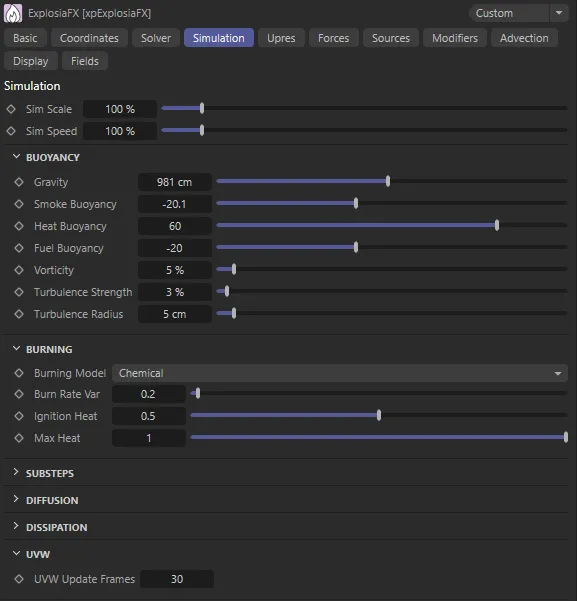
xpExplosiaFX Simulation tab.
Sim Scale
Section titled “Sim Scale”Changing this value alters the resolution of the simulation so that reducing this value results in a larger and faster simulation (within the confines of the solver) but with lower resolution.
A higher value causes a smaller simulation but a more detailed one.
Sim Speed
Section titled “Sim Speed”This is the speed with which the simulation progresses, so the higher this value, the faster it runs.
If you set it too high though, you may see a jerky animation as the appearance seems to jump from one frame to the next.
Buoyancy
Section titled “Buoyancy”Gravity
Section titled “Gravity”Gravity is inherent in xpExplosiaFX so an xpGravity modifier is not needed.
This is the gravity strength on the positive Y axis.
You can set negative values to make the smoke flow downwards (negative Y axis).
In this animation, the Gravity is set at 1962cm, on the left, and 300cm, on the right, giving a direct comparison.
Smoke Buoyancy
Section titled “Smoke Buoyancy”Smoke rises due to the heat of burning.
This value can reduce or increase the smoke buoyancy, so it will rise slower or faster.
Heat Buoyancy, Fuel Buoyancy
Section titled “Heat Buoyancy, Fuel Buoyancy”The same as for the smoke buoyancy, but for heat and fuel respectively.
Vorticity
Section titled “Vorticity”Increasing this value will increase the amount of curl within the simulation.
Turbulence Strength
Section titled “Turbulence Strength”You can add turbulence to the simulation with this parameter, which controls the strength of the turbulence.
Turbulence Radius
Section titled “Turbulence Radius”Increasing this value will increase the size of the turbulent areas in the simulation.
Burning
Section titled “Burning”Burning Model
Section titled “Burning Model”Set as Chemical, by default, this is a drop-down menu containing the various burning models used by xpExplosiaFX.
The model defines how heat, smoke and pressure is generated and dissipated.
The alternative setting is: Custom.
Chemical
Section titled “Chemical”This model simulates actual chemical processes inside the burning fuel.
Custom
Section titled “Custom”With this option you can design your own burning model.
Selecting Custom opens up further parameter options, explained below.
Burn Rate Var
Section titled “Burn Rate Var”This controls the random variation in the rate of burning of fuel, to model fuels of uneven consistency.
The number represents a multiplier to the burn rate, so a variation of 0.0 will produce a relatively even burn, and a variance of 1.0 will cause the burn rate to fluctuate between zero and double its regular amount.
Ignition Heat
Section titled “Ignition Heat”This is the threshold value above which burning occurs; if the heat at a given point is greater than the Ignition Heat value, fuel will be burned.
The maximum amount is 1.0, in line with the maximum heat that can exist within a simulation.
Max Heat
Section titled “Max Heat”The maximum heat value which can be achieved at a given point.
The range is 0.001-1.0, with 1.0 being in line with the maximum heat that can exist within a simulation.
If Max Heat is lower than Ignition Heat then no fuel will burn.
Custom Burning options
Section titled “Custom Burning options”If you select Custom from the Burning Model drop-down menu, the interface changes slightly.
You can then use this to design your own burning model.
Experimentation is the key here.
Burn Rate
Section titled “Burn Rate”This setting controls the amount of fuel that burns at any moment in time.
A burn rate of 1.0 will consume 1.0 worth of fuel over the course of one second.
The spline modifies this value based on the existing fuel amount.
Heat Production
Section titled “Heat Production”How much heat is generated during burning.
This is a multiplier applied to the quantity of fuel burned, as controlled by the Burn Rate parameter.
The spline modifies this value based on the existing fuel amount.
Smoke from Heat, Smoke from Fuel
Section titled “Smoke from Heat, Smoke from Fuel”How much smoke is generated during burning as a result of both heat and fuel.
Both heat and fuel are needed to generate smoke; if one is absent there will be no smoke.
The splines modify these values based on the current heat and fuel respectively.
Gas Expansion
Section titled “Gas Expansion”How much pressure is generated during burning.
High pressure will result in smoke, heat and fuel being dispersed over a larger area more quickly.
The spline modifies this value based on the existing fuel amount.
Substeps
Section titled “Substeps”The Courant-Friedrichs-Lewy (CFL) number is important in controlling the accuracy and stability of the simulation.
In this object the ‘CFL’ value is a percentage of the voxel size.
If a simulation appears unstable (e.g. too lively or you see an exploding simulation), try reducing this value and/or increasing the Min Substeps or Max Substeps values.
Both measures will, however, take longer to solve.
Min Substeps, Max Substeps
Section titled “Min Substeps, Max Substeps”The solving will only be accurate if particles don’t move beyond a single voxel.
The motion is broken into small times (substeps).
These settings control the minimum and maximum number of time steps that will be used.
Higher values, meaning more substeps, will slow the simulation but make it more accurate.
For very fast moving simulations, they may need to be higher if you notice incorrect simulations or artifacts.
Accuracy
Section titled “Accuracy”xpExplosiaFX is an iterative solver, refining the calculations each iteration.
More iterations result in a more accurate simulation but will take longer to complete.
The accuracy setting determines how close to ‘exact’ the solution is; the higher it is the more likely it is to reach the maximum number of iterations.
That maximum number is specified in Max Pressure Iter.
Max Pressure Iter
Section titled “Max Pressure Iter”For the most part you can leave this setting alone.
It is used internally as the number of sub-frames used when calculating pressure changes each frame.
If you have a very rapidly changing simulation, such as an explosion, you may need to increase this value.
Diffusion
Section titled “Diffusion”Diffusion in xpExplosiaFX can be thought of as the rate of movement of a parameter, such as smoke or heat, throughout the solver.
The higher these values are, the greater the even distribution of the parameter and so the less contrast you will see in the result.
In the left-hand solver, all three diffusion values are set at their default of zero. On the right, the Smoke Diffusion is raised to 35, the Heat Diffusion is at 55 and the Fuel Diffusion is at 70, giving a completely different result.
Smoke Diffusion, Heat Diffusion, Fuel Diffusion
Section titled “Smoke Diffusion, Heat Diffusion, Fuel Diffusion”The diffusion values for smoke, heat and fuel respectively.
Viscosity
Section titled “Viscosity”This setting is labelled Viscosity but it is actually another diffusion setting, this time for velocity.
As you might expect, increasing this value smooths out movement and gives the impression of a thicker, more viscous medium.
Dissipation
Section titled “Dissipation”These values control the dissipation of a parameter, the effect being to reduce it over time.
In this animation, the dissipation settings are at their default of zero on the left. On the right, the Smoke Dissipation is increased to 0.05, the Heat Dissipation to 0.15 and the Fuel Dissipation to 0.85, giving greater controls over the solve.
Smoke Dissipation, Heat Dissipation, Fuel Dissipation
Section titled “Smoke Dissipation, Heat Dissipation, Fuel Dissipation”The dissipation values for smoke, heat and fuel respectively.
Fuel Ambient
Section titled “Fuel Ambient”This is the minimum fuel value in a given voxel which is subject to dissipation.
Smaller values will not be affected by dissipation.
Velocity Damp
Section titled “Velocity Damp”This setting acts to reduce velocity over time.
UVW Update Frames
Section titled “UVW Update Frames”This is the duration over which the UVW fields recalculate UVW coordinates.
Upres tab
Section titled “Upres tab”It is often useful to work with low-quality draft settings at the design stage of a simulation; this ensures good viewport feedback, whilst making adjustments to the sim.
However, at some point, the sim quality will need to be increased.
This is done by lowering the voxel size in the solver settings.
The problem can be that more accurate settings can fundamentally change the physics of the sim and it may look quite different from the draft.
Upresing is a way of taking a low quality sim and increasing its simulation accuracy, whilst maintaining the look and flow of the original.
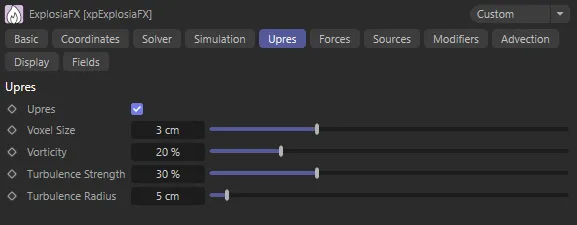
xpExplosiaFX Upres tab.
Check this box to enable the upres feature.
Voxel Size
Section titled “Voxel Size”The voxel size used for the upres simulation.
Vorticity, Turbulence Strength, Turbulence Radius
Section titled “Vorticity, Turbulence Strength, Turbulence Radius”These parameters are the same for the upres part of the simulation as found in the Simulation tab.
Forces tab
Section titled “Forces tab”Although you can apply forces to an xpExplosiaFX solver, using X-Particles modifiers, there is a wind force built in.
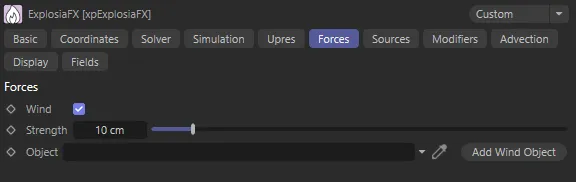
xpExplosiaFX Forces tab.
Check this box to enable wind.
Strength
Section titled “Strength”The strength of the wind force.
Object
Section titled “Object”A link field for an xpExplosiaFX Wind object (see below).
You can drag an existing ExplosiaFX Wind object into this field, or click the Add Wind Object button to create a new one.
Add Wind Object
Section titled “Add Wind Object”Click this button to create an xpExplosiaFX Wind object.
xpExplosiaFX wind does not require a wind object - simply enabling wind is enough, but it will always blow along the positive Z axis.
If you add a wind object, you can control the wind direction by rotating the xpExplosiaFX Wind object.
ExplosiaFX Wind object
Section titled “ExplosiaFX Wind object”This object looks identical to an xpWind modifier in the viewport.
The object has no parameters than you can alter.
The main use is to rotate it so that it points in the direction you want the wind to blow.
Sources tab
Section titled “Sources tab”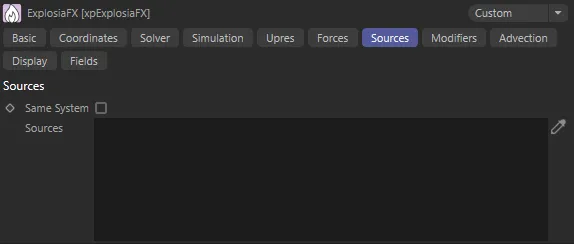
xpExplosiaFX Sources tab.
By default, an object within the bounds of the solver and which has an xpExplosiaFX source tag will be treated as a source for xpExplosiaFX.
If you want to remove a source temporarily without deleting it, you can drag it into this list.
If the object has a yellow check mark icon, it will be used as a source; if it has a blue dash icon, it will not be used.
Same System
Section titled “Same System”If this box is checked, only objects which are child objects of the same System object as the solver will be used as sources.
This setting is ignored if the solver is not in a System object hierarchy.
Sources
Section titled “Sources”The list of source objects.
Modifiers tab
Section titled “Modifiers tab”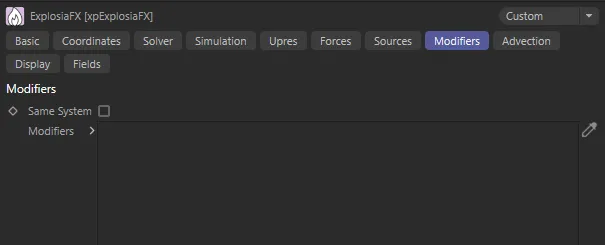
xpExplosiaFX Modifiers tab.
Same System
Section titled “Same System”If this box is checked, xpExplosiaFX will only be affected by modifiers which are child objects of the same System object as the solver.
This setting is ignored if the solver is not in a System object hierarchy.
Modifiers
Section titled “Modifiers”Drag the required modifiers into this list.
You can temporarily disable a modifier in the list by clicking the yellow check mark icon, to change it to a blue dash.
In this scene, xpFlowField has been dropped into the Modifiers tab and enabled, using the Helix spline, to create a spiraling vector field, to affect the path of the fire.
Advection tab
Section titled “Advection tab”If you add an emitter to the scene and if you then check the Advect Particles box, the particles from the emitter will be altered in the same way as the parameters such as smoke.
The particle parameters are directly altered by the relevant channel.
For example, if Velocity is set to 100%, the particles take on the velocity in the solver voxels they pass through.
This gives very fluid and natural-looking movement to the particles.
You can turn off the display in the xpExplosiaFX solver, if desired, in which case the solver is, in effect, acting like a particle modifier.
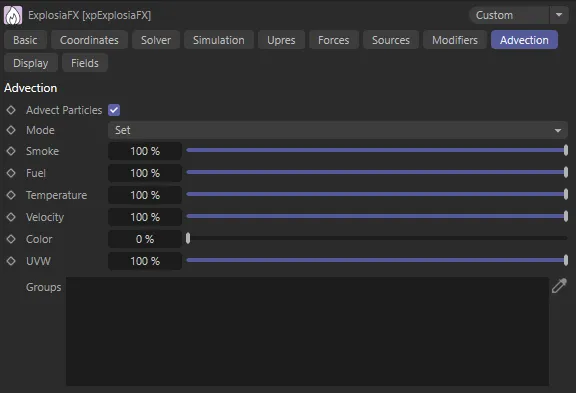
xpExplosiaFX Advection tab.
Advect Particles
Section titled “Advect Particles”Check this box to turn particle advection on.
In this animation, Advect Particles is checked, enabling particle advection with the default settings.
This is a drop-down menu with two options: Set (the default) and Add.
In this mode, the particle parameter is set each frame with a new value.
In contrast to Set, in this mode, the parameter change is added to the previous value.
This can result in the parameter (such as particle speed) increasing dramatically, which may or may not be desirable.
Smoke, Fuel, Temperature, Velocity, Color and UVW
Section titled “Smoke, Fuel, Temperature, Velocity, Color and UVW”These settings are the relative effect each of these channels will have on the corresponding particle parameters.
Groups
Section titled “Groups”When a source object is an emitter, you can specify which groups are advected by by dragging the particle group objects into this list.
If the list is empty, all groups emitted by the source emitter are advected.
Display tab
Section titled “Display tab”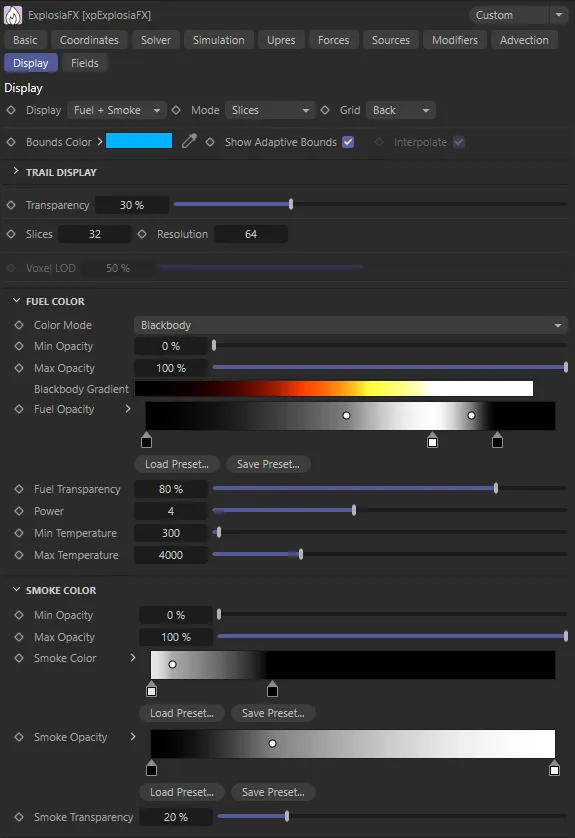
xpExplosiaFX Display tab.
Display
Section titled “Display”Set as Fuel + Smoke, by default, this drop-down menu controls which channels are shown in the editor.
The other options are: Temperature, Smoke, Fuel, Velocity, Speed and Color.
Each option, apart from Color, has a color gradient and an opacity gradient associated with it for the display.
Temperature
Section titled “Temperature”The voxel temperatures are shown.
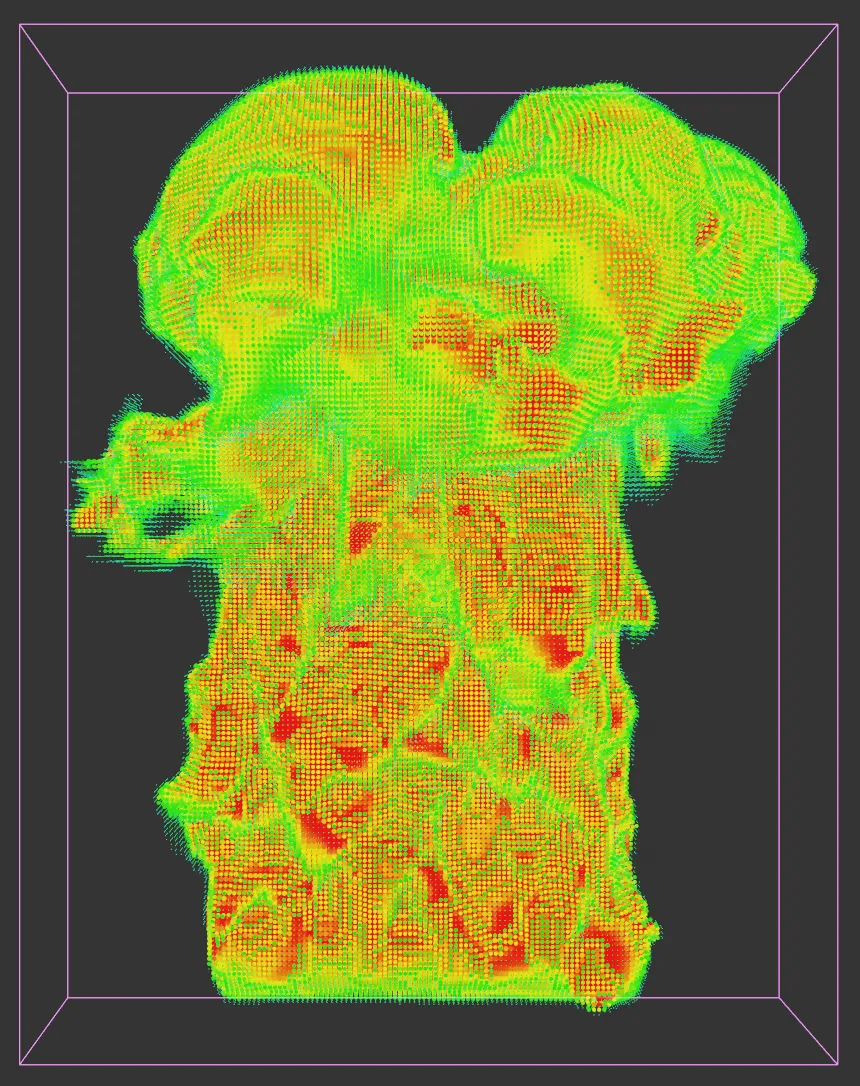
Display set to Temperature.
Displays the smoke channel.
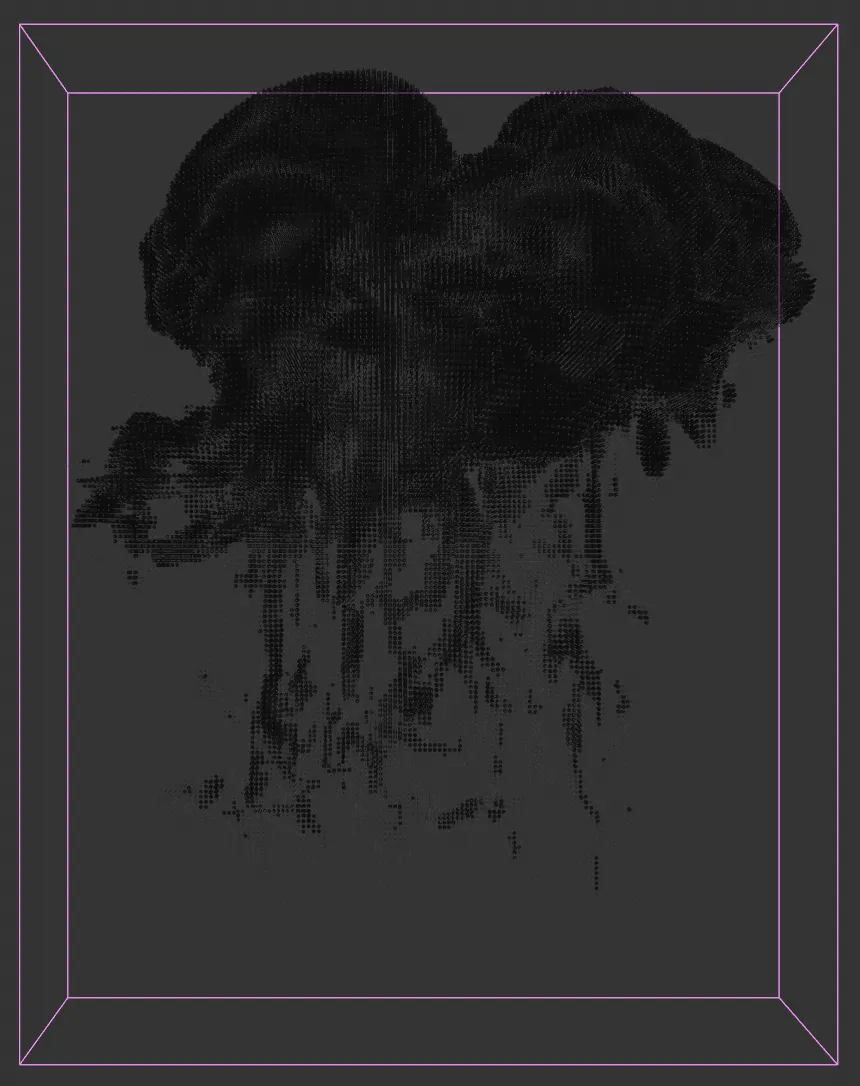
Display set to Smoke.
Displays the fuel channel.
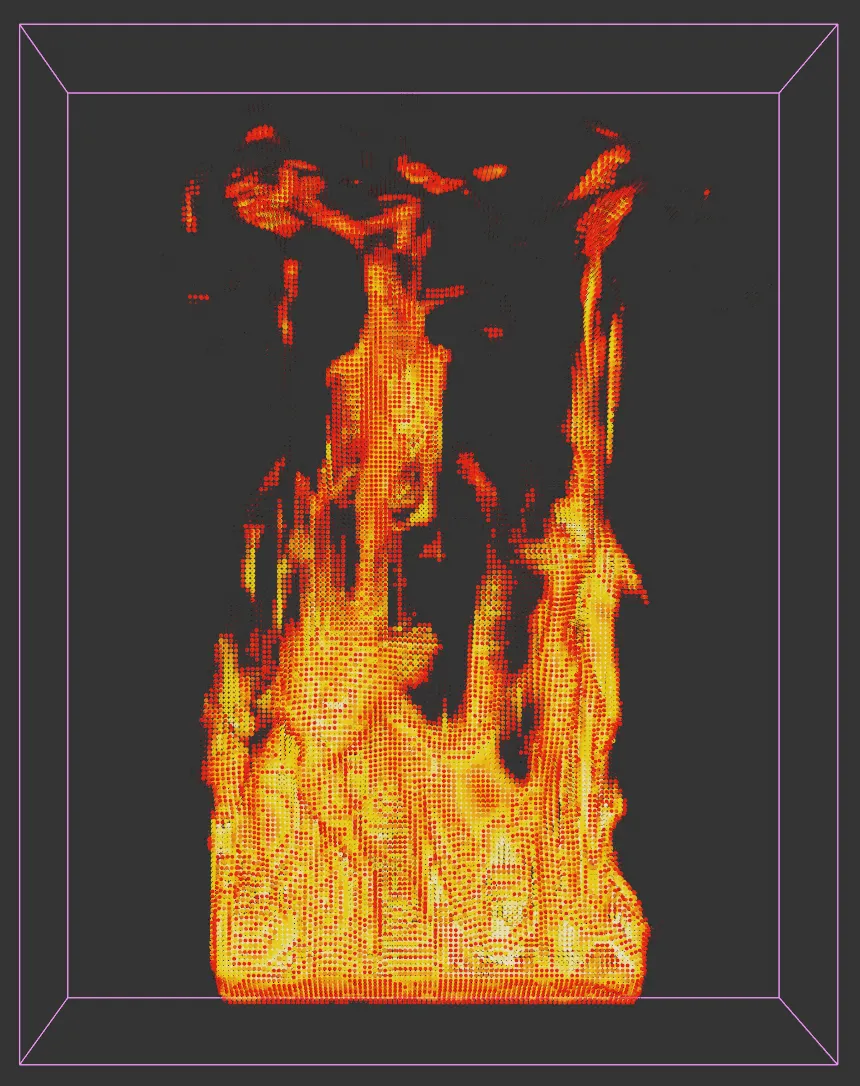
Display set to Fuel.
Fuel + Smoke
Section titled “Fuel + Smoke”Both fuel and smoke are shown.
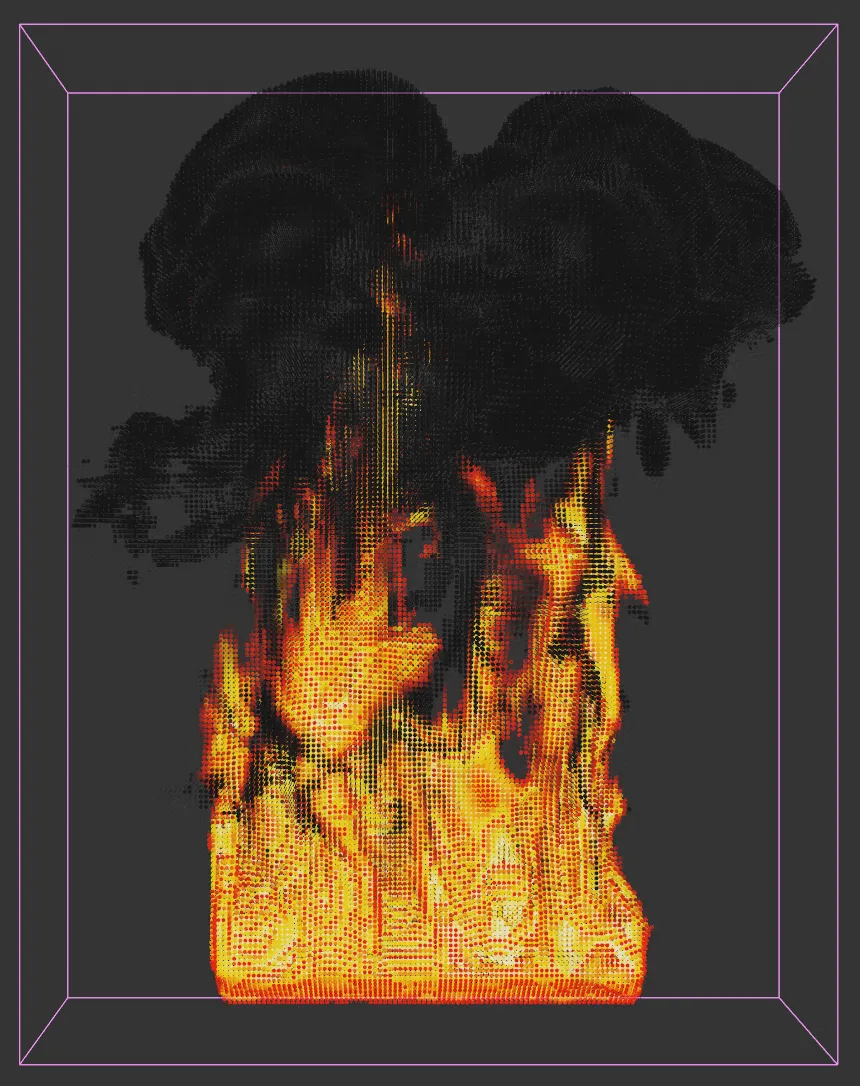
Display set to Fuel + Smoke.
Velocity
Section titled “Velocity”In this mode, the actual flow vectors in the voxels are shown.
The same gradients are also used for the Speed channel.
The speed channel is shown.
It uses the same gradients as the Velocity channel.
No gradients are available for this channel.
To use it, first check Color in the solver settings (Solver tab).
Then the color which is used is determined by the xpExplosiaFX Source tag.
Set as Slices, by default, the other options are: Off, Grid and Center Slice.
The display is turned off and nothing will be seen if the simulation is run.
Slices
Section titled “Slices”The display is composed of a number of slices and the detail can be adjusted by altering the Slices parameter.
The more slices, the more detailed the result, but it will be slower to run.
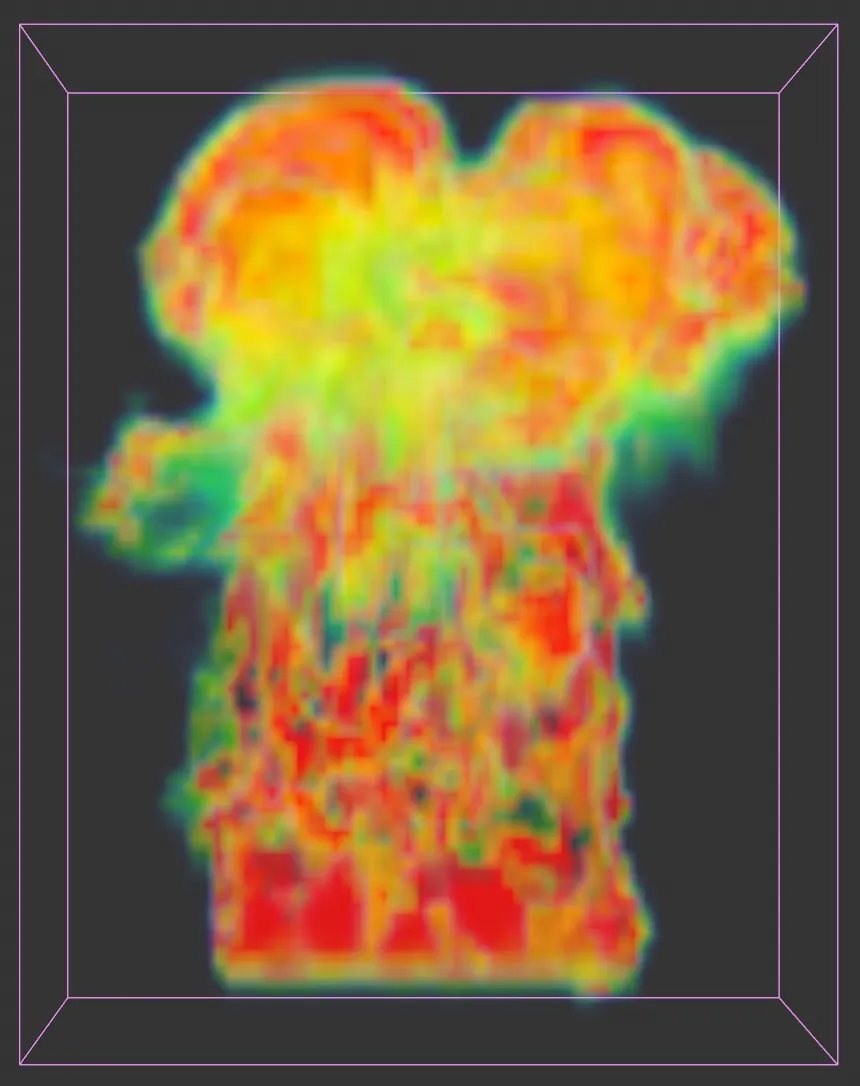
With Mode set to Slices and a Slices value of 18, with a Resolution of 64.
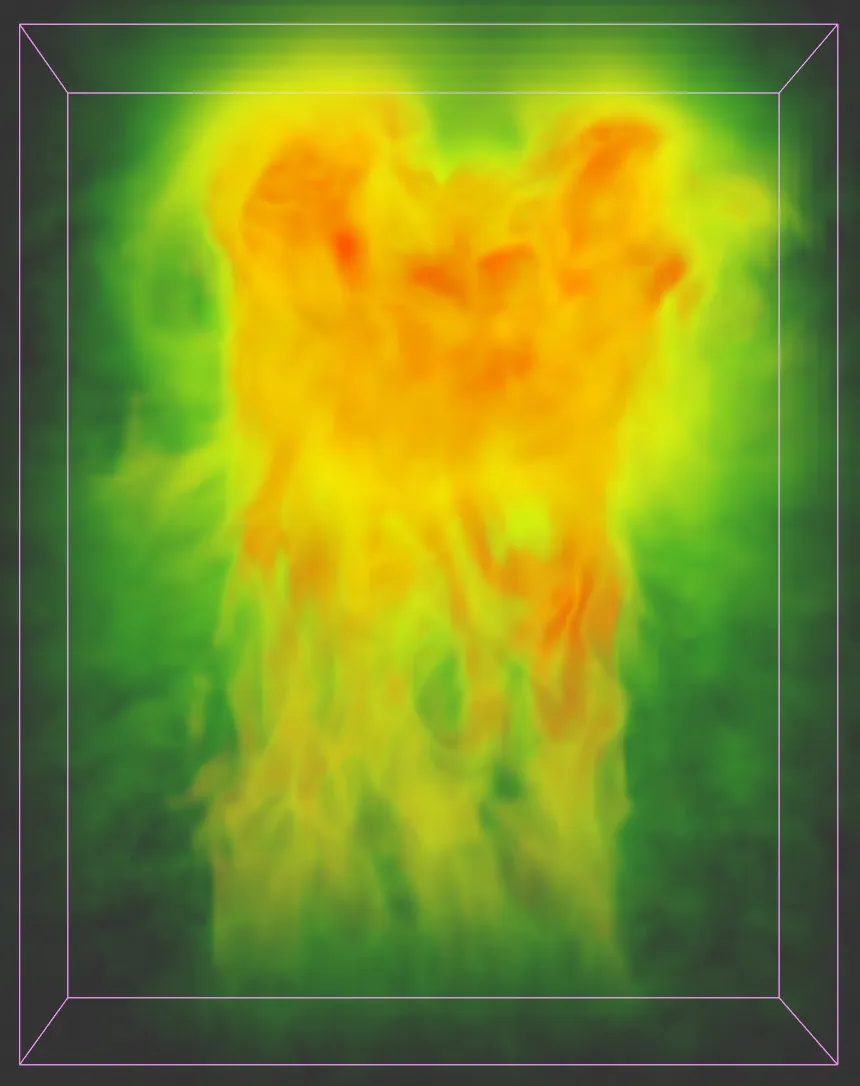
The Slices value is increased to 512 in this second image; the Resolution remains at 64.
In this mode, each voxel is colored as required, giving rise to a grid of discrete dots rather than a continuous display.
This mode is faster than Slices but much less detailed.
You can control the level of detail with the Voxel LOD slider.
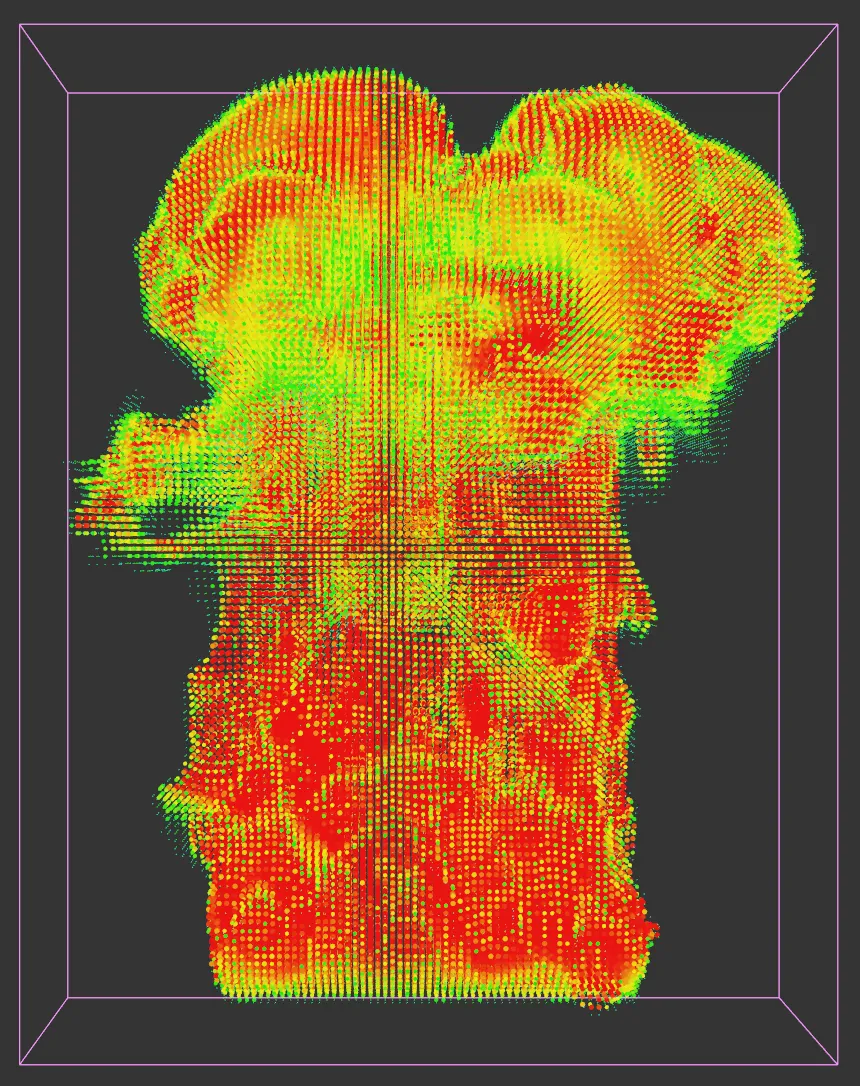
The Mode is now set to Grid, with a Voxel LOD value of 100%.
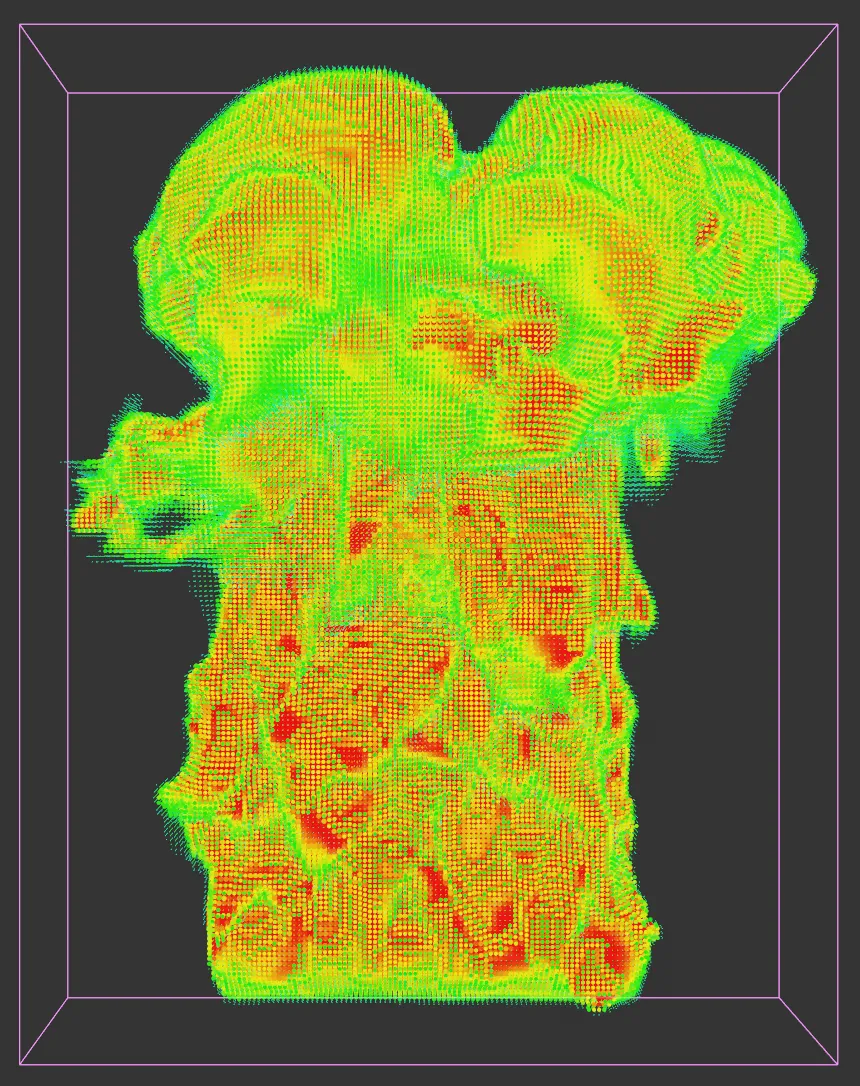
Voxel LOD raised to 150%.
Center Slice
Section titled “Center Slice”One single slice is used from the center of the source object.
A very fast mode but without much detail.
Set as Bounds, by default, this menu controls how the solver object is displayed.
The alternative settings are: None, Voxels, Back and Base.
Only the adaptive bounds of the solver are displayed, unless those are also disabled.
Bounds
Section titled “Bounds”Only the bounding box of the solver and the adaptive bounds are shown.
Voxels
Section titled “Voxels”Each voxel is displayed as a small cube.
A grid showing the voxel size is drawn on the furthest wall of the solver from the camera.
A grid showing the voxel size is drawn on the base of the solver.
Bounds Color
Section titled “Bounds Color”The color used to draw the adaptive bounds.
Show Adaptive Bounds
Section titled “Show Adaptive Bounds”Regardless of the selected option in Grid, if this setting is unchecked the adaptive bounds are not drawn.
Interpolate
Section titled “Interpolate”If checked, colors between neighboring voxels are interpreted.
If unchecked, colors are shown as discrete voxels, giving a blocky appearance.
Trail Display
Section titled “Trail Display”With these settings, a trail (not an X-Particles trail, as in the xpTrail object) is drawn to show changes in each voxel over time.
This gives you much more information about how temperature or other parameters are changing within the solver.
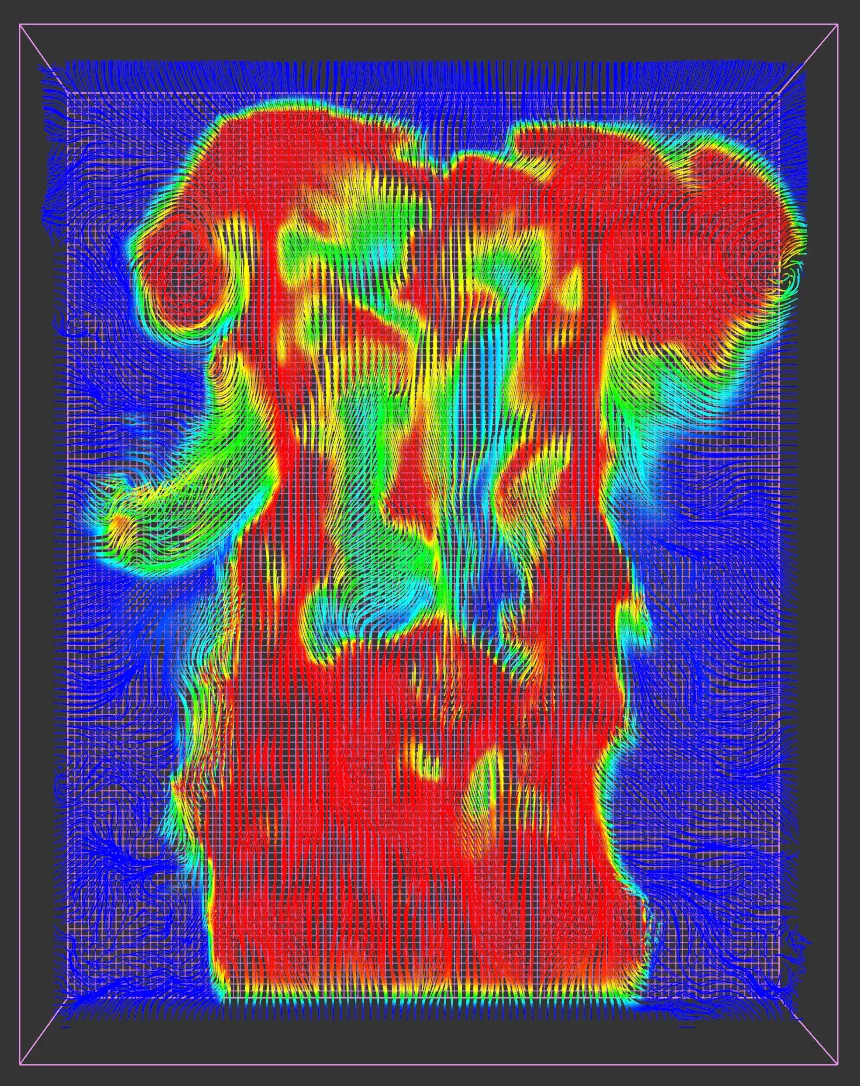
Display set to Temperature, with Trail Color disabled.
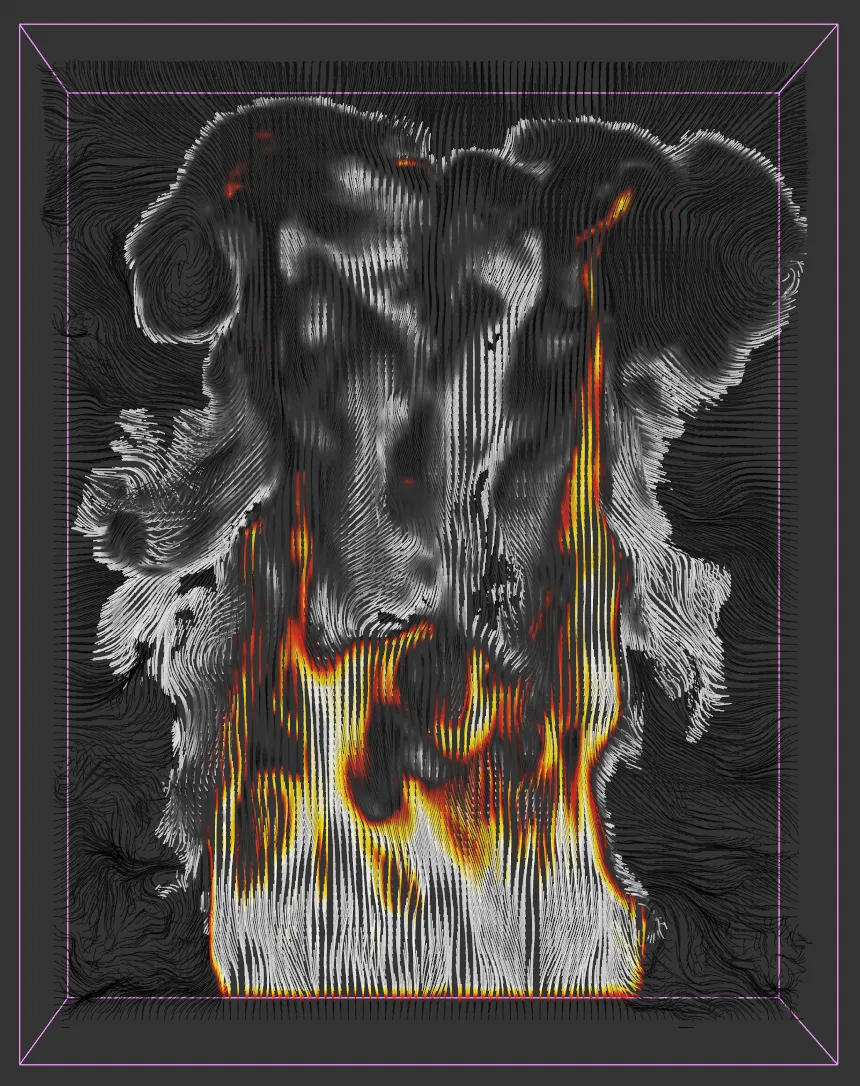
Display is now set to Fuel + Smoke, again with Trail Color disabled.
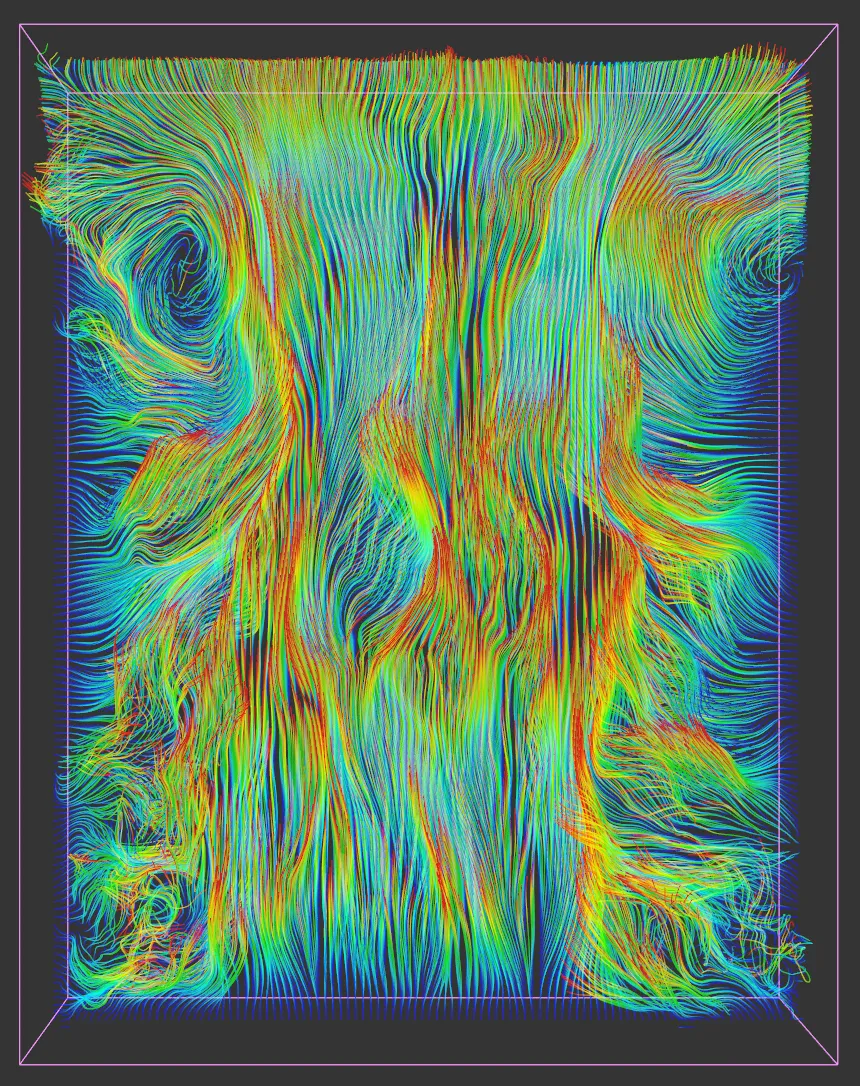
This final image shows Display set to Fuel + Smoke, but with Trail Color enabled.
Display Trails
Section titled “Display Trails”Check this box to display the trails.
Show Trails Only
Section titled “Show Trails Only”If this box is checked, only the trails are displayed, so the temperature, smoke, etc. displays are not shown.
Trail Color
Section titled “Trail Color”If this box is checked, the trail color is taken form the Trail Color gradient, which appears.
If it is unchecked the trail color comes from the gradient used to color the display (that is, the Smoke Color gradient when Display is set to Smoke and so on).
Trail Color
Section titled “Trail Color”This gradient is only visible when the Trail Color setting is enabled.
In that case, the trail colors are taken from this gradient.
This menu determines where the trails are drawn.
The options are the three orthographic planes XY, ZY and XZ, plus Voxels, where a trail is drawn for each voxel (within the adaptive bounds, if Adaptive Bounds is enabled, or within the entire solver if not).
Offset
Section titled “Offset”By default, if Draw is set to one of the orthographic planes, the trails are drawn in the center of the adaptive bounds (or the center of the whole solver if Adaptive Bounds is disabled).
You can offset the drawing plane from the center by using this control.
This has no effect if Draw is set to Voxels.
Trail Length
Section titled “Trail Length”The length of the trails in scene units.
Transparency
Section titled “Transparency”The overall transparency of the display can be altered using this setting.
Slices
Section titled “Slices”The number of slices to take through the simulation if Mode is set to Slices.
Resolution
Section titled “Resolution”The resolution of the display.
The higher it is, the more detailed the display, but the slower it is to be drawn.
If you increase this too much, it will slow the simulation down significantly.
Only available if Mode is set to Slices or Center Slice.
Voxel LOD
Section titled “Voxel LOD”The level of detail of the voxel display.
Only available if Display is set to Velocity or Mode is set to Grid.
Display Color sections
Section titled “Display Color sections”Each display type will have its own group of settings but in some cases these are identical in function between different displays.
Min Opacity, Max Opacity
Section titled “Min Opacity, Max Opacity”These values control where along the opacity gradient the opacity value is taken from.
These settings are available for the temperature, fuel and smoke displays.
Color and Opacity Gradients
Section titled “Color and Opacity Gradients”All display types except Color have two gradients, one for color and one for opacity.
There are separate pairs of gradients for each parameter option in Display, apart from Velocity and Speed, which share the same gradients, and Color, which doesn’t have any.
Temperature Color settings
Section titled “Temperature Color settings”In addition to the gradients, the temperature display has the following settings.
Color Mode
Section titled “Color Mode”This menu determines whether the colors are controlled by blackbody radiation (Blackbody) or can be set manually (Manual).
If you choose Blackbody, the temperature color gradient is not available because the colors are derived from the standard blackbody color spectrum.
Additional settings then become available.
Blackbody Gradient
Section titled “Blackbody Gradient”The color gradient used.
It cannot be edited directly, but will be altered if you change the Power, Min Temperature or Max Temperature settings.
Temp Transparency
Section titled “Temp Transparency”Controls the overall transparency of the temperature display.
The power of the blackbody radiation.
Reducing this value will shift the blackbody gradient to the left (you can see this gradient updating as you change this value).
Min Temperature, Max Temperature
Section titled “Min Temperature, Max Temperature”These values will shift the blackbody gradient to the left or right and alter the temperature display accordingly.
Smoke display settings
Section titled “Smoke display settings”There is only one additional setting here.
Smoke Transparency
Section titled “Smoke Transparency”This setting controls the overall transparency of the smoke.
Fuel display settings
Section titled “Fuel display settings”These settings are identical to the temperature display settings above; please refer to that section for details.
The only difference is that, by default, the fuel display mode is set to Blackbody.
Velocity and Speed display settings
Section titled “Velocity and Speed display settings”These displays share the same settings.
There are two additional settings.
Speed Min, Speed Max
Section titled “Speed Min, Speed Max”These values determine where, on the Speed Color gradient, the color is sampled (and the seam for the Speed Opacity).
If the voxel speed is at or lower than Speed Min, the color is taken from the left-hand end of the gradient; if it is at or higher than Speed Max, it is taken from the right-hand end.
Fields tab
Section titled “Fields tab”You can use the Fields options to control where xpExplosiaFX operates.
Copyright © 2026 INSYDIUM LTD. All rights reserved.