
Viscosity
This layer simulates the internal friction within fluid.
It can be used to create gloopy liquids like honey.
For high viscosity simulations it will be necessary to increase the Iterations value.
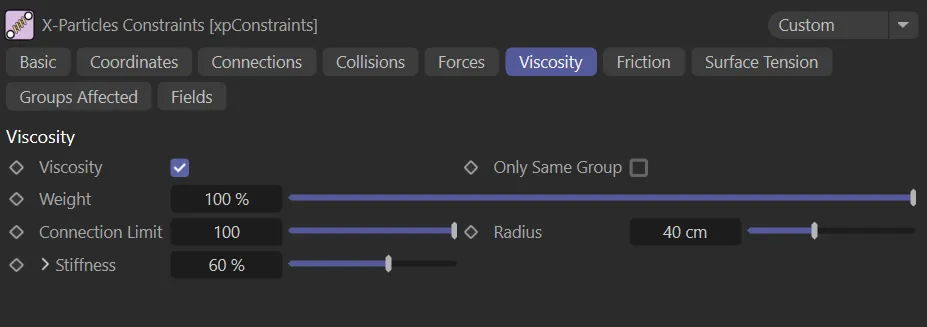
Viscosity tab menu.
Viscosity
Section titled “Viscosity”Check this box to enable viscosity.
Only Same Group
Section titled “Only Same Group”If enabled, connections will only be made between particles in the same group.
Weight
Section titled “Weight”This setting alters the influence each constraint type provides to the overall solution.
Connection Limit
Section titled “Connection Limit”How many surrounding particles are included in the viscosity solution.
This doesn’t need to be very high.
If it is too high you will need lots more iterations/subframes.
In this animation, the Connection Limit is set at 1 on the left and 8 on the right.
Radius
Section titled “Radius”This is the maximum distance to surrounding particles to include in the viscosity solution.
In this animation, the effect of the Radius setting is compared, with a value of 3cm on the left and 60cm on the right.
Stiffness
Section titled “Stiffness”Much like the other constraints, the stiffness represents how strong the viscosity is.
This is not linear (as with the other constraints) and the actual viscosity depends on this value and the iterations/subframes in the project settings.
You can get a higher and more stable viscosity with this at a lower (not 100%) value and the addition of more iterations/subframes.
By having a softer constraint and more iterations/subframes you enable the particles to avoid large changes which can result in instability, especially when solving against other constraints.
On clicking the down arrow, there is a control spline and some additional settings.
This spline acts to control viscosity in exactly the same way as the Stiffness parameter in the Connections tab.
Animation to contrast a Stiffness setting of 25%, on the left, with 90%, on the right.
Copyright © 2026 INSYDIUM LTD. All rights reserved.