
Friction
This layer adds a friction force between particles.
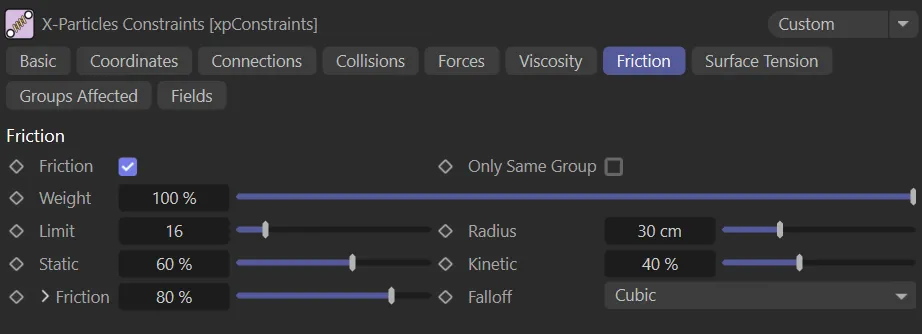
Friction tab menu.
Friction
Section titled “Friction”Check this box to enable friction.
Only same Group
Section titled “Only same Group”If enabled, connections will only be made between particles in the same group.
Weight
Section titled “Weight”This setting alters the influence each constraint type provides to the overall solution.
How many surrounding particles are included in the solution.
This doesn’t need to be very high.
If it is too high you will need lots more iterations/subframes.
Animation to demonstrate the effect of raising the Limit setting from 3, on the left, up to 25, on the right.
Radius
Section titled “Radius”This is the maximum distance to surrounding particles to include in the solution.
This animation shows the comparison between a Radius value of 1cm, on the left, to 30cm, on the right.
Static
Section titled “Static”This value is a percentage of the Radius value.
Within this distance the particles have the full friction stiffness applied, which results in a static friction, where they try to hold each other to stop relative motion between them.
Here, a Static value of 0 (zero) % on the left is contrasted with 100% on the right, with the friction force holding particles on the shape for much longer.
Kinetic
Section titled “Kinetic”If the distance between particles is greater than the value derived from the Static parameter, this is how stiff the friction then is.
A Kinetic value of 0.5% is shown on the left, in this animation. On the right it is raised to 100%, stiffening the friction level between the particles.
Friction
Section titled “Friction”The strength of friction is given in this setting.
The Friction setting can be expanded by clicking the down arrow to show a control spline and other settings.
Again, this spline acts to control friction in exactly the same way as the Stiffness parameter in the Connections tab.
Animation to compare the effect of Friction levels of 20% (on the left) and 100% (on the right).
Falloff
Section titled “Falloff”Set at Cubic, by default, this controls the falloff of the friction effect over the Radius value.
The alternatives are: Flat, Linear and Quadratic.
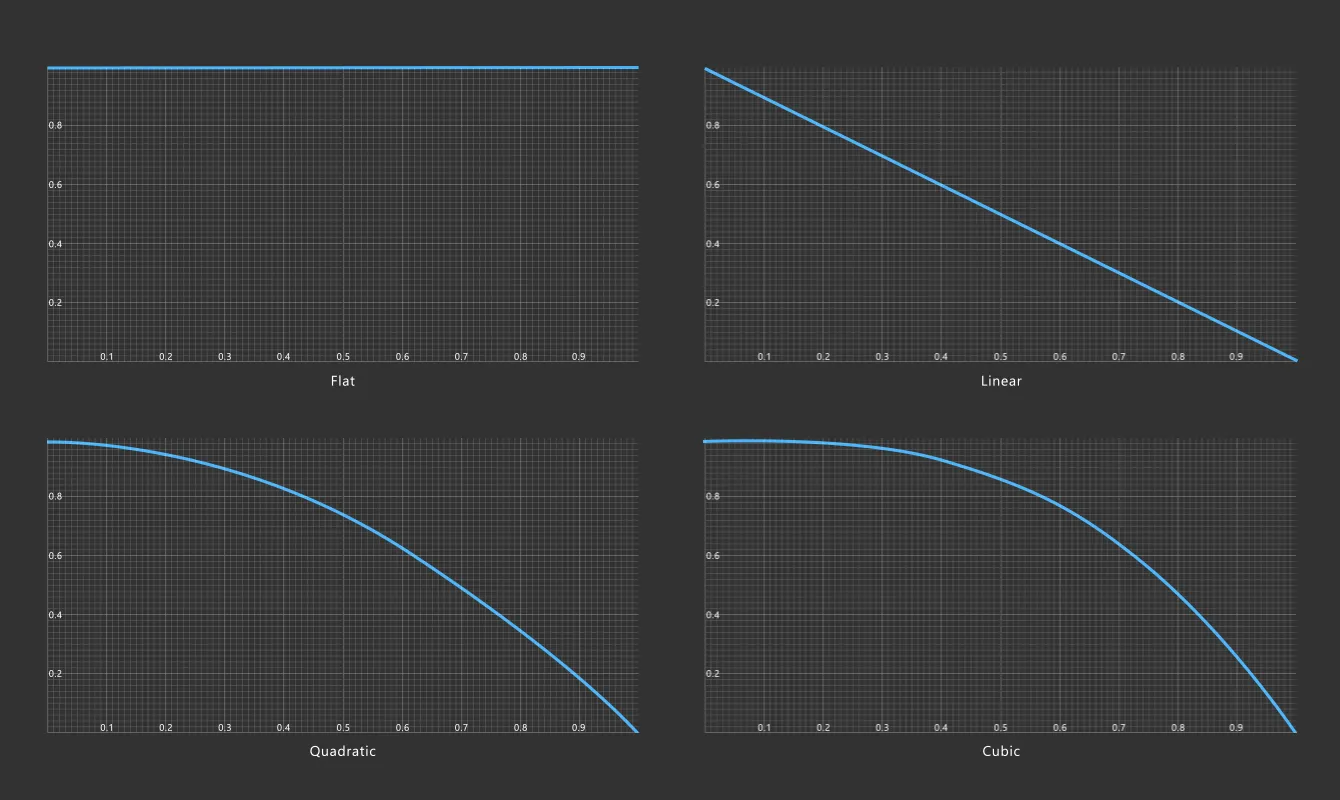
Graphical representation of the four friction Falloff types: Flat, Linear, Quadratic and Cubic.
Copyright © 2026 INSYDIUM LTD. All rights reserved.