
xpSurface
This is a generator object which can alter the mesh used as the cloth object (such as adding thickness).
When you add this object to the scene, you must make the cloth object a child object of the Cloth Surface.
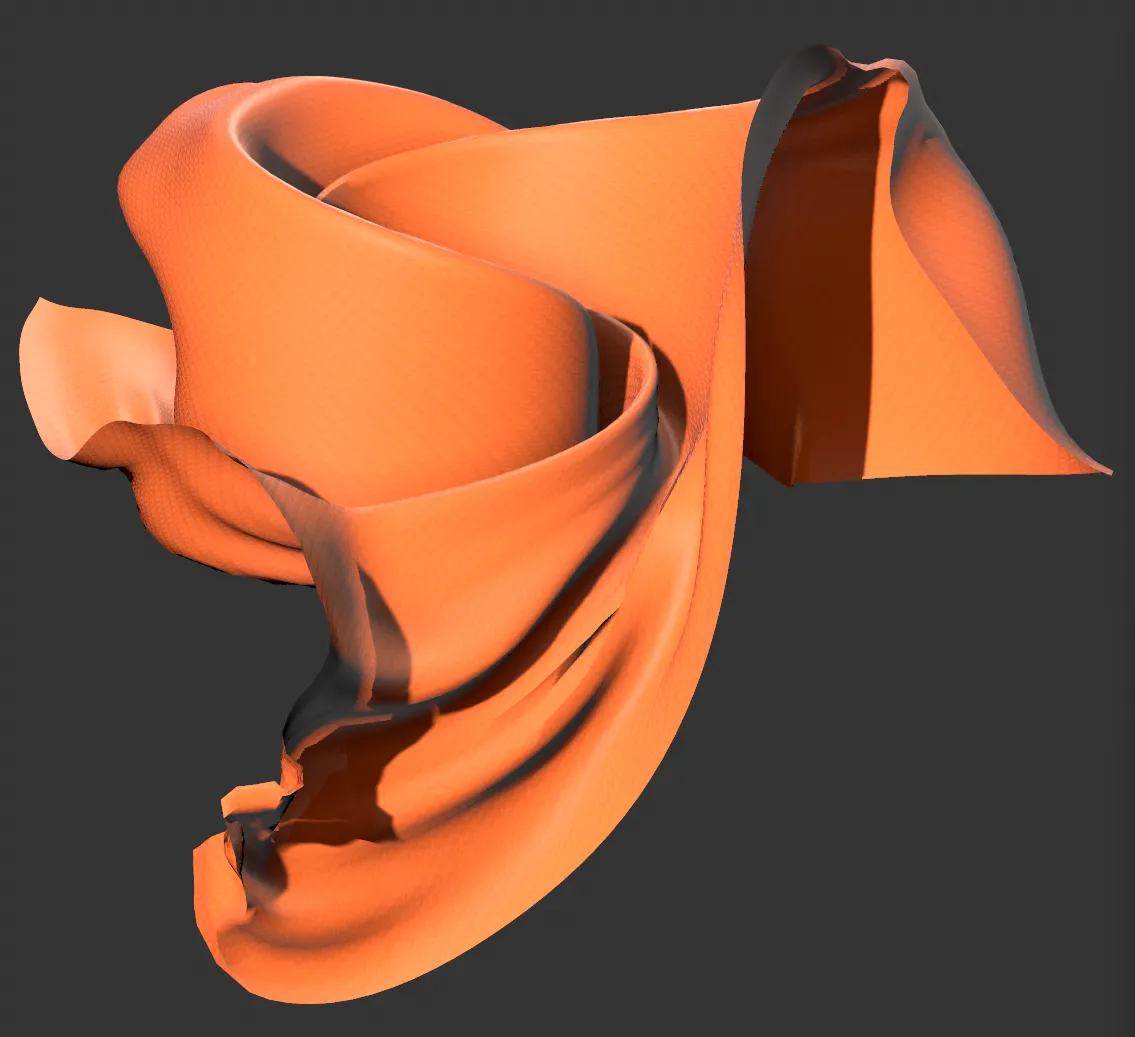
In this first image, you can see a cloth object.
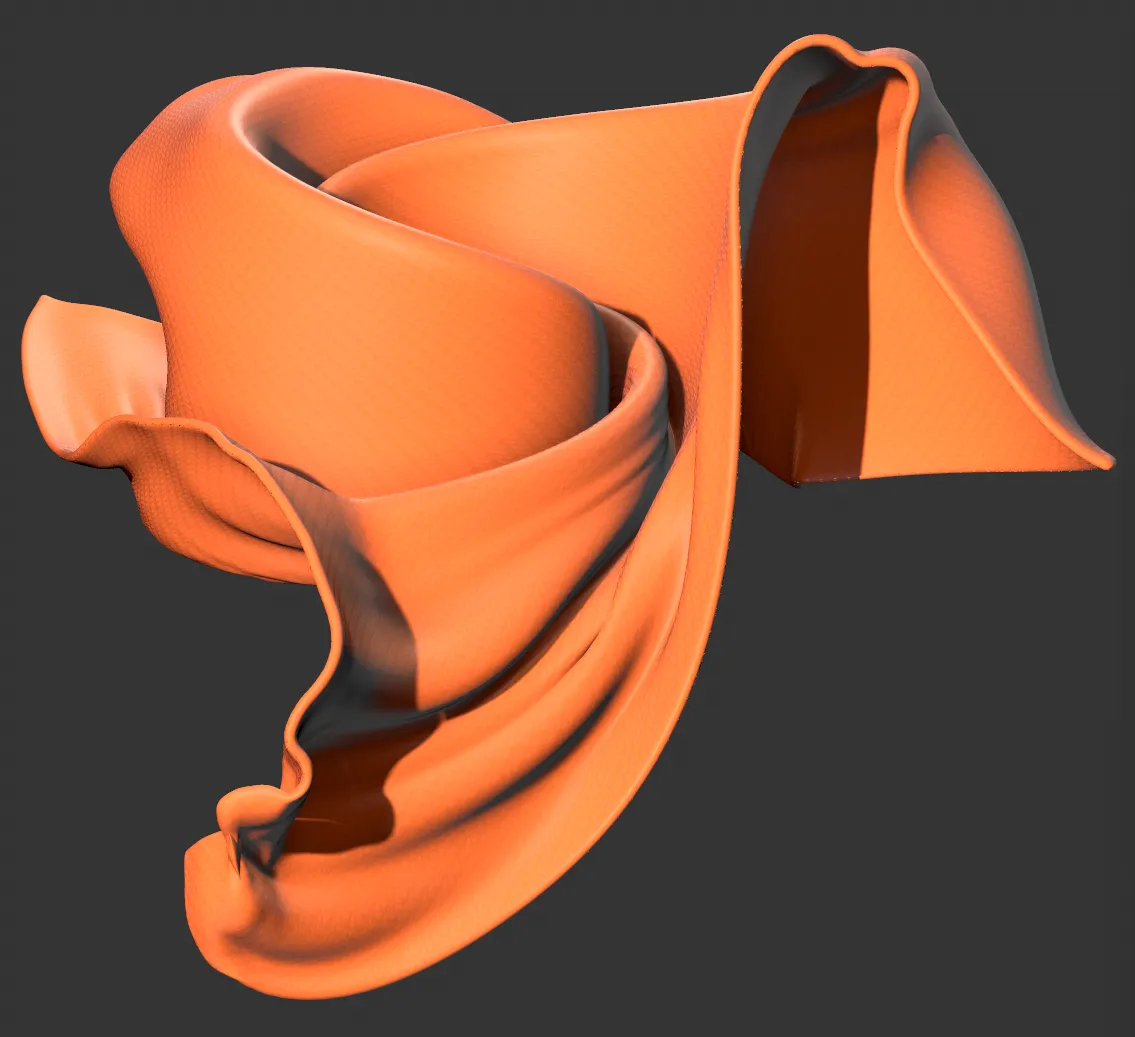
The second image shows the cloth object as a child of xpSurface, with a subdivided surface, thickness now evident at the edges.
Object Properties
Section titled “Object Properties”Subdivision
Section titled “Subdivision”Increasing this value subdivides the object, giving more mesh detail.
This is fully parametric.
Set it to zero to prevent any subdivision.
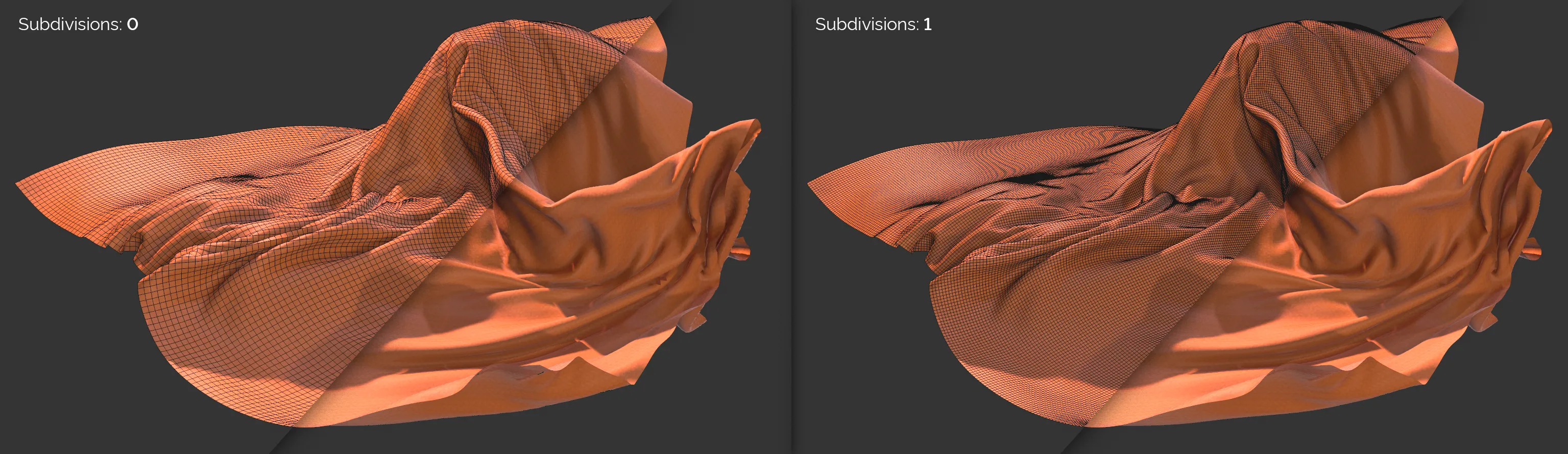
Subdivisions set at 0 (zero), on the left, and 1, on the right.
Thickness
Section titled “Thickness”Increasing this value will add thickness to the object.
This does not increase the number of segments in the thickness, which depends on the subdivision setting.
For example, a subdivision of zero gives 1 thickness segment, a subdivision of 1 gives 2 segments and so on (technically, a subdivision of n will give 2^n thickness segments).
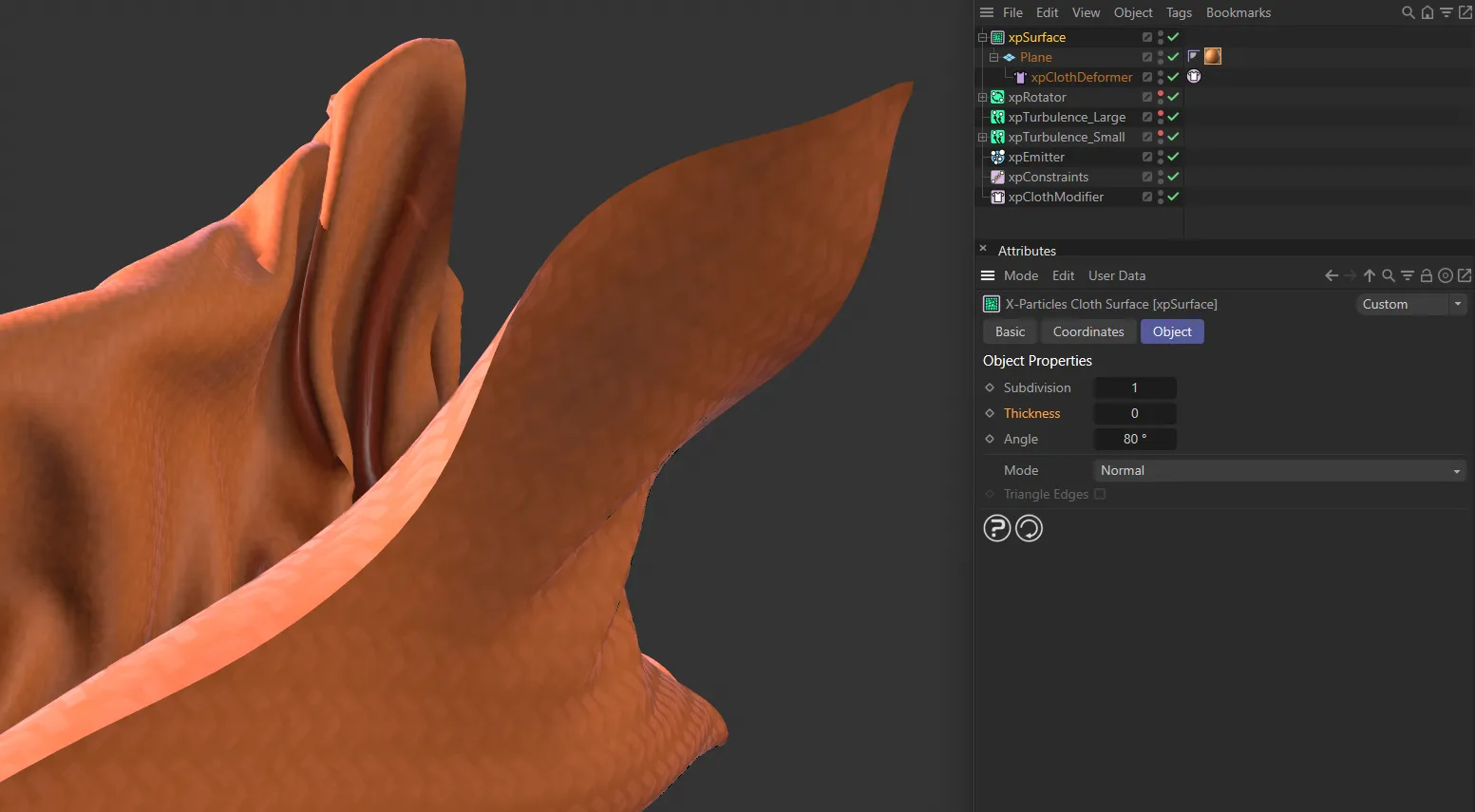
Thickness value of 0 (zero).
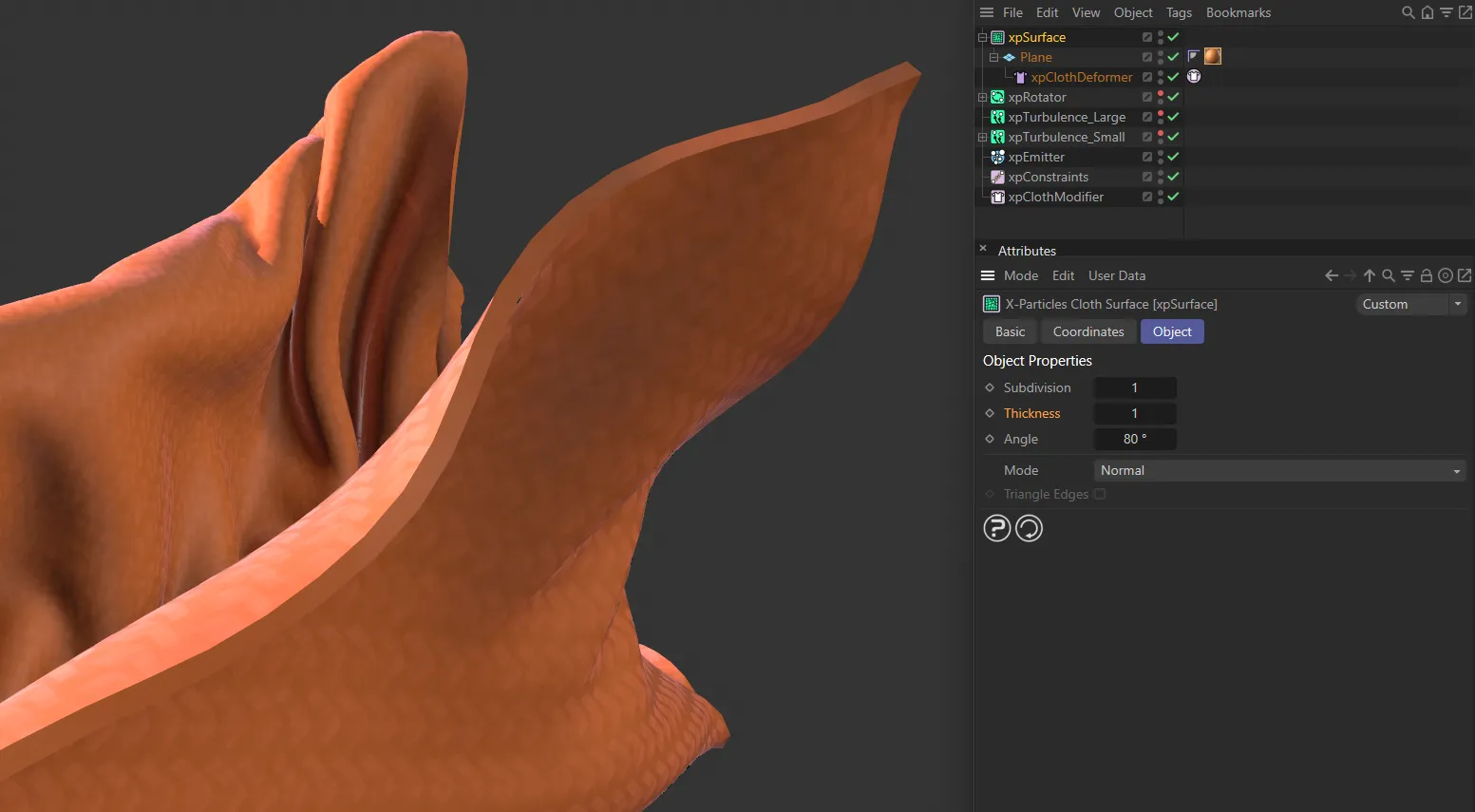
Thickness increased to 1.
This setting will bevel the corners and edges of the mesh.
In order to see any effect, you should add some thickness and have a subdivision level of at least 1.
Set as Normal, by default, this drop-down menu controls additional appearance of the mesh when tearing is used.
See the Cloth Tag page (link below) for details of tearing.
The alternative options are: Remove Single Polys and Hide Polygons.
Normal
Section titled “Normal”Tearing is unaffected.
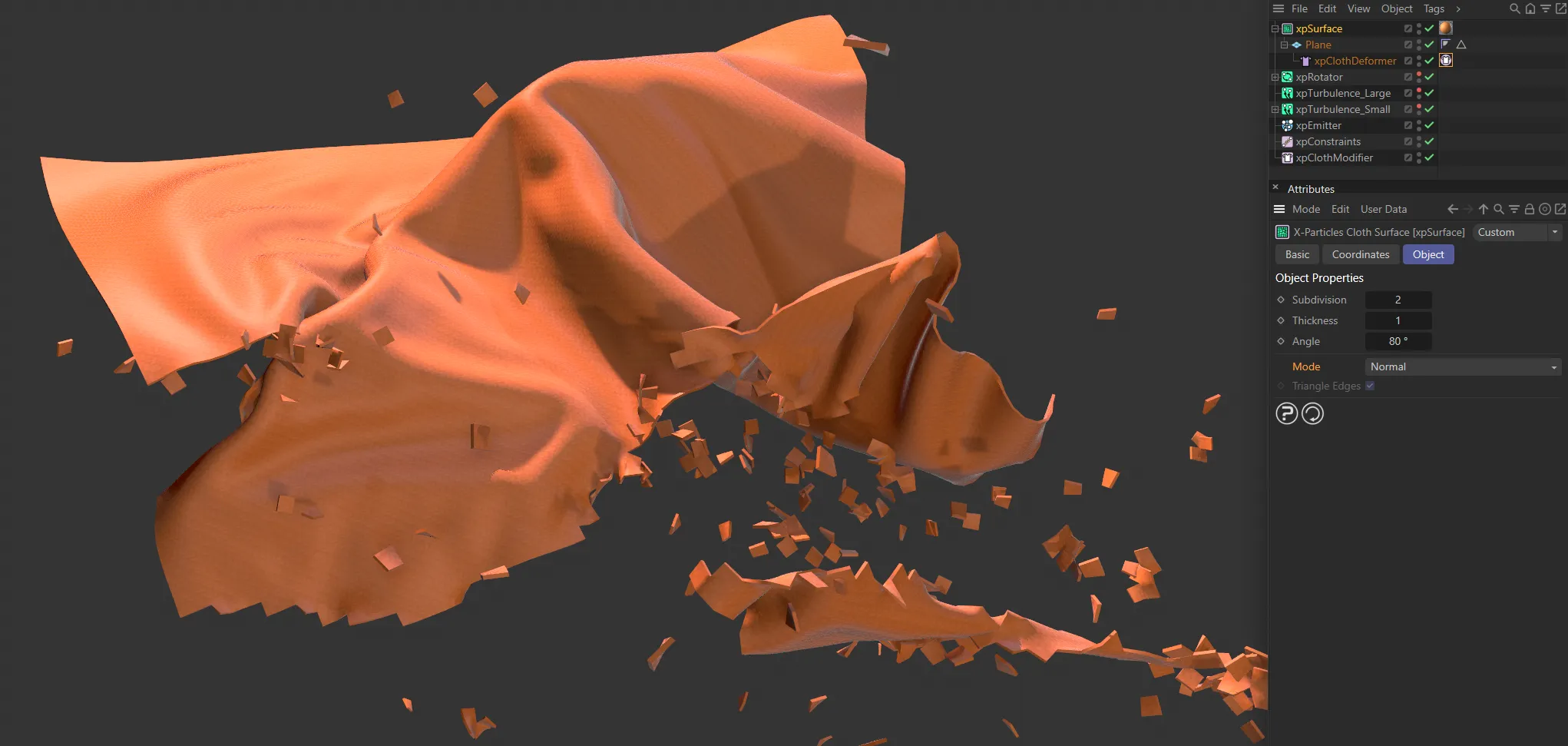
Mode set at Normal, with no changes in the base geometry and all the torn pieces floating around.
Remove Single Polys
Section titled “Remove Single Polys”Sometimes, tearing will result in single polygons being split from the mesh; this can be unsightly.
If you choose this option, these single polygons are deleted (you will still see the particles associated with them).
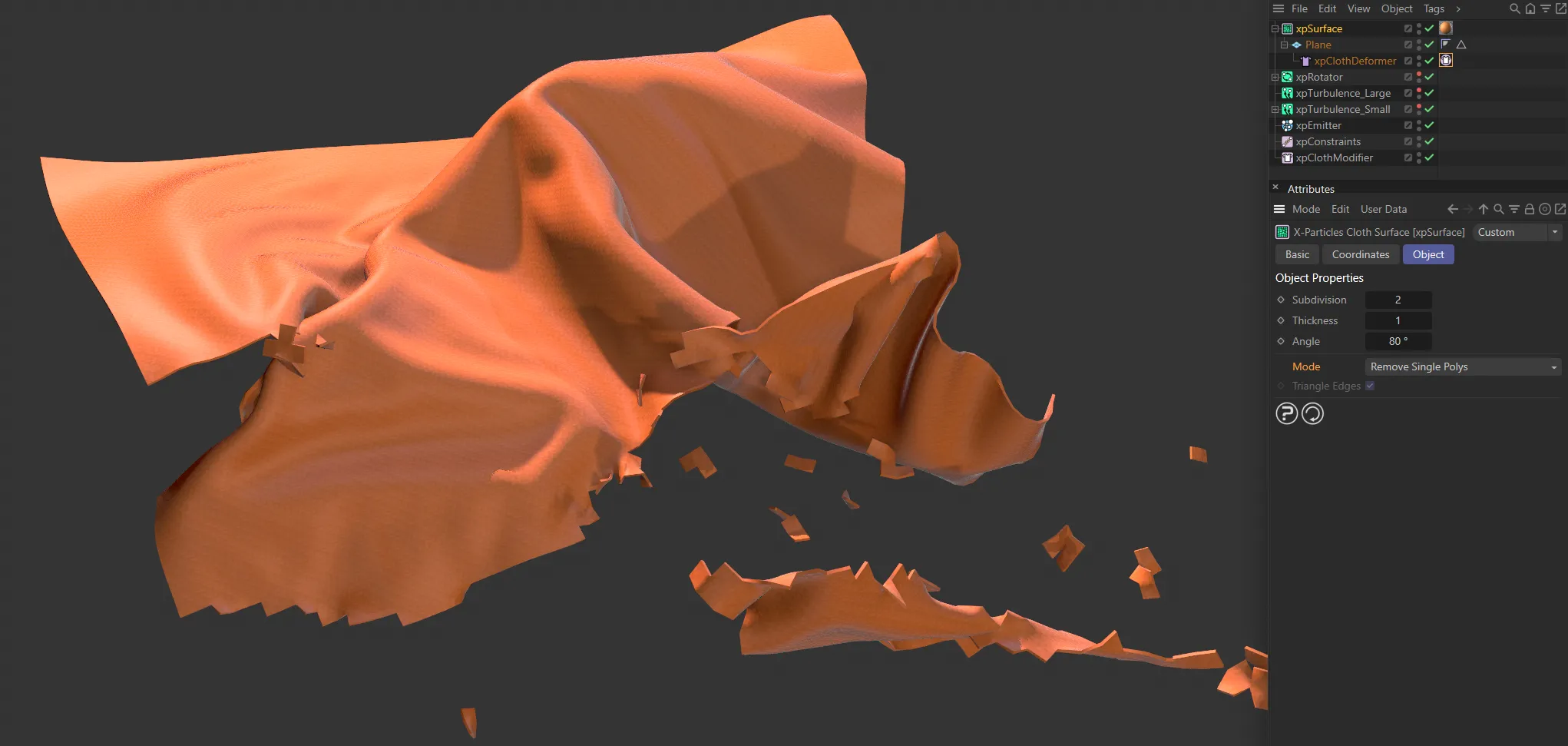
With the Mode changed to Remove Single Polys, torn pieces consisting of only one polygon are now removed from the scene.
Hide Polygons
Section titled “Hide Polygons”This is similar to Remove Single Polys but, instead, will hide groups of polygons which become disconnected.
Triangle Edges
Section titled “Triangle Edges”If Mode is set to Hide Polygons, this options becomes available.
It will fill in sharp corners caused by the tearing with a triangle of polygons to give a smoother result.
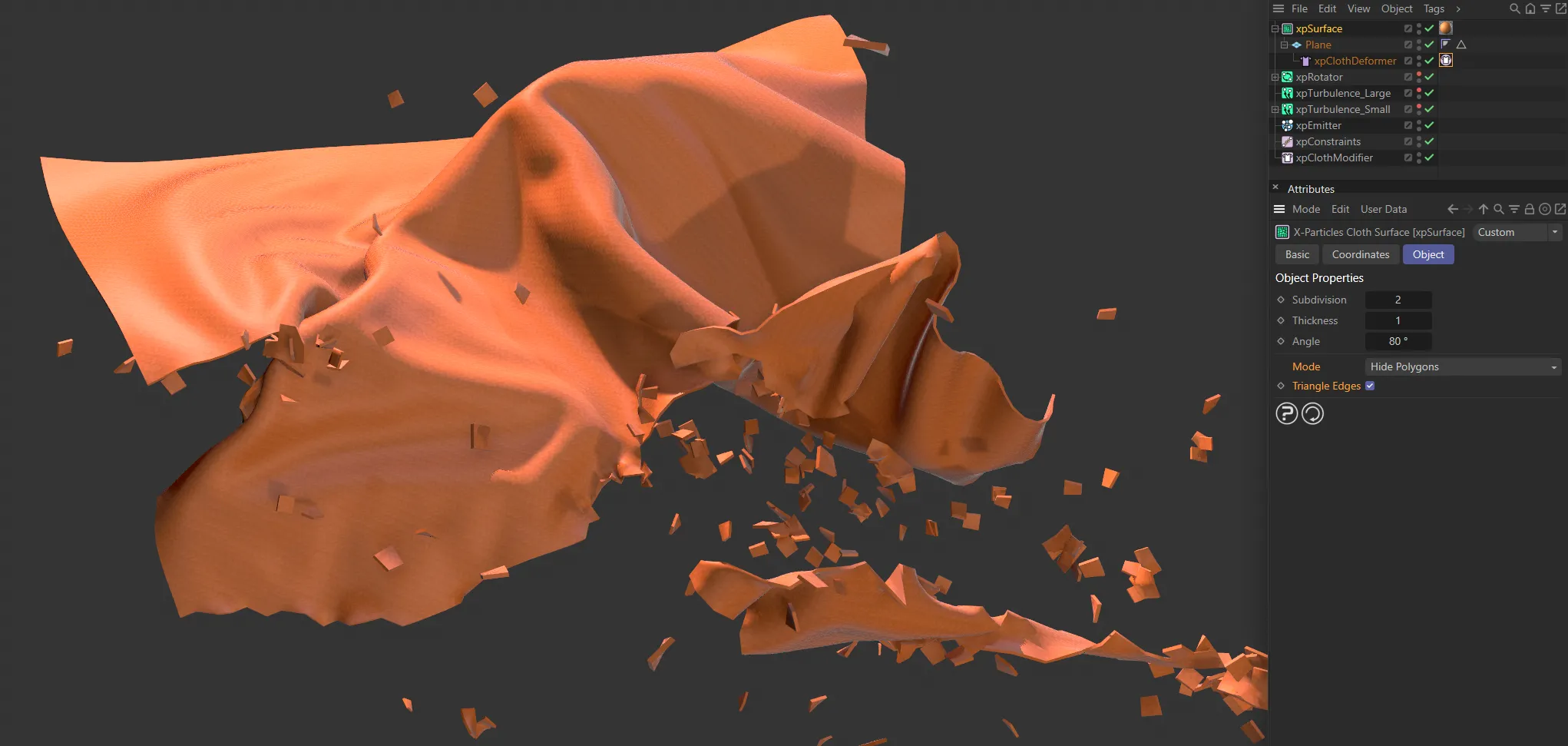
In this image, Triangle Edges is enabled, smoothing out stepped edges on the torn cloth.
Using Cloth Surface with xpShatter
Section titled “Using Cloth Surface with xpShatter”If you want to break a cloth object with the xpShatter object, please note the following points.
There are two ways you can do this:
Make the base object a child of the Cloth Surface, then make the Cloth Surface a child of the xpShatter object.
Alternatively, make the base object a child of the xpShatter object, then make xpShatter a child of the Cloth Surface
The first method will give you much better results with complex meshes.
This is because xpShatter. by its very nature, will sometimes generate less than optimal geometry; this can’t be avoided.
When the Cloth Surface subdivides the shattered object, any artifacts in the mesh can be made worse.
On the other hand, if the base object geometry is good, the Cloth Surface can subdivide it to give a good result, which can then be shattered.
Copyright © 2026 INSYDIUM LTD. All rights reserved.