
Materials
Overview Video
Section titled “Overview Video”This tab allows you to apply materials to the layers of your tree.
Materials
Section titled “Materials”Dragging a material into the Materials list will automatically apply it to the trunk of the tree.
By then highlighting this material, other options will open up below.
Assign To
Section titled “Assign To”Here is a set of options, which is set to the Trunk layer by default.
The other options are Branch and Leaf.
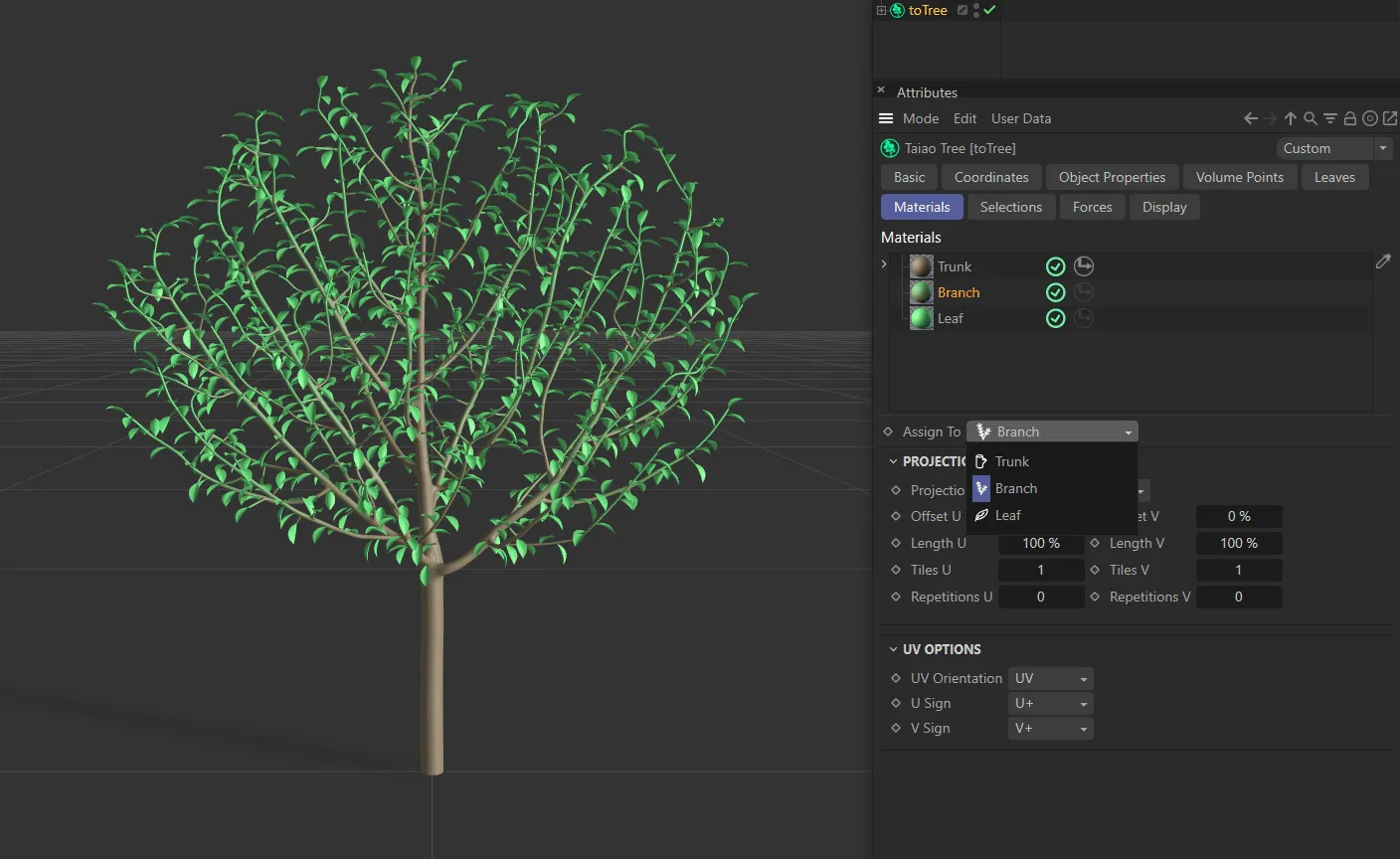
Branch material highlighted in the Materials link field, being applied to the Branch layer in the Assign To parameter.
Clicking on the Hierarchy icon in the link field will assign the material to any child of the Trunk layer that is set.
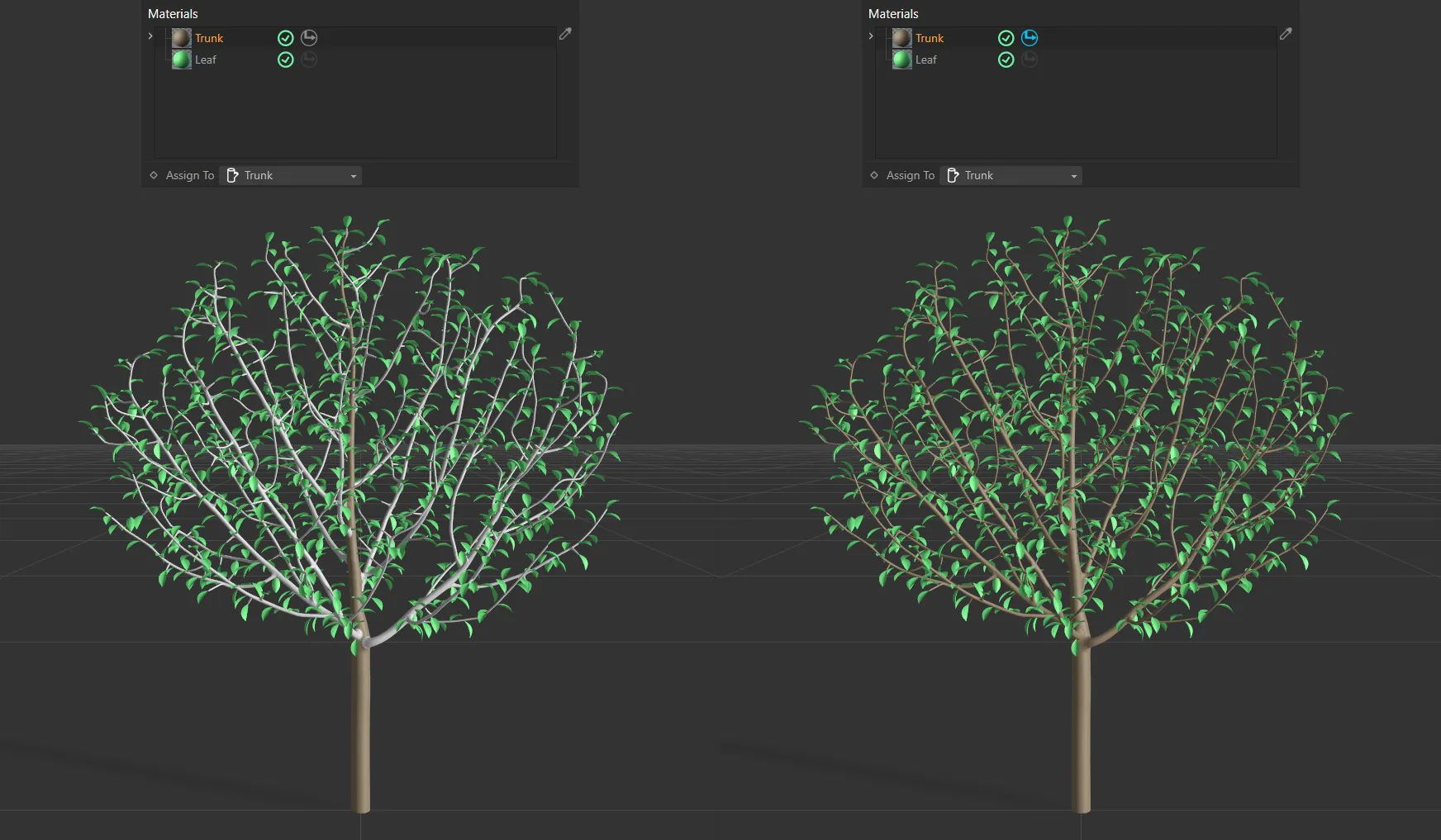
On the left tree, Hierarchy is disabled, so the material is applied to the Trunk layer only, whilst on the right the Hierarchy is enabled, applying it to Branch layers also.
If you want to select additional materials, simply drag them into the same link field, highlight them and assign them, as described above.
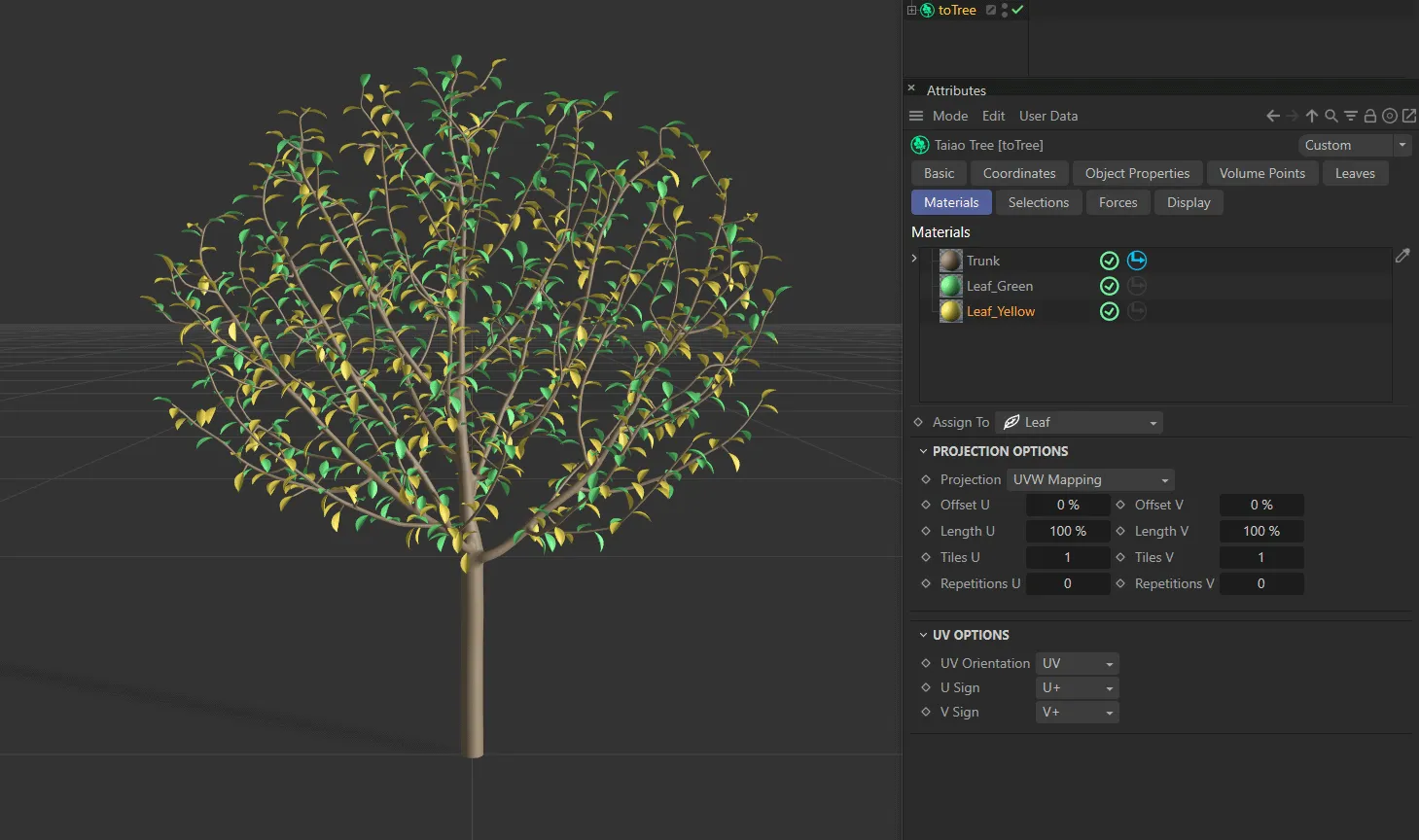
In this image there are two materials, both assigned to the Leaf layer, being randomly applied.
Projection Options
Section titled “Projection Options”You can use these options to choose the projection mapping of the texture used.
Offset and Length settings allow you to control the global scale and offsets of the material, while the Tile value sets how many times the image will tile.
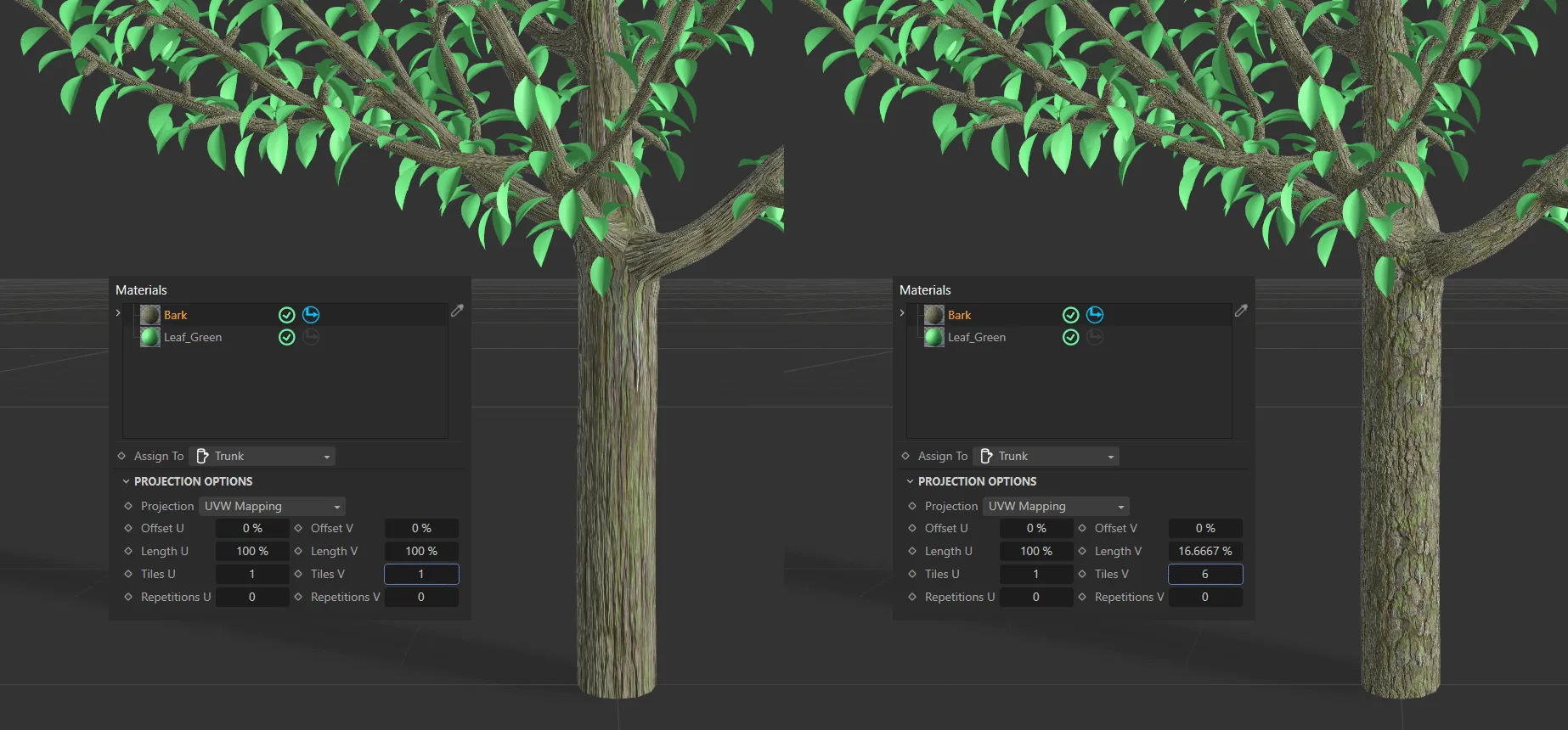
In this image, the Tiles V value is 1, on the left, but set at 6 on the right, tiling the Bark material more organically across the Trunk and Branch layers.
UV Options
Section titled “UV Options”These options will enable you to orientate a correct projection for your scene.
Copyright © 2026 INSYDIUM LTD. All rights reserved.