
Display
Overview Video
Section titled “Overview Video”This tab gives you options to alter the Display settings.
Crown Mesh
Section titled “Crown Mesh”Click on the tick box to activate this, which is set as a blue wireframe by default and is the area in which you can create your volume points - set in the Volume Points tab.
You can change the color of the crown mesh by using the color picker.
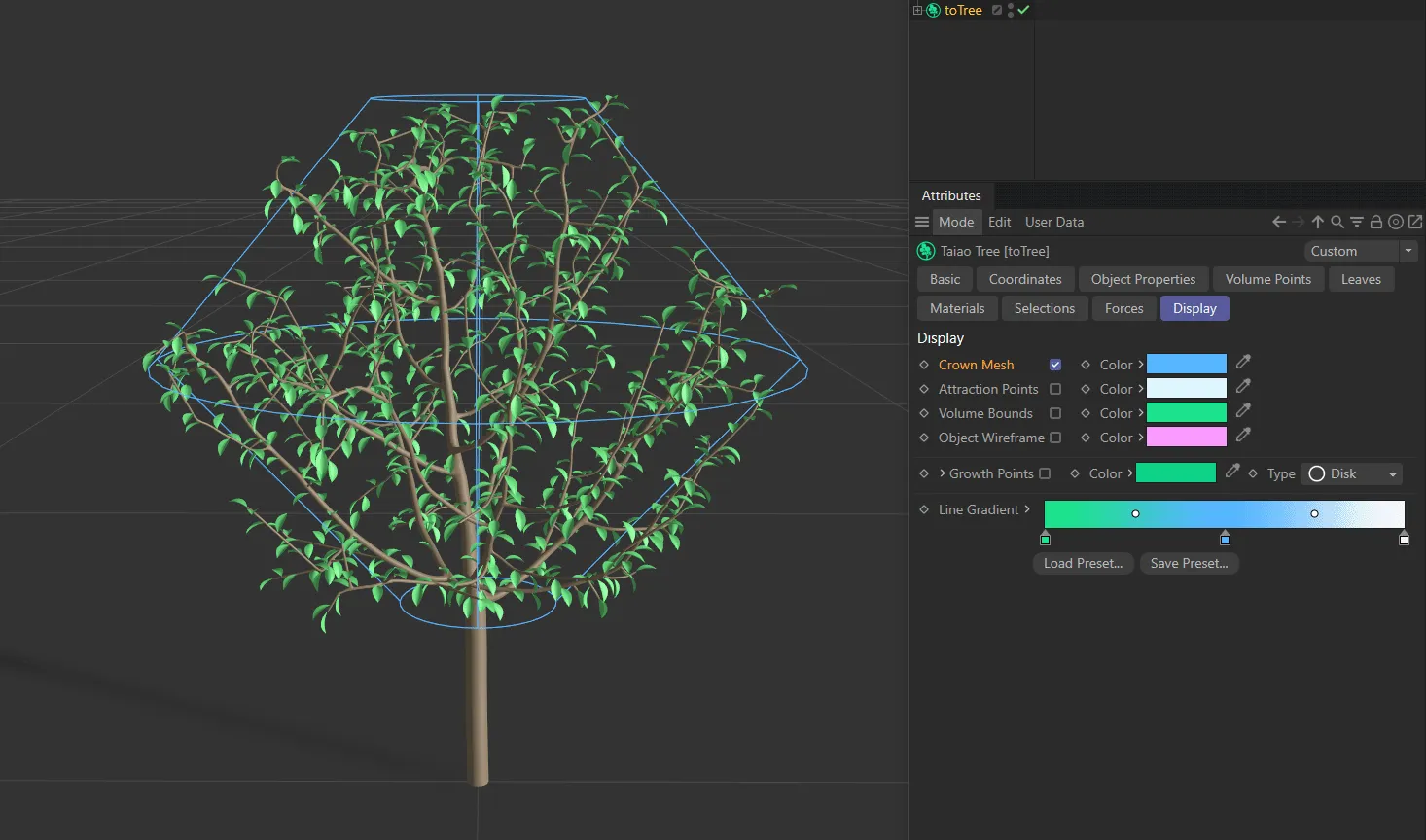
The blue wireframe crown mesh is enabled here in the Display settings.
Attraction Points
Section titled “Attraction Points”Within the crown mesh volume, the attraction points are being generated.
Clicking on the tick box will activate them.
They are set as white dots, by default; this can also be changed using the color picker.
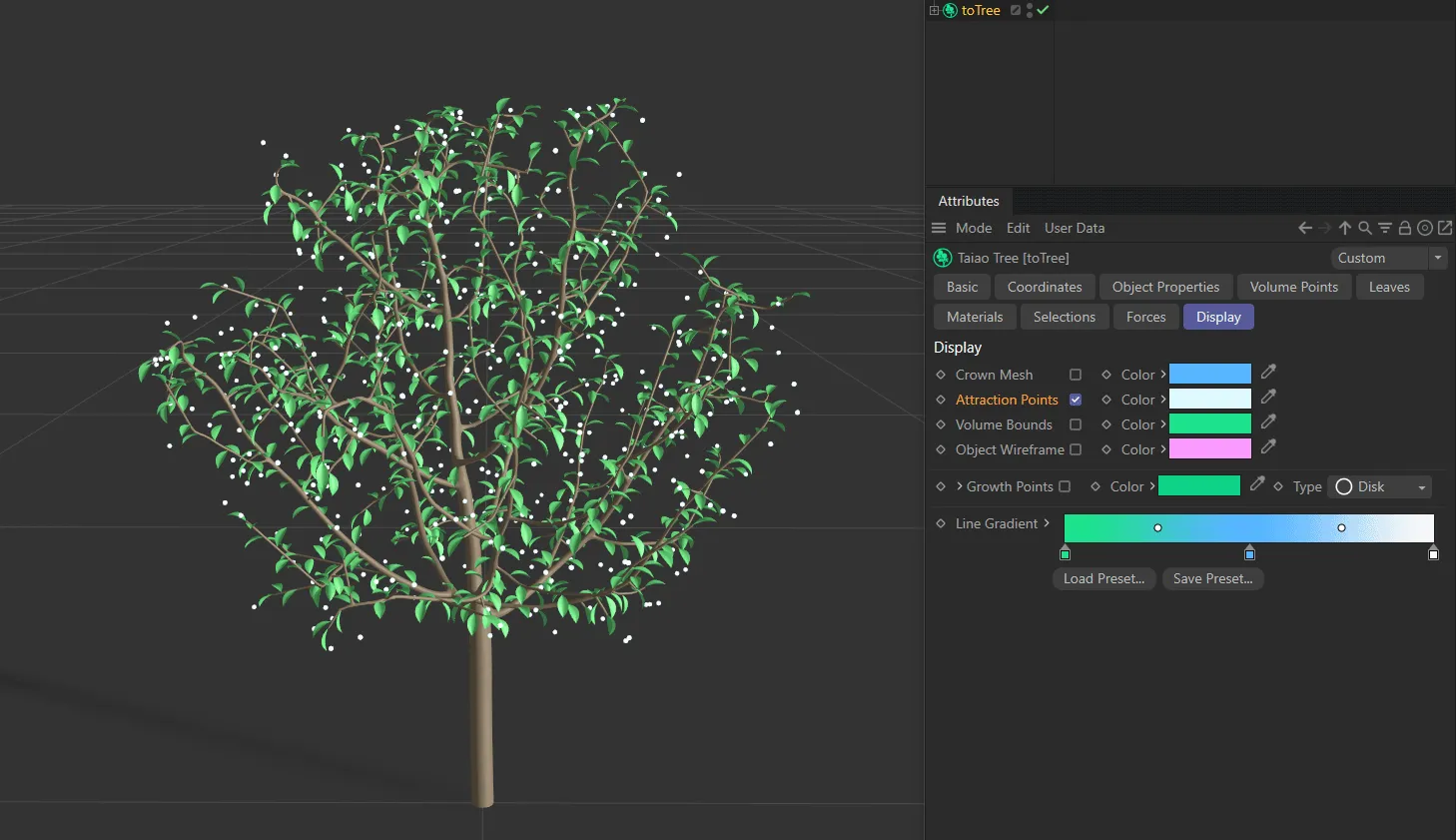
The attraction points are visible here as white dots inside the crown mesh.
Volume Bounds
Section titled “Volume Bounds”Activating this will make a green cube visible.
The color can, again, be altered.
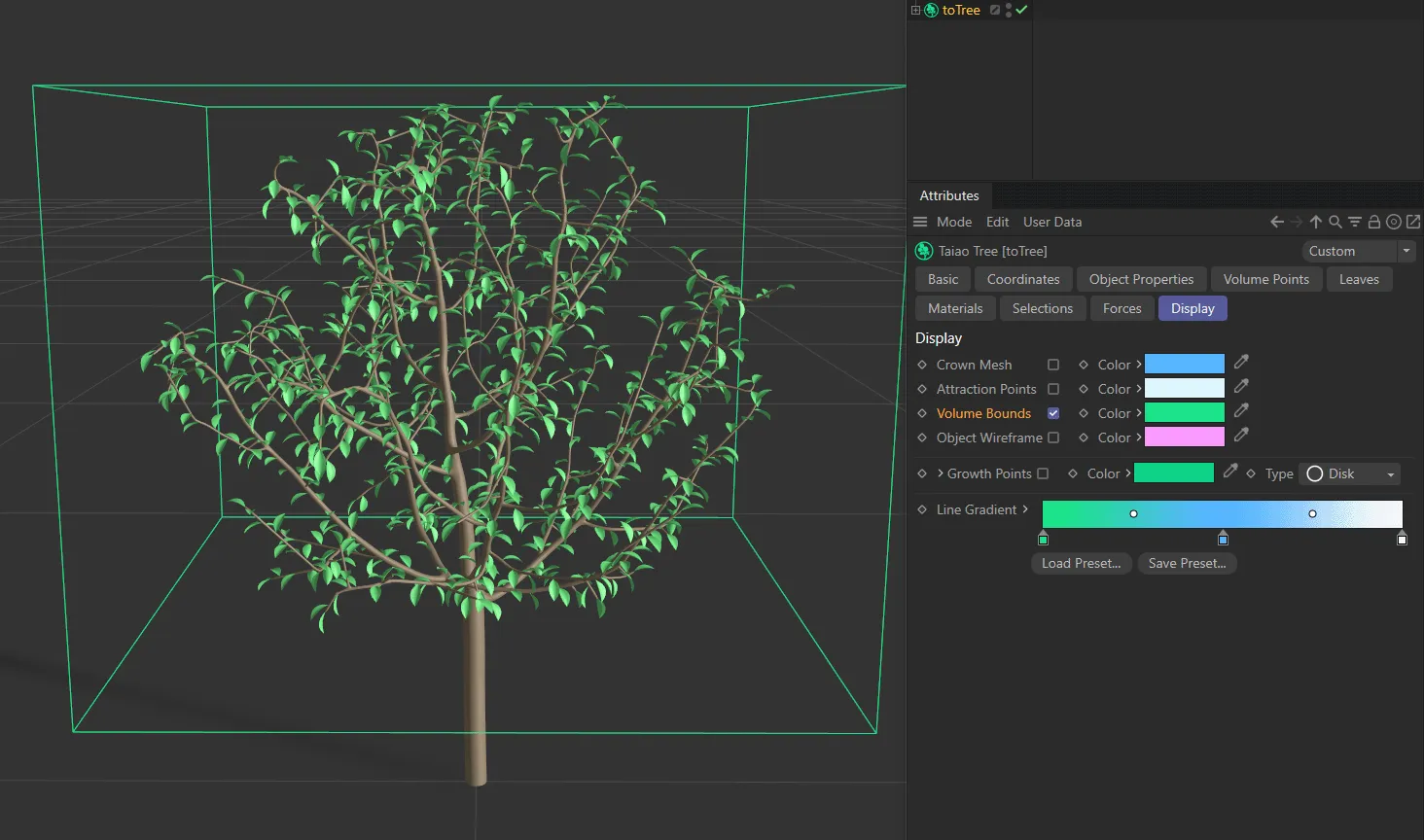
The green Volume Bounds cube.
Object Wireframe
Section titled “Object Wireframe”If you are using ‘avoid objects’ in your scene, they can be viewed as pink wireframes, by checking this box.
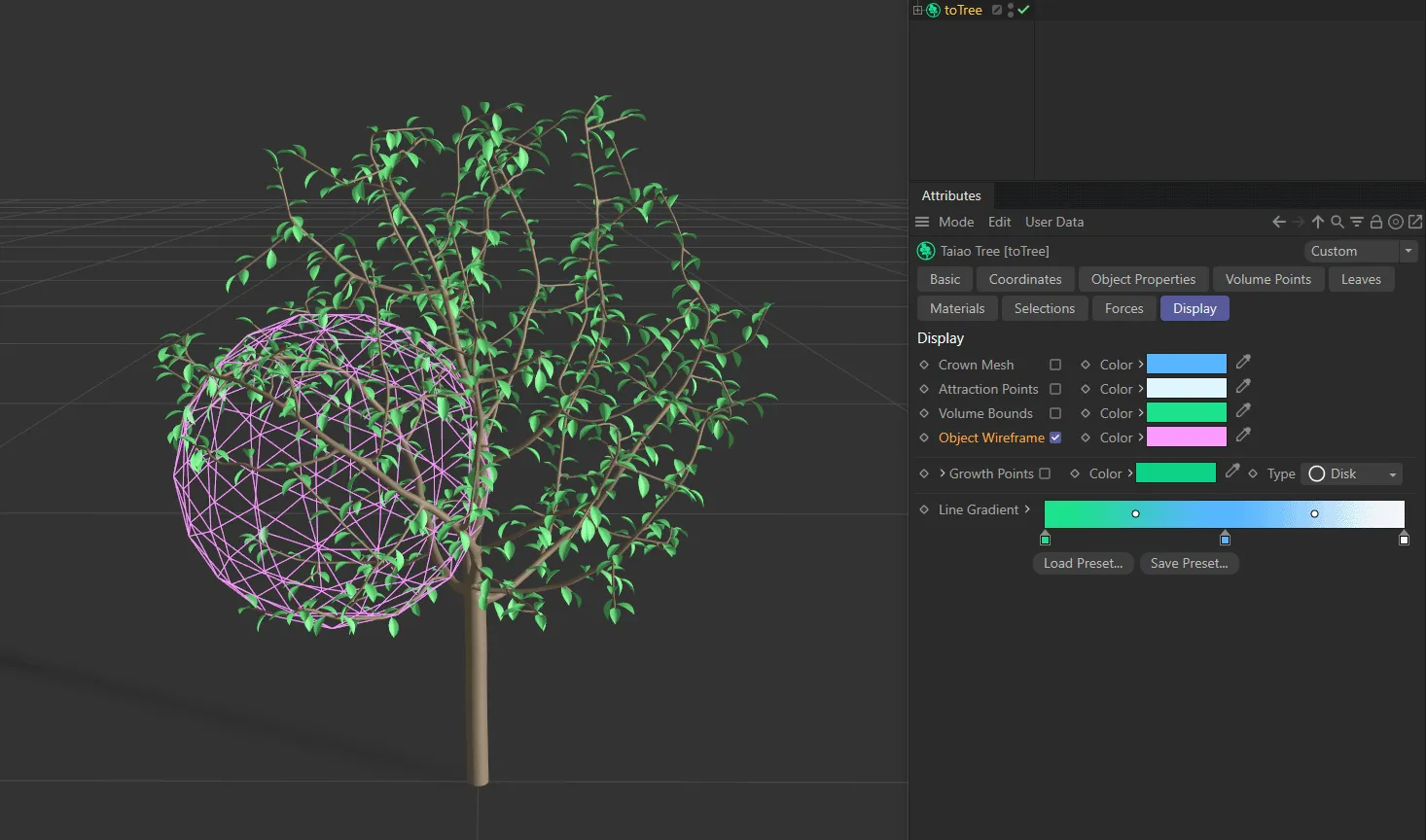
The Sphere is visible here as a pink object wireframe.
Growth Points
Section titled “Growth Points”You can show your growth points, by activating this option.
By default, this is set as a green disc.
The color can be changed, as normal.
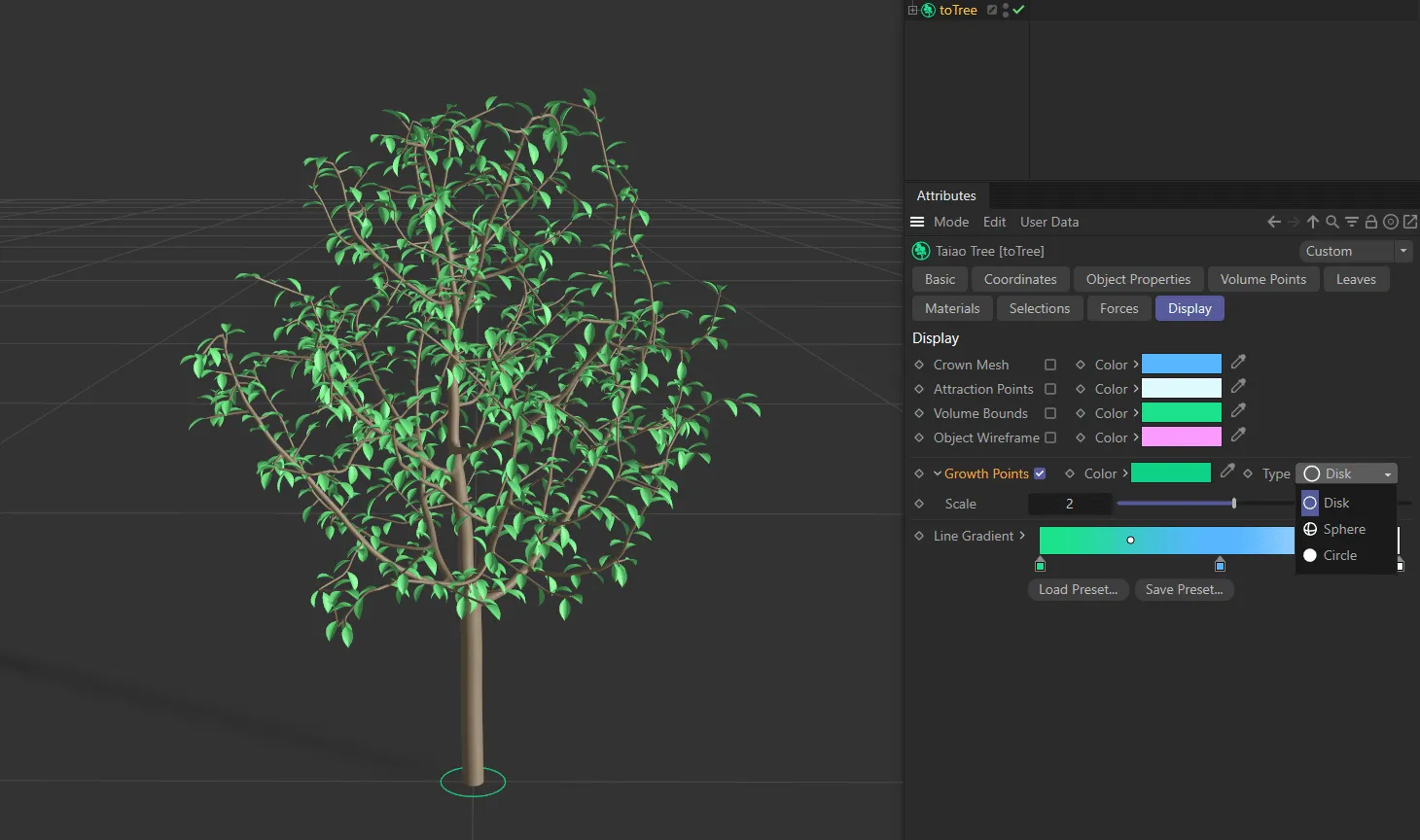
In the image above, the growth point is shown as a green disc.
The shape of the growth point can be altered from Disc, to Sphere or Circle.
Clicking on the drop-down arrow will reveal the Scale parameter.
The scale of the growth point can also be increased, by using the Scale slider.
Line Gradient
Section titled “Line Gradient”When viewing your tree in Line mode (set from the Object Properties tab), this gradient is applied across the different layers.
By moving the knots, the gradient can be altered.
Clicking on the color picker, within the knot, gives you the facility to change the colors from the default settings.
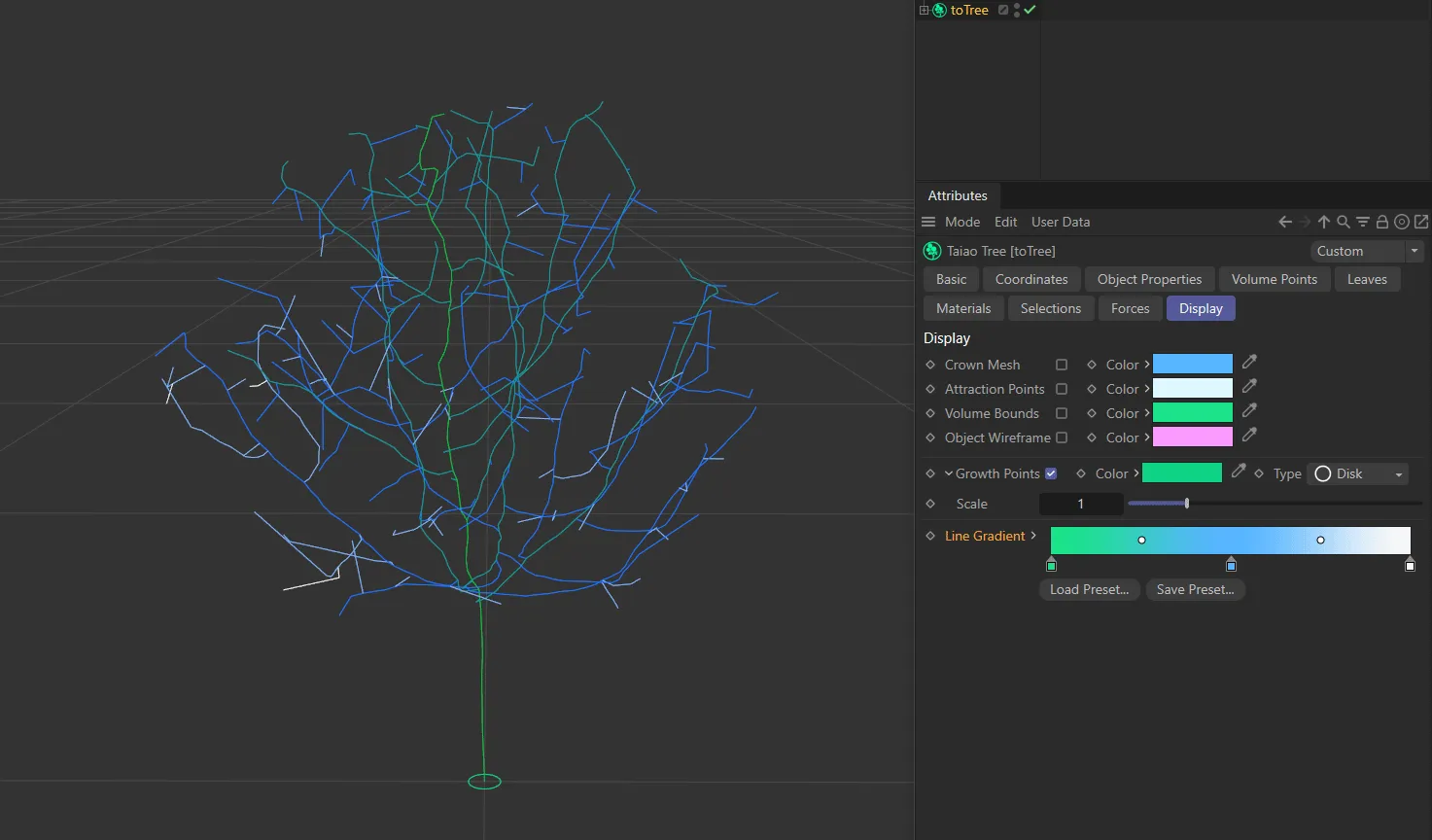
Line Gradient being applied across the different layers of the tree, with the Trunk layer on the left of the X-axis in green.
Copyright © 2026 INSYDIUM LTD. All rights reserved.