
Display
This tab gives you options to alter the display settings.
Display
Section titled “Display”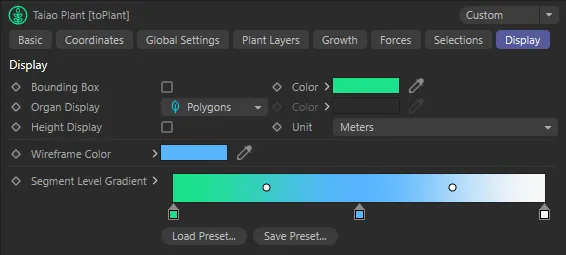
Display tab menu settings.
Bounding Box
Section titled “Bounding Box”Clicking in the box will display a bounding box around your plant.
The color of the bounding box can be changed with the color picker.
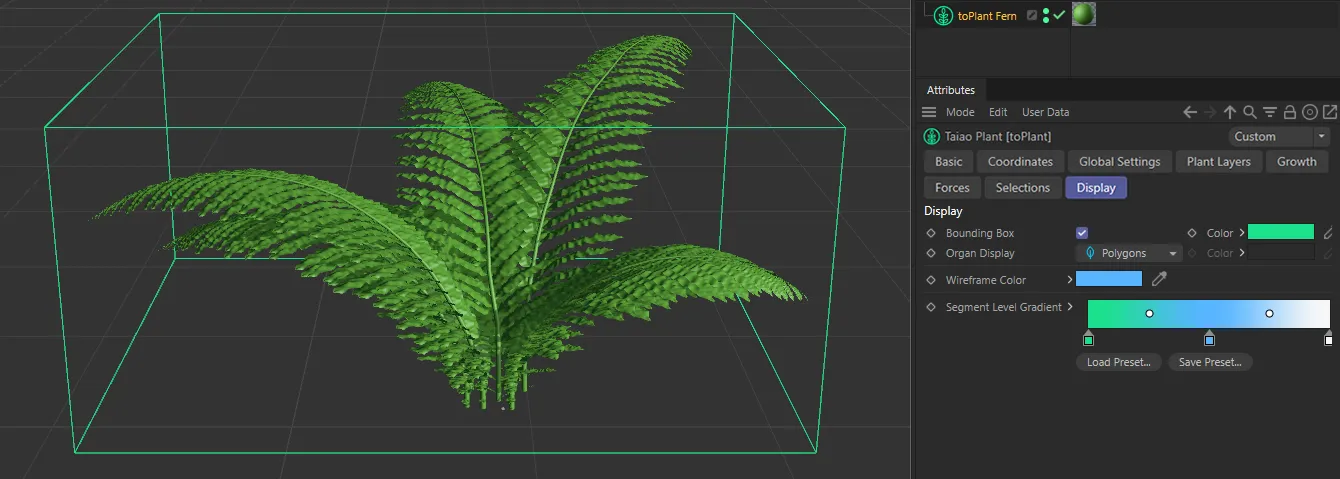
Bounding Box set in the color green.
Organ Display
Section titled “Organ Display”There are three settings here: Polygons, Wireframe and Line.
Polygons
Section titled “Polygons”Your organs (leaves and flowers) are displayed as polygons; this is the default setting.
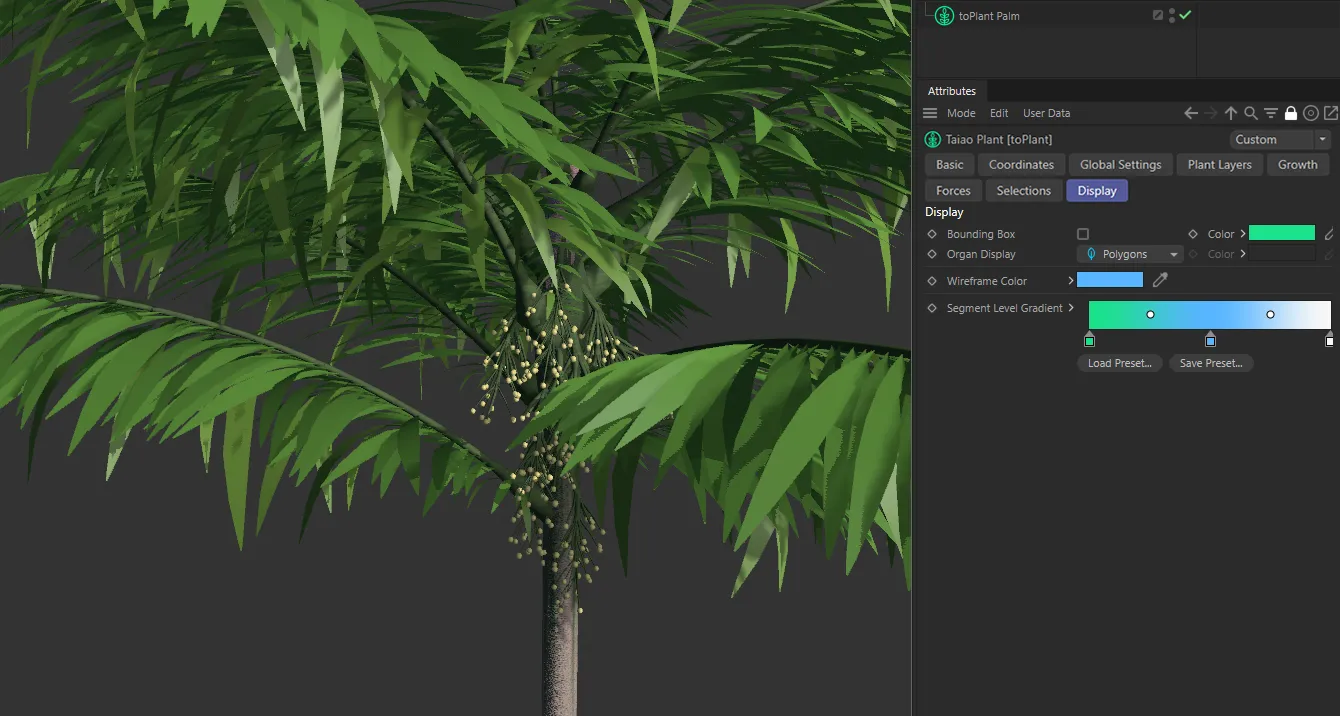
Organ Display set as Polygons.
Wireframe
Section titled “Wireframe”This setting will give you better viewport performance when designing more detailed plants.
In Wireframe mode, the line color can be changed using the color picker.
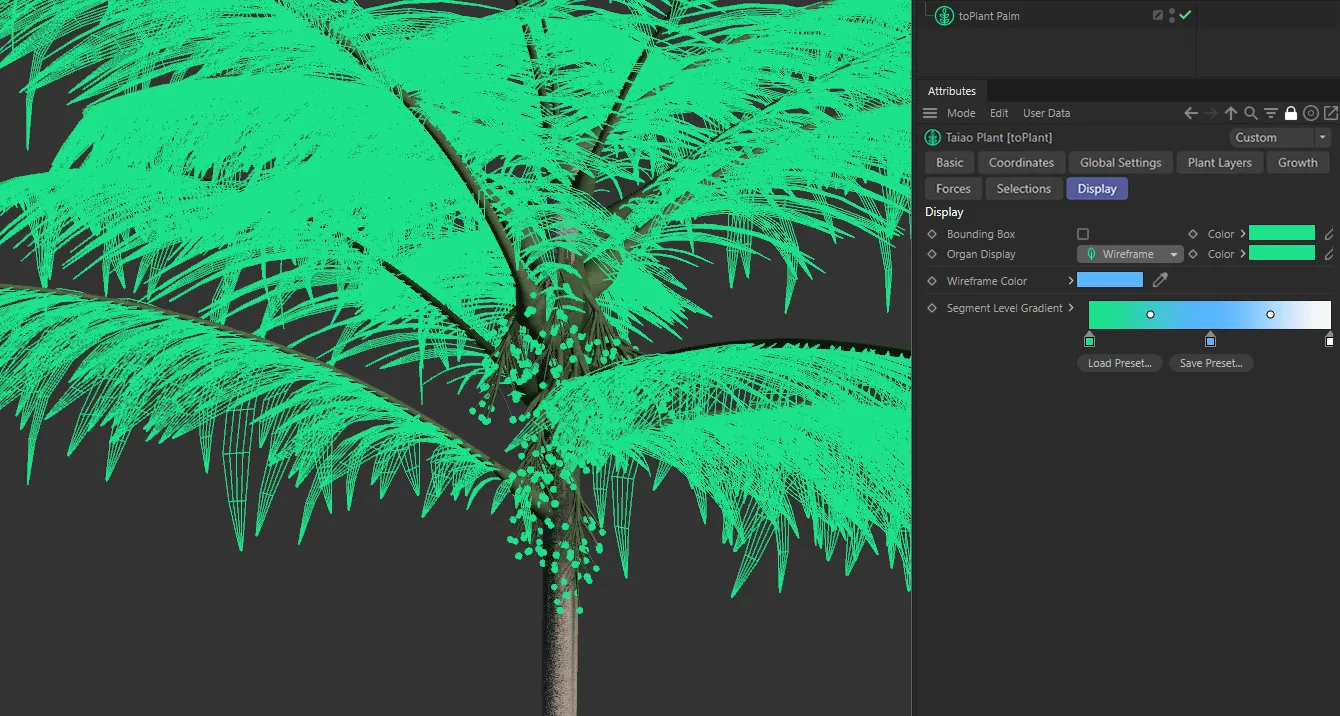
Organ Display set as Wireframe.
This mode gives you a line per organ, which, once again, gives more efficient viewport performance during your design process.
In Line mode, the line color can be changed using the color picker.
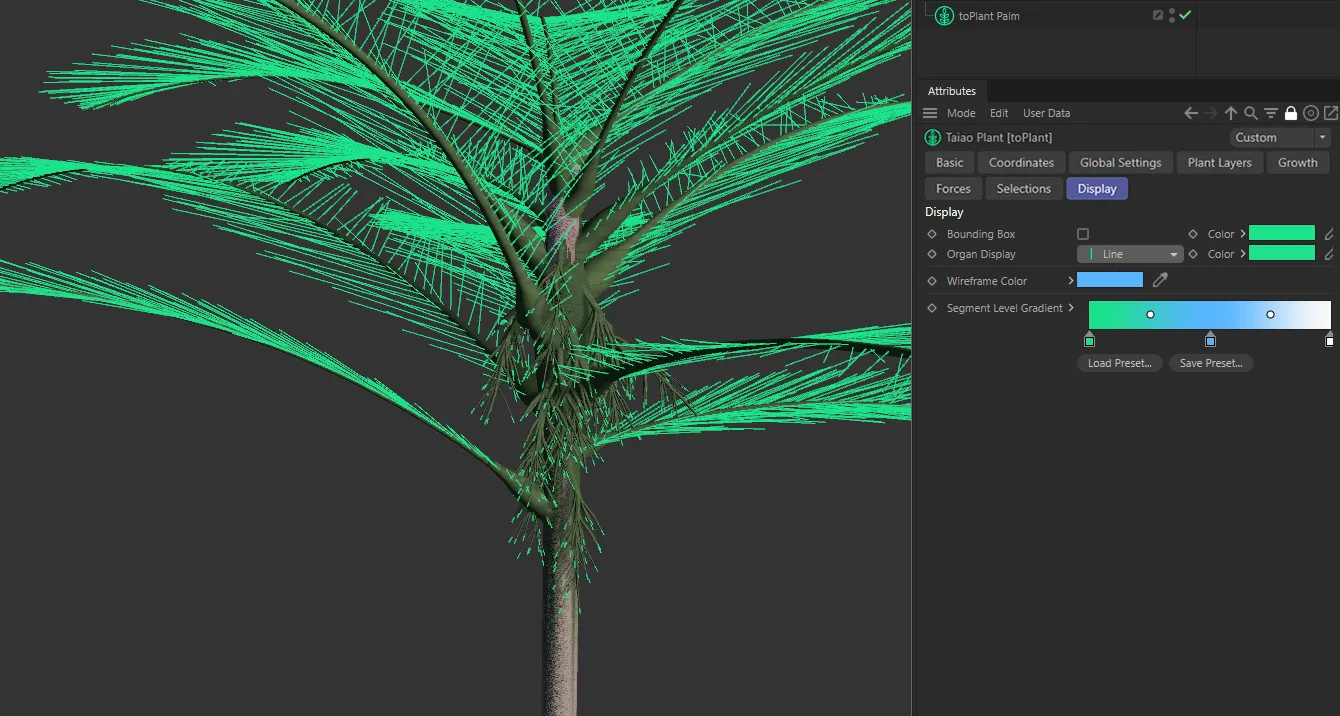
Organ Display set as Line, with the default green color.
Height Display
Section titled “Height Display”A new display option that, when enabled, displays text showing the height of the toPlant object in either meters or feet which can be selected with the Unit drop-down.
This can show the height of the object in either Meters or Feet.
Wireframe Color
Section titled “Wireframe Color”If your Object Type is set to Wireframe in the Global Settings tab, this color picker will allow you to change the color for the wireframe in your plant, from its default, blue.
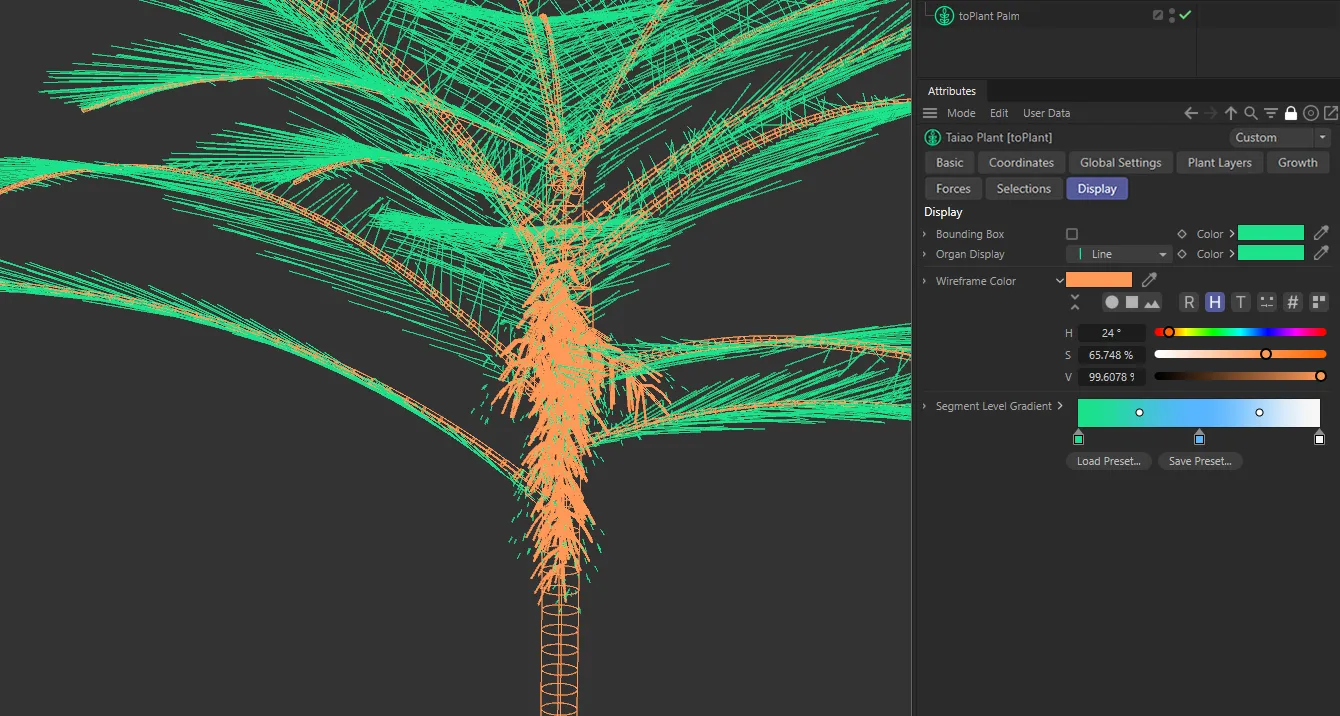
Here the Wireframe Color is set to orange.
Segment Level Gradient
Section titled “Segment Level Gradient”When viewing your plant in Line mode (set from the Object Type in the Global Settings tab), this gradient is applied across the different layers.
By moving the knots, the gradient can be altered.
Clicking on the color picker within the knot gives you the facility to change the colors from the default setting.
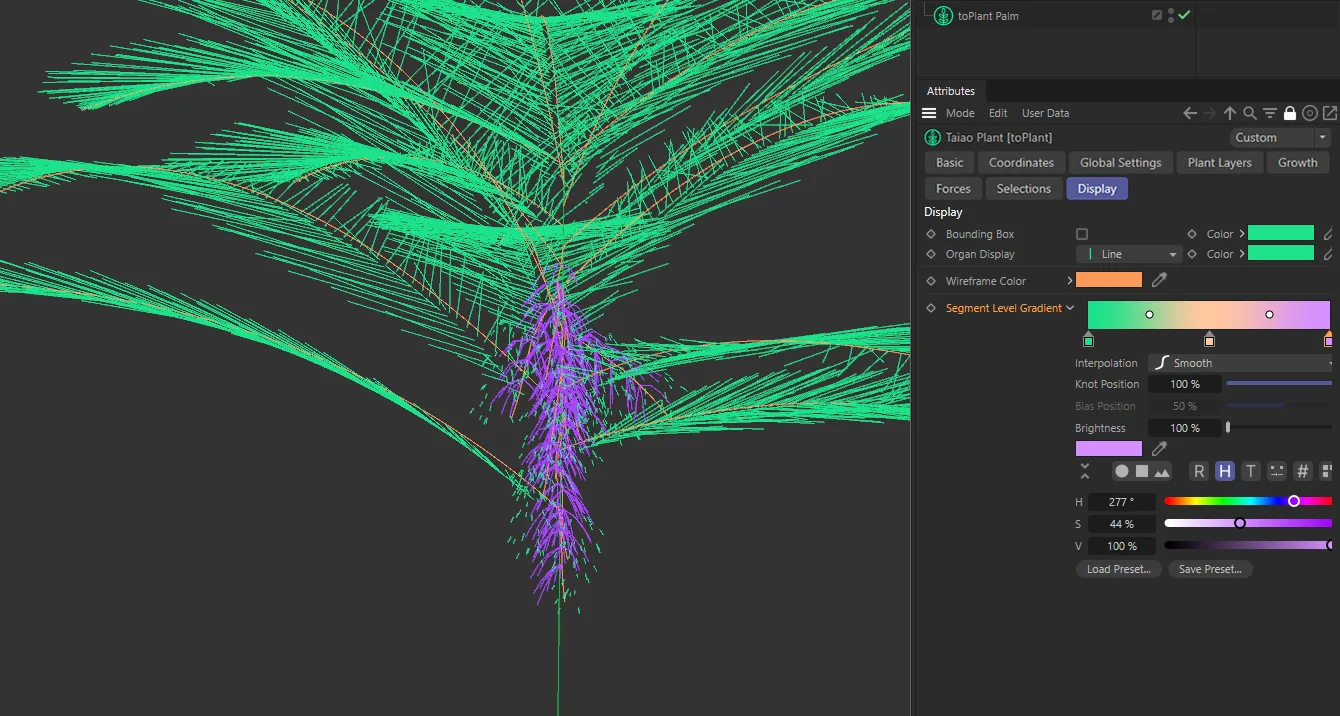
In Line mode, with the Segment Level Gradient settings in the menu on the left.
Copyright © 2026 INSYDIUM LTD. All rights reserved.