
Modifiers
These settings give you the ability to adjust the look and shape of your leaf by the layering modifiers, including Fold, Furling and Turbulence.
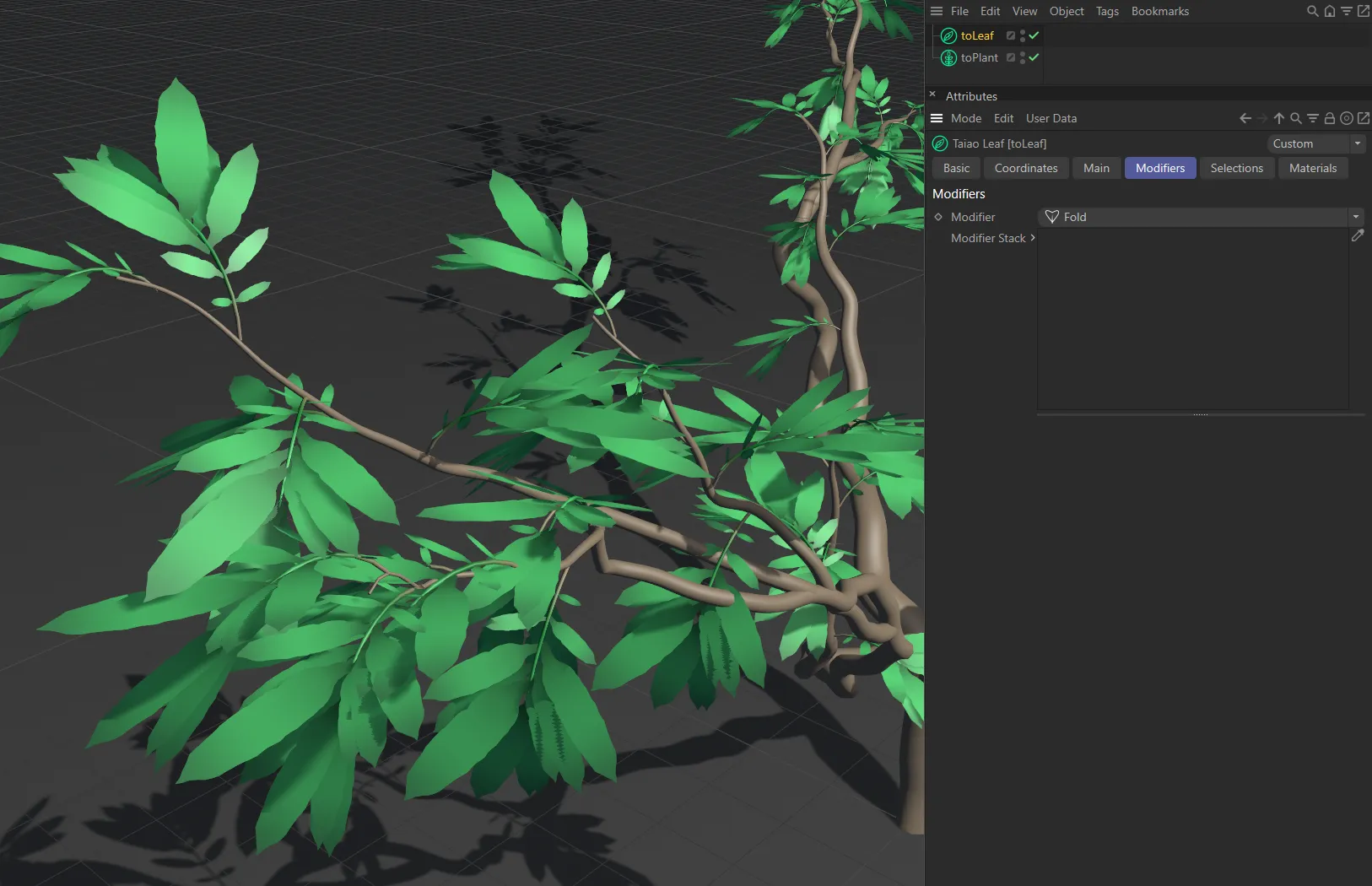
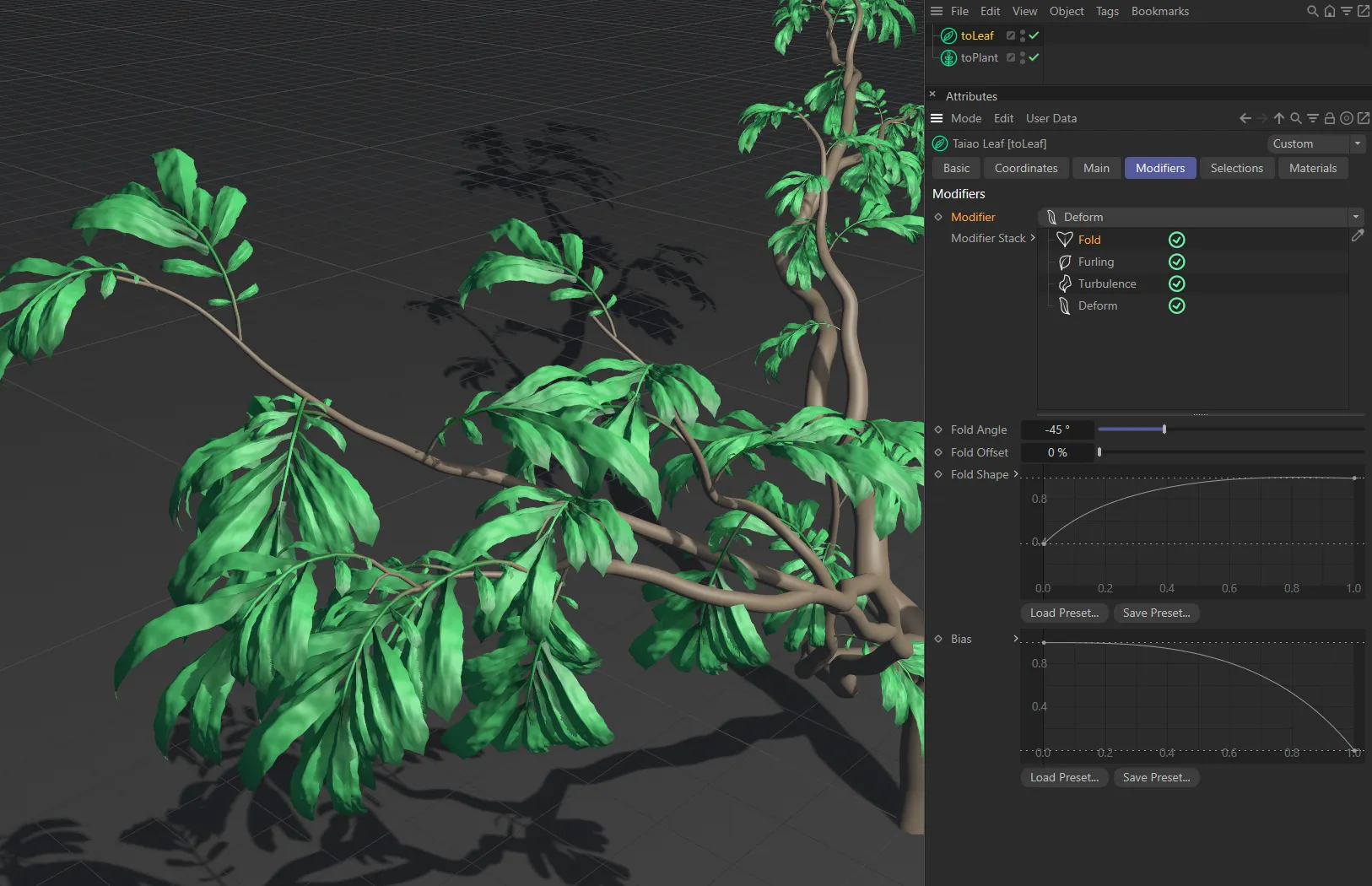
Modifier
Section titled “Modifier”The available Modifier types are: Fold, Furling, Turbulence, Deform, Displacer, Furling (Lobed Stem), Turbulence (Lobed Stem).
Each comes with its own parameter settings.
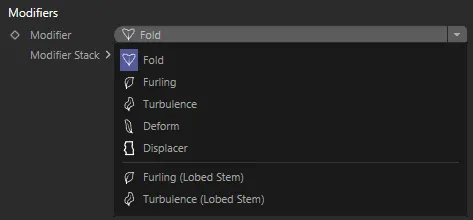
Modifier drop-down options.
Modifier Stack
Section titled “Modifier Stack”The hierarchical list of modifiers affecting your leaf.
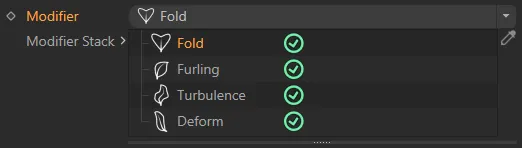
Modifier types in the Modifier Stack list.
Fold modifier
Section titled “Fold modifier”This modifier replicates the natural folding of leaves.
Fold Angle
Section titled “Fold Angle”This angle can be positive or negative, folding the leaves backward or forwards down the middle.
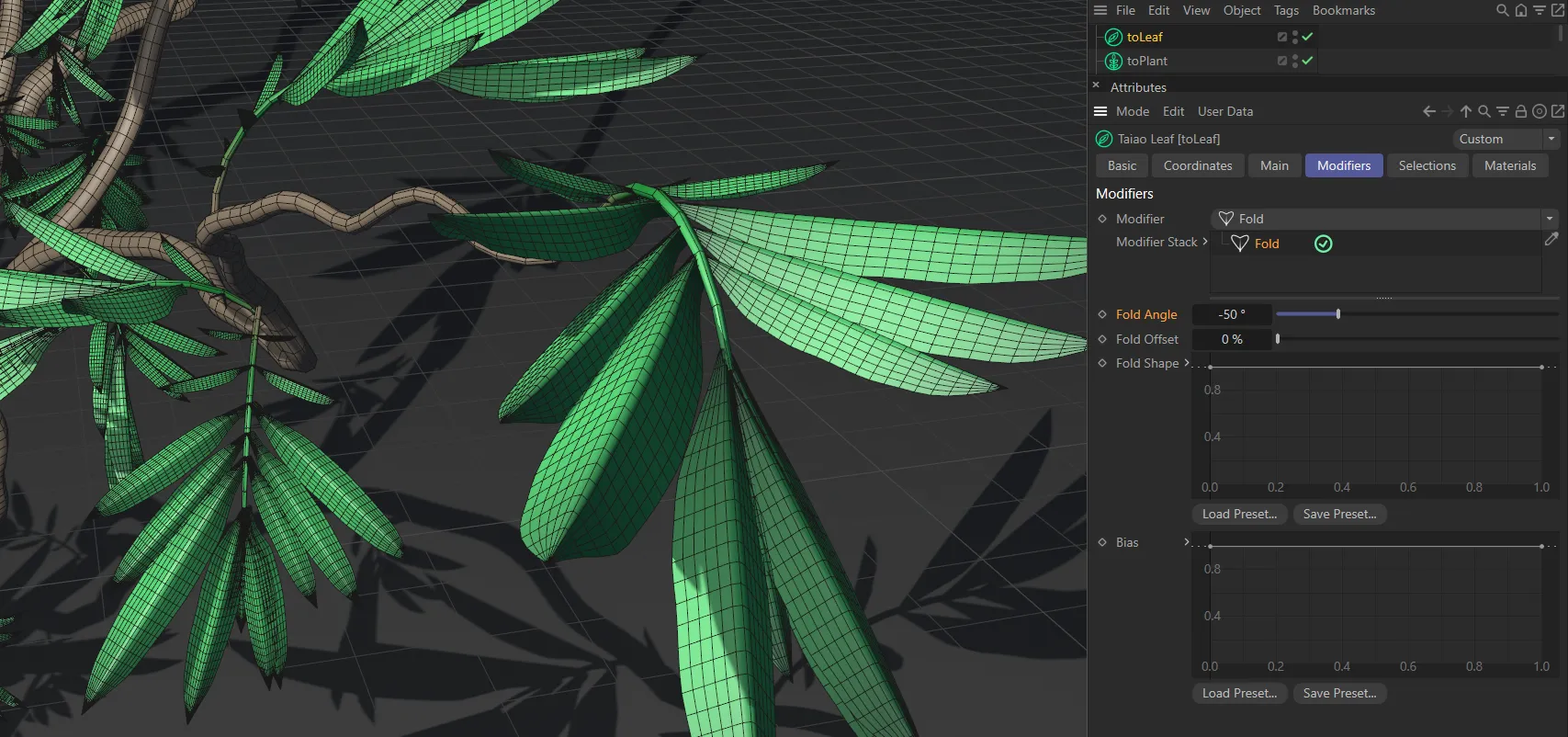
In this image, the Fold Angle is (negative) -50 degrees.
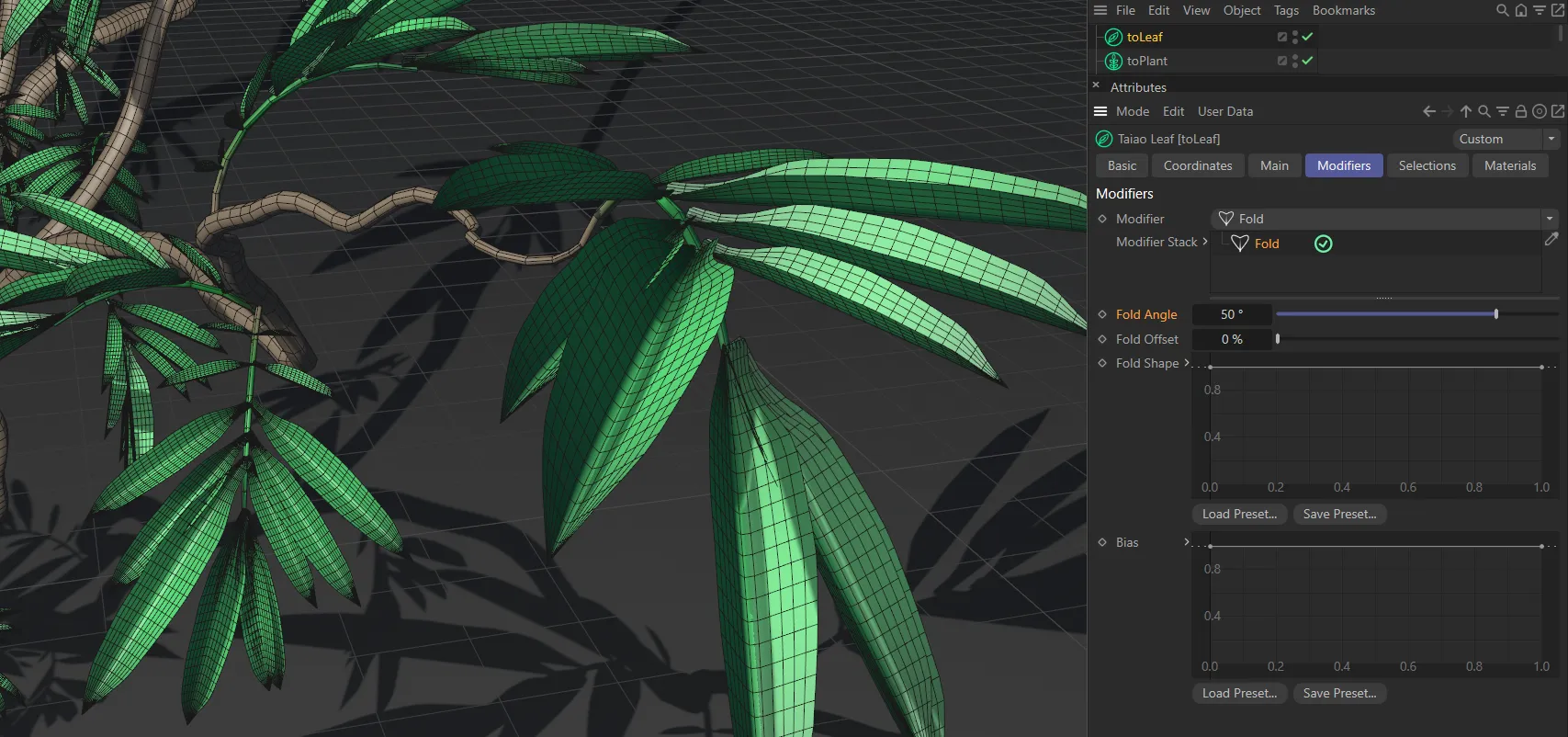
Fold Angle of 50 degrees.
Fold Offset
Section titled “Fold Offset”Allows you to offset the fold by a percentage.
Fold Shape
Section titled “Fold Shape”This curve is used to create the profile shape of the fold, from the edge of the leaf to the center.
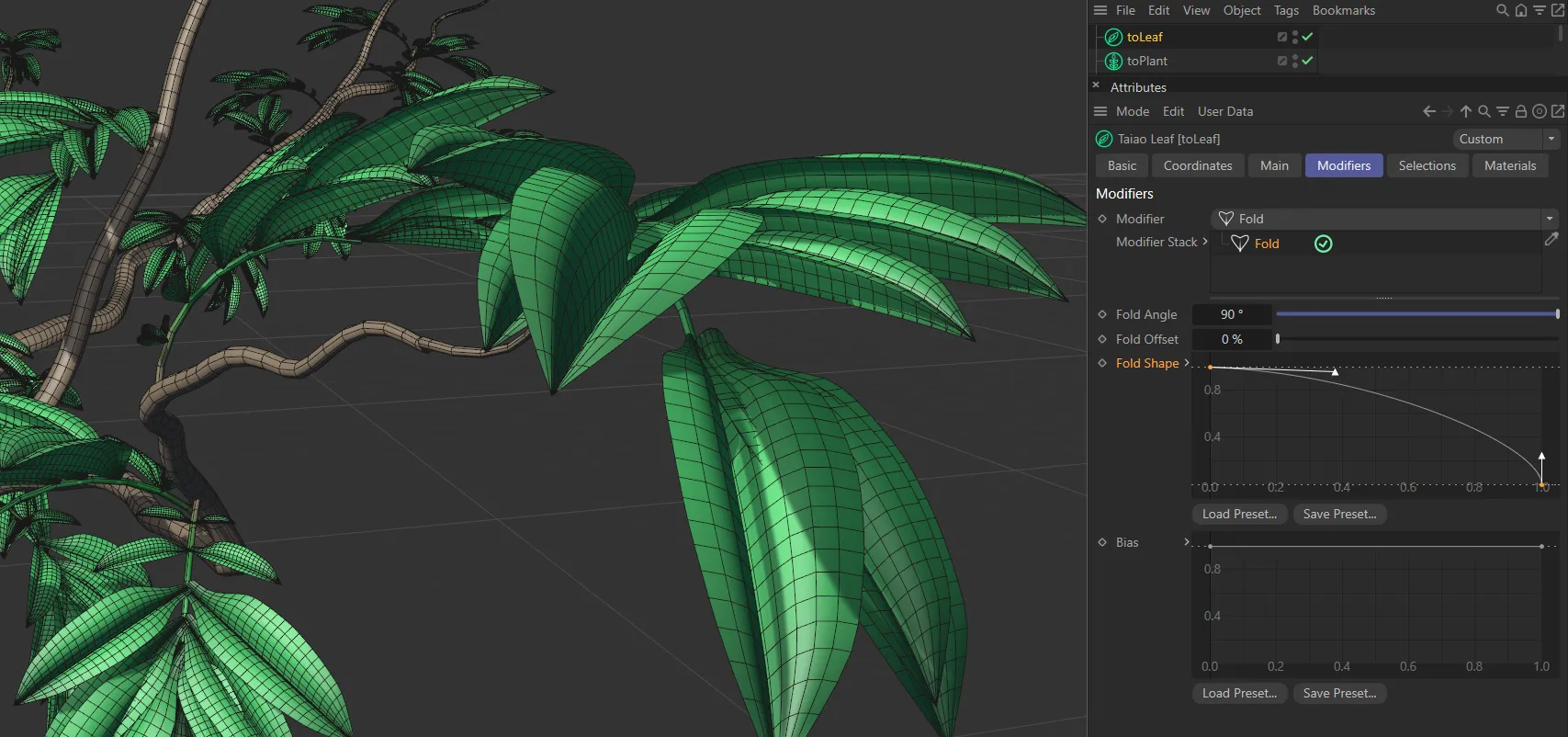
This Fold Shape spline setting gives a full fold angle in the centre of the leaf, falling off to no angle towards the edge.
This controls the fold along the length of the leaf.
At 50%, the folding will begin halfway along the leaf.
Decreasing the percentage will start the folding from closer to the beginning of the leaf and increasing it will move the folding towards the tips.
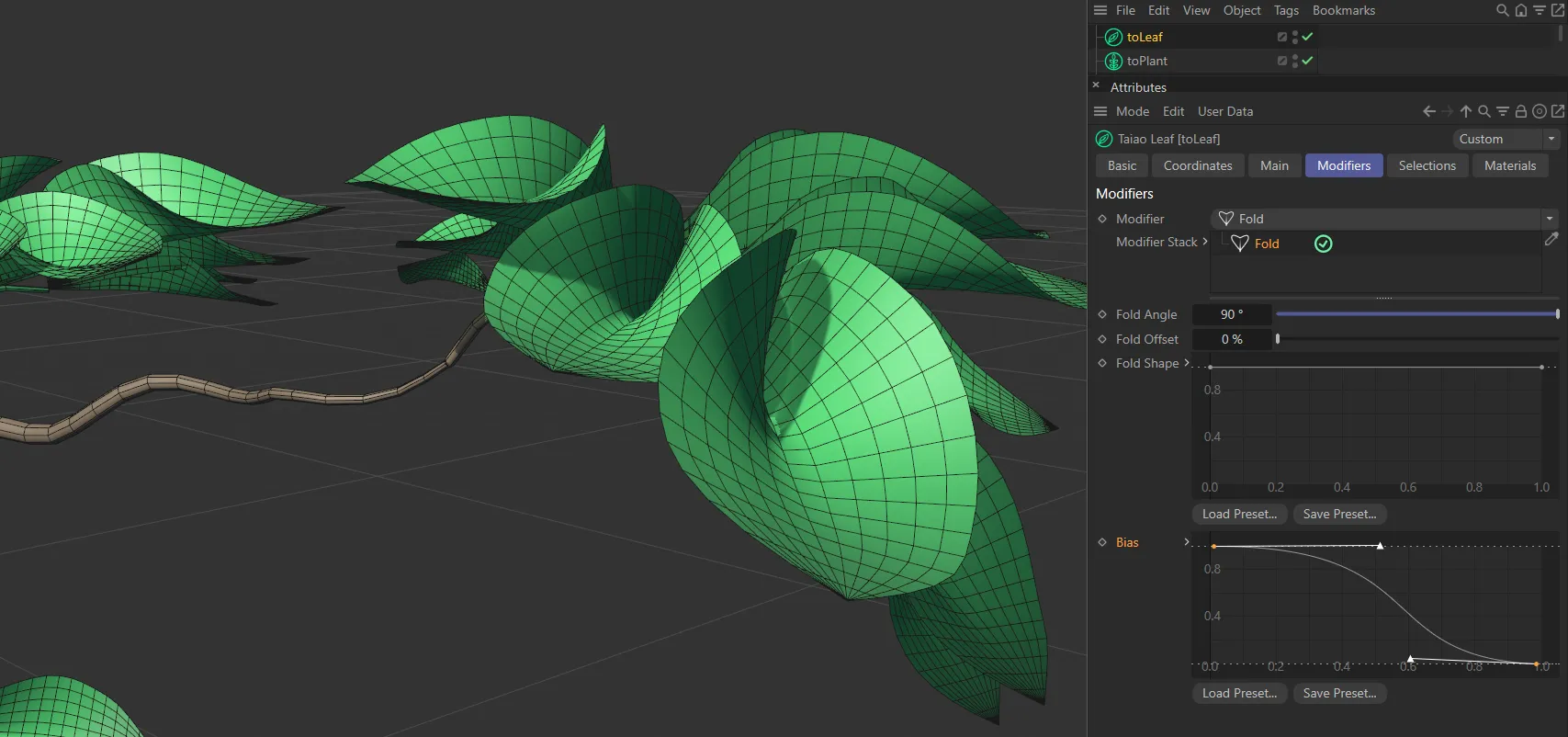
The Bias shape, in this image, results in less folding towards the tip of the leaf.
Furling modifier
Section titled “Furling modifier”This feature allows you to bend all leaves of the selected plant layer along their length, starting from the stem, replicating a curling shape.
Furling Angle
Section titled “Furling Angle”The angle can be positive or negative, depending on the direction you wish to furl the leaves.
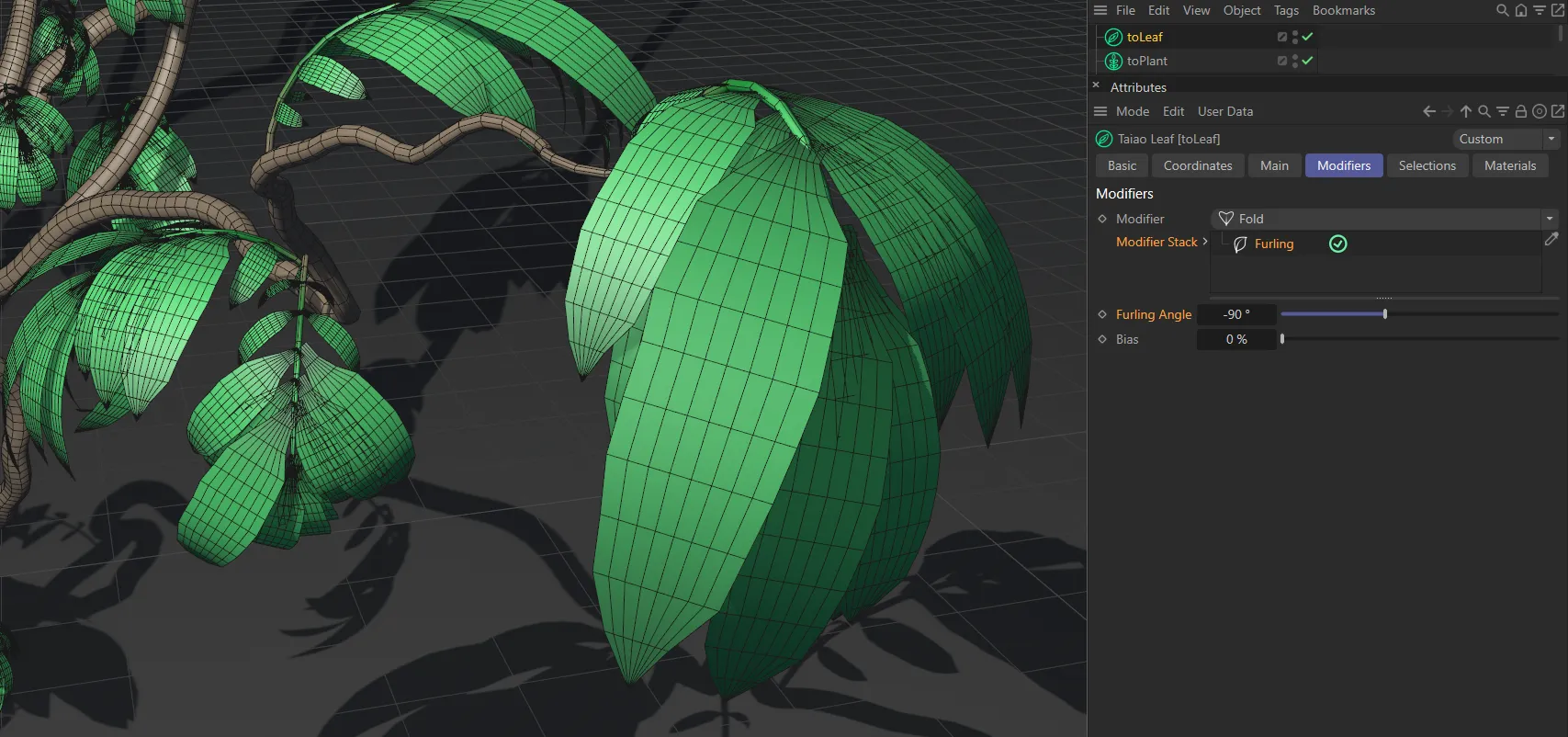
Furling Angle set at (negative) -90 degrees.
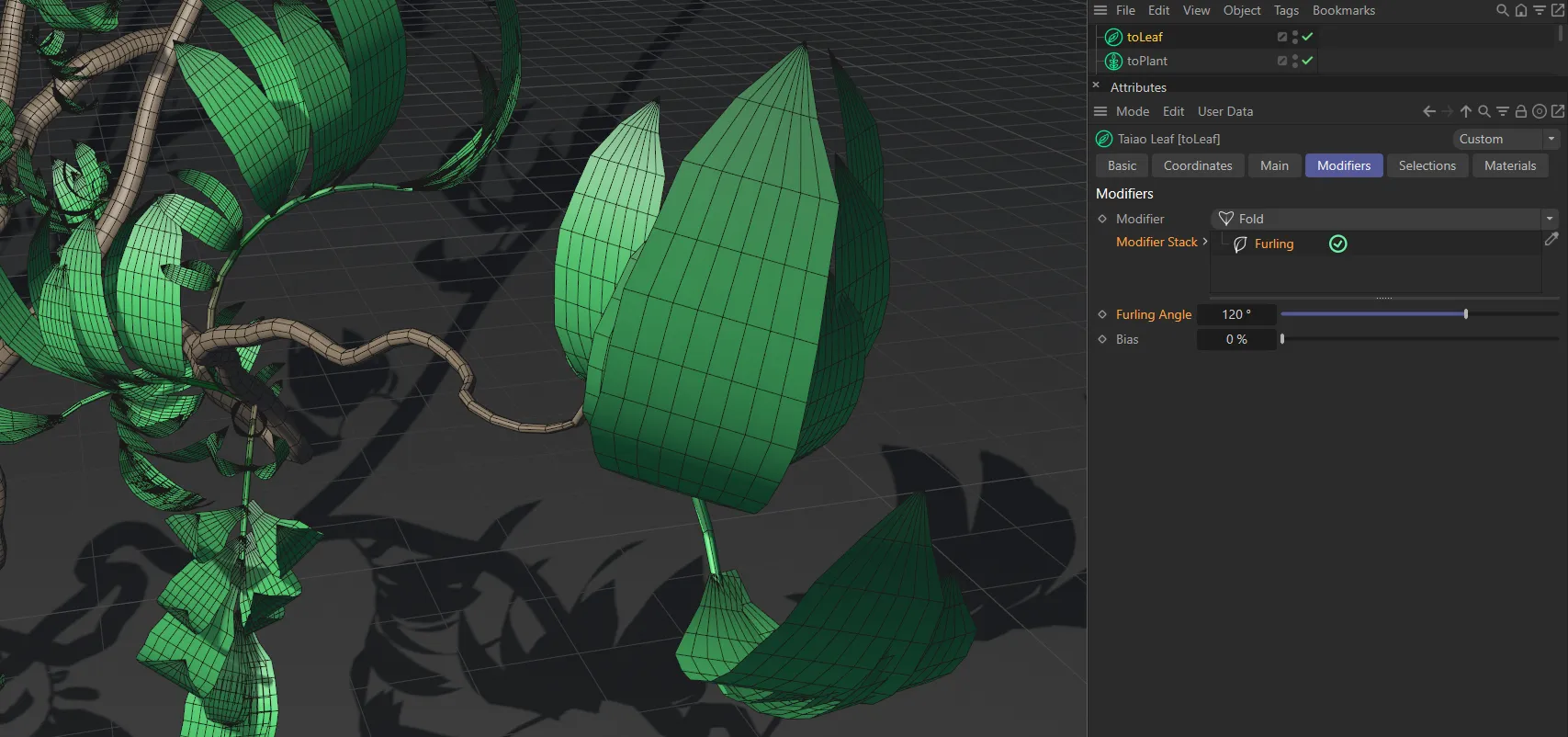
In this image, the Furling Angle is 120 degrees.
Again, this will dictate where the furling will begin.
At 50%, the furling is starting halfway along the length of the leaf.
If you decrease this, it will start furling from the beginning of the leaf and increasing it will only furl at the tip of the leaf.
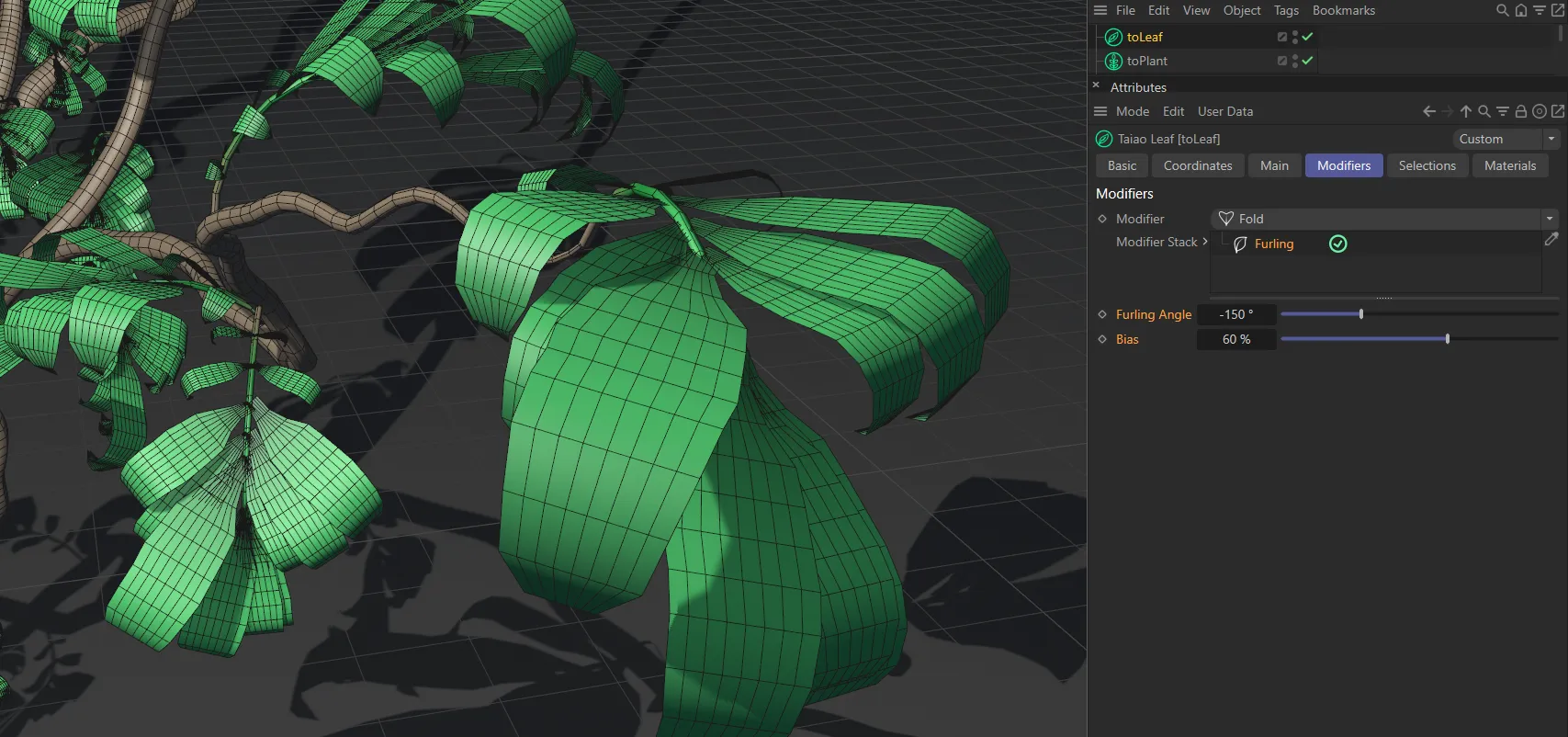
The Furling Angle is set at (negative) -150 degrees here, with a Bias value of 60% ensuring that the furling begins 60% of the way along the length of the leaves.
Angle Bias
Section titled “Angle Bias”This setting (added with update 2024.2) simply acts as a multiplier to the existing bend angle along the length of the Leaf layer.
This is useful for creating unfurling leaf animations, keeping the leaf from intersecting with itself.
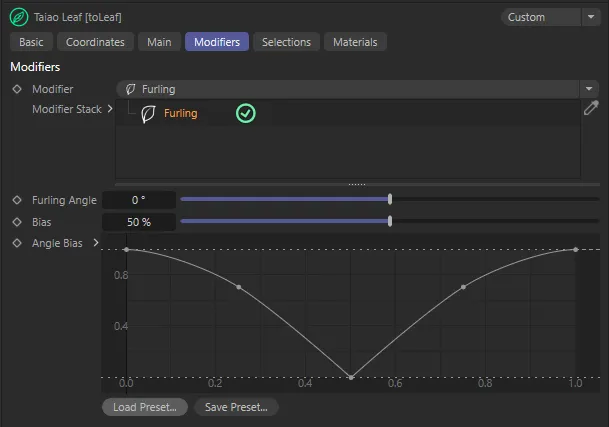
Furling modifier, with the Angle Bias (added with update 2024.2) spline set.
Turbulence modifier
Section titled “Turbulence modifier”Changing this value will give a different, random look, based on the values set.
Vary Seed
Section titled “Vary Seed”Enabling this will give a further variety to the Seed setting.
Turbulence
Section titled “Turbulence”You can increase this, with the slider, to 100%, but you may need to manually input a figure to see turbulence in leaves with a low-polygon count.
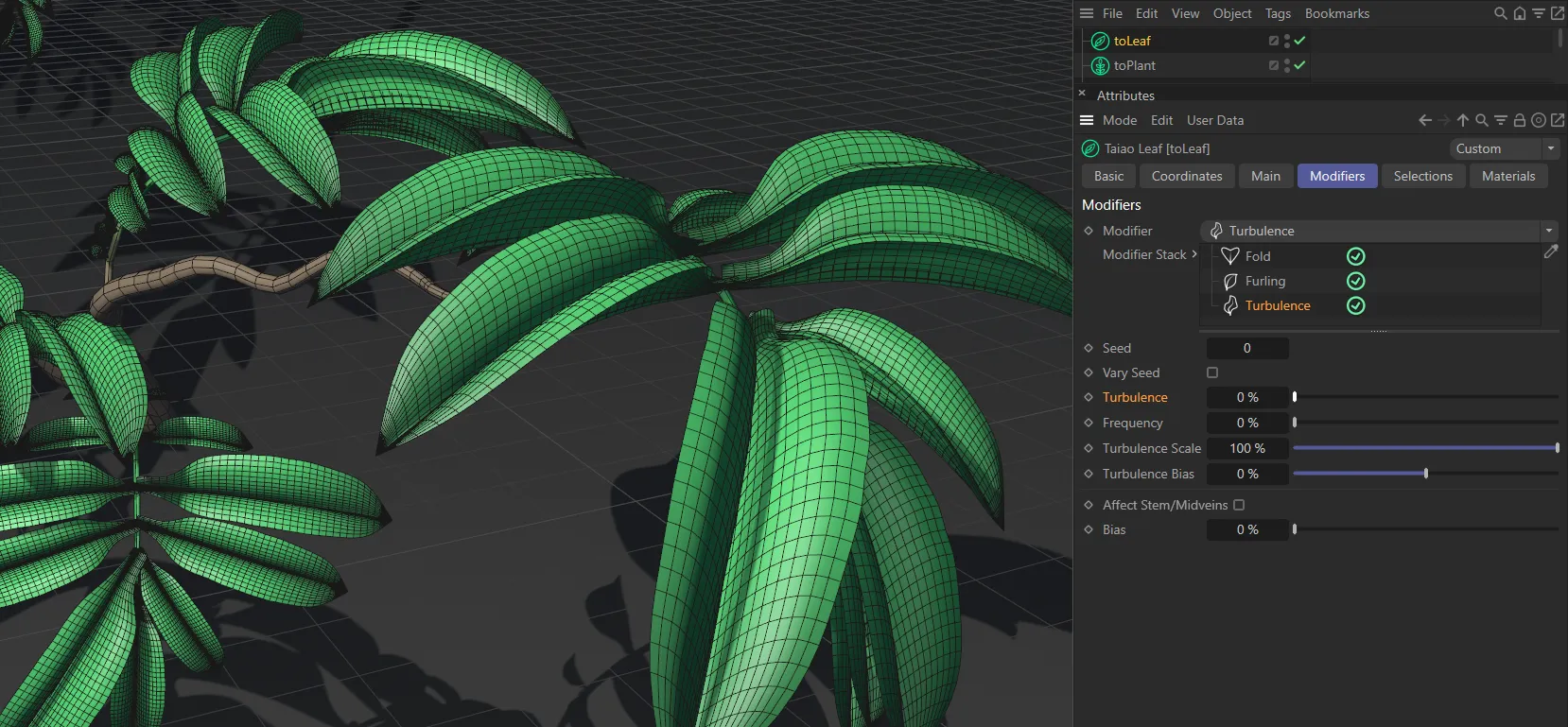
There is no (zero %) Turbulence set here.
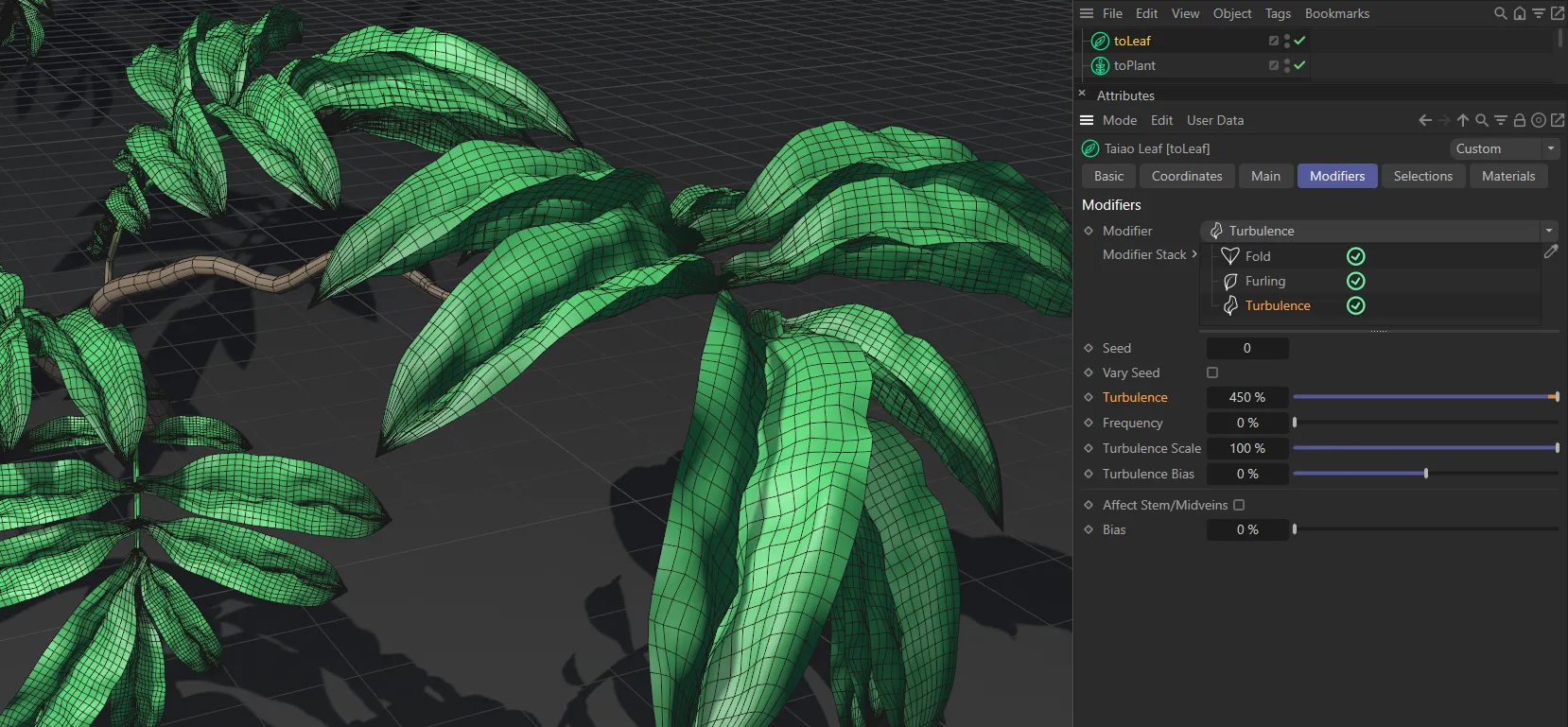
By comparison, the Turbulence is set at 450%, in this image.
Frequency
Section titled “Frequency”Sets the rate at which the turbulence animates.
Turbulence Scale
Section titled “Turbulence Scale”Using this parameter controls the size, or scale, of the turbulence, distorting the leaf.
A smaller scale value results in a larger turbulence pattern.
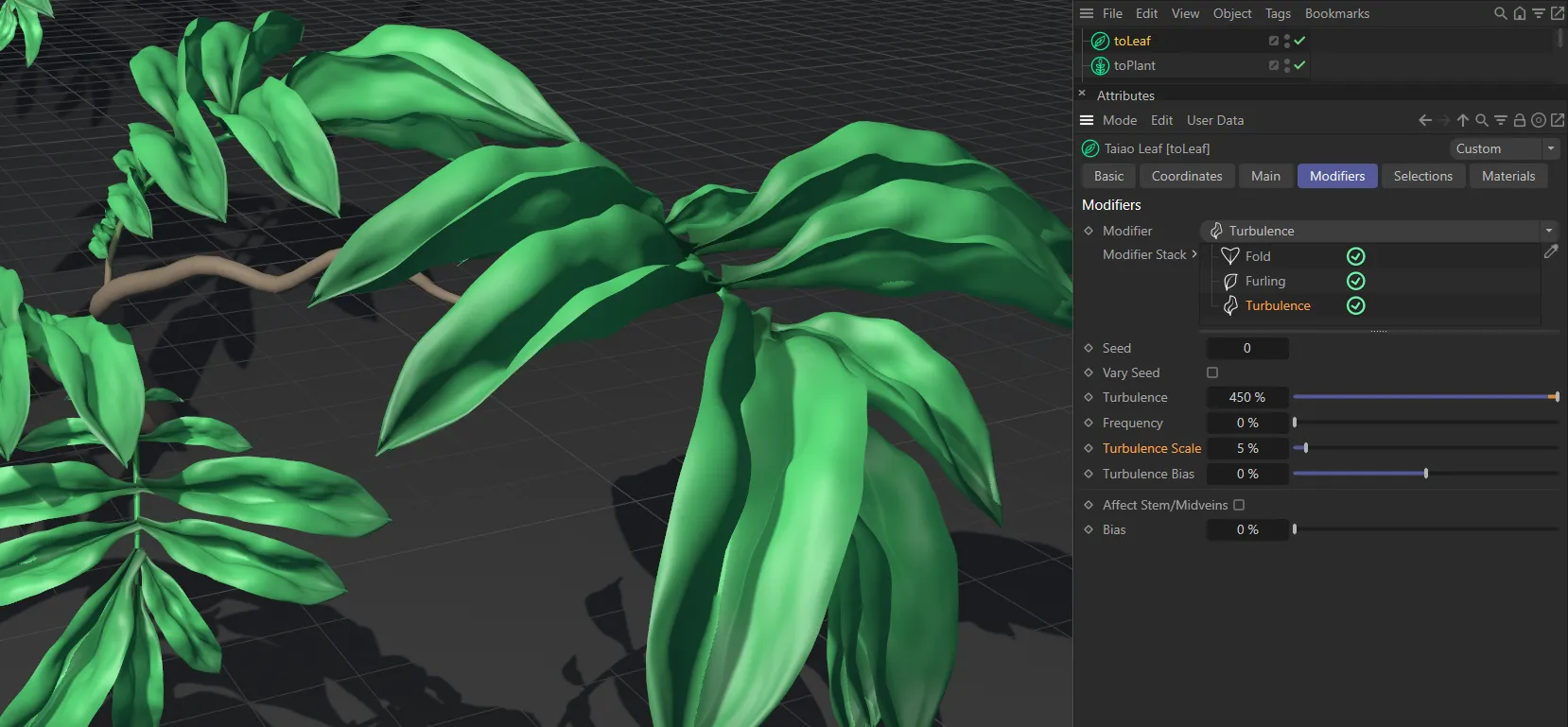
Turbulence Scale set at 5%.
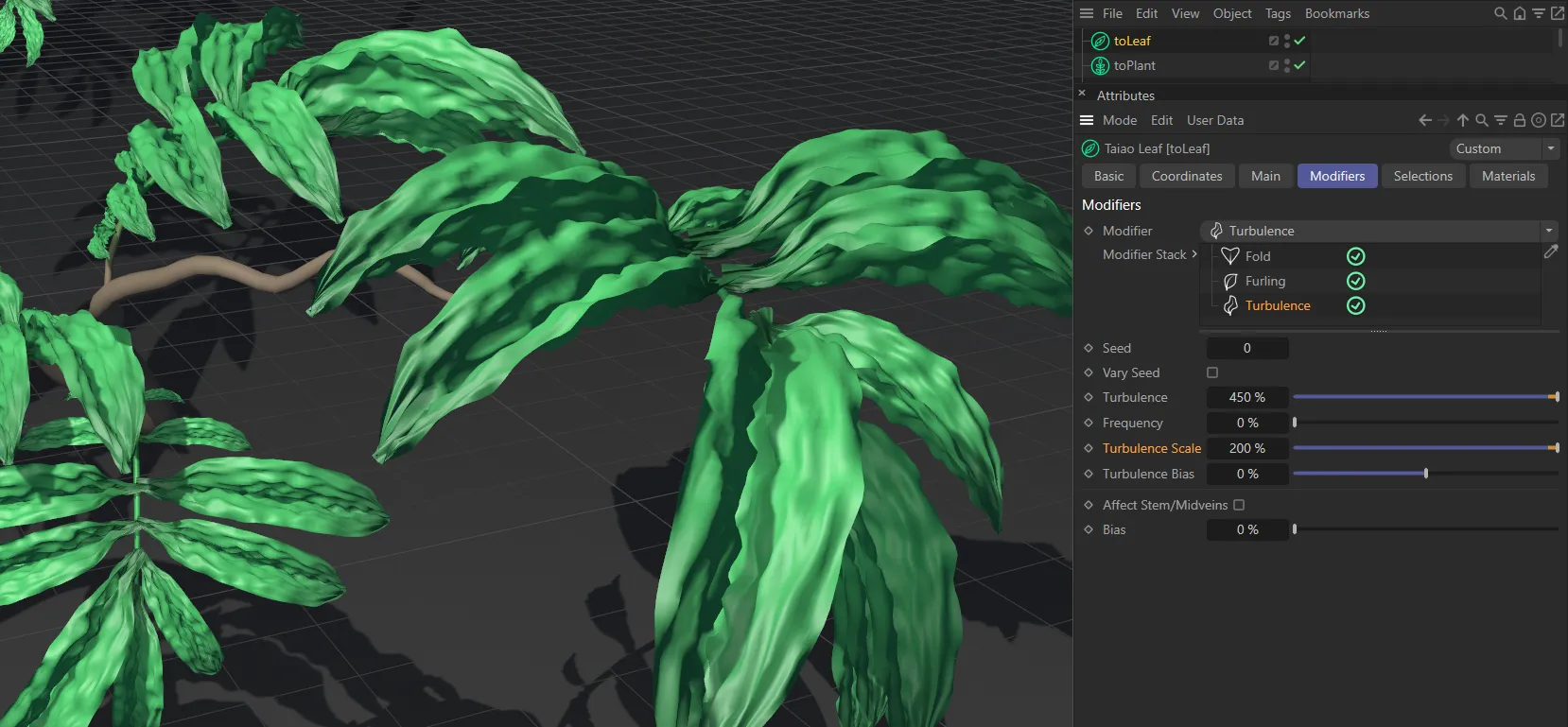
Turbulence Scale raised to 200%.
Turbulence Bias
Section titled “Turbulence Bias”At the default of 0 (zero), this is affecting the whole leaf.
Moving the slider to the left (in a negative setting) will distort the branch end of the leaf more and moving it to the right will have the opposite effect.
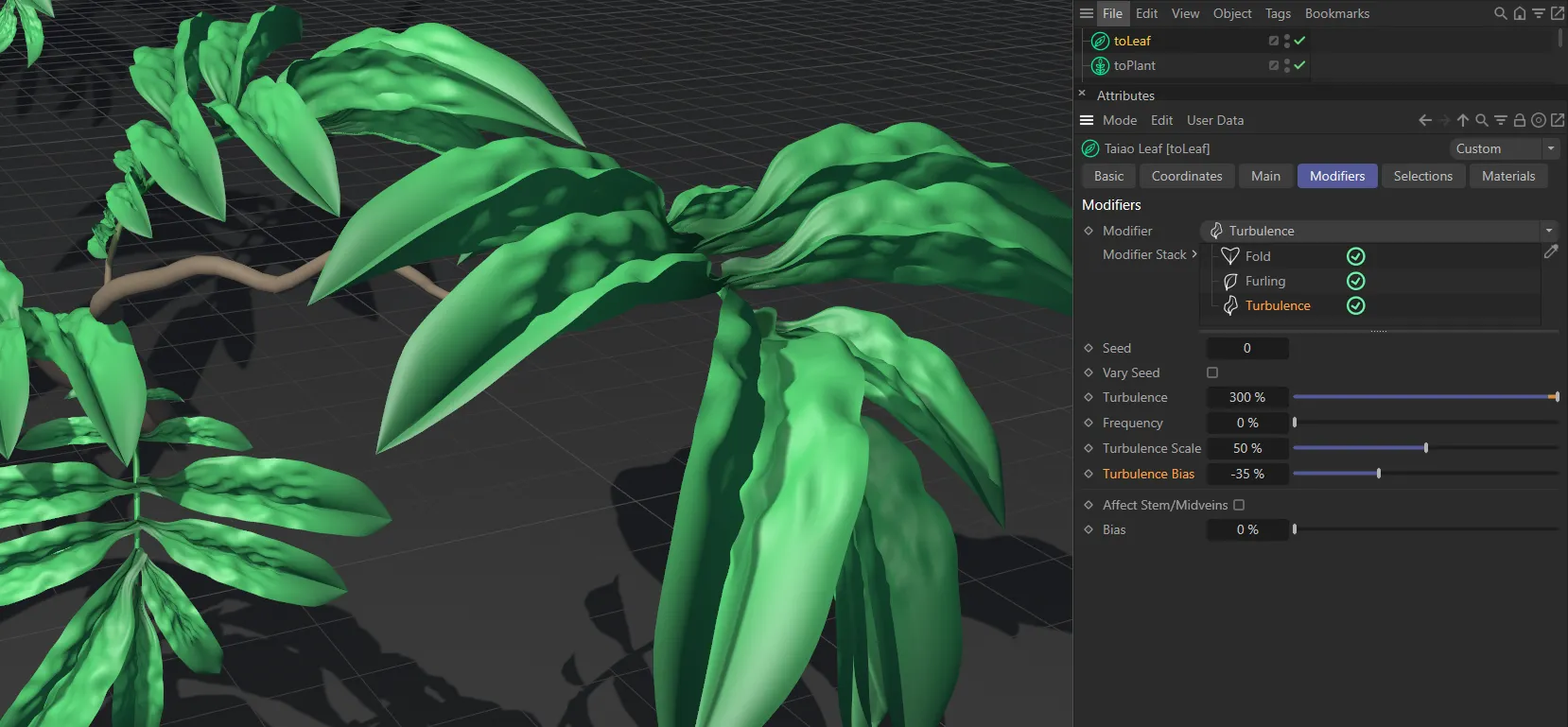
In this first image, the Turbulence Bias is at (negative) -35%.
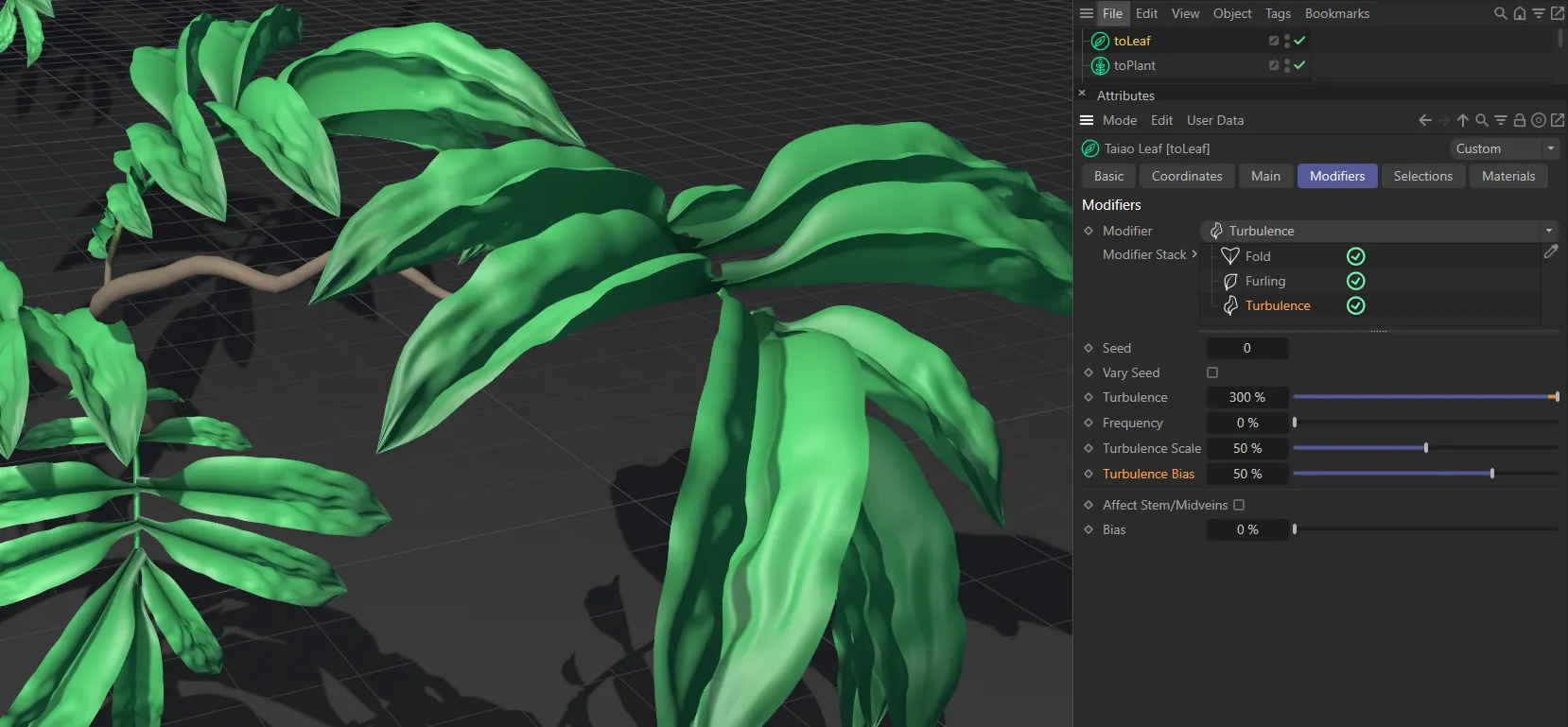
Turbulence Bias increased to 50%.
Deform modifier
Section titled “Deform modifier”Deformation is only visible if the leaf, that you are attempting to deform, has sufficient polygon resolution.
Deform Shape
Section titled “Deform Shape”This will have no effect until you have applied some strength in the Deform Strength setting.
The curve allows you to have control over where you want the deformation to take place.
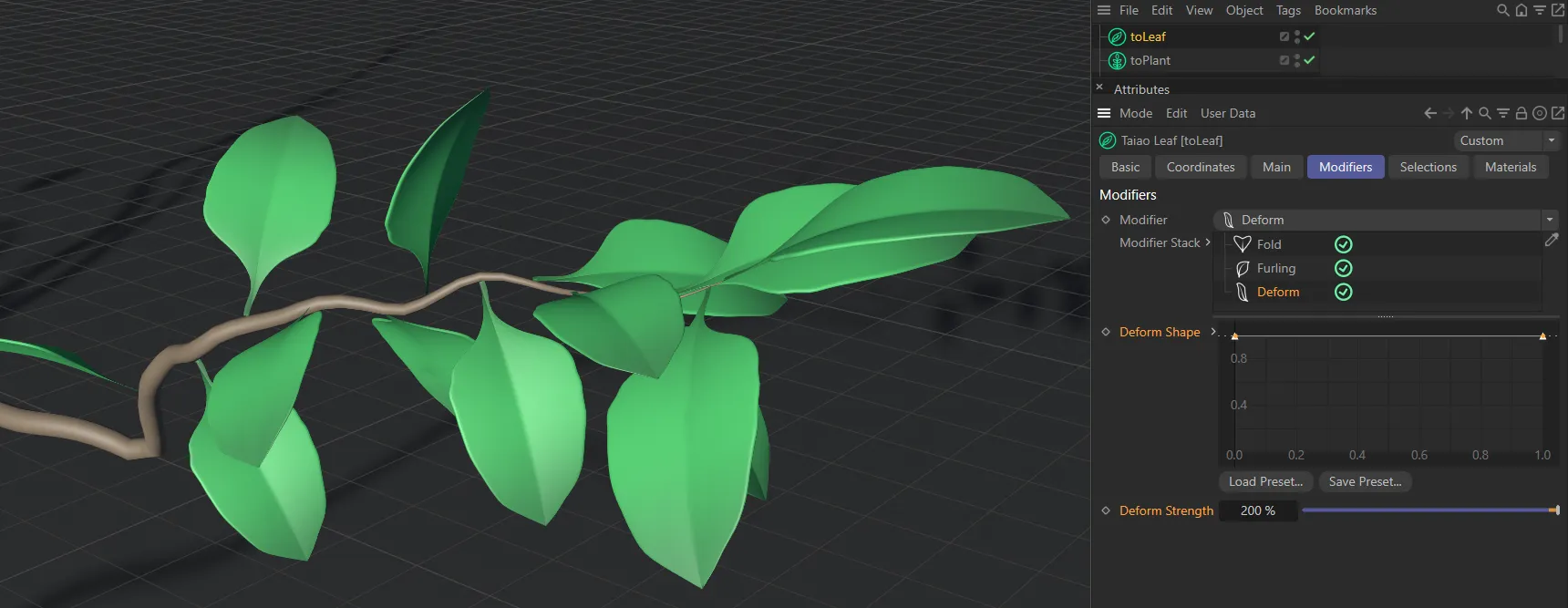
In this first image, the default Deform Shape setting results in no deformation, even with Deform Strength at 200%.
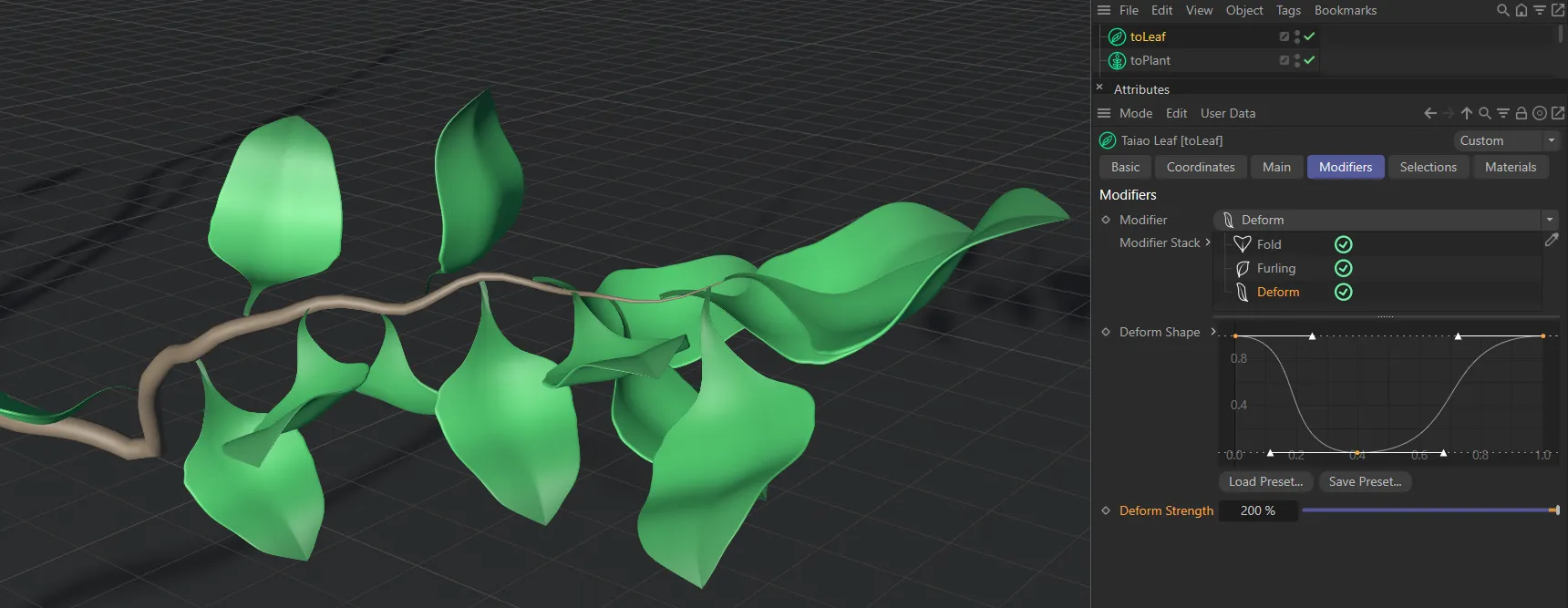
With the second Deform Shape spline curve setting, a bowl-like shape is created in the leaves.
Deform Strength
Section titled “Deform Strength”Sets the level of deformity.
As usual, you can manually input a higher figure to exaggerate the deformation.
Displacer modifier
Section titled “Displacer modifier”This modifier lets you bring in a Shader or a Texture to shape the leaf layer.
Selecting this modifier will give you the usual additional options to be able to import your Shader or Texture into the scene, including parameters for Channel and Tolerance settings.
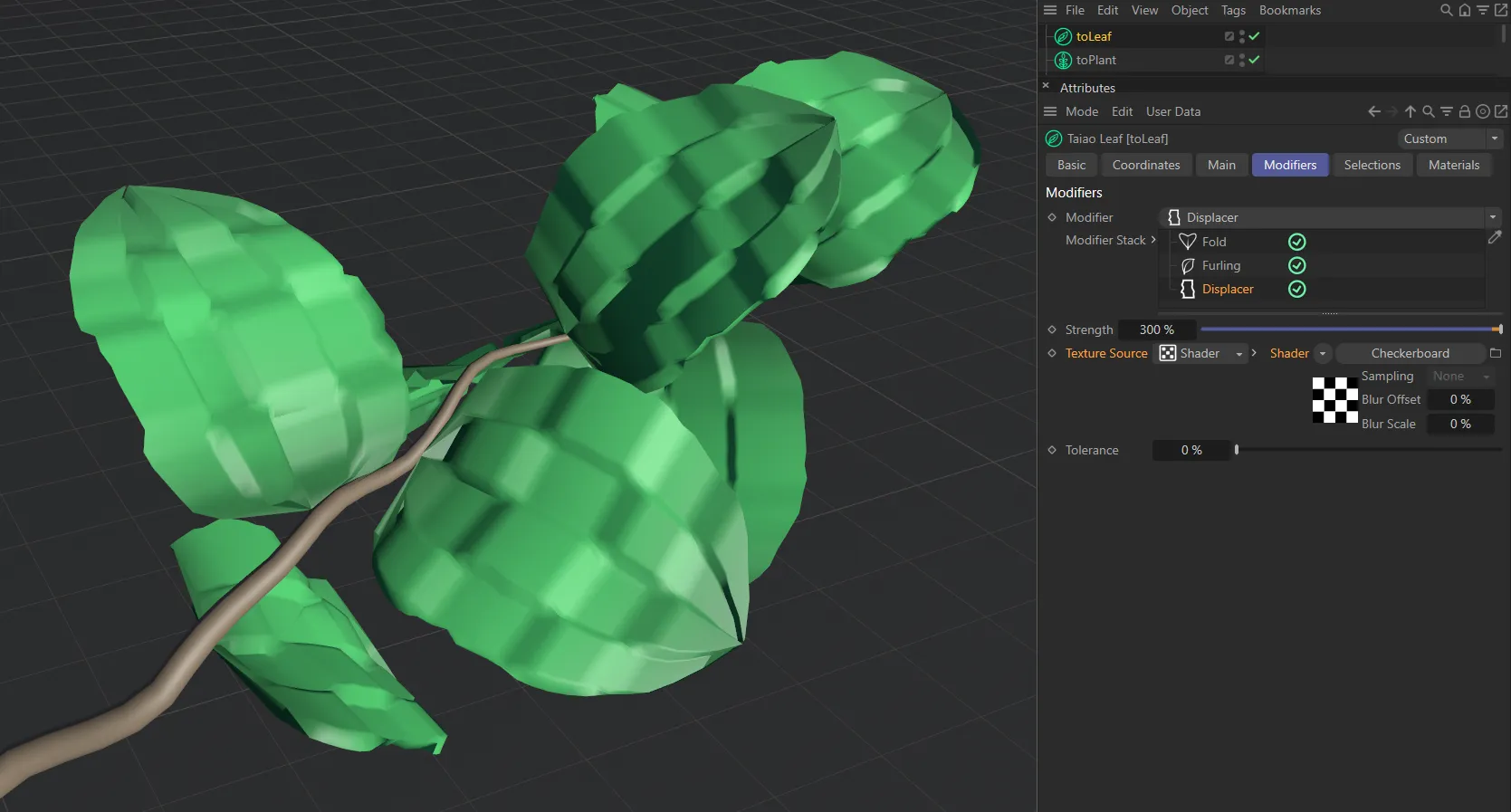
The Texture Source is set to Shader, here, referencing a Checkerboard shader on the leaves.
Furling (Lobed Stem) modifier
Section titled “Furling (Lobed Stem) modifier”Furling Angle
Section titled “Furling Angle”The angle can be positive or negative, depending on the direction you wish to furl the leaves.
Dictates where the furling will begin.
At 50%, the furling is starting halfway along the length of the leaf.
If you decrease this, it will start furling from the beginning of the leaf and increasing it will only furl at the tip of the leaf.
Bias Spline
Section titled “Bias Spline”As with the Angle Bias setting, above, this setting acts as a multiplier to the existing bend angle along the length of the Leaf layer.
Useful for creating unfurling leaf animations, keeping the leaf from intersecting with itself.
Turbulence (Lobed Stem) modifier
Section titled “Turbulence (Lobed Stem) modifier”Changing this value will give a different, random look, based on the values set.
Strength
Section titled “Strength”The strength of the applied noise.
The noise scale.
A lower value gives a more rapidly changing noise, a higher value gives a smoother slower changing noise.
A spline to control the strength of the turbulence up the length of the vein.
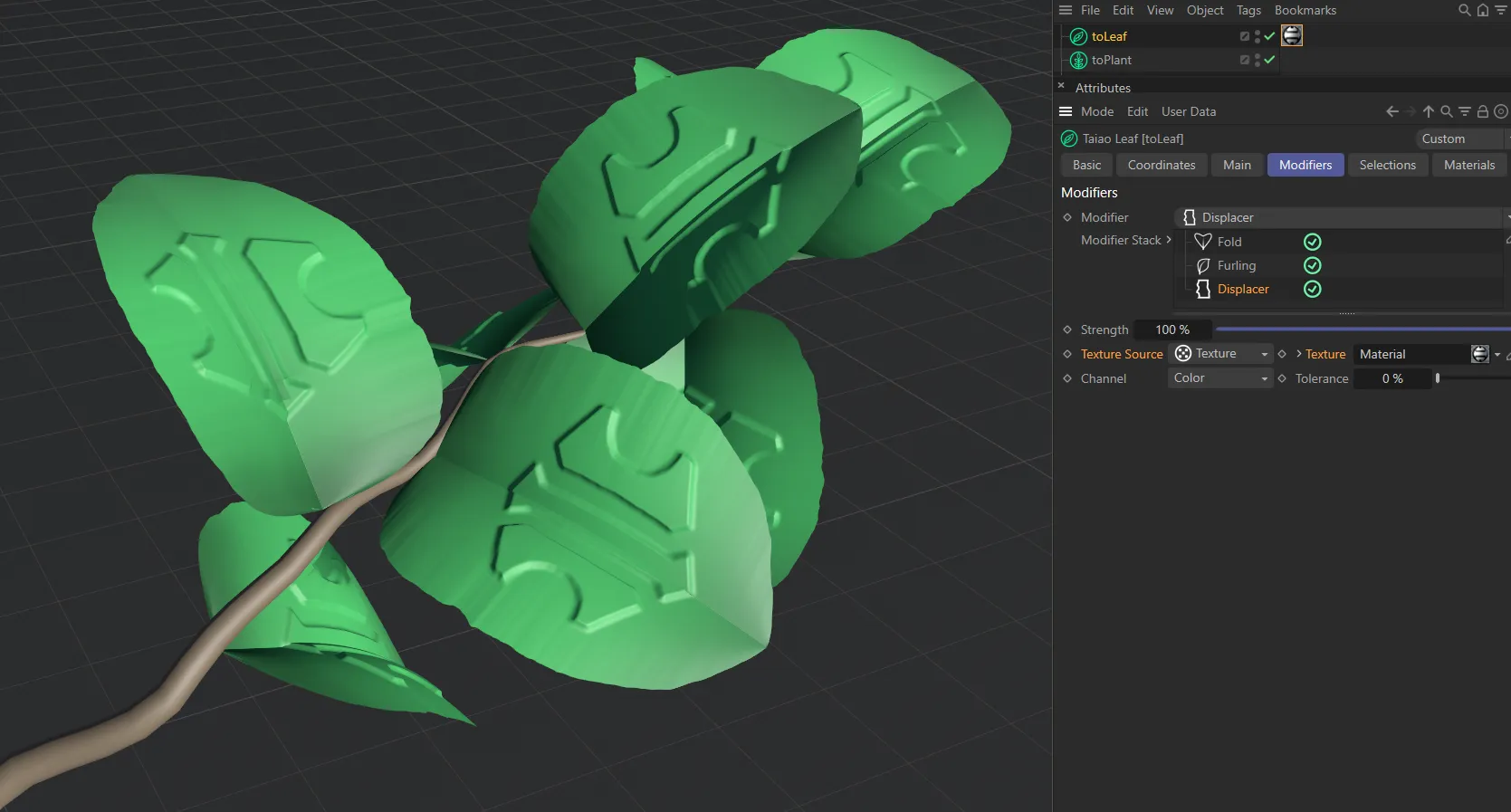
This image shows the Texture linked to a Cinema 4D material tag, for a material which has a logo bitmap loaded in the Color channel.
Copyright © 2026 INSYDIUM LTD. All rights reserved.