
Materials
This tab allows you to apply materials to the parts of your leaf.
Materials
Section titled “Materials”Drag and drop a material into the Materials link field to apply the material to a layer.
You can select multiple materials and drag them in or, alternatively, use the eyedropper tool to swatch them directly from the Cinema 4D Material Manager.
Clicking and highlighting the material will then give you further options below.
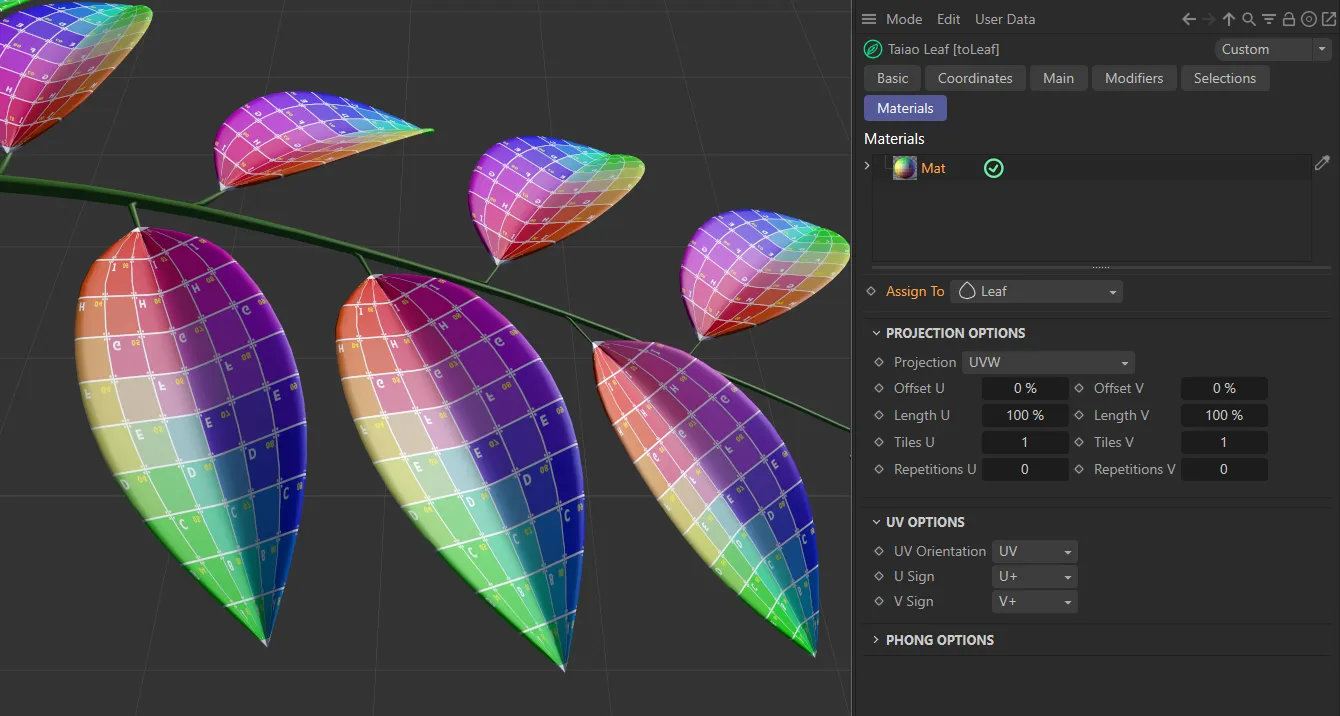
In this image, the material has been dragged and dropped into the Materials list and is only affecting the selected Leaf layer.
Assign To
Section titled “Assign To”By clicking on the drop-down arrow, you will see a list: Stem/Midvein, Vein and Leaf.
This makes it possible to assign the material to an individual part of the leaf.
Simply highlight the material, then click on the correct part in the drop-down box.
Projection Options
Section titled “Projection Options”You can use these options to choose the projection mapping of the texture used.
Offset and Length settings allow you to control the global scale and offsets of the material, while the Tile and Repetition values set how many times the image will tile.
UV Options
Section titled “UV Options”These options will enable you to orientate a correct projection for your scene.
Phong Options
Section titled “Phong Options”These options allow you to adjust the smooth shading between neighboring polygons.
Smooth shading can be applied across all polygons, or it can be restricted using the Angle Limit and Phong Angle settings. **
Angle Limit
Section titled “Angle Limit”When activated, this will use the Phong Angle value to **restrict where smoothing occurs. **
Phong Angle
Section titled “Phong Angle”You can change this to set the angle limit, up until which the neighboring surfaces will be smoothed.
Copyright © 2026 INSYDIUM LTD. All rights reserved.