
Field of View
Overview Video
Section titled “Overview Video”The Field of View tab uses a uses a camera’s area of vision to limit the generation of grass.
This can offer an increase in performance.
Camera FOV
Section titled “Camera FOV”Clicking this tick box will activate the Camera FOV (Field of View) option, but you will see no impact until you reference a camera in the Camera link field, below.
Camera
Section titled “Camera”Simply drag and drop your scene camera into this link field to see grass being generated, but only in the camera’s field of view.
Padding
Section titled “Padding”The grass will automatically cut off in the defined field of view, but you can add more generation to this edge point by raising this percentage slider.
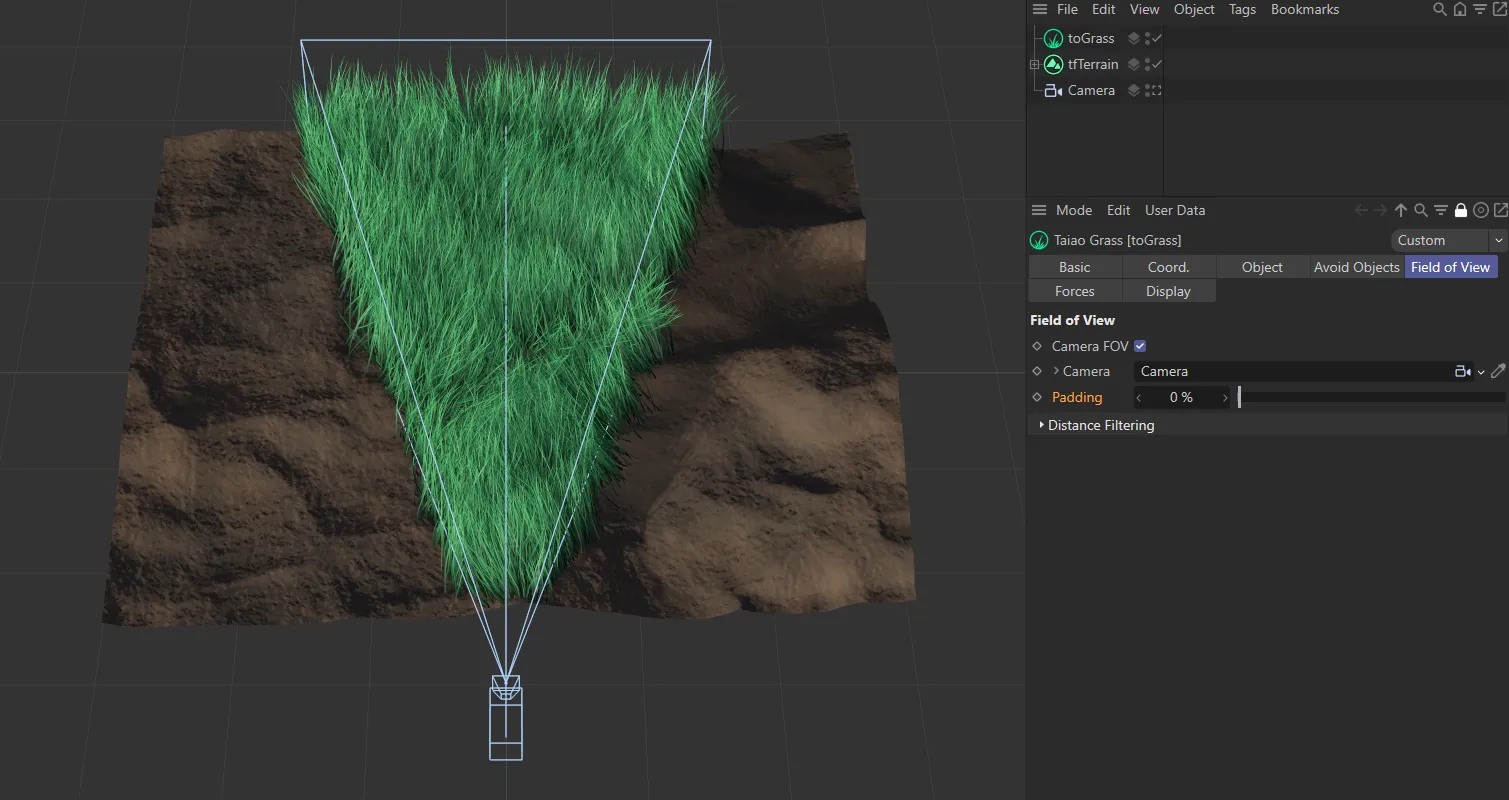
The camera’s field of view with a Padding value of 0 (zero) %.
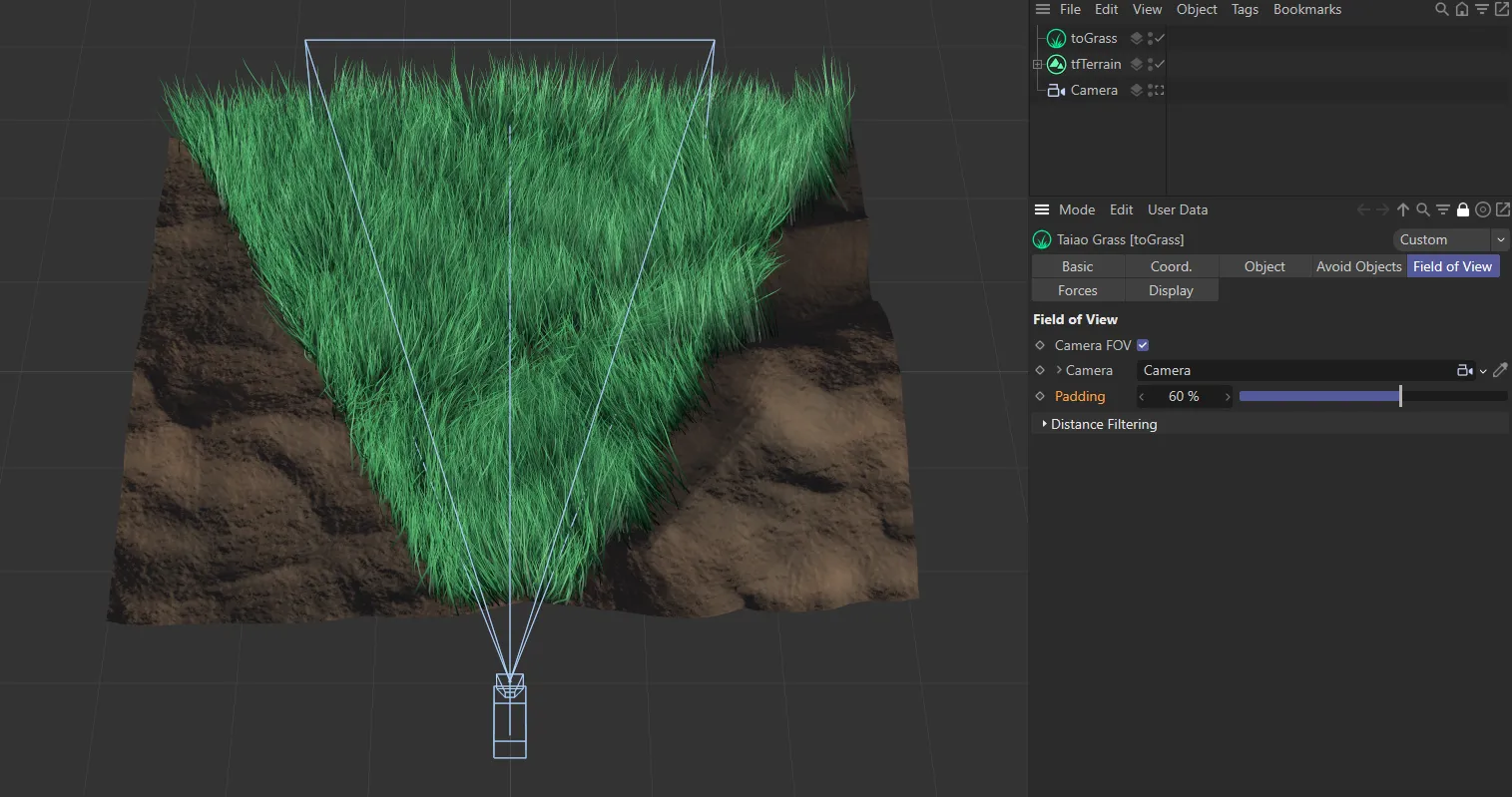
The camera’s field of view with a Padding setting of 60%.
Distance Filtering
Section titled “Distance Filtering”Filter by Distance
Section titled “Filter by Distance”This option enables you to further restrict grass generation, by defining a minimum and maximum distance threshold within the camera FOV.
Use the Falloff curve to thin out the grass within the distance threshold.
Activating it will remove all the grass until you have defined the Min Distance and Max Distance, below.
Min Distance
Section titled “Min Distance”By default, this is set at 0 (zero) cm, so that grass is generated immediately at the start of the camera’s field of view.
Raising this value will determine the point from where grass will be generated.
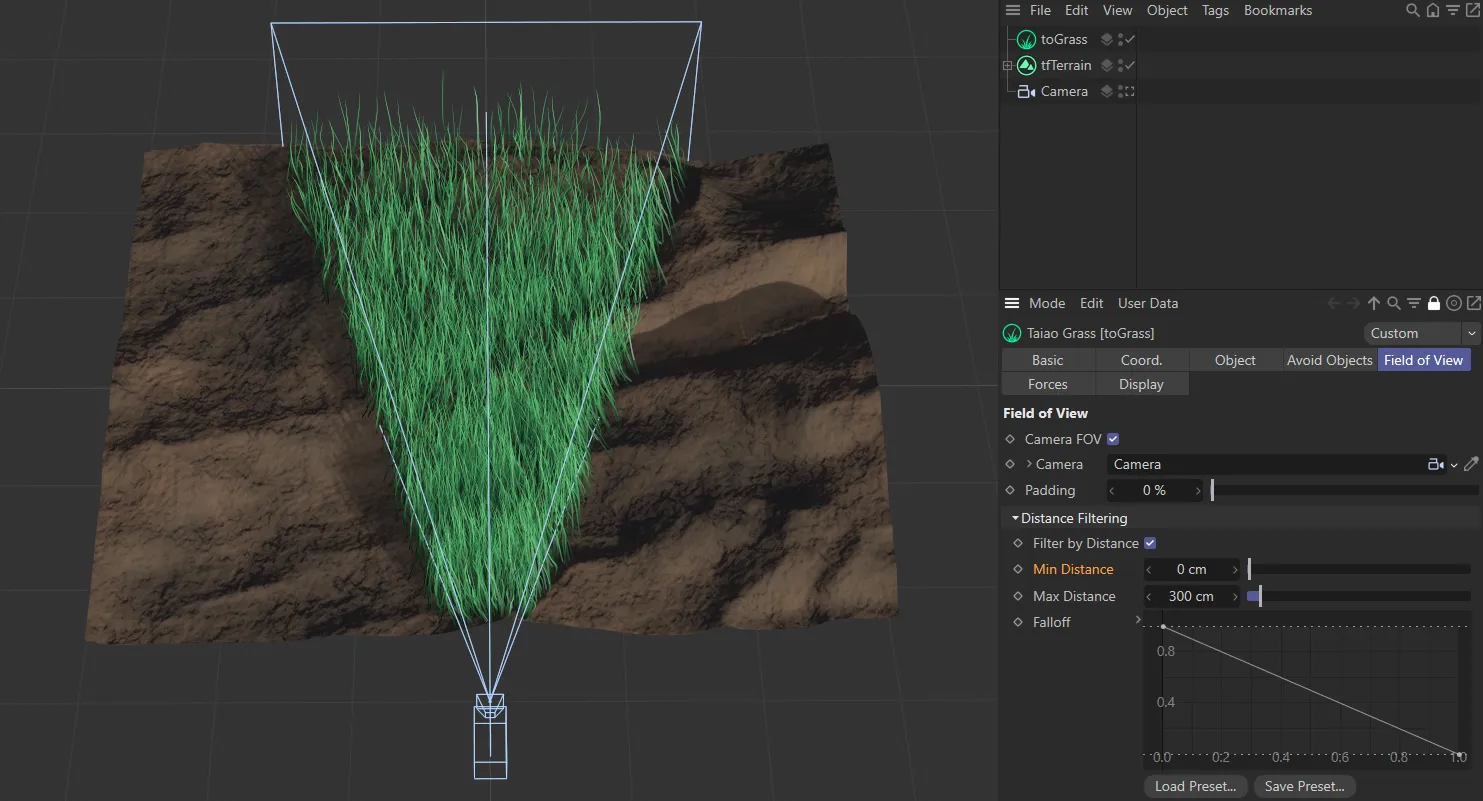
Min Distance set to 0 (zero) cm.
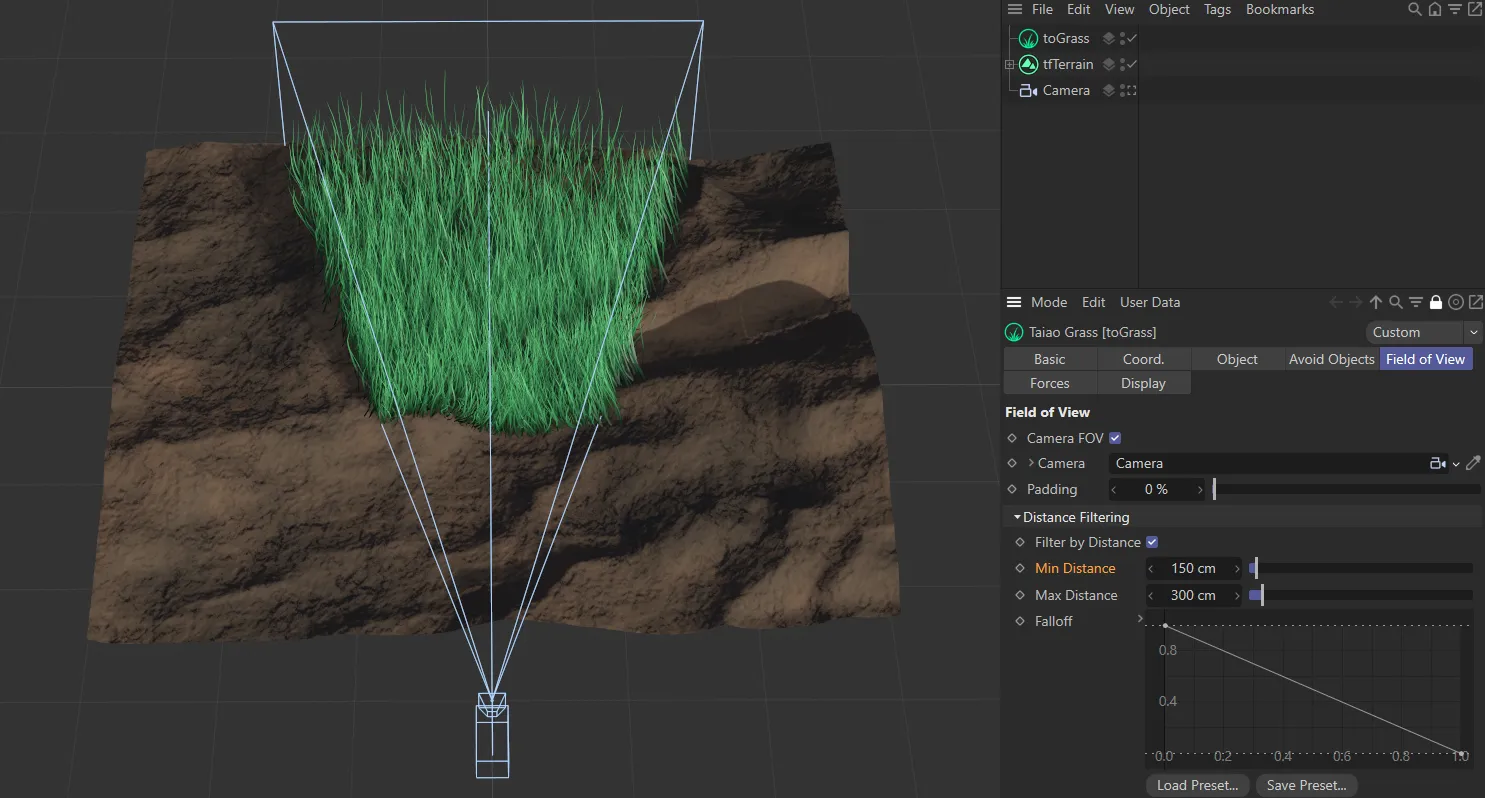
In this image Min Distance is set to 150cm, so grass only starts to be generated 150cm from the camera.
Max Distance
Section titled “Max Distance”By default, this is set at 1cm after the start point of the camera’s field of view.
Raising this value will determine the point until where grass will be generated.
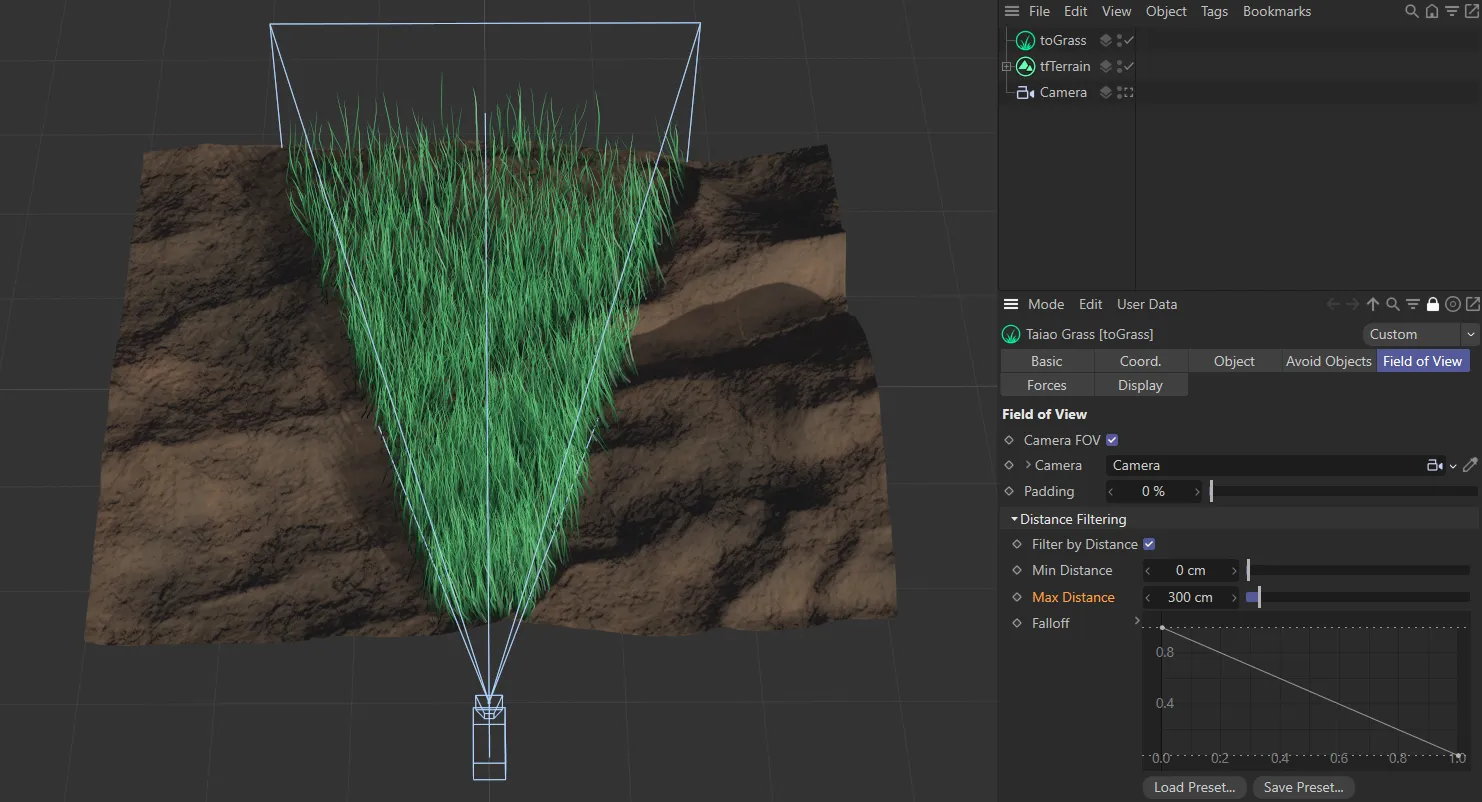
With a Max Distance set at 300cm.
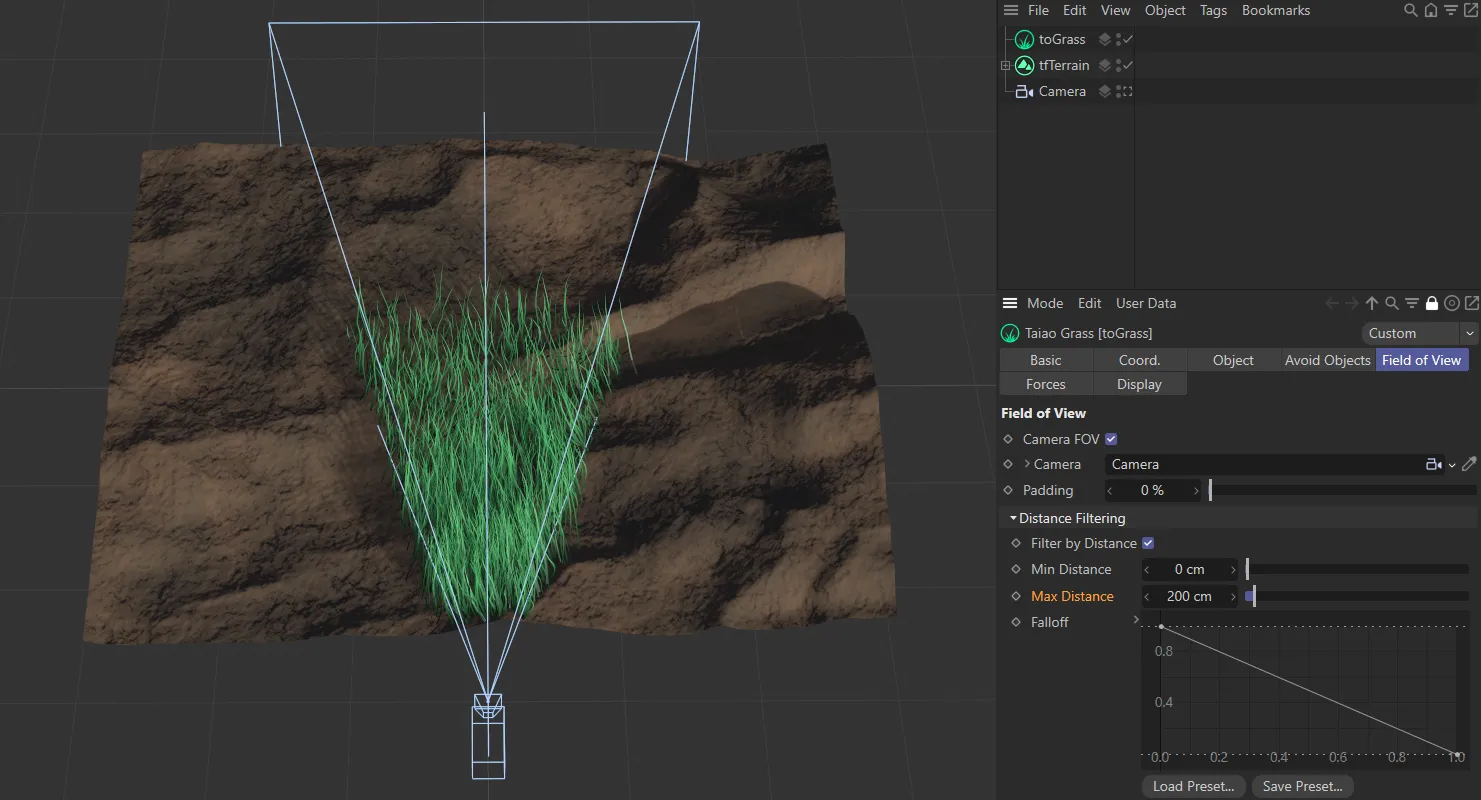
In this image, Max Distance is set at 200cm, so once 200cm is reached grass is no longer generated.
Falloff
Section titled “Falloff”The X-axis represents the distance set by the Max Distance value and the Y-axis is the density of generation of grass.
In the first image below, you can see that the spline curve falls off in a steady downward pattern, which is clearly visible in the grass generation.
The knots can be dragged to change the grass displacement, as seen in the second image below, where the right knot has been raised to the top, so there is no falloff.
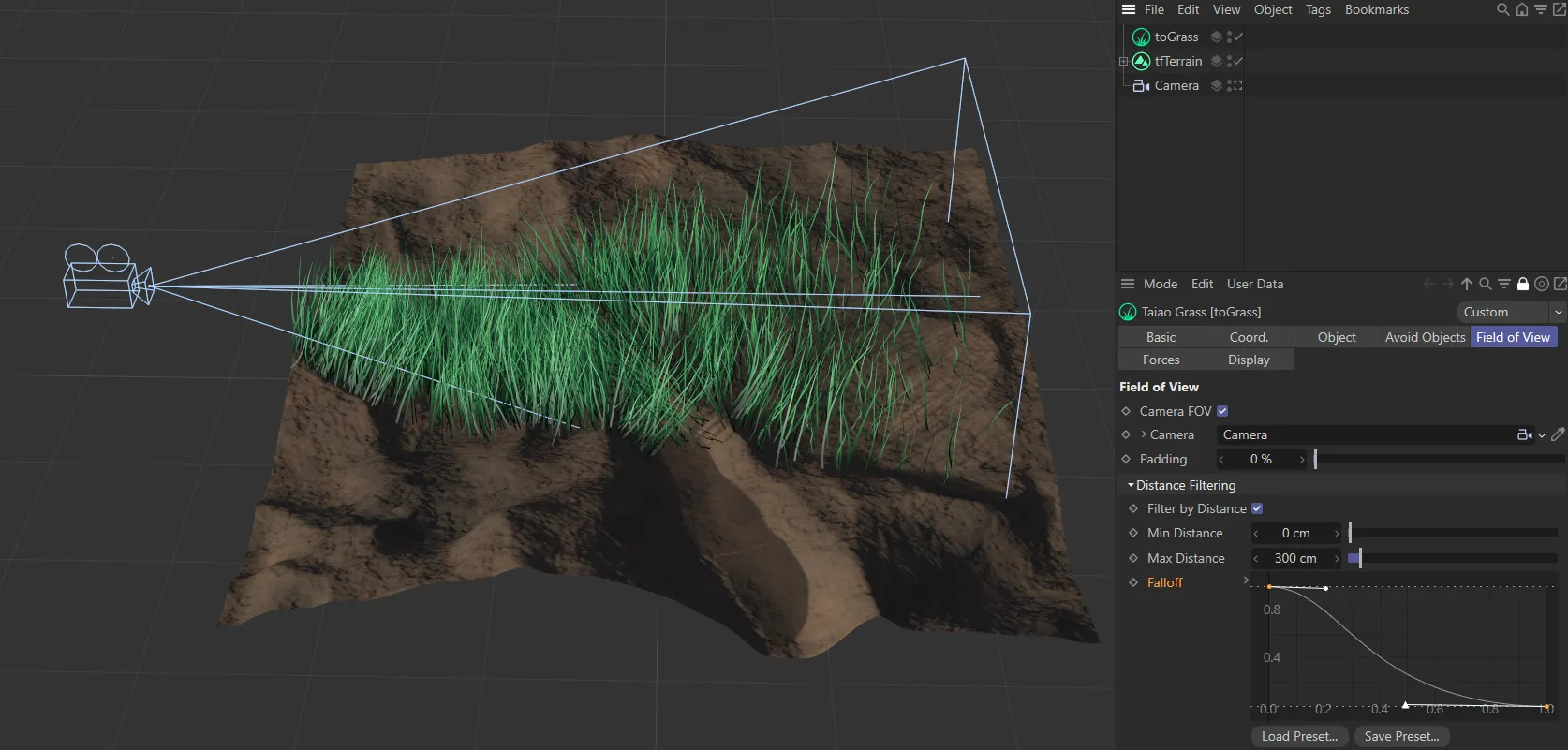
With a Max Distance set at 300cm and the spline curve falloff setting shown.
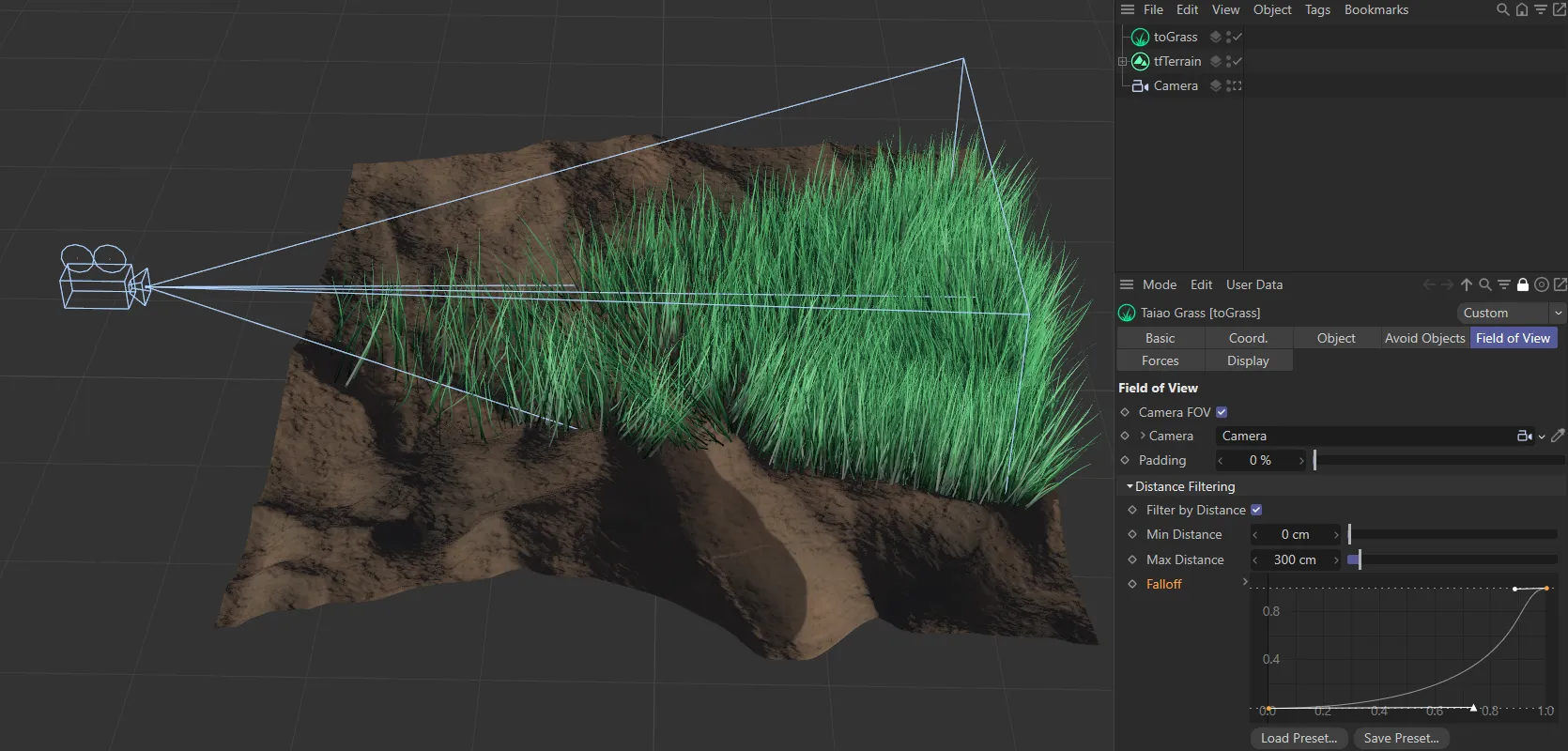
With a Max Distance set at 300cm, but this time the spline curve is rising, giving the opposite effect.
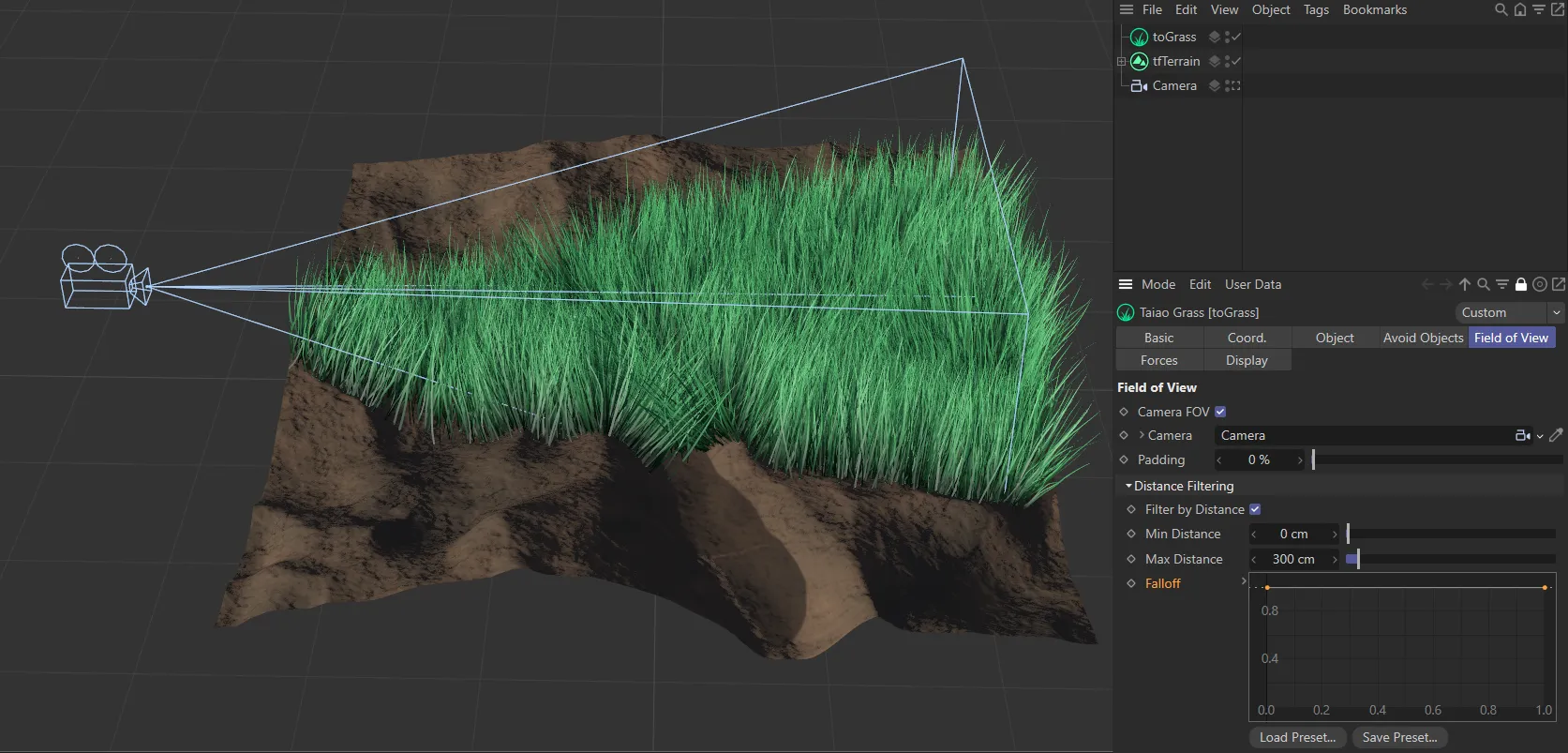
With a Max Distance set at 300cm and the flat spline curve shown on the bottom right, resulting in no falloff at all.
Copyright © 2026 INSYDIUM LTD. All rights reserved.