
Avoid Objects
Overview Video
Section titled “Overview Video”In order to control the generation of grass around a scene object, you can use the settings in the Avoid Objects tab.
Avoid Objects
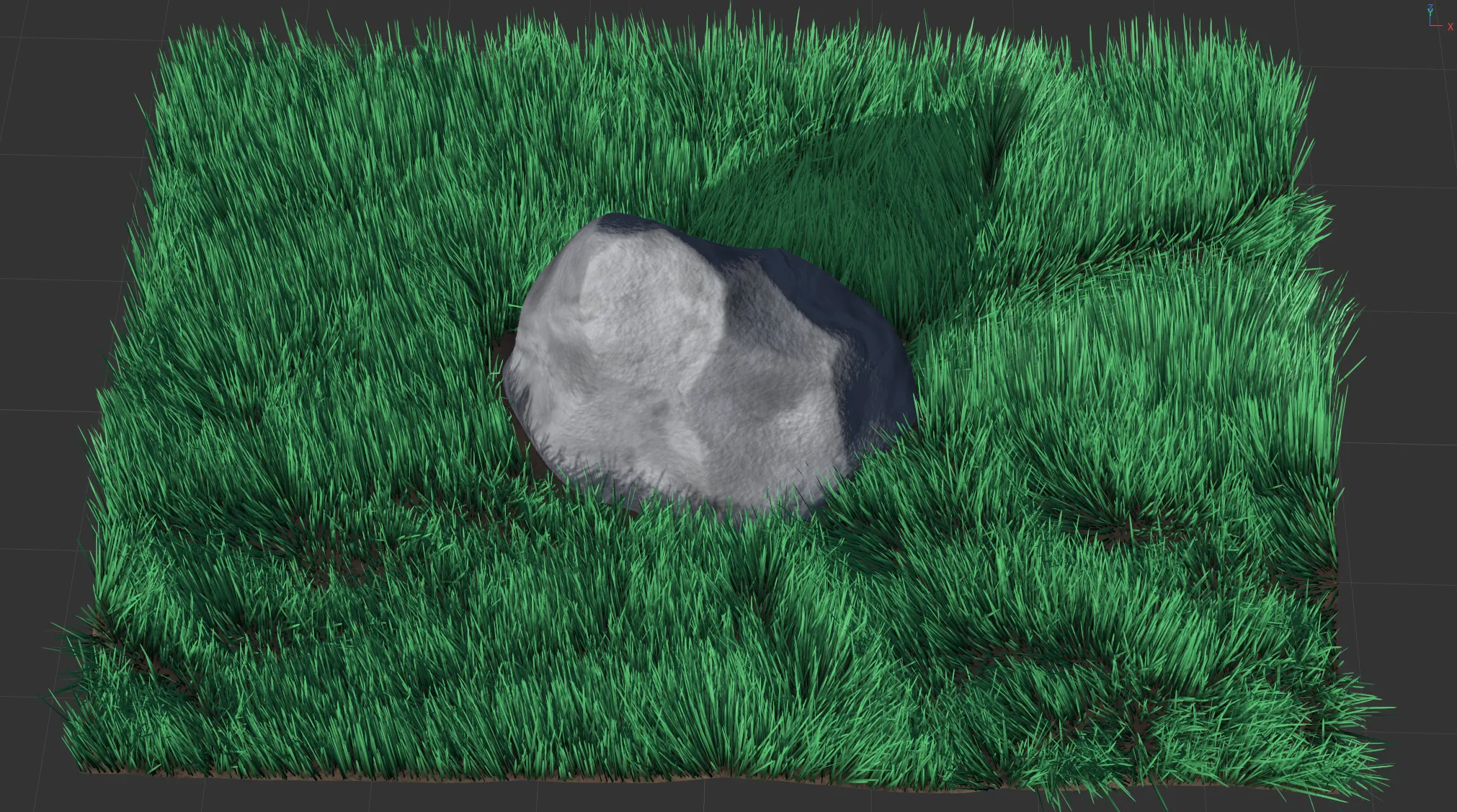
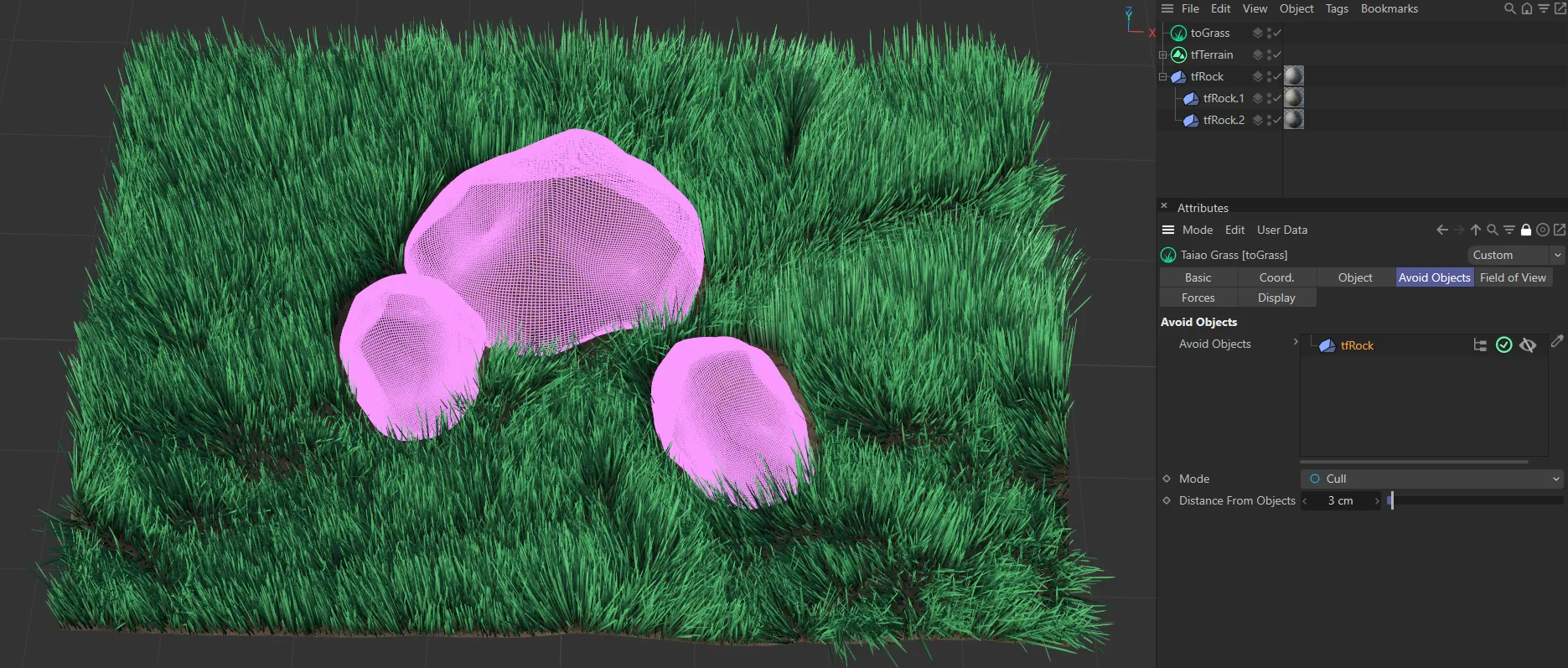
Section titled “Avoid Objects”Drag the object, which you want the grass to avoid, into the Avoid Objects list.
tfRock object, having been dragged and dropped into the Avoid Objects link field.
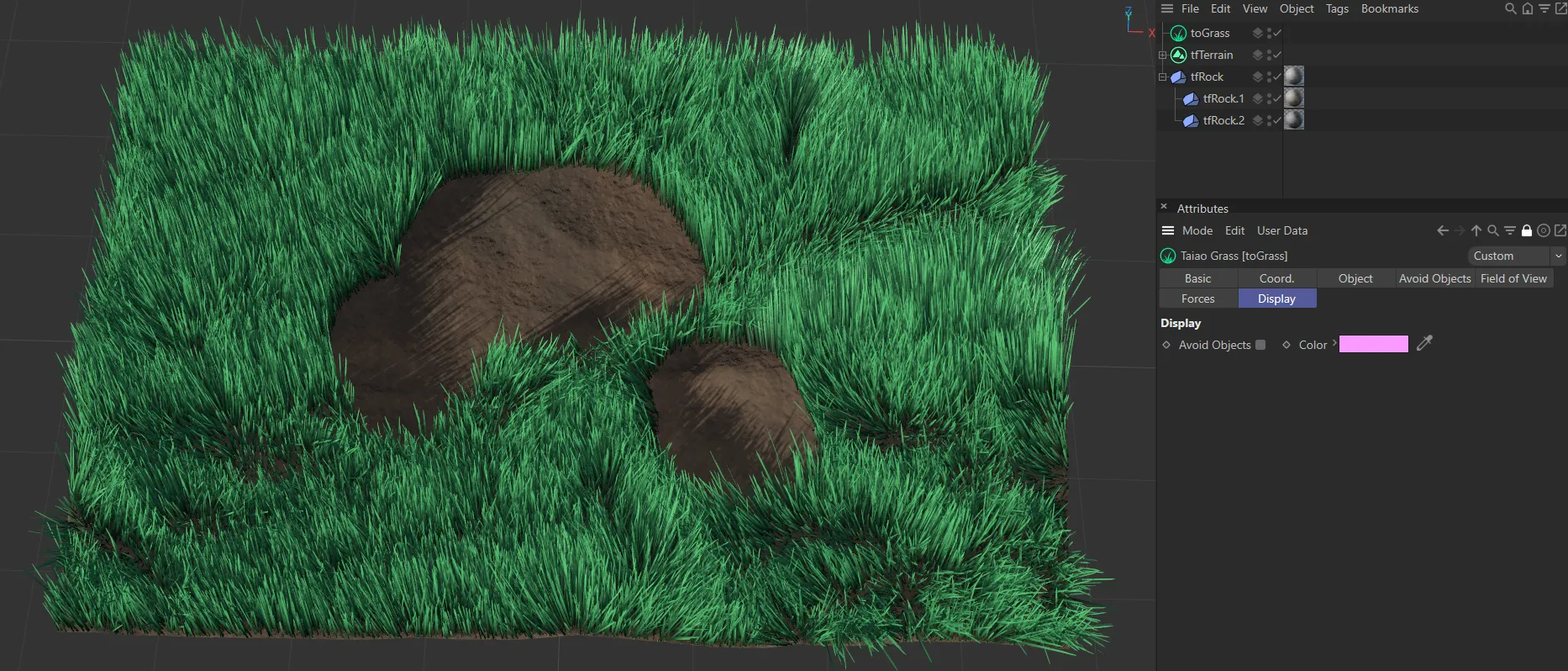
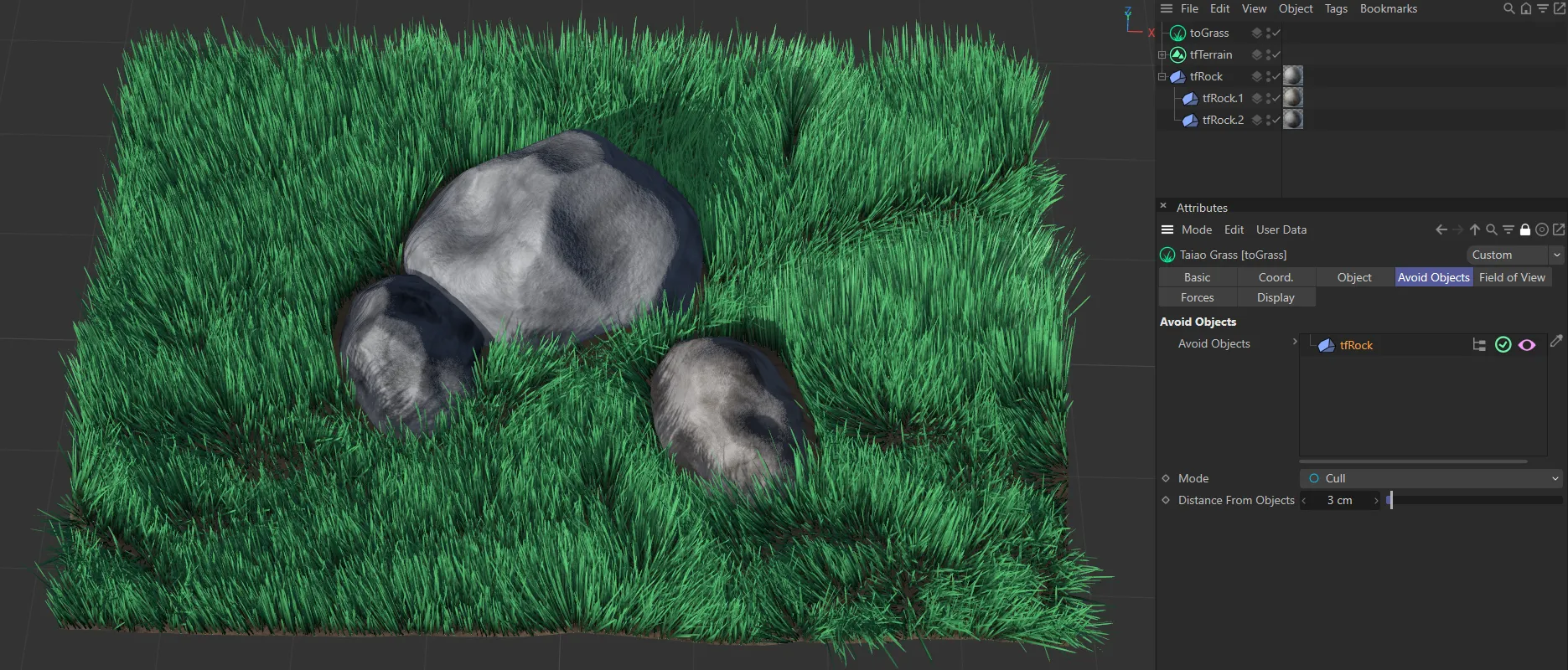
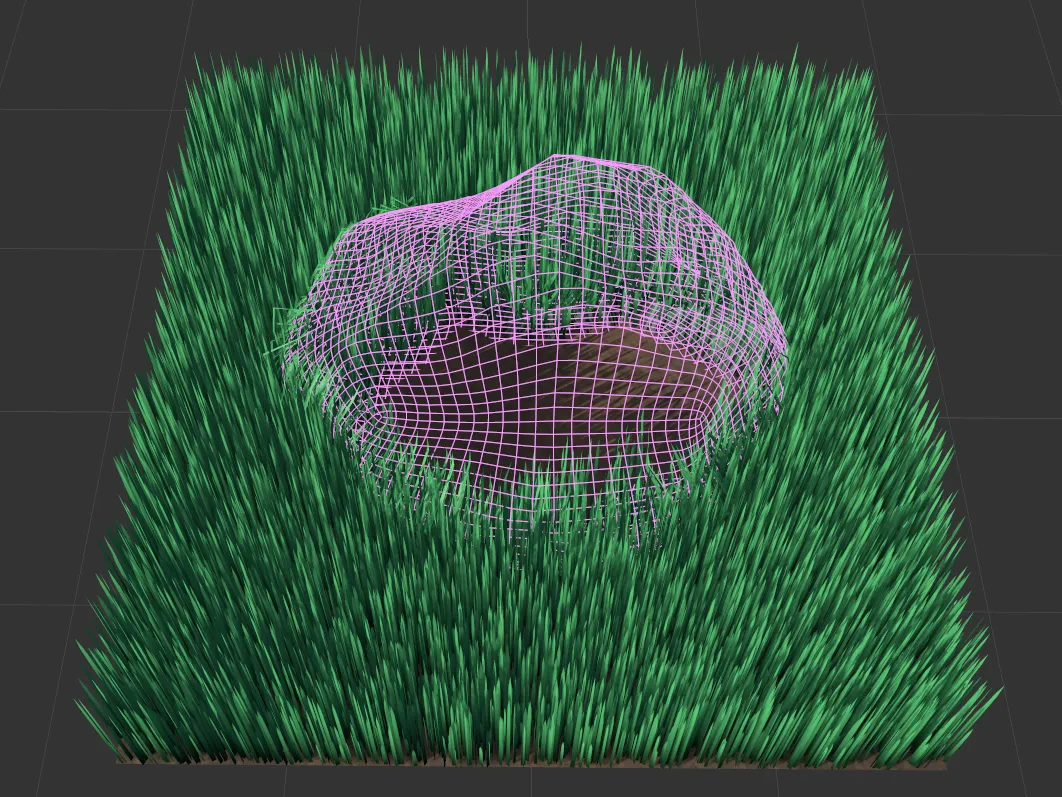
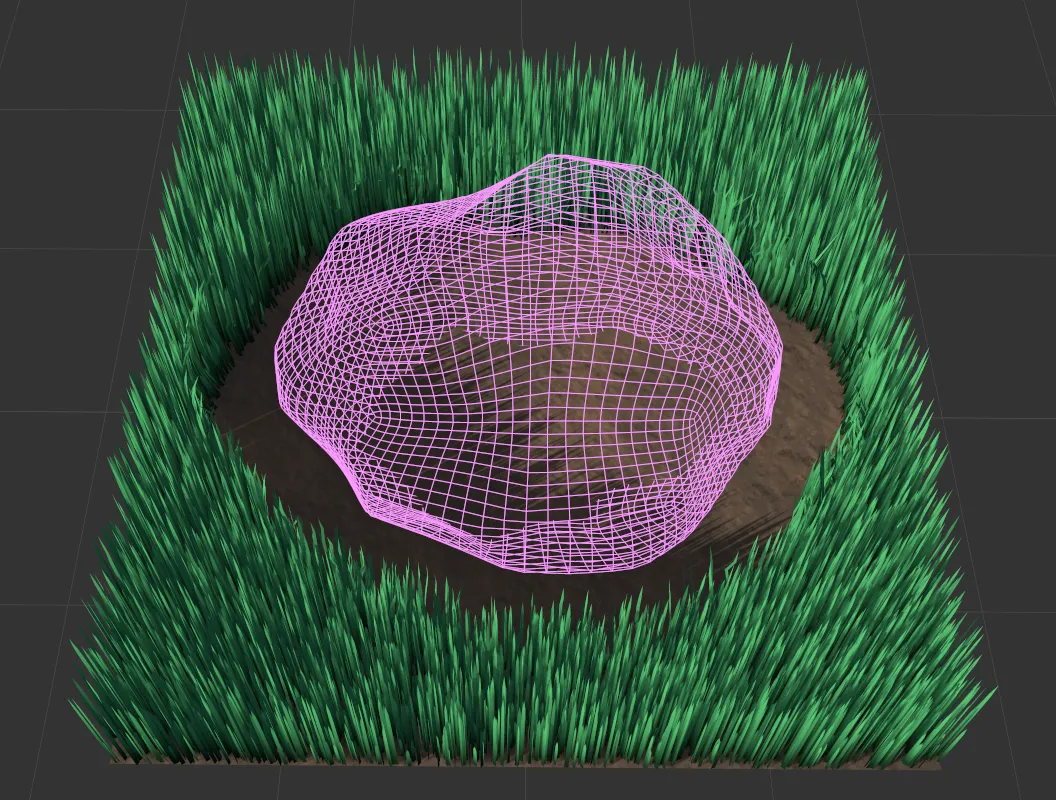
Turning off the object, by clicking the (pink eye) vision ‘button’ in the Avoid Objects link field, will replace it with a wireframe, which can be hidden in the Display tab settings.
The tfRock has been replaced in the scene by a wireframe and is still being ‘avoided’ by the grass.
In this image, the wireframe has been disabled in the Display tab and the invisible tfRock continues to be avoided by the grass.
The first icon is the Hierarchy button, in case your object has a child object.
This allows you to control whether grass avoids the child object, or not, at the same time.
Hierarchy enabled (the default setting) and child objects avoided.
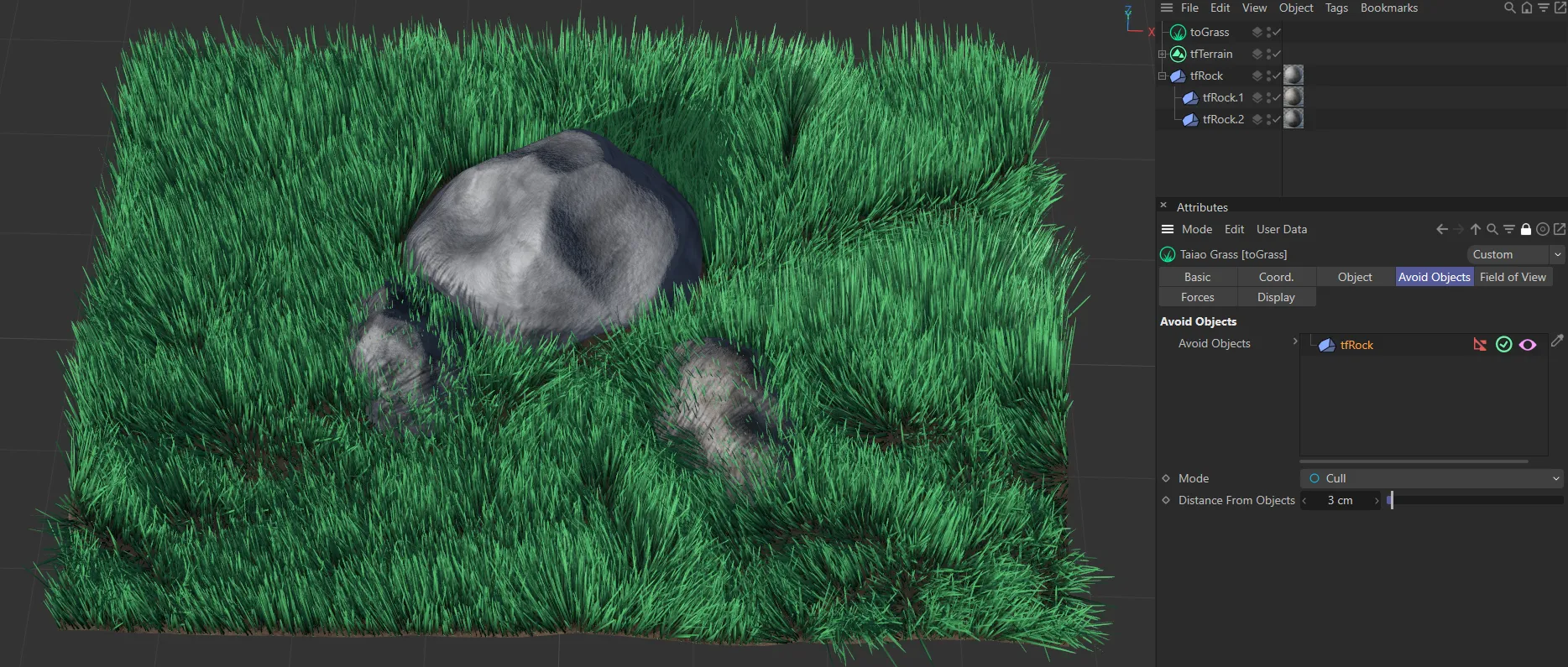
Here the Hierarchy is disabled (in red), therefore child objects are not being avoided.
Clicking the green check mark in a circle will switch off the Avoid Objects function.
Clicking the (pink eye) vision button will disable the vision of the object, making it visible as a wireframe, which is controlled in the Display tab.
The Mode is set, by default, to Cull.
This mode simply stops generating any grass.
The other option is Repel, where the grass will grow around the sides of the object being avoided.
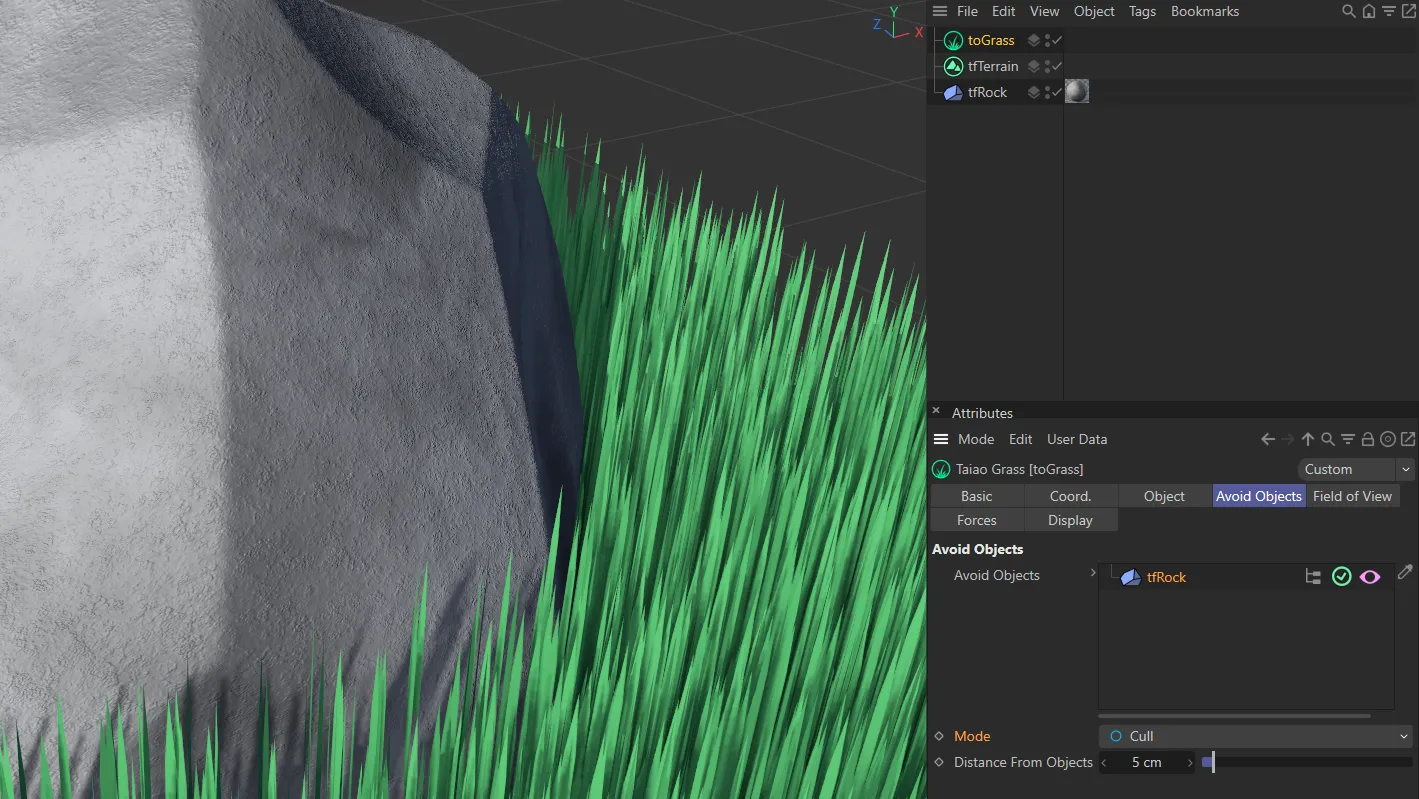
Mode set to Cull.
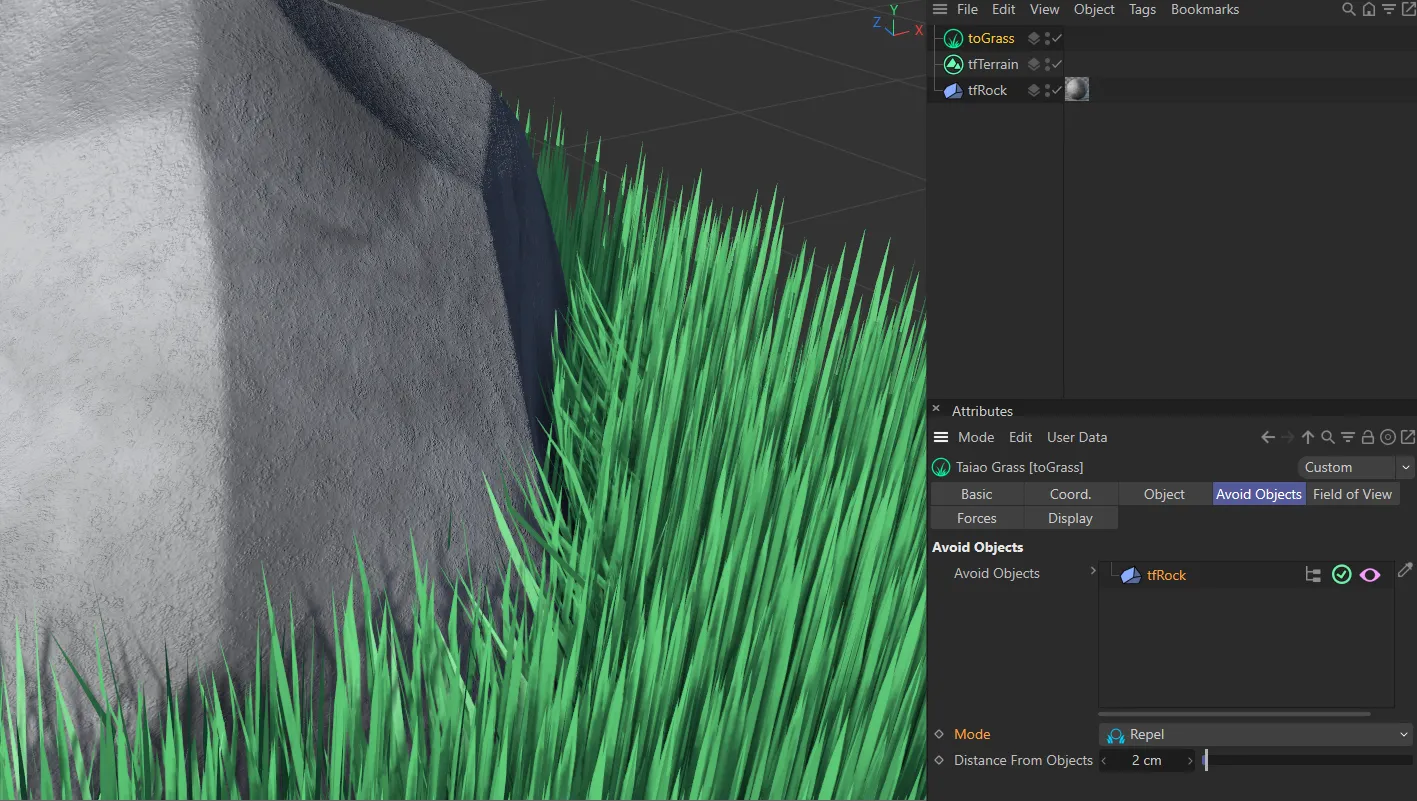
Mode set to Repel.
Distance From Objects
Section titled “Distance From Objects”Inputting a value here will increase the Distance From Objects where the culling, or repelling, takes place.
Distance From Objects setting of 0 (zero) cm.
Distance From Objects set at 20cm.
Copyright © 2026 INSYDIUM LTD. All rights reserved.