
Pistil
Clicking on Pistil in the Flower Parts drop-down menu will add it to the Flower Layers list.
When Pistil is highlighted in this list, the following attributes will all be accessible.
Main tab
Section titled “Main tab”Position
Section titled “Position”This will offset the pistil up or down.
Subdivisions
Section titled “Subdivisions”Adds subdivisions.
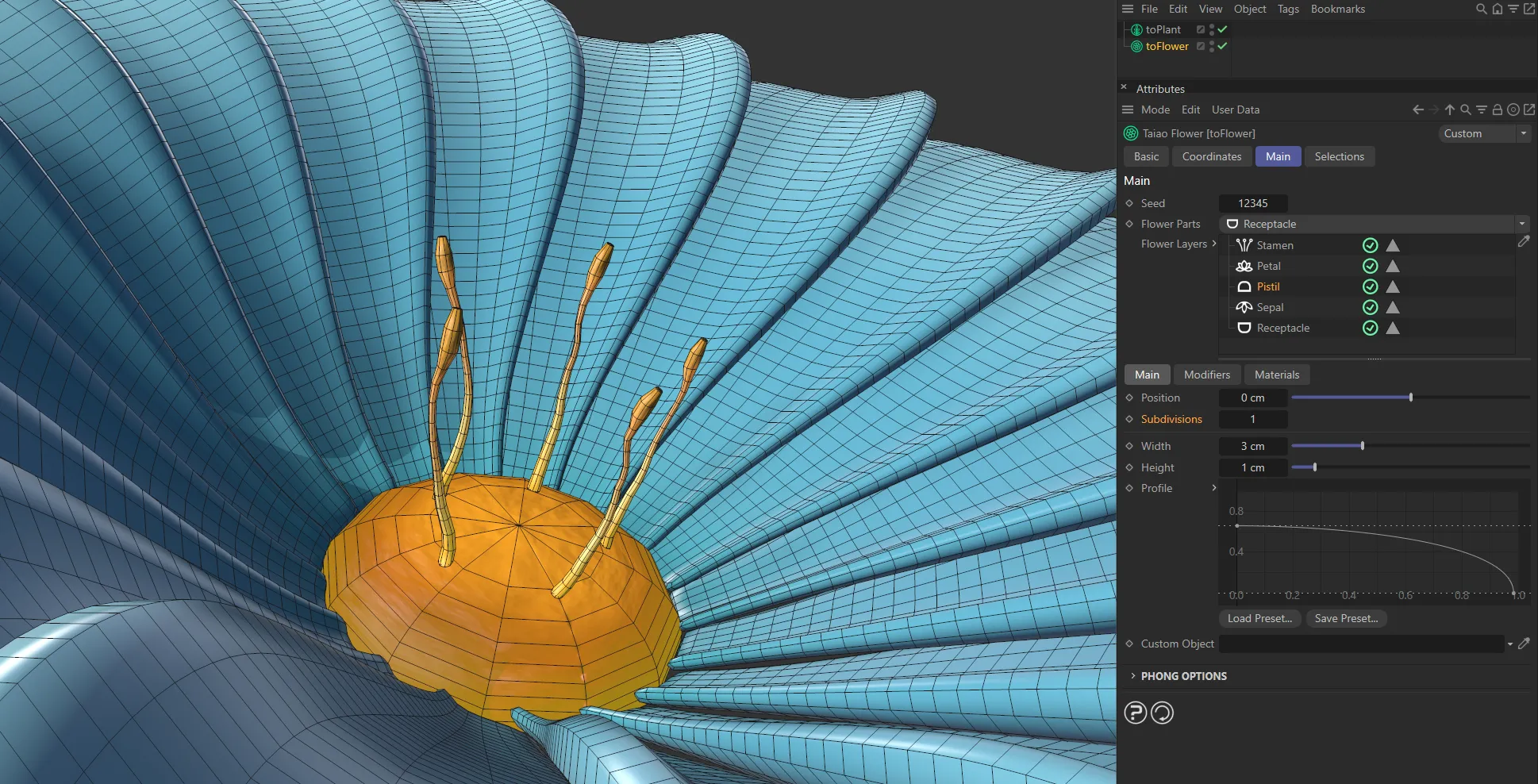
Subdivisions set at 1.
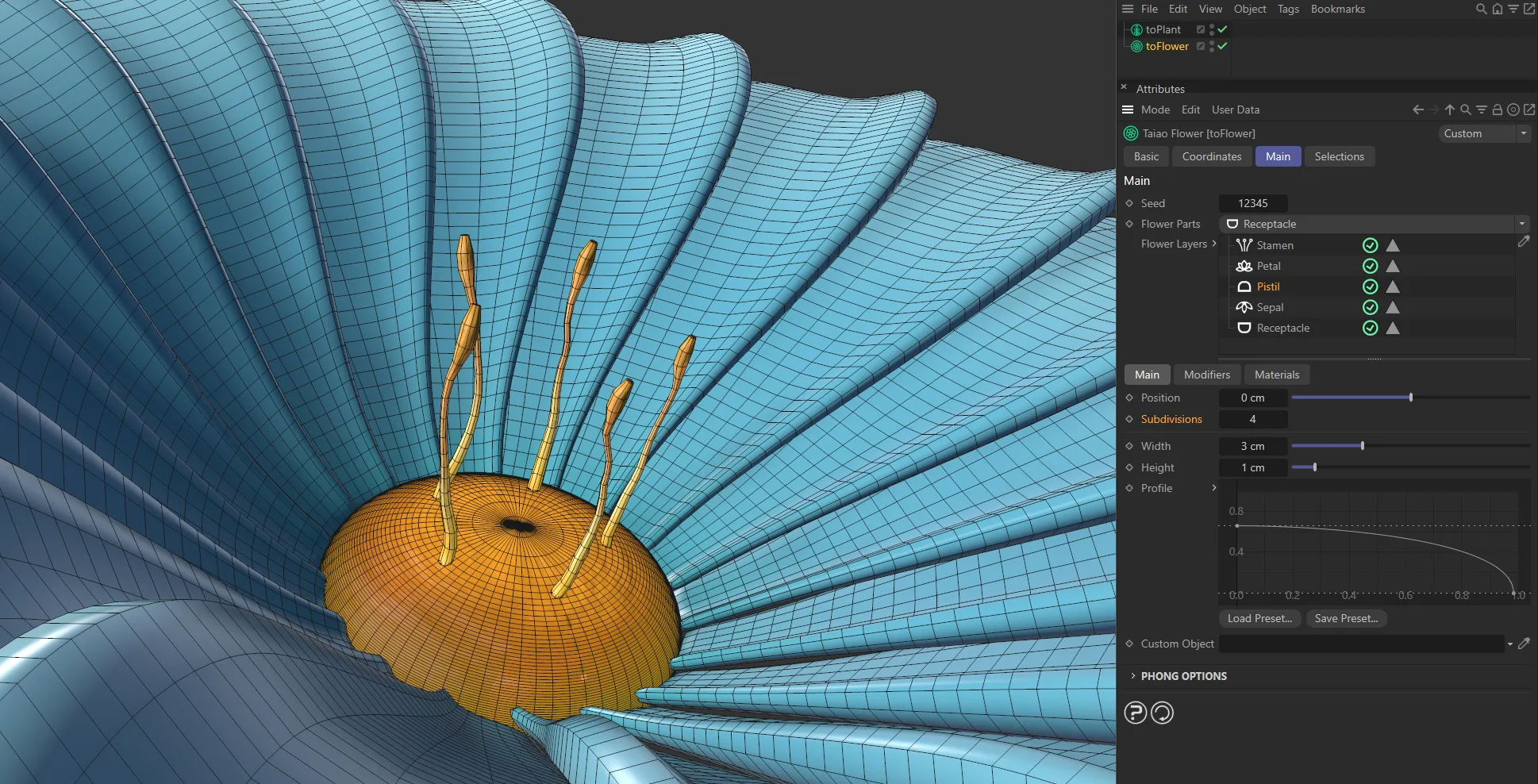
Subdivisions raised to 4.
Increases or decreases the width.
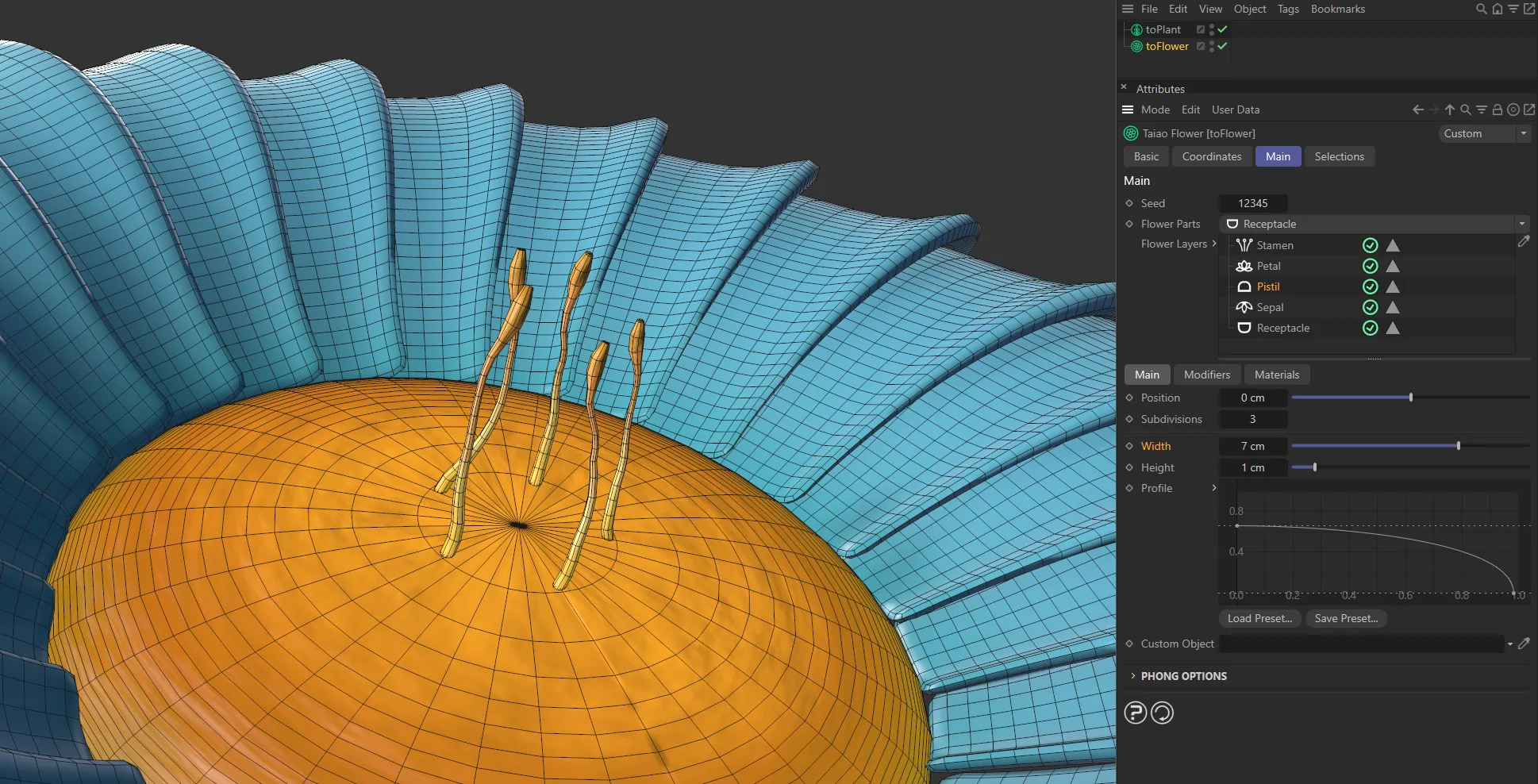
Here, the pistil Width is increased (from the settings above) to 7cm.
Height
Section titled “Height”Increases or decreases the height of the pistil.
Profile
Section titled “Profile”You can manipulate this to fit your needs.
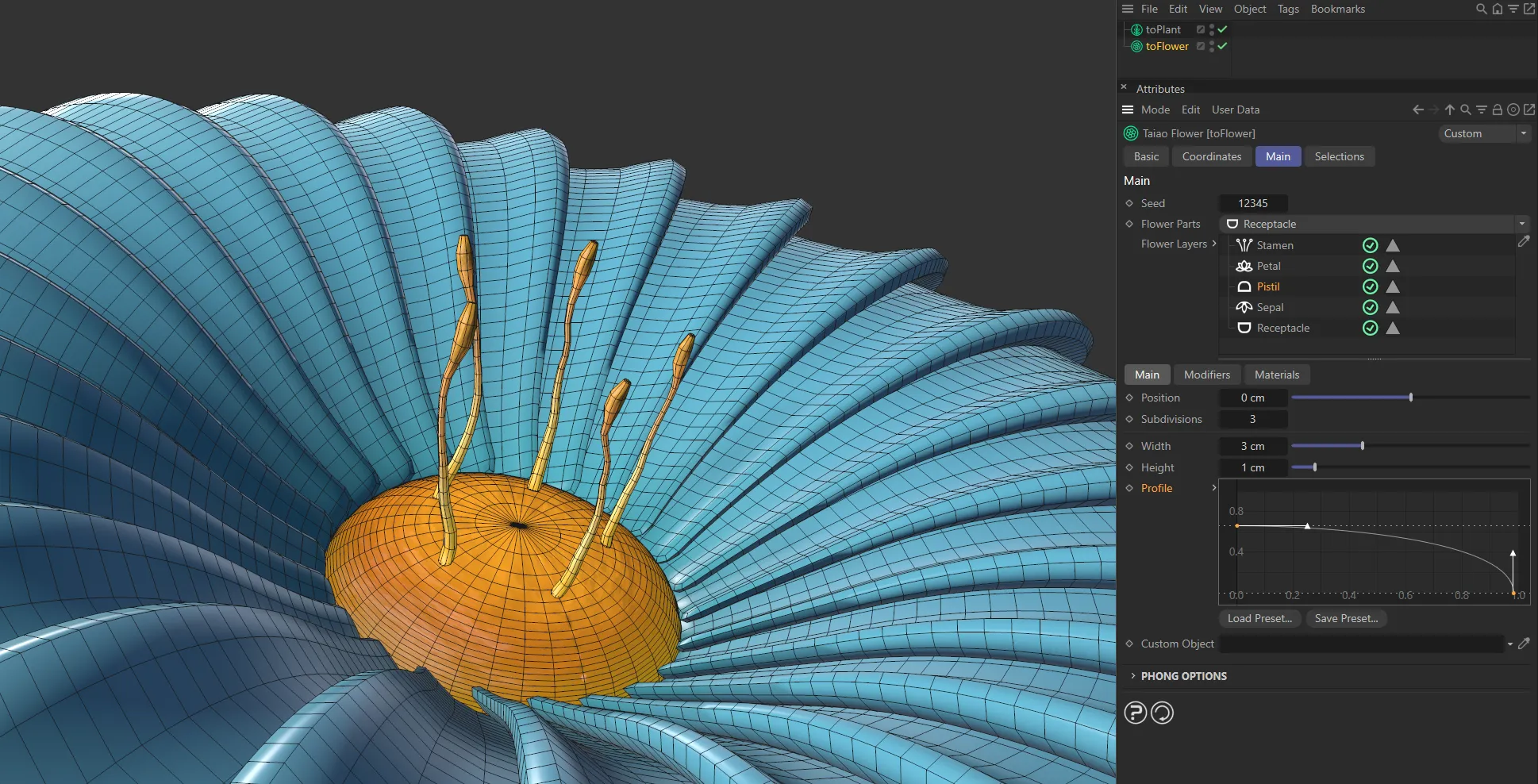
The shape of the pistil can be driven by manipulation of the Profile spline. This pistil mimics the rounded downward curve.
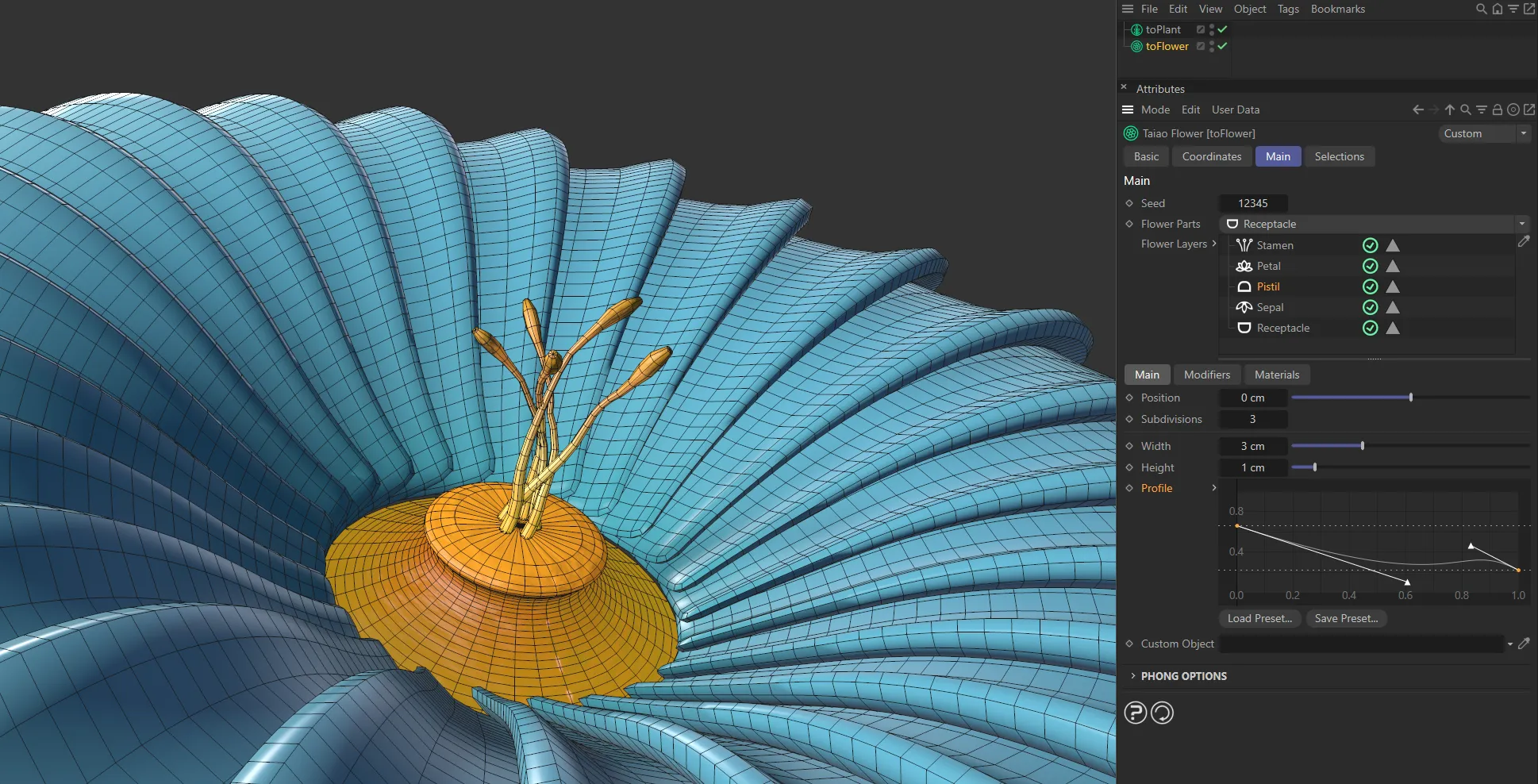
This second Profile setting is driving the unusual pistil shape above.
Custom Object
Section titled “Custom Object”You can import custom objects, by simply dragging them into the Custom Object link field, then alter the different settings, as desired.
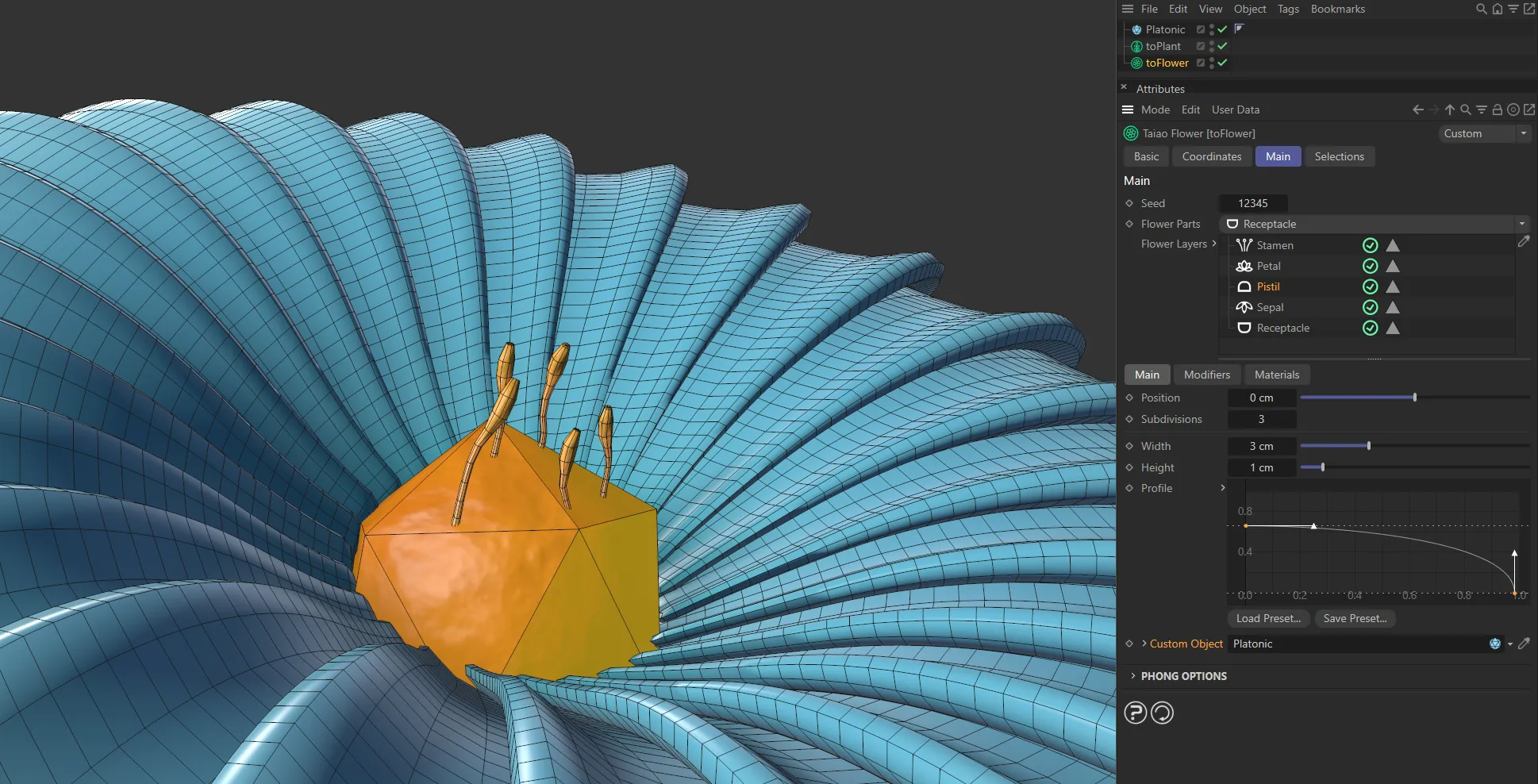
In this image, the pistil is shaped by the Platonic, which as been dropped into the Custom Object field.
Phong Options
Section titled “Phong Options”These options allow you to adjust the smooth shading between neighboring polygons.
Smooth shading can be applied across all polygons, or it can be restricted using the Angle Limit and Phong Angle settings. **
Angle Limit
Section titled “Angle Limit”When activated, this will use the Phong Angle value to **restrict where smoothing occurs. **
Phong Angle
Section titled “Phong Angle”You can change this to set the angle limit, up until which the neighboring surfaces will be smoothed.
Modifiers tab
Section titled “Modifiers tab”These settings give you the ability to deform and twist your pistil.
Modifier
Section titled “Modifier”The only available Modifier type available for the Pistil layer is Displacer.
This comes with its own parameter settings.
Modifier Stack
Section titled “Modifier Stack”The hierarchical list of modifiers affecting your plant layer.
This is still available as more than one Displacer modifier can be added.
Displacer modifier
Section titled “Displacer modifier”This modifier lets you bring in a Shader or a Texture to shape the pistil.
Selecting this modifier will give you the usual additional options (explained more fully in the Stamen layer page) to be able to import your Shader or Texture into the scene, including parameters for Channel and Tolerance settings.
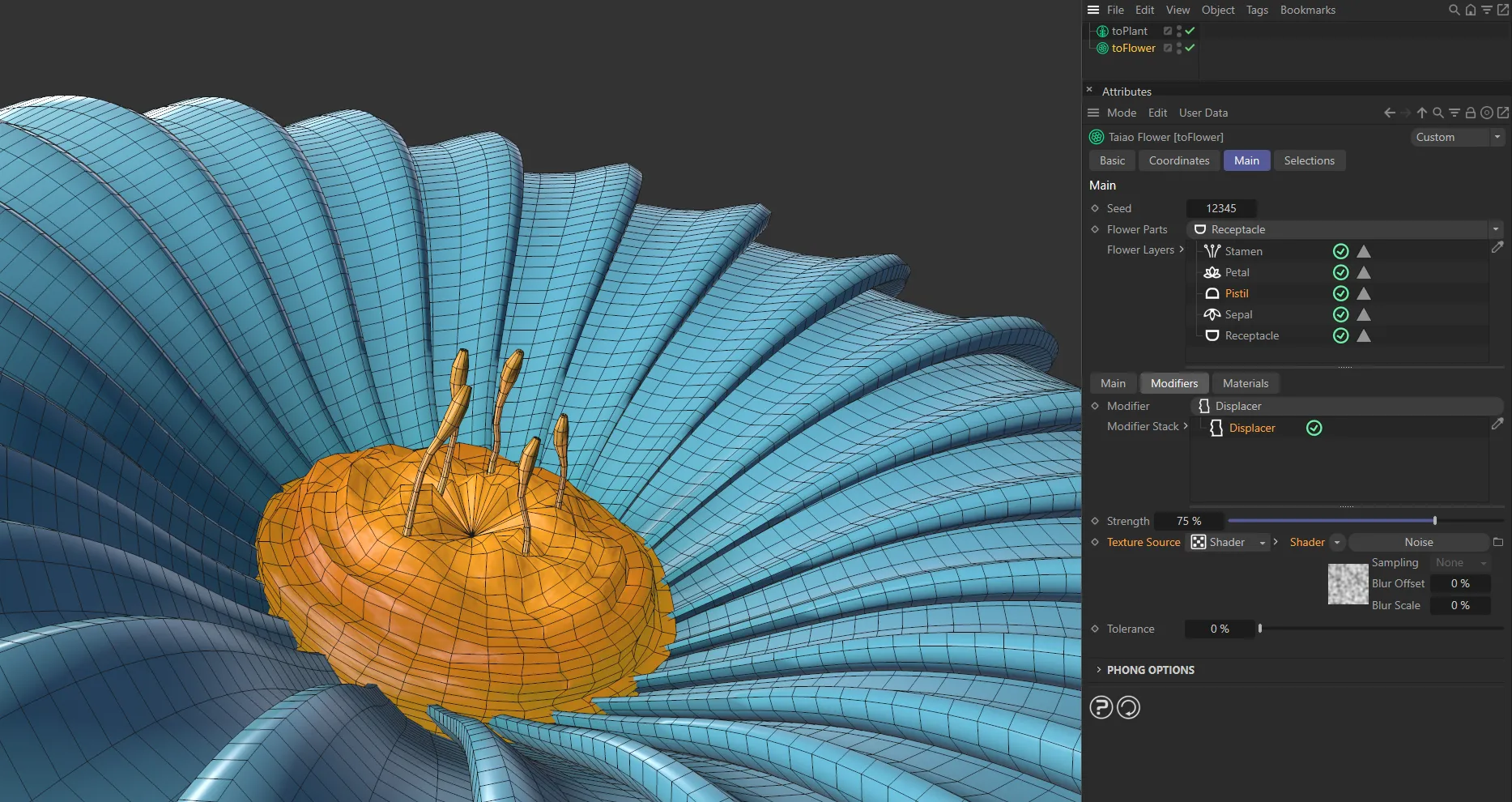
With the Texture Source set as Shader, a Noise shader is driving the appearance of this pistil.
Copyright © 2026 INSYDIUM LTD. All rights reserved.