
Preset Browser
The Preset Browser contains ready-made examples of flowers and trees for your use.
You can also create your own presets and add them to this catalog.
The Preset Browser is accessed by going to the INSYDIUM tab in Cinema 4D, selecting Taiao and then clicking on Preset Browser.
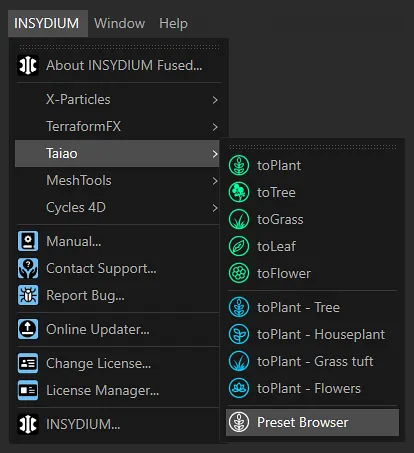
Opening the Preset Browser from the Cinema 4D menu.
The Preset Browser opens in the default setting of Flowers Medium, where you can see thumbnails of all the available real-world flowers in that section.
Once you have brought an item, from the Preset Browser, into your scene, it will become fully procedural and editable from the settings menus.
Animation to demonstrate how choosing and clicking a thumbnail will create a ready-made and fully editable toPlant flower.
Category
Section titled “Category”There are three Categories: Flowers, Leaves and Trees.
Choose between the available Taiao preset packs by clicking the Category drop-down menu.
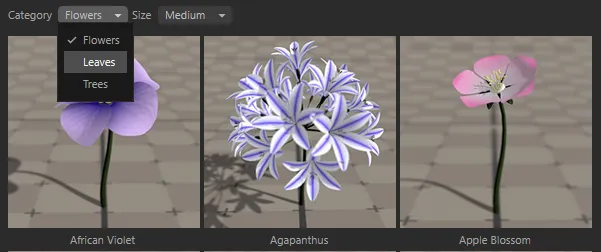
The Category drop-down menu.
There are three sizes available: Small, Medium and Large.
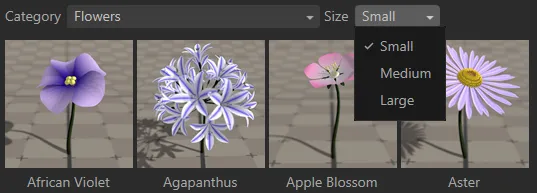
The Size drop-down menu.
Making your own Presets
Section titled “Making your own Presets”You can make your own presets and add them to the catalog by going to the Cinema 4D Edit tab and selecting Preferences.
In the INSYDIUM menu, you will see a Taiao preference, where you can target your personal folder, which you must have previously set up.
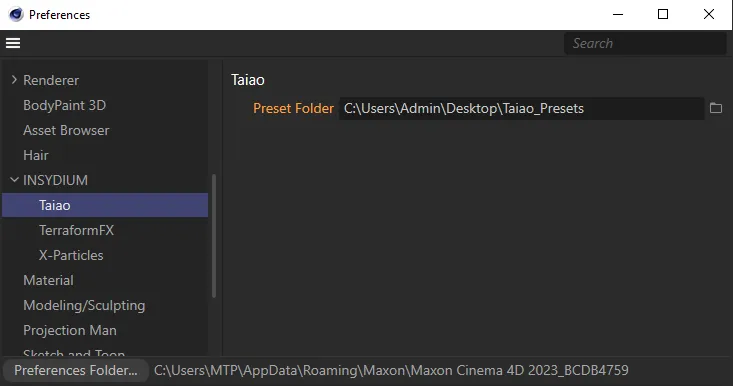
The Cinema 4D Preferences menu, with INSYDIUM Taiao setting.
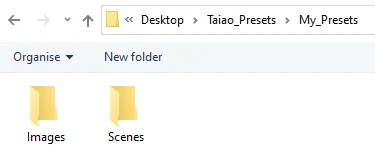
In this image, a folder called My_Presets has been created, with two sub-folders Images and Scenes.
Once you have identified the item that you want to save to the catalog, you then need to go to Save Project with Assets in the Cinema 4D File tab.
This will save the scene file, together with all the textures you have set.
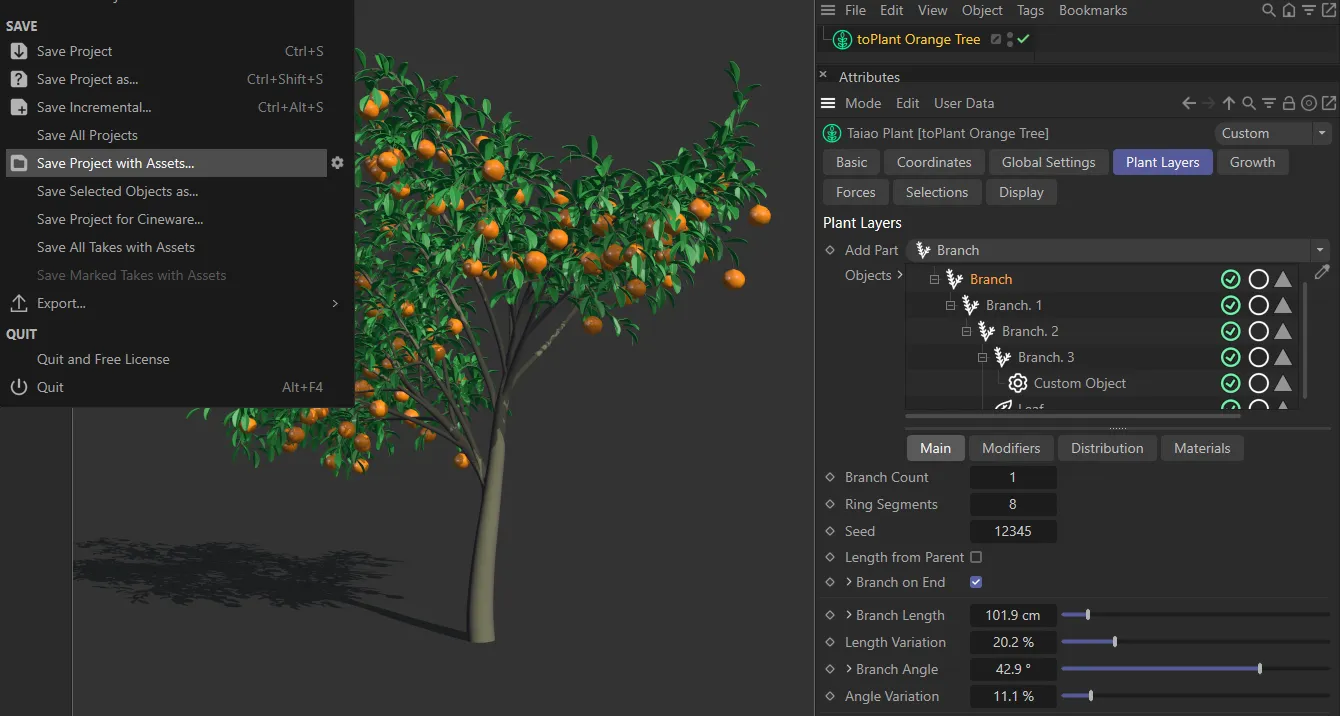
Here, Save Project with Assets is selected, to save the toPlant, including materials and custom scene objects.
Save your item into the personal folder that you have set up.
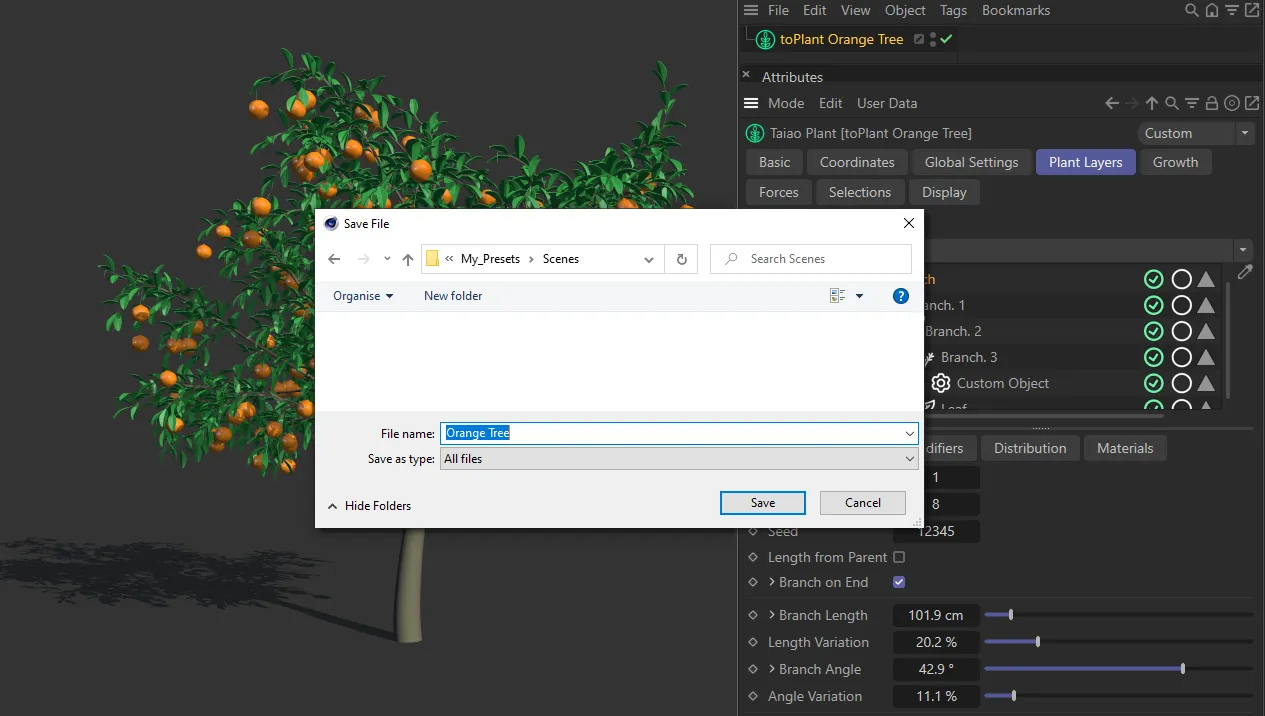
In this image, you see the next step, saving the file into the Scenes folder.
You can take a screenshot, to use as a thumbnail for this item, which you can then use in the catalog.
This can then be saved from Render Settings into your personal folder.
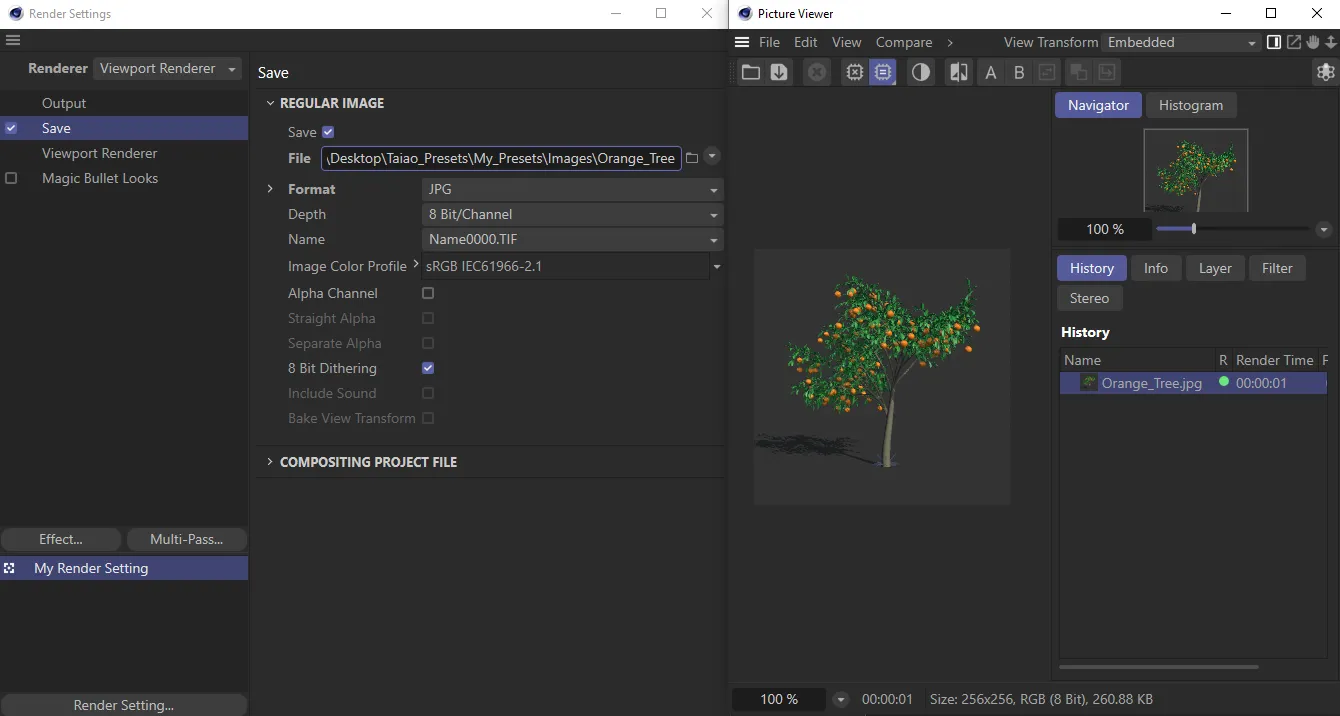
Here, the thumbnail image Orange_Tree is being saved as .jpeg to the Images folder.
When you next start Cinema 4D, your folder will be visible in the Category tab alongside Flowers and Trees.
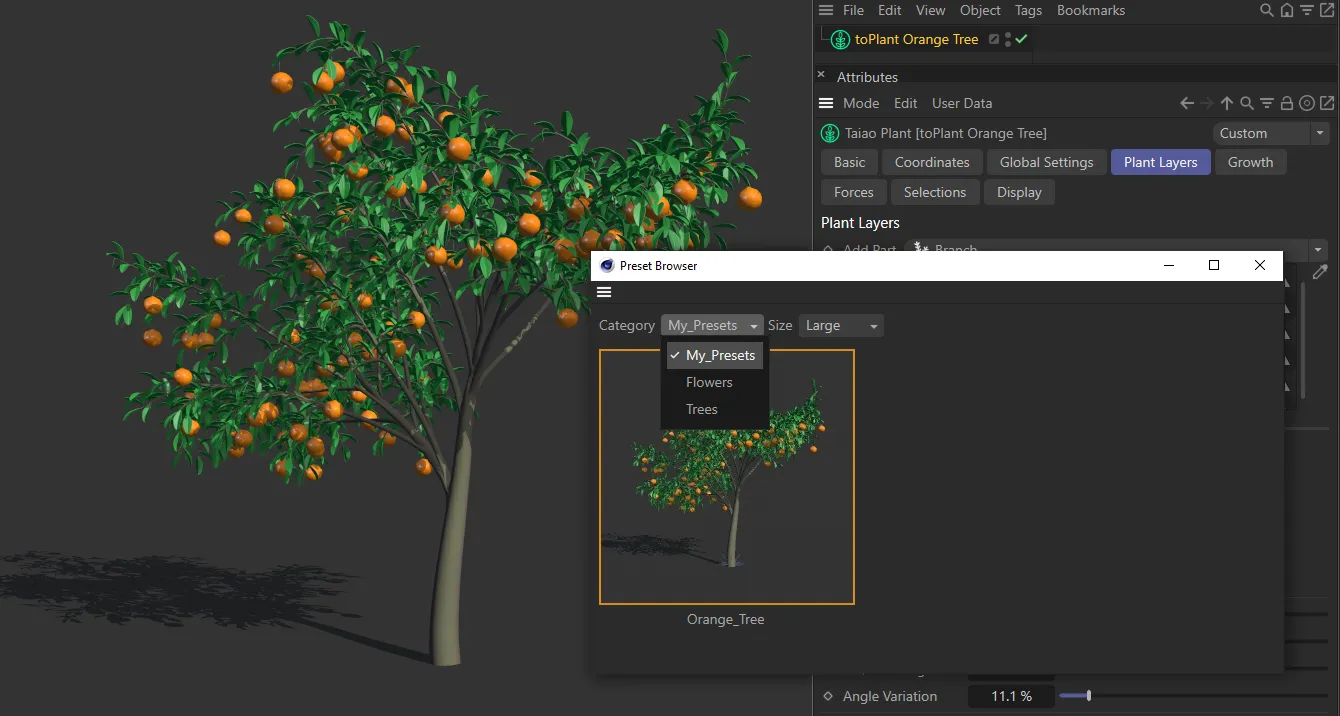
The new Category setting My_Presets now appears in the Preset Browser, containing the self-made presets.
Copyright © 2026 INSYDIUM LTD. All rights reserved.