
mtPolyScale
Overview Video
Section titled “Overview Video”mtPolyScale controls the scale of an object’s individual polygons for procedural growth.
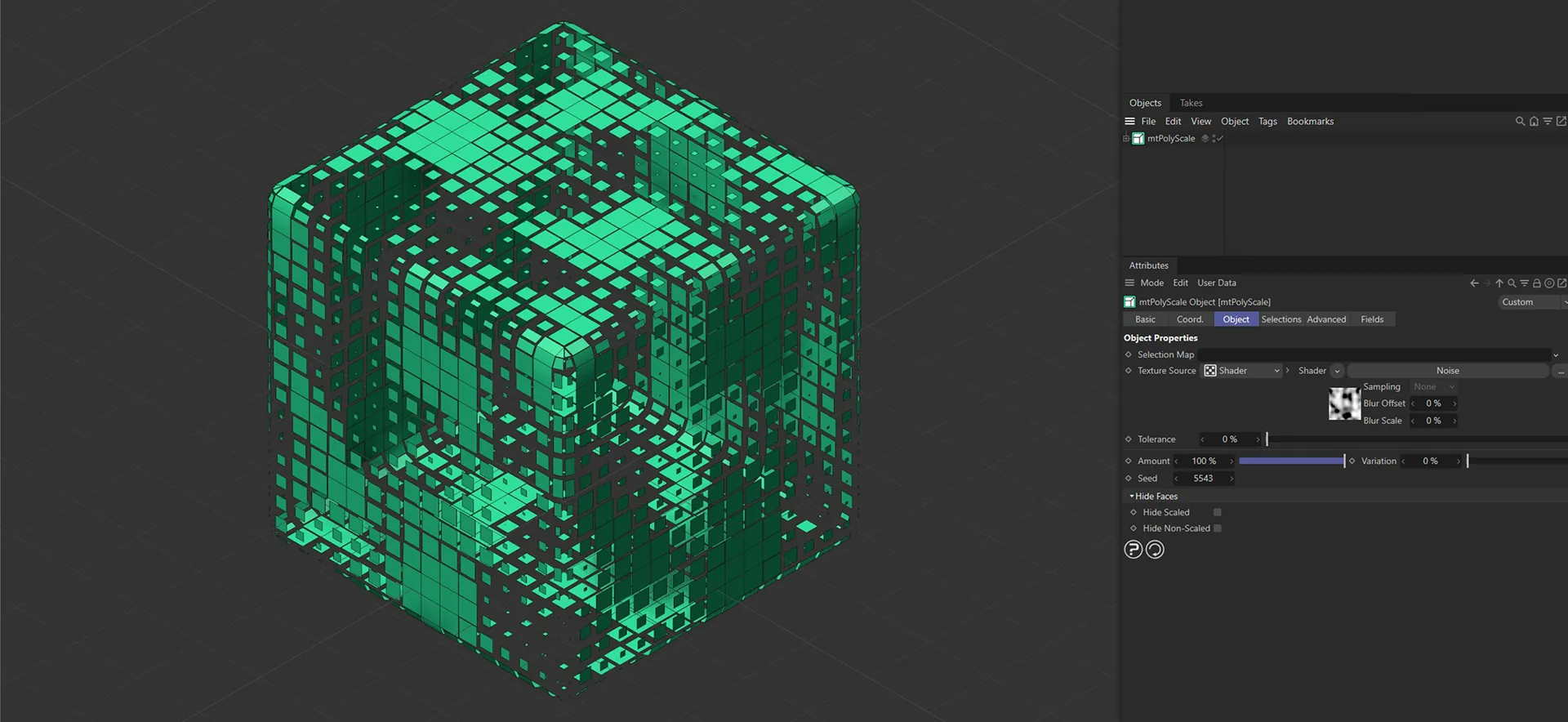
Cube as a child of mtPolyscale, with variation of scaling on each polygon.
Object tab
Section titled “Object tab”Selection Map
Section titled “Selection Map”You can use a vertex map or selection tags to define where scaling is performed.
Drag the tag from the Object Manager into the Selection Map link field.
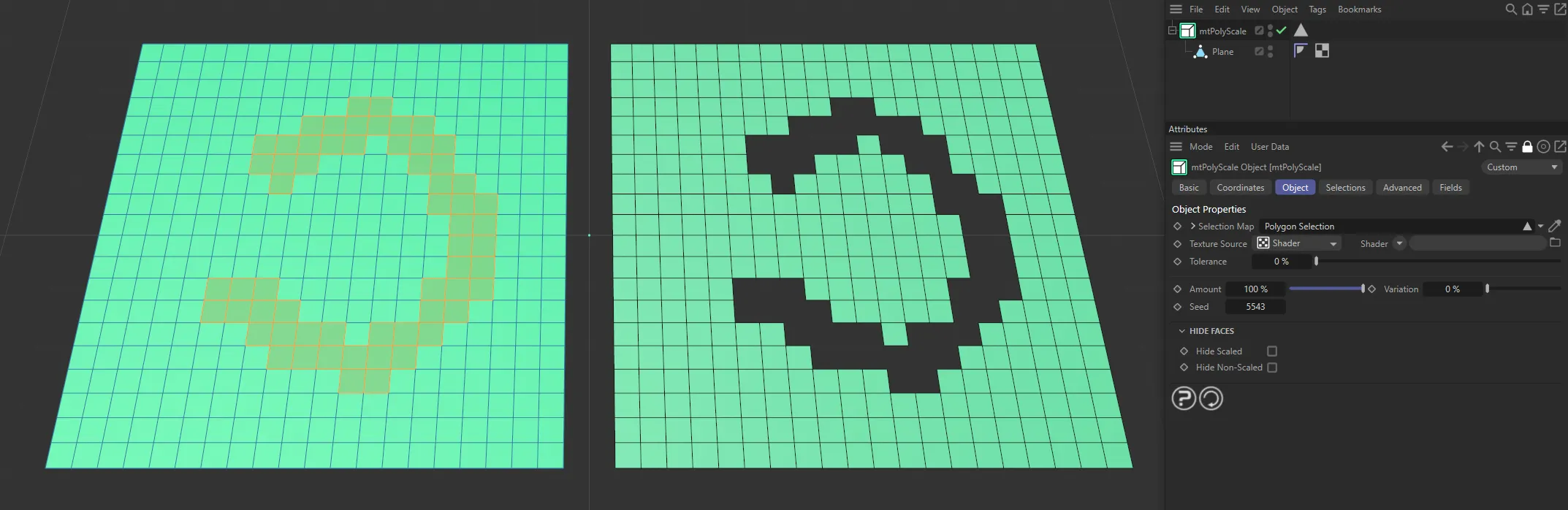
The Plane on the left has a polygon selection tag, which is displayed in the viewport. An identical Plane is on the right, as a child of a mtPolyScale, defining where scaling is being performed.
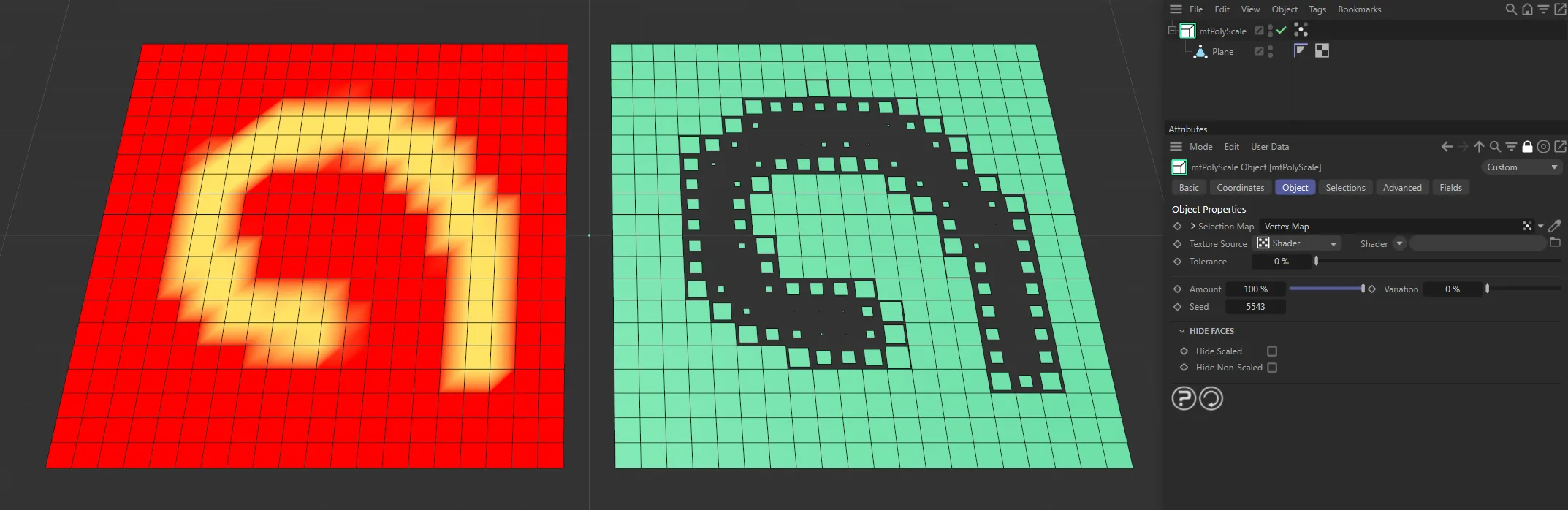
The Plane on the left has a vertex map, which is displayed in the viewport. An identical Plane is on the right, as a child of a mtPolyScale. The vertex weights are defining where scaling is happening.
Texture Source
Section titled “Texture Source”You can use shaders, images and even animated video sequences to control where scaling is performed.
There are two options: Shader and Texture Tag.
Both use color values to define which areas are affected.
Texture Source set to Texture Tag, with the bitmap material driving the scaling on the Plane, which is, in turn, being controlled by the Amount slider.
Shader mode
Section titled “Shader mode”Shader
Section titled “Shader”Use the Shader drop-down to select an image, sequence, or shader.
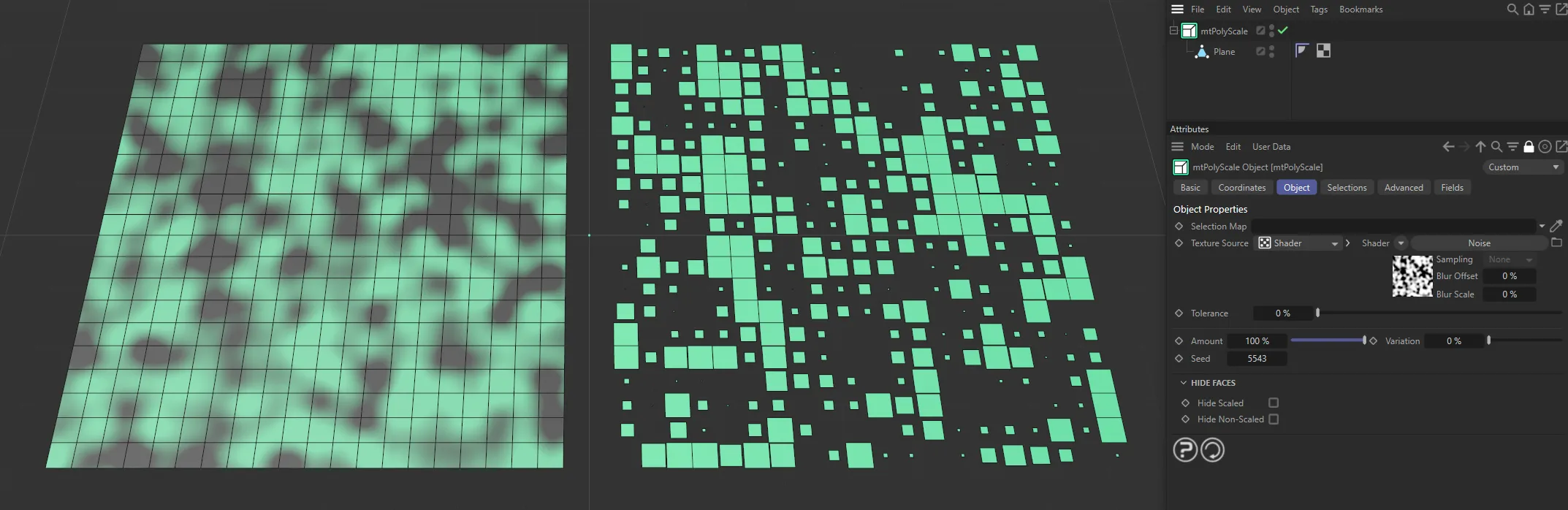
In this image, a Noise shader has been used and the brighter areas in the Noise pattern are being scaled down.
Texture Tag mode
Section titled “Texture Tag mode”This mode requires a Cinema 4D material.
Place the material on the mtPolyScale and you will see a texture tag appear alongside it in the Object Manager.
Simply drag this texture tag into the Texture Tag link field.
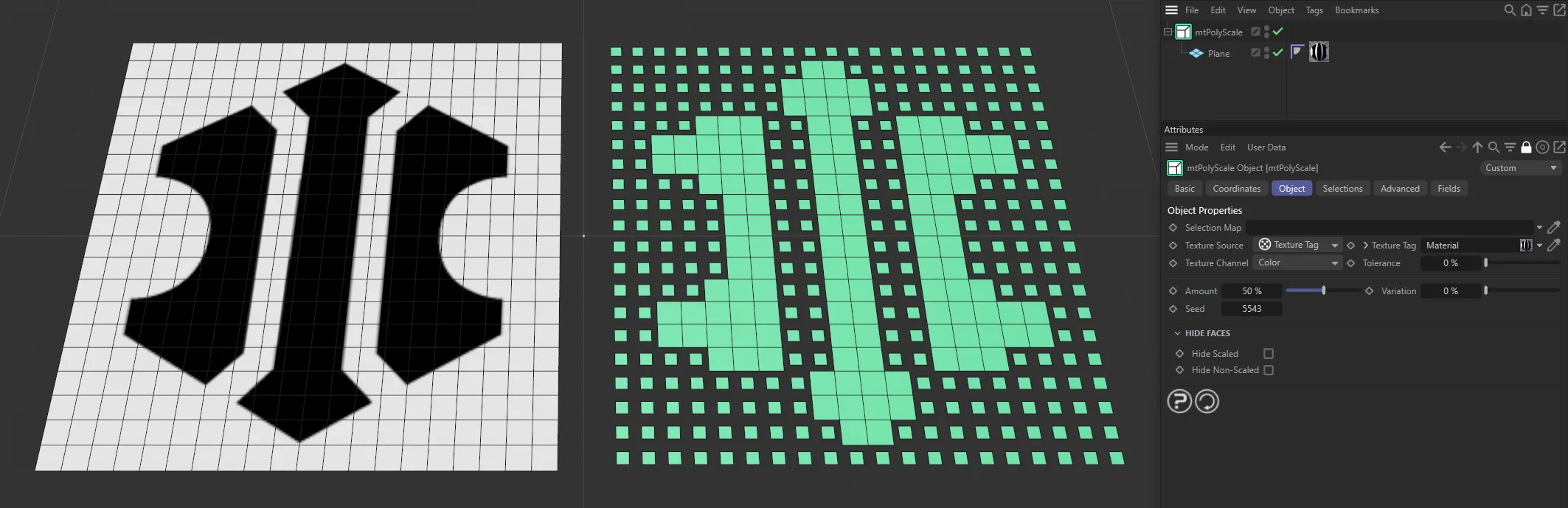
Texture Source set to Texture Tag, with the bitmap material on the left driving where the scaling is happening on the right-hand Plane.
Texture Channel
Section titled “Texture Channel”Use the Texture Channel pull-down to select which material channel you wish to reference.
This is set to Color by default.
Other options are: Luminance, Transparency, Reflection, Environment, Fog, Bump, Alpha, Specular, Specular Color, Glow, Displacement, Diffusion and Normal.
Tolerance
Section titled “Tolerance”Use the Tolerance slider to control the contrast, adjusting the areas where scaling is performed, dependent on the values in the shader.
Lower tolerance values will scale more polygons.
Higher tolerance values will scale fewer polygons.
Amount
Section titled “Amount”The higher the percentage value, the more the scale of each polygon is reduced.
Animation to demonstrate use of the Amount slider on the scaling.
Variation
Section titled “Variation”An increase in this field varies the amount of scaling on each polygon.
Animation to demonstrate the effect of the Variation slider on the Amount setting.
Changing the Seed value alters this random variation, giving a different ‘look’ with each setting.
Hide Faces
Section titled “Hide Faces”Hide Scaled
Section titled “Hide Scaled”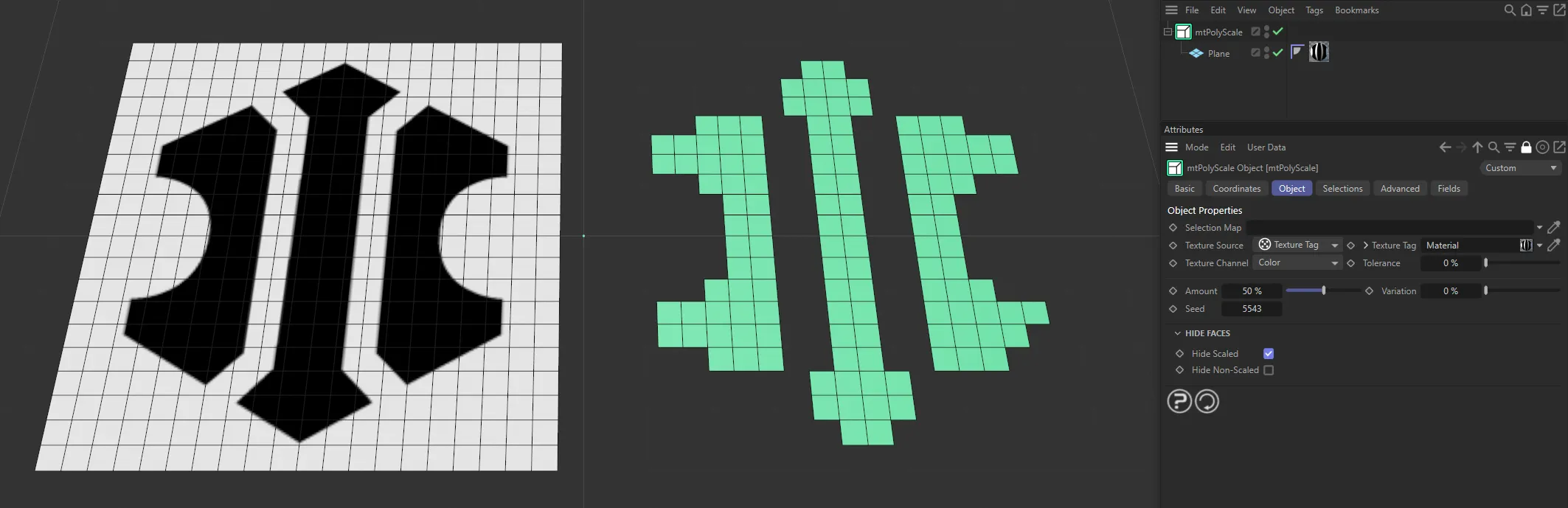
The polygons which have been scaled are hidden.
Hide Non-Scaled
Section titled “Hide Non-Scaled”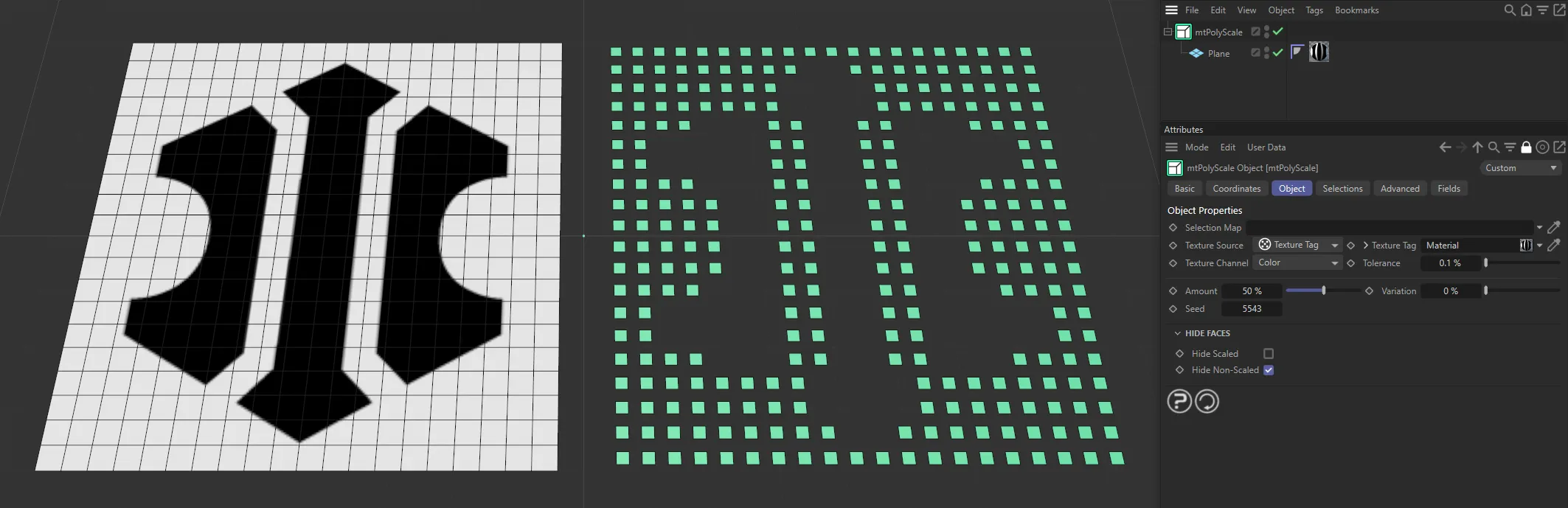
The polygons which have not been scaled are hidden.
Selections tab
Section titled “Selections tab”You can create polygon selections based on the mtPolyScale operation.
Each selection is stored within a selection tag, which is automatically generated on activation.
Each selection can be visualized by activating Display Selection.
You can change the color of the displayed selection using the color picker.
Scaled
Section titled “Scaled”Adds selections for the scaled polygons.
Non-Scaled
Section titled “Non-Scaled”Adds selections for the non-scaled polygons.
Display Selection
Section titled “Display Selection”Displays the selection, using a color, set by the color picker.
Advanced tab
Section titled “Advanced tab”Optimize
Section titled “Optimize”Newly generated topology can include unused or duplicated points and surfaces.
These can be eliminated by selecting Optimize.
Polygons
Section titled “Polygons”One or two-point surfaces will be eliminated.
Unused Points
Section titled “Unused Points”Any unused points will be deleted.
Points
Section titled “Points”Duplicated points will be eliminated.
Tolerance
Section titled “Tolerance”Duplicated points are merged if they are within the Tolerance range setting.
Fields tab
Section titled “Fields tab”You can use the Fields options to control where you are scaling your objects.
Animation showing the effects of a Linear Field on the scaling of polygons on the Plane.
Copyright © 2026 INSYDIUM LTD. All rights reserved.