
Tree
Overview Video
Section titled “Overview Video”Tree Options
Section titled “Tree Options”This shape repeats the clone out onto multiple branches, with options to change the angle and quantity.
Each clone is positioned at the top middle of the previous branch segment.
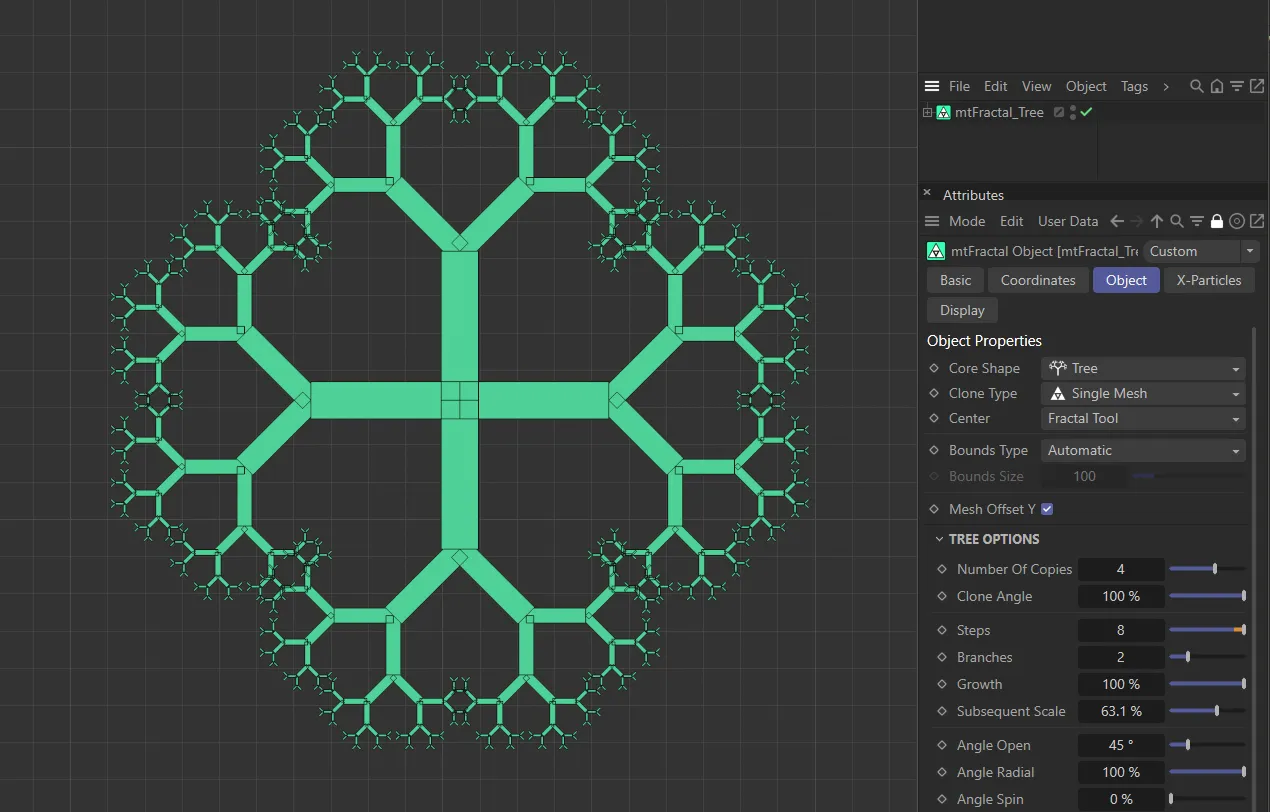
mtFractal Core Shape set as Tree.
Number of Copies
Section titled “Number of Copies”This option is similar to one found in many other shapes, that will duplicate a resulting tree.
The first six clones will be placed at right angles to each other.
Using any number above that will distribute all the trees spherically.
Animation to demonstrate the effect of increasing the Number of Copies value.
Clone Angle
Section titled “Clone Angle”This percentage multiplies the angle of each tree clone in order to unfold them (100% being the full angle), with all the trees being at right angles to each other.
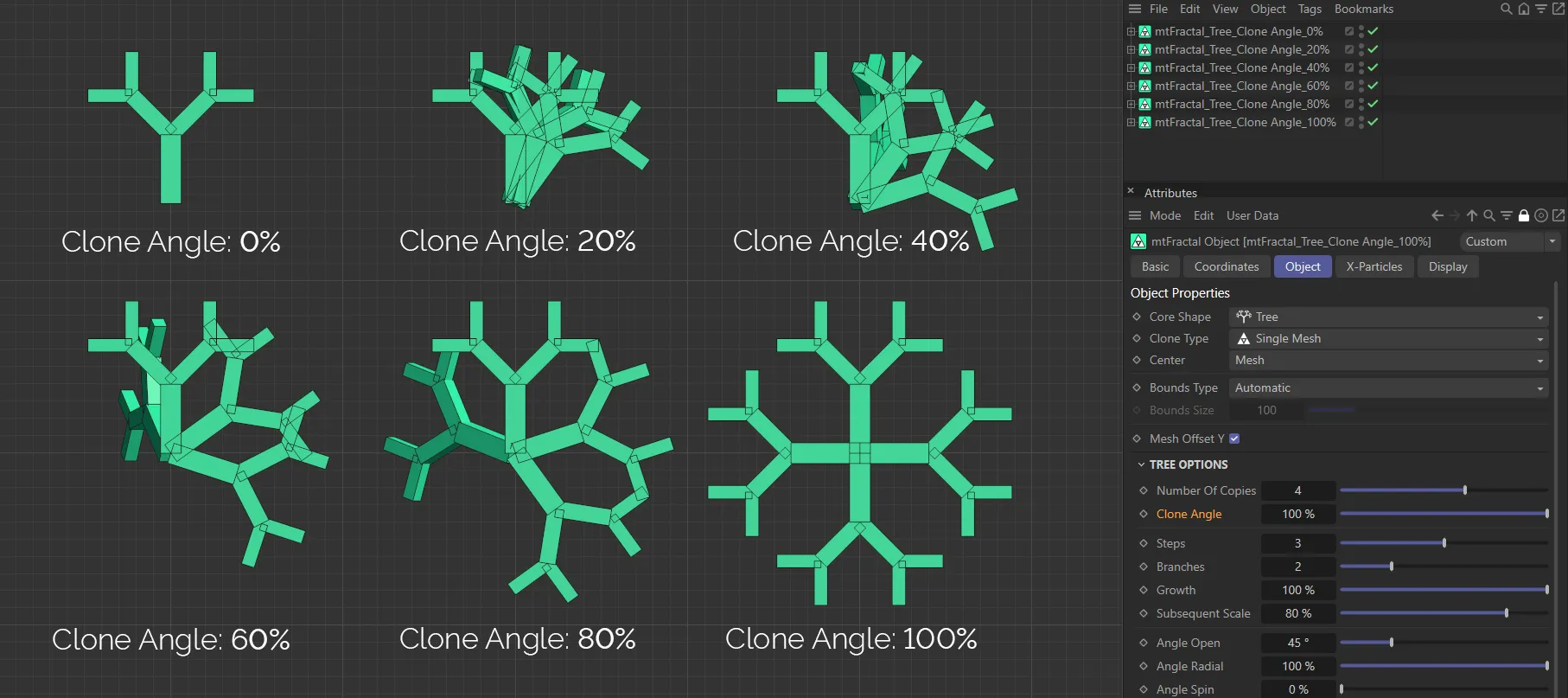
This image shows the Clone Angle with six separate percentage settings (as shown) and the resulting effects.
This is set at 3, by default, and is the first option which affects the real tree result.
Each step will add on another iteration of branches to the previous step’s branch.
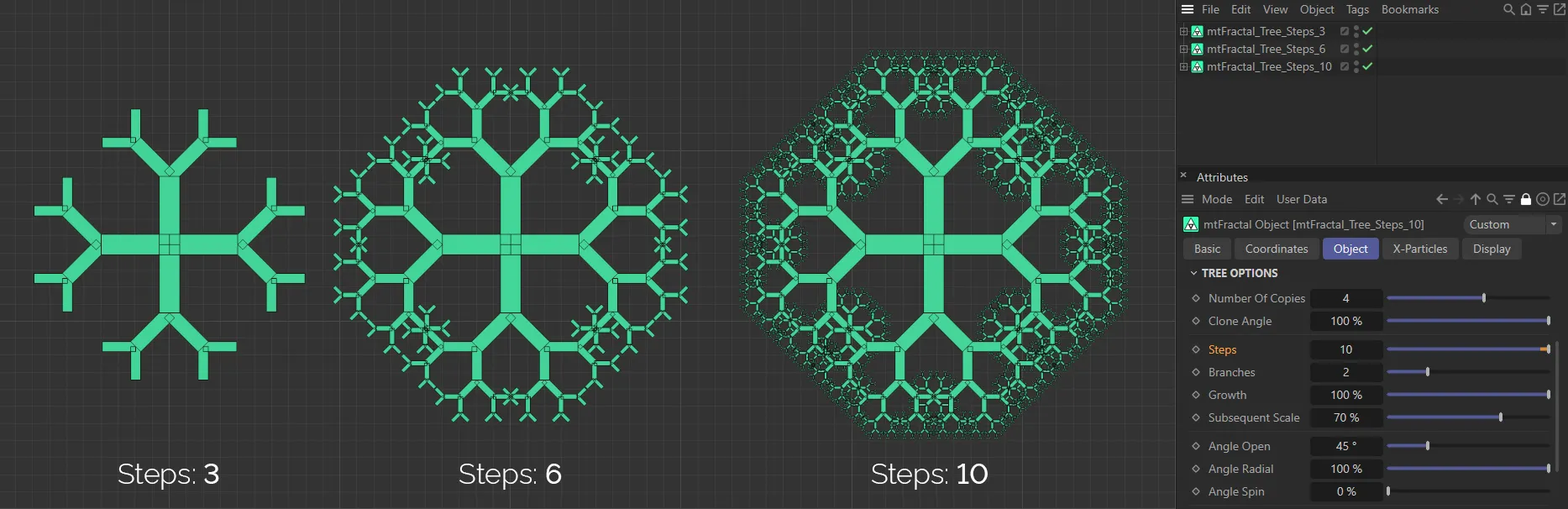
In this image the Steps value is 3, then 6 and, finally, 10.
Branches
Section titled “Branches”This sets the number of clones that each step will produce per previous branch.
By default, this is set to 2.
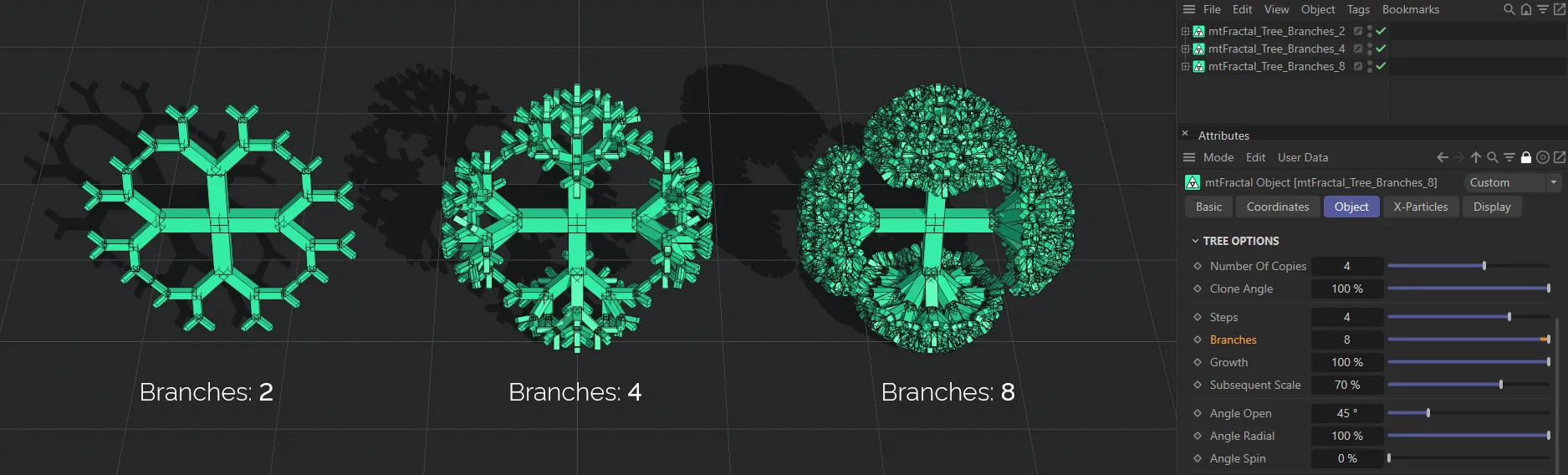
Here, the Branches settings are: 2, on the left, raised to 4, in the center, and again to 8, on the right.
Growth
Section titled “Growth”A percentage slider that will adjust the scale, position and rotation of all nodes to give the effect of a tree growing.
Animation to demonstrate the effect of the Growth slider.
Subsequent Scale
Section titled “Subsequent Scale”This slider can adjust the scale of clones at each step.
By default, this is set to 80%, which results in each subsequent step being reduced in size by 80%.
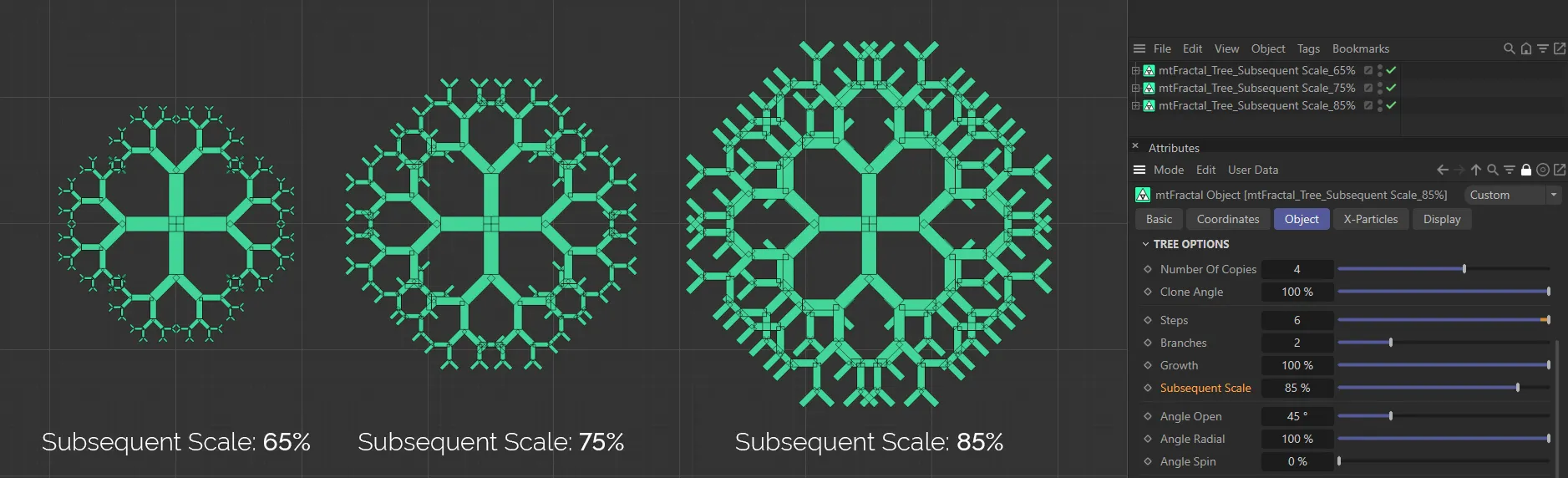
Subsequent Scale values of 65%, then 75% and 85% on the right.
Angle Open
Section titled “Angle Open”Each branch will begin by inheriting the rotation/normal of its parent branch.
The first angle option will change a branch’s angle compared to the normal of the previous branch.
By default, this is set at 45 degrees.
This animation demonstrates the effect of changing the Angle Open slider.
Angle Radial
Section titled “Angle Radial”This percentage option will scale the angle of branches around the previous node’s normal.
For example, a value of 100% will have branches distributed equally, while a value of 0% will have all branches in the step overlapping.
Animation to show the effect of reducing the Angle Radial slider setting.
Angle Spin
Section titled “Angle Spin”This angle rotates the current branch around its own normal.
The percentage will scale the degrees from 0 (zero) -360.
Animation to demonstrate the Angle Spin slider.
Levels & Nodes
Section titled “Levels & Nodes”The above parameters all affect the fractal shape globally, at every step. In order to apply targeted adjustments to an individual step of the shape, you can work with the Level Nodes controls.
Add Level
Section titled “Add Level”Clicking this button will add a level in the Levels node tree.
Highlighting this level will give further Node Options parameters.
These additional features give the increased, detailed control over each individual step of the fractal shape, bypassing the global settings from the Object tab.
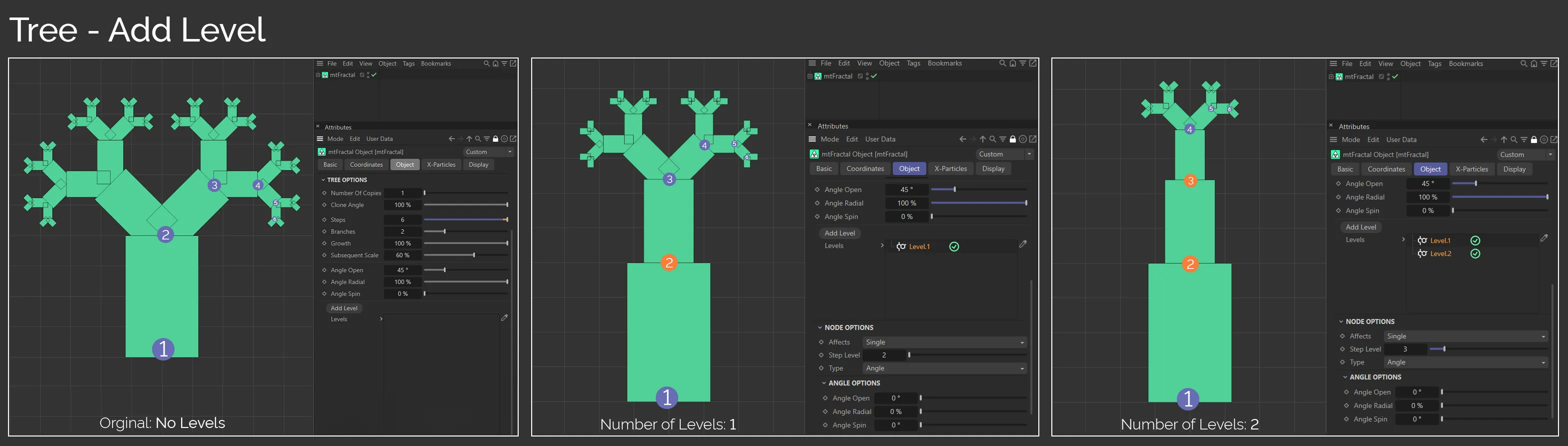
This set of images shows the effect of adding levels, by clicking the Add Level ‘button’. Each fractal shape has 6 Steps, each with a setting of 2 Branches.
In the left-hand image, there are no additional levels.
In the central image, Level.1 has been added and is highlighted, showing its own individual settings. The Step Level value is 2, which is marked in orange. This level has all its Angle Options set at 0 (zero) degrees/per cent.
Finally an additional level has been added, on the right, which affects Step Level 3. We are now restricting Step Levels 2 and 3 individually.
Affects
Section titled “Affects”When adding a level, the user can choose which step the other options in the node affect.
Set as Single, by default.
The other options are: Odd, Even, Range and Multiple Of.
Single
Section titled “Single”By specifying the number in the Step Level slider, this node will only affect the Type setting choice of Angle or Branch at this step.
Odd/Even
Section titled “Odd/Even”Alternating steps are affected.
Similar to Single, the user specifies a Range Start and Range End of steps to affect, in the additional parameters available.
Multiple Of
Section titled “Multiple Of”By specifying the number in the Multiple Of slider, this node will only affect the Type setting choice of Angle or Branch at this step.
Step Level
Section titled “Step Level”This specifies the step of the fractal which you wish to change.
This parameter allows a choice of sub-groups that this entry can affect, either Angle or Branch.
In the Angle setting, only the Angle Options are available to change.
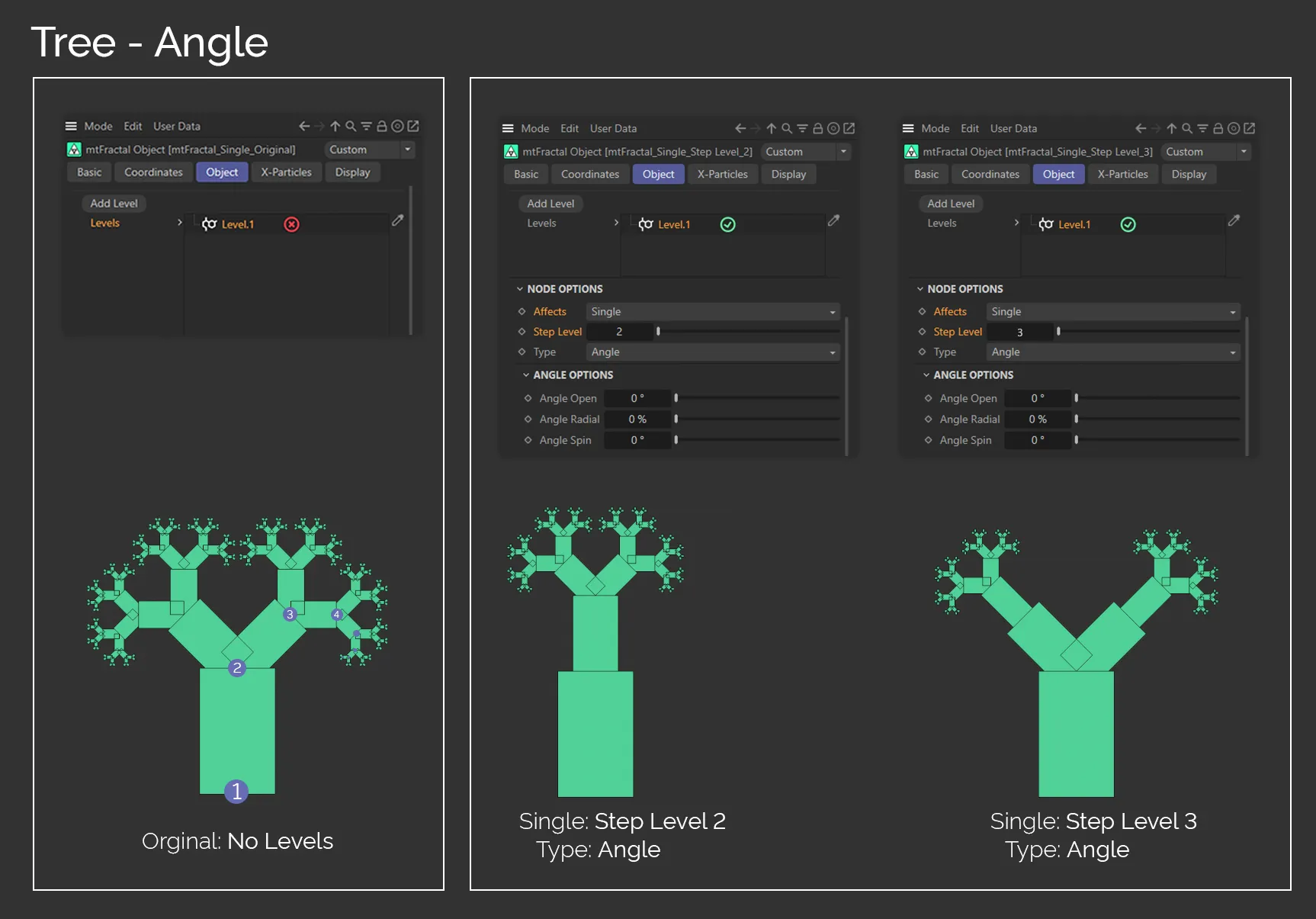
In these images, the Type is set to Angle. In the left-hand image, the additional Level.1 level is disabled, leaving all steps to be controlled by the global settings. In the central fractal tree, Level.1 is enabled and Step Level is set to 2. With Affects set to Single, only step 2 is being affected by the Angle Options settings below, while the other steps are being globally controlled.
The final image has Step Level set to 3, so only step 3 is being directed by the Angle Options, with all others being globally controlled.
Branch
Section titled “Branch”In the Branch setting, only the Branch Options are available to change.
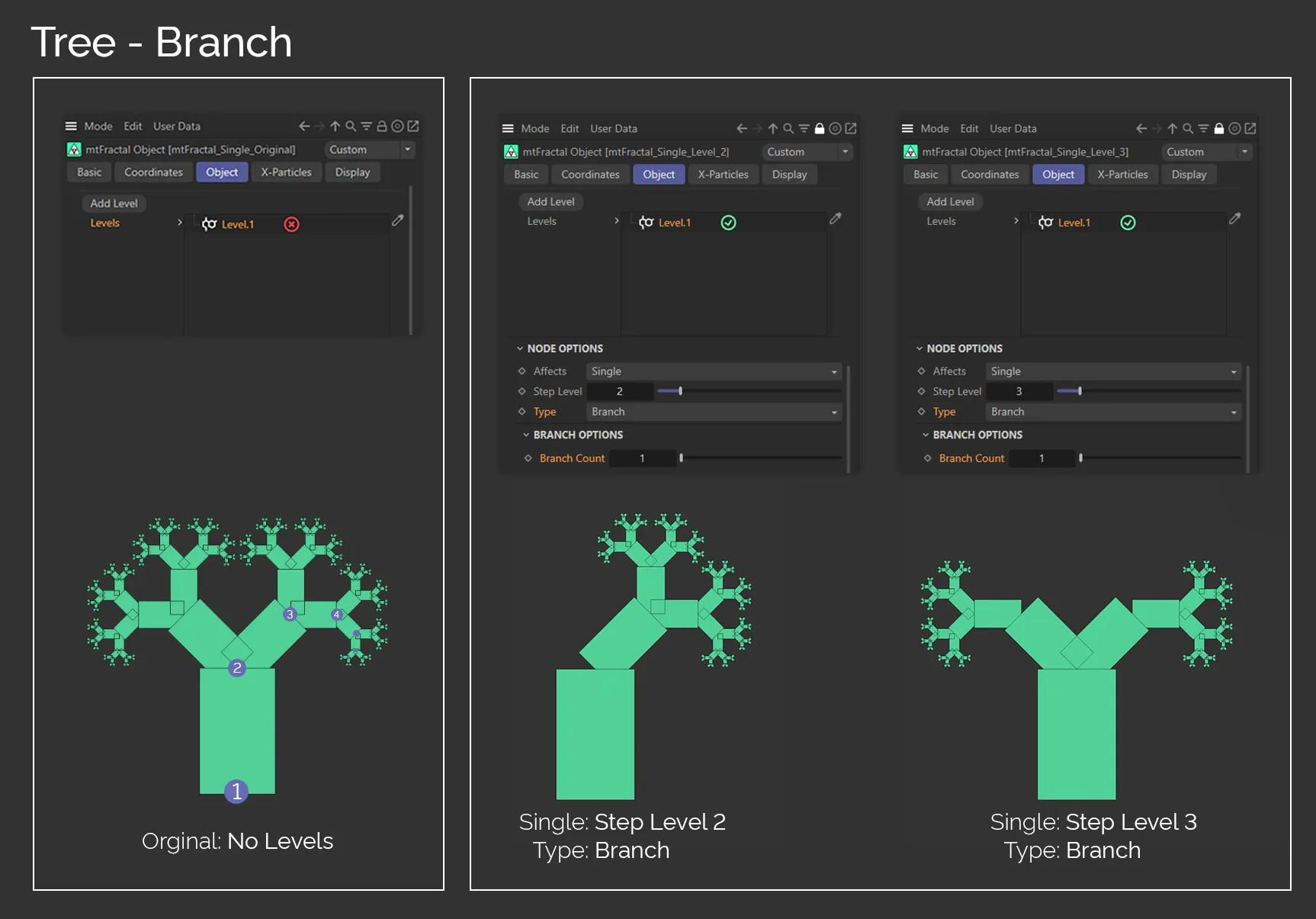
In these two images, the Type is set to Branch. In the left-hand image, the additional Level.1 level is disabled, leaving all steps to be controlled by the global settings. In the central fractal tree, Level.1 is enabled and Step Level is set to 2. With Affects set to Single, only step 3 is being affected by the Branch Options settings below, while the other steps are being globally controlled. The final fractal tree has Step Level set to 3. Therefore, only step 3 is being affected by the Branch Count below, with the other steps are being globally controlled.
Angle Options
Section titled “Angle Options”Angle Open/Angle Radial/Angle Spin
Section titled “Angle Open/Angle Radial/Angle Spin”These options will override the global angle values, set above.
Branch Options
Section titled “Branch Options”Branch Count
Section titled “Branch Count”This option will override the global branch number value, set above.
Copyright © 2026 INSYDIUM LTD. All rights reserved.