
Fern
Overview Video
Section titled “Overview Video”Fern Options
Section titled “Fern Options”The Fern shape shares similarities with the Tree shape but, due to the self-replicating manner, an increase in iterations can quickly produce a massive number of clones.
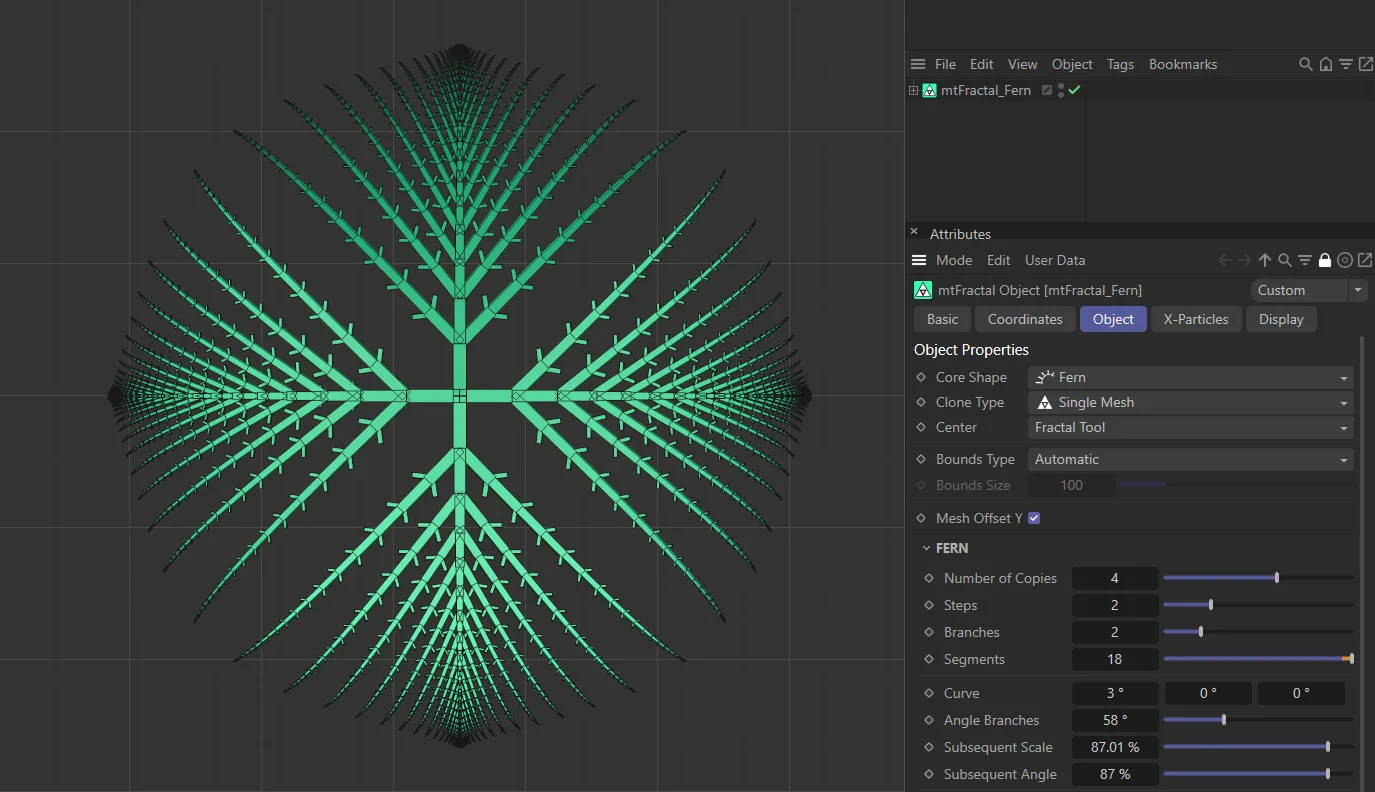
mtFractal Core Shape set as Fern.
Number of Copies
Section titled “Number of Copies”Again, this option is similar to one found in many other shapes, that will duplicate the shape.
Animation to demonstrate the increase in the Number of Copies value.
Set at 2, by default, the first step is the main polygon object (the trunk) and the second step consists of two more clones (branches) from the previous step.
Each subsequent step (with sub-branches) will produce two further clones from each clone of the previous step.
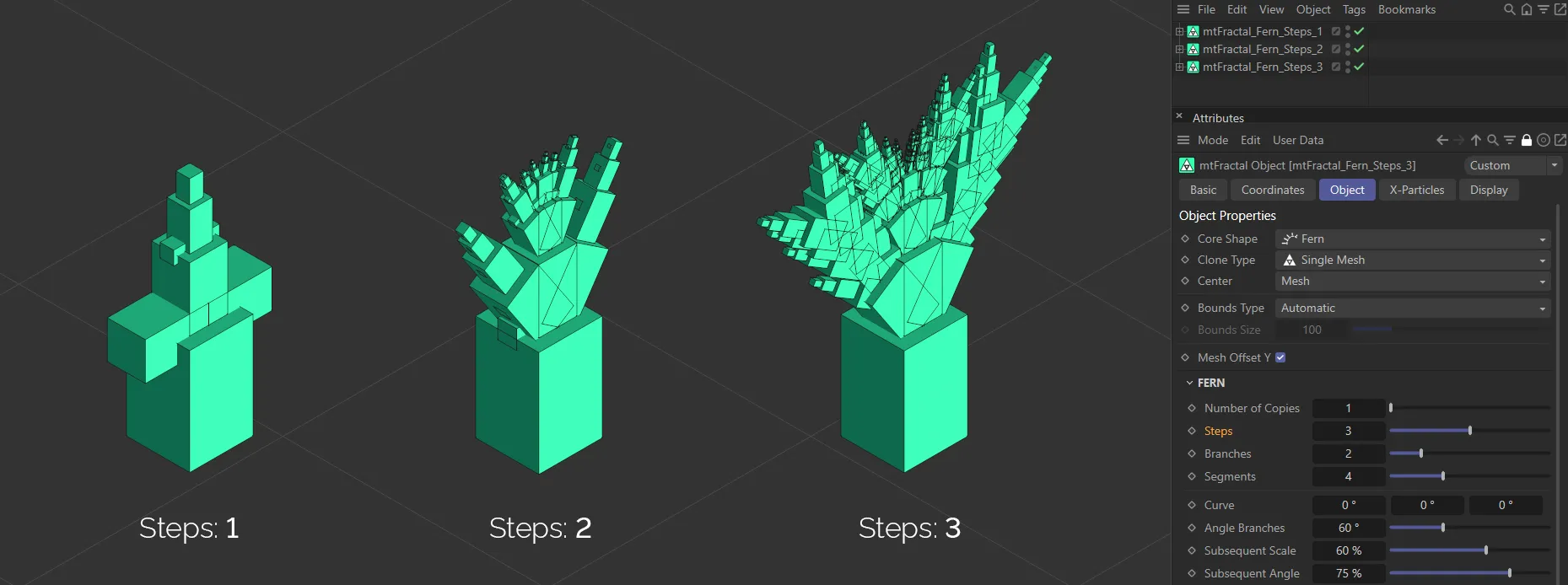
Image to show the Steps value set as 1, 2 and 3, from left to right.
Branches
Section titled “Branches”The number of primary branches, in the second step, at the start.
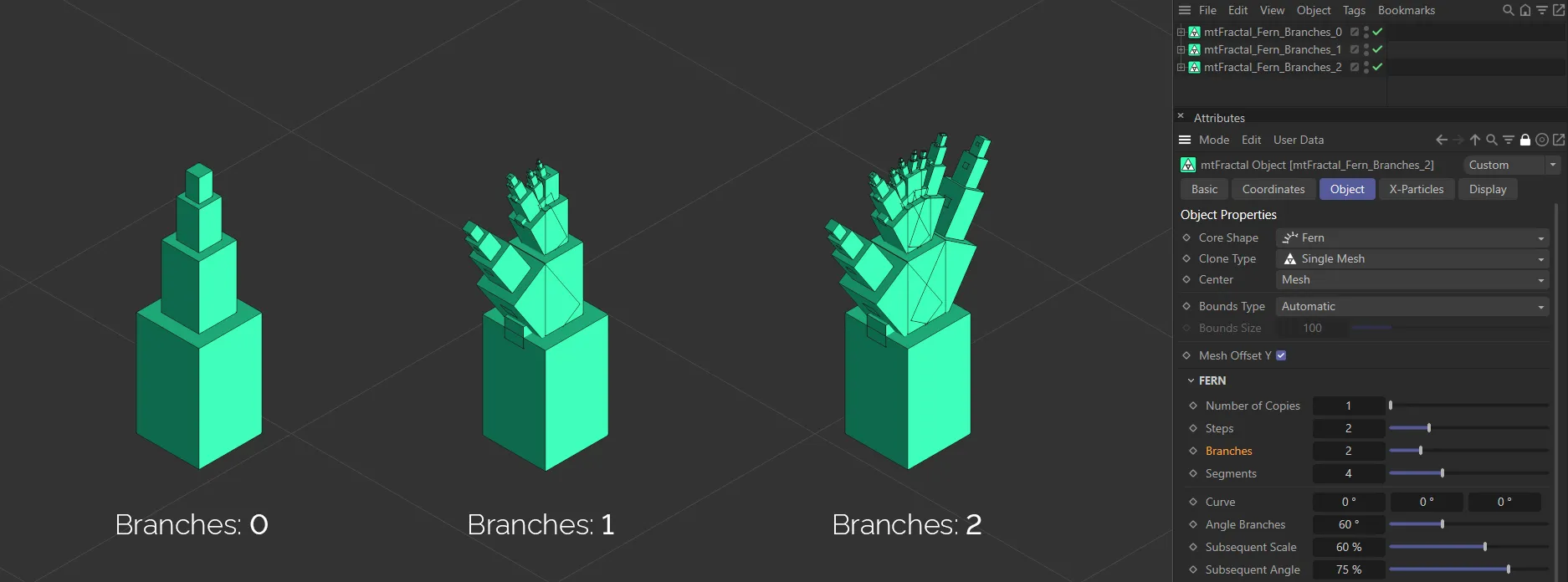
Image to show the Branches value set first at 0 (zero), then 1 and, finally, 2, from left to right.
Segments
Section titled “Segments”The length of the primary shoot, with each segment supporting another sub-branch.
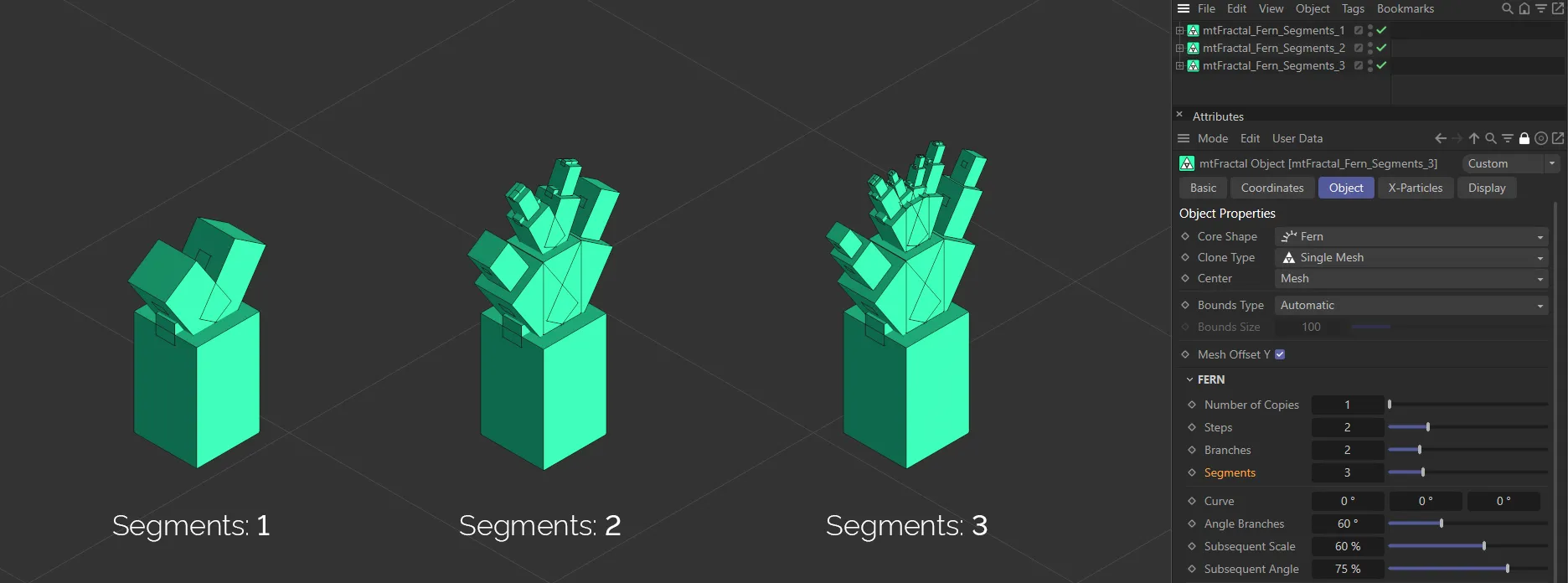
Segments value set as 1, 2, and 3, from left to right.
An angle applied to all branches consecutively, on each axis, producing a twisting result.
Animation to demonstrate the effect of the Curve slider in all three axes.
Angle Branches
Section titled “Angle Branches”Each branch will begin by inheriting the rotation/normal of its parent branch.
The first angle option will change a branch’s angle compared to the normal of the previous branch.
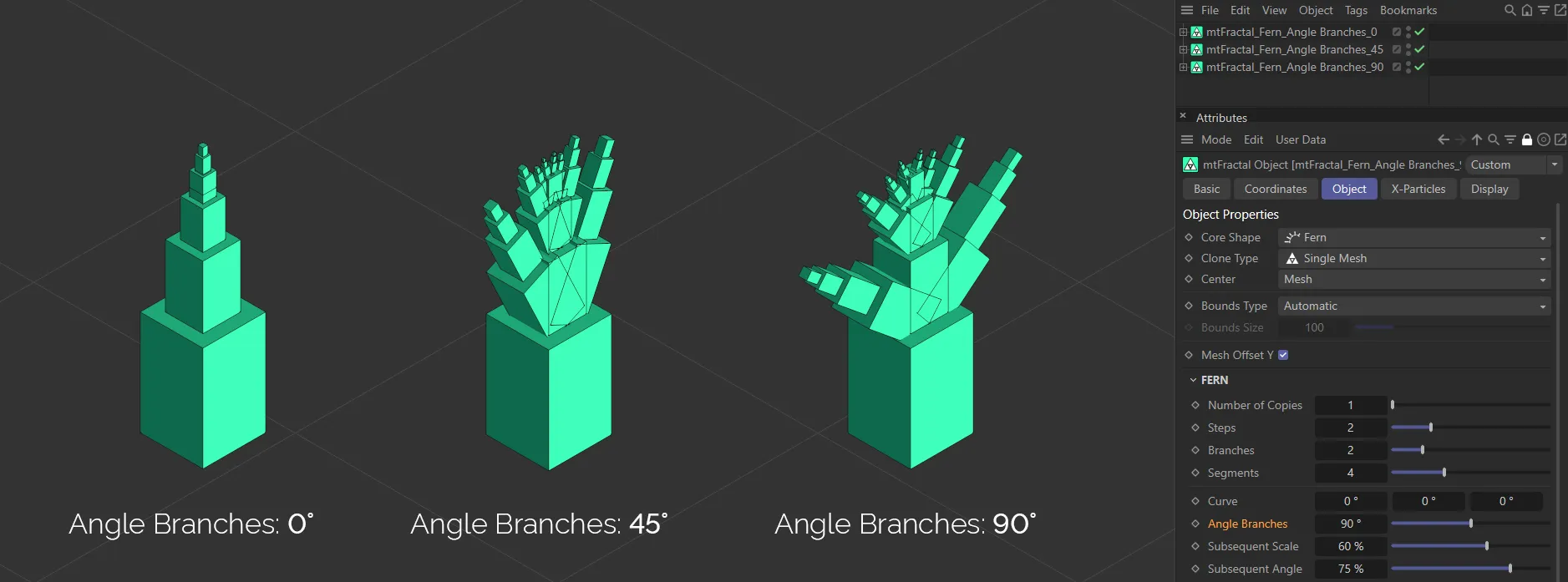
In this image, the Angle Branches parameter is set at 0 (zero) degrees on the left, 45 degrees in the middle and 90 degrees on the right.
Subsequent Scale
Section titled “Subsequent Scale”Adjusts the strengths of the scales along consecutive branches.
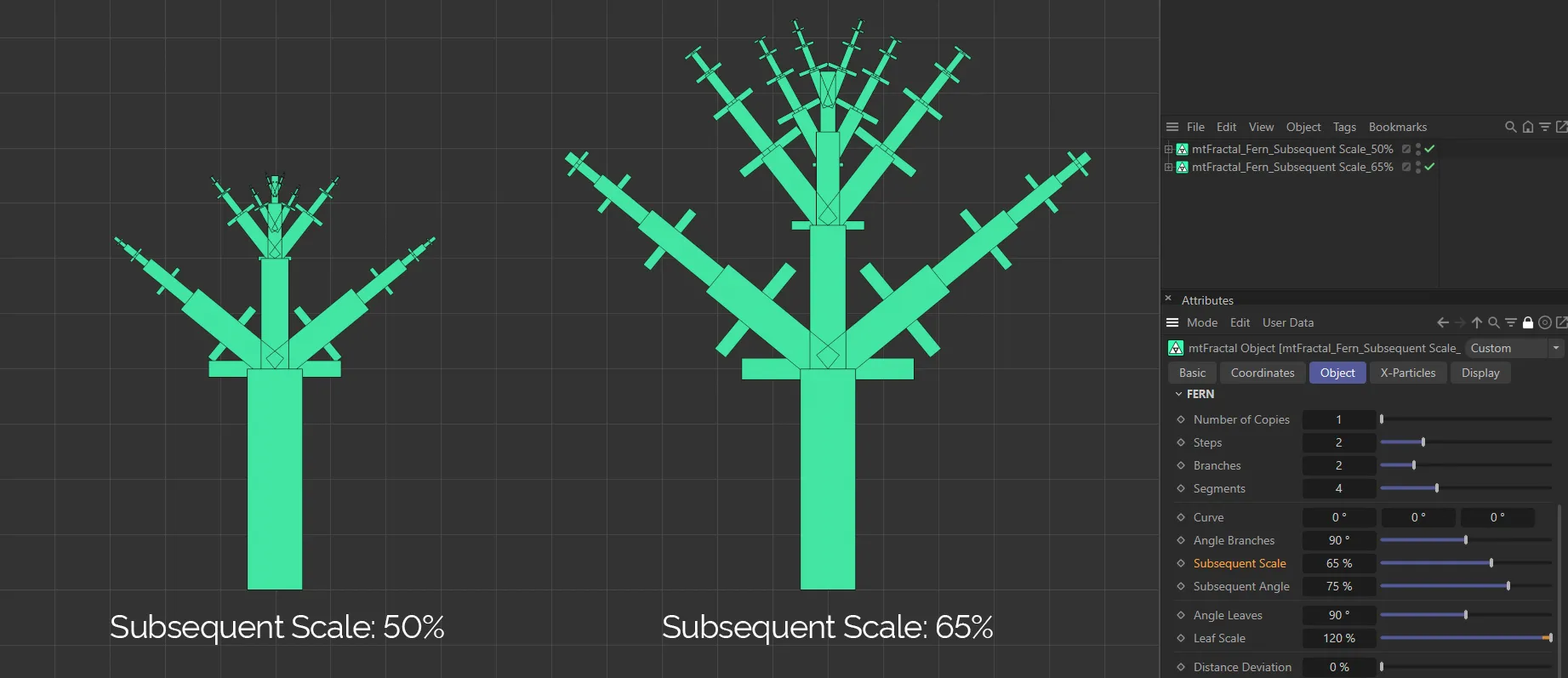
Subsequent Scale set at 50% on the left and raised to 65% on the right.
Subsequent Angle
Section titled “Subsequent Angle”Adjusts the strengths of the angle along consecutive branches.
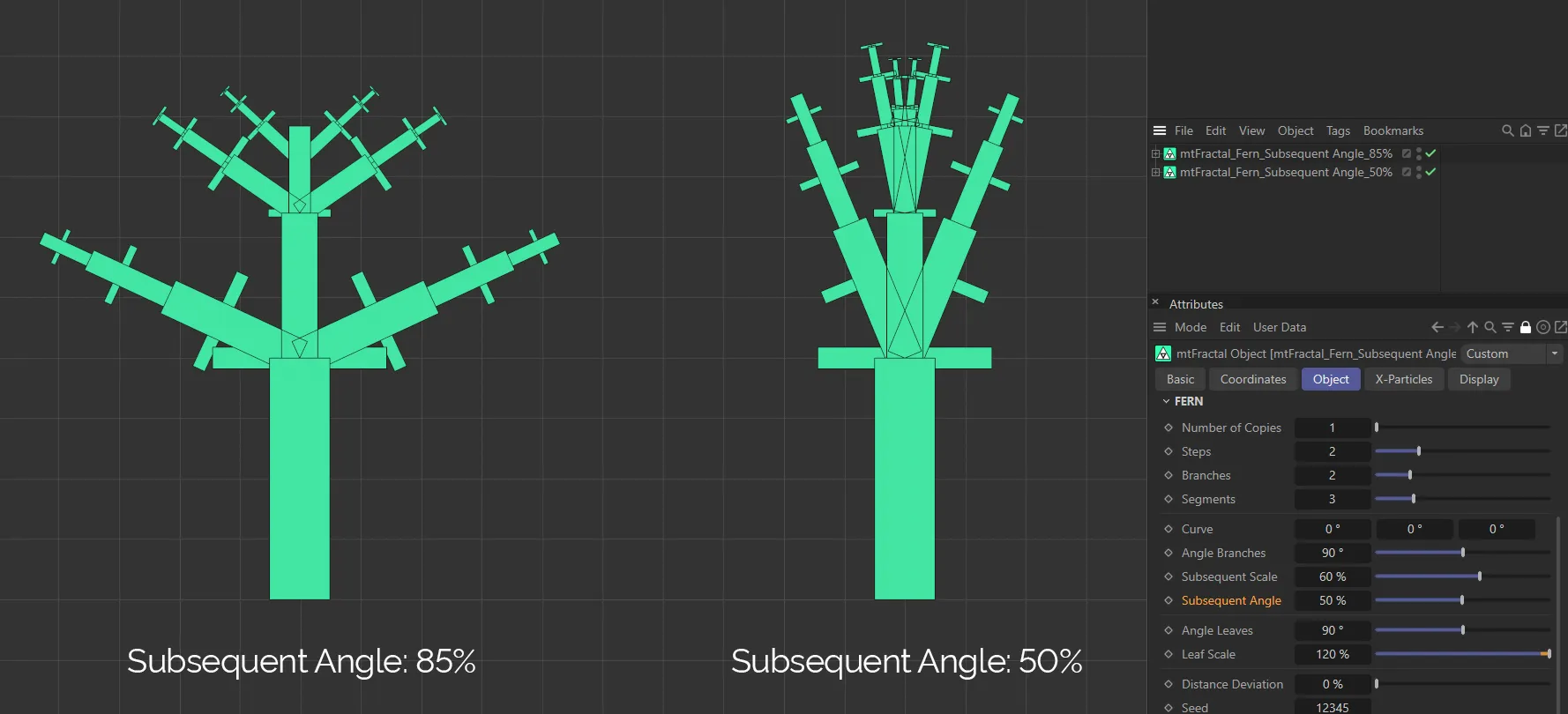
With Angle Branches set to 90 degrees in both examples. Subsequent Angle is set to 85% on the left. Subsequent Angle is lowered to 50% on the right, significantly reducing the angle when compared to the first fractal.
Angle Leaves
Section titled “Angle Leaves”A separate angle value for leaves off the branches.
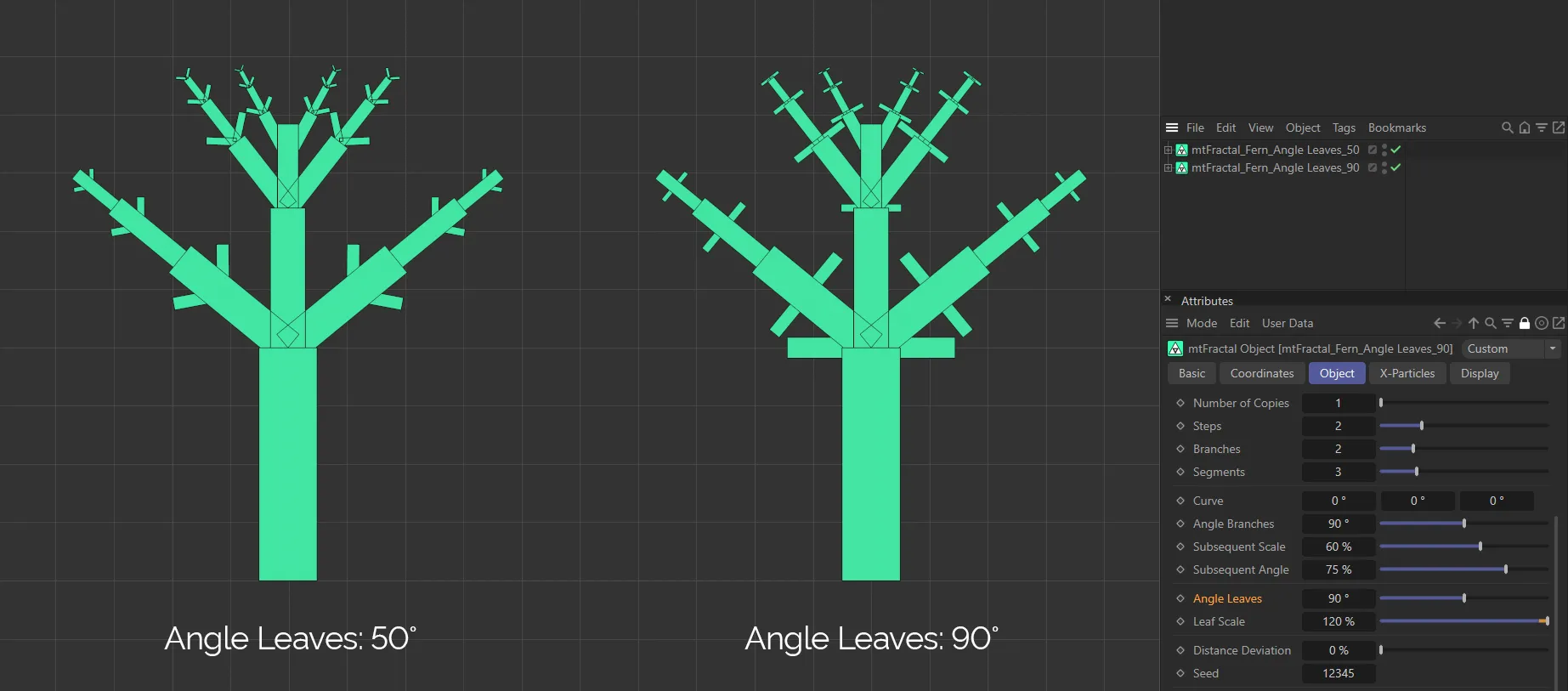
Here, the Angle Leaves setting is set to 50 degrees on the left and raised to 90 degrees on the right.
Leaf Scale
Section titled “Leaf Scale”Adjusts the size of the leaves.
At 0 (zero) % there will be no leaves.
Distance Deviation
Section titled “Distance Deviation”A percentage slider that adjusts the starting position of a branch along a parent branch, multiplied by a random value, giving some non-uniformity in the distribution of branches.
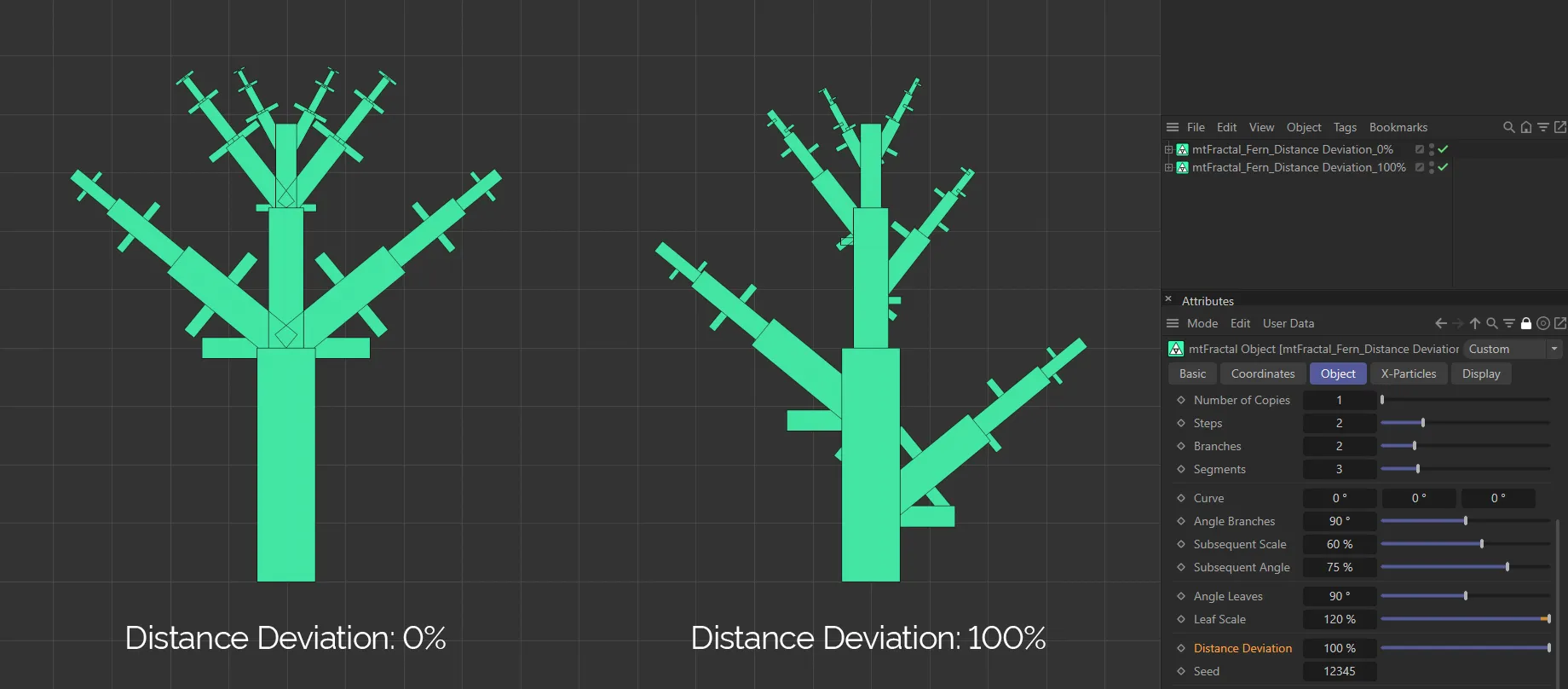
The image on the left has a Distance Deviation of 0 (zero) %. When it is raised to 100% Distance Deviation, on the right, the break in uniformity is clear.
Changes the random look and distance deviations.
Show Main Branch
Section titled “Show Main Branch”Shows the main branch layer, by default.
Unchecking will make it invisible.
Show Sub-Branches
Section titled “Show Sub-Branches”The sub-branch layer is visible by default.
Disabling this will make it invisible.
Show Leaves
Section titled “Show Leaves”Displays the leaf layer.
Uncheck to disable.
Copyright © 2026 INSYDIUM LTD. All rights reserved.