
Dragon
Overview Video
Section titled “Overview Video”Dragon Options
Section titled “Dragon Options”The Dragon shape functions by duplicating all previous entries in the node (clone) list and rotating them around the end point.
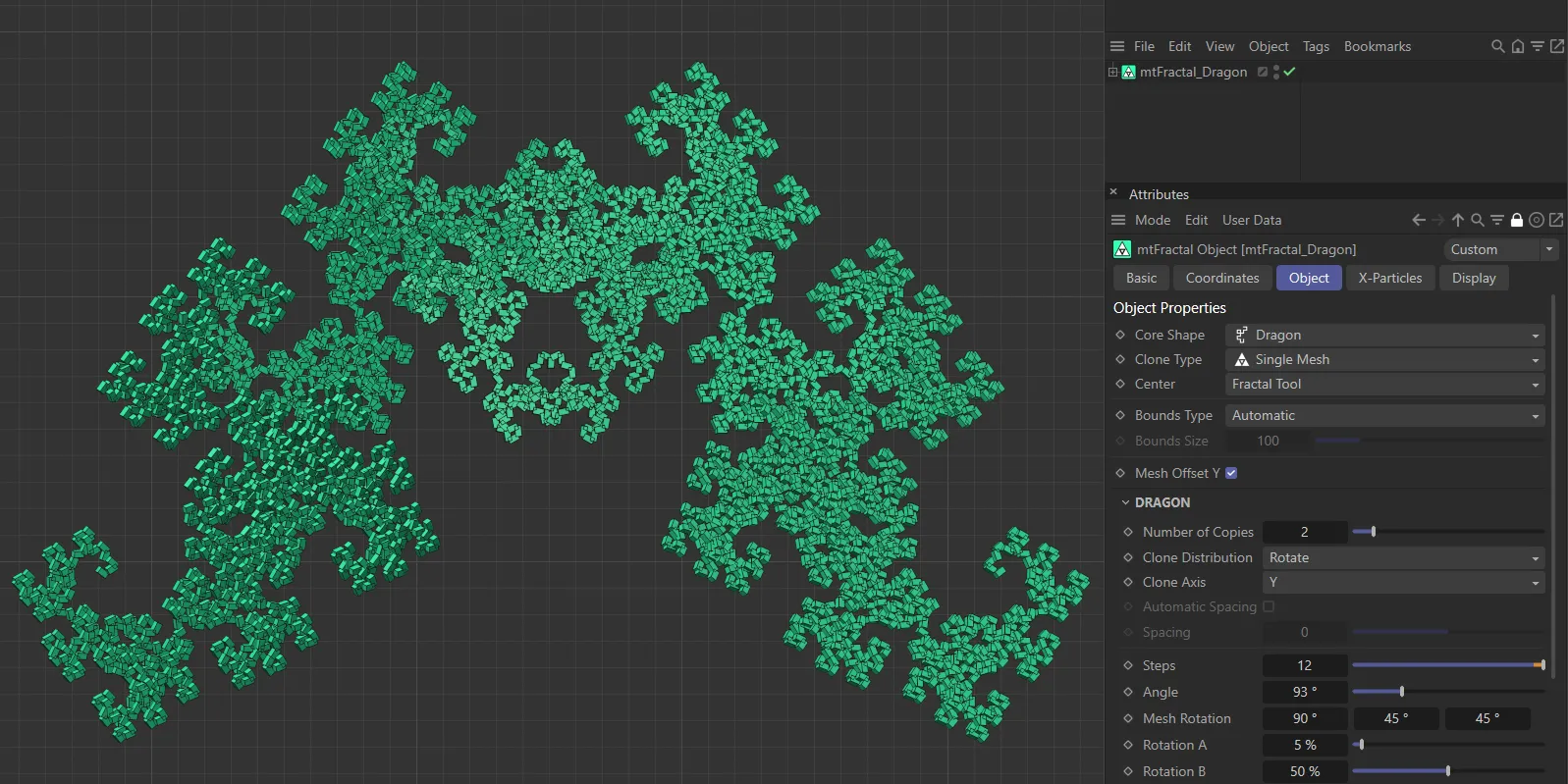
mtFractal Core Shape set as Dragon.
Number of Copies
Section titled “Number of Copies”This option is similar to one found in many other shapes, that will duplicate the shape.
Animation to demonstrate the increase in the Number of Copies value.
Clone Distribution
Section titled “Clone Distribution”Set as Rotate, by default.
The alternative setting is Tangent.
Rotate mode
Section titled “Rotate mode”From a point centered on the fractal shape, each cloned line is rotated equally around the axis chosen in Clone Axis.
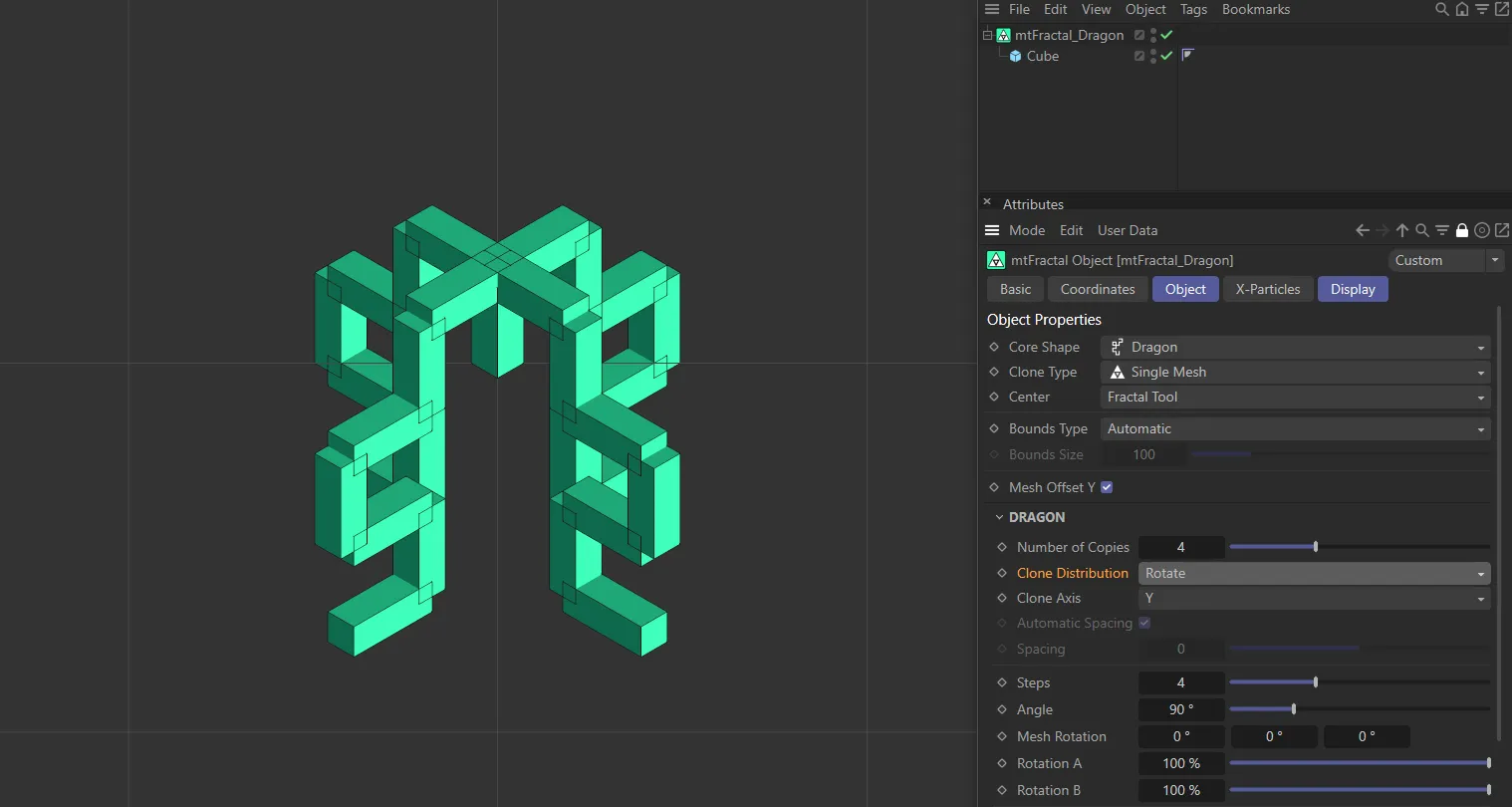
Clone Distribution in the Rotate setting.
Tangent
Section titled “Tangent”Each clone is shifted along the axis, by an automatic or manually chosen distance.
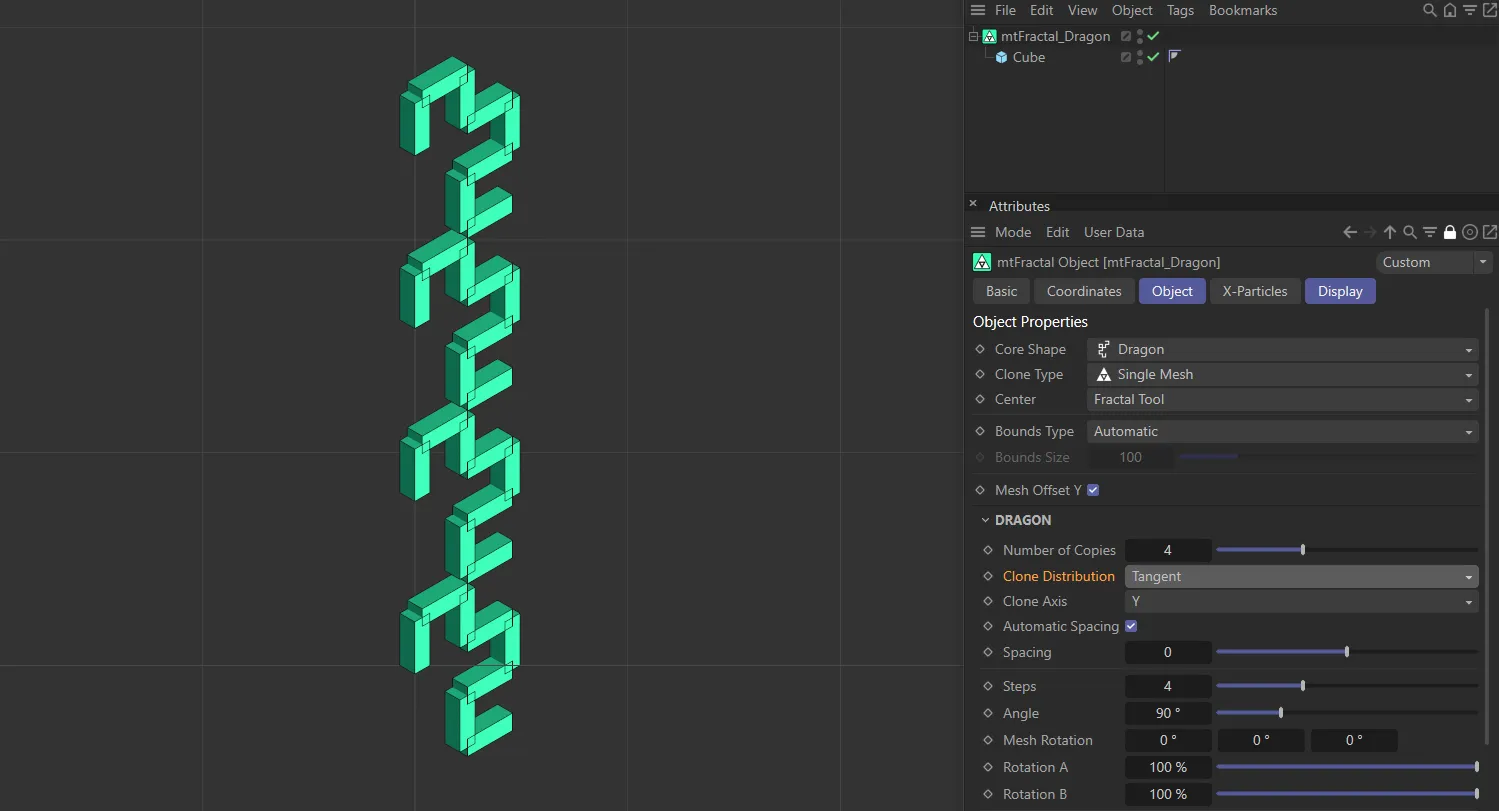
Clone Distribution in the Tangent setting.
Clone Axis
Section titled “Clone Axis”The clone can be set on any axis, which you can select here.
It is set on the Y-axis, by default.
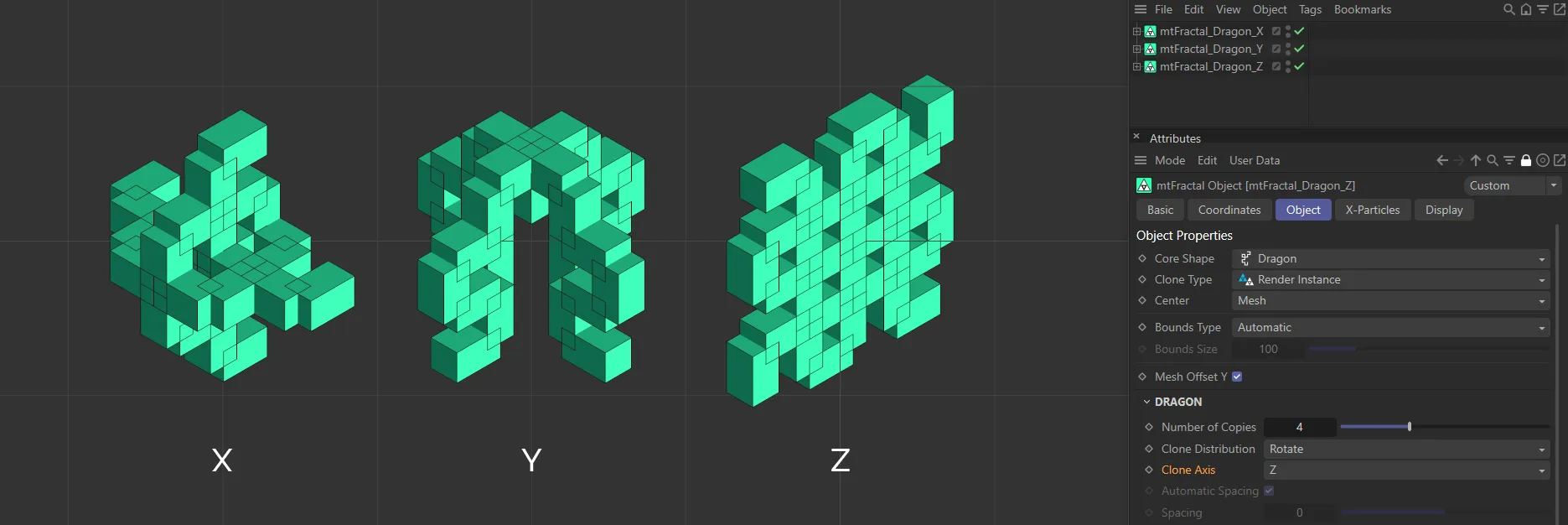
In this image, you can see the Clone Axis setting in all three axes. Note: The Clone Distribution mode is Rotate.
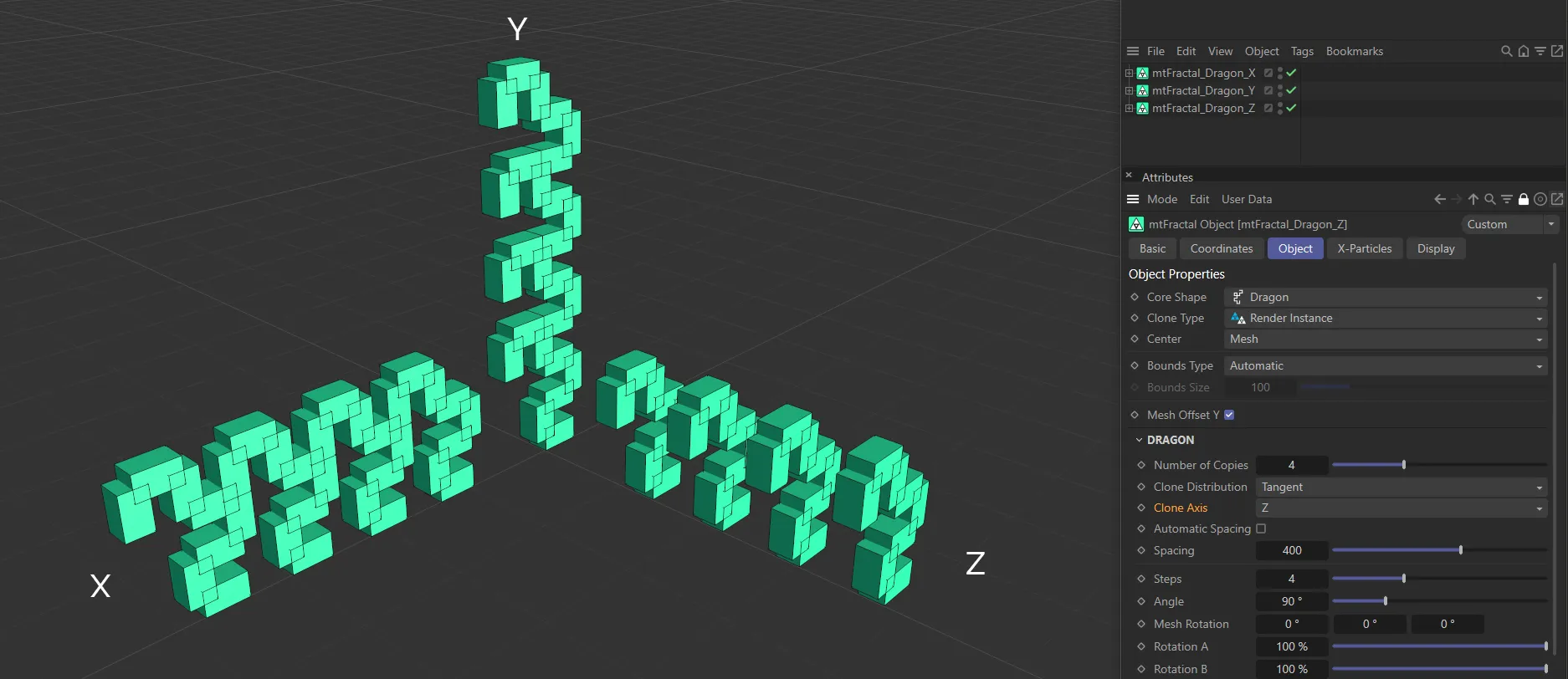
In this second image, with the Clone Axis setting, again, in all three axes, the Clone Distribution mode is Tangent.
Automatic Spacing
Section titled “Automatic Spacing”Enabled by default, this calculates a bounding box of the source geometry, based on the Object Properties size settings for the object.
The copies are then automatically spaced apart by this bounding box distance.
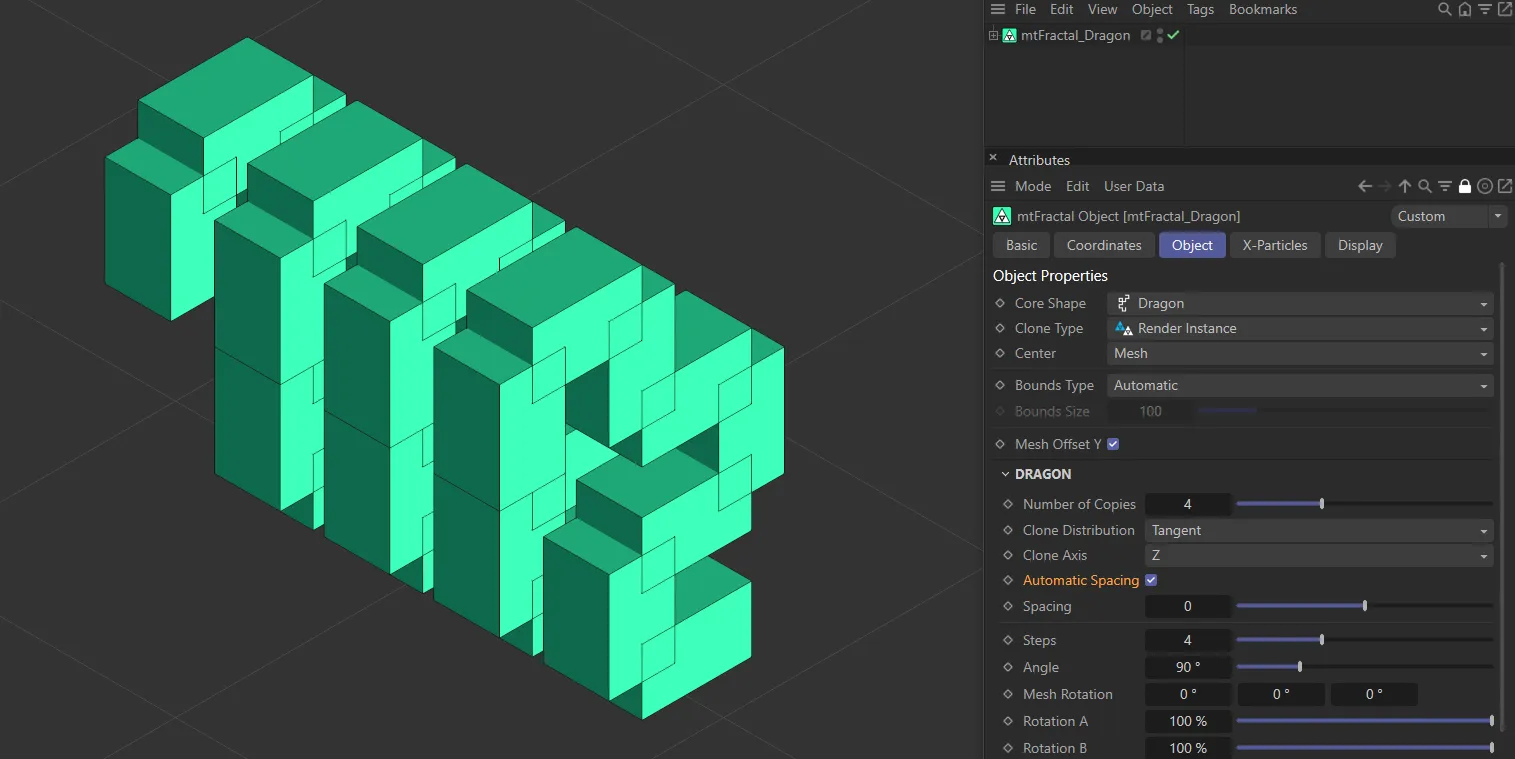
Automatic Spacing enabled.
Spacing
Section titled “Spacing”With Automatic Spacing disabled, this slider controls the spacing of the copies.
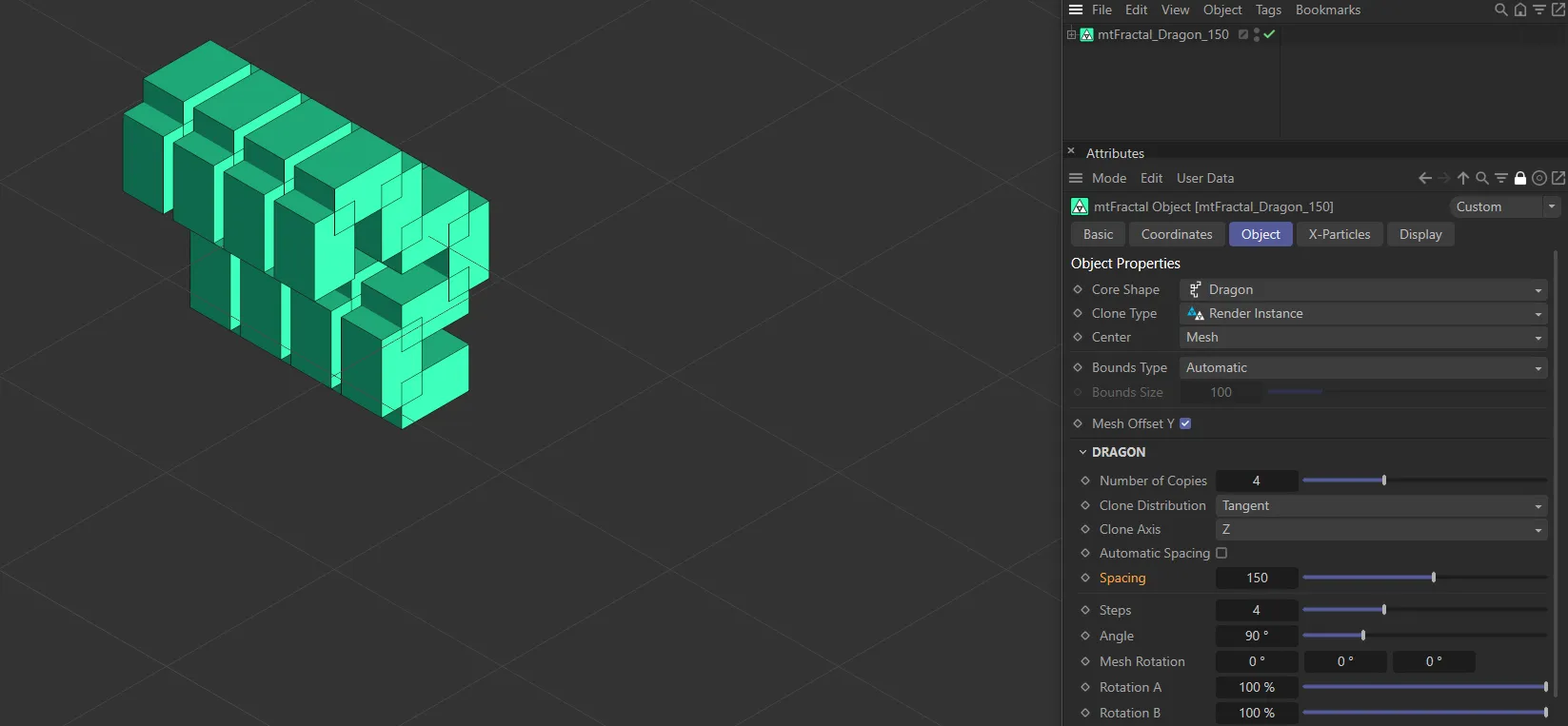
Automatic Spacing disabled, with a Spacing value of 150.
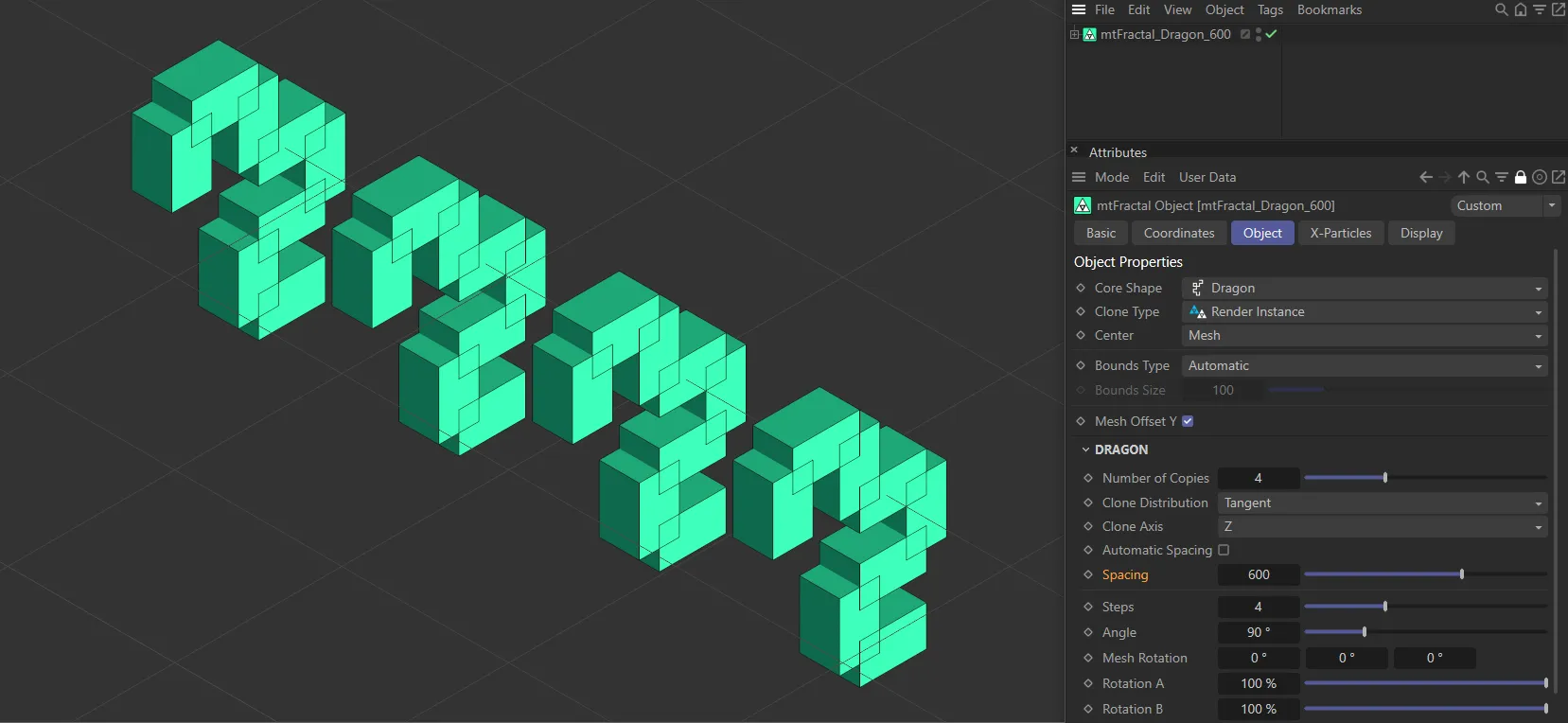
Automatic Spacing disabled, with the Spacing value increased to 600.
Set at 4, by default, this is the number of times the duplication process takes place.
Each step duplicates the previous one.
For example, if there are four clones, then the next step will be eight clones.
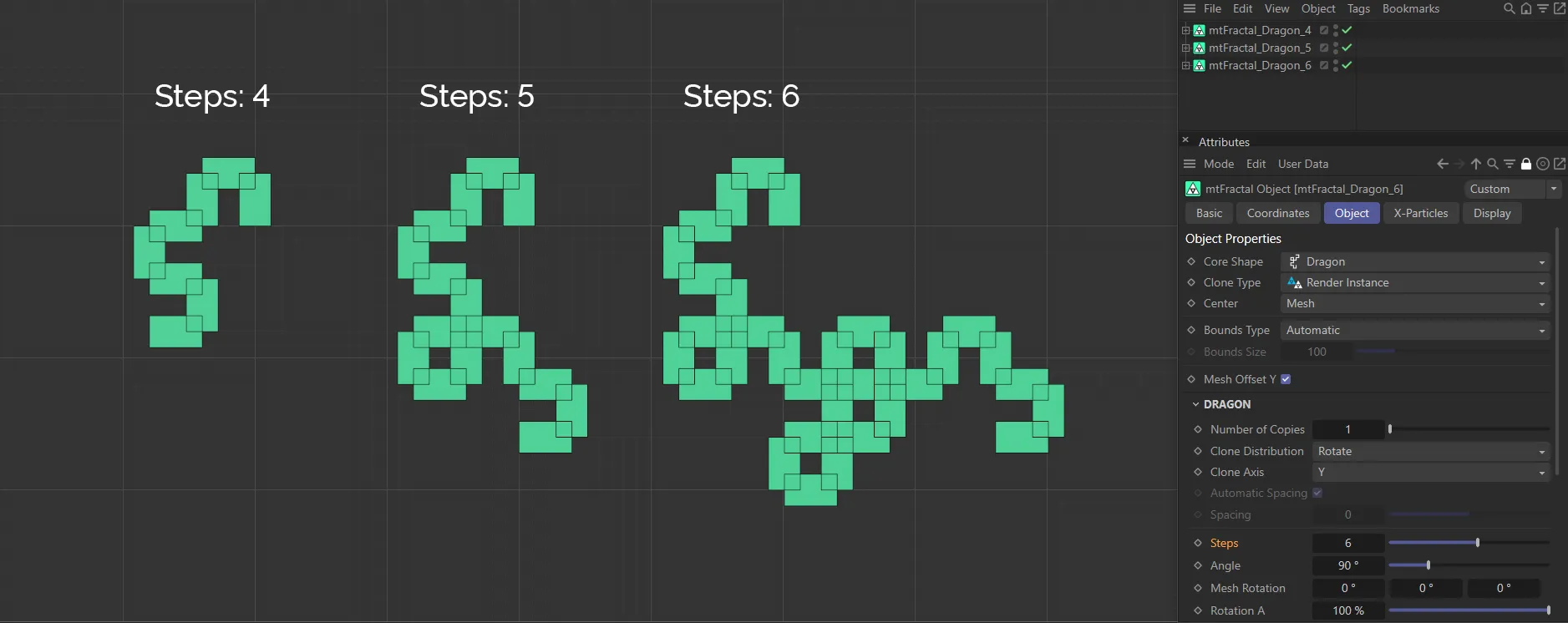
This image clearly demonstrates the Steps values, with 4 on the left, 5 in the center and 6 on the right.
The angle which the next duplicated set will occur at, next to the previous set.
This is set at 90 degrees, by default.
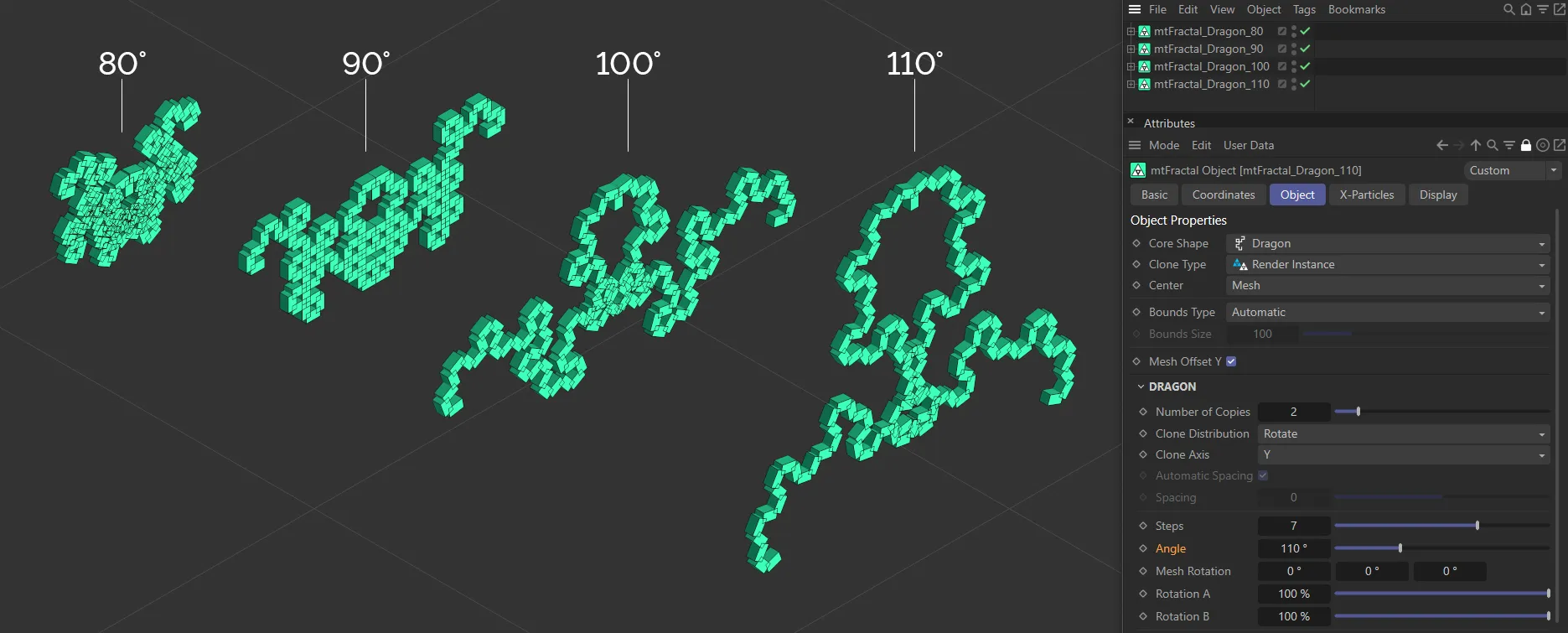
Angle values set at 80, 90, 100 and 110 degrees.
Mesh Rotation
Section titled “Mesh Rotation”Rotates the clone mesh.
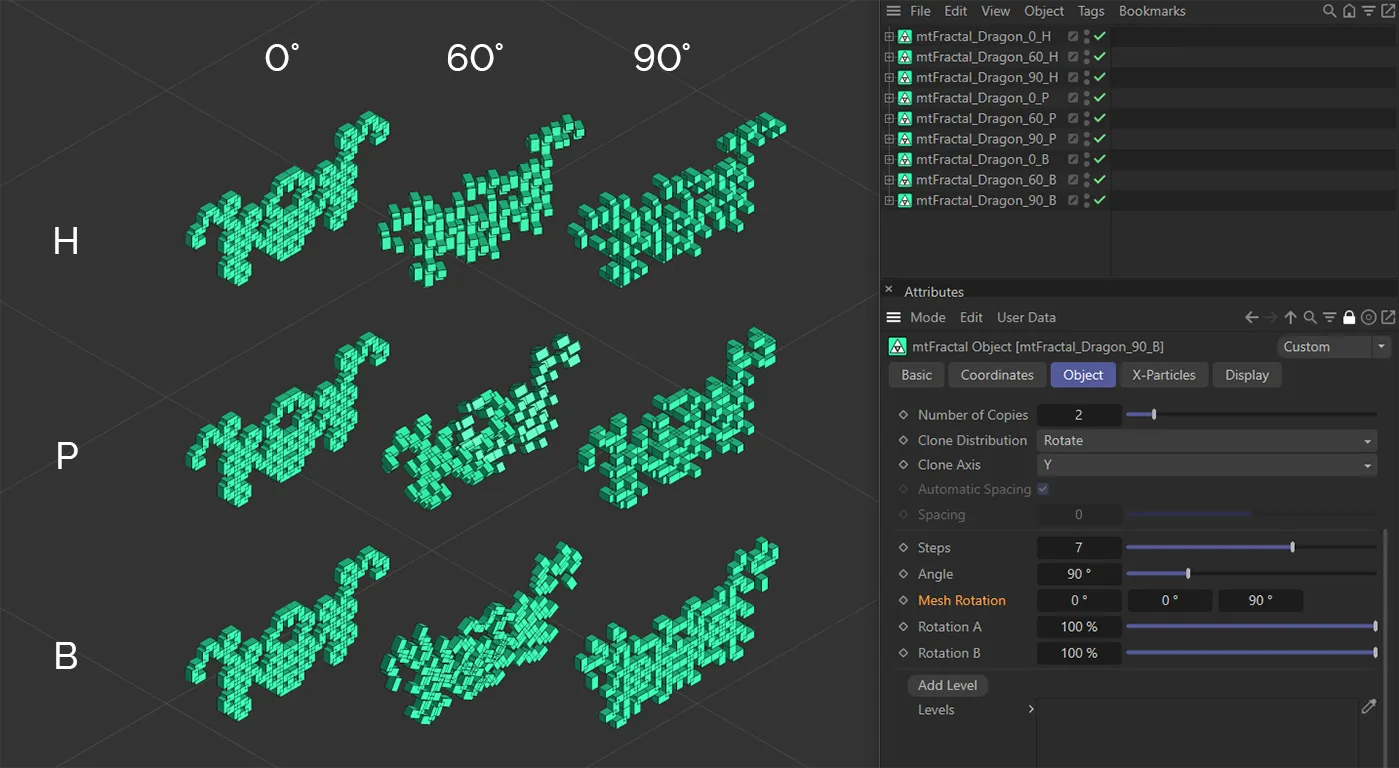
This image displays the Mesh Rotation in the H (Heading), P (Pitch) and B (Bank) with the Angle values at 0 (zero), 60 and 90 degrees.
Rotation A/Rotation B
Section titled “Rotation A/Rotation B”The A and B value is affecting the strength of rotation, depending on the position of the clone.
Animation to demonstrate the use of the Rotation A and Rotation B parameters.
Levels & Nodes
Section titled “Levels & Nodes”The above steps all affect the fractal shape globally.
In order to apply targeted adjustments to an individual step of the shape, you can work with the Level Nodes controls.
Add Level
Section titled “Add Level”Clicking this button will add a level in the Levels node tree.
You are able to add multiple levels to the same fractal.
Highlighting any level will give further Node Options parameters.
These additional features give increased, detailed control over each individual step of the fractal shape, bypassing the global settings from the Object tab.
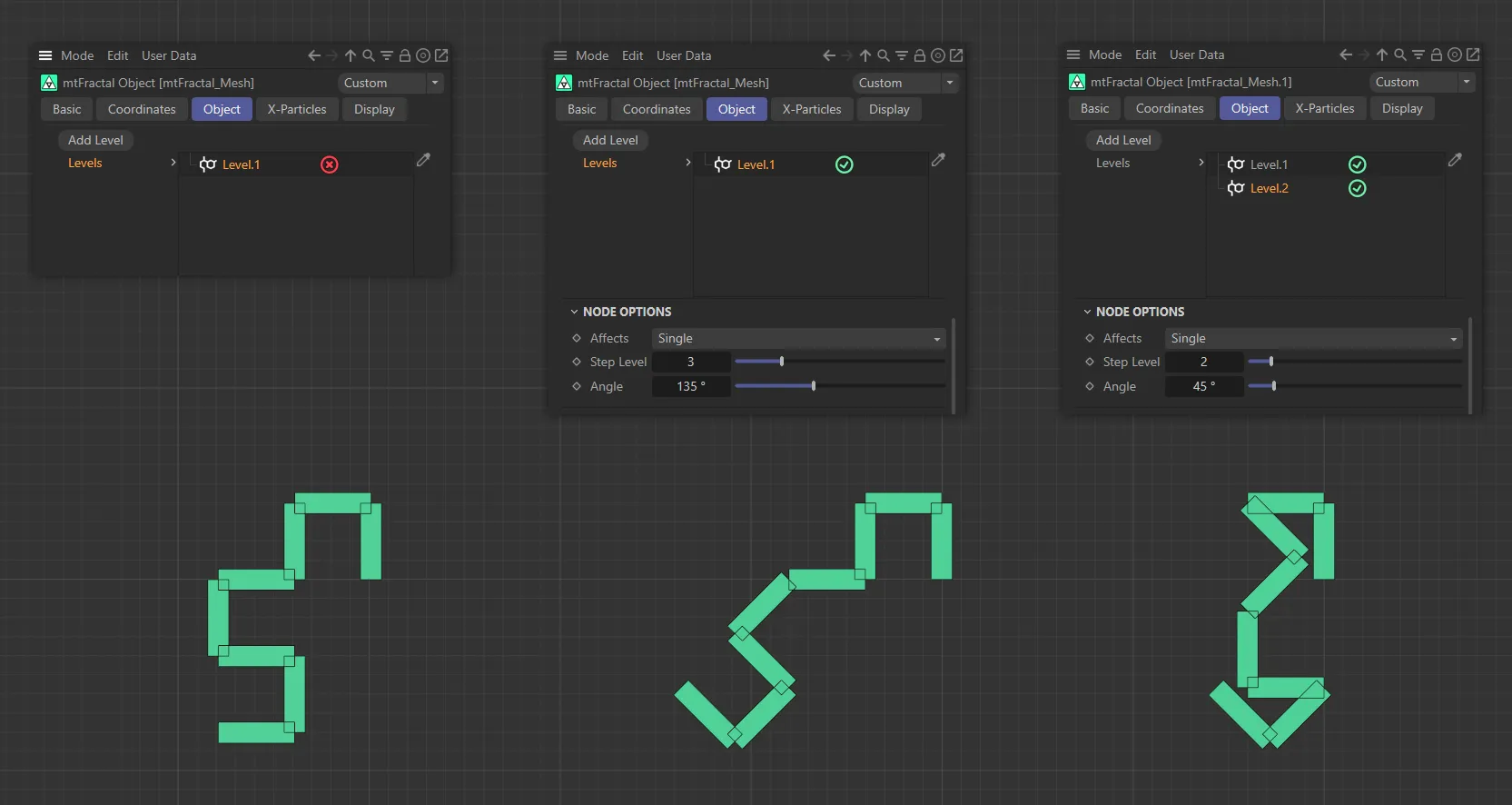
In the left-hand image, the additional Level.1 level is disabled, leaving all steps to be controlled by the global settings. The Step Level 3 is being driven by the Level.1 level in the central fractal, with an Angle value of 135 degrees evident above. On the right-hand image, Level.2 is driving Step Level 2, with a 45 degree Angle setting. This results in two new angles in the fractal due to the way Koch repeats previous steps.
Affects
Section titled “Affects”When adding a level, the user can choose which step the other options in the node affect.
Set as Single, by default.
The other options are: Odd, Even, Range and Multiple Of.
This enables precise control over which part of the fractal is to be adjusted.
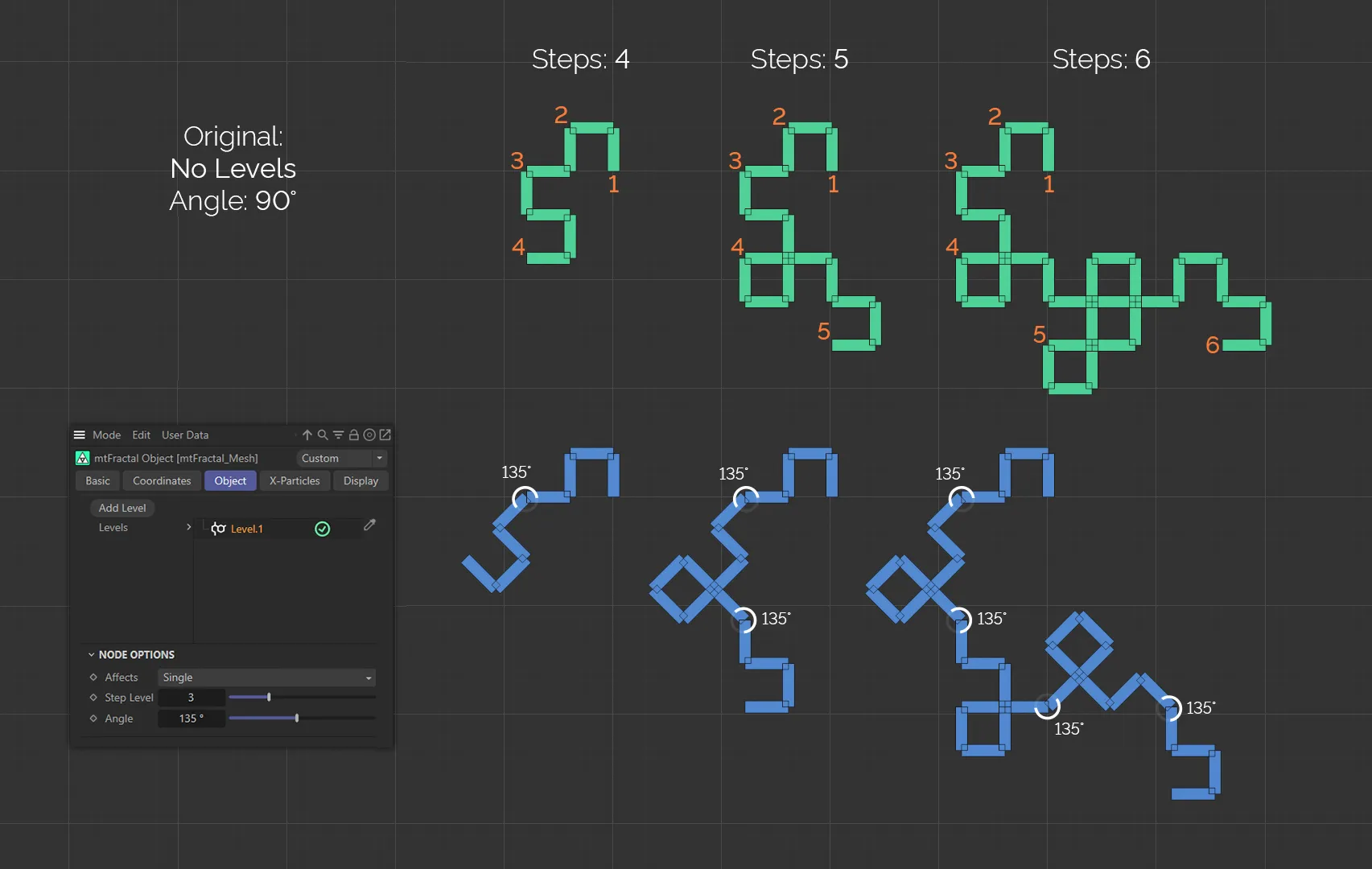
In this image, above in green are dragon fractals with Steps settings of 4, 5 and 6 (shown in orange). They each have a global Angle value of 90 degrees. In blue, below, are the same fractals, with identical Steps settings. This time, there is a level adjustment to Step Level 3 at an Angle value of 135 degrees (the angle adjustments are shown on the relevant steps, as a visual aid). Note: This angle adjustment is duplicated later due to the repeating nature of the Dragon fractal.
Single
Section titled “Single”By specifying the number in the Step Level slider, this node will only affect the Type setting choice of Angle or Branch at this step.
Odd/Even
Section titled “Odd/Even”Alternating Steps are affected.
Similar to Single, the user specifies a Range Start and Range End of steps to affect, in the additional parameters available.
Multiple Of
Section titled “Multiple Of”By specifying the number in the Multiple Of slider, this node will only affect the Type setting choice of Angle or Branch at this step.
Step Level
Section titled “Step Level”This specifies the step of the fractal which you wish to change, by the Angle value selected.
The angle which the next duplicated set will occur at, next to the previous set.
This is set at 90 degrees, by default.
Copyright © 2026 INSYDIUM LTD. All rights reserved.