
jdGeoRoll
jdGeoRoll allows the creation of a rolling animation of any object across a defined surface.
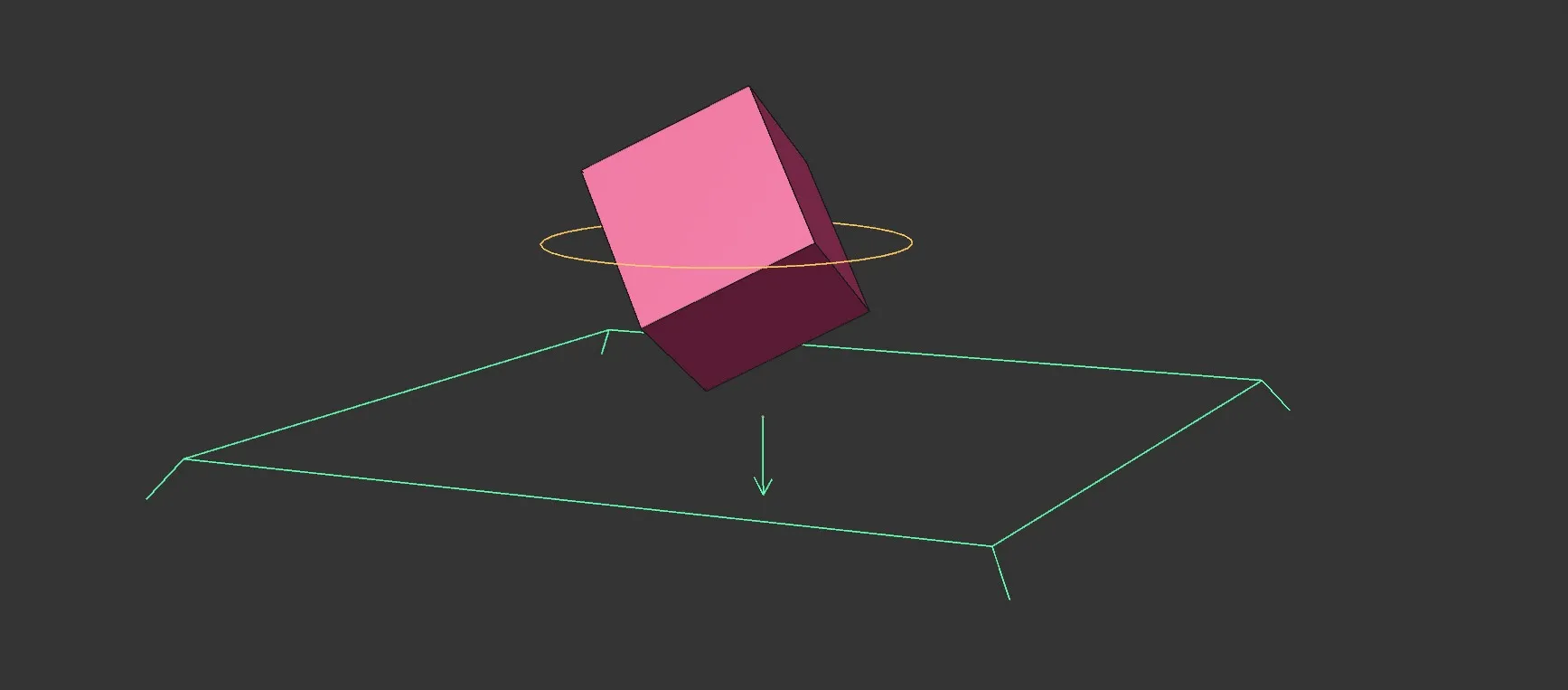
jdGeoRoll scene with a Cube Object.
When an object is dropped into the Objects list, a ‘handle’, similar to a bounding box, will be created for it.
Moving this handle will cause the related object to ‘roll’ across the surface, which is in the Colliders list.
Colliders are the surface on which the objects roll.
Multiple colliders can be added to the list and the objects will roll over them as if they are one surface.
A default ‘Virtual floor’ is also provided at Y=0.
Object tab
Section titled “Object tab”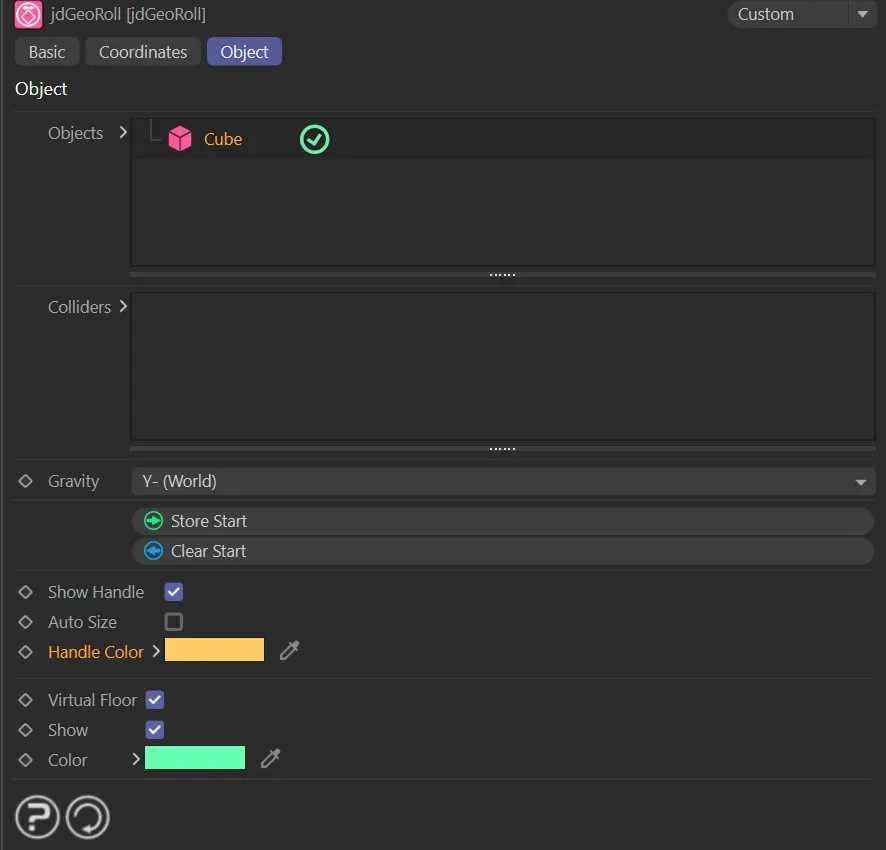
jdGeoRoll, Object tab settings menu.
Objects
Section titled “Objects”Add objects to this list to create roll handles for them.
The green check mark indicates the handle is active; this can be disabled by clicking it.
Colliders
Section titled “Colliders”Add objects to this list to become collision surfaces, for the object to roll over.
Gravity
Section titled “Gravity”Set to Y- (World), by default, this is the direction of gravity.
The other options are: Custom Vector, Y+ (World), Y+ (Local), Y- (Local) and Object.
The objects will use this direction to stick to the collider surface.
Custom Vector
Section titled “Custom Vector”This setting gives you a vector and opens further Gravity Direction options, allowing you to reset the gravity direction to the X or Z plane.
Object
Section titled “Object”The user can select an item in the scene, which will be both the collider and also the focus of the gravity, allowing the item in the Objects list to roll around its surface.
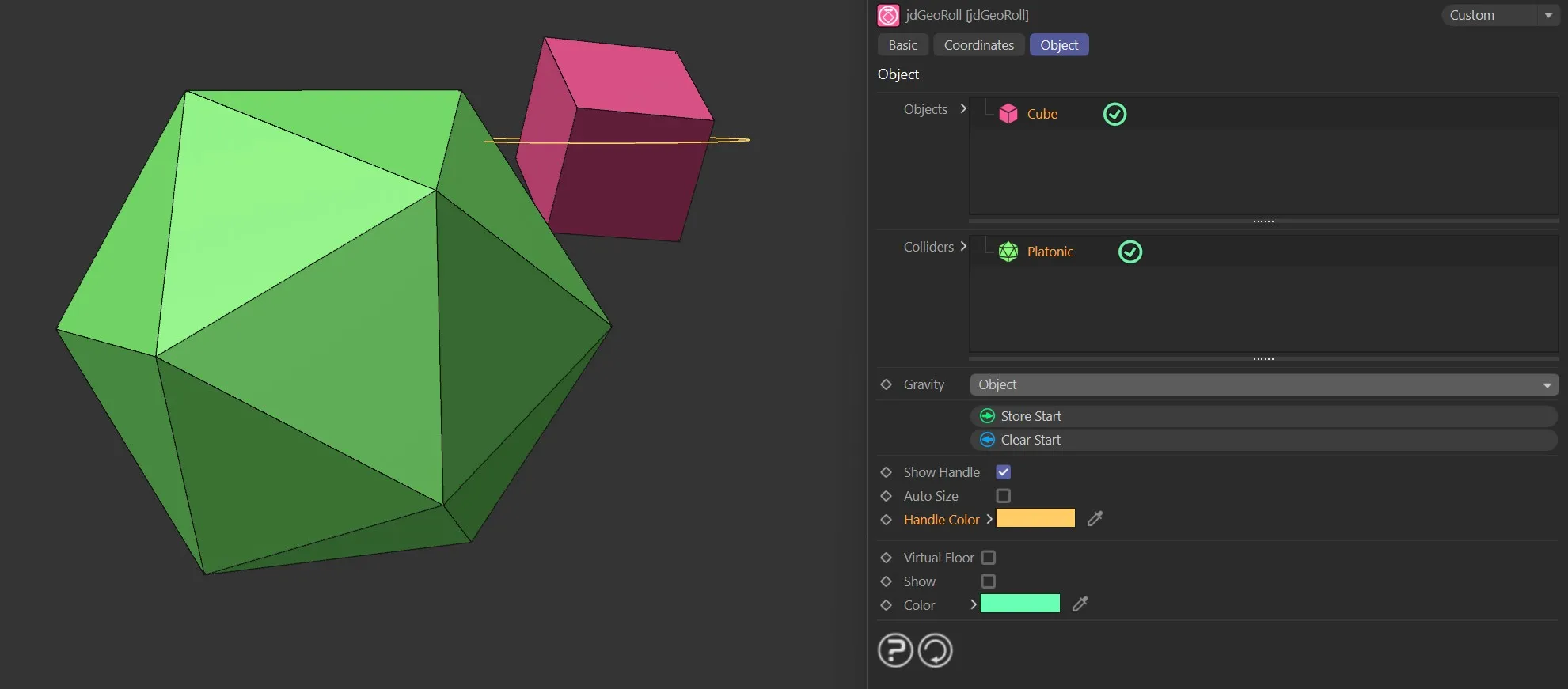
Object set to use the Platonic as a Collider and Gravity.
Store Start
Section titled “Store Start”Press this button to store the object’s current rotation as its starting rotation.
This is necessary to give consistent results when playing the timeline.
Clear Start
Section titled “Clear Start”Clear the stored starting rotation.
Show Handle
Section titled “Show Handle”Toggles on and off the orange ‘handle’.
Auto Size
Section titled “Auto Size”This bases its size around the bounding box of the object.
When enabled, this will keep adapting itself to the object as it moves.
Handle Color
Section titled “Handle Color”Change the color of the handle using this option.
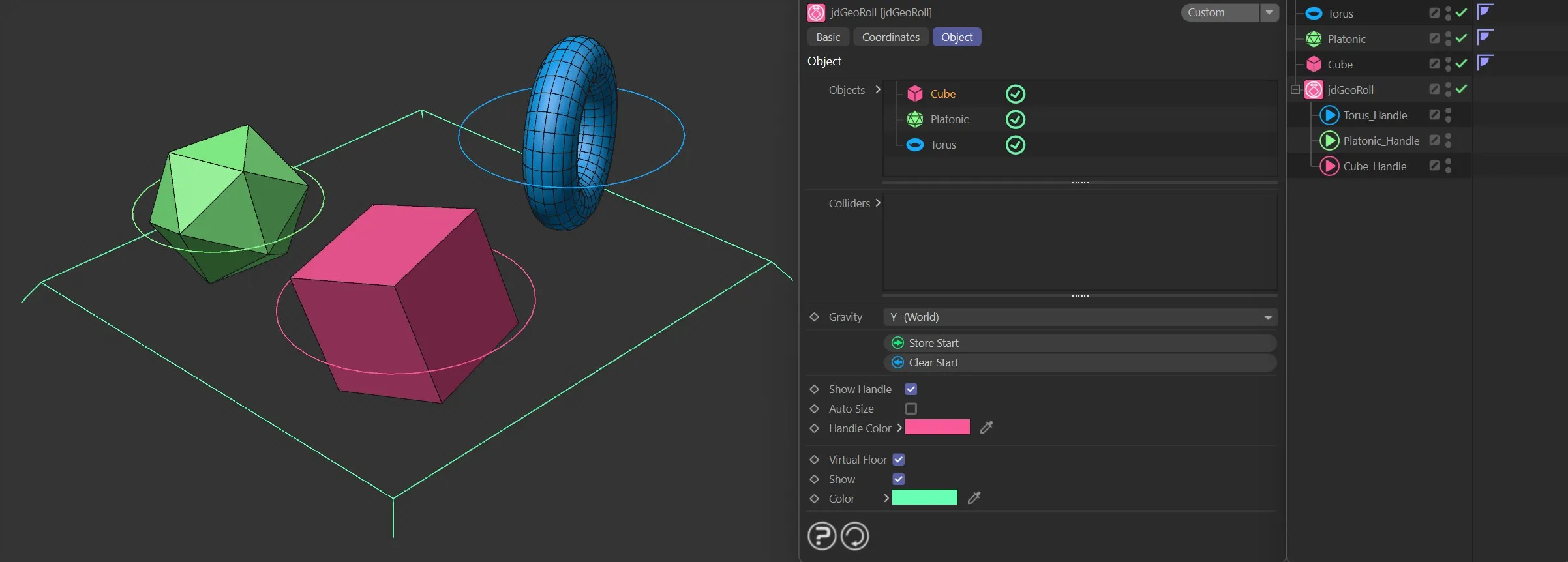
Options for Handles.
Virtual Floor
Section titled “Virtual Floor”When checked, objects will also roll across the world XZ plane at Y = 0.
Shows a marker for the virtual floor.
Allows you to change the color of the virtual floor marker.
Copyright © 2026 INSYDIUM LTD. All rights reserved.