

nxUpres
nxUpres transfers the look of a cheap low-count source simulation onto a dense high-count destination, so the detailed result still follows the base simulation.
Cache or simulate a cheap, low-count emitter first and add it to the Source list. Add a separate dense emitter to the Destination list. For every destination particle, nxUpres finds the nearest source particles and blends their properties, position, velocity, radius, mass and color, onto it. The dense destination keeps its own high particle count but takes on the motion and look of the cheap source. This is a form of upscaling (or upresing). Add it from Add ▸ INSYDIUM NeXus ▸ Modifiers ▸ nxUpres. All of its settings live in Properties ▸ Physics.
Low-count source
Upresed result
The same simulation swirling around Suzanne: a cheap low-count source, on the left, and the dense high-count result, on the right. nxUpres passes the source’s motion onto every destination particle, so the dense cloud follows the same detailed swirl at many times the particle count.
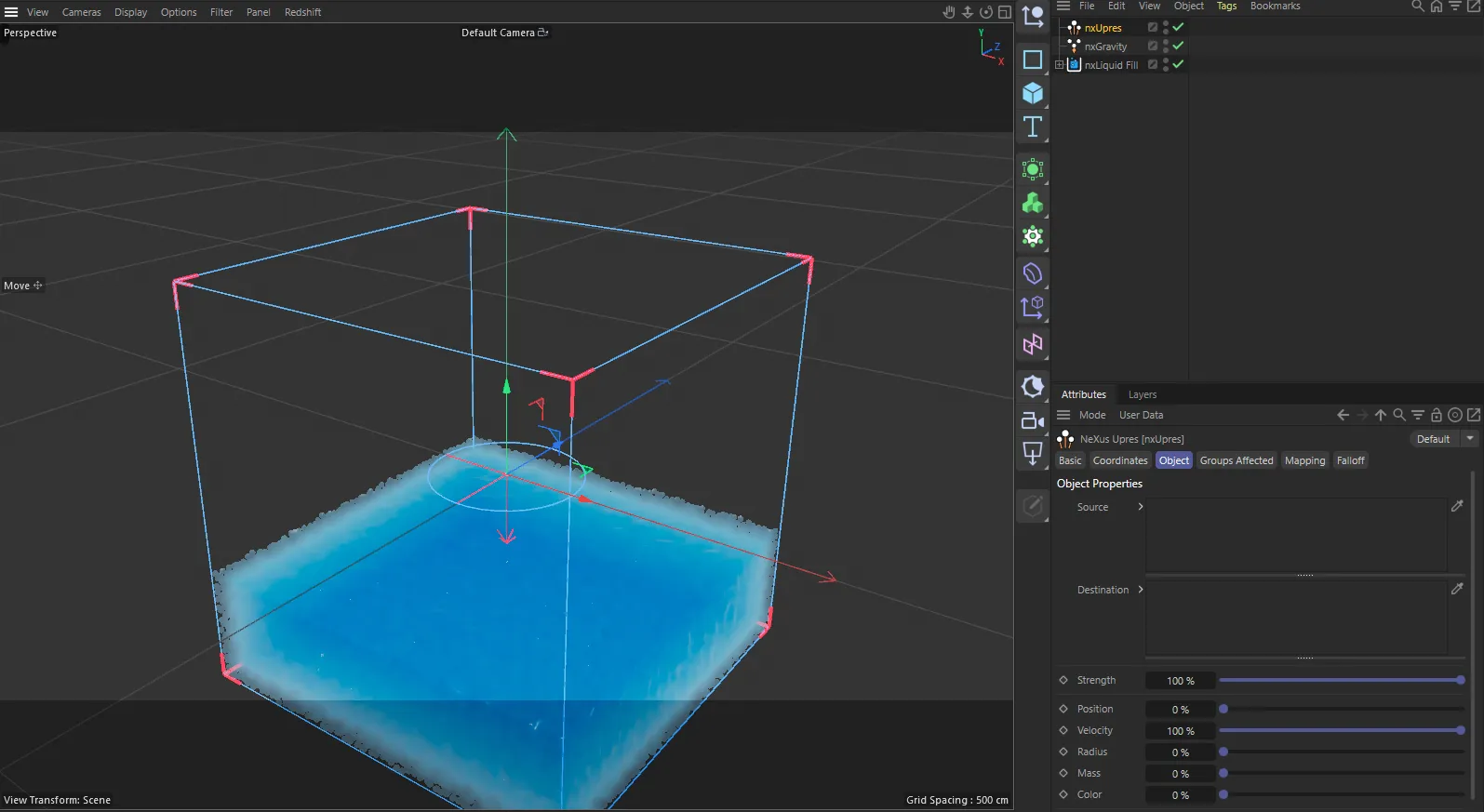
nxUpres in Cinema 4D. Its settings sit in the Attribute Manager.
Object Properties
Section titled “Object Properties”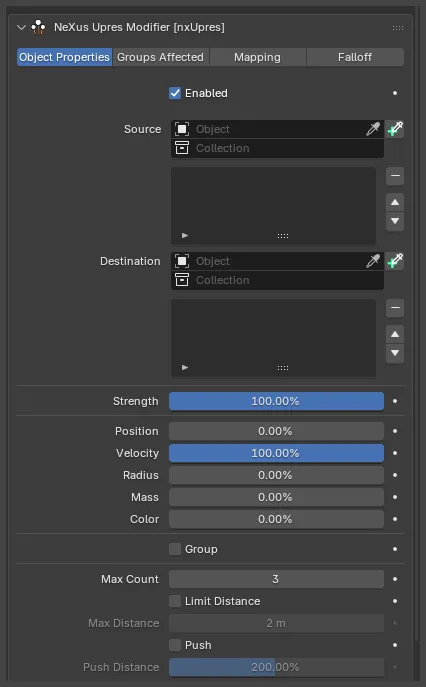
The nxUpres panel in Properties ▸ Physics, on the Object Properties tab.
Enabled
Section titled “Enabled”Turns nxUpres on or off. Disable it to switch off the upres without deleting it.
Source
Section titled “Source”The list of emitters read as the source for the upres. Add one or more nxEmitter objects here. Each entry has its own enable checkbox, so you can switch an emitter off without removing it from the list.
These are generally lower-count emitters, the low-resolution input. nxUpres reads their particle properties and blends them onto the destination. An emitter cannot be both a source and a destination.
Destination
Section titled “Destination”The list of emitters that receive the upresed properties. Add one or more nxEmitter objects here. Each entry has its own enable checkbox, so you can switch an emitter off without removing it from the list.
These are generally higher-count emitters, the high-resolution output. nxUpres works on their particles, blending in the nearby source particles’ properties, so the dense result inherits the motion and look of the cheaper source.
Strength
Section titled “Strength”How strongly the source properties take over the destination particles. Defaults to 100%. At 100% the enabled properties are fully replaced by the source values. Lower it to blend the upres in more gently, so the destination keeps more of its own properties.
0%
100%
At 0%, on the left, the dense destination ignores the source and sits still while the sparse orange source churns on its own. At 100%, on the right, it fully inherits the source’s motion, so the whole dense cloud swirls with it.
Position, Velocity, Radius, Mass and Color
Section titled “Position, Velocity, Radius, Mass and Color”These sliders set how strongly each property is blended from the source onto the destination, as a percentage. At 0% the destination keeps its own value for that property. At 100% the property is pulled fully to the average of the nearby source particles. They let you choose exactly which properties carry across.
- Position: defaults to 0%, so destination particles hold their own positions.
- Velocity: defaults to 100%, so the destination moves with the source by default.
- Radius: defaults to 0%.
- Mass: defaults to 0%.
- Color: defaults to 0%.
Assigns each destination particle to the group of its nearest source particle. Off by default.
Max Count
Section titled “Max Count”The maximum number of source particles blended into each destination particle. Defaults to 3. The range is 1 to 64.
nxUpres takes the nearest source particles up to this count and uses their distance-weighted average. A higher count averages more sources, so the result is smoother, more diffuse and slower to compute.
Limit Distance
Section titled “Limit Distance”Limits how far a destination particle looks for source particles. Off by default, so the search is unbounded. When enabled, the Max Distance setting becomes available.
Max Distance
Section titled “Max Distance”The furthest a source particle can be from a destination particle and still be blended in, when Limit Distance is enabled. Defaults to 2m. Source particles beyond this distance are ignored.
Pushes the destination particles apart. Off by default.
Because the destination particles are pulled toward the source, they can collapse in toward the source flow. Enabling Push keeps some spacing between them and helps to sustain volume. When enabled, the Push Distance setting becomes available.
Push Distance
Section titled “Push Distance”The spacing to maintain between the destination particles, when Push is enabled. Defaults to 200%.
Groups Affected
Section titled “Groups Affected”Use the Groups Affected tab to restrict nxUpres to particles in specific nxGroup groups, rather than affecting every particle.
Mapping
Section titled “Mapping”Use the Mapping tab to drive nxUpres’s settings from particle data instead of fixed values, so a particle’s own attributes can change the upres it receives. See Mapping for how this works.
Falloff
Section titled “Falloff”Use the Falloff tab to limit where nxUpres acts. Add one or more nxFalloff objects to the list and blend them, so the upres only affects particles inside the falloff region.
Copyright © 2026 INSYDIUM LTD. All Rights Reserved.