

Adding NeXus Objects
Everything in NeXus is an object you add from the Add ▸ INSYDIUM NeXus menu.
Emitters, forces, generators and the rest are all added the same way, then configured in the Properties editor. This page covers opening the menu, what each category contains and what happens when you add an object.
Opening the menu
Section titled “Opening the menu”In the 3D viewport, open the Add menu (or press Shift+A) and choose INSYDIUM NeXus at the bottom. Every NeXus object is added from this one menu.
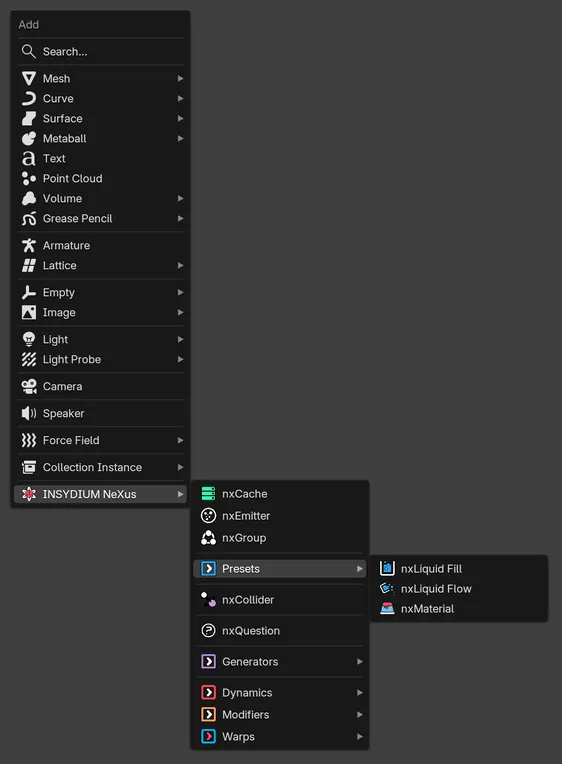
The INSYDIUM NeXus menu keeps the core objects at the top level and gathers the rest into submenus: Presets, Generators, Dynamics, Modifiers and Warps. Beta
You add objects in Object Mode. NeXus needs an active license, so the entries stay grayed out until one is entered. If you have not activated NeXus yet, the menu shows an Enter License… item at the top that opens the add-on preferences. See Installation and Licensing to get set up.
In Cinema 4D the same objects are under INSYDIUM ▸ NeXus, with the same submenus. See NeXus for Cinema 4D.
What adding an object does
Section titled “What adding an object does”Choosing an entry creates a new object at the world origin and makes it the active selection.
Each NeXus object is a Blender Empty that carries a NeXus type. It does not render or add geometry on its own. It is the object you select to reach the feature’s settings and, for generators and meshers, the source that produces the visible result.
You configure the object in the Properties editor ▸ Physics tab, where its settings are laid out across tabs such as Object Properties, Groups Affected, Mapping and Falloff. See The NeXus Panel for a full tour of that panel.
The first time you add a NeXus object to a scene, NeXus also sets up the scene’s simulation pipeline, so the object is ready to evaluate straight away.
The categories
Section titled “The categories”The menu lists its entries in the order below, top to bottom, with a divider between each band. Within each section the entries are listed alphabetically.
Emitter
Section titled “Emitter”The particle sources and the objects that organize them, at the top of the menu.
nxEmitter is the particle source, the starting point for most setups. nxGroup tags particles into named groups so other objects can target only those particles. nxCache bakes a simulation to disk for fast, repeatable playback.
Presets
Section titled “Presets”A submenu of one-click setups, each of which builds a complete simulation in a single step.
nxLiquid Fill and nxLiquid Flow each build a FLIP liquid setup (an nxEmitter feeding a FLIP nxFluids solver). See nxLiquid.
nxMaterial builds an MPM material setup: an nxEmitter feeding an nxMPM solver, with an nxMesher for the surface. It starts as snow. You can switch it to sand, elastic, metal and other materials. Beta
nxScatter adds an nxEmitter set up to scatter points over the selected meshes. Beta 3
Objects
Section titled “Objects”Scene objects that particles interact with, at the top level.
nxCollider makes particles collide with one or more meshes in your scene, with per-object control over bounce, friction and how particles scatter on impact.
nxQuestion, at the top level, runs per-particle logic, testing conditions and driving values with expressions to control how particles behave over their lifetime.
Generators
Section titled “Generators”A submenu of the objects that build renderable geometry: nxGenerator instances objects onto particles, nxMesher builds a surface mesh from them and nxTrail draws splines that follow particle paths.
The beta adds three more. nxDeformer drives a mesh from particles. Beta nxOcean generates an ocean surface and nxShatter breaks a mesh into pieces. Beta 2 nxFluid2D runs a realtime 2D fluid in the UV map of a surface. Beta 3
Dynamics
Section titled “Dynamics”A submenu of the larger solvers and simulation systems, in two sections.
The first holds the liquid tools: nxFluids, nxFoam, nxSheeter, nxSplash and nxWave. The second holds nxConstraints, nxExplosiaFX, nxFlowField, nxMPM, nxPin and nxPPCollisions. Together these cover pyro and smoke, fluids, particle-to-particle collisions, foam and splash secondaries, waves and other volume effects.
nxMPM (a multi-material solver for snow, sand, elastic, metal and more) and nxPin (which holds selected particles still, as anchors) are new in the beta. Beta
Modifiers
Section titled “Modifiers”The largest submenu, holding everything that changes, moves or steers particles, in four sections separated by dividers:
- Particle attributes: nxBlend, nxColor, nxKill, nxScale and nxUpres. Use these to blend attributes, set color, remove particles, resize them and add detail to a cached simulation.
- Forces: nxAttract, nxDrag, nxExplode, nxGravity, nxPush, nxTurbulence, nxVorticity and nxWind.
- Motion: nxAvoid, nxDirection, nxFlock, nxLimit, nxRotate, nxSpeed and nxSpin.
- Surface and behaviors: nxBind, nxBioLogic, nxCover, nxDendrite, nxFollowGeo, nxInfectio, nxSpawn and nxSticky.
nxBind (which holds particles in place inside a deforming volume) and nxBioLogic (particle-based cellular growth) are new in the beta. Beta nxSpawn spawns new particles from existing particles. Beta 3
A submenu with one entry per warp type, such as nxWarpBend, nxWarpTwist and nxWarpTaper. Each entry adds an nxWarp set to that type, which bends, twists, tapers or otherwise reshapes the particle stream inside a cage. Beta 2
Managing relationships
Section titled “Managing relationships”Adding objects is only the first step. Which emitters a force affects, which groups an object targets and the order things evaluate in are all managed from the NeXus Hierarchy, in the 3D viewport’s N-panel ▸ NeXus tab.
This replaces the object-manager tree and parenting you would use in Cinema 4D. See NeXus Hierarchy for how to wire a setup together.
Copyright © 2026 INSYDIUM LTD. All Rights Reserved.