

nxSystem Beta 3
nxSystem gives your NeXus setup a ready-made set of folders, one for each kind of NeXus object, so a large scene stays tidy from the start.
The folders follow the layout of the Add ▸ INSYDIUM NeXus menu: Particles, Presets, Objects, Logic, Generators, Dynamics, Modifiers and Warps. nxSystem works differently in the two hosts. In Blender it is a folder set in the NeXus Hierarchy. In Cinema 4D it is an object in the Object Manager, with buttons that add objects straight into the right folder.
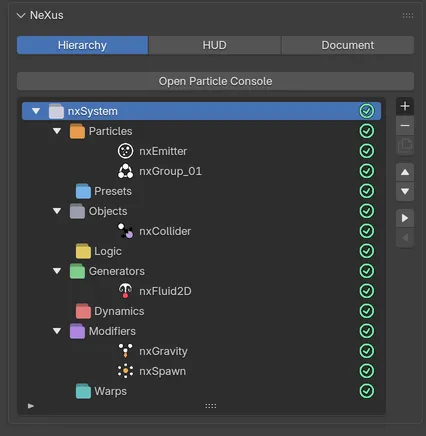
Select a category folder before you add an object to put it there.
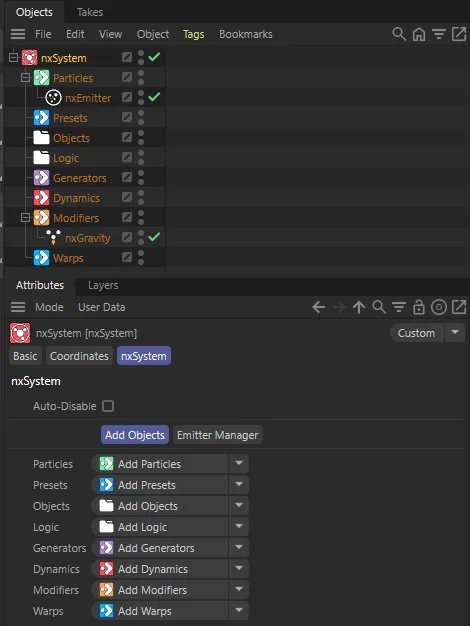
nxSystem in Cinema 4D. Objects added from the Add Objects tab go straight into their category folder.
In Blender
Section titled “In Blender”In Blender, nxSystem is a set of folders in the NeXus Hierarchy. Open the NeXus tab of the viewport sidebar, then click the Add (+) button beside the hierarchy list and choose nxSystem, just below Folder.
This adds a folder named nxSystem with eight folders inside it, one per category, each with its own color:
- Particles, for nxEmitter, nxCache and nxGroup.
- Presets, for nxLiquid, nxMaterial and nxScatter.
- Objects, for nxCollider.
- Logic, for nxQuestion.
- Generators, Dynamics, Modifiers and Warps, matching the submenus of the Add menu.
If a row is selected when you add it, the nxSystem goes into the same folder as that row. Once it is added, the nxSystem folder is selected.
These are ordinary folders. They have no settings of their own. You can rename, recolor, reorder or delete them like any other folder. See Folders for how folders work. Disabling the nxSystem folder disables everything inside it.
NeXus does not sort objects into the folders for you. Select a folder before you add an object and the new object goes into that folder. You can also move objects in later with the Indent and Outdent buttons.
In Cinema 4D
Section titled “In Cinema 4D”In Cinema 4D, add nxSystem from INSYDIUM ▸ NeXus ▸ nxSystem, just below nxGroup. It arrives in the Object Manager with eight nxSystem Folder children, one per category: Particles, Presets, Objects, Logic, Generators, Dynamics, Modifiers and Warps. Six have colored icons. Objects and Logic use a plain folder icon.
An nxSystem has an enable switch like any generator, but it builds nothing in the scene. Its settings sit on the nxSystem tab of the Attribute Manager.
Auto-Disable
Section titled “Auto-Disable”Off by default. When it is on, switching the nxSystem off also switches off every NeXus object inside it. Switching it back on turns back on only the objects it switched off, so an object you had off stays off. An object you add to a switched-off system joins it switched off.
Add Objects and Emitter Manager
Section titled “Add Objects and Emitter Manager”Two tabs below Auto-Disable. Add Objects is selected by default.
Add Objects
Section titled “Add Objects”The Add Objects tab has one dropdown per category, from Add Particles to Add Warps. Each holds the same entries as that category of the INSYDIUM ▸ NeXus menu. Pick an entry to add it straight into its category folder. If that folder was deleted, it is made again. Objects that a preset such as nxLiquid Fill makes are moved into the folder too. The folder opens so you can see them.
Emitter Manager
Section titled “Emitter Manager”The Emitter Manager tab lists every nxEmitter inside the system, so you can manage them in one place.
Emitters
Section titled “Emitters”Each row is one emitter. Click the checkbox to switch it on or off. Selecting a row picks the emitter the settings below work on.
When X-Particles is installed, three icons on each row set the emitter’s Particles mode, the same setting as on the nxEmitter:
- GPU: the particles stay in NeXus on the GPU.
- GPU -> CPU: each frame NeXus also copies the particles to the linked X-Particles emitter, so X-Particles tools can read them. NeXus stays in charge of the simulation.
- GPU <-> CPU: as GPU -> CPU, but changes that X-Particles makes to the particles also go back into the NeXus simulation.
X-Particles Emitter
Section titled “X-Particles Emitter”The X-Particles emitter linked to the selected nxEmitter. It is the same field as on the nxEmitter. It and the Add Emitter button show only when X-Particles is installed.
Add Emitter
Section titled “Add Emitter”Makes an X-Particles emitter for the selected nxEmitter and puts it in the Particles folder. It works like the nxEmitter’s own Add Emitter button. An emitter in GPU mode switches to GPU -> CPU.
nxSystem Folder
Section titled “nxSystem Folder”Each category folder is an nxSystem Folder object. It has its own Add dropdown with the entries of its category, plus an Add Folder button. Add Folder asks for a Name and a Color and makes a subfolder, whose icon takes that color. Objects added from a folder or a subfolder go into it.
Copyright © 2026 INSYDIUM LTD. All Rights Reserved.