

Node Integration
The NeXus Particle Info node reads live per-particle data inside Blender’s shader and geometry node editors, so you can drive materials and instancing straight from the simulation.
NeXus exports each emitter’s particles to a Blender point cloud. The Particle Info node surfaces that point cloud’s per-particle attributes as ready-to-use node outputs, letting you color a material by speed, scale instances by particle age, orient them by particle rotation and much more.
This is separate from the GPU scripting in nxQuestion. The Script layer runs custom GLSL that reads and writes particle data during the simulation. Node integration reads the result of the simulation for rendering and instancing.
Requirement: export a point cloud
Section titled “Requirement: export a point cloud”The Particle Info node reads from the point cloud an emitter produces, so you need one before the node has any data.
On the nxEmitter, open the Export tab and turn on Create Point Cloud. NeXus then builds a Blender point cloud object as a child of the emitter, rebuilt every frame from the live particles. See the nxEmitter Export tab for the full details.
The Transfer Properties setting decides which channels reach the point cloud and therefore which Particle Info outputs carry data:
- Basic: transfers Velocity, Color, Radius and Rotation. This is the default.
- All: transfers every channel.
- Custom: shows a grid of per-channel toggles so you transfer only what you need.
A channel the emitter does not export produces no data on the node. The node hides those outputs (see below), so if an output is missing, enable its channel in Transfer Properties.
Adding the node
Section titled “Adding the node”The node lives in the Add menu of both the Shader Editor and the Geometry Node Editor, under Add ▸ NeXus ▸ Particle Info.
That submenu offers two ways to add it:
- Particle Info: the full node, with an output socket for every channel.
- A named channel (Color, Velocity, Speed and so on): a compact node showing only that single output, useful when you want just one value and a tidy graph.
When you add the node while a NeXus emitter is active or selected, it links to that emitter automatically and shows only the channels that emitter exports. A channel that is grayed out in the menu is one the active emitter does not currently transfer.
The point cloud NeXus creates already carries a starter material named NeXus Particle, which wires the Particle Info Color output into a Principled BSDF Base Color. Your particles render with their per-particle color straight away. You can edit or replace that material like any other.
Outputs
Section titled “Outputs”The node exposes a curated set of per-particle channels, organized internally into Appearance, Motion, Transform, Lifecycle and Fields.
| Output | Type | Description |
|---|---|---|
| Color | Color | Per-particle RGBA color. |
| Velocity | Vector | Per-particle velocity vector. |
| Speed | Float | Velocity magnitude, the length of the velocity vector. |
| Scale | Vector | Per-particle scale. |
| Rotation | Vector | Per-particle rotation, in radians. |
| Radius | Float | Particle radius, also the point size. |
| Age | Float | How long the particle has existed. |
| Life | Float | Particle lifespan. |
| ID | Integer | Stable per-particle identifier. |
| Mass | Float | Particle mass. |
| Density | Float | Per-particle density. |
| Temperature | Float | Per-particle temperature, from nxExplosiaFX. |
| Smoke | Float | Per-particle smoke amount, from nxExplosiaFX. |
| Fuel | Float | Per-particle fuel amount, from nxExplosiaFX. |
Speed is derived inside the node from Velocity, so it is available whenever Velocity is.
The same channels are available in both the shader and geometry node versions of the node, with one difference in socket type. Shader node trees have no integer socket, so ID is a float there. In geometry nodes ID is a true integer socket.
Linking to an emitter
Section titled “Linking to an emitter”Each Particle Info node has a Source emitter. This is set for you when you add the node with an emitter selected. You can change it at any time.
Select the node, then open the node editor’s N-panel and go to the Item tab. The NeXus Particle Info panel there shows:
- Source: the emitter this node reads from. Only NeXus emitters are accepted.
- The current Export mode (Basic, All or Custom), matching the source emitter’s Transfer Properties.
- The channel list, with any channel the source does not export shown grayed out.
If a node has no source it shows Unlinked and all channels stay available. Pointing it at a non-NeXus object flags it with a Source is not a NeXus emitter warning.
An already-connected output is never hidden, even if its channel is not exported, so existing links in your graph are safe when you change the export mode.
Using the data
Section titled “Using the data”In materials (Shader Editor)
Section titled “In materials (Shader Editor)”Feed Color into Base Color for per-particle color or into an Emission input for glowing particles. Drive an effect from motion by running Speed through a Map Range and Color Ramp to tint fast particles differently from slow ones. Age and Life let you fade or shift a material over each particle’s lifetime.
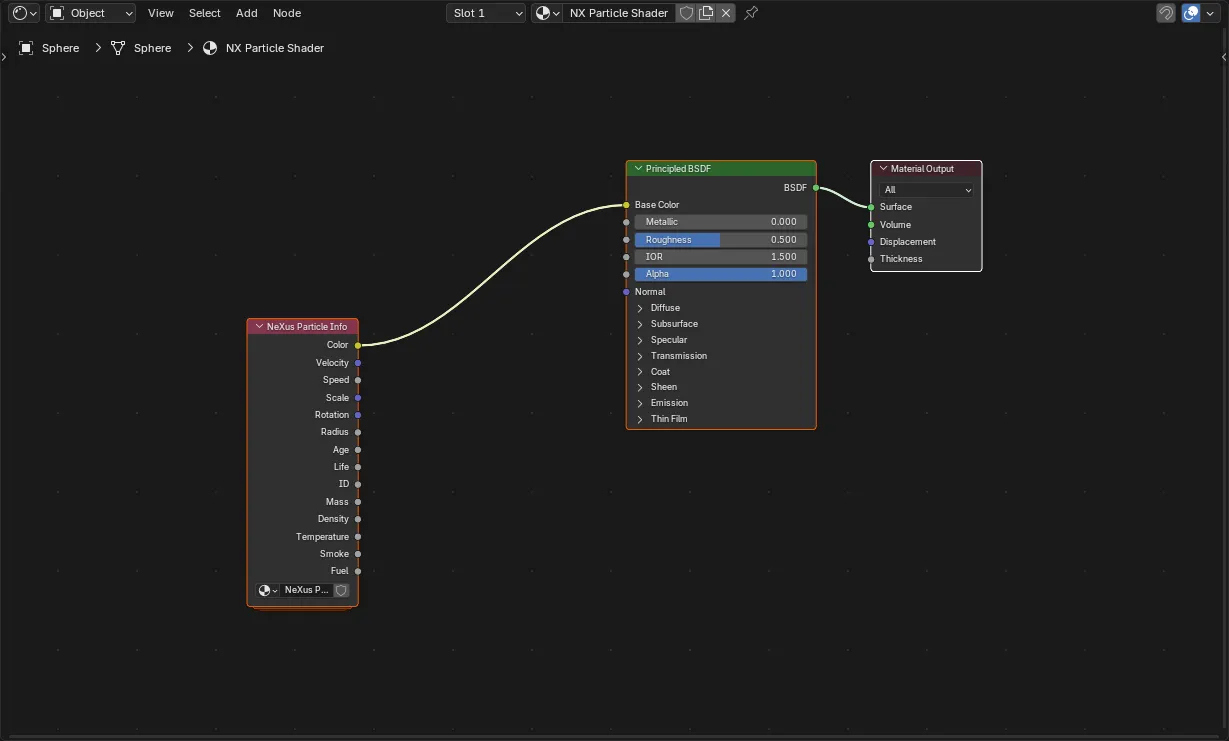
The Particle Info node in the Shader Editor, with its Color output driving the Base Color of a Principled BSDF.
In geometry nodes
Section titled “In geometry nodes”Use the geometry node version on the point cloud to instance objects on the particles and drive those instances from particle data. Rotation orients each instance, Scale or Radius sizes it and Age, Speed or ID can select between variants or drive any other input. Because the point cloud rebuilds every frame, the instances follow the simulation live.
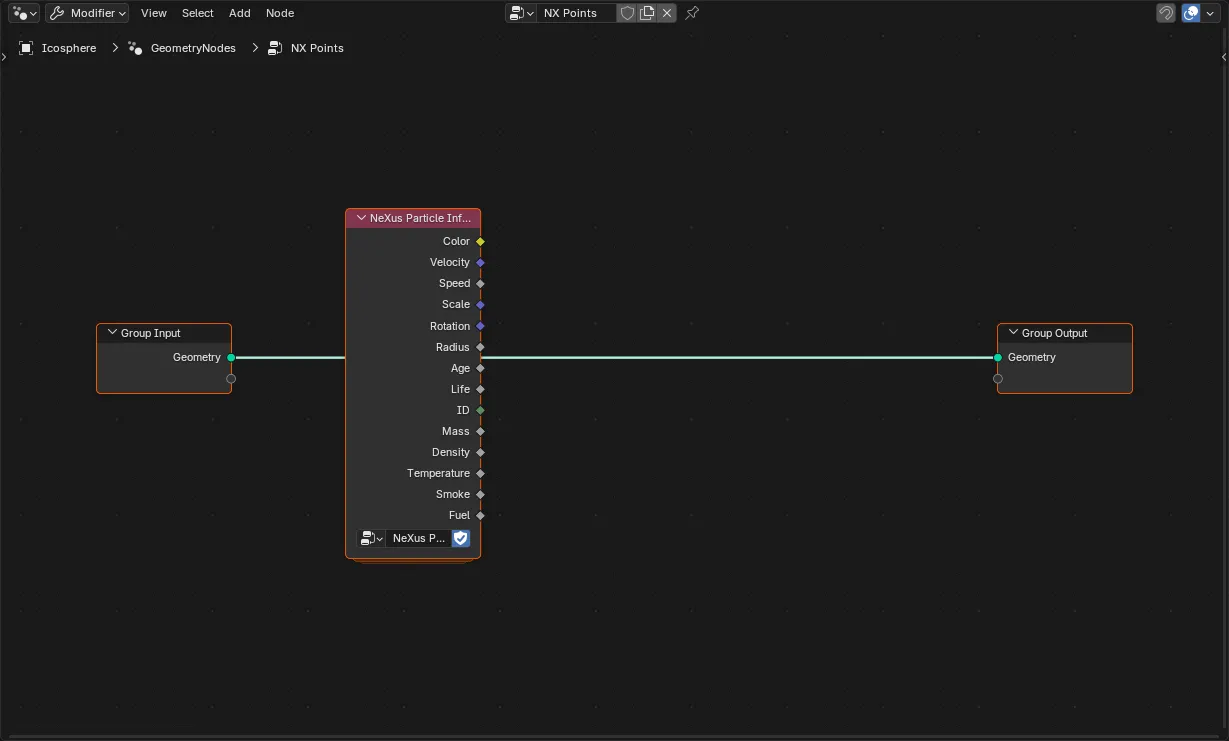
The geometry-nodes Particle Info node exposes the same channels inside a Geometry Nodes tree, ready to drive instancing on the exported point cloud.
Attribute names
Section titled “Attribute names”For most work the Particle Info node is the recommended way to read particle data, because it maps the raw attributes to clearly labeled outputs and tracks the export mode for you.
If you prefer to read a channel directly with a standard Attribute node in shaders or a Named Attribute node in geometry nodes, the point cloud stores the channels under these names. Position and Radius keep their plain names, because Blender reads them as point coordinates and point size. Every other channel is prefixed with nx_ (for example nx_color, nx_velocity, nx_time for Age, nx_life, nx_id, nx_mass, nx_density, nx_temperature, nx_smoke and nx_fuel). The prefix avoids a name collision with Blender’s own reserved render attributes, which would otherwise cause channels like color and velocity to render black.
Copyright © 2026 INSYDIUM LTD. All Rights Reserved.