

nxCover
nxCover moves your NeXus particles onto the surface of objects in your scene, so they cover a mesh and hold there.
Add it from Add ▸ INSYDIUM NeXus ▸ Modifiers ▸ nxCover. It arrives as an empty. Build a list of objects for the particles to cover in the Objects list, then set how the particles are placed on each surface and how they hold once they arrive. All of its settings live in Properties ▸ Physics.
A stream of particles drawn onto Suzanne, added to the Objects list. The particles leave the emitter, cross to her surface and settle over it, coating her instead of passing by.
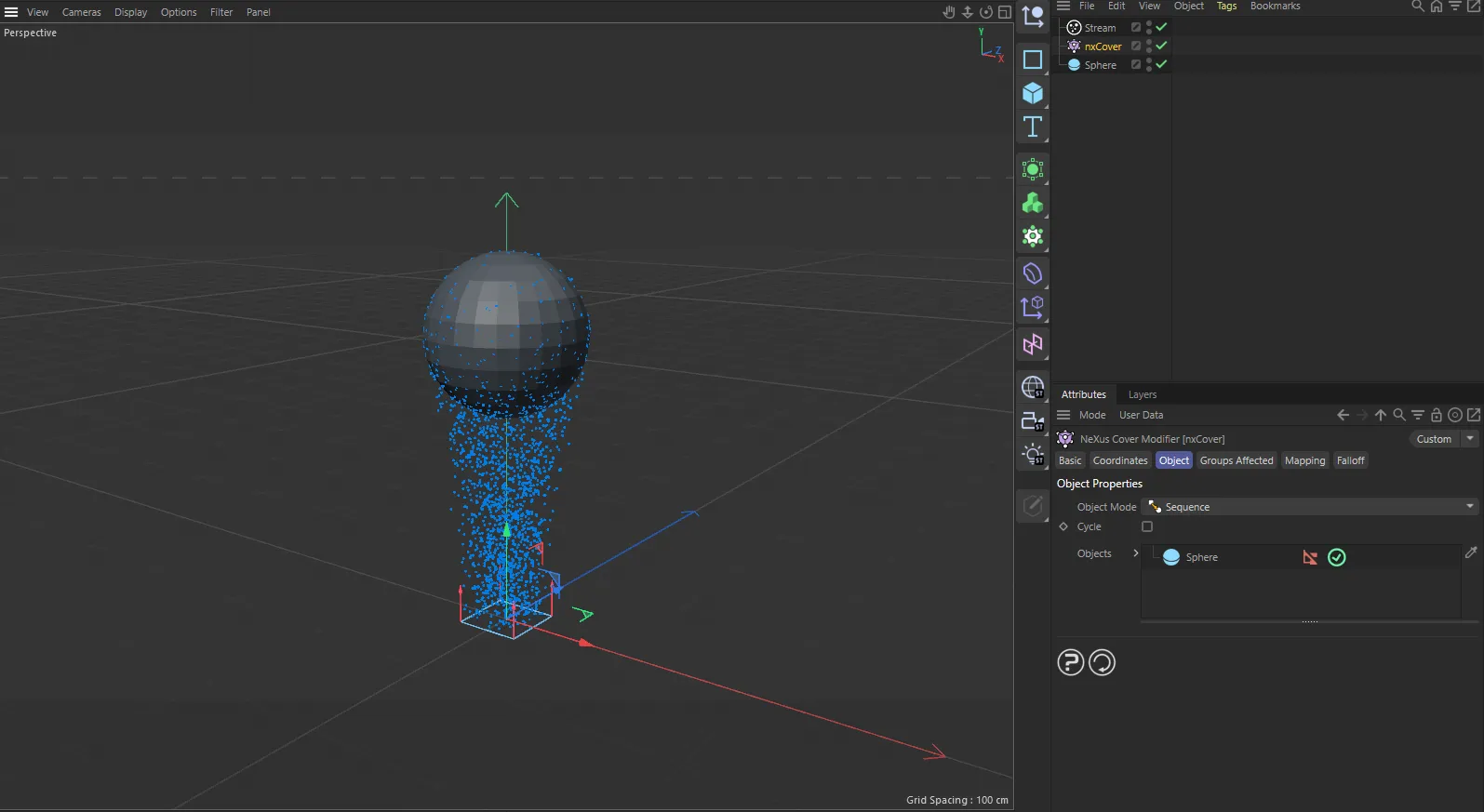
nxCover in Cinema 4D. Its settings sit in the Attribute Manager.
Object Properties
Section titled “Object Properties”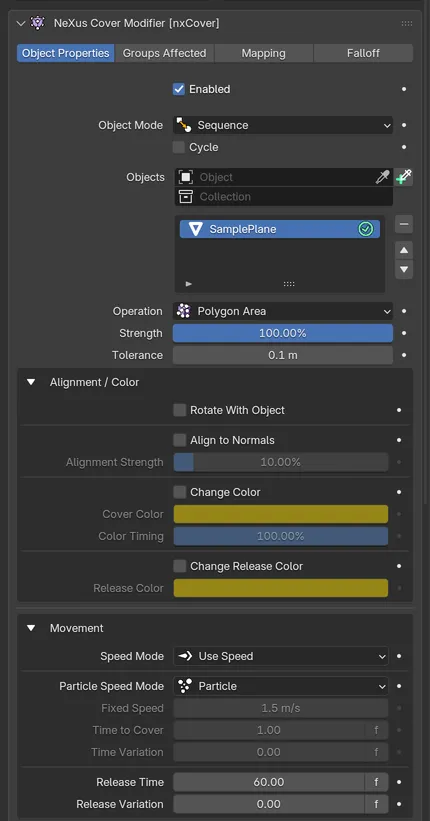
The nxCover panel in Properties ▸ Physics, with an object added to the list.
Enabled
Section titled “Enabled”Turns the whole nxCover on or off. Disable it to release its particles without deleting the modifier.
Object Mode
Section titled “Object Mode”Sets how nxCover assigns the listed objects to the particles, when there is more than one. Set as Sequence, by default. The other options are Nearest Object, Farthest Object, Object Index and Random Object.
- Sequence: fill each object in turn, working down the list.
- Nearest Object: send each particle to the object closest to it.
- Farthest Object: send each particle to the object farthest from it.
- Object Index: send every particle to one specific object, chosen with the Object Index value.
- Random Object: send each particle to a randomly chosen object from the list.
Object Index
Section titled “Object Index”Available only when Object Mode is set to Object Index. Sets which object in the Objects list the particles cover, counting from 0 for the first entry. Defaults to 0.
Random Seed
Section titled “Random Seed”Available only when Object Mode is set to Random Object. Sets the seed for the random object assignment, so you can shuffle which particles go to which object. Defaults to 0.
Available when Object Mode is set to Sequence or Random Object. Lets nxCover keep looping over the listed objects once every object has been covered, rather than stopping. Off by default.
Objects
Section titled “Objects”The list of objects the particles cover.
Add objects to the list, then select an entry to reveal its settings below. Each entry has an enable toggle on the right of its row, so you can switch individual objects on or off without removing them from the list.
You can add Mesh, Curve and Curves objects.
Object settings
Section titled “Object settings”These settings apply to the currently selected object in the list.
Operation
Section titled “Operation”Sets how the particles are placed on the object. Set as Polygon Area, by default. The other options are Polygon Center, Points, Edges, Volume and Ray Intersection.
- Polygon Area: spread the particles across the surface, weighted by the area of each polygon, for an even coat.
- Polygon Center: place the particles at the center of each polygon.
- Points: place the particles on the mesh vertices.
- Edges: place the particles along the mesh edges.
- Volume: place the particles throughout the inside of the mesh.
- Ray Intersection: place the particles where their own path crosses the mesh.
Polygon Area
Points
With Polygon Area the particles spread evenly across Suzanne’s whole surface. With Points they snap to her vertices, so they pick out the ordered grid of her mesh instead.
Thickness Beta
Section titled “Thickness Beta”Available when Operation is set to Ray Intersection and the selected object is a Curve or Curves object. A curve has no surface for a particle’s path to cross, so nxCover captures a particle when its path passes within this distance of the curve. Defaults to 5 m. Raise it to catch more particles or lower it so only paths that pass close to the curve are captured.
The curve is tested in world space, so the capture follows it when you move, rotate or scale the curve object.
Strength
Section titled “Strength”Sets how strongly the particles are drawn to their cover positions. Defaults to 100%. Lower it to loosen the effect, so the particles settle less tightly onto the surface.
Tolerance
Section titled “Tolerance”Sets how close a particle must get to its cover position before it is treated as having arrived and starts to hold. Defaults to 0.1 m.
Alignment / Color
Section titled “Alignment / Color”Controls how the covering particles are oriented on the surface and whether they change color as they cover and release.
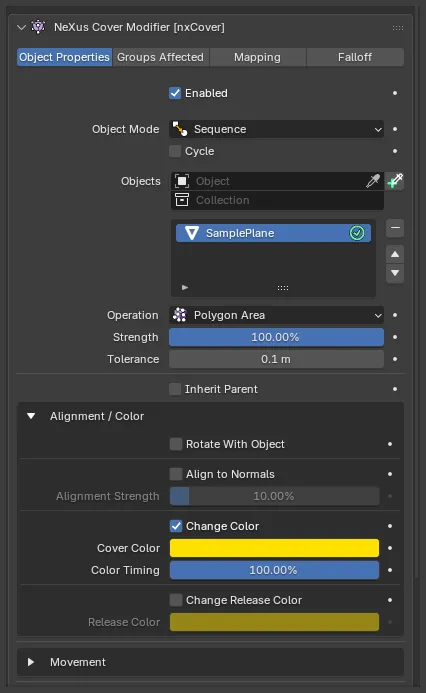
The Alignment / Color group expanded, with Change Color on so the Cover Color and Color Timing controls are shown.
Rotate With Object
Section titled “Rotate With Object”Makes the particles rotate along with the object they are covering as it moves, so they stay locked to its surface. Off by default. It cannot be used at the same time as Align to Normals.
Align to Normals
Section titled “Align to Normals”Aligns each particle’s up vector to the surface normal at its cover position, so the particles sit flat against the surface. Off by default. It cannot be used at the same time as Rotate With Object.
Alignment Strength
Section titled “Alignment Strength”Available when Align to Normals is on. Sets how strongly the particles align to the surface normals. Defaults to 10%.
Change Color
Section titled “Change Color”Changes each particle’s color as it covers the object. Off by default. Turn it on to reveal the Cover Color and Color Timing controls.
Cover Color
Section titled “Cover Color”Available when Change Color is on. The color a particle takes on as it covers the object. Defaults to orange.
Color Timing
Section titled “Color Timing”Available when Change Color is on. Sets how quickly a particle blends to the Cover Color as it covers, as the share of the gap to the Cover Color closed each frame. Defaults to 100%, which changes the color at once. It cannot go above 100%. Beta 3 Lower it to slow the color change.
Change Release Color
Section titled “Change Release Color”Changes each particle’s color when it is released from the object. Off by default. Turn it on to reveal the Release Color control.
Release Color
Section titled “Release Color”Available when Change Release Color is on. The color a particle takes on as it is released. Defaults to orange.
Movement
Section titled “Movement”Controls how the particles travel from the emitter to their cover positions.
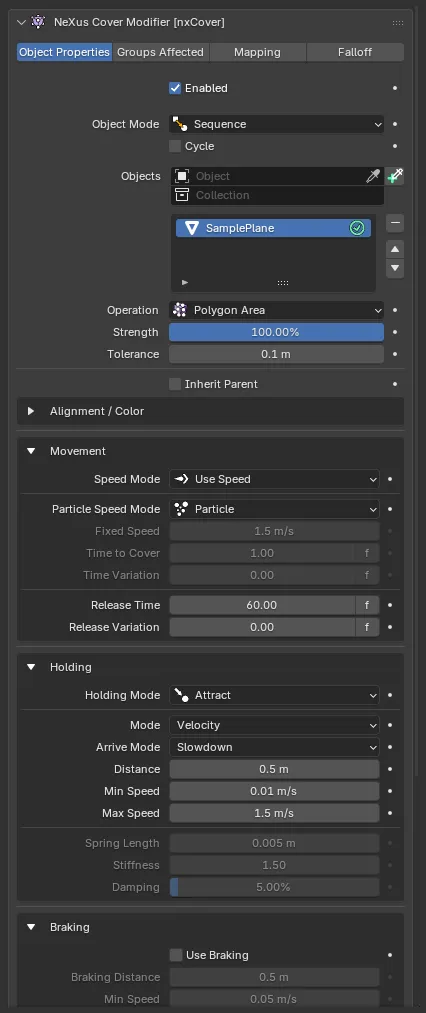
The lower object settings for the selected object, with Alignment / Color collapsed. Each group is a collapsible box you can open or close by its header. Controls that do not apply to the current settings are grayed out.
Speed Mode
Section titled “Speed Mode”Sets how the particles move toward their cover positions. Set as Use Speed, by default. The alternative is Time to Target.
- Use Speed: move the particles at a speed you set, so they arrive at their own pace.
- Time to Target: move each particle so it reaches its cover position in a fixed time, however far it has to travel.
Particle Speed Mode
Section titled “Particle Speed Mode”Available when Speed Mode is set to Use Speed. Sets which speed the particles travel at. Set as Particle, by default. The other options are Fixed and Force.
- Particle: use the particle’s own speed.
- Fixed: use the Fixed Speed value below.
- Force: apply a force toward the cover position, rather than setting a speed.
Fixed Speed
Section titled “Fixed Speed”Available when Particle Speed Mode is set to Fixed. Sets the speed the particles travel to their cover positions. Defaults to 1.5 m/s.
Time to Cover
Section titled “Time to Cover”Available when Speed Mode is set to Time to Target. Sets how long each particle takes to reach its cover position. Defaults to 1 frame.
Time Variation
Section titled “Time Variation”Available when Speed Mode is set to Time to Target. Adds a random amount to the Time to Cover, so the particles do not all arrive together. Defaults to 0 frames.
Release Time
Section titled “Release Time”Sets how long a particle holds on its cover position before it is released. Defaults to 60 frames.
Release Variation
Section titled “Release Variation”Adds a random amount to the Release Time, so the particles do not all release together. Defaults to 0 frames.
Holding
Section titled “Holding”Sets how a particle behaves once it has reached its cover position and is holding there.
Holding Mode
Section titled “Holding Mode”Sets how the particles are held on the surface. Set as Attract, by default. The other options are Free, Spring and Stick.
- Attract: pull the particles toward their cover positions with an ongoing force.
- Free: let the particles move freely once they arrive.
- Spring: hold the particles with a spring force.
- Stick: pin the particles to their cover positions.
Attract
Free
With Attract the particles are held on the surface, so the coat stays put. With Free they are released the moment they arrive, so the coat drifts off and Suzanne is left mostly bare.
Available when Holding Mode is set to Attract. Sets how the attraction acts on a held particle. Set as Velocity, by default. The alternative is Acceleration.
- Velocity: control the particle’s velocity directly.
- Acceleration: apply an acceleration to the particle.
Arrive Mode
Section titled “Arrive Mode”Available when Holding Mode is set to Attract. Sets how a particle settles as it reaches its cover position. Set as Slowdown, by default. The alternative is Attract.
- Slowdown: ease the particle to a stop as it nears the point.
- Attract: keep pulling the particle toward the point without slowing it.
Distance
Section titled “Distance”Available when Holding Mode is set to Attract and Arrive Mode is set to Slowdown. Sets the distance from the cover position at which a particle starts to slow down. Defaults to 0.5 m.
Min Speed
Section titled “Min Speed”Available when Holding Mode is set to Attract. Sets the lowest speed a particle holds as it approaches its cover position. Defaults to 0.01 m/s.
Max Speed
Section titled “Max Speed”Available when Holding Mode is set to Attract. Sets the highest speed a particle reaches as it approaches its cover position. Defaults to 1.5 m/s.
Spring Length
Section titled “Spring Length”Available when Holding Mode is set to Spring. Sets the rest length of the spring that holds the particle. Defaults to 0.005 m.
Stiffness
Section titled “Stiffness”Available when Holding Mode is set to Spring. Sets how stiff the spring is. Defaults to 1.5. Higher values snap the particle back to its position more sharply.
Damping
Section titled “Damping”Available when Holding Mode is set to Spring. Sets how much the spring’s motion is damped, so it settles rather than oscillating. Defaults to 5%.
Braking
Section titled “Braking”Slows the particles down as they close in on their cover positions, so they settle cleanly instead of overshooting. Available when Speed Mode is set to Use Speed.
Use Braking
Section titled “Use Braking”Turns braking on. Off by default. Turn it on to reveal the braking controls below.
Braking Distance
Section titled “Braking Distance”Sets the distance from the cover position at which braking starts. Defaults to 0.5 m.
Min Speed
Section titled “Min Speed”Sets the lowest speed a particle brakes to. Defaults to 0.05 m/s.
Max Speed
Section titled “Max Speed”Sets the highest speed a particle brakes from. Defaults to 1.5 m/s.
Braking
Section titled “Braking”A curve that shapes the particle’s speed across the braking distance, so you can tune how it eases into its cover position.
Groups Affected
Section titled “Groups Affected”Use the Groups Affected tab to restrict nxCover to particles in specific nxGroup groups, rather than affecting every particle.
Mapping
Section titled “Mapping”Use the Mapping tab to drive nxCover’s settings from particle data instead of fixed values, so a particle’s own attributes can change how it covers. See Mapping for how this works.
Falloff
Section titled “Falloff”Use the Falloff tab to limit where nxCover acts. Add one or more nxFalloff objects to the list and blend them, so only particles inside the falloff region cover the object.
Copyright © 2026 INSYDIUM LTD. All Rights Reserved.