

nxTurbulence
nxTurbulence pushes your NeXus particles around with noise, for a churning, turbulent flow. It works as a stack of layers, so you can combine several noise fields and blend them together.
Add it from Add ▸ INSYDIUM NeXus ▸ Modifiers ▸ nxTurbulence. It arrives as an empty. Add one or more noise layers, set each to a noise type, then blend them. All of its settings live in Properties ▸ Physics.
A stream of particles broken up into a churning, turbulent flow by a single noise layer as it passes Suzanne.
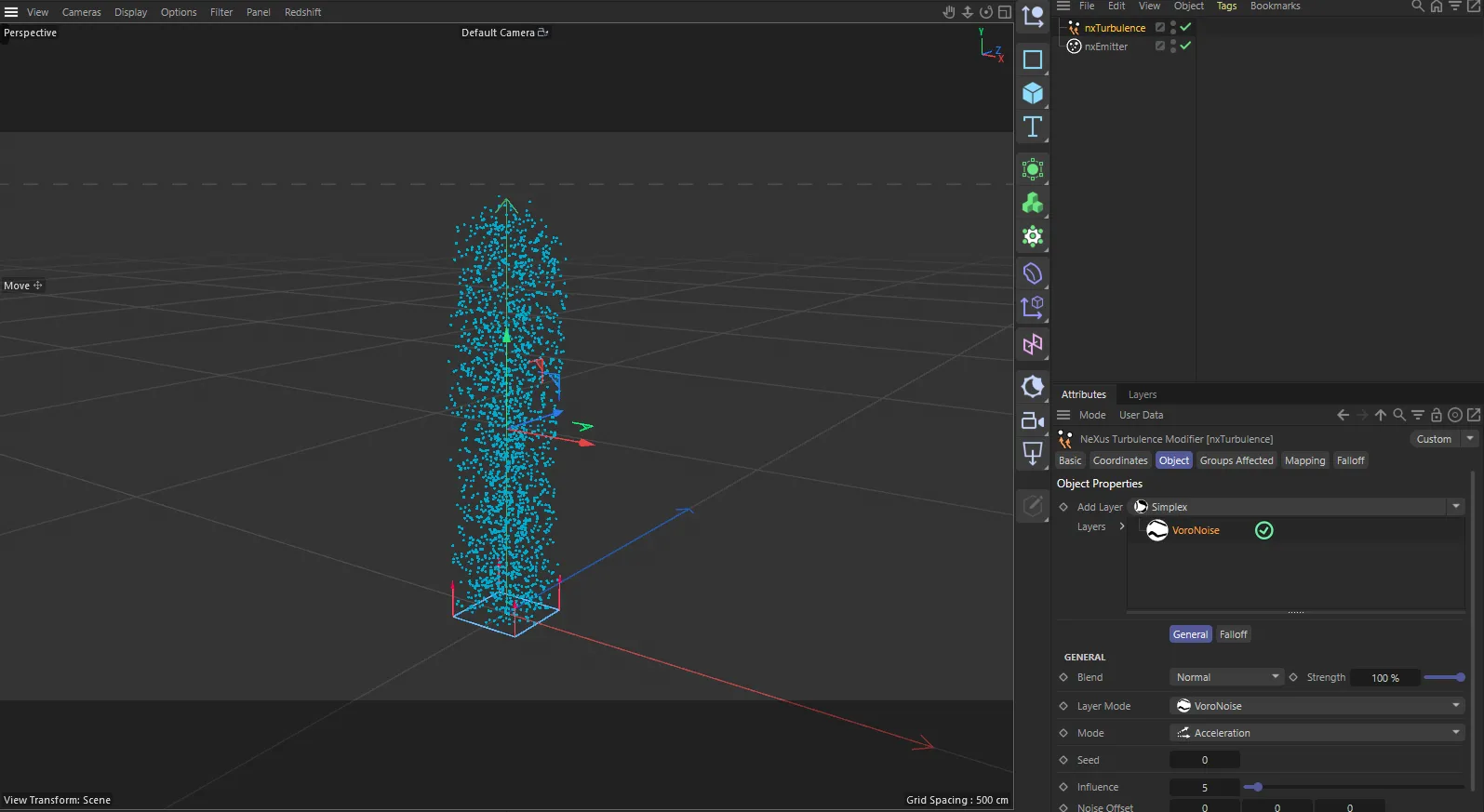
nxTurbulence in Cinema 4D. Its settings sit in the Attribute Manager.
Object Properties
Section titled “Object Properties”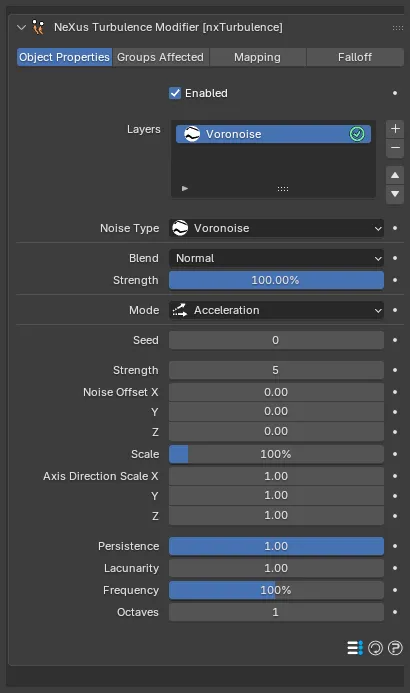
The nxTurbulence panel in Properties ▸ Physics, on the Object Properties tab, showing a Voronoise layer.
Enabled
Section titled “Enabled”Turns nxTurbulence on or off. Disable it to switch off its force without deleting it.
Layers
Section titled “Layers”The stack of noise layers. Use the + button to add a layer and choose its noise type from the menu that appears. Use the - button to remove the selected one. Each layer has an enable toggle on the right of its row, so you can switch a layer on or off without removing it.
Layers are processed from the top of the stack down, each blending with the result of the layers above it. Select a layer to show its settings underneath.
Layer Settings
Section titled “Layer Settings”These settings apply to the layer selected in the Layers list.
Noise Type
Section titled “Noise Type”Sets the noise pattern for this layer. A new nxTurbulence starts with a Voronoise layer. The options are Simplex, Curl, Turbulence, Wavy Turbulence, Voronoise, fBm and Cubic, each described below.
Sets how this layer combines with the layers above it. Set as Normal, by default. The other options are Min, Subtract, Multiply, Overlay, Max, Add, Screen and Difference.
Strength
Section titled “Strength”The Strength directly under Blend is the blend strength: how strongly this layer contributes to the stack. Defaults to 100%. This is separate from the turbulence Strength further down, which sets the force itself.
Sets how the layer drives the particles. Set as Acceleration, by default. The alternative is Direction.
- Acceleration: the noise is applied as an acceleration, so a particle’s mass affects how much it is pushed.
- Direction: the noise steers the particle’s direction.
Sets the random seed for the noise, so a different seed gives a different pattern from the same settings. Defaults to 0.
Strength
Section titled “Strength”The turbulence force strength for this layer. Defaults to 5. The higher the value, the more the noise changes each particle’s speed and direction. This is separate from the blend Strength above.
2
20
Only the turbulence Strength changes: 2, on the left, and 20, on the right. At a low strength the noise barely ruffles the stream. At a high strength it tears the flow into a wild, chaotic cloud.
Noise Offset
Section titled “Noise Offset”Offsets the noise field along the X, Y and Z axes, moving the pattern through space. Each defaults to 0.
Sets the size of the noise. Defaults to 100%. Larger scales give broad, smooth movement. Smaller scales give finer, more chaotic detail.
30%
250%
The Scale is 30%, on the left, and 250%, on the right, at a matching Strength. The small scale breaks the flow into fine, chaotic detail. The large scale moves the particles in broad, smooth sweeps.
Axis Direction Scale
Section titled “Axis Direction Scale”Scales the turbulence separately on the X, Y and Z axes, each from 0 to 1 and defaulting to 1. Lower an axis to reduce or remove the turbulence in that direction, for example to keep the particles moving in a plane.
Persistence
Section titled “Persistence”Sets how much strength each successive noise octave keeps, from 0 to 1 and defaulting to 1. At 1 every octave is equally strong, which can bury the large features in fine detail. Lower it to fade the octaves off, so added detail does not overpower the main movement.
Lacunarity
Section titled “Lacunarity”Sets how much the frequency rises with each octave. Defaults to 1. It works with Octaves to build detail and is not available with Simplex noise.
Frequency
Section titled “Frequency”Sets the frequency of the noise. Defaults to 100%. Higher values make the pattern change more rapidly.
Octaves
Section titled “Octaves”Sets how many octaves of noise are combined, adding finer detail. Defaults to 1. Higher values give more frequent, more dramatic changes, at some cost to the larger features, which Persistence can bring back.
Curl Settings
Section titled “Curl Settings”These two extra controls appear only when Noise Type is set to Curl.
Blends the particle’s existing velocity with the curl velocity. Defaults to 0.8. At lower values the particle keeps more of its motion from other modifiers. At higher values it is held more to the curl.
Sets how much of the curl velocity is added on top of the particle’s velocity. Defaults to 0.2.
Noise Types
Section titled “Noise Types”Each layer can use one of seven noise patterns, set by Noise Type. The layer controls are the same for every type, with two exceptions: Simplex grays out Lacunarity and Curl adds the two Curl Settings covered above.
Simplex
Section titled “Simplex”A refined version of the classic Perlin noise. Lacunarity is unavailable for this type and shows grayed out.
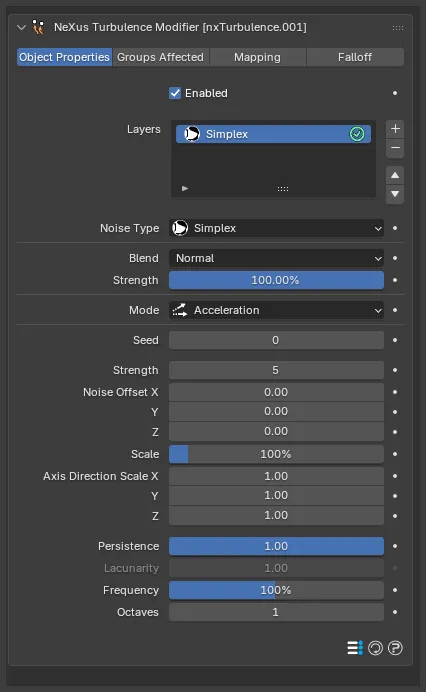
A Simplex layer, with Lacunarity grayed out.
A curling, swirling noise. Selecting it reveals the two Curl Settings described above.
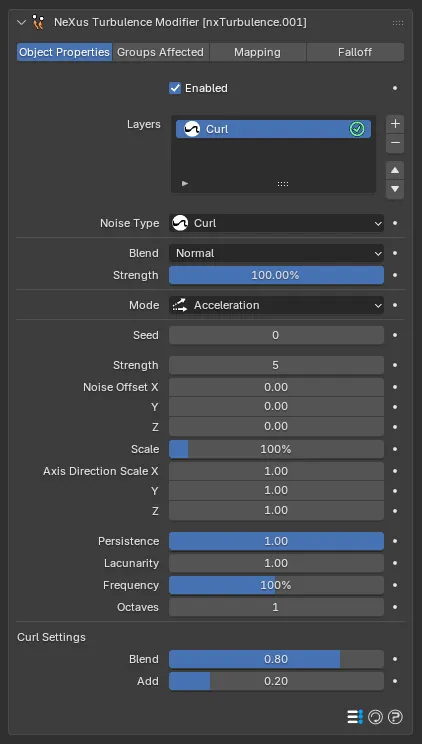
A Curl layer. The Curl Settings section appears at the foot of the panel.
Turbulence
Section titled “Turbulence”A classic turbulence noise.
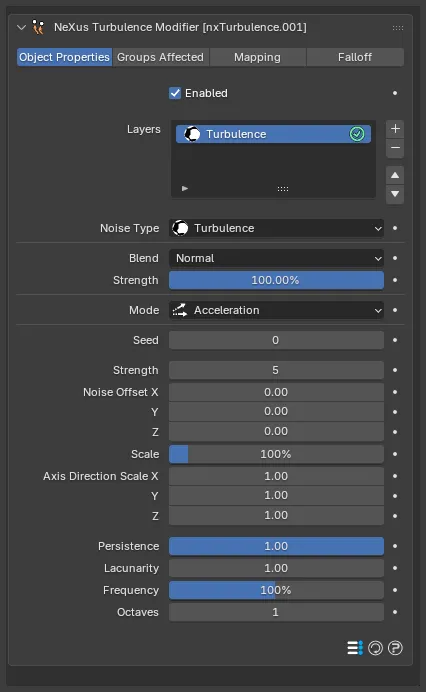
A Turbulence layer. Turbulence, Wavy Turbulence, Voronoise, fBm and Cubic all share this same set of controls.
Wavy Turbulence
Section titled “Wavy Turbulence”Much like Turbulence, but smoother. It uses the same controls, shown above.
Voronoise
Section titled “Voronoise”A Voronoi-based noise, the type the modifier’s first layer uses. It uses the same controls as Turbulence, shown above.
Fractional Brownian motion, giving a more irregular, chaotic movement, especially at a small scale with high octaves. It uses the same controls as Turbulence, shown above.
A smooth cubic noise. It uses the same controls as Turbulence, shown above.
Groups Affected
Section titled “Groups Affected”Use the Groups Affected tab to restrict nxTurbulence to particles in specific nxGroup groups, rather than affecting every particle.
Mapping
Section titled “Mapping”Use the Mapping tab to drive nxTurbulence’s settings from particle data instead of fixed values, so a particle’s own attributes can change the turbulence it feels. See Mapping for how this works.
Falloff
Section titled “Falloff”Use the Falloff tab to limit where nxTurbulence acts. Add one or more nxFalloff objects to the list and blend them, so the turbulence only affects particles inside the falloff region.
Copyright © 2026 INSYDIUM LTD. All Rights Reserved.