

nxFalloff Modifier Beta
nxFalloff Modifier is a falloff layer that reshapes the falloffs below it in a Falloff list, instead of adding a shape of its own.
An nxFalloff defines a region in the scene: a box, a sphere, a noise field and so on. nxFalloff Modifier has no position, size or gizmo. It takes the combined value of the falloffs below it and changes it, for example by inverting, clamping or stepping it, pulsing it over time or giving it a memory, so a moving falloff can leave a trail or spread outward.
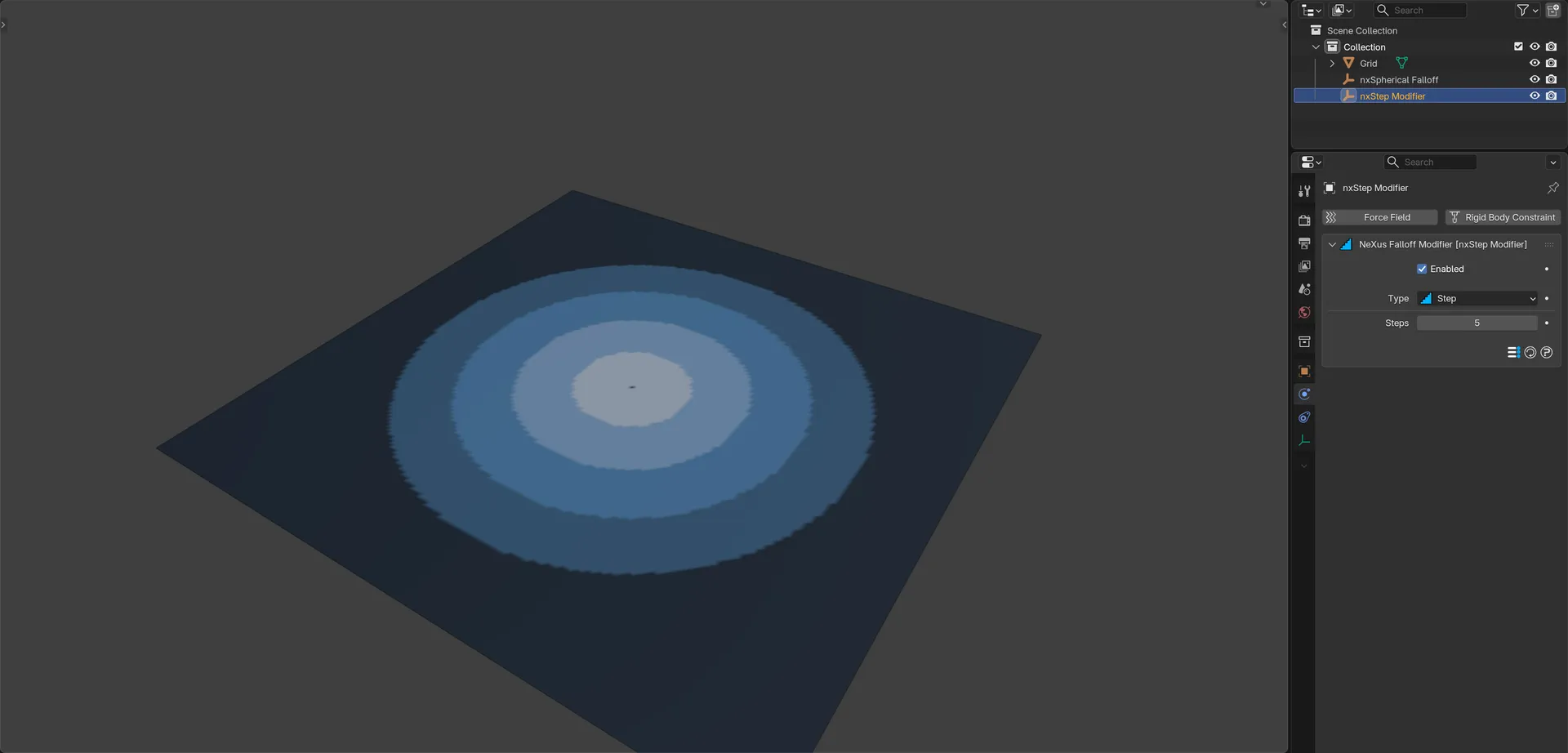
A Step nxFalloff Modifier turns a smooth spherical falloff into five flat bands, shown on a grid mesh.
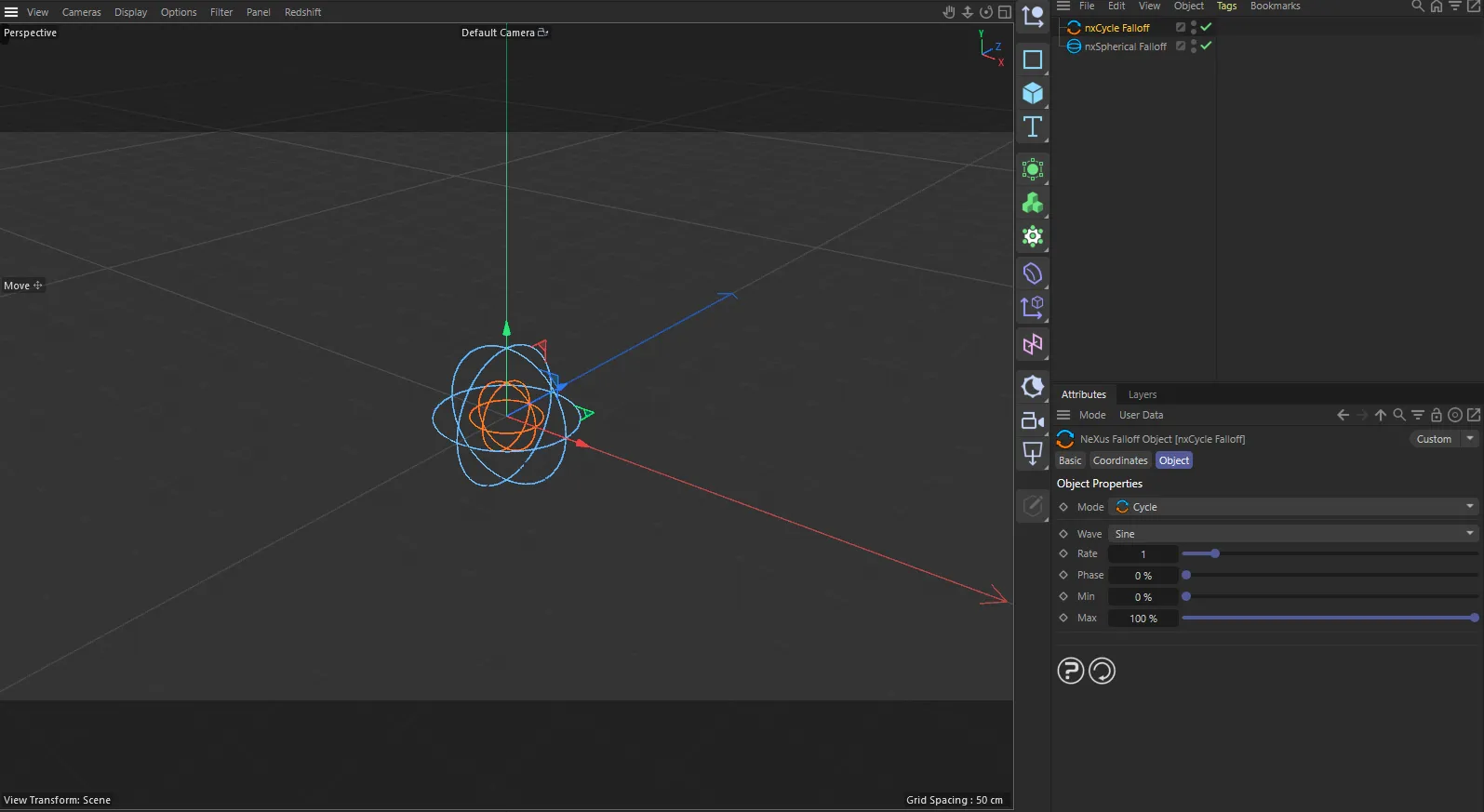
nxFalloff Modifier in Cinema 4D. The settings are the same and sit in the Attribute Manager.
Adding a falloff modifier
Section titled “Adding a falloff modifier”nxFalloff Modifier is not in the Add ▸ INSYDIUM NeXus menu. You create it from a Falloff list, such as the one on a modifier’s Falloff tab or the Falloff list on a modifier layer.
Two buttons sit beside the list. The first adds an nxFalloff shape. The second opens the Add Layer menu: pick a type and a new nxFalloff Modifier, already set to that type, is created and added to the list in one step. The four types under the menu’s Memory heading are Freeze, Decay, Delay and Grow. The buttons work only in Object Mode.
The new object is named after its type, for example nxInvert Modifier. It renames itself when you change its Type. Its settings are drawn inline beneath the list entry and in Properties ▸ Physics when you select the object.
Order in the list
Section titled “Order in the list”A Falloff list is evaluated from the bottom up, so a modifier layer only reshapes the falloffs below it. Place it above the shapes you want to change. A modifier layer at the bottom of the list has nothing to reshape and does nothing.
Like a shape, each modifier layer has its own Blend and Strength in the list, so you can blend in only part of its effect. The memory layers are the exception: they replace the running value, so Blend and Strength do not affect them.
Object Properties
Section titled “Object Properties”Enabled
Section titled “Enabled”Turns the layer on or off. Disable it to pass the falloffs below through unchanged.
Sets what this layer does to the falloffs below it. Set as Invert, by default. The other options are Clamp, Remap, Step, Quantize, Curve and Cycle, plus the memory layers Freeze, Decay, Delay and Grow. Each is described below with its own controls.
Reshaping layers
Section titled “Reshaping layers”Invert
Section titled “Invert”Flips the field, so what was strong becomes weak. It has no controls of its own.
Holds the field between a Low and a High value. Low defaults to 0 and High to 1. Low cannot be set above High.
Rescales one range of the field onto another. Low and High (0 and 1, by default) set the input range. Output Low and Output High (also 0 and 1) set what the two ends of that range become.
Posterizes the field into flat bands. Steps sets how many and defaults to 4. The top band never quite reaches full strength.
Quantize
Section titled “Quantize”Snaps the field to the nearest of a set of evenly spaced levels, including 0 and 1. Steps sets the number of levels and defaults to 4. Unlike Step, Quantize can still reach full strength.
Reshapes the field through a Curve you draw. The curve is a straight ramp from 0 to 1, by default.
Pulses the field over time. It acts as a clock rather than a shape: it multiplies the field below by a gain that rises and falls.
- Wave: the shape of the pulse. Set as Sine, by default. The other options are Triangle, Pulse and Saw.
- Rate: cycles per second. Defaults to 1.
- Phase: an offset into the cycle, so two layers can pulse out of step. Defaults to 0.
- Minimum and Maximum: the gain at the bottom and top of the wave. They default to 0 and 1. Raise Minimum above 0 so the field never fully leaves.
Memory layers
Section titled “Memory layers”The memory layers give the falloffs below them a past. Each one remembers a value for every particle (or every point of a mesh’s vertex map) from frame to frame, so the field can hold, fade or spread over time. Their memory resets on the first frame and whenever you scrub backward.
Freeze
Section titled “Freeze”Keeps the highest value each point has reached, even once the field moves away. It has no controls of its own.
Keeps the peak and then fades back, so a moving field leaves a trail. Decay sets how much the remembered value fades per second and defaults to 1. At 0 it behaves like Freeze.
Eases toward the field below instead of snapping to it. Lag sets how quickly the memory catches up and defaults to 0.5. Higher values catch up faster.
Spreads outward from wherever the field below has lit it, so a small seed shape can grow across particles or a mesh.
- Spread: how fast the lit region creeps outward. Defaults to 3.
- Conduct: how much the field below limits the growth. Defaults to 0%, so the growth spreads freely. At 100% it can only travel where the field below is strong, so a mask beneath it stops the growth at its edge.
- Reach: on particles, how far Grow looks for a neighbor to spread from. Defaults to 0.2m. A mesh spreads along its own edges instead and ignores this.
- Shape: how strongly a noise varies the growth speed. Defaults to 100%. At 0% the growth front stays round. Higher values make it surge in some places and crawl in others, so the front breaks into lobes and fingers.
- Fade: how much the grown value fades per second. Defaults to 0, so the growth spreads and stays.
When Shape is above 0%, the shaping noise has its own controls:
- Noise: the noise type. Set as Voronoise, by default. The other options are Simplex, Curl, Turbulence, Wavy Turbulence, FBM and Cubic.
- Noise Scale: the size of the noise features. Defaults to 100%.
- Noise Seed: change it for a different growth pattern at the same settings. Defaults to 0.
- Noise Detail: how much fine detail the noise has, so lobes grow smaller branches. Defaults to 1.
- Low Clip and High Clip: noise darker than Low Clip reads as nothing and noise brighter than High Clip reads as full, for clean gaps and solid centers. They default to 10% and 50%.
- Contrast: hardens the edges of the pattern. Defaults to 1.6.
- Preview Noise: shows the noise itself instead of the growth, with a swatch of the pattern in the panel, so you can dial it in by eye. Off by default.
In Cinema 4D
Section titled “In Cinema 4D”There is no separate falloff modifier object. These eleven types are part of the falloff object’s own Mode list, after the shapes. You add them from the Add Falloff button on the Falloff tab. A new one is named after its type, for example nxInvert Falloff. Most values are shown as percentages and the Curve is called Falloff Spline. The Grow noise controls are always shown and there is no noise swatch.
Copyright © 2026 INSYDIUM LTD. All Rights Reserved.