

nxMPM Beta
nxMPM is a multi-material MPM (Material Point Method) solver. It simulates liquid, elastic, snow, sand, brittle, metal and foam materials. They can meet, mix and change into one another in the same domain.
Add it from Add ▸ INSYDIUM NeXus ▸ Dynamics ▸ nxMPM. It arrives as a domain box that you size with Domain Size or the gizmo handles in the viewport. Its scale is locked, so size it with those rather than with Blender’s scale. All of its settings live in Properties ▸ Physics.
For a ready-made setup with an emitter, an nxMPM, a mesher and gravity already wired together, use nxMaterial instead.
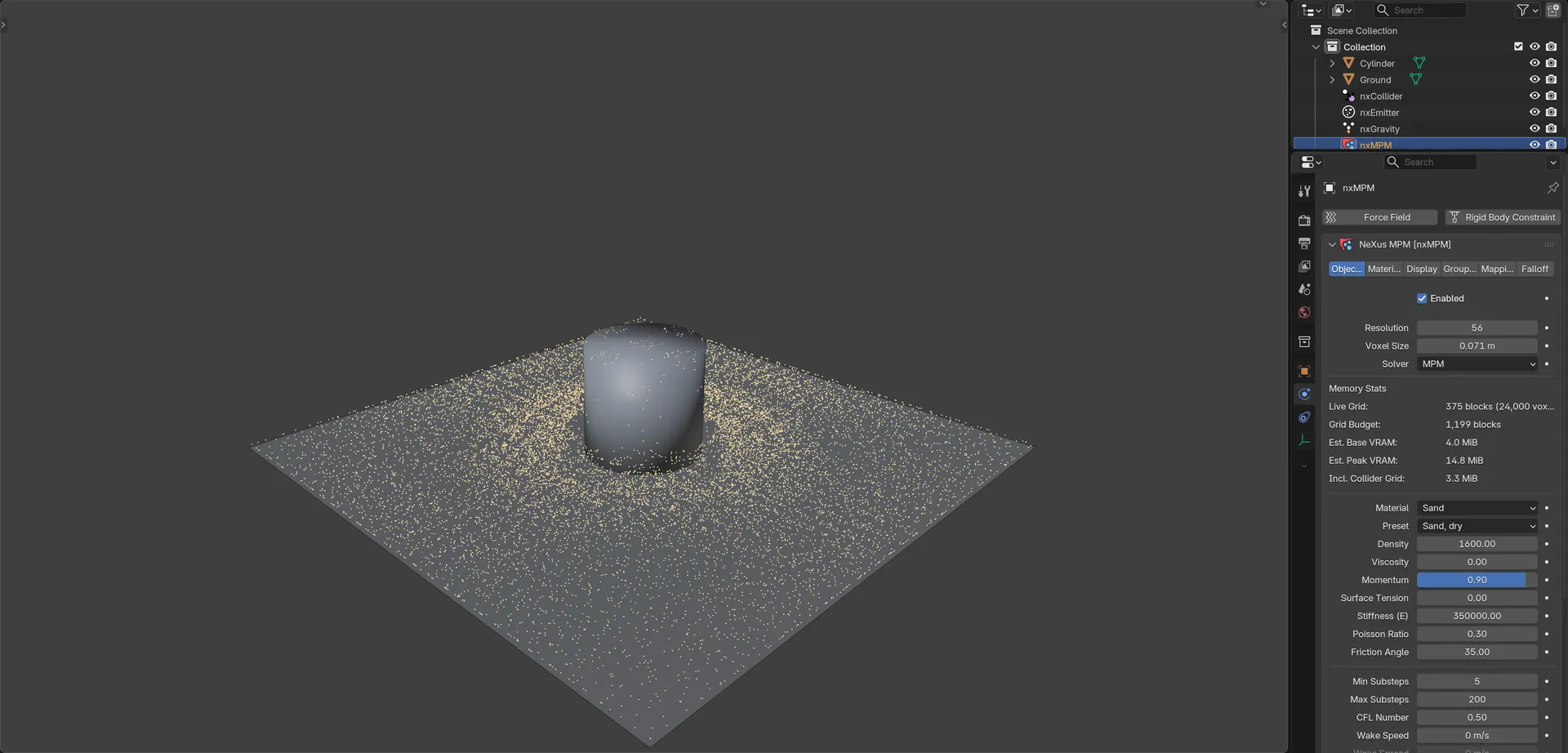
Dry sand from nxMPM poured over a cylinder collider and spread across the ground.
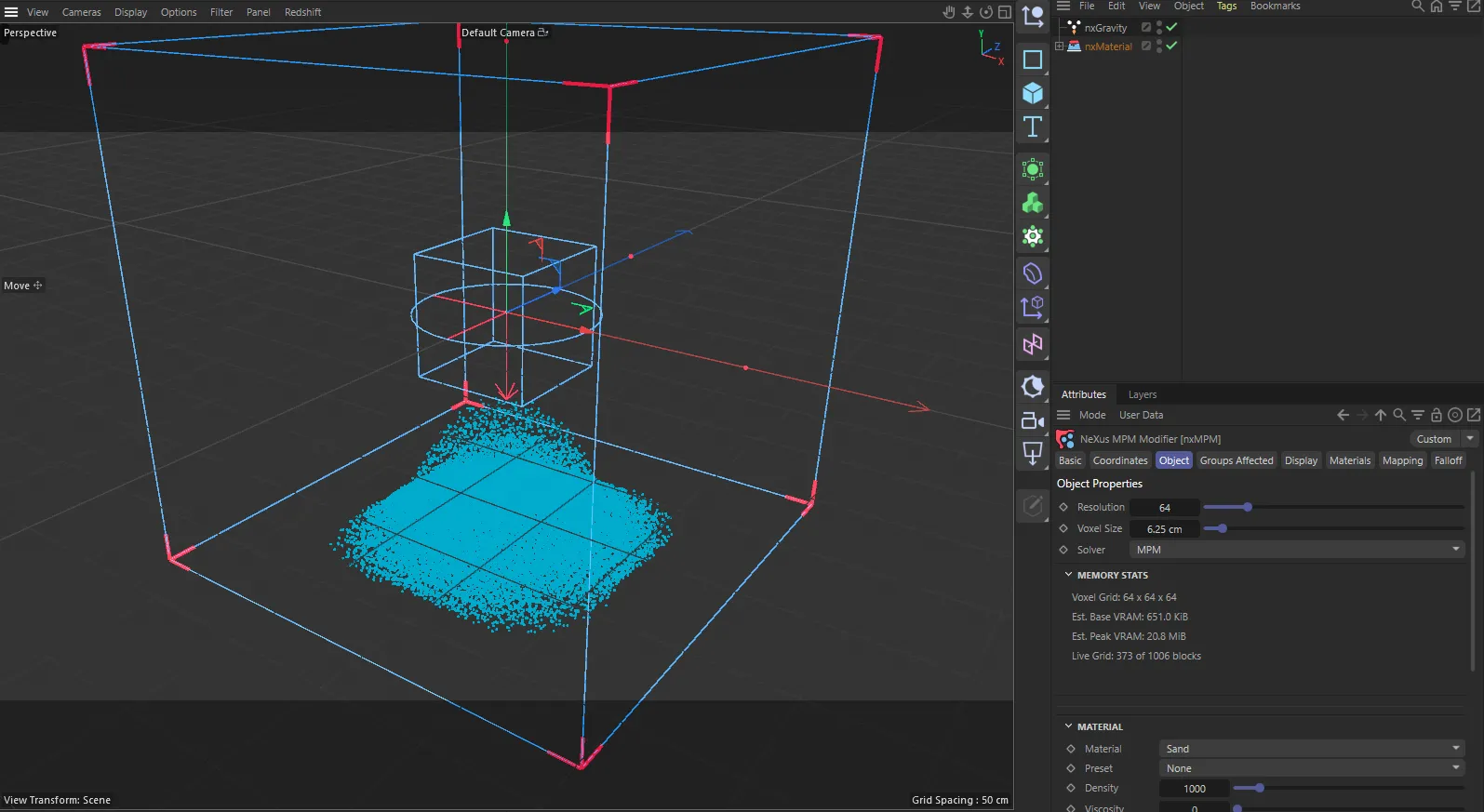
nxMPM in Cinema 4D. The settings are the same and sit in the Attribute Manager.
Object Properties
Section titled “Object Properties”The Object Properties tab holds the domain, the default material, the substep and sleep settings, grid fracture and the bounds.
Enabled
Section titled “Enabled”Turns nxMPM on or off.
Resolution
Section titled “Resolution”The number of voxels along the longest side of the domain. Higher is finer and slower. Resolution and Voxel Size are two views of the same setting, so changing one updates the other. With the default 4m domain and 0.1m voxels it reads 40.
Voxel Size
Section titled “Voxel Size”The size of each grid cell. Defaults to 0.1m. Smaller cells resolve finer detail but cost more time and memory.
Emitters with Match Solver Resolution on resize their particles to suit the new voxel size. See nxEmitter.
Solver
Section titled “Solver”The particle-grid transfer kernel. It applies to the whole domain, not per material. Set as MPM, by default. The other option is CK-MPM.
- MPM: smooth and forgiving. This is the original solver.
- CK-MPM: a compact kernel on a staggered grid. It gives crisper contact, less smoothing and is much more likely to fracture on impact. Pick it for the look, not for speed: it costs twice the grid memory, twice as many substeps and close to three times the frame time. Raise Max Substeps when you switch a scene over. Elastic objects may break up at the default particle density, so emit more particles per cell to hold them together.
Some presets, such as concrete, glass, rock, ice and steel, need CK-MPM. While one of those presets is in use, nxMPM switches the Solver to CK-MPM for you.
Memory Stats
Section titled “Memory Stats”Below the solver settings, Memory Stats reports the grid and what it costs on the GPU.
- Voxel Grid: the grid resolution on each axis. With Use Bounds off it reads Starting Grid, since the grid then grows with the material.
- Live Grid and Grid Budget: replace the grid row once the solver has run. They show how many 4 x 4 x 4 voxel blocks the material occupies right now and how many the solver has room for.
- Est. Base VRAM and Est. Peak VRAM: the estimated GPU memory the grid needs.
- Incl. Collider Grid: shown when the scene has an nxCollider. The memory the collider grid adds. Collider Blocks Missing appears if the collider bake fell short.
- Substeps Needed: shown when the material needs more substeps than Max Substeps allows.
- Solver Disabled and Grid Saturated: warnings, each with a line of advice, such as raising Voxel Size, using fewer particles or reducing Stiffness.
Material
Section titled “Material”These settings set the material for every particle that no row on the Materials tab claims.
Material
Section titled “Material”The material model. Set as Liquid, by default. The alternatives are Elastic, Snow, Sand, Brittle, Metal and Foam.
- Liquid: a weakly compressible liquid.
- Elastic: an elastic, jelly-like solid that always springs back.
- Snow: an elasto-plastic snow that packs and breaks apart.
- Sand: a granular material that piles up at its angle of repose.
- Brittle: concrete, glass, rock and dry clay. The only material here that really breaks: cracks open and stay open instead of springing back. Cohesion decides whether it shatters into chunks or crumbles into grains.
- Metal: bent far enough, it stays bent. It does not crack like Brittle. Pushed past its limit it stretches, thins and finally tears.
- Foam: foam rubber, memory foam and soft packaging. A slow press sinks in and stays, a fast hit bounces back.
The settings below the common ones change with the material you pick.
Preset
Section titled “Preset”A named real-world recipe for the chosen material. Picking one fills in every material setting at once. The list only offers presets for the current Material. Changing the Material sets Preset back to None. A preset can raise Max Substeps to what it needs, but it never lowers it.
The presets are:
- Liquid: Water, Honey, Oil, Blood, Paint, Slime, Lava and Mercury.
- Elastic: Jelly, Rubber, Rubber, hard, Foam, Sponge and Flesh.
- Snow: Snow, fresh, Snow, packed, Snow, powder, Snow, wet and Ice, crushed.
- Sand: Sand, dry, Sand, wet, Mud, Gravel, Soil, dry, Soil, wet and Powder, fine.
- Brittle: Clay, Concrete, brittle, Concrete, reinforced, Glass, thin, Glass, bottle, Glass, plate, Rock, Rock, soft (sandstone), Plaster, Ice and Dough.
- Metal: Metal, soft (lead), Metal, aluminum, Metal, steel, Metal, copper and Metal, gold.
- Foam: Foam, memory and Foam, packing.
Density
Section titled “Density”The rest density of the material, in kg/m³. Defaults to 1000. The ratio between materials drives buoyancy, so light snow settles on top of water instead of sinking through it.
Viscosity
Section titled “Viscosity”How much the material resists being sheared. Defaults to 0, which is free-flowing. Raise it for honey, mud, lava or paint. It works on every material, not just liquid: it is what turns sand into mud. High values raise the substep count on their own.
Momentum
Section titled “Momentum”How much of its own motion the material keeps as the solver steps it. Defaults to 0.9. Low values smooth splashes and swirls away and settle the material early. Very high values can look noisy.
Surface Tension
Section titled “Surface Tension”How hard the material pulls itself into the smallest surface it can. Defaults to 0, which is off and costs nothing. A few units is already enough to beat gravity on a small blob. Coarse voxels weaken it and fine voxels sharpen it, so retune it after changing Voxel Size.
Stiffness
Section titled “Stiffness”Liquid only. How hard the liquid resists being squashed. Defaults to 50000. Higher holds its volume better but needs more substeps.
Liquid only. The exponent of the liquid’s equation of state. Defaults to 7, the value for water.
Stiffness (E)
Section titled “Stiffness (E)”Every material except Liquid. How hard the material resists being deformed at all, as its Young’s modulus. Defaults to 100000. Low is jelly, high is glass.
Poisson Ratio
Section titled “Poisson Ratio”Every material except Liquid. How much the material bulges sideways when it is squashed. Defaults to 0.3. Values near the 0.499 maximum are nearly incompressible.
Snow: Hardening, Critical Compression and Critical Stretch
Section titled “Snow: Hardening, Critical Compression and Critical Stretch”Snow only. Hardening sets how much stiffer snow gets as it is packed. Defaults to 10. Critical Compression and Critical Stretch set how far the snow can be squashed or pulled before the change becomes permanent. They default to 0.025 and 0.0075. Lower values are more brittle.
Sand: Friction Angle
Section titled “Sand: Friction Angle”Sand only. The internal friction angle, in degrees. Defaults to 35. It sets the angle at which a pile comes to rest.
Brittle: Friction Angle
Section titled “Brittle: Friction Angle”Brittle only. The internal friction angle, in degrees. Defaults to 45. Lower flows more readily, higher resists shear.
Cohesion
Section titled “Cohesion”Brittle only. How much tension the material carries before it cracks. Defaults to 0.5. At 0 it behaves as a loose granular pile. Higher values hold together as a solid and break in larger chunks.
Brittle: Hardening
Section titled “Brittle: Hardening”Brittle only. How fast damage runs away once a crack starts. Defaults to 1. Higher is more brittle.
Consolidation
Section titled “Consolidation”Brittle only. How strong the material starts out. Defaults to -0.15. It must be negative. Lower is stronger, but only up to a point: once Hardening times Consolidation passes about 0.25 (ignoring the sign) the material stops failing at all and behaves as plain elastic. Keep that product between roughly 0.02 and 0.25.
Damage
Section titled “Damage”Brittle only. Lets cracks become permanent. On by default. Turn it off and the material behaves more like plasticine.
Metal: Yield
Section titled “Metal: Yield”Metal only. The stress at which a dent becomes permanent. Defaults to 20000. Below it the metal springs back. Above it, the shape it has been pushed into is the shape it keeps. What matters is this value against Stiffness (E), not the number on its own.
Work Hardening
Section titled “Work Hardening”Metal only. How much tougher the metal gets as it is worked. Defaults to 1. At 0 it dents just as easily the tenth time as the first. Raise it and every bend makes the next one harder, so the metal thins and tears in one place rather than folding evenly.
Foam: Yield
Section titled “Foam: Yield”Foam only. The load the foam takes before it starts to give. Defaults to 10000. Below it the foam springs straight back. Above it the dent starts to set. What matters is this value against Stiffness (E).
Plastic Viscosity
Section titled “Plastic Viscosity”Foam only. How slowly the foam gives way. Defaults to 10. At 0 it dents the moment it passes Yield, like metal. Raise it and a fast hit bounces off while a slow press sinks in, the way memory foam behaves.
Foam only. Bends the response to load. Defaults to 1, where giving way is proportional to how far past Yield the foam is pushed. Below 1 a hard hit sets in much faster than a light one. Above 1 the difference flattens out.
Substeps and sleep
Section titled “Substeps and sleep”Min Substeps
Section titled “Min Substeps”The minimum number of solver substeps per frame. Defaults to 5. It can never be higher than Max Substeps.
Max Substeps
Section titled “Max Substeps”The maximum number of solver substeps per frame. Defaults to 100 and goes up to 2000. Raise it if fast or stiff material explodes or hangs in the air. Memory Stats shows Substeps Needed when the material wants more than this allows.
CFL Number
Section titled “CFL Number”How aggressive the adaptive substepping is: the largest fraction of a cell a particle may cross in one substep. Defaults to 0.5. Lower values take more, smaller substeps.
Wake Speed
Section titled “Wake Speed”The speed the material around a resting particle must reach to set it moving again. This applies to sleeping material and to particles held by an nxPin. Defaults to 0, which leaves sleeping material on its Sleep Speed and never releases a pin.
To let nxMPM knock pinned particles loose, set the nxPin’s Select By to Particle Data with the Speed channel and turn its On Birth Only off. It works best with Wake Speed at or above that pin’s Max.
Wake Spread
Section titled “Wake Spread”How fast a wake travels on through sleeping or held material from the point it was hit, in m/s. Defaults to 0, which wakes only the material that was hit. Raise it so a body lets go over time, not just where it was touched. Available when Wake Speed is above 0.
Auto Sleep
Section titled “Auto Sleep”Speeds up the simulation by letting material rest once it has stopped moving. Off by default. Resting material still holds up anything piled on it. It wakes again as soon as something disturbs it: the material around it moving, a collider touching it or a change in the forces acting on it.
Set Particle Color to Sleep State on the Display tab to see which material is resting.
Sleep Speed
Section titled “Sleep Speed”How slowly material has to move before it may rest. Defaults to 0.05 m/s. Raise it if a pile never settles. Lower it if slow material stops when it should still be creeping. It stays available with Auto Sleep off, because the Sleep action in nxQuestion also uses it.
Sleep Delay
Section titled “Sleep Delay”How long material has to keep still before it rests. Defaults to 0.25 seconds. Raise it if something pauses mid-flow and gets stuck, like the top of a splash. Available when Auto Sleep is on.
Fracture
Section titled “Fracture”Grid fracture is only available with the MPM solver. These settings are hidden while Solver is CK-MPM.
Fracture
Section titled “Fracture”Lets the material break into pieces. Off by default. The material is cut into fragments up front. A fragment comes loose where the stress passes its Strength. With Fracture off the material can dent and tear, but the pieces never fully part. The settings below are grayed out while it is off.
Fragment Size
Section titled “Fragment Size”How big the pieces are. Defaults to 0.2m. A fragment is never smaller than two voxels, which is the finest the grid can keep apart.
Strength
Section titled “Strength”The stress a fragment comes loose at, in tension or in shear. Defaults to 50000. Each piece varies a little around this, so a body does not shatter all at once. What matters is this value against Stiffness (E).
Toughness
Section titled “Toughness”How gradually a piece lets go once it starts. Defaults to 0.2. At 0 it is a clean snap. Higher values spread the break over a wider band of stress.
Fragment Friction
Section titled “Fragment Friction”How much loose pieces grip each other where they touch. Defaults to 0.3. At 0 they slide freely. Higher values drag a neighbor along.
Bounds
Section titled “Bounds”Use Bounds
Section titled “Use Bounds”Confines the simulation to the domain box. On by default. Turn it off and the grid follows the material instead, with no box and no walls. All six walls are set to Open. Memory Stats shows the Starting Grid. Memory then grows with how far the material spreads.
Domain Size
Section titled “Domain Size”The size of the domain box on each axis. Defaults to 4m on X, Y and Z. You can also resize it with the gizmo handles in the viewport. Available when Use Bounds is on.
Domain Boundary Walls
Section titled “Domain Boundary Walls”Sets how each of the six walls (+X, -X, +Y, -Y, +Z, -Z) behaves. Set as Closed, by default. The alternatives are Open and Kill.
- Open: particles leave the domain and keep simulating. The domain sets the resolution, not the extent, so memory grows with how far the material spreads.
- Closed: a solid wall. Particles collide and stay inside.
- Kill: particles crossing the wall are deleted.
Wall Friction
Section titled “Wall Friction”Friction against the domain walls. Defaults to 0, which is free-slip. Raise it for granular materials, so a sand or snow pile grips the floor.
Materials
Section titled “Materials”The Materials tab gives particles from particular emitters or groups their own material. Add an nxEmitter or an nxGroup to the list, then set its material in the row’s settings. A group beats an emitter and is checked again every step, so moving particles into a group changes their material mid-simulation. Particles that no row claims use the domain Material on the Object Properties tab.
Each row has two collapsible boxes, Material and Mixer.
Material box
Section titled “Material box”The same Material, Preset and material settings as the domain block. Here most of the settings are 0 to 100% sliders that map onto each setting’s physical range. They start at the same values as the domain’s own defaults. When the domain’s Fracture is on, each row also gets its own Fragment Size, Strength and Toughness.
Blends this material into one or more others instead of it staying fixed. The checkbox in the Mixer header turns it on. Off by default.
- Blend Into: the list of target materials. Press + to add one, picking from the seven materials. Each target has its own Material, Preset and material settings, plus the trigger settings below.
- Blend By: what decides how far through the blend a particle is. Set as Speed, by default. The alternatives are Age, Height, Time, Damage, Stretch, Falloff, Brightness, Random, Compression, Shear Rate, Distance and Wall Distance. Brightness adds a Channel setting, the emitter display channel it reads.
- From and To: the driver readings at which the particle is still fully this material and fully the target. The labels follow the driver, for example From Speed and To Speed. Picking a Blend By fills in a sensible range. For Age and Time they are time fields you can show in frames or seconds.
- Blend Time: how long one particle takes to change, in frames. Defaults to 20. At 0 it changes instantly.
- Blend Curve: shapes the blend between From and To.
- Variation: randomizes when each particle starts to change. Defaults to 0.25. Without it every particle changes on the same frame, which shatters a solid into dust instead of cracking it.
- Mode: One Way (the default) keeps a changed particle changed. Follow tracks the driver both ways, so it can change back.
- Keep Deformation: carries the squash and damage a particle already has through the change. On by default. Off is a hard switch back to an undeformed state.
The domain, every Materials row and every active Blend Into target each use one solver layer. nxMPM has 16. The Mixer shows how many are in use.
Display
Section titled “Display”Draw Grid
Section titled “Draw Grid”How the simulation grid is drawn in the viewport. Set as None, by default. The alternatives are Voxels, Back Only, Base Only and Base and Back.
- Voxels: draws the live voxel blocks the material fills, as boxes, once the solver has run. It also works with Use Bounds off.
- Back Only: draws the back faces of the grid only.
- Base Only: draws the base plane only.
- Base and Back: draws the base plane and the back faces.
Draw Wall Types
Section titled “Draw Wall Types”Color-codes each domain wall by its type. Off by default.
Particle Color
Section titled “Particle Color”Writes a diagnostic color onto the particles each frame. Set as None, by default, which leaves particle color alone. The alternatives are:
- Material: one color per material, set with the seven color swatches shown below.
- Speed: how fast the particle moves.
- Damage: permanent damage, cool where the material is intact and hot where it has failed. Elastic never damages, so it stays cold. Liquid shows volume change instead.
- Stretch: how deformed the material is right now. It cools again as the material relaxes.
- Random: the fixed per-particle number the Random blend driver reads, so you can preview which particles a Random blend takes.
- Compression: volume change, with rest in the middle. Hot where squashed, cold where pulled apart.
- Shear Rate: hot where the material is stirred, poured or struck.
- Distance: how far the particle has traveled since birth, measured against the domain size.
- Wall Distance: cold at the domain walls and hot in the middle.
- Sleep State: which material is resting under Auto Sleep. Green is still moving, orange is about to rest and red is resting. If Auto Sleep is off, a warning says material only sleeps through an nxQuestion Sleep action.
Channel
Section titled “Channel”The emitter display channel that nxMPM colors. Set as Viewport, by default. Available when Particle Color is not None.
Gradient
Section titled “Gradient”Speed, Damage, Stretch, Random, Compression, Shear Rate, Distance and Wall Distance only. The colors the reading maps onto, from blue through yellow to red by default.
Min and Max
Section titled “Min and Max”The same modes as Gradient. The readings mapped to the start and end of the Gradient. Picking a Particle Color mode fills in a range that suits it, for example 0 to 5 for Speed and -0.2 to 0.2 for Compression.
Write to Mapping
Section titled “Write to Mapping”Publishes the solver’s values so other modifiers can read them: damage, stretch, speed, material and blend. Off by default. On another modifier, add a Mapping layer and set its source to the Solver entry you want. nxDeformer reads the Solver Damage value to tear a mesh along the cracks and switches this on for you when it needs it.
Groups Affected
Section titled “Groups Affected”Use the Groups Affected tab to restrict nxMPM to particles in specific nxGroup groups, rather than affecting every particle.
Mapping
Section titled “Mapping”Use the Mapping tab to drive nxMPM’s settings from particle data instead of fixed values. See Mapping for how this works.
On nxMPM, each mapping layer also has a Layer menu. Its first entry, Domain, maps onto the domain material settings on the Object Properties tab. The entries after it are the rows on the Materials tab, named after the row or its source object. Pick the one whose settings the mapping should drive.
Falloff
Section titled “Falloff”Use the Falloff tab to add nxFalloff shapes. On nxMPM these do not limit where the solver runs. They are what the Falloff blend driver on the Materials tab reads, so a falloff shape paints where one material changes into another.
In Cinema 4D
Section titled “In Cinema 4D”Add it from INSYDIUM ▸ NeXus ▸ Dynamics ▸ nxMPM. Lengths are in cm, so the defaults read as a 10cm voxel and a 400cm domain. Wake Speed, Wake Spread and Sleep Speed are shown as lengths. On the Materials tab, the material settings show the same physical values as the domain block, such as Stiffness (E) 100000, rather than 0 to 100% sliders. Fragment Size, Strength and Toughness sit in the Material group and are hidden while Fracture is off. In Memory Stats, Collider Blocks Missing is called Colliders Unbaked.
Copyright © 2026 INSYDIUM LTD. All Rights Reserved.