

nxExplosiaFX
nxExplosiaFX is a GPU gaseous fluid solver for smoke, fire and explosions.
It simulates smoke, temperature, fuel and (optionally) color on a voxel grid inside a domain box, driven by sources you feed it: meshes, splines, curves or NeXus particle emitters. Fuel burns above an ignition temperature to produce heat and smoke, hot gas rises through buoyancy and the result is drawn straight in the viewport by a ray marcher or a slice stack.
Add it from Add ▸ INSYDIUM NeXus ▸ Dynamics ▸ nxExplosiaFX. It arrives as an empty that carries the simulation domain. Its scale is locked, since the domain is sized by its own Domain Size control (or by dragging the box handles in the viewport), not by the object transform. All of its settings live in Properties ▸ Physics.
Gravity and buoyancy are built in, so an nxGravity modifier is not needed for smoke to rise.
The panel is organized into seven tabs, selected by the button row at the top: Object Properties, Dynamics, Display, Render, Groups Affected, Mapping and Falloff.
A fire and smoke column rises from a source at the domain floor and wraps around Suzanne, added to the Colliders list, as the smoke billows up past her. The volume is drawn straight in the viewport by the ray marcher, with no render step.
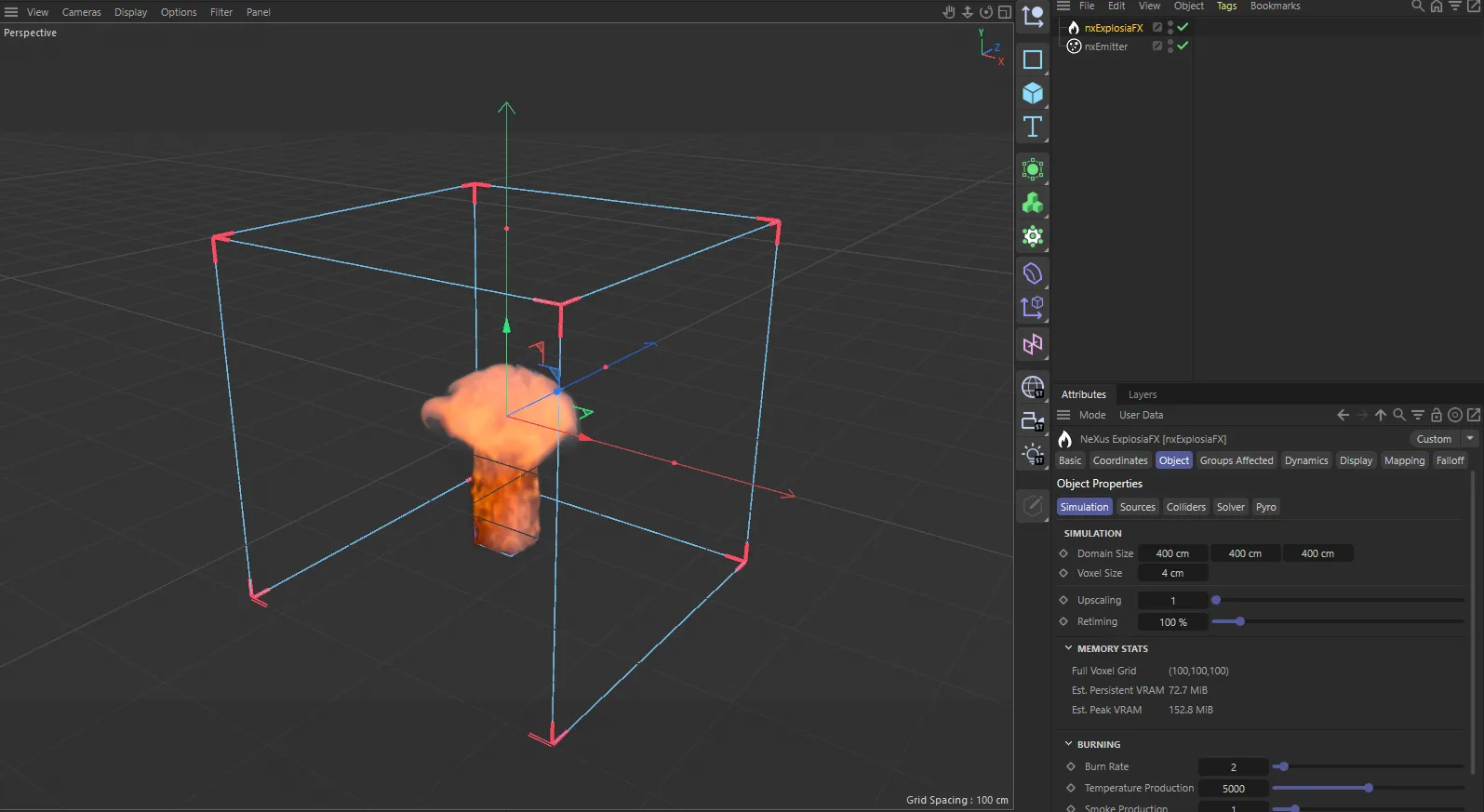
nxExplosiaFX in Cinema 4D. Its settings sit in the Attribute Manager.
Object Properties
Section titled “Object Properties”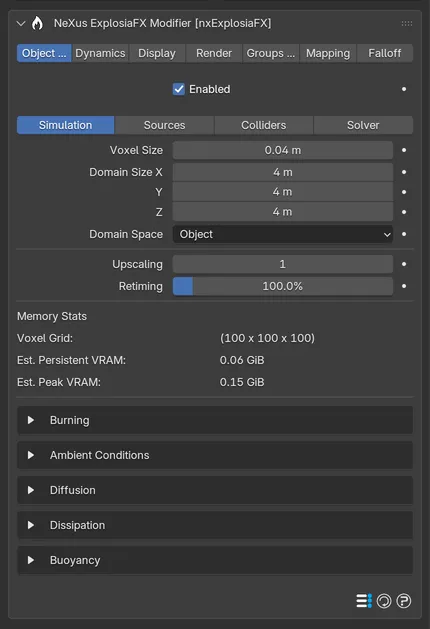
The Object Properties tab holds the core simulation setup. A second button row splits it into four sections: Simulation, Sources, Colliders and Solver.
Enabled
Section titled “Enabled”Turns nxExplosiaFX on or off. Disable it to stop the solve without deleting the modifier.
Simulation
Section titled “Simulation”The Simulation section sets the domain resolution and the physical behavior of the gas.
Voxel Size
Section titled “Voxel Size”The size of each voxel in the simulation grid. Defaults to 0.04m. The domain is divided into cubes of this size. Smaller values give a more detailed simulation but use more memory and are slower to solve, play back and render.
Domain Size
Section titled “Domain Size”The size of the simulation domain box, in X, Y and Z. Defaults to 4m on each axis. You can type the values here or drag the handles on the box in the viewport.
Domain Space Beta 3
Section titled “Domain Space Beta 3”How the smoke behaves when you move the domain. Set as Object, by default.
- Object: the smoke moves with the domain.
- World: the smoke stays in place in the world while the domain moves through it. The domain’s rotation is fixed at the start frame.
- Follow Smoke: the domain starts at the object, then moves by itself to keep the smoke inside.
In World and Follow Smoke the domain box is drawn where the grid really is, which can differ from the object.
Upscaling
Section titled “Upscaling”Increases the spatial resolution of the voxel grid, adding fine detail while keeping the broad shaping of the base-resolution solve. Defaults to 1 (off) and ranges up to 8.
Retiming
Section titled “Retiming”Speeds up or slows down the pacing of the simulation. Defaults to 100%, the natural timing. 200% doubles the speed of the dynamics and 50% halves it.
Memory Stats
Section titled “Memory Stats”A live readout, not an input. It reports the voxel grid dimensions (and the upscaled grid, when Upscaling is above 1) and the estimated persistent and peak VRAM for the current settings and active channels. It updates as you change the domain, voxel size, upscaling and channels.
The remaining Simulation controls are grouped into five collapsible boxes, closed by default.
Burning
Section titled “Burning”These settings govern what happens when fuel ignites.
- Burn Rate: the rate at which available fuel is burned. Defaults to 2.
- Temperature Production: the temperature increase per unit of fuel burned. Defaults to 5000K.
- Smoke Production: the amount of smoke produced per unit of fuel burned. Defaults to 1.
- Gas Expansion: the combustion-induced pressure expansion, which sets how explosive the burn is. Defaults to 2.
- Ignition Temperature: the temperature above which emitted fuel ignites and begins to burn. Defaults to 600K.
Ambient Conditions
Section titled “Ambient Conditions”The background temperature and fuel concentration of the environment far from the emission sources, which can have a subtle effect on the solve.
- Ambient Temperature: defaults to 300K.
- Ambient Fuel: defaults to 0.
Diffusion
Section titled “Diffusion”Diffusion is the rate at which a field, such as smoke or heat, spreads and smooths through the grid. Higher values give a more even distribution and so less contrast in the result.
- Smoke Diffusion, Temperature Diffusion, Fuel Diffusion: the diffusion coefficients for each field. All default to 0.
- Viscosity: diffusion of the velocity field. Raising it smooths out movement and reads as a thicker, more viscous medium. Defaults to 0.
Dissipation
Section titled “Dissipation”Dissipation reduces a field over time.
- Smoke Dissipation: defaults to 1.
- Temperature Dissipation: defaults to 0.5.
- Fuel Dissipation: defaults to 0.
- Velocity Dissipation: reduces velocity over time. Defaults to 0.
Buoyancy
Section titled “Buoyancy”Buoyancy is the composition- and temperature-dependent lift that makes hot smoke rise.
- Gravity: the strength of gravitational acceleration used by the solve. Defaults to 9.81.
- Smoke Buoyancy: raises or lowers how strongly smoke rises. Defaults to 4. A negative value makes smoke sink instead.
- Temperature Buoyancy: defaults to 0.04.
- Fuel Buoyancy: defaults to -20, so unburned fuel tends to sink.
Sources
Section titled “Sources”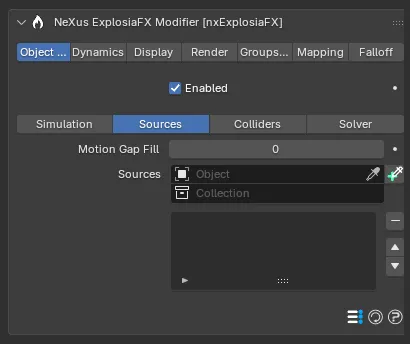
The Sources section is where you set and tune what emits into the simulation.
Motion Gap Fill
Section titled “Motion Gap Fill”When a source moves quickly, applying its emission once per frame leaves gaps. This fills the gaps with additional inter-frame copies of the source. Defaults to 0 and ranges up to 10.
For mesh sources, the value sets the number of extra copies. For spline, curve and emitter sources it acts as an on or off switch, since the numerical value has no effect there.
Sources list
Section titled “Sources list”The list of source objects. You can add meshes, curves, splines and NeXus particle emitters. A green check icon means the source is used; click it to switch it to a red cross and skip that source without removing it.
The per-source settings below the list change with the object type.
Mesh and curves sources
Section titled “Mesh and curves sources”- Emit From: emit from the Surface or the Volume of the mesh. Set as Surface, by default.
- Surface Width: the width, in voxel counts, of the region around the surface that emits at full strength. Defaults to 0.5. Available when Emit From is Surface.
- Taper Width: an additional smoothing region outside the surface region that falls off to zero emission. Defaults to 1. Available when Emit From is Surface.
Below these, Smoke, Temperature, Fuel and Pressure each have a collapsible header with the emission value beside it and a twirl-down arrow that reveals its controls.
- Smoke: the smoke emission value. Defaults to 1.
- Temperature: the emission temperature. Defaults to 1000K.
- Fuel: the amount of fuel emitted, which feeds the flames. Defaults to 0.05.
A new source makes smoke by default, with a little fuel. Scenes saved before Beta 3 keep their old values, which were 0 smoke and 0.2 fuel. Beta 3
- Pressure: air pressure emitted into the solve. Defaults to 10.
Each expanded channel offers a frame limit and a transfer mode.
- Frame Limit: enable it to restrict emission to a range of frames, set with Start and End. This avoids having to keyframe or data-map the value.
- Mode: how the emitted value is transferred to the grid. The options are Set, Blend, Add / sec and Subtract / sec. Set (the default) writes the value, overwriting other sources. Blend mixes the emission with the existing voxel value (which is the better choice when sources overlap) and reveals a Mix percentage. Add / sec and Subtract / sec add or subtract the value per second. Pressure has no Mode.
- Weight By: how the emission is weighted across the source. Set as None (Uniform), by default. The alternatives are Vertex Group, Attribute, Color Attribute, Texture and Noise, each of which reveals its own controls (a group or attribute name, an image with texture coordinates or the noise settings Strength, Length Scale, Octaves, Persistence and Frequency).
Two more controls apply to the whole source.
- Velocity From: the velocity imparted to the fluid from the source. Set as Object Motion, by default, with a percentage of the object’s velocity. The alternatives are Mesh Normals (which emits a velocity magnitude perpendicular to the surface) and Custom (which emits a fixed velocity vector).
- Color: available only when the Color channel is enabled on the Solver section. Color From is set to Object (the object’s viewport display color), by default. It can also be set to Color Attribute or Custom, alongside a percentage of color to transfer.
Spline sources
Section titled “Spline sources”A spline (curve) source emits along its path.
- Custom Radius: enable it to set the emission radius by hand with Emit Radius (defaults to 0.1m). Otherwise the radius is derived automatically.
- Smoke, Temperature, Fuel and Pressure work as above, each with a frame limit. Spline sources have no Weight By control on any channel. Smoke, Temperature and Fuel also expose the Mode control, while Pressure does not.
- Velocity: a percentage of source velocity imparted to the fluid.
- Color: available only when the Color channel is enabled on the Solver section. Color From is set to Object, by default. The alternative is Custom, with a transfer percentage.
Emitter sources
Section titled “Emitter sources”When the source is a NeXus emitter, the particles emit into the grid.
- Smoke, Temperature, Fuel and Pressure work as above, each with a frame limit. The first three also have Mode.
- Velocity: a percentage of particle velocity imparted to the fluid.
- Color: available only when the Color channel is enabled on the Solver section. Color From is set to Particles (the particle colors), by default. The alternative is Custom, with a transfer percentage.
Colliders
Section titled “Colliders”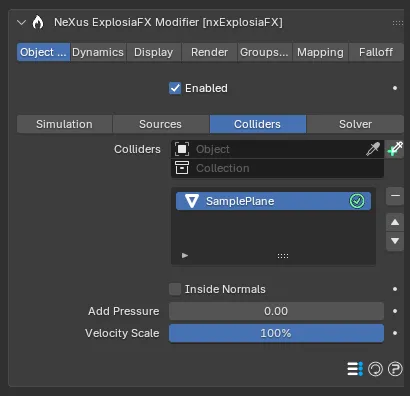
The Colliders section holds the list of objects the fluid collides with. Meshes and curves objects are accepted. Each collider has its own settings.
Inside Normals
Section titled “Inside Normals”Reverses the direction of the mesh normals, so the inside faces are used as the collision surface. Off by default. Enable it to contain the fluid inside a hollow object such as a torus or a bowl.
Add Pressure
Section titled “Add Pressure”Pushes the fluid away from the collider. Defaults to 0. Larger values push harder. A negative value attracts the fluid toward the collider instead.
Velocity Scale
Section titled “Velocity Scale”How much of a moving collider’s velocity is transferred to the fluid. Defaults to 100%. Lower it to pre-scale the velocity before it reaches the solve.
Solver
Section titled “Solver”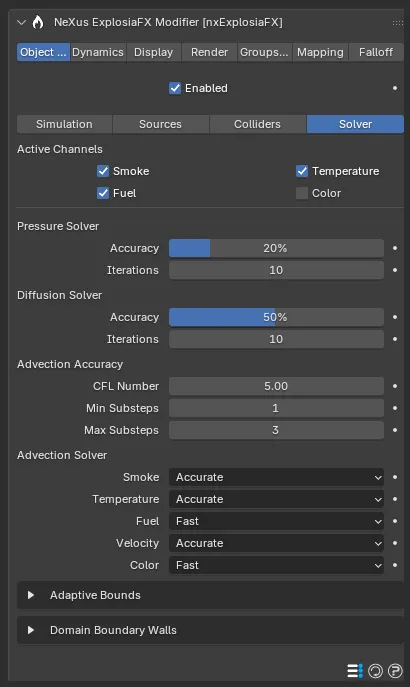
The Solver section controls which channels are simulated and how the numerical solve behaves.
Active Channels
Section titled “Active Channels”Checkboxes for the channels used in the simulation: Smoke, Fuel, Temperature and Color. Smoke, Fuel and Temperature are on by default. Color is off.
A fire needs fuel to burn and heat to ignite it, which then may or may not produce smoke. If you turn off Fuel there is nothing to burn, so you see nothing even though heat is still present. Turn off Temperature and there is nothing to ignite the fuel. Turn off Smoke while burning and you keep the fire but see no smoke.
A source emitting Smoke with no Fuel: a cool, fuel-free plume rises and rolls as pure smoke, with no flame.
The same source emitting plenty of Fuel at a high temperature, with little smoke: the fuel ignites into an open flame.
Enable Color to carry a color field through the solve. You then also set the source Color controls and pick a color-aware display on the Display tab.
Pressure Solver
Section titled “Pressure Solver”The pressure solver keeps the fluid incompressible as it flows. It is iterative and stops when the accuracy is met or the iteration cap is reached.
- Accuracy: defaults to 20%.
- Iterations: the maximum iterations. Defaults to 10.
Diffusion Solver
Section titled “Diffusion Solver”Used when diffusion is enabled on the Simulation section. It is also iterative and stops on accuracy or the iteration cap.
- Accuracy: defaults to 50%.
- Iterations: defaults to 10.
Advection Accuracy
Section titled “Advection Accuracy”Advection is the transport of a quantity, such as smoke or velocity, by the motion of the fluid.
- CFL Number: sets how the solver adaptively chooses its subframe steps. It lets the fastest part of the fluid move a distance (in voxel counts) equal to this value in one step. If the fluid moves faster, extra substeps are added up to the maximum. Defaults to 5.
- Min Substeps: the minimum subframe steps per frame. Defaults to 1.
- Max Substeps: the maximum subframe steps per frame. Defaults to 3.
Advection Solver
Section titled “Advection Solver”Each transported field can use a Fast or an Accurate algorithm. Fast is quicker and lighter on memory. Accurate is slower and the most detailed. It holds fine features best.
The defaults are Accurate for Smoke, Temperature and Velocity. Fuel and Color default to Fast.
Adaptive Bounds
Section titled “Adaptive Bounds”Rather than solve every voxel in the domain, the solver can solve only the region where something is happening, adjusting that region as the simulation runs. This is much faster, so leave it enabled unless you specifically need the whole domain solved every step.
- Enabled: on by default.
- Extra Voxels: padding voxels added around the active region. Defaults to 4.
- Track Channels: to size the region the solver tracks one or more channels. Smoke, Temperature, Fuel, Velocity and Color can each be tracked (all on by default). Each has a Threshold, the minimum value that must be present in a voxel for it to count as active. Smoke defaults to 0.002, temperature to 500K, fuel to 0.01, velocity to 250 and color to 0.01.
Domain Boundary Walls
Section titled “Domain Boundary Walls”Toggles that close each face of the domain: +X, -X, +Y, -Y, +Z and -Z. All are open by default. A closed wall contains the fluid at that face instead of letting it flow out.
Dynamics
Section titled “Dynamics”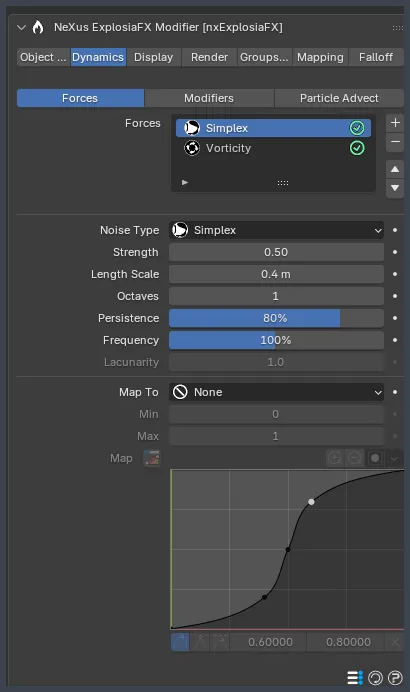
The Dynamics tab adds motion and integration to the flow. A button row splits it into Forces, Modifiers and Particle Advection.
Forces
Section titled “Forces”A stack of force layers applied to the fluid velocity. Click the + button to open a type picker: Turbulence, Vorticity or Wind. A new domain starts with a Turbulence layer and a Vorticity layer already added. A turbulence layer is listed by its noise type, so the default one reads as Simplex. Each layer has a green check to disable it and can be deleted if not needed.
Every layer ends with the same strength data-mapping controls.
- Map To: maps the layer strength to a local field so the force varies through the domain. Set to None, by default, which grays out the controls below. The options are Smoke, Temperature, Fuel, Color (R), Color (G), Color (B), Velocity (x), Velocity (y), Velocity (z), Speed, Position (x), Position (y), Position (z), Pressure and Document Time.
- Min, Max: the range of the mapped field. Defaults to 0 and 1.
- Map: a curve that remaps the field to the force strength.
Turbulence layer
Section titled “Turbulence layer”Adds turbulent noise to the flow.
- Noise Type: set as Simplex, by default. The alternatives are Turbulence, Wavy Turbulence, Voronoise, FBM and Cubic.
- Strength: the strength of the turbulence. Defaults to 0.5.
- Length Scale: the primary scale of the noise. Defaults to 0.4m.
- Octaves: the number of octaves, which sets the level of fine detail. Defaults to 1.
- Persistence: how the amplitude decays per octave. Defaults to 80%.
- Frequency: the animation speed of the noise. Defaults to 100%.
- Lacunarity: how quickly the frequency rises per octave. Defaults to 1. Available for every noise type except Simplex.
Vorticity layer
Section titled “Vorticity layer”Amplifies existing rotational motion in the velocity field, restoring swirling detail that would otherwise be lost to numerical dissipation. Its only control is Strength (defaults to 0.5), plus the Map To mapping.
Wind layer
Section titled “Wind layer”Adds a directional wind force.
- Strength: the wind strength. Defaults to 0.5.
- Variation: a random variation added to the strength. Defaults to 0%.
- Direction: the world-space wind direction. Defaults to pointing along -X.
Modifiers
Section titled “Modifiers”A list of NeXus modifiers applied to the flow. Drop the modifiers you want into the list, for example nxDirection or nxAttract, to steer the fluid with the standard NeXus forces. A green check disables an entry without removing it.
Particle Advection
Section titled “Particle Advection”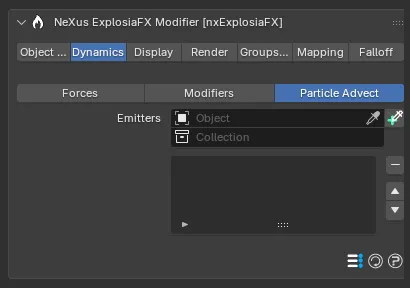
Add a NeXus emitter here and its particles are carried along by the fluid’s velocity field, following the motion of the simulation. Once an emitter is in the list, per-emitter settings appear.
- Advect Mode: how the flow affects the particles. Set as Velocity, by default, so a particle takes its velocity from the local flow. Direction inherits only the flow direction, not the speed. Position traces the flow without updating velocity.
- Strength: how strongly the flow changes the particle motion. Defaults to 100%.
- Property Transfer: how field values are written to the particles. Set (the default) writes the value directly. Add adds it to the particle’s existing value.
- Smoke, Fuel, Temperature, Color: the percentage of each field transferred to the particles. Smoke, Fuel and Temperature default to 100%, Color to 0%.
Display
Section titled “Display”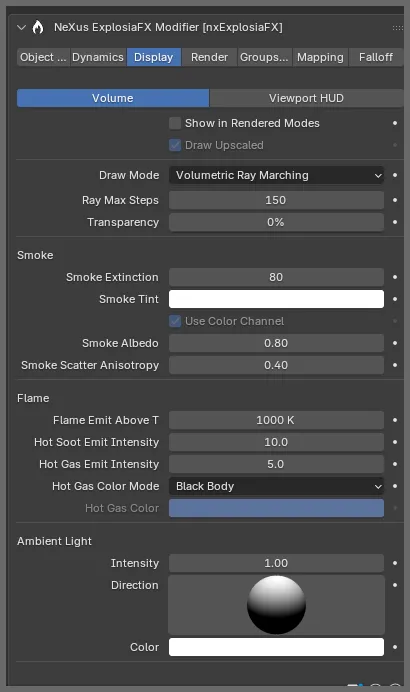
The Display tab controls how the simulation is drawn in the viewport, with no effect on a final render. A button row splits it into Volume and Viewport HUD.
Volume
Section titled “Volume”Show in Rendered Modes
Section titled “Show in Rendered Modes”Keeps the NeXus viewport preview visible in Material Preview and Rendered shading. Off by default, so Cycles and Eevee can draw the volume from its own material without the preview overlapping. See the Render tab for that pipeline.
Draw Upscaled
Section titled “Draw Upscaled”Draws the volume from the upscaled solve rather than the base solve. On by default. Available only when Upscaling is above 1.
Draw Mode
Section titled “Draw Mode”The renderer used for the viewport volume. Set as Volumetric Ray Marching, by default. The alternatives are Off (no drawing) and Volume Slicing.
Volumetric Ray Marching options
Section titled “Volumetric Ray Marching options”A physically based ray marcher for smoke and fire.
- Ray Max Steps: the number of ray-marching steps per pixel. Higher values raise quality and cost. Defaults to 150.
- Transparency: an overall transparency applied to the visualization. Defaults to 0%.
The Smoke controls:
- Smoke Extinction: how densely the smoke absorbs light. Higher is denser. Defaults to 80.
- Smoke Tint: a per-channel absorption tint for the smoke. White by default.
- Use Color Channel: tints the smoke with the simulation color field where present. On by default. Available when the Color channel is enabled.
- Smoke Albedo: the single-scattering albedo, from 0 (pure absorption) to 1 (pure scattering). Defaults to 0.8.
- Smoke Scatter Anisotropy: the scattering direction, from -1 (back toward the light) through 0 (even) to +1 (forward). Defaults to 0.4.
The Flame controls:
- Flame Emit Above T: the temperature above which flame emission begins. Defaults to 1000K.
- Hot Soot Emit Intensity: the brightness of the incandescent glow from hot soot. Defaults to 10.
- Hot Gas Emit Intensity: the emission intensity of hot gas. Defaults to 5.
- Hot Gas Color Mode: set as Blackbody, by default, for realistic heat-dependent color. Manual instead uses the Hot Gas Color below.
- Hot Gas Color: a custom hot-gas color, available when Hot Gas Color Mode is Manual.
The Ambient Light controls provide a uniform directional light that illuminates the volume, like an external lamp.
- Intensity: the brightness of the light. Defaults to 1.
- Direction: the world-space direction toward the light.
- Color: the color of the light. White by default.
Volume Slicing options
Section titled “Volume Slicing options”Draws the volume as a stack of camera-facing slices, which is also how you view individual fields such as color or speed.
- Display Channel: the field shown through the slices. Set as Smoke + Temperature, by default. The alternatives are Smoke + Fuel, Temperature, Smoke, Fuel, Color and Speed. Each choice reveals its own Style box with color and opacity gradients and opacity clips. The Temperature channels add a Color Mode of Blackbody or Manual.
- Slices: the number of slicing planes. More slices give more detail and a smoother look at the cost of viewport performance. Defaults to 256.
- Transparency: the overall transparency of the slice stack. Defaults to 20%.
Viewport HUD
Section titled “Viewport HUD”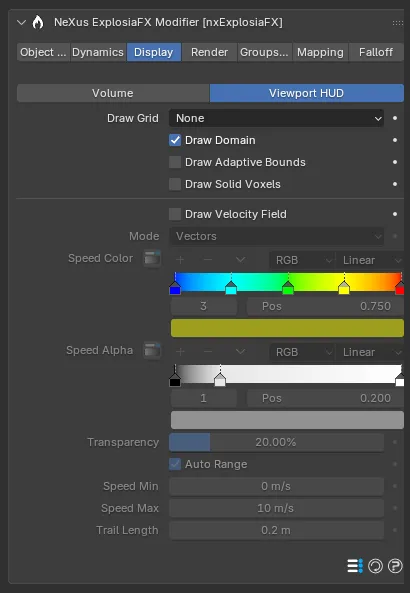
Diagnostic overlays for inspecting the solve.
Draw Grid
Section titled “Draw Grid”Controls how the voxel grid is drawn. Set as None, by default. The alternatives are Voxels, Back Only, Base Only and Base and Back.
Draw Domain
Section titled “Draw Domain”Draws the outline of the full simulation domain. On by default.
Draw Adaptive Bounds
Section titled “Draw Adaptive Bounds”Marks the voxels inside the adaptive region as it adapts to the solve. Off by default. Available when Adaptive Bounds is enabled.
Draw Solid Voxels
Section titled “Draw Solid Voxels”Marks the voxels treated as solid colliders. Off by default.
Draw Velocity Field
Section titled “Draw Velocity Field”Visualizes the fluid velocity. Off by default. Enabling it reveals the controls below. This is memory-intensive.
- Mode: draw the field as Vectors (one arrow per voxel, the default) or Trails (streamlines that follow the flow).
- Speed Color, Speed Alpha: gradients mapping speed to color and opacity.
- Transparency: the overall transparency of the display. Defaults to 20%.
- Auto Range: determines the speed color range automatically. On by default. Disable it to set Speed Min and Speed Max by hand.
- Trail Length: the length of the velocity trails, in scene units. Defaults to 0.2m. Available in Trails mode.
Render
Section titled “Render”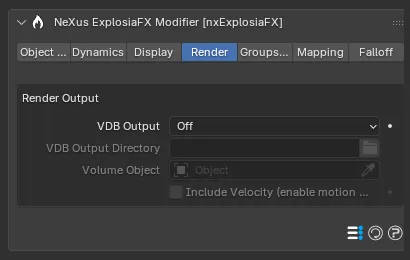
The Render tab exposes the simulation to Cycles and Eevee by writing per-frame OpenVDB files that feed a Volume object.
VDB Output
Section titled “VDB Output”When to write the OpenVDB files. Set as Off, by default. On Render writes them only when rendering (an F12 or animation render). Live writes them on every frame change as well as on render, so a viewport in Cycles or Eevee shading stays in sync while you scrub.
VDB Output Directory
Section titled “VDB Output Directory”The folder for the per-frame .vdb files. Leave it empty to use Blender’s session temp directory. Available when VDB Output is not Off.
Volume Object
Section titled “Volume Object”The linked Volume datablock that exposes the simulation to the renderers.
Include Velocity
Section titled “Include Velocity”Writes the velocity vector field into the VDBs so renderers can apply volumetric motion blur. Off by default.
Groups Affected
Section titled “Groups Affected”When a source is a NeXus emitter, you can restrict which particle groups are advected by adding the group objects to this list. If the list is empty, all groups from that emitter are advected.
Mapping
Section titled “Mapping”The Mapping tab adds mapping layers that vary nxExplosiaFX across space and other fields.
For full details on how Mapping works, see the dedicated page:
Falloff
Section titled “Falloff”Use the Falloff options to limit where nxExplosiaFX operates.
Copyright © 2026 INSYDIUM LTD. All Rights Reserved.