

nxMaterial Beta
nxMaterial is a one-click MPM material setup. Pick it from the Add menu and NeXus builds a complete, ready-to-solve block of material for you: snow, sand, elastic, brittle, metal, foam or liquid.
Setting up an MPM simulation by hand means adding an emitter, an nxMPM solver, a surface mesher and gravity, then sizing the particles to suit the solver grid. nxMaterial does all of that from a single menu click.
Add it from Add ▸ INSYDIUM NeXus ▸ Presets ▸ nxMaterial, next to nxLiquid Fill and nxLiquid Flow.
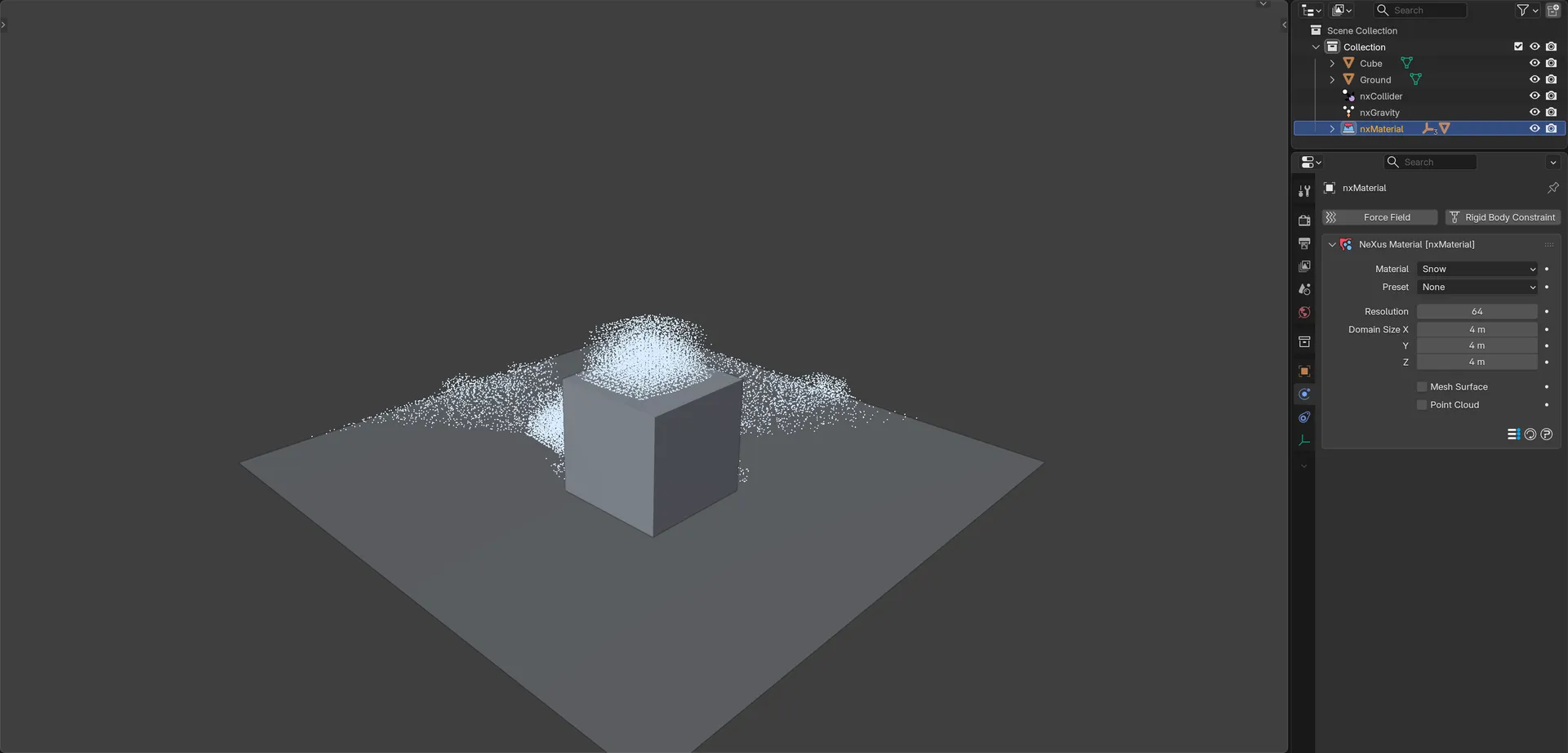
Snow from a one-click nxMaterial setup, dropped onto a cube and slumping off its sides, with the NeXus Material panel.
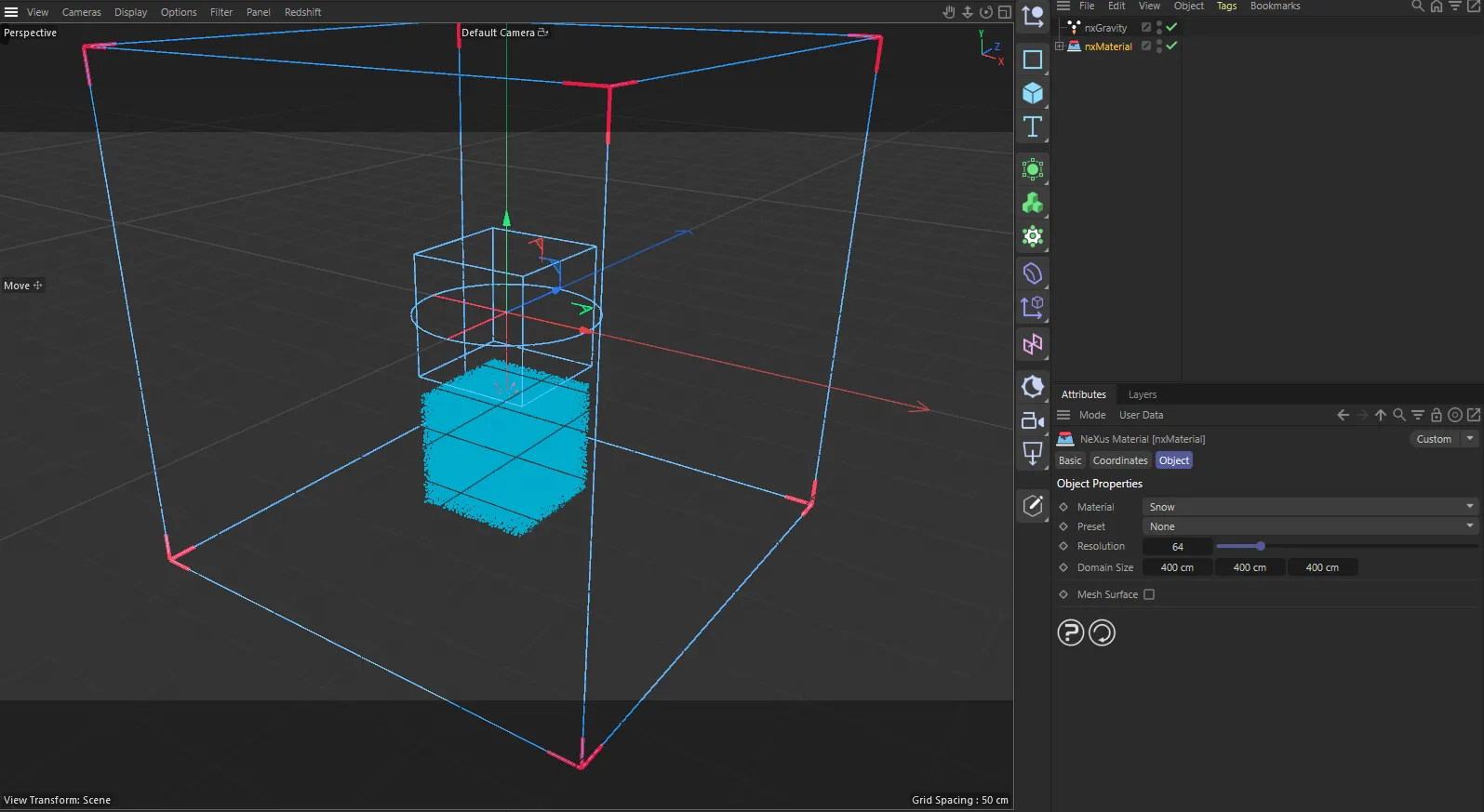
nxMaterial in Cinema 4D. The settings are the same and sit in the Attribute Manager.
What one click builds
Section titled “What one click builds”nxMaterial adds a small stack of NeXus objects, sizes them to fit each other and parents them under a single empty named nxMaterial. The empty is selected when the setup is built. Selecting it gives you the whole setup and the NeXus Material control panel described below.
The stack is:
- An nxEmitter set to Shot emission from a Box shape, with a Speed of 0, so the material starts at rest and drops under gravity. Match Solver Resolution is on and linked to the new nxMPM, so the particles are sized and spaced to fill the solver grid evenly.
- An nxMPM solver set to Snow, with a Resolution of 64. Its domain is centered on the emitter and sized to contain it, at least 4m on each side.
- An nxMesher, using a Zhu-Bridson surface. It is created disabled so you can solve and preview quickly, then turn it on to build a render surface.
- An nxGravity so the material falls. An existing scene gravity is reused if there is one, rather than adding a second.
The objects are also grouped together in the NeXus pipeline, so the setup is easy to find and move as a unit.
The NeXus Material control panel
Section titled “The NeXus Material control panel”Select the group empty and open Properties ▸ Physics. The NeXus Material panel gathers the settings you reach for most often into one place, so you can shape the material without selecting each child object.
Material
Section titled “Material”The material model the nxMPM solver uses. The setup sets it to Snow. The alternatives are Liquid, Elastic, Sand, Brittle, Metal and Foam. See Material on the nxMPM page for what each one does.
Preset
Section titled “Preset”A named real-world recipe for the chosen Material, such as Snow, packed, Sand, wet, Glass, bottle or Metal, steel. Picking one sets every material setting on the nxMPM at once. The list only offers presets for the current Material. Changing the Material sets Preset back to None.
Resolution
Section titled “Resolution”Voxels along the longest side of the nxMPM domain. The setup sets it to 64. Higher is finer and slower. Because the emitter matches the solver resolution, changing this also resizes the particles so the whole setup stays consistent.
Domain Size
Section titled “Domain Size”The size of the nxMPM domain box on each axis. Present only while the nxMPM’s Use Bounds is on.
Mesh Surface
Section titled “Mesh Surface”Turns the nxMesher on or off. Leave it off while you dial in the motion, then turn it on to generate the render surface. Present only when the setup has a mesher.
Point Cloud
Section titled “Point Cloud”Creates a Blender Point Cloud object from the particles. Off by default. This is the emitter’s Create Point Cloud setting.
The panel footer has the usual Preset, Reset and Help buttons. Reset returns the setup to its starting state: the nxMPM goes back to its defaults with Material set to Snow and Resolution set to 64, but keeps its Domain Size. The emitter’s Speed goes back to 0, Point Cloud turns off, Match Solver Resolution turns back on and the mesher is disabled.
Building on the setup
Section titled “Building on the setup”nxMaterial gives you a working starting point, not a locked preset. Each object in the stack is an ordinary NeXus object, so you can select any of them and tune it fully. Open the nxMPM solver for the full material, substep, sleep and fracture controls. Its Materials tab gives other emitters their own materials. Open the nxEmitter to change the shape or source of the material. Open the nxMesher to shape the render surface.
To pin part of the material in place, add an nxPin. To drive an existing mesh from the simulated particles instead of meshing them, use an nxDeformer.
In Cinema 4D
Section titled “In Cinema 4D”Choose INSYDIUM ▸ NeXus ▸ Presets ▸ nxMaterial. It builds the same objects under a NeXus Material object, which carries the same controls. Domain Size is always shown, there is no Point Cloud option and lengths are in cm.
Copyright © 2026 INSYDIUM LTD. All Rights Reserved.