

nxSheeter
nxSheeter fills thin, stretching fluid films with new particles, so a sheet of liquid holds together instead of tearing early into isolated droplets.
As a fluid stretches into a thin sheet, gaps open between its particles and the film breaks up. nxSheeter watches for those thinning regions and inserts fresh particles into the gaps, bridging them so the sheet stays continuous. It runs on top of an existing NeXus fluid and only ever adds its own particles: it never moves or removes the source fluid.
Add it from Add ▸ INSYDIUM NeXus ▸ Dynamics ▸ nxSheeter. It arrives as an empty and all of its settings live in Properties ▸ Physics. Point it at a fluid by adding the fluid’s nxGroup to Groups Affected or leave that empty to act on every particle.
A fast jet of liquid slams into Suzanne and bursts into a sheet of spray. nxSheeter continuously refills the stretching film as it fans out, so the splash reads as connected sheets of water rather than breaking straight up into loose droplets.
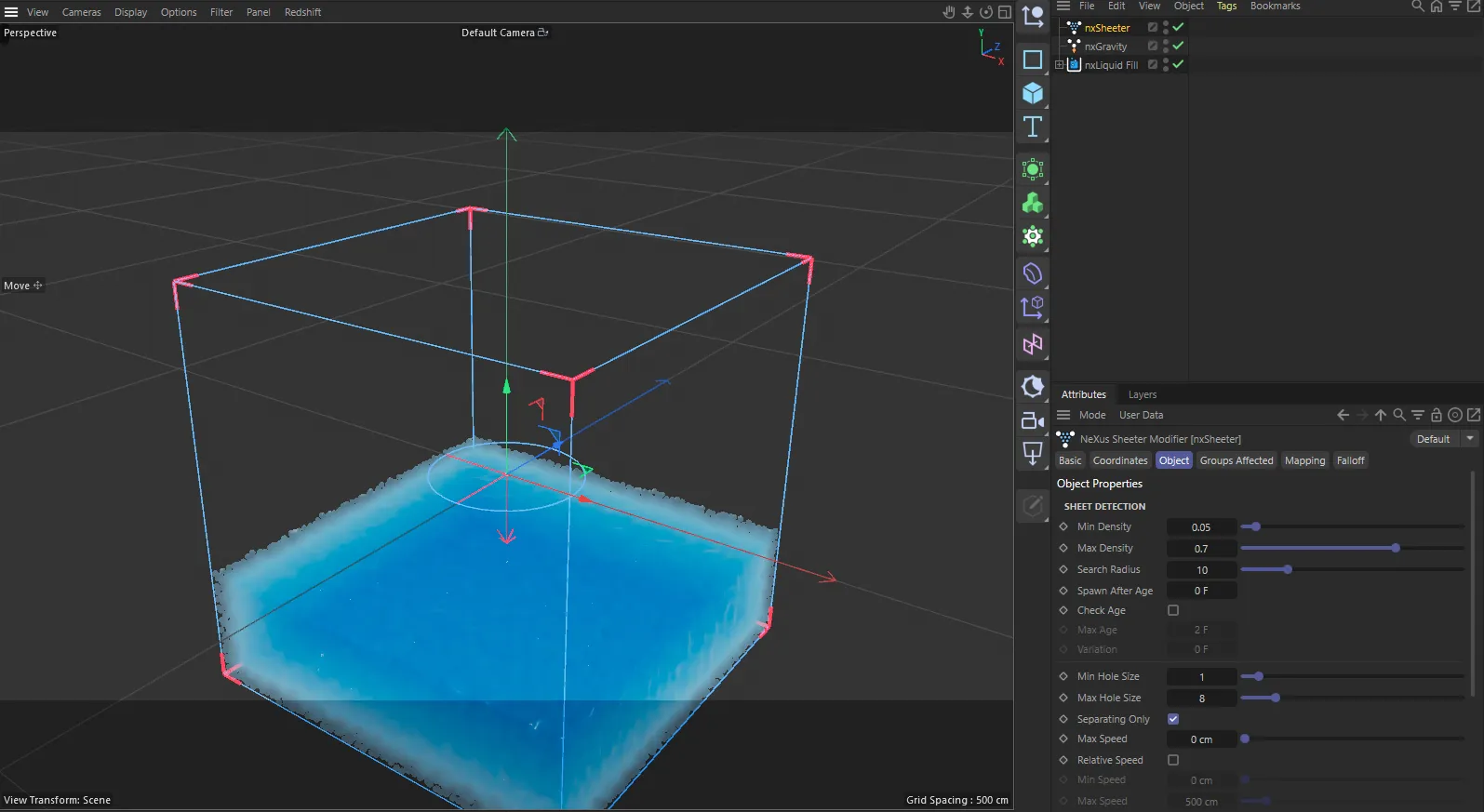
nxSheeter in Cinema 4D. Its settings sit in the Attribute Manager.
Object Properties
Section titled “Object Properties”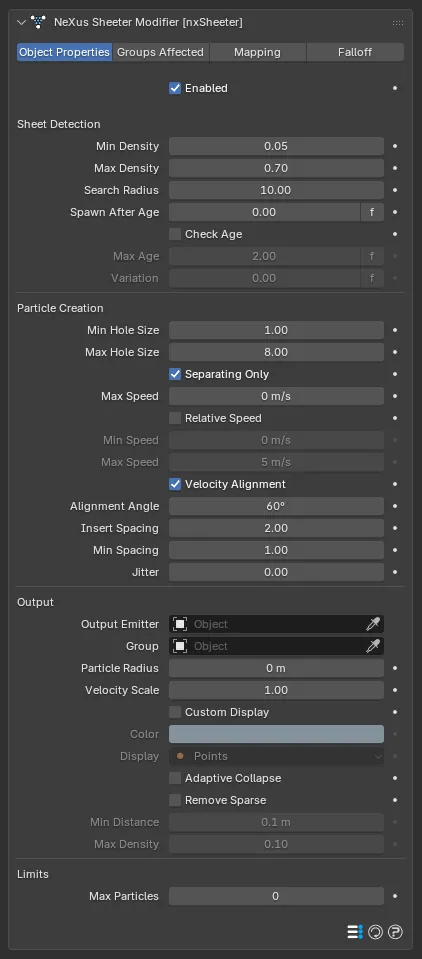
The nxSheeter panel in Properties ▸ Physics, on the Object Properties tab. Its controls are grouped into four sections: Sheet Detection, Particle Creation, Output and Limits.
nxSheeter off
nxSheeter on
The same jet fanning off the disc, shown as its individual fluid particles. With nxSheeter off, on the left, the thin sheet is undersampled and tears into a sparse scatter of separated droplets. With it on, on the right, fresh particles are inserted into the gaps, so the film fills in and spreads as one continuous sheet.
Enabled
Section titled “Enabled”Turns nxSheeter on or off. Disable it to stop the fill without deleting the modifier or losing its settings.
Sheet Detection
Section titled “Sheet Detection”Decides which parts of the fluid count as a thin sheet worth filling.
Min Density
Section titled “Min Density”The lowest density that still counts as a sheet to fill. Film below this is too sparse and is left to tear into droplets. Raise it to break thin film into spray sooner. Defaults to 0.05.
Max Density
Section titled “Max Density”Fluid denser than this is left alone, so only the surface film is filled and not the bulk of the body. Defaults to 0.7.
Search Radius
Section titled “Search Radius”The size of the neighborhood used to detect sheets, measured in particle radii. It needs to be large enough to span a few neighboring particles. Defaults to 10.
Spawn After Age
Section titled “Spawn After Age”How long a particle must exist before the sheeter fills around it. 0 (zero) fills immediately. Raise it so sheets only form once the fluid has been moving. Defaults to 0.
This is a time value, with a clickable f/s toggle to set it in frames or seconds. The same toggle appears on every time control on this page.
Check Age
Section titled “Check Age”Stops sheeting a particle once it is older than the Max Age below, so only freshly moving fluid forms sheets. Off by default. When on, it enables the two controls below.
Max Age
Section titled “Max Age”Particles older than this are no longer sheeted. Defaults to 2. Enabled by Check Age.
Variation
Section titled “Variation”A per-particle random spread around the Max Age, so the cutoff is not a hard line. Defaults to 0. Enabled by Check Age.
Particle Creation
Section titled “Particle Creation”Controls how the gaps are found and how densely they are filled.
Min Hole Size
Section titled “Min Hole Size”The smallest gap worth filling, in radii. Below this the film is already dense enough. Defaults to 1.
Max Hole Size
Section titled “Max Hole Size”The largest gap to bridge, in radii. Bigger gaps are left as real tears rather than filled. This is capped by Search Radius. Defaults to 8.
Separating Only
Section titled “Separating Only”Only fills pairs of particles that are moving apart, so sheeting happens where the film is actively stretching. On by default.
Max Speed
Section titled “Max Speed”Skips particles moving faster than this, so fast ballistic spray is left to fly instead of being sheeted. 0 (zero) turns the speed gate off, which is the default. This is a velocity value.
Relative Speed
Section titled “Relative Speed”Only fills pairs whose closing or separating speed falls inside the range below. Off by default. When on, it enables the two speed controls below.
Min Speed
Section titled “Min Speed”The lowest pair relative speed that still sheets. Defaults to 0. Enabled by Relative Speed.
Max Speed
Section titled “Max Speed”The highest pair relative speed that still sheets. Defaults to 5. Enabled by Relative Speed.
Velocity Alignment
Section titled “Velocity Alignment”Only fills toward partners that lie along the particle’s direction of motion, within the Alignment Angle below. On by default.
Alignment Angle
Section titled “Alignment Angle”The half-angle of the velocity-alignment cone. Wider fills more of the sheet, narrower restricts the fill to the direction of motion. Defaults to 60°, up to a maximum of 90°. Enabled by Velocity Alignment.
Insert Spacing
Section titled “Insert Spacing”The spacing held between inserted particles, in radii. This is the main density lever: smaller packs more particles in, larger fills sparser. Defaults to 2.
Min Spacing
Section titled “Min Spacing”The closest an insert may sit to another particle, in radii. 1 keeps the sheet from overlapping. Lower it to over-pack, which adds pressure that helps a splash push out. It is bounded only by Max Particles. Defaults to 1.
Jitter
Section titled “Jitter”A random offset added to each inserted particle, in radii, to break up the even lattice for a more natural look. 0 (zero) is a perfectly even fill, which is the default.
Output
Section titled “Output”Controls where the new particles go and how they look.
Output Emitter
Section titled “Output Emitter”The emitter to create the new particles in. Only an nxEmitter can be picked. Leave it empty to add the particles to the source fluid.
Click the + button beside the field to create a new nxEmitter and link it here in one step. The new emitter has its birth rate and speed set to 0, so it emits nothing of its own and only holds the particles nxSheeter adds. Beta
The nxGroup to add the new particles to. Leave it empty to inherit the source particle’s group.
Click the + button beside the field to create a new nxGroup and link it here. Beta
Particle Radius
Section titled “Particle Radius”The radius of the new particles. 0 (zero) inherits the source particle’s radius, which is the default.
Velocity Scale
Section titled “Velocity Scale”Scales the velocity the new particles inherit from the fluid. Leave it at 1 to match the fluid. Defaults to 1.
Custom Display
Section titled “Custom Display”Gives the new particles a fixed color and display mode instead of inheriting the source particle’s. Off by default. When on, it enables the Color and Display controls below.
The color of the new particles when Custom Display is on. Defaults to a light blue.
Display
Section titled “Display”How the new particles are drawn in the viewport. It offers the same set of shapes as an emitter’s display mode and defaults to Points. Enabled by Custom Display.
Adaptive Collapse
Section titled “Adaptive Collapse”Removes this modifier’s added particles once their region thickens back into bulk fluid. It never affects the source fluid. Off by default.
Remove Sparse
Section titled “Remove Sparse”Culls this modifier’s inserted particles once they are left isolated, so stray sheet particles do not linger after the film tears away. It never touches the source fluid. Off by default. When on, it enables the two controls below.
Min Distance
Section titled “Min Distance”An insert with no neighbor within this distance counts as isolated and is removed. Defaults to 0.1. Enabled by Remove Sparse.
Max Density
Section titled “Max Density”An insert whose local density falls below this counts as sparse and is removed. Defaults to 0.1. Enabled by Remove Sparse.
Limits
Section titled “Limits”Max Particles
Section titled “Max Particles”Stops adding particles once the total reaches this count. 0 (zero) means unlimited, which is the default. Use it as a hard budget on how many particles the fill can create.
Groups Affected
Section titled “Groups Affected”Use the Groups Affected tab to restrict nxSheeter to particles in specific nxGroup groups, so it fills only the fluid you point it at rather than every particle in the scene. Leave it empty to affect all particles.
Mapping
Section titled “Mapping”Use the Mapping tab to drive nxSheeter’s settings from particle data instead of fixed values. See Mapping for how this works.
Falloff
Section titled “Falloff”Use the Falloff tab to limit where nxSheeter acts. Add one or more nxFalloff objects to the list and blend them, so only particles inside the falloff region are filled.
Copyright © 2026 INSYDIUM LTD. All Rights Reserved.